
Claude Code auto mode: What it is and how to enable it
Repeated permission prompts can slow down your coding just as much as a failing test. Claude Code auto mode reduces these interruptions by automatically evaluating permissions, without bypassing checks entirely. This guide walks you through checking availability, confirming your active mode, comparing alternatives, and picking appropriately scoped tasks safely.
What is Claude Code auto mode and how does it work?
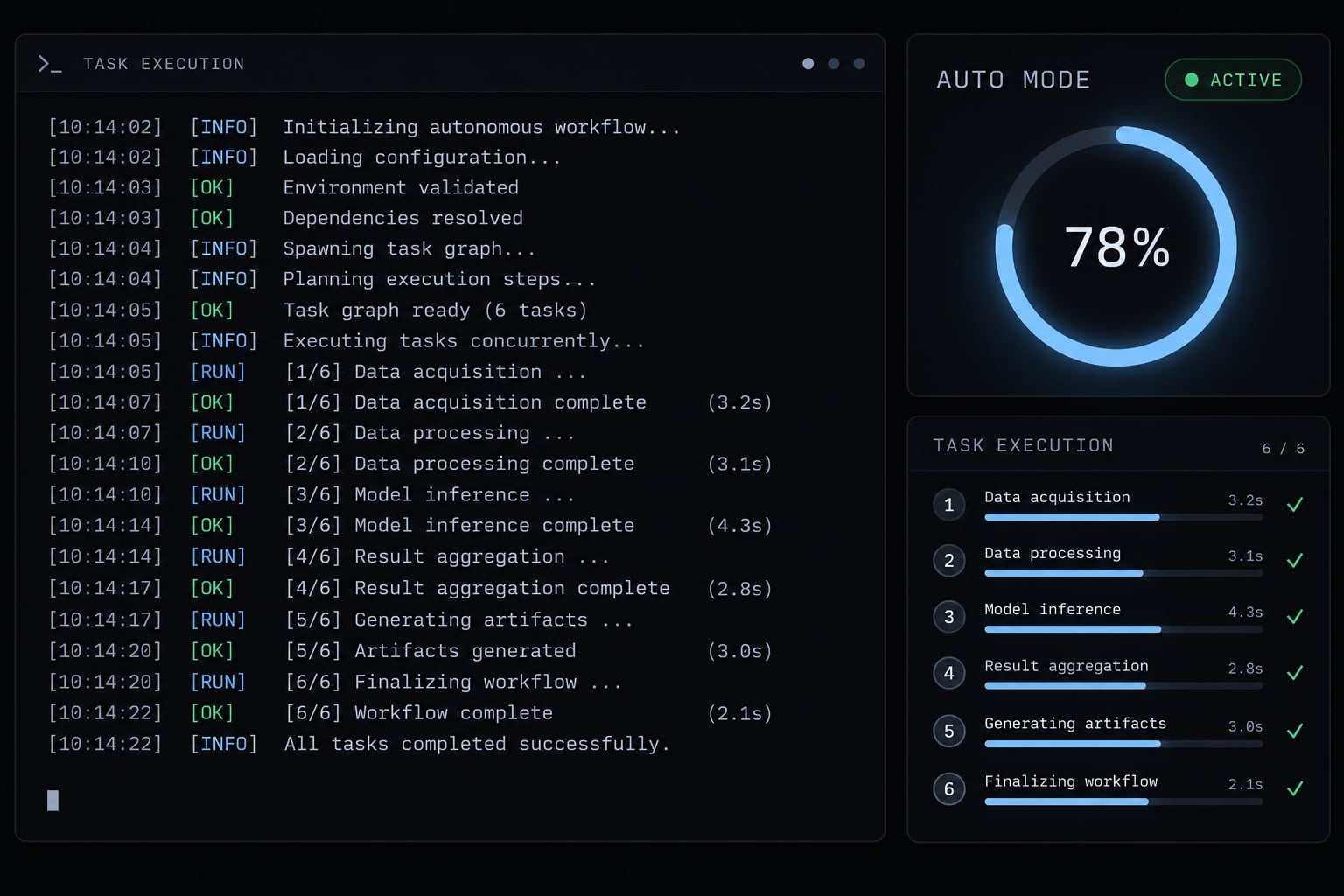
Claude Code auto mode is a permission-handling mode that automatically evaluates proposed actions instead of relying entirely on repeated manual approvals. It is distinct from bypassing permission checks. Availability and exact behavior depend on the installed release, interface, and applicable organization settings; automatic evaluation does not guarantee correct code or safe outcomes.
Why repeated approvals become a problem
Multi-step tasks often involve checking files, editing tests, and fixing errors. Constant approvals can lead to approval fatigue, causing users to accept requests without checking the consequences. Auto addresses the approval workflow. It does not transfer responsibility for reviewing the finished work.
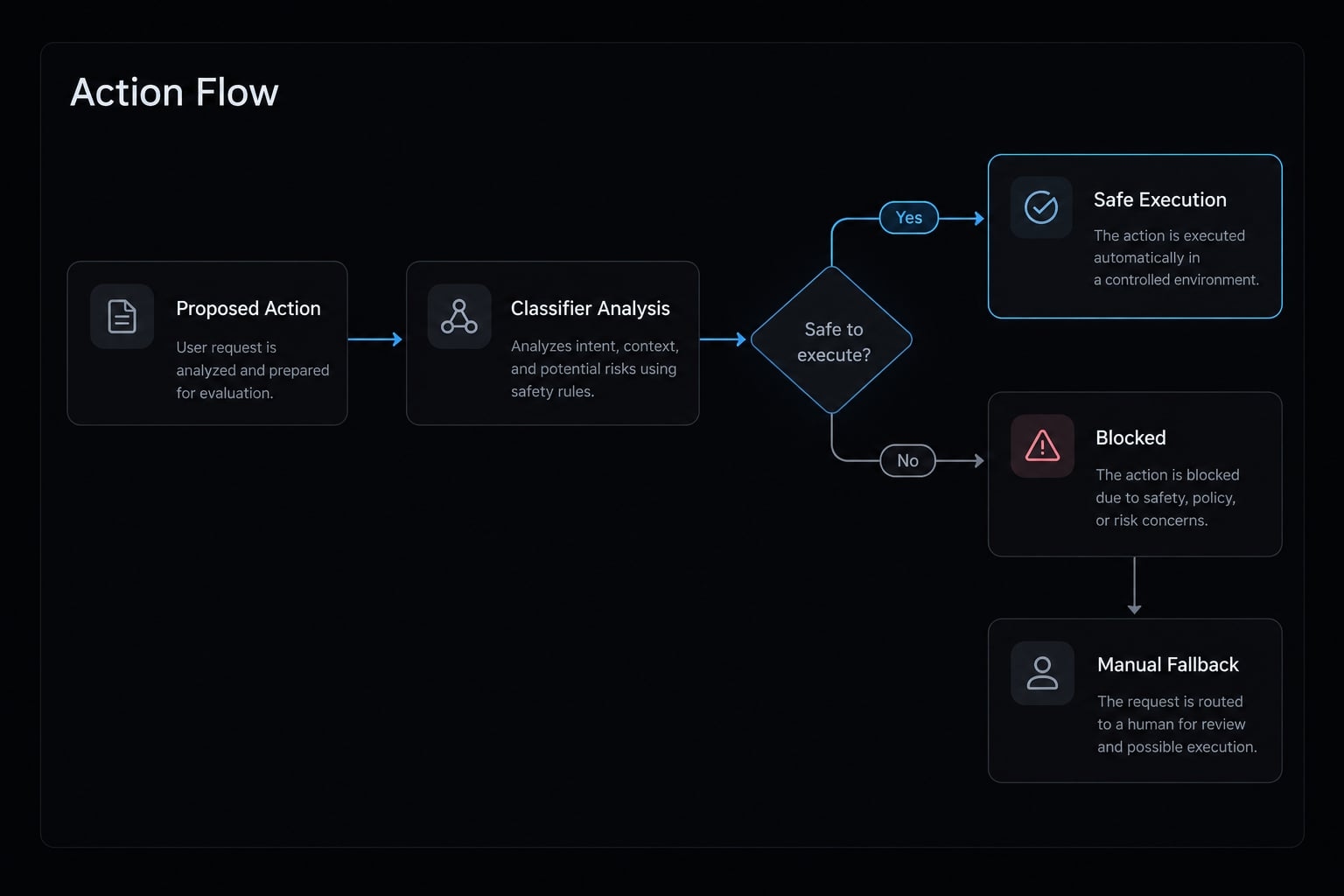
What happens before an action runs
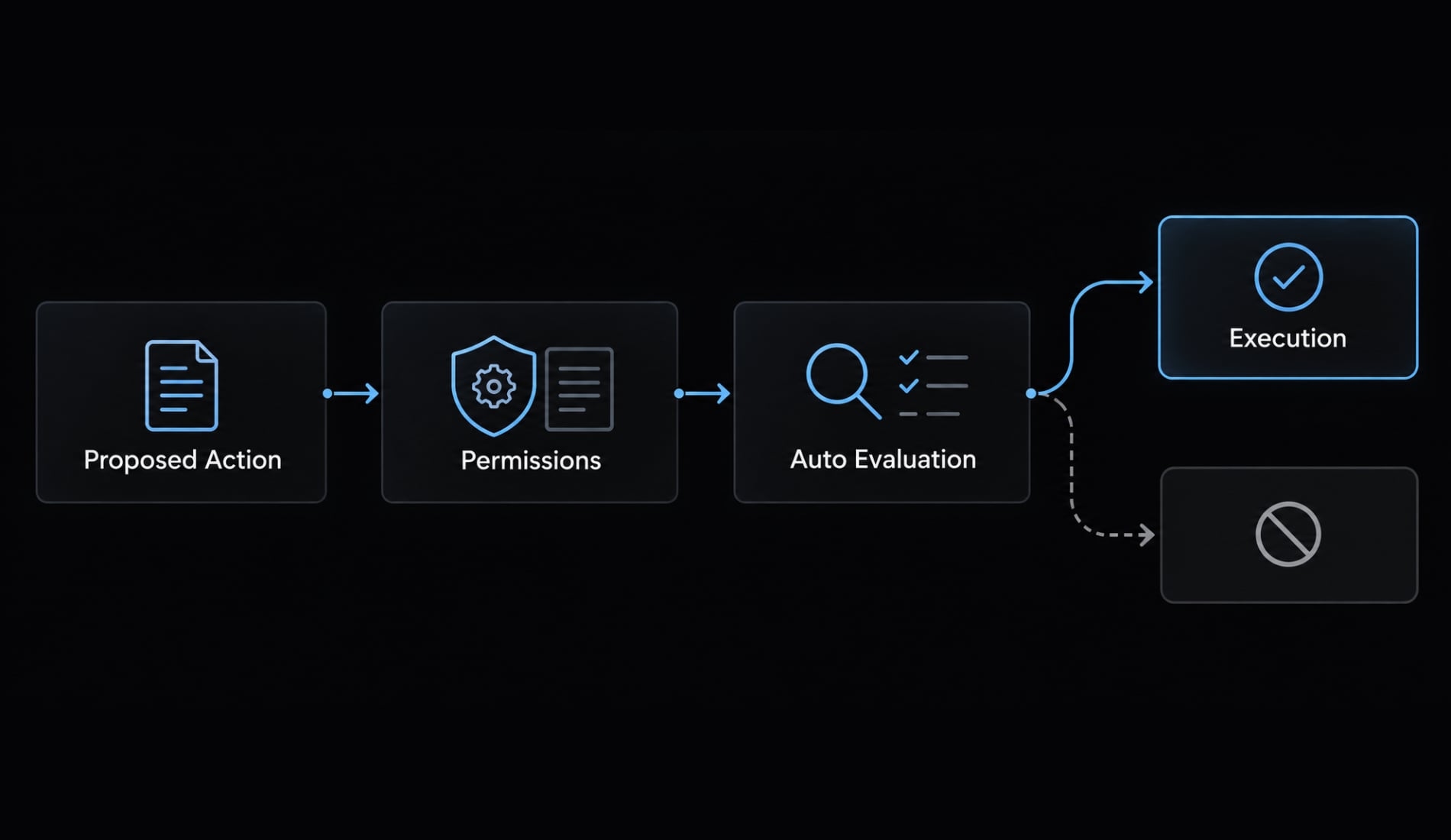
At a high level:
- Claude proposes an action, such as editing a file or running a command.
- Applicable Claude Code permissions and policy constraints are considered.
- Auto applies the evaluation behavior available in that release.
- The action proceeds or encounters the applicable restriction or approval requirement.
Consult Anthropic’s Claude Code permissions documentation for current behavior and rule precedence. Please keep in mind that not every action goes through the exact same evaluation process.
What Auto does not guarantee
Automated evaluation can still make mistakes. An approved command can produce faulty code, run an unintended script, or connect to an external service using existing credentials. Permission approval is not a code-quality guarantee. Safety guardrails also do not replace restricted credentials, environment isolation, or human review.
How to enable Claude Code auto mode
Follow this six-step sequence:
- Check the installed version.
- Confirm documented account and interface availability.
- Check organization restrictions.
- Use the activation method supported by that release.
- Confirm that the active mode explicitly says Auto.
- Run a small, reversible task.
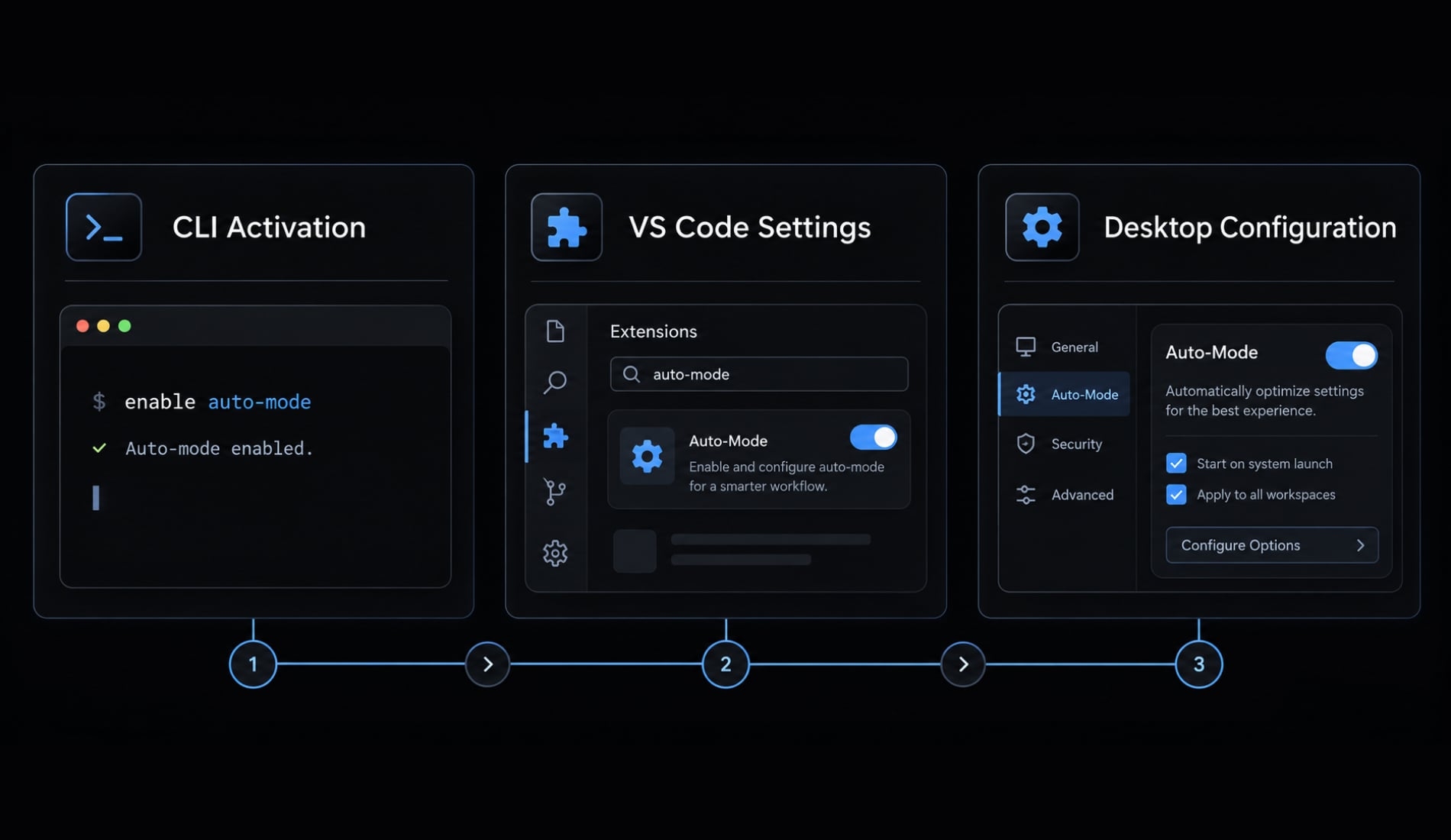
Check and enable Auto in the CLI
Start with these diagnostic commands:
claude --version
claude --help
Record the version, then inspect the available permission options. Compare them with Anthropic’s official CLI reference and the permissions documentation for that release.
Next:
- Run
claude --enable-auto-mode. - In the session, press Shift+Tab to cycle to Auto.
- Confirm the mode indicator shows Auto. Alternatively, start directly with
claude --permission-mode auto.
Do not substitute a permission-skipping flag if Auto is absent. Likewise, do not assume an activation command from another release works on yours.
Success check: The session identifies Auto as its active permission mode. A command exiting successfully does not, by itself, establish that Auto is enabled.
Check the VS Code extension
First, record the installed VS Code extension version from its extension details. Use Anthropic’s Claude Code VS Code documentation to establish whether that version supports Auto and where its permission controls appear. If Auto is offered, select it and verify the active label.
An option that skips permission requests is not necessarily Auto. Do not treat similarly worded settings as interchangeable. In the VS Code extension, turn auto mode on in Settings → Claude Code, then select Auto from the permission-mode dropdown in a session.
Check the Claude desktop app
Verify support separately in Anthropic’s Claude Code desktop documentation. The Claude desktop app and its Claude Code workspace should not be assumed to expose the same controls as the terminal. Use the documented desktop path only when Auto is explicitly supported.
Success check: The relevant coding session shows Auto, not merely a general automation setting.
Auto mode is disabled by default in the desktop app. An admin can enable it under Organization Settings → Claude Code; then turn it on in Settings → Claude Code and choose it from the session’s permission-mode dropdown.
Check administrator restrictions and run a bounded task
Managed settings may constrain locally available choices. Consult Anthropic’s settings and managed-configuration documentation, then ask your administrator about applicable policy. For an initial task, use the sample authentication-test prompt in Section 5. Inspect the diff and test output afterward. Recheck the active mode when starting another session rather than assuming the selection persists.
Auto mode vs. Default, Plan, AcceptEdits, and Bypass
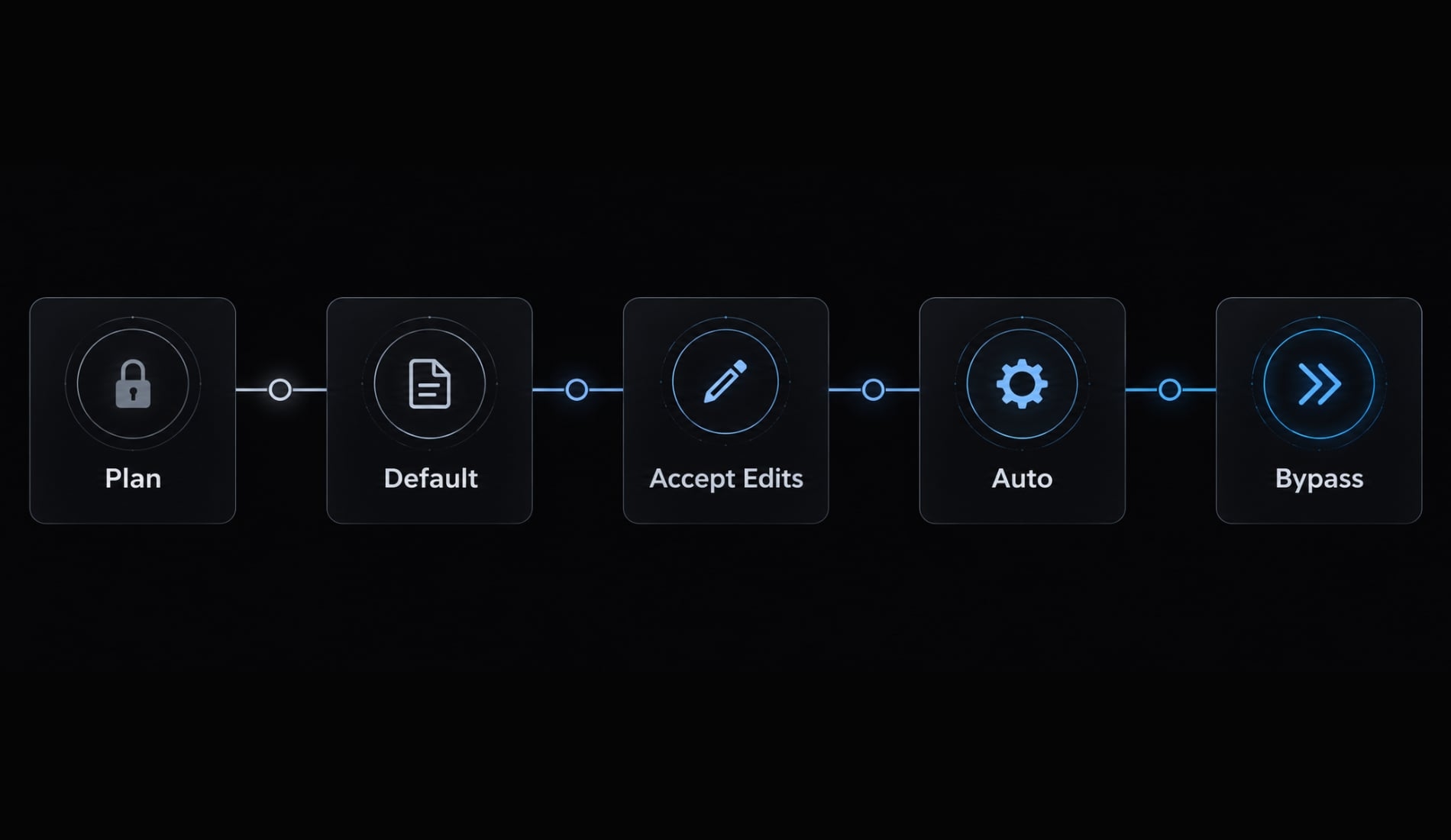
Choose a permission mode by its approval behavior, not by how autonomous its name sounds. The following summarizes the distinctions to check against Anthropic’s Claude Code permissions documentation for your installed release. Permission-mode comparison; availability and exact behavior require release-specific confirmation.
Mode | Permission approach | Typical use | Main limitation |
|---|---|---|---|
Supports analysis and planning without ordinary implementation edits. | Inspecting a change before implementation. | Planning is not implementation; do not assume it means no tool use. | |
Default | Uses normal permission checks and applicable rules. | Interactive work with approval checkpoints. | Repeated requests can interrupt multi-step tasks. |
| Automatically accepts supported file-edit operations. | Iterative changes within a reviewed workspace. | Does not automatically authorize every shell command. |
Auto | Applies automatic permission evaluation where supported. | Bounded, reviewable development tasks. | Evaluation is imperfect; restrictions or interruptions may remain. |
| Bypasses application permission checks. | Specially controlled automation with independent restrictions. | Removes an approval layer without creating isolation. |
Auto is not permission bypass
Claude Code auto mode evaluates permissions; bypass removes application permission checks. The --dangerously-skip-permissions flag belongs to the bypass comparison. It is not an Auto activation workaround.
Bypassing application checks does not grant additional operating-system privileges. However, a process can still use the files, credentials, and network access already available to it.
Sandboxing is a separate control
Sandboxing restricts execution access, such as filesystem or network reach. Permission modes govern approval behavior. Consult Anthropic’s sandboxing documentation for supported configurations. Do not assume choosing Auto creates a sandbox, or that a container automatically provides adequate isolation.
When should you use auto mode and keep human review?
Assess three characteristics before starting autonomous coding tasks: Reversibility, system access, and potential impact. This is practical editorial guidance, not an official Anthropic classification system.
Start with reversible, reviewable work
Reasonable starting points include:
- Refactoring authentication tests on a dedicated branch.
- Updating documentation.
- Applying formatting or lint fixes.
- Running known local checks.
Even these tasks need context. A test command can contact a remote database. A formatter script can invoke additional commands. For example, renaming a test helper in a sample SaaS repository is relatively easy to inspect and reverse. That assessment changes if the test fixture uses customer data or production credentials.
Add controls when work crosses system boundaries
Trust boundaries are the limits of the systems and data a task is authorized to access.
Task | Additional control to consider |
|---|---|
Dependency installation | Review package changes and install scripts; use a disposable environment. |
Network access | Restrict destinations and remove unnecessary credentials. |
MCP and external tools | Review each server’s permissions, connected accounts, and write capabilities. |
CI/CD or remote Git changes | Require protected branches and pipeline approval gates. |
Cloud and container commands | Verify account, project, context, mounts, and privilege scope. |
MCP (Model Context Protocol, a standard for connecting assistants to tools and data) can expose capabilities beyond the repository. CI/CD (continuous integration and delivery) can similarly turn a local change into a remote action.
Keep human review for high-impact actions
Require explicit review and enforceable controls for:
- Production deployment or database migration.
- Destructive infrastructure changes.
- Credential-sensitive operations.
- Broad deletion.
- Force pushes or irreversible repository changes.
A migration affecting a customer-facing SaaS database has a different recovery path from a local test refactor. Its access and impact justify stronger controls.
“Ask before deploying” is an instruction, not an enforced deployment gate. Human approval should be backed by restricted credentials, protected environments, or platform-level authorization.
A practical auto mode safety checklist
Use this Claude Code safety checklist before starting. It remains useful regardless of the selected permission mode.
Get the next post in your inbox
New guides and AgentKit updates, no spam. Unsubscribe at any time.
A Git recovery point is not necessarily a complete backup. It does not protect all ignored, untracked, external, or remote data.
The following is an illustrative task, not a recorded test. Use it only in a sample repository where the directory and command already exist and have been reviewed.
Work only in tests/auth/ in this disposable sample SaaS repository.Refactor duplicated authentication-test setup into a local helper.Preserve assertions and application behavior.Run only the reviewed local check:npm run test:authDo not install packages, access external services, read credentials,edit application code, create commits, push changes, or deploy.If the task requires anything outside these boundaries, stop.Otherwise, finish with a summary of changed files, the diff,the test result, and any unresolved concerns.
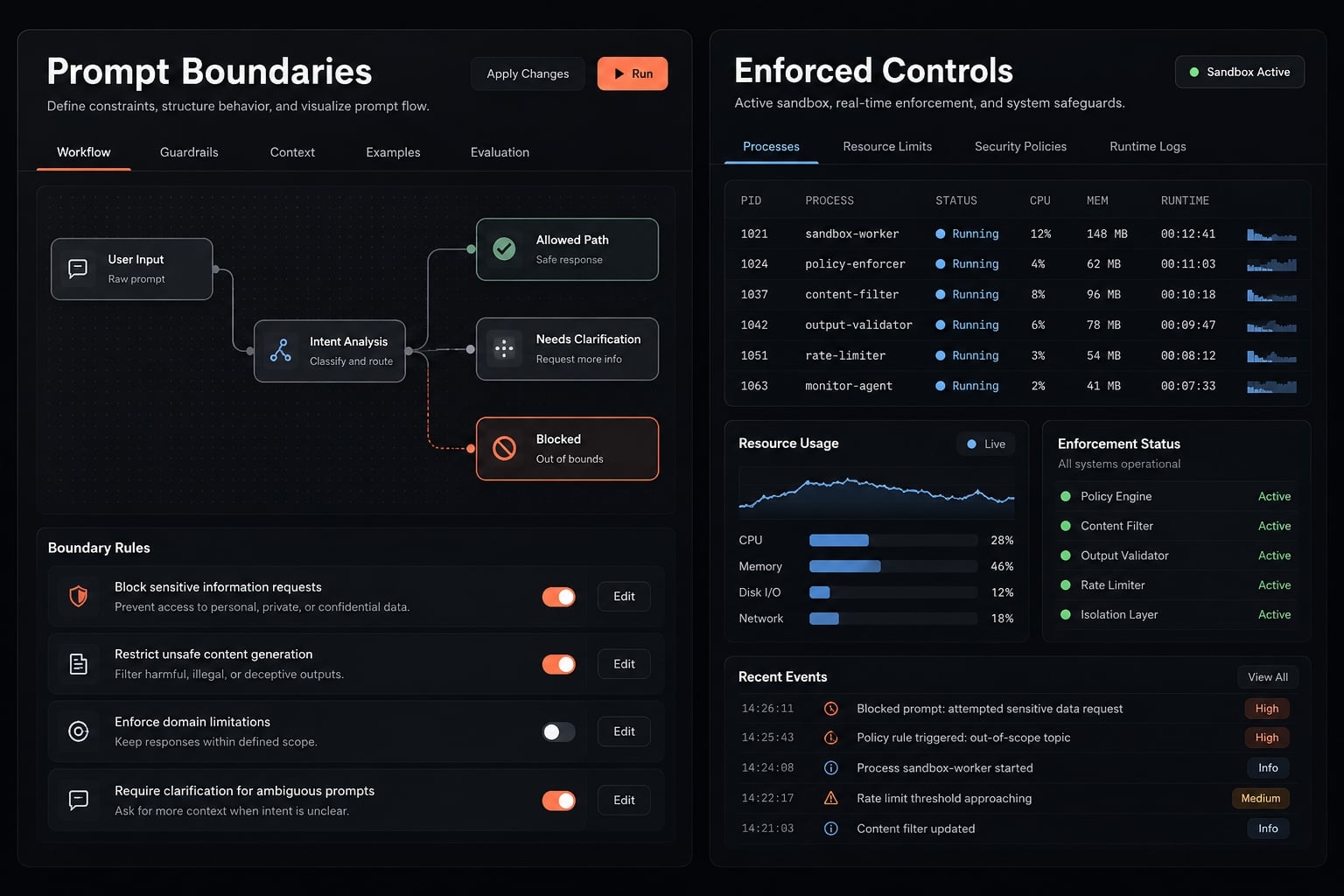
Prompt boundaries communicate intent. They do not enforce filesystem, credential, or network restrictions.
Troubleshooting Claude Code Auto Mode
Diagnose problems in this order: version → documented support → policy → active mode → action-specific behavior.
If Claude Code auto mode is not showing, do not immediately assume an account restriction. Establish which release and interface you are using first.
Symptom | What to check |
|---|---|
Auto is missing | Record the installed version. Check current interface support and documented account availability. |
A local setting has no effect | Review managed settings and their documented precedence. Ask the administrator about enforced policy. |
Approval prompts continue | Confirm Auto is actually active. Then inspect the action and any documented exceptions. |
A legitimate action is blocked | Review its exact command, scope, applicable rules, and the release’s evaluation behavior. |
The selection does not persist | Establish whether the choice is session-specific or stored. Check the documented configuration scope. |
Responses seem slower | Compare similar tasks and inspect tool delays. Attribute overhead to Auto only when documentation or observation supports it. |
These are diagnostic checks, not confirmed causes. A missing option does not prove a subscription limitation. Continued prompts do not necessarily mean activation failed.
For a blocked command, inspect the actual operation rather than its friendly description. A “test” script may install dependencies, contact a service, or modify fixtures.
Narrow the task, remove unnecessary access, and review the applicable rule. If needed, return to an interactive workflow for that action.
Do not switch to permission bypass—or add broad allow rules—simply to clear an unexplained block.
Frequently asked questions
What is Claude Code auto mode?
Claude Code auto mode is an intelligent permission-handling system that uses a specialized classifier to evaluate tool actions in real-time. It replaces constant manual approval prompts with model-based safety checks, balancing operational efficiency with guardrails against unintended or destructive actions.
How does auto mode differ from permission bypass?
Auto mode uses a classifier to actively verify if a tool action aligns with user intent and safety policies. In contrast, permission bypass entirely removes all guardrails, allowing the agent to execute any command without verification, which creates significant security risks for the codebase.
Is Claude Code auto mode safe for production environments?
While auto mode provides defense-in-depth by intercepting high-risk actions, it is not a substitute for human review on sensitive infrastructure. Always maintain strict environment isolation and use enforceable controls when working on production systems to prevent accidental data loss or unauthorized access.
Why is Claude Code still asking for permission in auto mode?
Risky actions are usually blocked so Claude can try another approach. If actions keep getting blocked (for example, several times in a row), auto mode pauses and Claude Code returns to asking you for approval. This is a safety feature designed to protect your environment, rather than a failure of the auto mode configuration or the classifier's logic.
How can I verify that auto mode is active?
You can verify the active permission mode by checking the status indicator within the Claude Code terminal interface or by running status-check commands in your CLI. You can also cycle through modes using the Shift+Tab shortcut during an active session.
Can I customize the safety rules in auto mode?
Yes, you can define custom policies in your project’s configuration file, such as .claude/settings.json. These settings allow you to allowlist trusted domains, define hard-deny patterns for specific shell commands, and set environment-specific boundaries for agentic operations.
Does auto mode increase token consumption?
It can. Anthropic notes auto mode may have a small impact on token consumption, cost, and latency for tool calls, in exchange for fewer interruptions. This overhead is a trade-off for the reduced manual intervention and increased safety during long-running tasks.
Read more:
- How to add a screenshot to Claude Code: Quick troubleshooting
- Claude Code team standards: A framework for scale and security
- How to setup Claude Code with shadcn/ui: Official MCP guide
Conclusion
Claude Code auto mode is a permission-evaluation option, not permission bypass or a substitute for isolation. Start with reversible work, limit available access, and confirm the active mode before execution. Keep high-impact operations behind enforceable review gates.
Check current Anthropic documentation for your installed release, then inspect the resulting diff, tests, and relevant output. Fewer approval interruptions are useful only when the task remains bounded and its results remain reviewable.
Ship features with Engineer Kit
Planning, implementation, review and testing workflows for AI coding agents, ready to install.
Explore Engineer Kit →Share this article
Keep reading
- Master Claude Code PostToolUse hook: Setup and examplesLearn how to configure Claude Code PostToolUse hooks for automated formatting and linting. Follow our guide to improve workflow efficiency today.15 min read
- How to use Kimi K2 with Claude Code: Setup & verification guideLearn how to configure Kimi K2 with Claude Code using Anthropic-compatible endpoints. Follow our step-by-step guide for setup, verification, and testing.13 min read
- Claude Code effort level: How to choose the right settingLearn how Claude Code effort level impacts reasoning and performance. Discover the best settings for your tasks to balance efficiency and accuracy.10 min read