Claude Code Plan Mode: What it is, how it works, and when to use it
A common failure mode in AI-assisted coding is moving into implementation too early. The model starts editing files before the scope is stable, assumptions are checked, or dependency risks are clear. This quickly becomes costly and risky when dealing with multi-file changes, refactors, or architecture-sensitive work. Claude Code Plan Mode is a practical way to slow that moment down. It creates a planning step before execution, so you can review the approach, catch bad assumptions, and decide what should happen next. This guide explains what Plan Mode is, how it works in a normal workflow, how to turn it on, and when it actually adds value.
What Claude Code Plan Mode actually is
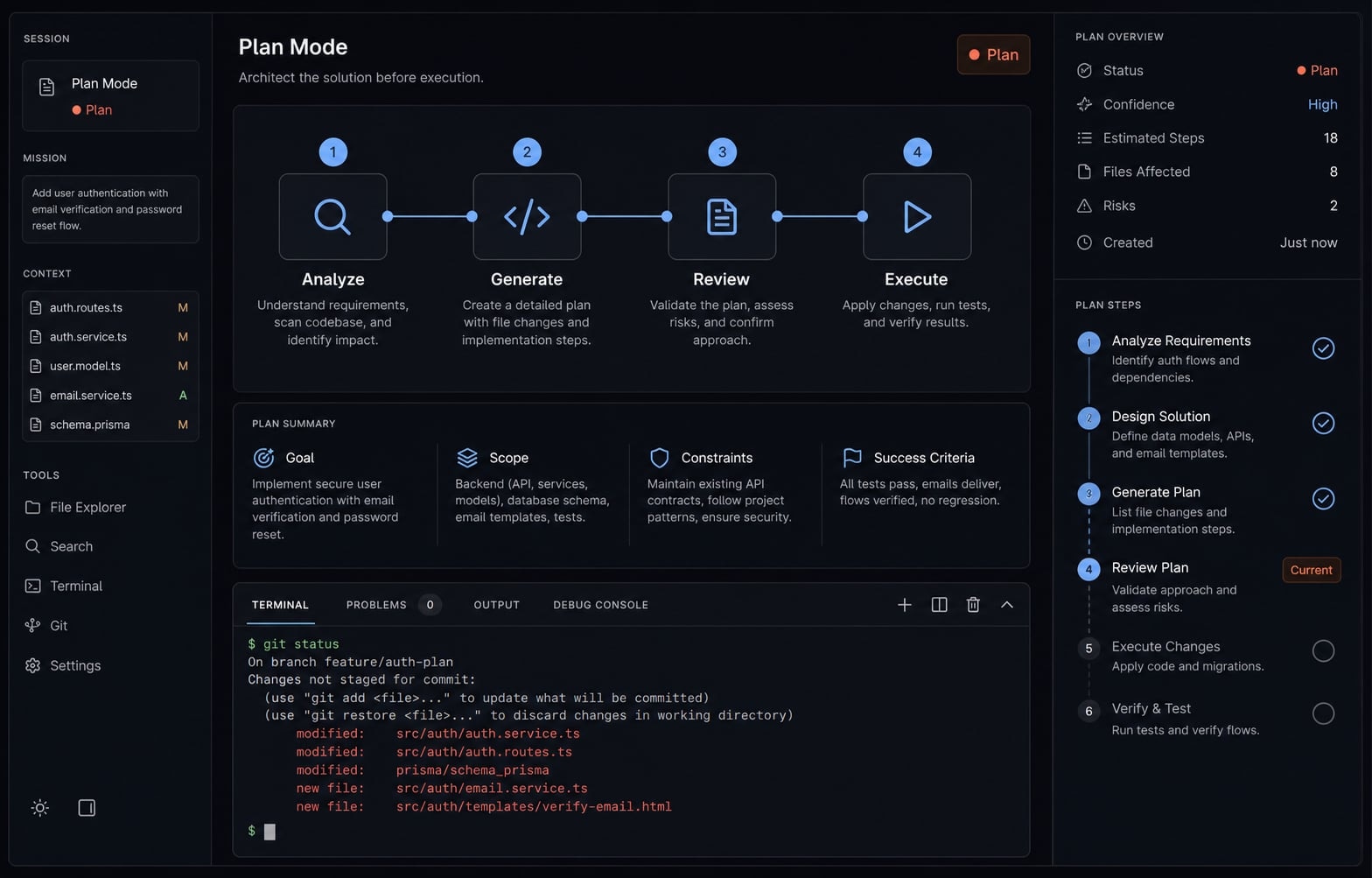
Claude Code Plan Mode is a planning-first workflow state where Claude outlines how it would approach a task before making code changes. It is best understood as a reviewable, read-only mode that helps you inspect the proposed approach before switching to execution in Act Mode.
In plain terms, Plan Mode adds a control layer between your request and the model’s actions. Instead of jumping straight into implementation, Claude first maps the likely approach, affected areas, assumptions, and next steps. That makes the workflow easier to review, especially when the task is broader than a one-file fix.
This matters because premature edits are one of the most common problems in AI coding workflows. When a model starts changing files too early, small misunderstandings can spread across the codebase. Claude Code Plan Mode helps reduce that risk, but it is not a guarantee of correctness. It improves reviewability and workflow control. It does not make the plan automatically right.
The simplest contrast is this:
- Plan Mode is for outlining and reviewing.
- Act Mode is for making changes and executing the task.
What changes in Plan Mode
- Claude focuses on outlining an approach rather than implementing it.
- The session behaves like a read-only mode, where planning comes before edits.
- The workflow becomes easier to review before any action is taken.
- User approval requirement becomes central before switching into execution.
- Assumptions, risks, and likely file impact are easier to inspect early.
Plan Mode vs just saying “think first”
You can always prompt a model to “think first,” but that is not the same thing as using Plan Mode.
- “Think first” is just instruction phrasing inside a normal request.
- Plan Mode creates a clearer workflow boundary between planning and doing.
- The real advantage is the review checkpoint before execution.
- In practice, that boundary is what helps prevent avoidable rework.
Short version: Use Plan Mode when you want planning to be a distinct step, not just a sentence in the prompt.
How Claude Code Plan Mode works in practice
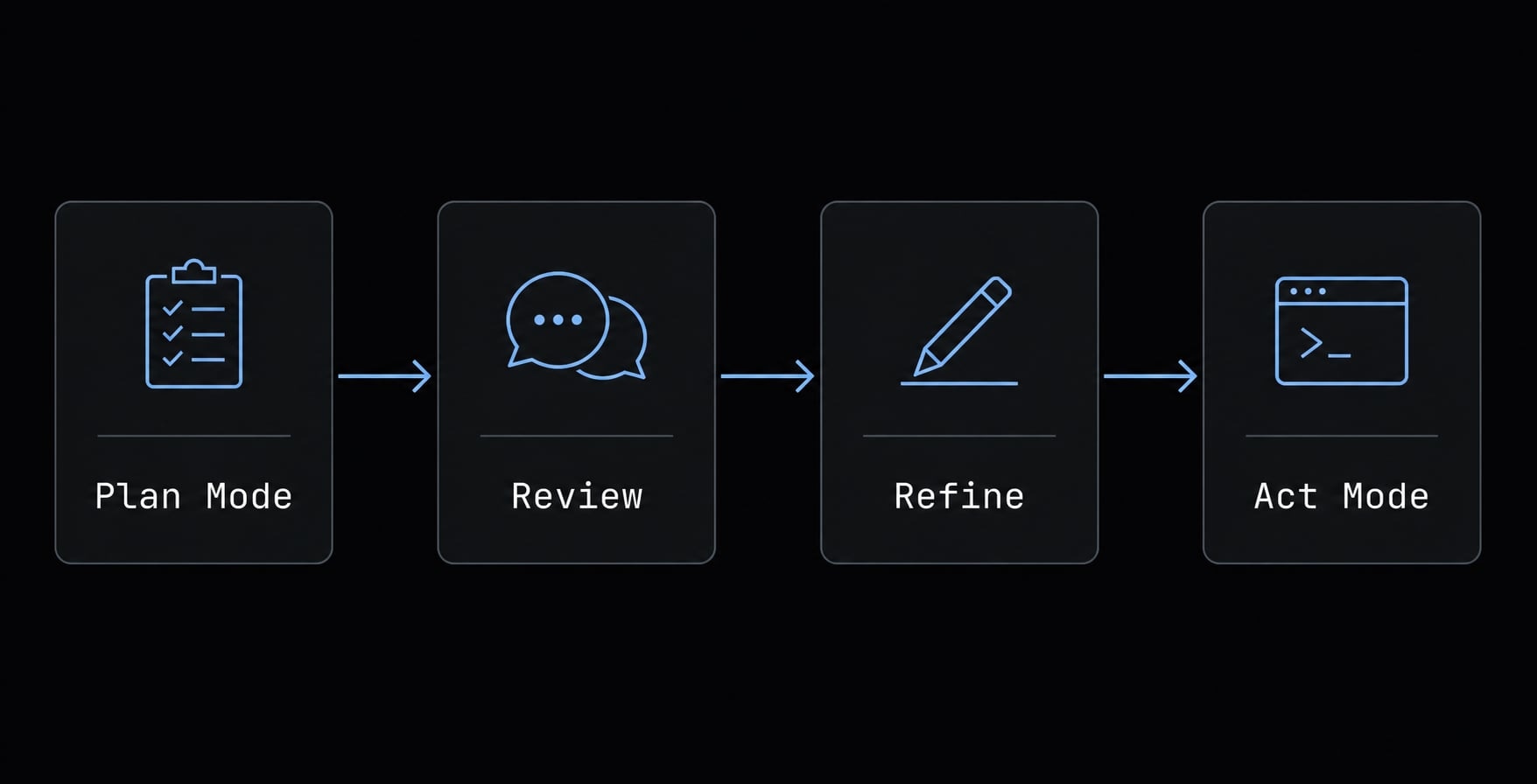
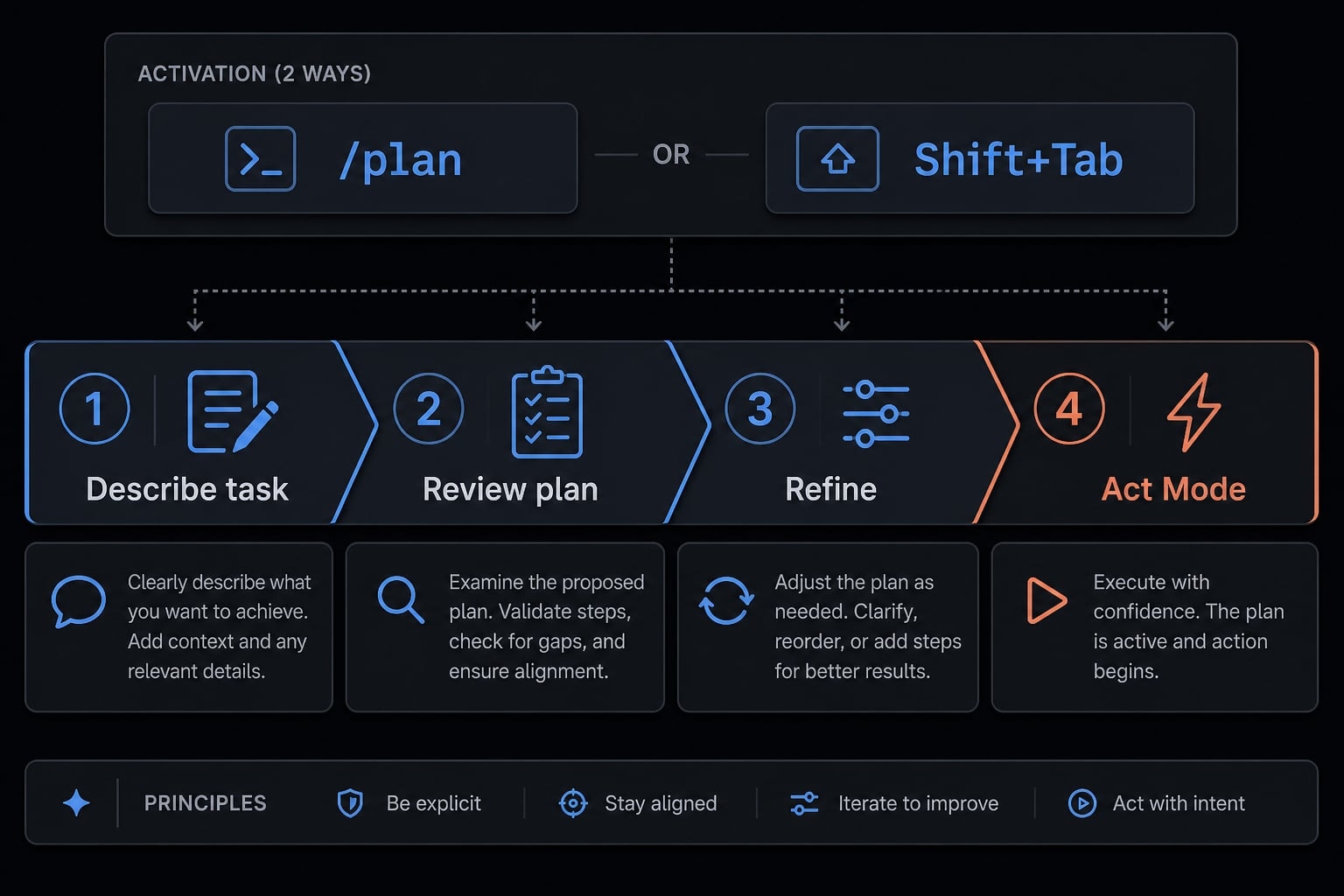
In practice, Plan Mode works as a simple plan → review → execute flow. You enter a planning-first state, describe the task, inspect Claude’s proposed approach, then decide whether to refine it or move into Act Mode for implementation.
The output is usually a readable plan, often presented in a markdown-based planning style. The exact format may vary, but the purpose is consistent: Make the approach easy to scan before any code changes happen. This is why Plan Mode is useful for user-in-the-loop validation. You stay involved before the model starts acting.
Another useful way to think about it is as a tool execution constraint. Claude is guided toward planning and review rather than direct modification. That read-only status is what gives you the chance to evaluate the plan while the cost of change is still low.
A simple 4-step view of the mode
- Enter Plan Mode.
- Describe the task, goal, and scope.
- Review Claude’s proposed approach.
- Approve it and switch to execution.
That sequence is the core value. The planning step isn’t meant to add unnecessary process. Its purpose is to surface incorrect assumptions before they become actual code changes.
What the output usually includes
A good plan will usually include:
- likely files, components, or areas affected.
- recommended implementation steps.
- assumptions Claude is making.
- constraints or tradeoffs.
- open questions that need clarification.
- possible risks or dependency impact.
For example, on a refactor, Claude may outline which modules are likely touched, what order the work should happen in, and where regressions are most likely. On a feature request, it may identify new UI elements, backend changes, validation logic, and test coverage needs.
Plan Mode should be understood as a planning-first review state. Exact under-the-hood behavior may vary by version, interface, or workflow context, so it is better to focus on the practical user experience than undocumented internals.
How to turn on and use Plan Mode
Most users enable Claude Code Plan Mode in one of two ways:
- Use the /plan command.
- Use Shift+Tab to toggle plan mode before sending the request.
In the Claude Code CLI, the exact interface details can vary, but these are the most commonly referenced activation methods. The important part is not the command itself. It is what you do next: give Claude a clear goal, define the scope, and state any constraints before asking it to plan.
Once the plan is reviewed, you typically switch back to Act Mode to let Claude implement the approved approach.
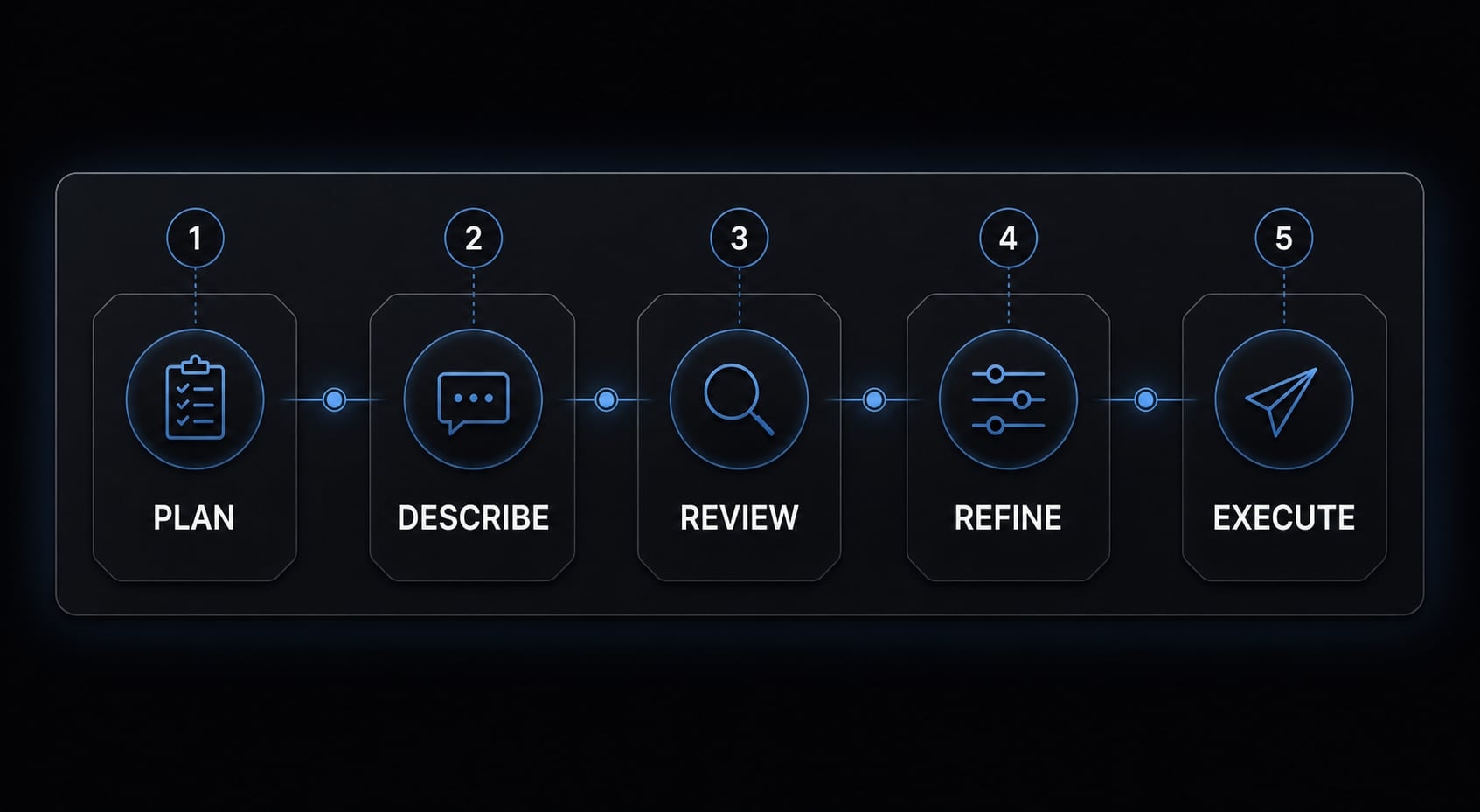
Basic quick-start workflow
- Enter Plan Mode.
- Describe the goal clearly.
- Add constraints and likely affected areas.
- Review the proposed plan.
- Refine anything unclear or incorrect.
- Switch back to Act Mode for execution.
Copyable starter prompt
Plan this change before writing code. My goal is [goal]. The likely area is [files/components]. Do not implement yet. List assumptions, affected files, risks, and the recommended approach.
That is enough for most tasks. You do not need elaborate prompt engineering to get value here. In practice, plan quality depends more on scope clarity than clever wording.
If you want a better review trail, add one more line:
Ask clarifying questions if the scope, assumptions, or affected areas are unclear before finalizing the plan.
When Plan Mode helps most - and when it slows you down
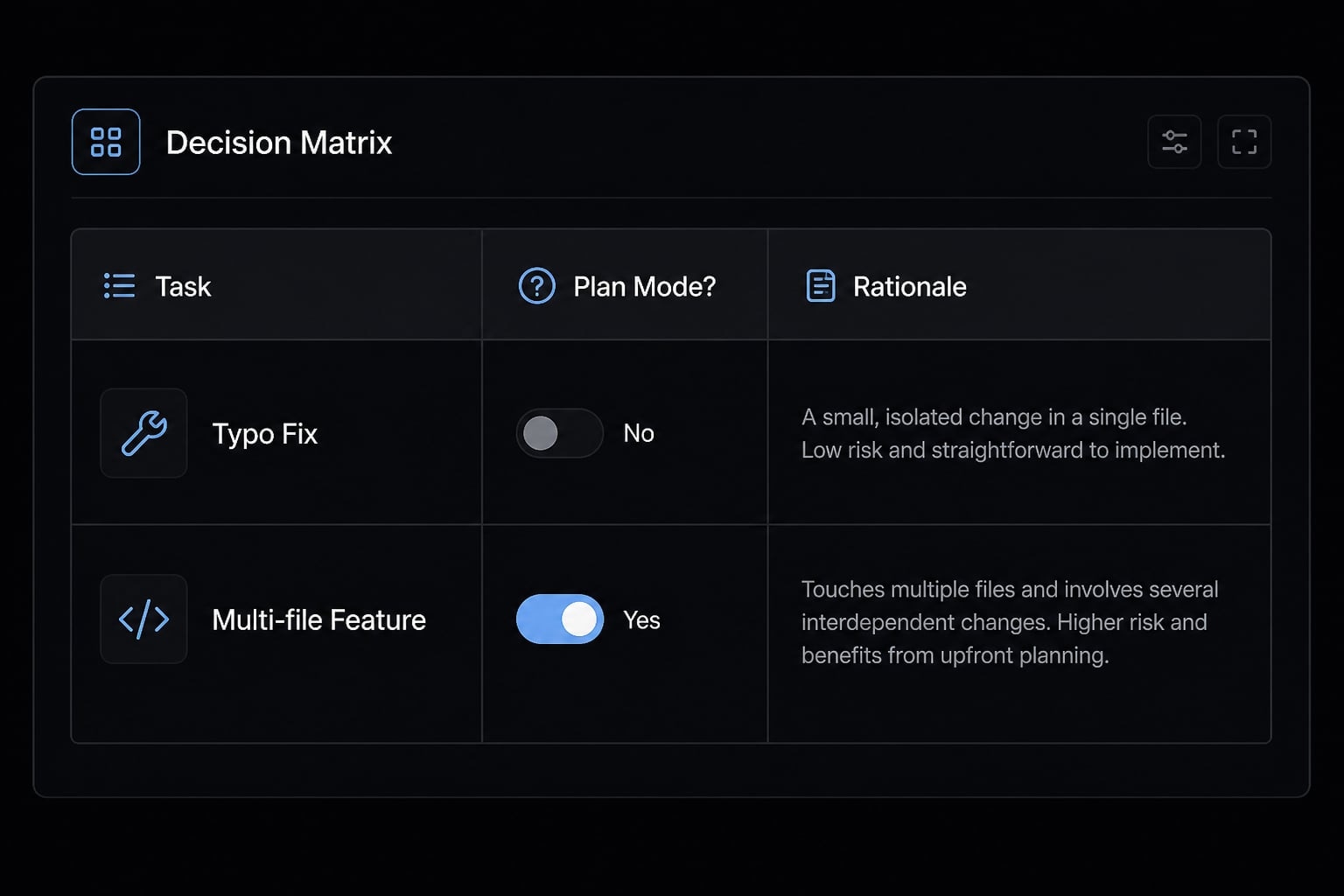
The best use case for Plan Mode vs Act mode comes down to three factors: risk, scope, and uncertainty. If the task has hidden complexity, unclear dependencies, or meaningful downside if the model guesses wrong, Plan Mode usually earns its extra step. If the task is tiny and isolated, it often adds friction without much benefit.
This tradeoff matters because planning is not free. It costs time, tokens, and attention. The value is better workflow control and stronger codebase awareness before implementation. The cost is added process.
Use Plan Mode for these tasks
- Multi-file feature work.
- Refactors that may affect several components.
- Architecture-sensitive changes.
- Tasks where wrong assumptions are costly.
- Changes with uncertain dependencies.
- Work that needs strong user approval requirement before execution.
These are the tasks where an iterative development framework helps. You want to inspect the path before committing the model to it.
Skip or minimize it for these tasks
- Typo fixes.
- Tiny UI copy updates.
- Small isolated bugs.
- Repetitive low-risk edits.
- Changes where the affected file and expected fix are obvious.
In those cases, going directly to Act Mode is often cleaner. A planning layer can be unnecessary overhead if the task is already well bounded.
Practical decision matrix
Task type | Use Plan Mode? | Why |
|---|---|---|
Small typo fix | Usually no | Scope is obvious and risk is low |
Isolated bug fix | Sometimes | Useful if the root cause is unclear |
Multi-file feature | Yes | Helps map dependencies and implementation order |
Refactor | Yes | Reduces the chance of hidden ripple effects |
Architecture-sensitive change | Yes | Review matters before committing to a direction |
Uncertain dependency change | Yes | Planning improves visibility before edits |
The practical rule is simple: the more a task depends on judgment, sequencing, or hidden context, the more useful Claude Code Plan Mode becomes. The more obvious and local the fix is, the less value planning adds.
A simple workflow to get better plans from Claude Code
Better plans usually come from better inputs. In most cases, the problem is not that Claude failed to plan. It is that the request was missing context, boundaries, or constraints. Good structured prompting helps Claude apply better contextual reasoning before execution starts.
You do not need advanced prompt engineering for this. A lightweight framework is usually enough. The goal is to make prompt-driven development more predictable without turning every request into a documentation exercise.
The G-S-C-F-Q framework
Use this simple structure when asking Claude to plan:
- Goal: what should change
- Scope: what is included and excluded
- Constraints: architecture, stack, deadlines, style, or technical limits
- Files: likely components, modules, or directories to inspect
- Questions: what Claude should clarify before finalizing the plan
Here is a simple example:
- Goal: add retry handling to failed webhook delivery
- Scope: backend service and related logging only, no dashboard changes
- Constraints: keep current queue system, avoid schema changes
- Files: webhook worker, retry logic, logging module
- Questions: ask if retry limits or alerting thresholds are unclear
This works because it narrows ambiguity early. It also improves user-in-the-loop validation, since Claude has clearer boundaries for what to inspect and what to ask.
Review prompt to improve the plan
Walk through the assumptions and decisions in this plan one by one. For each one, ask me whether to confirm, change, or remove it.
This is one of the most practical ways to improve a plan before execution.
Why it helps:
- Surfaces wrong assumptions early.
- Reduces wasted tokens on bad implementation paths.
- Forces hidden decisions into the open.
- Makes review active instead of passive.
It does not guarantee a perfect outcome. It simply improves the odds that the final execution path matches your intent.
Example: Using Plan Mode for a refactor vs a small fix
Scenario A: Small isolated fix
A button label is wrong, and you already know the exact component. This is a classic case where Act Mode is often enough. The task is local, low-risk, and easy to verify. Adding a planning step may create more overhead than value.
Scenario B: Multi-file refactor
Now imagine you want to reorganize authentication flow across middleware, API handlers, and session utilities. That is a better fit for Plan Mode. Before Claude starts editing, you want it to map dependencies, likely file impact, sequence of changes, and assumptions about current behavior.
This is where Plan Mode acts like an AI-assisted design phase. It gives you a chance to review the proposed path before the code changes start. For refactoring, that checkpoint often matters more than raw speed, because the cost of a wrong implementation path is much higher.
The difference is not complexity for its own sake. It is uncertainty. If the task is obvious and isolated, execute directly. If it spans multiple concerns, plan first.
Frequently asked questions
What is Claude Code Plan Mode?
Claude Code Plan Mode is a planning-focused operating mode that allows the AI agent to outline an implementation approach, identify proposed code changes, and list its assumptions before modifying any files.
How do you activate Plan Mode in Claude Code?
You can activate it in two ways: enter /plan directly in the CLI, or press Shift+Tab to switch between Plan Mode and Act Mode before submitting your prompt.
Why should you use Plan Mode instead of executing changes immediately?
Plan Mode gives you greater control by requiring the AI to present a specific strategy first. You can review, revise, or reject incorrect assumptions before the source code changes, reducing risk when working with complex systems.
When should you use Plan Mode?
Prioritize Plan Mode for complex tasks such as refactoring code, adding features that affect multiple files, or reviewing the AI’s architectural decisions before allowing it to modify the codebase.
How do you get better results from Plan Mode?
Use the G-S-C-F-Q framework—Goal, Scope, Constraints, Files, and Questions—and ask the AI: “Review each assumption in this plan, then ask me to confirm, revise, or remove each one individually.”
Does Plan Mode replace developer oversight?
No. Plan Mode is a supporting tool that improves process visibility. You remain the final decision-maker, while the mode helps identify logic errors early and reduces the need to undo unwanted code changes later.
Read more:
- Claude Code hooks guide: Automate and control AI workflows
- Claude Code slash commands: Essential shortcuts for CLI flow
- Claude Code subagents documentation: Setup and usage guide
Conclusion
Claude Code Plan Mode is most useful when the work involves uncertainty, multiple files, refactoring, or meaningful implementation risk. Its real value is not that it makes the model smarter. It gives you better workflow control before code changes happen.
That also means it is not something you need for every task. For small, isolated edits, Act Mode is often the faster choice. For broader changes, Plan Mode creates a review checkpoint that helps reduce avoidable rework. If you want a practical next step, start with a simple planning template and a short assumption-review prompt, then apply it only to tasks where the extra control is worth it.