Claude Code hooks guide: Automate and control AI workflows
Claude Code hooks: What they are, how they work, and how to set up your first one
Claude Code hooks solve a common workflow problem: In AI-assisted development, “Claude should do this” is not the same as “this always happens.” That gap matters when you need consistent formatting, file protection, notifications, or lightweight quality checks. Claude Code hooks add deterministic control by letting you run specific actions at defined points in the Claude Code lifecycle. This guide explains what hooks are, how they work, which events matter first, how to configure a safe starter hook, and how to debug the most common setup issues without turning the process into trial and error.
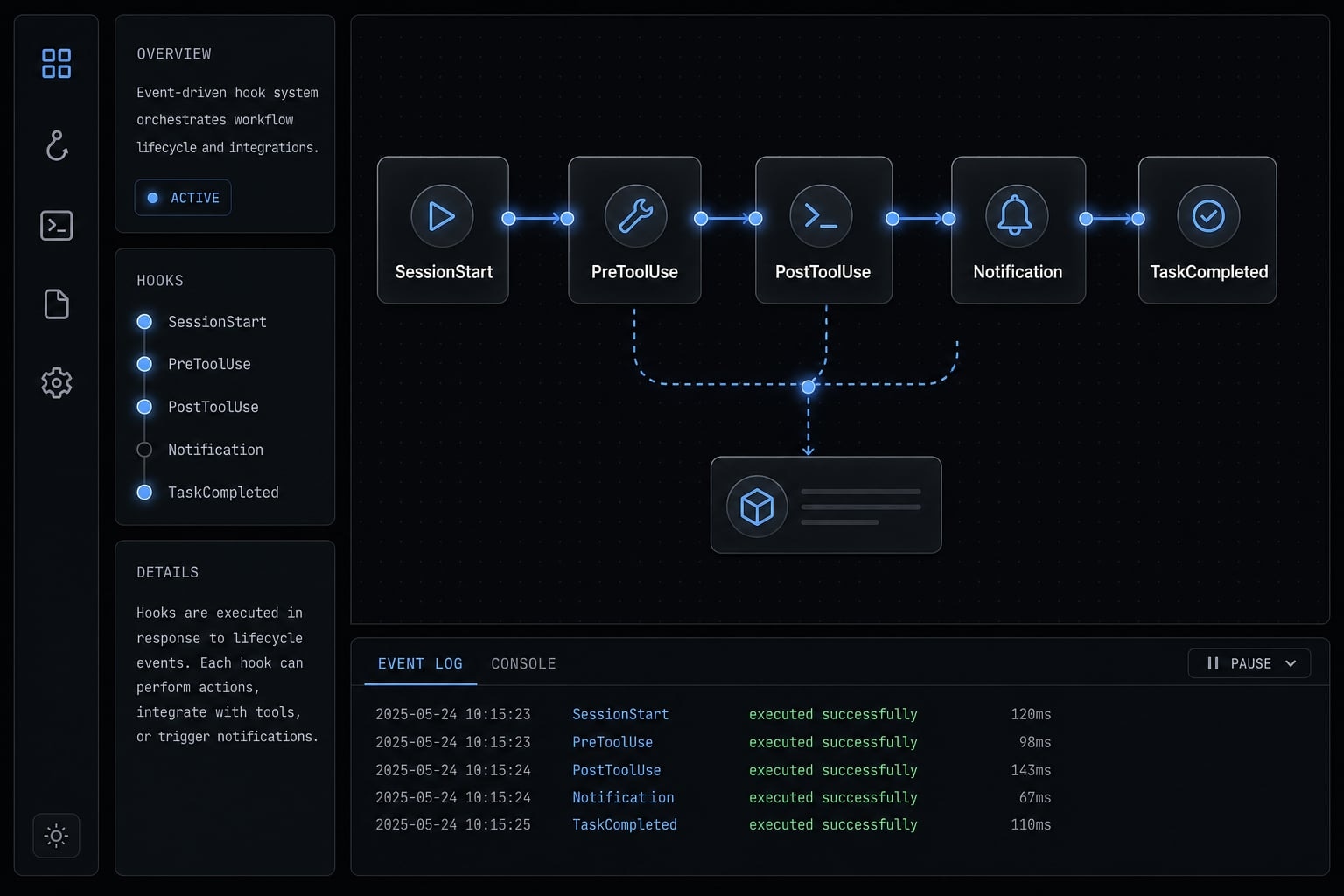
What Claude Code hooks are and why they matter
Claude Code hooks are user-defined actions that run when specific Claude Code lifecycle events occur. They matter because they add deterministic control to workflows: Instead of hoping Claude follows an instruction every time, you can make a defined action run automatically at the exact moment it should.
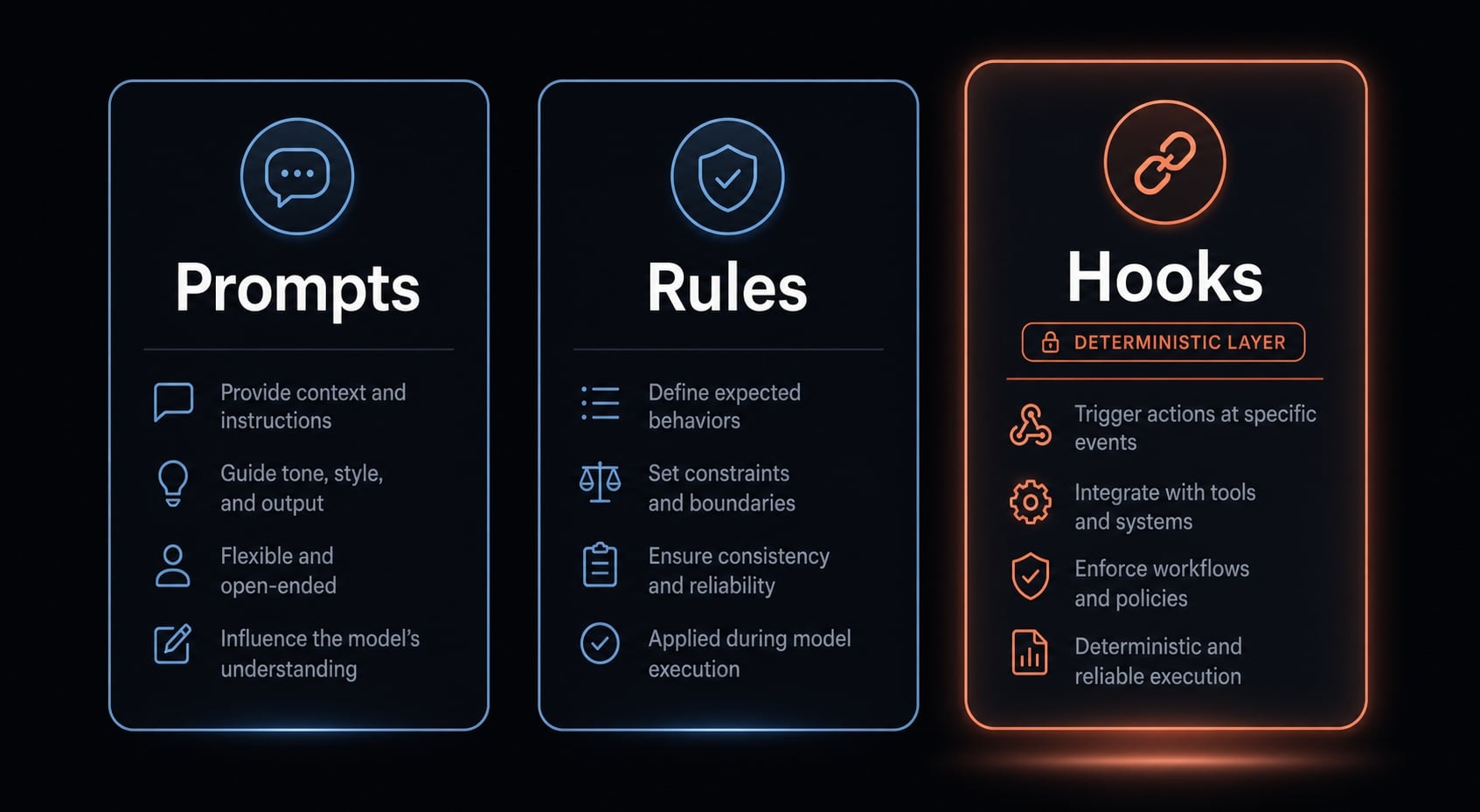
The practical difference is simple. Prompts and rules can guide behavior, but hooks are for workflow enforcement. If you want Claude Code to always notify you, always format a file after an edit, or always block a risky action, hooks are the right mechanism.
This is where hooks become useful in real development work:
- Claude finishes a long task and needs your input.
- Claude edits files, but formatting is inconsistent.
- Claude should never touch protected files like
.env. - Claude needs project context restored at the start of a fresh session.
Hooks are configured in your Claude Code settings and triggered by lifecycle events such as SessionStart, PreToolUse, PostToolUse, or Notification. In practice, that means you can attach a shell command or other handler to a defined moment in the workflow.
The value is not complexity. The value is reliability. A well-chosen hook turns a repeated reminder into a repeatable system. That is especially useful when you want guardrails that do not depend on the model remembering priorities in the middle of a longer task.
Prompts vs rules vs hooks
Mechanism | What it does | Best use |
|---|---|---|
Prompts | Suggest behavior in the current conversation. | One-off instructions or task framing. |
Rules | Guide behavior across sessions or workflows. | Preferred conventions and working style. |
Hooks | Execute behavior when a defined event happens. | Deterministic execution and guardrails. |
The key distinction is deterministic execution. Prompts and rules influence Claude, hooks trigger action.
When hooks are most useful
- Repetitive post-edit tasks: Run formatting or lightweight checks after file changes.
- Guardrails before risky actions: Block edits to protected files or sensitive configuration.
- Notifications during long-running work: Get alerted when Claude needs approval or input.
- Restoring context at session start: Re-inject project conventions after a fresh start or compaction.
Hooks are reliable only when they are configured and tested correctly. The most common failures are usually simple: Wrong file path, invalid JSON, or a matcher that never applies.
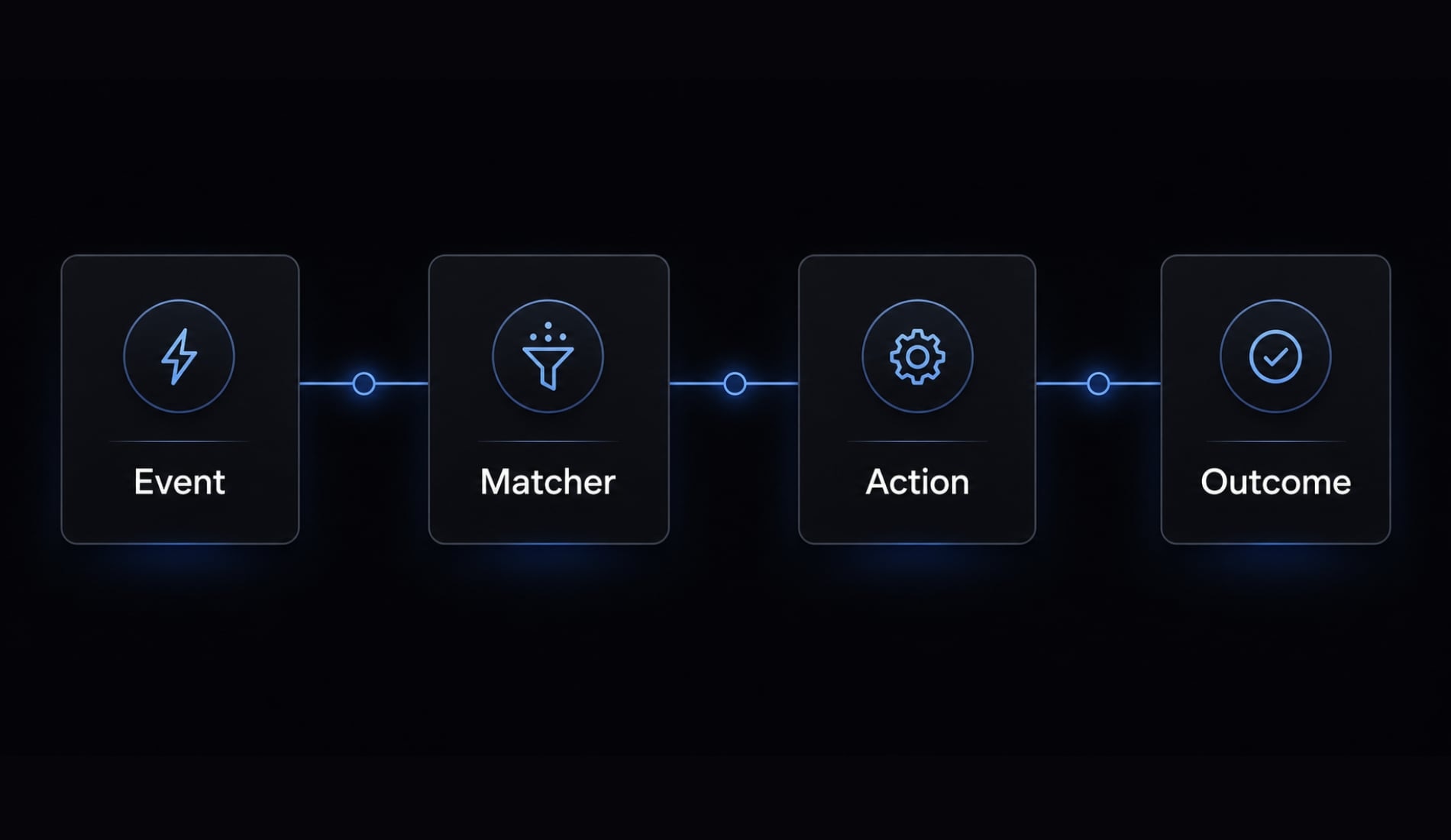
How Claude Code hooks work: Events, matchers, inputs, and outcomes
Claude Code hooks work through a simple runtime model: event → matcher → action → outcome. A lifecycle event happens, Claude Code checks whether the hook matches that event, runs the configured handler, and then decides what to do next based on the result.
That mental model is enough for most beginners. You do not need to understand every internal detail to use hooks well. What you do need to understand is when a hook fires, what narrows it down, and how the result affects Claude Code’s behavior.
You can set up Claude Code hooks in the ~/.claude/settings.json file, typically within the hooks block. Each hook is attached to an event such as SessionStart, PreToolUse, or PostToolUse. Many hooks also use matchers so they only run in the right situation. The configured action often runs through shell commands, which makes hooks flexible but also means your local environment must support the command you use.
Claude Code can also pass structured input to the hook and read back a result. For most starter setups, the important part is not the full input schema. It is understanding whether the hook should continue normally, block the action, or return a structured response.
The basic flow
- A Claude Code lifecycle event fires.
- A matcher checks whether the hook applies.
- Claude runs the configured command or handler.
- The result affects what happens next.
A good default is to think of events as timing, matchers as filters, and commands as the actual work.
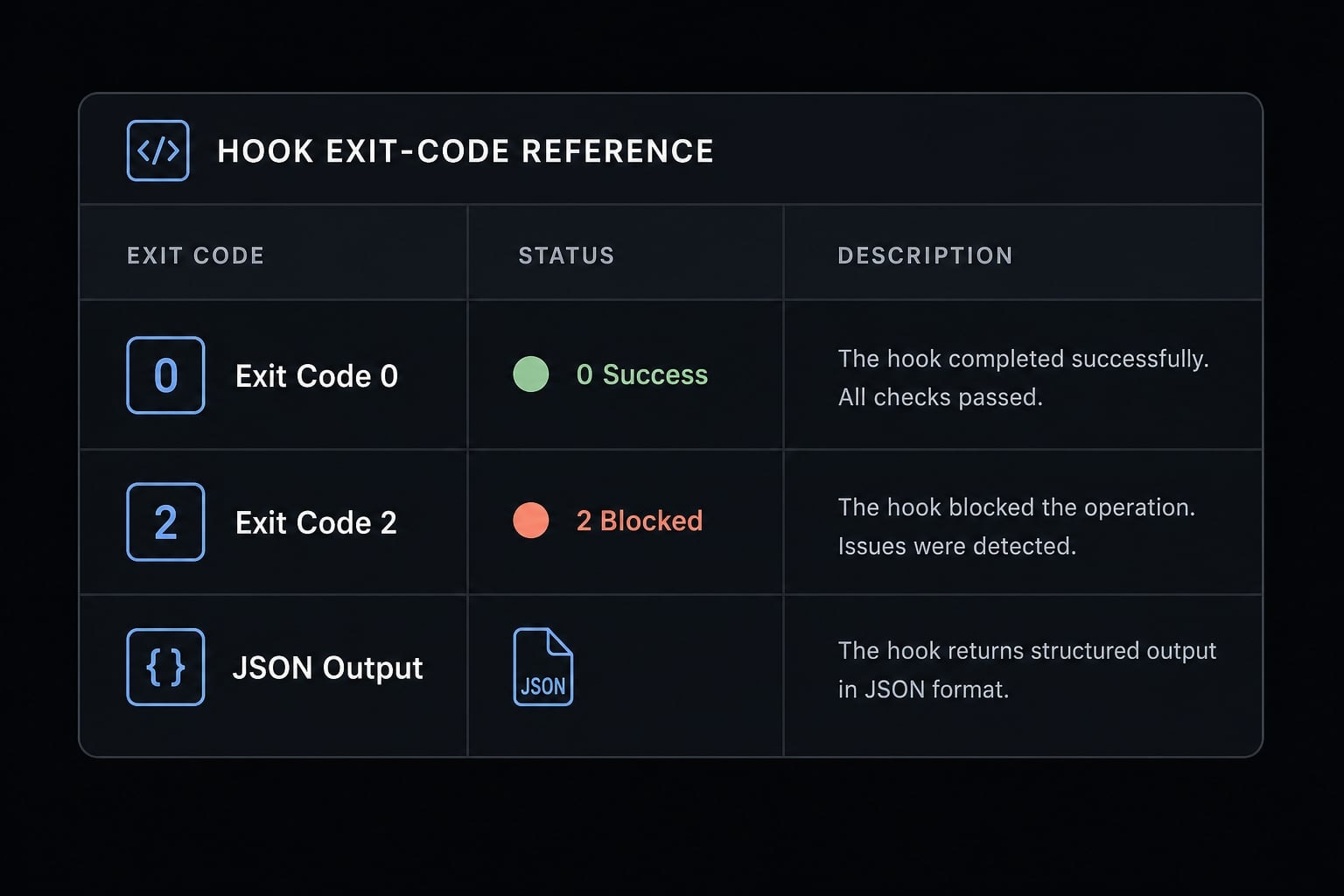
The outcome rules to know first
Exit / Output | Meaning | Effect |
|---|---|---|
exit code 0 | success | continue |
exit code 2 | intentional block | stop and show reason |
JSON output | structured response | advanced or conditional behavior |
For most beginners, these are the only outcome rules you need first:
- exit code 0 means the hook completed successfully and Claude Code can continue.
- exit code 2 means the action should be blocked. This is useful for file protection or policy checks.
- JSON output is for more advanced control when you want structured behavior instead of a simple pass or block.
One important point: Exit code 2 is not always an error. In many workflows, it is the expected result because the hook is designed to prevent something from happening.
The 5 Claude Code hook events most beginners should learn first
You do not need to learn every hook event at once. For most users, these five cover the majority of practical starter workflows:
- SessionStart.
- PreToolUse.
- PostToolUse.
- Notification.
- Stop or TaskCompleted.
The right event depends on the job you want done. That matters more than memorizing event names.
SessionStart
SessionStart is best for restoring context at the beginning of a session. If you want Claude to consistently work with project conventions, environment reminders, or repo-specific guidance, this is a useful place to do it.
Common use cases include:
- Reloading project conventions after a fresh session.
- Re-injecting important context after compaction.
- Adding reminders for testing, branching, or code review expectations.
This is a strong event when the main risk is context drift rather than tool misuse.
PreToolUse
PreToolUse is the safety-first event. It runs before a tool action happens, so it is the right choice when you want to validate or block risky behavior.
Typical use cases include:
- Denying edits to
.env. - Blocking changes to lockfiles.
- Protecting deployment or infrastructure configuration.
- Enforcing lightweight approval checks before specific actions.
If your concern is “prevent this before it happens,” start with PreToolUse.
PostToolUse
PostToolUse is the best event for follow-up automation after Claude changes something. It is especially useful for formatting, cleanup, or lightweight validation.
Typical starter uses:
- Auto-format code after edits.
- Run a quick lint command.
- Trigger a small follow-up script after file writes.
A common pattern is to pair PostToolUse with a matcher that only targets write or edit actions. That keeps the hook useful without making it noisy.
Notification
Notification is often the best first hook to learn because it is low risk and easy to test. It does not block anything. It simply alerts you when Claude needs your input.
This is especially useful if you:
- Multitask while Claude runs.
- Step away from the terminal often.
- Want a reliable signal when approval or input is needed.
If you want a safe first win, start here.
Stop or TaskCompleted
Stop and TaskCompleted are useful for final checks before work is considered done. They are good for lightweight quality gates, but they are usually not the first event beginners need.
Examples include:
- Running a final validation step.
- Checking whether required files were updated.
- Enforcing a minimal “definition of done”.
They are useful once you already have one or two simpler hooks working reliably.
Goal-to-event mapping table
Goal | Recommended Event | Example Action |
|---|---|---|
restore context | SessionStart | load project conventions |
block risky edits | PreToolUse | deny |
auto-format after edits | PostToolUse | run Prettier |
alert user | Notification | desktop notification |
run final check | Stop / TaskCompleted | validation before done |
A practical rollout order is usually: Notification → PostToolUse → PreToolUse. That sequence keeps risk low while building confidence with the Claude Code hook system.
How to set up your first Claude Code hook
The safest way to start is with a notification hook. It is easy to verify, does not interfere with your workflow, and gives you a clear signal that your Claude Code configuration is working.
Step 1: Add a hooks Block to settings.json
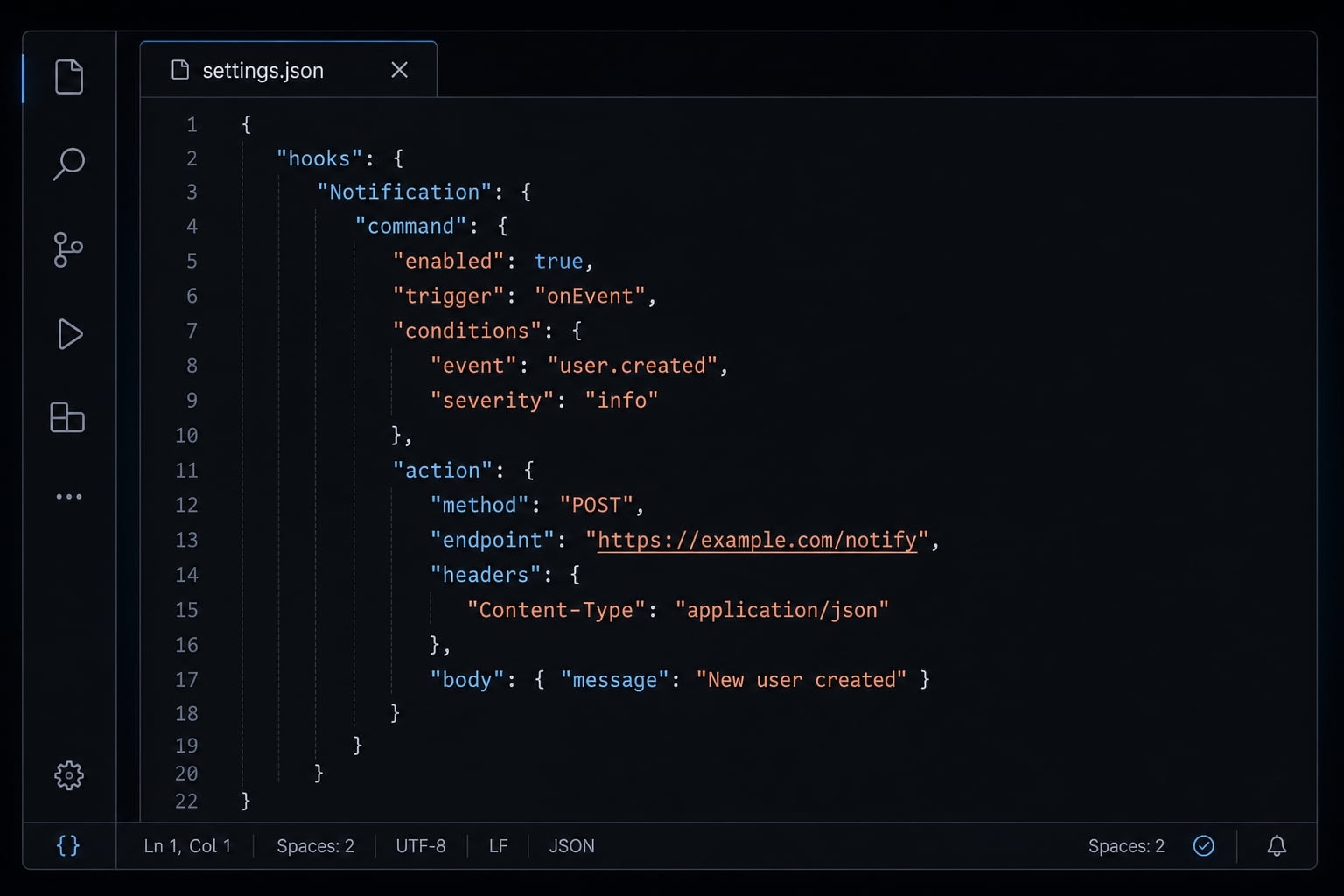
Create ~/.claude/settings.json if it does not already exist, then add a basic hooks block.
{ "hooks": { "Notification": [ { "matcher": "", "hooks": [ { "type": "command", "command": "osascript -e 'display notification \"Claude Code needs your attention\" with title \"Claude Code\"'" } ] } ] }}
What each part does:
Notification: The event that triggers the hook.matcher: An optional filter; empty means it applies broadly.type: "command": Tells Claude Code to run a command.command: The shell command that performs the action.
If you are not on macOS, replace the notification command with one that works on your operating system. Local environment differences matter here.
Step 2: Verify the hook in Claude Code
Run /hooks inside Claude Code. Check that:
- The Notification event appears.
- Your hook is listed under that event.
- The structure looks correct.
If it does not appear, check these first:
- Is the file really at
~/.claude/settings.json? - Is the JSON valid?
- Is the
hooksblock nested correctly?
Step 3: Trigger and test it
Now trigger a workflow that should cause Claude Code to request your input or attention.
Then confirm:
- The notification appears.
- The command actually ran.
- The timing matches your expectation.
If it does not work, test the command outside Claude Code first. This is one of the fastest ways to separate a hook configuration problem from a local command problem.
If you want a reusable starting point for Claude Code configuration, agentkit.best can be used as a workflow layer for teams that want standardized templates, but for individual setup, a single notification hook is usually the right first step.
3 beginner-friendly Claude Code hook examples you can use right away
The best starter examples are practical, easy to test, and clearly tied to the right event. A good progression is notify first, then automate, then block.
Example 1: Get notified when Claude needs your input
Use Notification when you do not want to keep watching the terminal during long-running work.
Why this event fits:
- It is low risk.
- It does not block workflow.
- It gives immediate feedback that your hook setup works.
Basic example:
{ "hooks": { "Notification": [ { "matcher": "", "hooks": [ { "type": "command", "command": "YOUR_OS_NOTIFICATION_COMMAND_HERE" } ] } ] }}
Use this when:
- Claude may pause for permission.
- You are multitasking.
- You want a reliable attention signal.
OS-level notification commands vary, so adapt the command to your local setup.
Example 2: Auto-format files after Claude edits them
Use PostToolUse when you want to auto-format code after edits.
Why this event fits:
- it runs after Claude changes something.
- it is ideal for follow-up actions.
- it works well with targeted matchers.
Example pattern:
{ "hooks": { "PostToolUse": [ { "matcher": "Edit|Write", "hooks": [ { "type": "command", "command": "jq -r '.tool_input.file_path' | xargs npx prettier --write" } ] } ] }}
This is a strong use case because formatting is repetitive, deterministic, and easy to validate.
A few practical notes:
- Prettier must exist in the repo or environment.
- the file path logic must match your setup.
- formatter behavior may differ across repositories.
If your local toolchain is not ready, the hook may be configured correctly but still fail at runtime.
Example 3: Block edits to protected files
Use PreToolUse when you want to block edits to protected files before they happen.
Why this event fits:
- The decision needs to happen before the action.
- The goal is prevention, not cleanup.
- It creates a reliable guardrail.
Typical protected targets:
.envpackage-lock.json- Deployment config
- Infrastructure files
Pseudo-logic:
if file_path matches protected_pattern print reason to stderr exit 2else exit 0fi
The important behavior is the outcome:
- exit code 0 allows the action.
- exit code 2 blocks the action and shows the reason.
This is powerful, but it is better as a second or third hook, not your first. Start with a visible, low-risk hook before moving into enforcement logic.
Need a faster evaluation approach before adding more guardrails? Use a simple internal checklist: event choice, matcher fit, local command validity, and rollback path. That reduces the risk of building hooks that look correct but fail in daily use.
Common mistakes and a simple debugging checklist
Most problems with Claude Code hooks are not deep technical failures. They are usually configuration issues, matcher mismatch, or local command problems. The fastest way to debug is to check the basics in the right order.
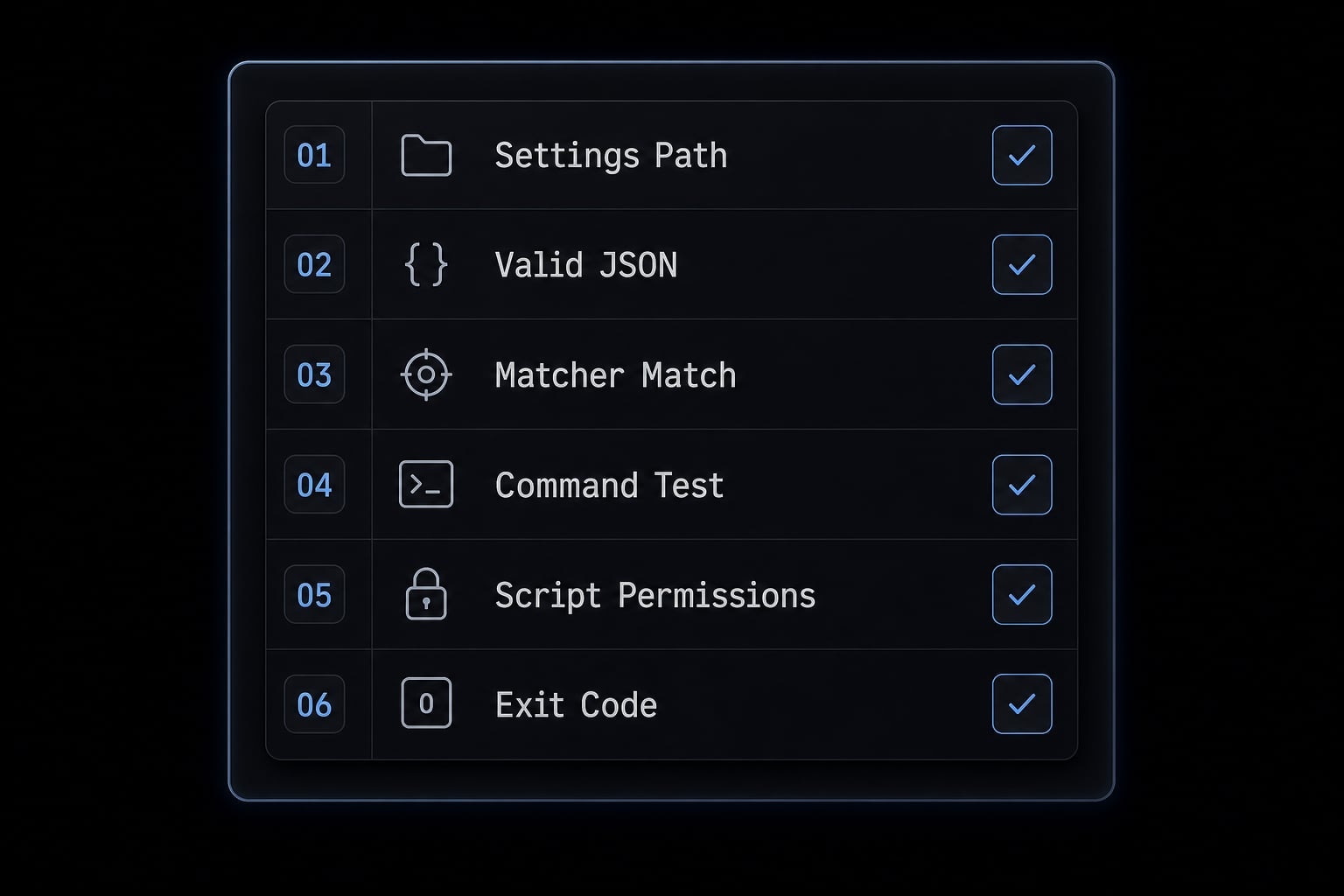
Quick checks before you go deeper
- Is the hook in the correct settings file?
- Is the JSON valid?
- Does the matcher actually match the event or tool action?
- Does the command run outside Claude Code?
- Does the script have permission to execute?
- Are you interpreting exit code 2 correctly as a possible intentional block?
A matcher mismatch is one of the most common causes. A hook can be perfectly valid and still never run if the matcher does not apply to the event you expect.
Other frequent issues include:
- invalid JSON.
- wrong nesting inside the
hooksblock. - incorrect path references.
- script permission issues.
- commands that work in one shell environment but not another.
Where to inspect hook behavior
If the quick checks do not solve it, inspect these signals:
- Transcript view or transcript summary to see which hooks fired.
- Debug log for execution details.
- Stdout for expected command output.
- Stderr for block reasons or runtime errors.
- Exit codes to confirm whether the action continued or stopped.
The most important mindset is this: Do not assume the hook system is broken until you test the command independently and confirm the matcher applies.
If your team keeps repeating the same local setup mistakes across repos, it is usually a sign that you need a more repeatable workflow standard rather than more ad hoc fixes.
When basic hooks are enough and when teams need a more repeatable workflow layer
For solo developers and small local workflows, hooks are often enough. You can add notifications, formatting, and file protection with minimal overhead and get real value quickly.
The challenge changes when multiple contributors, repositories, and conventions are involved. At that point, local hooks may still work, but consistency becomes harder to maintain.
A simple way to think about it:
- Solo / local workflow: Flexible, fast, enough for many users
- Team workflow: Needs consistency, shared guardrails, less configuration drift
- Workflow layer: Useful for repeatable workflows, reusable automation, and standardization across repos
This is where a workflow layer such as AgentKit can become relevant around Claude Code usage. Not because hooks stop working, but because teams often need a repeatable way to manage guardrails, reusable automation, and developer workflow standardization at scale.
Frequently Asked Questions
What are Claude Code hooks?
Claude Code hooks are user-defined shell commands that Claude Code executes at specific points in its operational lifecycle. They provide deterministic control, helping enforce project rules, automate recurring tasks, and integrate tools without relying on AI reasoning.
How do Claude Code hooks work?
Hooks follow a four-step process: event → matcher → action → outcome. An event in the Claude Code lifecycle triggers the hook, the matcher filters the conditions, the action executes the configured shell command, and the outcome—provided through an exit code or JSON—determines whether the next action proceeds or is blocked.
Which hook events should beginners learn first?
Beginners should focus on these five core events:
Notification: Sends an alert when Claude requires user input.SessionStart: Initializes the working context.PreToolUse: Blocks potentially risky actions.PostToolUse: Automates tasks after a file is modified.TaskCompleted: Performs final checks before completing a task.
What do exit codes mean in Claude Code hooks?
Exit codes determine how the system responds:
- Exit code 0: Indicates success, allowing Claude Code to continue with the action.
- Exit code 2: Intentionally blocks the action, and Claude displays the configured reason.
- JSON output: Returns structured data for advanced behavior control.
Why is my hook not working?
Review the following checklist:
- Is the
~/.claude/settings.jsonfile path correct? - Is the JSON structure valid?
- Does the matcher correspond to the target event?
- Can the shell command run successfully outside the CLI?
- Does the script file have execute permission?
How can you automate code formatting after an edit?
Use the PostToolUse event with Edit|Write as the matcher. This configuration allows Claude to run tools such as Prettier automatically on the modified file, maintaining consistent code formatting without requiring an additional prompt.
Read more:
- Claude Code skills best practices: Build reusable AI workflows
- Claude Code plugin marketplace: A guide to discover and setup
- Claude Code subagents documentation: Setup and usage guide
Conclusion
Claude Code hooks are the practical way to turn “Claude should do this” into reliable workflow behavior. The core model is simple: Choose the right event, apply the right matcher, run the right action, and verify the outcome.
You do not need every event at once. For most users, the best starting points are Notification, PreToolUse, and PostToolUse. Start with one low-risk hook, confirm it works with /hooks, test the underlying command, and only then expand into stronger guardrails.