How to add a screenshot to Claude Code: Quick troubleshooting
Adding screenshots to Claude Code: Complete guide to pasting, attaching and troubleshooting images
Struggling to share visual bugs or UI feedback with your AI assistant? Adding a screenshot to Claude Code can instantly clarify UI issues, but terminal shortcuts and clipboard behaviors don't always cooperate. This quick guide walks you through seamless pasting, troubleshooting platform-specific snags, and utilizing local file path fallbacks to streamline your visual debugging workflow.
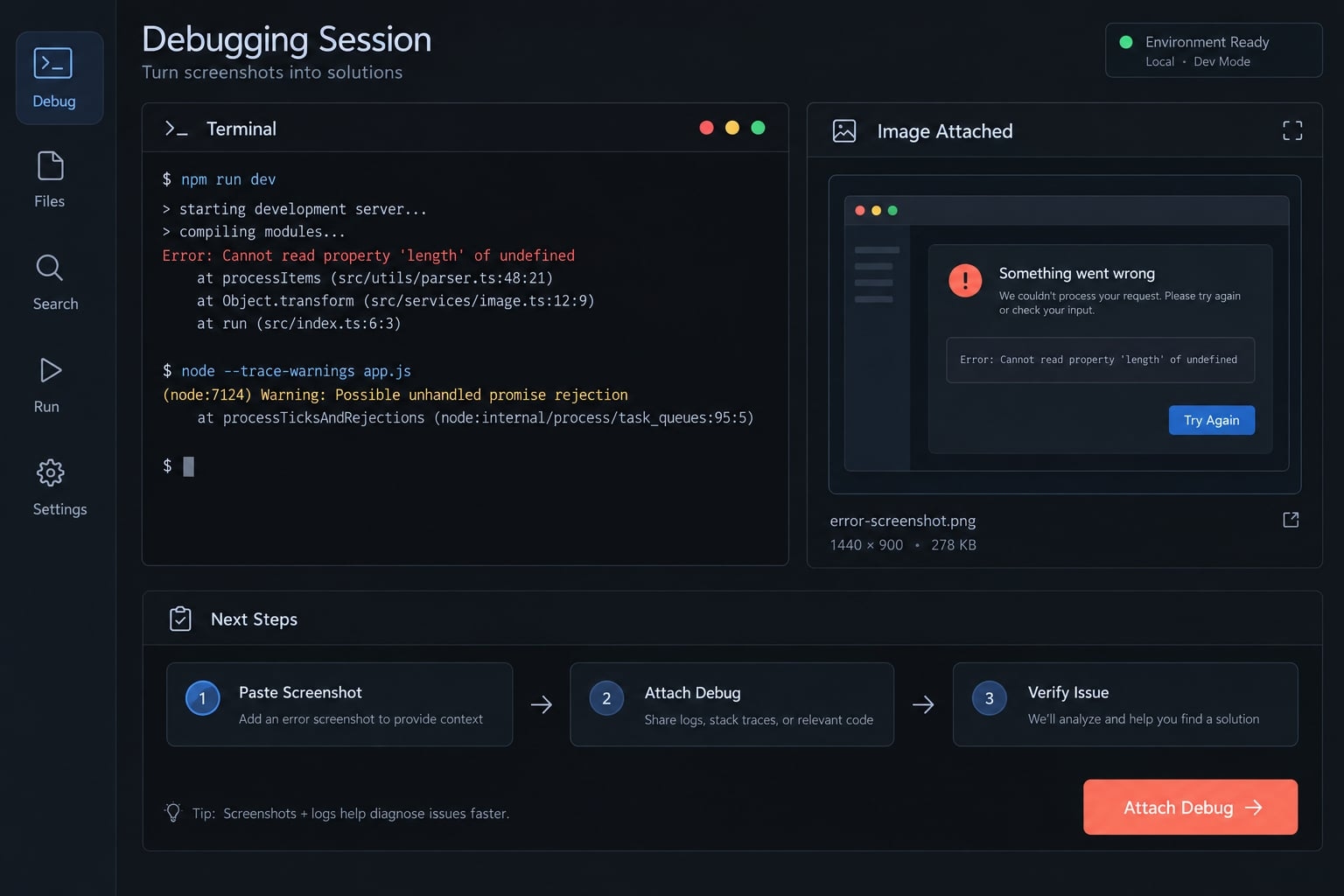
Add a screenshot to Claude Code in three steps
1. Capture or copy the screenshot
Put image data on the clipboard-not just a filename, URL, or file-browser selection.
- Windows: Press
Win+Shift+Sor use Snipping Tool. Capture the relevant area and confirm the screenshot was copied. - macOS: Press
Control+Cmd+Shift+4, then select an area. OmittingControlnormally saves a file instead of copying the capture. - Linux: Use your screenshot utility’s Copy to clipboard option; shortcuts depend on the desktop environment.
Redact credentials, customer information, and unnecessary internal details before sharing. If you already saved the screenshot, use the file-path procedure in Section 5.
2. Paste into the active Claude Code prompt
Focus Claude Code’s interactive input-not an ordinary shell prompt-and use the image-input action supported by your installation. The documented starting point is Ctrl+V, subject to the environment qualifications below. Terminal text paste and Claude Code image input are not necessarily the same action.
Wait for an image confirmation tag, such as [Image #1] (the exact label may vary). If nothing appears, troubleshoot the issue instead of repeatedly pasting.
3. Add an instruction and submit
Explain the visible symptom, expected behavior, and relevant files. For example:
The dashboard sidebar overlaps the report table.It should remain beside the table at this viewport.Inspect Sidebar.tsx and dashboard.css.Diagnose the issue before changing code.
Confirm the image attachment is present, then submit.
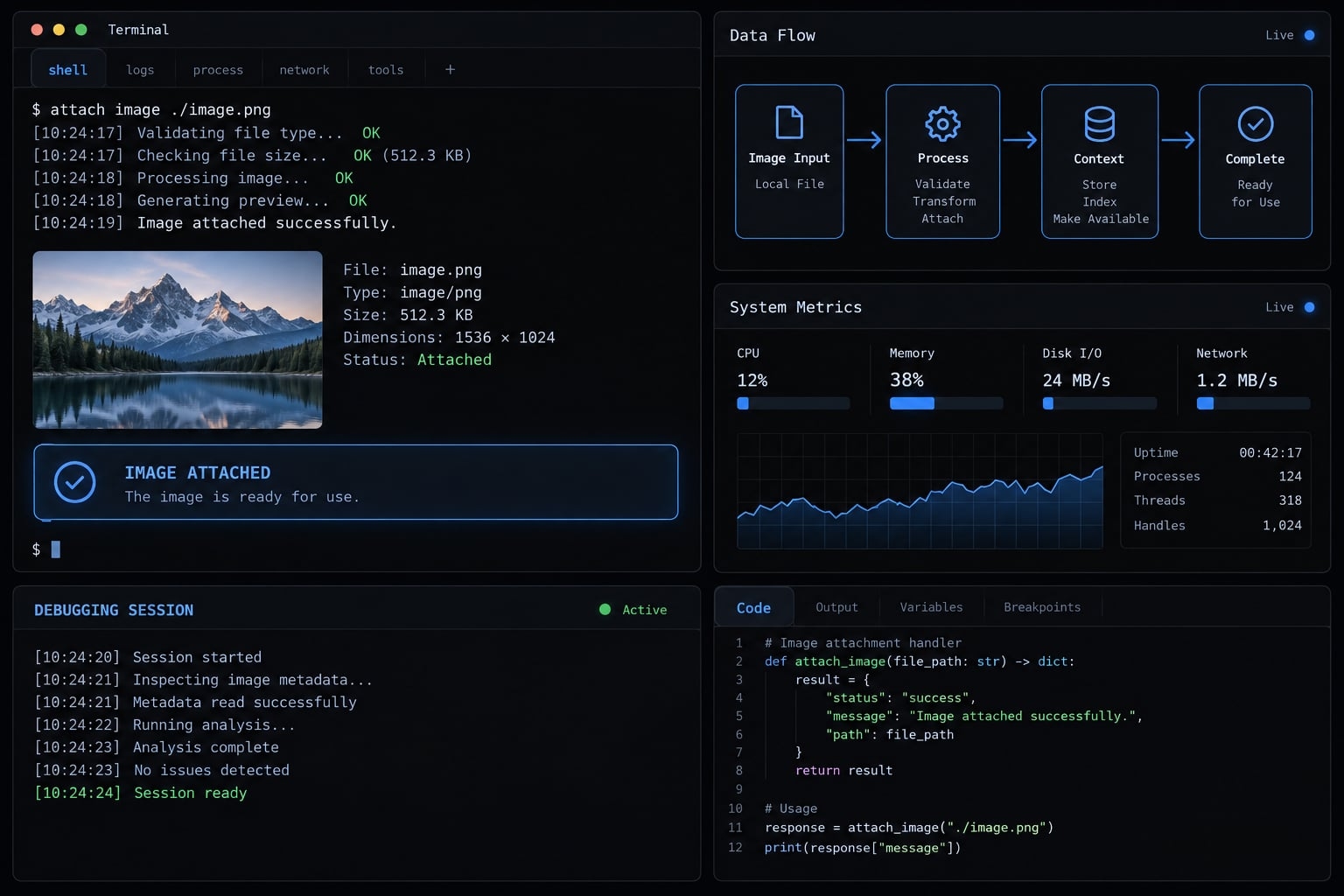
Claude Code screenshot shortcuts by platform
Your terminal and execution environment matter as much as your operating system. Windows Terminal is a terminal application; PowerShell is a shell. Neither method confirms which image shortcut actually works with Claude Code.
Use this compatibility table as a troubleshooting map, not a tested support matrix.
Environment | Image action and evidence status | Possible conflict | Success check | Fallback |
|---|---|---|---|---|
Windows Terminal with PowerShell | Use Alt+V (documented for Windows). Ctrl+V is typically captured by Windows Terminal’s own paste binding. | Terminal intercepts paste keys | Image indicator | Accessible native Windows path |
WSL | Ctrl+V and Alt+V are both bound; use Alt+V if the terminal intercepts Ctrl+V. | Windows-to-Linux clipboard integration | Image indicator | Linux-visible saved file |
macOS Terminal or iTerm2 | Documentation describes | Ctrl+V in most terminals; Cmd+V also pastes images in iTerm2. | Image indicator | Accessible macOS path |
Linux desktop terminal | Start with documented | Desktop clipboard or terminal binding | Image indicator | Accessible Linux path |
VS Code or Cursor integrated terminal | Depends on host OS and local/remote session; not tested here. | IDE intercepts shortcut | Image indicator | Path visible to active environment |
SSH, tmux, or remote container | Clipboard behavior not tested here. | SSH changes host; tmux affects keys; containers restrict access | Attachment or successful file read | Transfer, copy, or mount file appropriately |
Why regular paste may do nothing
Ordinary terminal paste typically handles text. Image input requires Claude Code to receive the appropriate action and access clipboard image data. A terminal keybinding or IDE shortcut can intercept the keys first. However, a missing image indicator alone does not prove a shortcut conflict-or establish that image input is unsupported.
Documentation and verification scope
Anthropic’s Claude Code documentation: Common workflows describes image input, including clipboard paste and image paths. Its Interactive mode documentation covers keyboard behavior.
Apple’s Take a screenshot on Mac guidance explains the Control modifier. Microsoft’s Use Snipping Tool to capture screenshots covers Windows capture.
These references do not establish hands-on compatibility for every table row. Consult documentation and release notes matching your Claude Code version before relying on an alternative binding.
Confirm the screenshot was attached and prompt Claude effectively
Check the interface before submission and image-specific understanding afterward. These are separate checks.
Attachment verification checklist
Before submitting clipboard input:
- Look for an image indicator.
- Confirm you copied the intended screenshot.
- Describe the symptom and expected result.
- Identify relevant routes, components, or files when known.
After submitting:
- Check whether Claude mentions details actually visible in the image.
- Compare its description with the screenshot.
- If the answer is generic or inconsistent, inspect the attachment or file-read result before retrying.
“I can see the image” is weaker evidence than an accurate description of its contents. You can ask Claude to describe the visible layout before suggesting changes.
For path-based input, confirm successful image reading instead of expecting an identical pre-submit attachment marker.
Prompt examples for common development tasks
UI bug
At a 1280px viewport, the admin sidebar covers the first table column.Inspect AdminLayout.tsx.Identify the likely cause and propose the smallest safe fix before editing.
Error dialog
The screenshot shows “Workspace could not be loaded” after login.Describe the visible error and possible causes.Which logs or authentication files should we inspect next?Do not change code yet.
Design comparison
Image 1 is the approved dashboard reference.Image 2 is the rendered implementation.List spacing, typography, and alignment differences before proposing edits.
Provide both screenshots for design comparison. Naming source files does not give Claude access to the rendered interface. Screenshots support visual debugging, but visible symptoms do not establish root causes. Code inspection, logs, and reproduction may still be necessary.
Troubleshoot screenshot paste problems in Claude Code
Separate clipboard, shortcut, environment, and file-access problems. Start with reversible checks, then use the saved-file fallback instead of escalating permissions.
Problem | Possible cause | Next safe action |
|---|---|---|
Nothing happens | Missing image data, intercepted input, or environment limitation | Verify clipboard contents, focus Claude Code, and check the binding |
Text or a URL appears | Clipboard contains text rather than image data | Copy the screenshot itself or save it |
Paste works in one terminal only | Different terminal or IDE bindings | Compare relevant keyboard settings |
Clipboard input fails in WSL | Clipboard integration differs across environments | Save the image and use a Linux-visible path |
Clipboard input fails over SSH | Remote process cannot access the local clipboard | Transfer the file through an approved method |
Behavior changes inside tmux | Additional key handling affects input | Retry outside tmux |
Image cannot be read | Wrong path, restricted access, unsupported encoding, or damaged file | Check access and export a valid PNG or JPEG |
Drag and drop inserts a path | Terminal provides a file reference | Ask Claude to inspect that accessible path |
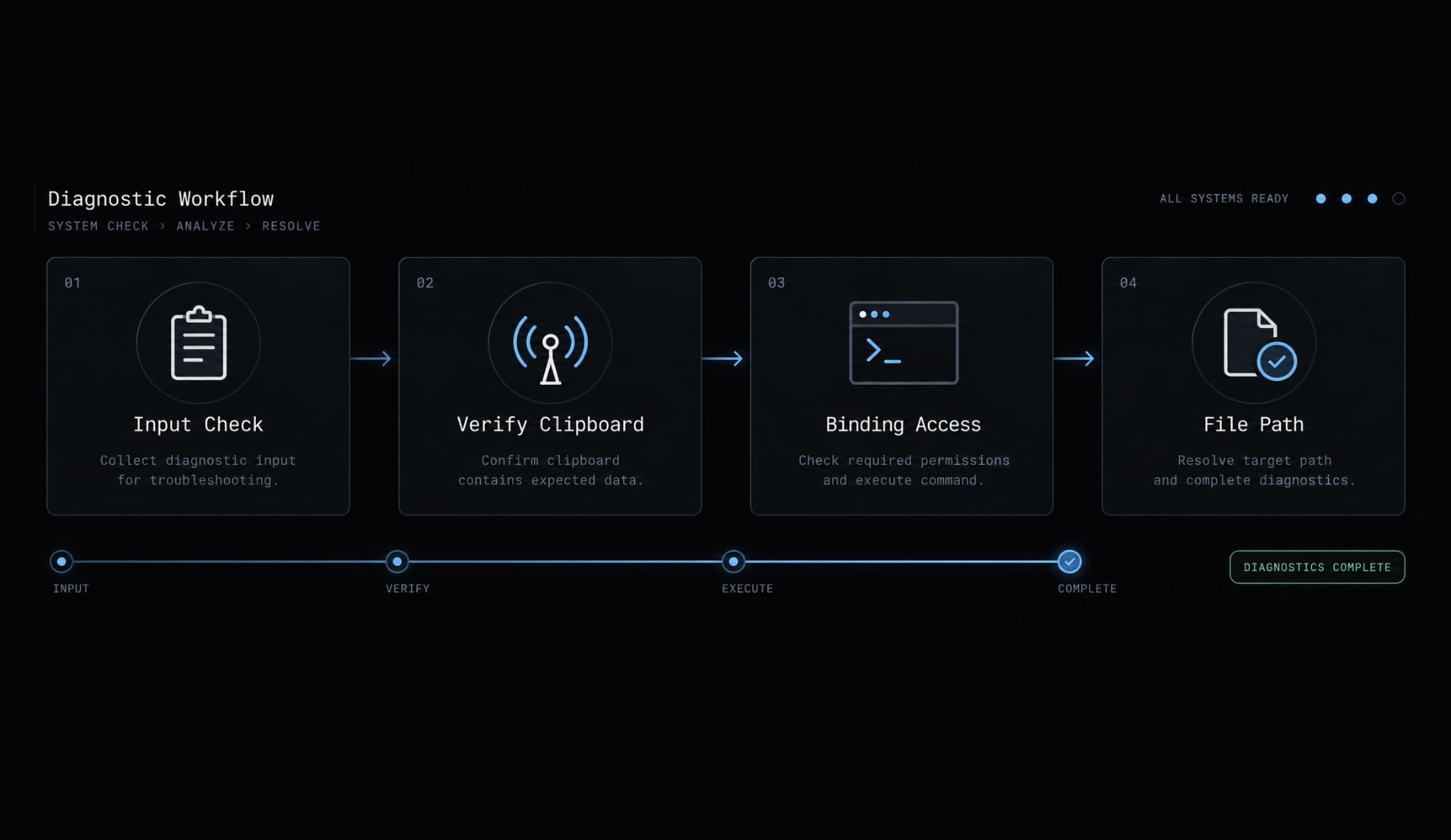
Run the five-step diagnostic sequence
- Check the clipboard in a trusted local image-capable application.
- Record the version with
claude --version; review applicable documentation and release notes. - Retry the documented input action with Claude Code focused.
- Compare a standard local terminal, without additional session layers where practical.
- Save and reference the image from an accessible location.
An update may be appropriate if release notes identify a relevant fix. It is not a guaranteed remedy, and organizational software policies still apply.
Check terminal shortcut conflicts
If you encounter Ctrl+V not working in Claude Code, inspect the relevant terminal or IDE keyboard settings. Compare behavior in a standalone terminal to isolate interception.
Avoid resetting all keybindings or granting broad filesystem access. Neither is a proportionate first response to a paste failure.
Handle WSL, SSH, tmux, and Containers
- WSL: Use a Linux-visible path. A Windows file might appear under
/mnt/c/, depending on mount configuration. - SSH: Transfer the screenshot to the remote host using an approved method, such as
scp. - tmux: Test outside the session to isolate key handling.
- Container: Copy or mount the file into the container using approved project settings.
These are potential causes and solutions, rather than issues specific to this article. Stop once attachment or image reading succeeds.
Use a local image path when clipboard paste fails
A local image path avoids clipboard handling, but Claude Code must still access and successfully read the file.
Follow these five steps:
- Save the screenshot in an accessible location.
- Use a descriptive filename.
- Confirm the active environment can access it.
- Explicitly ask Claude Code to inspect the image.
- Check the read result and image-specific response.
Save the screenshot in an accessible location
PNG and JPEG are practical choices. Export a valid image rather than merely changing its extension. A project folder is optional. Use an approved temporary location or appropriate repository exclusion to avoid committing private screenshots.
Redact secrets before saving the shared copy. A local file reference does not guarantee local-only processing; your configured model service and organizational data policies still apply.
Reference the file in the prompt
The following are illustrative prompts, not tested execution records.
macOS or Linux project
Inspect ./screenshots/mobile-nav-overlap.png.Describe the overlap before proposing edits.
Native Windows
Inspect "C:\Projects\my-app\screenshots\workspace-login-error.png".Describe the visible error before proposing edits.
Remote environment
Inspect /tmp/ui-tests/dashboard-mobile.png on this host.Describe the layout problem before proposing edits.
Quote paths containing spaces. Relative paths depend on the session’s working directory, and native Windows paths are not interchangeable with WSL paths.
An image file reference may not show the same indicator as clipboard input. Successful image reading, not path insertion alone, confirms the fallback worked.
Use drag and drop as a path alternative
Dragging a screenshot onto the terminal may insert its path rather than attach image data. That is useful if the environment running Claude Code can access the resulting path.
Build a better screenshot-based debugging workflow
Bound the task before requesting changes. A screenshot is more useful when paired with context and a clear decision about what Claude should do next.
Use symptom–expectation–context–action
This editorial framework is a prompt-writing aid, not an official Claude Code feature:
- Symptom: What is visibly wrong?
- Expectation: What should happen instead?
- Context: Which route, viewport, component, and files matter?
- Action: Diagnose, propose, edit, or verify?
Reusable example:
Symptom: The admin toolbar overlaps the page title.Expectation: The title remains fully visible below the toolbar.Context: /admin/reports, 1440 × 900 viewport, ReportsLayout.tsx.Action: Inspect the screenshot and code, then propose a minimal patch.Wait for approval before editing.
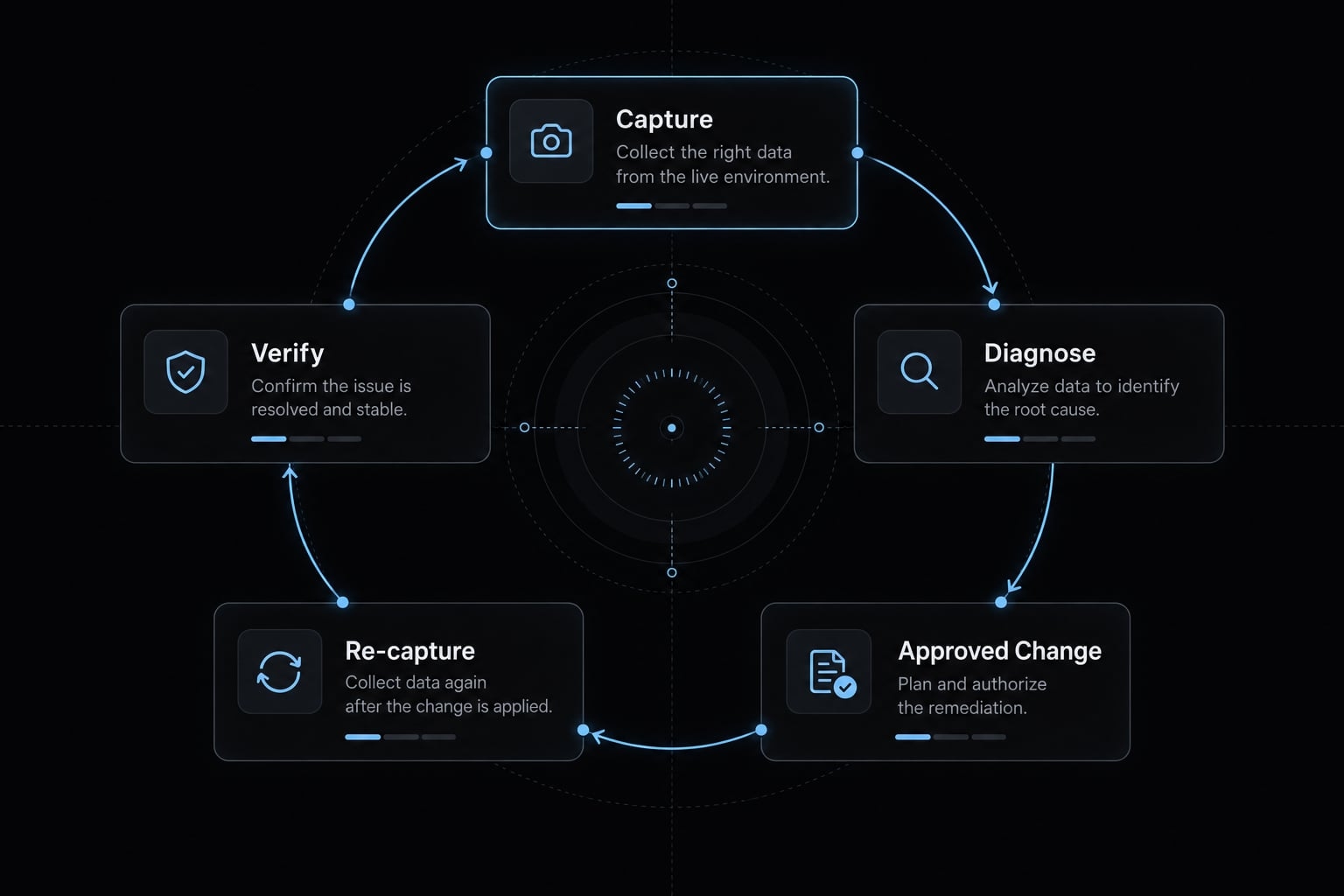
Verify the rendered result
After an approved change:
- Capture the same route and viewport again.
- Provide the new screenshot alongside the original.
- Request a focused comparison.
- Review the rendered result and relevant tests.
Keep page state, data, and zoom consistent so differences remain meaningful.
Playwright can support capture and frontend QA, but browser automation requires separate setup and appropriate tool access. Do not assume Claude can open your application automatically.
A manual before/after comparison is useful, but it is not formal visual regression testing with maintained baselines and repeatable checks.
Frequently asked questions
How do I paste a screenshot into Claude Code?
You can paste a screenshot by ensuring the image data is in your clipboard and using the specific terminal shortcut: Alt + V on Windows or Ctrl + V on macOS. If this fails, drag and drop the image file into the terminal or reference the file path directly in your prompt.
Can I reference a local image file instead of pasting?
Yes. If clipboard pasting is unavailable or failing, save the screenshot as a PNG or JPEG file within your project folder. You can then reference the file path (e.g., ./screenshots/error.png) directly in your prompt, and Claude Code will read and analyze the image file.
What should I do if my terminal does not support image shortcuts?
If your terminal or remote session (such as tmux or SSH) intercepts keyboard shortcuts, use the drag-and-drop feature. Drag the image file from your file explorer directly into the terminal window, or manually type the absolute path to the saved screenshot file within the Claude Code prompt.
Are there any file size or format limits for screenshots?
For optimal performance, keep screenshots under 5 MB. Supported formats include PNG, JPEG, WebP, and non-animated GIFs. Claude Code dynamically handles image tokenization, so higher-resolution screenshots are downsampled during analysis to stay within session constraints while maintaining clarity for visual debugging.
Read more:
- How to debug with Claude Code: A reliable 7-step workflow
- Fix Claude Code error editing file: Quick troubleshooting guide
- Claude Code --chrome: Setup, workflow and browser integration
Conclusion
To add a screenshot to Claude Code reliably, capture image data, focus the prompt, and confirm the attachment before submitting - saving to a local path as a fallback if clipboard pasting fails. When debugging, provide visible symptoms, expected behavior, and project context, requesting a diagnosis before applying bounded fixes. Use this three-step workflow and local path fallback as your repeatable checklist for accurate image-based troubleshooting.