Claude Code MCP: Connect servers, setup guide, and fix errors
Claude Code MCP: How to connect MCP servers, choose the right setup, and fix common errors
Claude Code MCP is the fastest way to stop bouncing between your terminal, docs, GitHub, and other tools just to paste context back into an AI session. If you regularly switch tabs to fetch issue details, search documentation, or run local commands, Model Context Protocol gives Claude Code a cleaner way to access those systems directly. This guide shows the practical setup path most users actually need: What Claude Code MCP means, how to add an MCP server, when to use HTTP transport or stdio transport and how to troubleshoot the most common failures without wasting time.
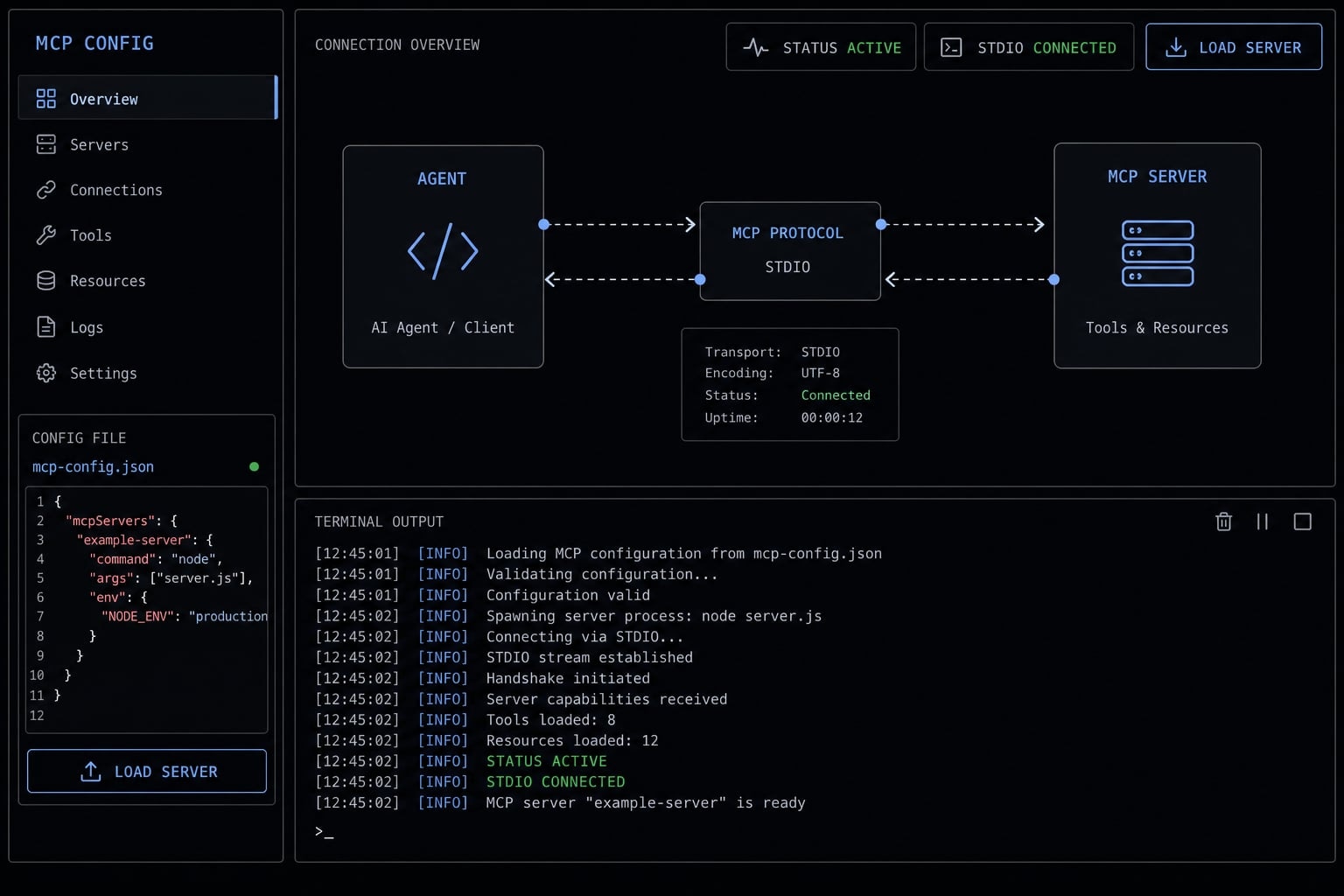
What Claude Code MCP means in practice
Claude Code MCP means using the Model Context Protocol so Claude Code can connect to MCP servers, which expose tools, resources, or external services Claude can use during a session. This expands Claude Code beyond its built-in features, eliminating tedious copy-pasting between your AI workflow and external tools.
Claude Code does not automatically know how to interact with every external platform. MCP is the connection layer that bridges Claude Code to those systems. The MCP server handles the tool connection, while Claude Code uses that server during your session.
With Claude Code MCP, you get native tool integration and direct external connectivity without having to write custom boilerplate every time.
Common examples include:
- Searching product or technical documentation
- Reading issues from GitHub or an issue tracker
- Querying a database through a controlled tool
- Accessing browser automation workflows
- Connecting productivity or research tools to Claude Code
- Standardizing repeatable tool access across projects
For most users, the key point is simple: Model Context Protocol is a practical bridge, not something you need to study deeply before getting started. The value of Claude Code comes from fewer context switches and a more usable development workflow.
The fastest way to add an MCP server to Claude Code
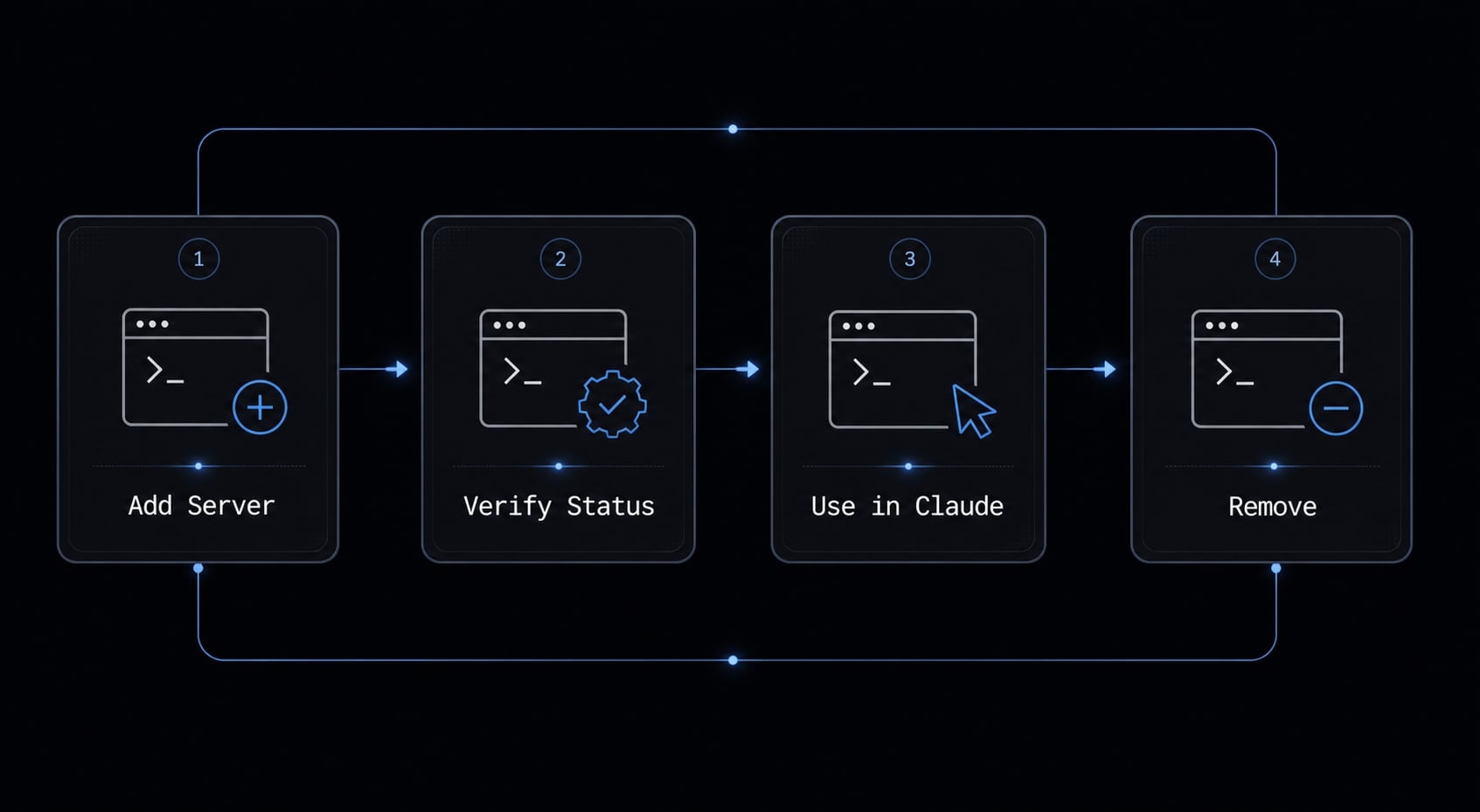
To add MCP servers to Claude Code quickly, follow these standard steps:
- Add the server.
- Verify it.
- Use it in Claude Code.
- Remove it if needed.
Step 1: Add a remote HTTP server
Before you begin, make sure you have:
- Claude Code installed.
- Authentication completed if your setup requires it.
- A terminal open in your project directory.
For a hosted server, the default choice is HTTP transport.
claude mcp add --transport http claude-code-docs https://code.claude.com/docs/mcp
What each part does:
claude mcp add: Registers a server with the Claude CLI.--transport http: Tells Claude Code this is a hosted remote server.claude-code-docs: The name you assign to the server.https://code.claude.com/docs/mcp: The MCP server URL.
In practice, this is the cleanest starting point for most remote tools. If the server is hosted, use http transport first unless the provider says otherwise.
Step 2: Verify the server status
Do not skip verification. A server added to config is not the same as a working server.
claude mcp list
Check for:
- The server name appearing as expected.
- Correct server status.
- No obvious connection failure.
If something looks wrong here, fix it before trying to use the server. The fastest check is always claude mcp list before deeper troubleshooting.
Step 3: Use the server in Claude Code
Start Claude Code:
claude
Then ask Claude to use the server by name. For example:
“Use theclaude-code-docsserver to look up whatMCP_TIMEOUTdoes.”
You can also check connected MCP servers inside the session with:
/mcp
This is often the quickest in-session confirmation that your Claude Code MCP setup is active.
Step 4: Remove a server cleanly
If you added the wrong URL, used the wrong scope, or want to clean up a test entry, remove it directly:
claude mcp remove claude-code-docs
Use Claude MCP remove when:
- The config is stale.
- You are testing multiple servers.
- The command or URL was wrong.
- You need to re-add the server at a different scope.
That add → verify → use → remove pattern is the safest default lifecycle.
HTTP vs stdio vs direct config editing: Which setup method should you choose?
Use HTTP transport for hosted remote servers, use stdio transport for local tools, and use direct config editing when repeated CLI setup becomes slow or fragile. For most users, that decision is enough.
Recommended default path
Choose based on where the MCP server runs:
- Use HTTP transport when the MCP server is hosted at a URL.
- Use stdio transport when the server runs as a local command or script on your machine.
- Use direct editing of configuration files when you need more control, many arguments, or repeatable shared setup.
This should help most readers decide in under a minute.
Comparison table: setup options
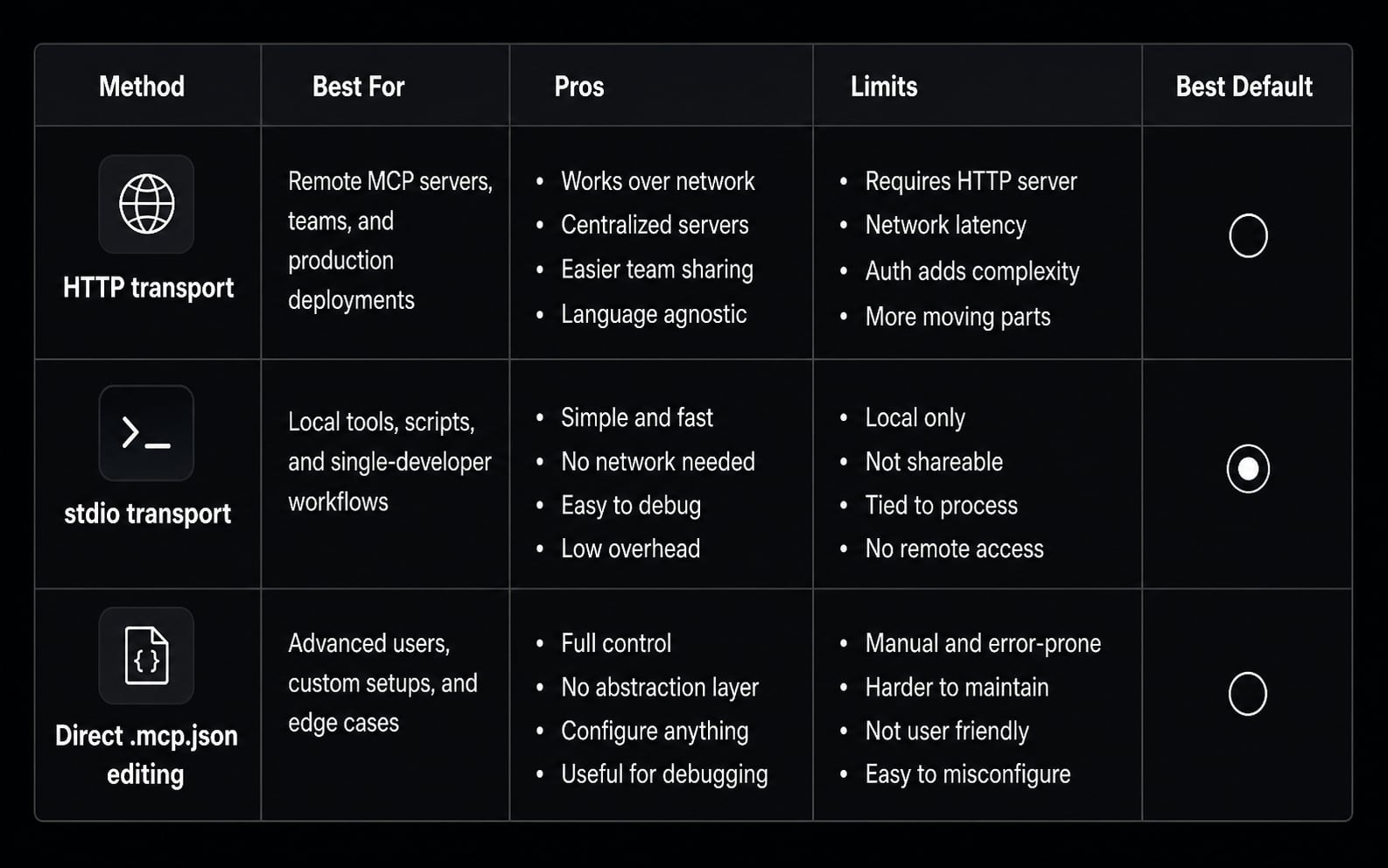
Setup Method | Best For | Pros | Limits | Best Default |
|---|---|---|---|---|
HTTP transport | Hosted remote MCP servers | Fast to add, easy to copy, clean default path | May require auth, depends on remote availability | Yes, for hosted services |
stdio transport | Local tools, scripts, and process-based servers | Good for local control, works with command-based tools | More sensitive to local paths, dependencies, and env setup | Yes, for local tools |
Direct .mcp.json editing | Repeatable or shared configuration | Better visibility, easier bulk edits, version control friendly | Requires manual care, not a transport type by itself | Best when CLI setup gets repetitive |
Important distinction:
- HTTP transport and stdio transport are connection methods.
- Direct
.mcp.jsonediting is simply a configuration management approach—not a third transport type.
If you are unsure, start simple:
- Hosted server → http transport.
- Local process → stdio transport.
- Complex shared setup → edit config directly.
Where Claude Code stores MCP configuration and how scope works
Scope matters because it controls two things at once: where the config is stored and who can use it. This is one of the most common sources of confusion in Claude Code configuration.
Scope meanings in real usage
When people ask about local user project scope, they usually want practical guidance, not filesystem theory.
- Local: Private to you and active only in the current project context.
- User: Available across your personal projects.
- Project: Stored with the project so teammates can use the same setup.
Thinking in terms of MCP server scopes is easier if you map them to real usage:
- Testing one server in one repo: local.
- Reusing one tool across your own work: user.
- Standardizing a team setup: project.
Config storage table
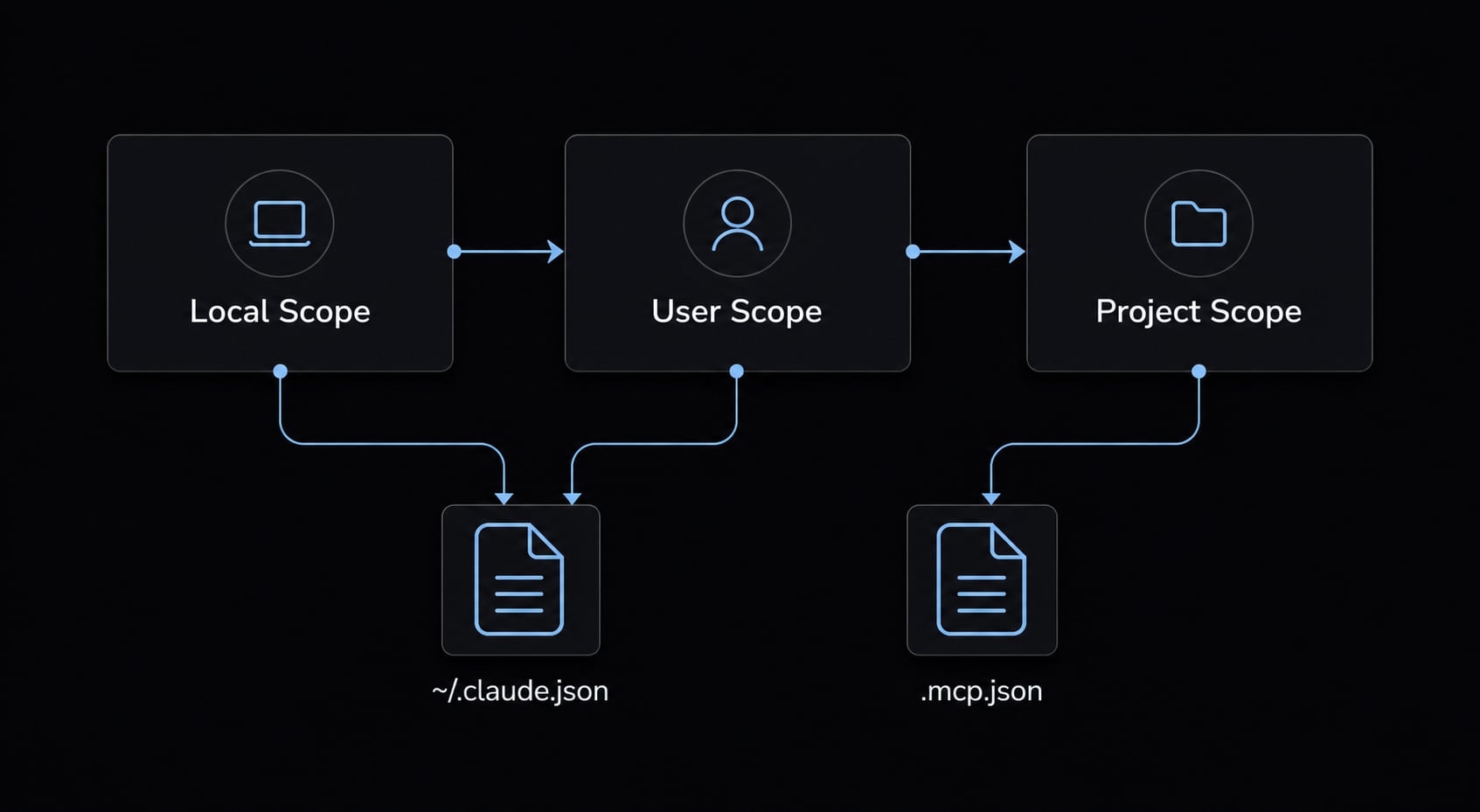
Scope | File Location | Best Use Case |
|---|---|---|
Local |
| One-project testing or private setup. |
User |
| Personal reusable tools across projects. |
Project |
| Team-shared configuration. |
The main files to remember are:
~/.claude.json.mcp.json- standard json structure for named server definitions.
When to choose each scope
Use these scenario shortcuts:
- One-project experiment: Choose local.
- Personal reusable tool: Choose user.
- Team-standard setup: Choose project scope.
One important caveat: Scope is usually fixed when the server is added, so changing scope often means removing and re-adding the server. In practice, this is usually faster than trying to force a scope change later.
How to edit .mcp.json manually for more control
Manual editing helps when CLI setup becomes repetitive, especially if you are managing many arguments, environment variables, or a shared project-level config. For most users, you do not need this on day one. But it is often the cleaner path once your setup grows.
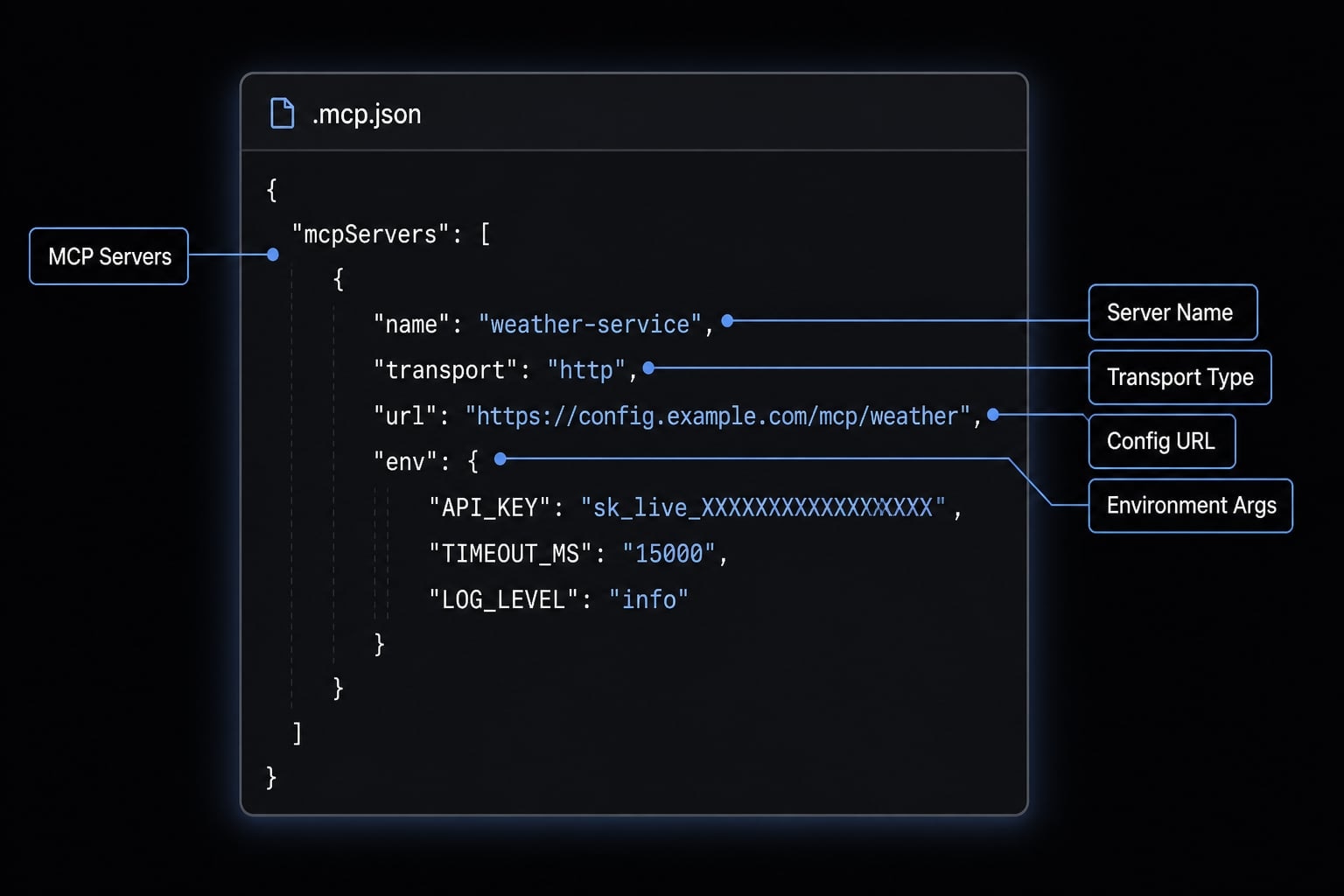
Basic .mcp.json structure
A minimal .mcp.json file looks like this:
{ "mcpServers": { "server-name": { "type": "http", "url": "https://example.com/mcp" } }}
The key idea is simple:
mcpServerscontains your server definitions.- Each named entry is one MCP server.
- The rest of the json depends on the transport.
Example 1: HTTP server config
For a hosted server using http transport, keep the config small:
{ "mcpServers": { "claude-code-docs": { "type": "http", "url": "https://code.claude.com/docs/mcp" } }}
If a hosted server needs authentication, the exact step may vary. Some setups rely on browser login or other environment variables, but you do not need to overbuild the initial config unless the server requires it.
Example 2: Stdio server config
For local stdio MCP servers, Claude Code starts a local command on your machine:
{ "mcpServers": { "playwright": { "type": "stdio", "command": "npx", "args": ["-y", "@playwright/mcp@latest"], "env": { "NODE_ENV": "production" } } }}
This is a standard stdio transport pattern:
command: The executable to run.args: Command arguments.env: Optional environment variables.
If this fails, test the same command outside Claude Code first. That is often the fastest way to separate a local command problem from a Claude Code config problem.
When manual editing is the better choice
Direct editing is usually better when you have:
- Many arguments to manage.
- Several environment variables.
- Shared configuration files in version control.
- Repeated setup across projects.
- A need to see the full config at once instead of rebuilding it with CLI flags.
For most readers, that is enough detail. You do not need a full schema reference to manage .mcp.json effectively.
Common Claude Code MCP problems and the fastest fixes
Most troubleshooting Claude Code MCP connection errors come down to a few repeat causes: Bad config, missing auth, missing environment variables, wrong path, or the wrong transport choice. The fastest approach is to check symptoms first.
Troubleshooting matrix
Symptom | Likely Cause | Fastest Check | Fix |
|---|---|---|---|
Failed to connect | Bad URL or server unavailable | Run | Confirm the URL and check whether the remote server is reachable |
Connected but no tools appear | Missing required config or env | Review server requirements and in-session | Add missing environment variables or complete server-specific setup |
Connection timed out | Slow startup or delayed remote response | Retry and check startup behavior | Increase timeout, for example: |
Auth not completed | Login flow still pending | Check | Finish the required authentication workflows |
Stdio server fails instantly | Wrong command, bad path, missing local dependency | Run the same local command directly in terminal | Fix the command, install dependencies, or correct the local path |
A few practical patterns matter here:
- If the server is listed but not usable, check auth and env first.
- If the server never starts, check URL, command, or local dependency path.
- If a local server breaks immediately, the problem is often outside Claude Code.
Minimal troubleshooting workflow
Use this five-step sequence:
- Check config: Confirm the server name, URL, command, args, and scope.
- Check auth: Some remote servers require browser login or another auth step.
- Check environment variables: Missing keys are a common reason tools do not appear.
- Check transport choice: Hosted server usually means HTTP transport. Local command usually means stdio transport.
- Test the command outside Claude Code: If you are using stdio, this is one of the fastest diagnostics available.
In practice, most failures are not “Claude being broken.” They are setup issues tied to config, auth, env, or local command behavior.
A simple workflow pattern for reusable MCP setups
Once your setup works, the next goal is keeping it manageable. The simplest model is to organize MCP the same way you organize scripts and repeatable team workflows.
Use this pattern:
- Personal tools you reuse often → User scope.
- Project-specific shared tools → Team-shared configuration with project scope.
- Complex repeatable setups → Version-controlled .mcp.json.
- Frequently used prompts and tool access patterns → Documented reusable workflows.
This keeps your Claude Code environment cleaner over time and improves developer productivity, especially when multiple people need the same agent workflows without rebuilding config from scratch.
In practice, teams often standardize AI setup the same way they standardize scripts, templates, and local dev tooling. AgentKit commonly sees the best long-term results when workflow configs are documented clearly instead of living in one person’s terminal history.
Frequently asked questions
What is Claude Code MCP?
Claude Code MCP (Model Context Protocol) is an open-source standard that allows Claude Code to securely connect to external tools, databases, and data sources. Instead of manually copying and pasting information into chat, MCP servers act as a bridge, enabling Claude to directly read, query, or interact with your systems.
How do I add an MCP server to Claude Code?
You can add an MCP server by running the command claude mcp add in your terminal. You must specify the transport type (HTTP or stdio), a unique name for the server, and the connection URL or command. After adding, always run claude mcp list to verify the connection status before use.
Should I use HTTP or stdio for my MCP server?
Use HTTP transport if you are connecting to a remote, hosted MCP server, as it is the recommended standard. Use stdio transport if you are running an MCP server as a local process on your machine, such as a local script or a utility installed via npx.
Where is the configuration for Claude Code MCP stored?
Configuration is stored in ~/.claude.json for local and user-scoped servers, or in a project-specific .mcp.json file in your project root for team-shared setups. You can view these files directly to manage your server configurations, environment variables, and connection arguments manually.
What is the difference between local, user, and project scope?
Scope defines who can access your MCP servers and where they are stored:
- Local: Private to you and active only in the current project.
- User: Available to all your projects personally.
- Project: Stored in the project root to share with your entire team.
How do I fix a "Connection timed out" error in Claude Code MCP?
First, verify that your server URL is correct and the server is running. If it remains slow to start, increase the connection limit by setting the MCP_TIMEOUT environment variable before launching Claude Code (e.g., MCP_TIMEOUT=60000 claude). Ensure that any required environment variables, like API keys, are correctly configured in your setup.
Can I manually edit my MCP configuration file?
Yes. Manually editing .mcp.json or ~/.claude.json is often more efficient than using the CLI wizard, especially for complex setups requiring multiple environment variables or arguments. After saving your changes, always restart Claude Code and use the /mcp command to confirm the new configuration is loaded correctly.
Read more:
- Claude Code MCP configuration: A practical setup guide
- Connect GitHub MCP to Claude Code: Step-by-step guide
- How to Add Supabase MCP to Claude Code
Conclusion
The simplest path for Claude Code MCP is to start with the actual workflow need, choose HTTP transport for hosted tools or stdio transport for local ones, verify the server before using it, and use project scope when the setup should be shared. If something breaks, check config, auth, environment variables, and local command behavior before assuming the server itself is the problem.
You do not need to master protocol internals to use MCP servers effectively. You just need a clean setup path and a reliable troubleshooting routine. If you want a reusable starter resource, use AgentKit’s documentation pattern to build a simple internal MCP setup checklist and shared config template for your team.