Claude Code plugins: A guide to workflows, setup and safety
Claude Code plugins: What they are, where to find them, and how to use them safely
Claude Code plugins can be confusing at first, mostly because most developers don't actually need a complex extension system - they just want to know what plugins do, where to find them, and how to install them without breaking their workflow. The confusion usually starts when plugins, marketplace installs, and standalone .claude/ setups all seem similar from the outside. This guide keeps the scope practical. You will learn what Claude Code plugins are, where to browse them, how to install and reload them, which plugin categories are worth trying first, when to use a plugin versus a standalone config, and what safety checks to run before installing anything locally.
What Claude Code plugins are and why they matter
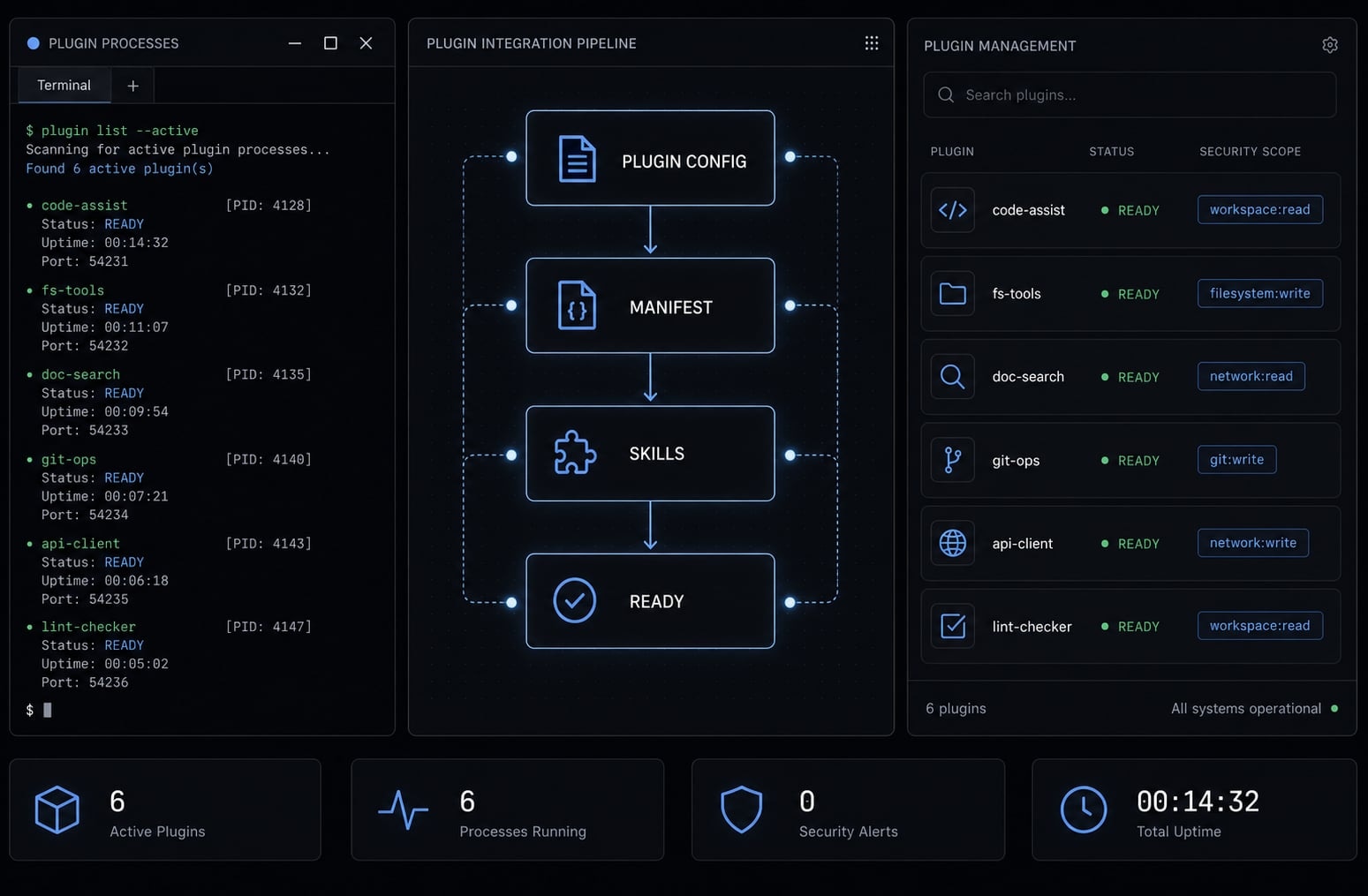
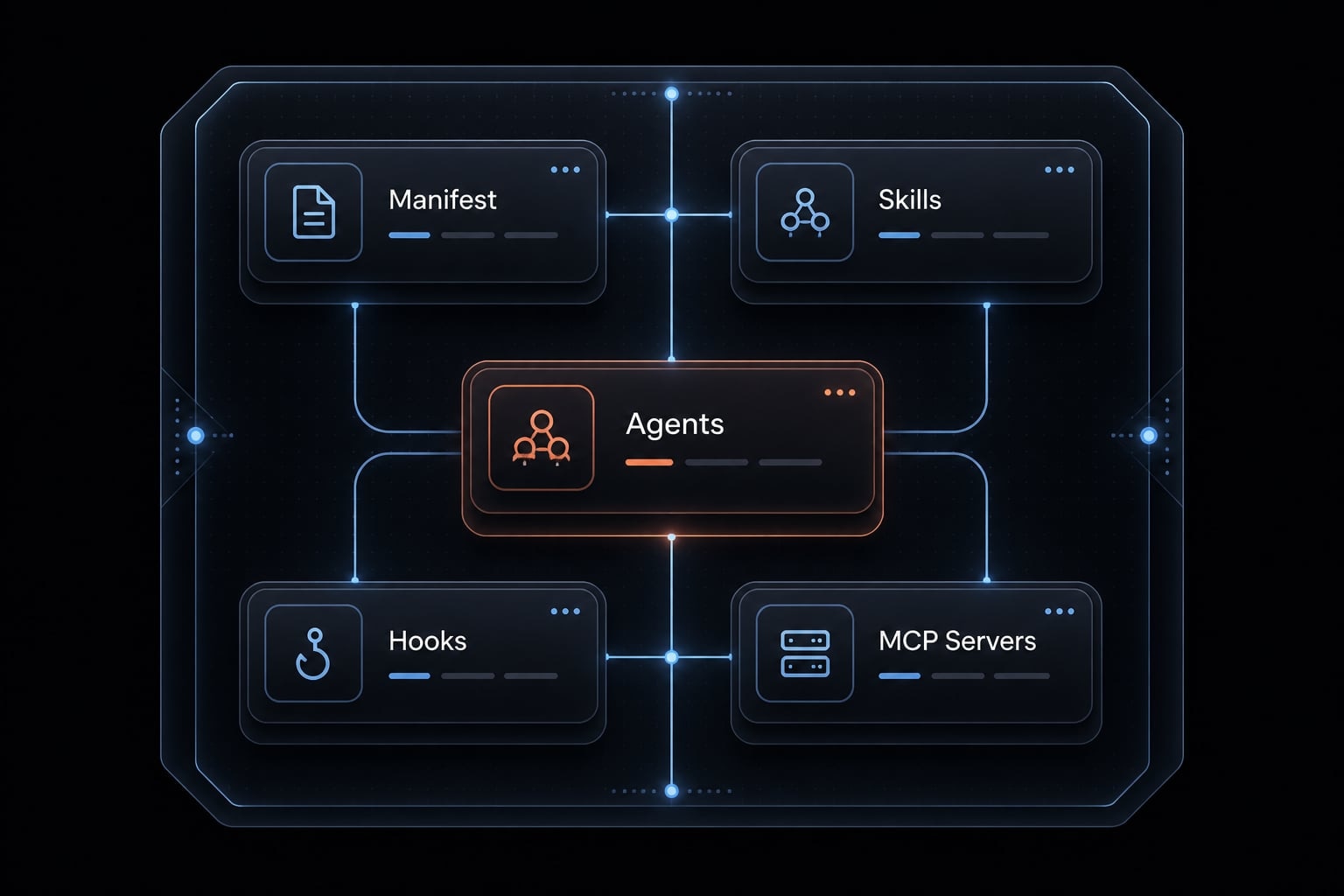
Claude Code plugins are packaged, reusable workflow extensions that add structured capabilities to Claude Code. They can bundle items such as skills, agents, hooks, and MCP servers, making it easier to reuse the same setup across projects, teams, or environments instead of rebuilding prompts and workflow logic each time.
Plugins in plain English
In practice, a plugin is more than a one-off prompt and more durable than a personal tweak inside a single repo. It gives you a repeatable way to add workflow behavior that can be reused across projects. That matters when you want consistency, sharing, versioning, or a cleaner setup for recurring tasks.
Teams often run into the same early bottleneck: one developer builds a great workflow, but no one else can easily adopt it. A plugin helps turn that workflow into something more portable and easier to standardize.
What a plugin can include
A Claude Code plugin can include several building blocks:
- Skills: Reusable task behaviors or commands that Claude can invoke for repeated actions
- Agents: Specialized helpers focused on a certain workflow, such as review, planning, or debugging
- Hooks: Actions triggered at specific points in a workflow
- MCP servers: Integrations that extend what Claude can access through external tools or context
- Plugin manifest: A small metadata file, usually
plugin.json, that defines the plugin identity and basic information - Namespaced commands: Plugin skills typically appear with a prefix such as
/plugin-name:skill
The benefits are clear: Claude Code extensions cut setup friction, enforce repo consistency, and streamline team sharing.
Where to find Claude Code plugins
For most beginners, the official Claude Code marketplace is the best place to start. It offers the lowest-friction way to discover available plugins and is usually the safest first stop when you are still learning how the ecosystem works.
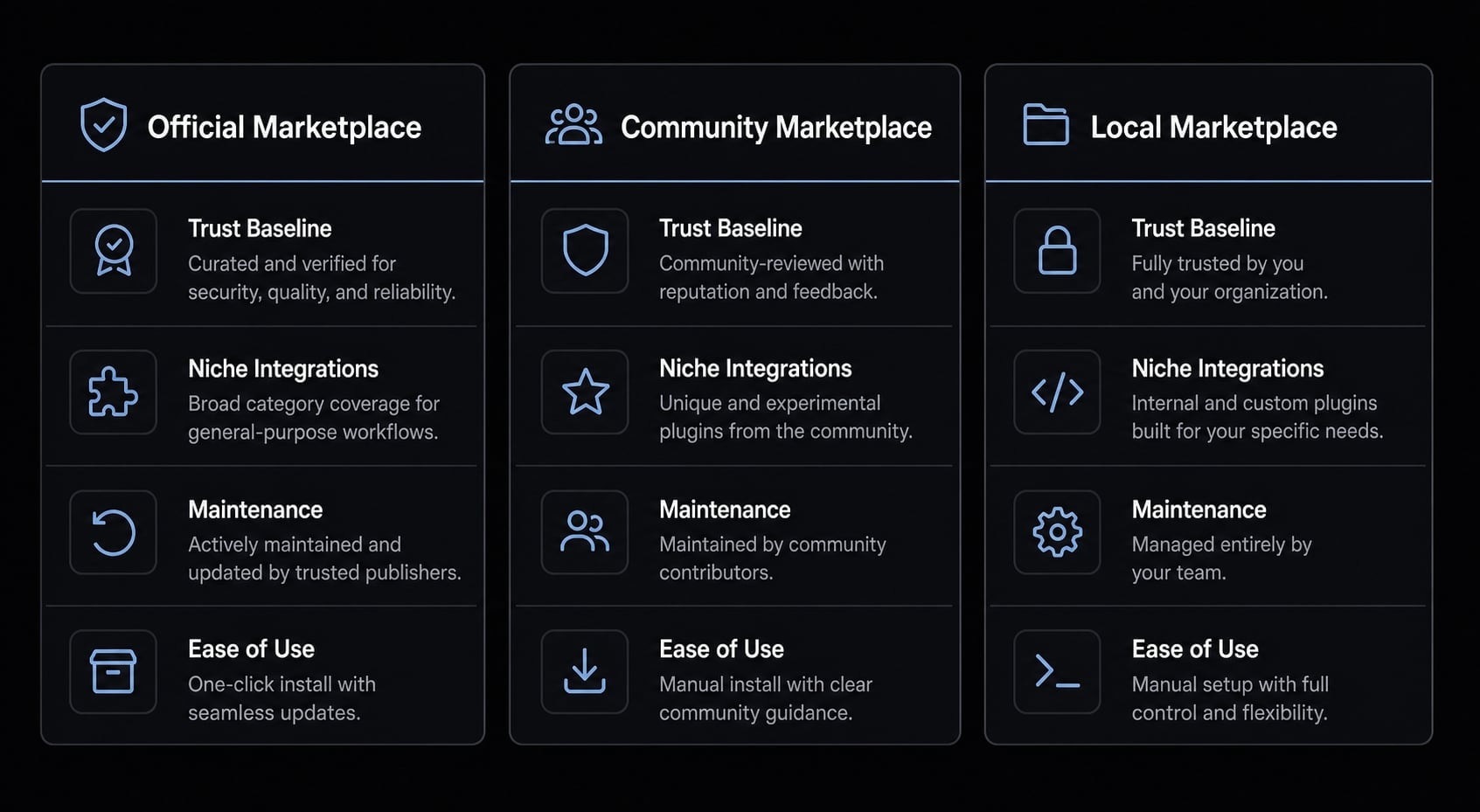
Official vs community vs local marketplaces
Source | Best for | Pros | Caution |
|---|---|---|---|
Most beginners and standard workflows | Easiest discovery, clearer trust baseline, familiar plugin categories | Still review permissions and dependencies | |
Community marketplace | Broader exploration and third-party tools | More variety, useful niche integrations | Requires stronger source verification |
Local marketplace | Internal tools or personal controlled distribution | Full control, private sharing, flexible testing | More manual setup and maintenance |
The official marketplace is usually the best first move because it reduces decision noise. Community and local sources become more useful when your workflow is more specialized or your team wants tighter control.
The fastest way to browse plugins
- Open
/plugininside Claude Code. - Go to the Discover tab.
- Browse by workflow need, such as code intelligence, source control, planning, deployment, or monitoring.
That simple flow is enough for most users to get oriented quickly. If your goal is fast evaluation rather than deep customization, avoid over-optimizing here. Start with one or two plugins that solve an obvious workflow gap.
How to install and reload Claude Code plugins
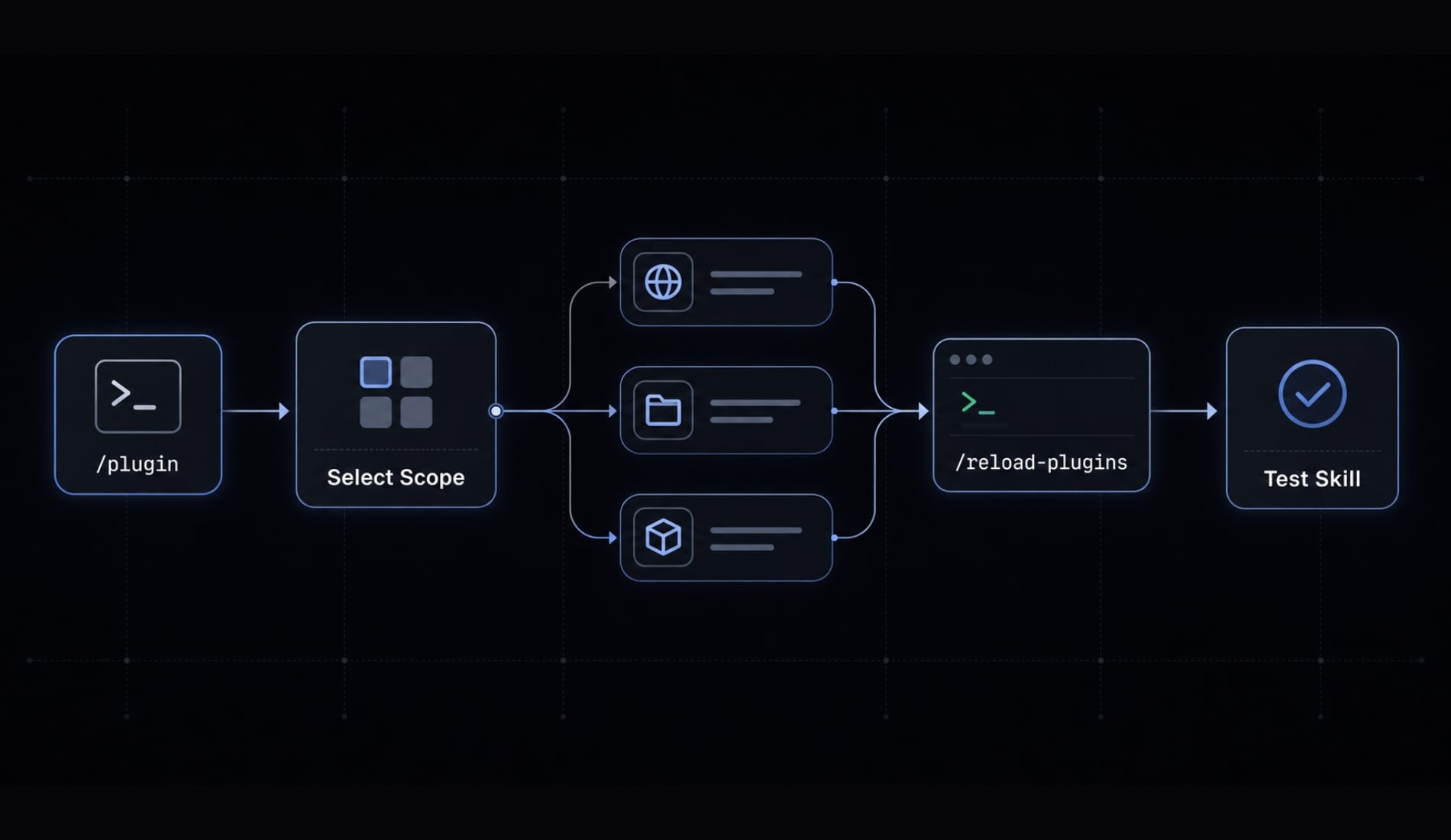
If you only remember one workflow, remember this: install the plugin, choose the right scope, reload, then test. Many beginner issues come from skipping the scope decision or assuming changes appear instantly.
- Open
/pluginor use the install command. - Choose a plugin source.
- Pick the right install scope.
- Run
/reload-plugins.
Step 1: Install from a marketplace
You can install through the plugin browser or directly from a command.
- Open
/plugin - Browse or search for the plugin
- Select the plugin you want
- Confirm the install source
You can also use a direct install command such as:
/plugin install github@claude-plugins-official
This command style is useful when you already know the exact plugin name and marketplace.
Step 2: Choose the right install scope
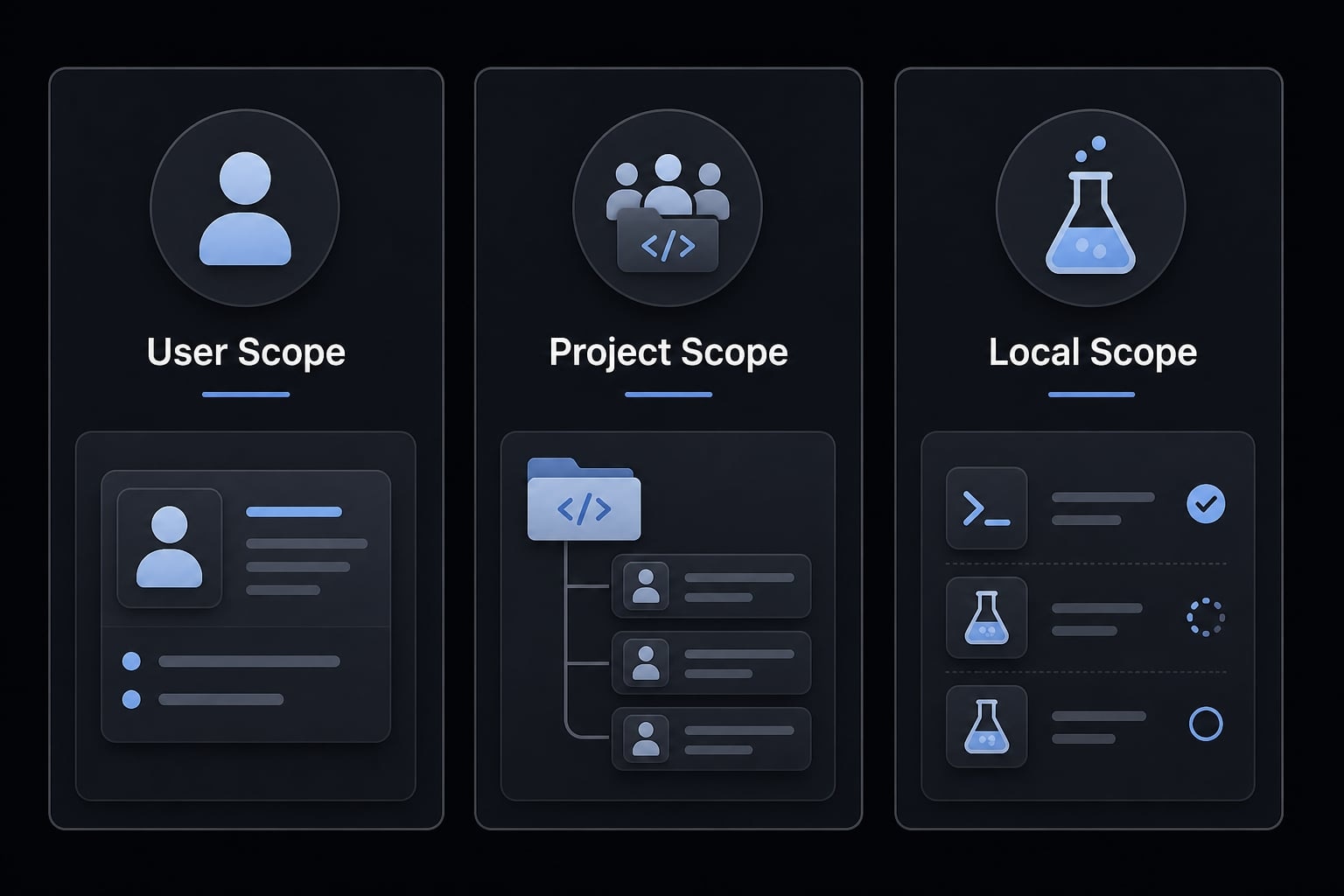
The install scope affects who gets the plugin and where it applies. This choice matters more than many users expect.
Scope | Best for | Main Benefit |
|---|---|---|
User scope | Personal workflows across many projects | One setup follows you everywhere |
Project scope | Shared repo-level team workflows | Keeps the team aligned in one repository |
Local scope | Temporary testing or low-risk experimentation | Limits blast radius while you evaluate |
A simple way to decide:
- Choose user scope if the workflow is personal and reusable.
- Choose project scope if the repo team needs the same setup.
- Choose local scope if you are testing or do not want broad changes yet.
Many teams make better adoption decisions when they start small. Project scope is especially useful when you want workflow consistency without asking each contributor to rebuild the same environment manually.
Step 3: Reload without restarting Claude Code
After you install, enable, disable, or update a plugin, run:
/reload-plugins
This matters because plugin changes may not appear immediately. In real usage, /reload-plugins is both a normal step and a fast troubleshooting action. If a plugin does not show up or a new skill is missing, reloading is one of the first things to try.
Step 4: Test a local plugin during setup
If you are testing a plugin locally, Claude Code supports a direct path-based load:
claude --plugin-dir ./my-first-plugin
This is useful for validation before broader rollout. Once loaded, test a namespaced command such as /my-first-plugin:hello to confirm the plugin is active.
This local test path is also helpful when comparing a packaged plugin against a standalone .claude/ setup. It lets you validate behavior before deciding whether something should become part of a wider team workflow.
The best plugin types to explore first
The best Claude Code plugins for most beginners are not the ones with the longest feature list. They are the ones that improve code context, repo workflows, planning, and shipping with minimal setup friction.
Code intelligence plugins
These plugins are often the highest-value place to start if you work across larger codebases.
- Support jump-to-definition
- Help find references
- Improve type checks
- Strengthen Claude’s code context during editing and review
- Often rely on Language Server Protocol (LSP), a standard way tools understand source code structure
Important note: Some LSP-based plugins require separate language server binaries to be installed locally. If you see an error like “executable not found,” the plugin may be fine-the missing dependency is usually the issue.
Workflow and integration plugins
These categories tend to create the fastest operational value because they connect coding work to the rest of the delivery process.
- Source control: GitHub, GitLab - Useful for repository workflows, pull requests, issue context, and review coordination.
- Project management: Linear, Jira, Notion, Asana - Useful when planning, tickets, specs, and execution need to stay connected.
- Deployment and infrastructure: Vercel, Firebase, Supabase - Useful for shipping faster and keeping deployment steps closer to the development workflow.
- Communication and monitoring: Slack, Sentry - Useful when your team wants faster feedback loops around incidents, releases, or collaboration.
- Security and review workflows - Useful for catching common issues earlier and making reviews more repeatable.
The best decision logic is simple: install based on the bottleneck you actually have, not on what looks impressive in a plugin directory.
A simple “what to install first” recommendation
- Solo developer: Code intelligence plugin + GitHub
- Small product team: GitHub + Linear or Jira + Vercel or Supabase
- Founder or technical operator: Project management plugin + docs tool + infrastructure plugin
In most cases, fewer plugins lead to cleaner adoption. Start with the smallest stack that improves planning, code changes, and shipping.
Plugin vs standalone .claude/ config vs custom plugin
A common mistake is overengineering too early. Many users do not need a custom Claude Code plugin on day one. The right choice depends on whether the workflow is personal, shared, or highly specialized.
Quick decision framework
Ask these three questions first:
- Is this only for one project or for repeated use?
- Do multiple people need the same setup?
- Do existing plugins already cover the workflow?
A simple decision path usually works well:
- One project only → use a standalone
.claude/config. - Repeated or shared workflow → use a plugin.
- Unique internal workflow → consider a custom Claude Code plugin.
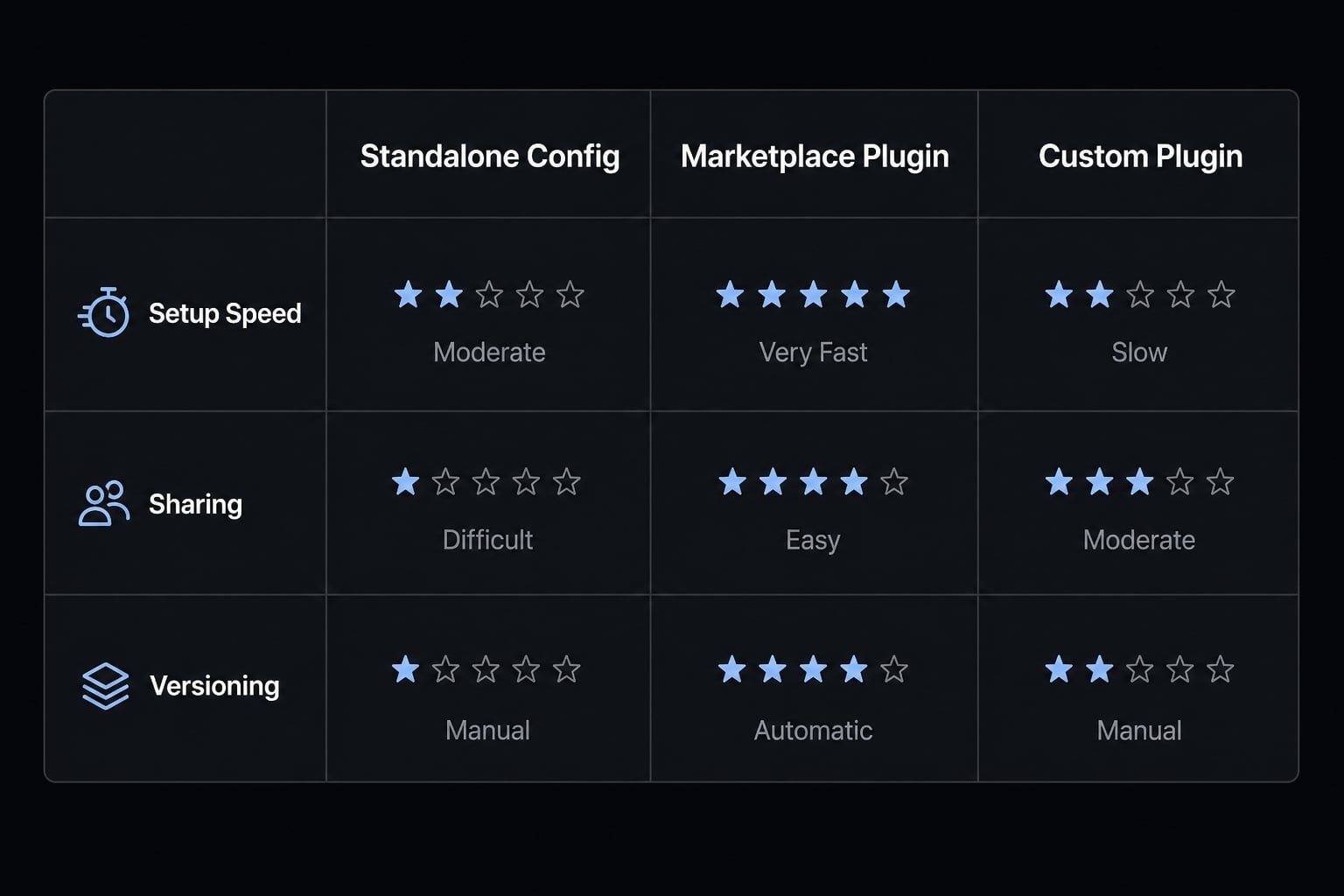
The standalone path is often enough for personal workflows, project-specific customization, or quick experiments. A plugin makes more sense when you need reuse, sharing, and versioned distribution. A custom plugin is better reserved for internal workflows that are not well served by what already exists.
Comparison table
Criteria | Standalone | Marketplace plugin | Custom plugin |
|---|---|---|---|
Best for | Personal or one-off setup | Reusable workflows | Specialized internal needs |
Setup speed | Fastest | Fast | Slowest |
Sharing | Limited | Easy | Easy after packaging |
Versioning | Light | Better | Full control |
Technical effort | Low | Low | Medium to high |
Recommended for beginners | Yes | Yes | Usually no |
The practical takeaway is straightforward: Start with the simplest option that solves the problem. If the workflow remains personal, a standalone config is often enough. If it needs to scale across repos or teammates, move to a plugin.
Basic safety checks before installing a plugin
Safety matters here because plugins may involve local execution, external dependencies, or access to tools that affect your workflow directly. That does not mean plugins are inherently unsafe. It means convenience should not replace basic review.
5-point plugin trust checklist
- Is the source trustworthy? - Prefer official or clearly attributable sources first.
- Is there a public repo or clear documentation? - You want enough visibility to understand what the plugin does.
- Does it require external binaries or tools? - Many issues come from missing dependencies, especially LSP-related ones.
- Has it been maintained recently? - A stale plugin is not always bad, but it deserves more caution.
- Do you actually need this plugin? - If a standalone
.claude/config solves the problem, keep it simple.
Common issues and quick fixes
/plugin not recognized
- Update Claude Code
- Confirm your version supports plugin commands
Plugin not visible
- Run
/reload-plugins - Confirm the source path and install scope
- Recheck marketplace registration if using a local marketplace
“Executable not found”
- Install the missing dependency
- Verify the binary is on your path
- Confirm the plugin’s required tool is installed correctly
Practical note: Trusted sources, readable documentation, and clear dependency requirements are usually better risk indicators than plugin popularity alone.
Practical example: A simple plugin setup for a small dev workflow
A sensible starter setup for a small team does not need to be complex. One common pattern is:
- GitHub for repo and pull request workflows.
- Linear or Jira for planning and issue tracking.
- Vercel or Supabase for shipping and infrastructure context.
- One code intelligence plugin if the codebase is large enough to benefit from LSP-backed navigation.
This combination covers the main operating loop: plan work, change code, review progress, and ship.
For a solo founder or indie maker, even a smaller stack often works well: GitHub plus one planning tool is enough to create structure without adding overhead. For a small product team, adding deployment context usually creates more value than adding many niche plugins.
As teams mature, they often move toward more standardized and reusable AI workflows. But early on, clarity beats complexity. A tight plugin set is usually easier to maintain, easier to troubleshoot, and more likely to be adopted consistently.
Frequently asked questions
What are Claude Code plugins?
Claude Code plugins are packaged workflow extensions that add reusable capabilities to your Claude Code environment. By bundling skills, agents, hooks, and MCP servers into a single unit, plugins allow developers to standardize complex tasks, maintain consistency across multiple repositories, and share custom functionality with their team.
Where can I find and install Claude Code plugins?
You can discover plugins through the official Claude Code marketplace, community-curated directories, or by loading local directories. The fastest way to browse is by running the /plugin command in your terminal and navigating to the "Discover" tab to view available options categorized by workflow and integration type.
How do I install and reload Claude Code plugins?
To install, run the /plugin install <name>@<marketplace> command or use the discovery UI. Choose your installation scope-User, Project, or Local-based on whether you need the tool globally or repo-specific. After installation, always run the /reload-plugins command to apply changes immediately without restarting your terminal.
Should I use a plugin or a standalone .claude/ configuration?
Use a standalone .claude/ directory for personal, one-off project customizations or quick experiments. Use a plugin when you need to reuse functionality across multiple repositories, share tools with teammates, or require version-controlled releases. Avoid building custom plugins until you have outgrown the capabilities offered by existing marketplace options.
What should I check before installing a Claude Code plugin?
Before installing, verify that the plugin comes from a trusted source, review its documentation, and ensure you have the necessary external dependencies or binaries installed (especially for LSP-based code intelligence plugins). Because plugins can execute code locally, only install from reputable repositories and verify that the plugin is actively maintained.
What is the difference between User, Project, and Local scope?
User scope installs the plugin for your entire machine, making it available across all your projects. Project scope adds the plugin configuration to the repository’s .claude/settings.json, sharing it with all contributors. Local scope installs the plugin only for your personal profile within the specific repository you are currently working in.
Read more:
- Claude Code Plan Mode: Optimize your AI coding workflow
- Claude Code toolkit: Scale your AI development workflow easily
- Claude Code tutorial: Set up and master your AI coding agent
Conclusion
Claude Code plugins are best understood as reusable workflow extensions, not just add-ons. The simplest path is usually to start in the official marketplace, install one or two plugins that match a real workflow need, choose the right scope, and use /reload-plugins whenever changes do not appear immediately.
If the setup is personal and project-specific, a standalone .claude/ config is often enough. If the workflow needs to be reused or shared, a plugin is the better fit. If the need is highly specialized, a custom plugin may make sense later-but usually not first.
For the next step, review your workflow against a lightweight plugin checklist or continue with a Claude Code setup guide before expanding your stack.