What is Claude Code? A complete guide to the AI coding tool
What is Claude Code? A clear, practical guide
If you have been asking what is Claude Code, you are not alone. A lot of the confusion comes from mixing together browser Claude, AI coding agents, and terminal-based tools as if they were the same thing. They are not. Claude Code is getting attention because it changes how people work with Claude around files, folders, and ongoing projects. This guide explains what it is, how it works, how it differs from Claude in the browser, what it is actually useful for, who should use it, and what to know before getting started. The goal is a straightforward, non-hyped explanation you can use to decide whether it fits your workflow.
What is Claude Code?
Direct definition block
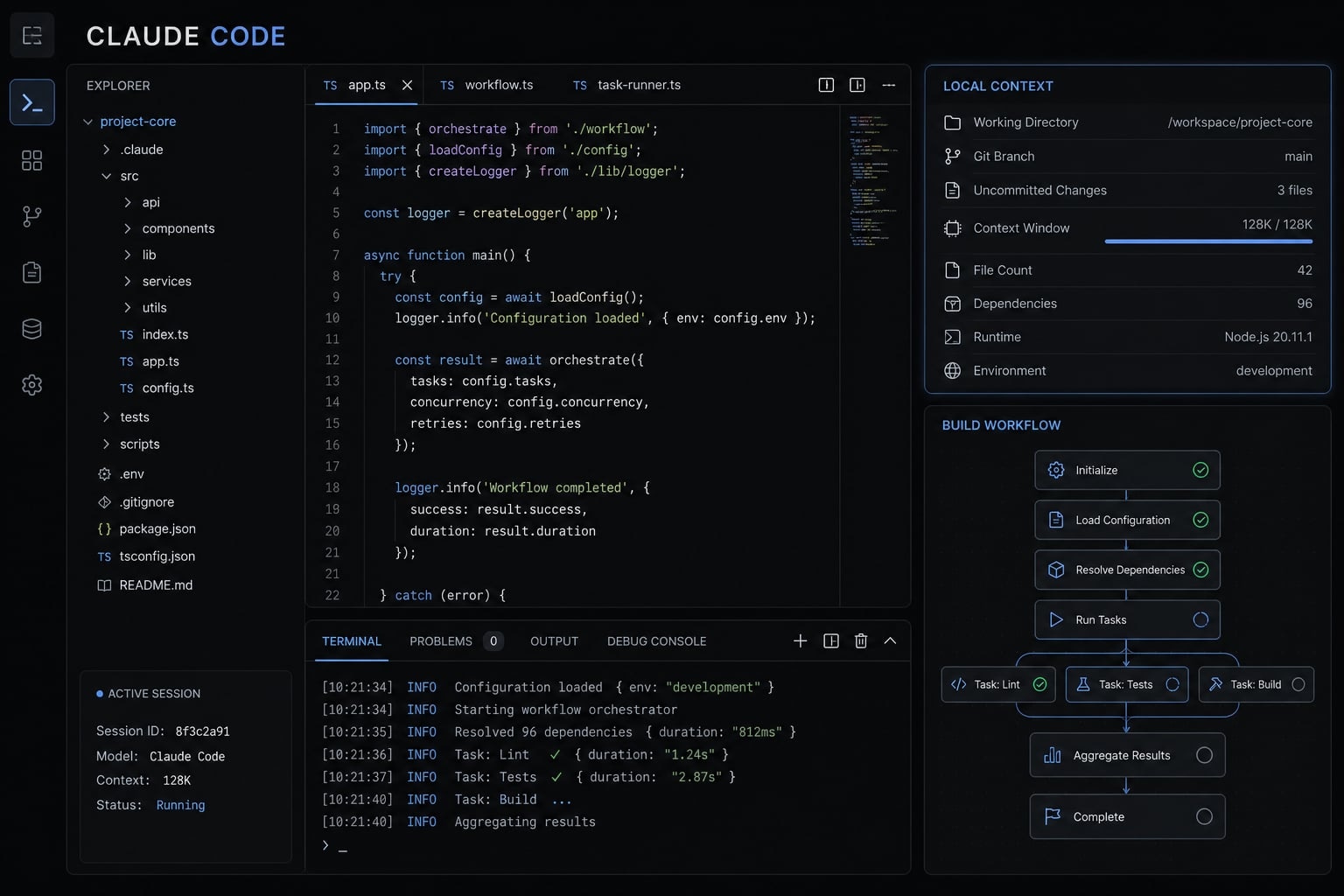
Claude Code is a terminal-based way to use Claude from Anthropic so it can work more directly with local files, folders, and project context on your machine. It is built for workflow-oriented tasks, not just one-off chat, and it still depends on user instructions, permissions, and human review.
Claude Code is best understood as a command-line workflow interface for Claude. Instead of opening a browser tab, pasting context into a chat box, and repeating yourself across multiple prompts, you work from a terminal inside the folder or project you care about.
A terminal, also called a command line, is a text-based interface for working with your computer. That sounds more technical than it really is. In practice, it often means opening a terminal window, moving into a folder, and interacting through typed instructions.
The reason people find Claude Code useful is simple: It can operate with more awareness of the files already in your working environment. For example, if you open a product repository or a notes folder, Claude Code can help inspect structure, explain files, summarize documentation, or assist with edits in context.
In plain English: What makes it different
- It lets you use Claude through the terminal instead of the browser.
- It is better suited to project workflow than isolated chat sessions.
- It can work more naturally with files on your machine and folder structure.
- It reduces the need to constantly copy and paste context into chat.
- It is not fully autonomous and should not be treated like a self-running engineer.
How Claude Code works at a high level
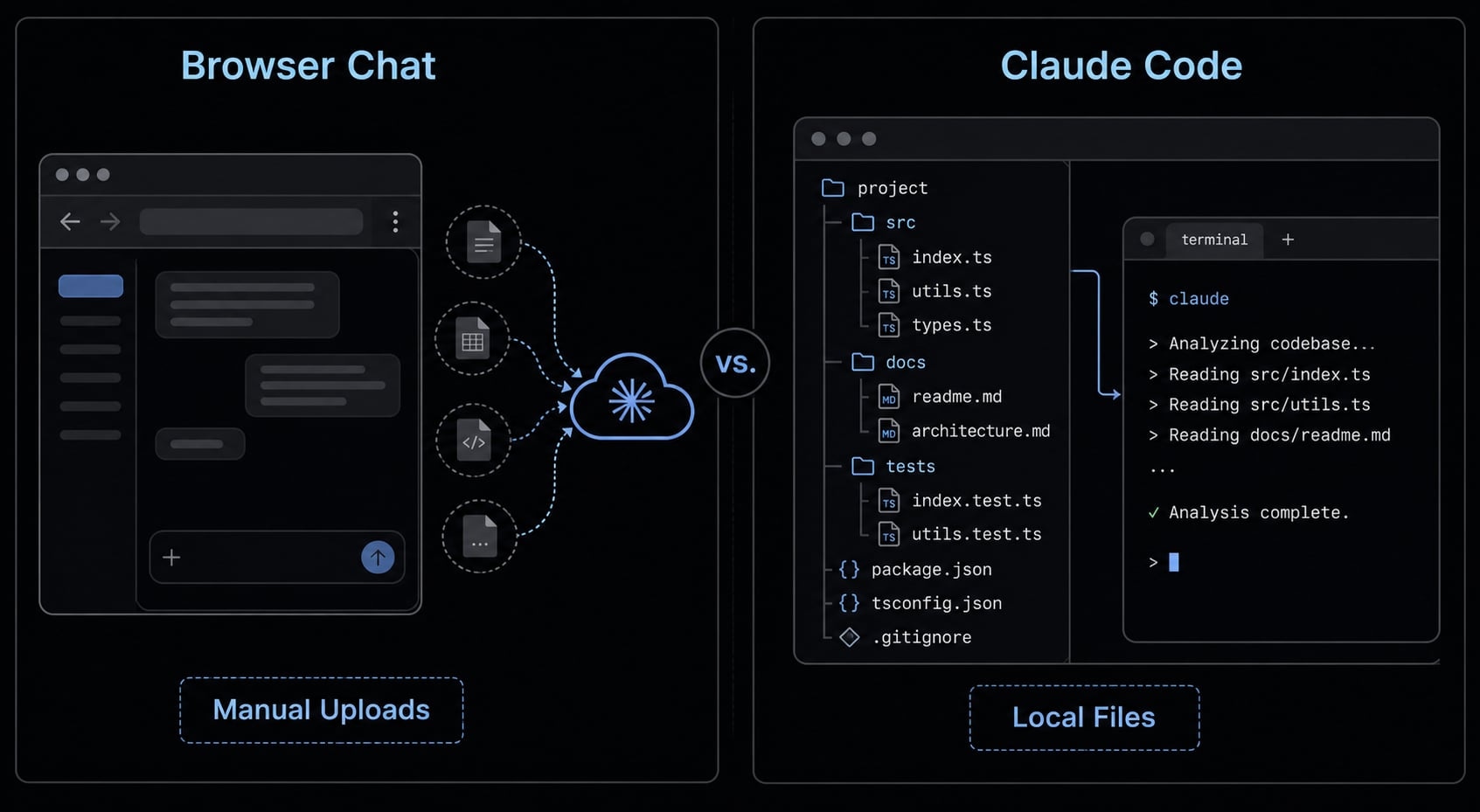
At a high level, Claude Code works by placing Claude inside a more local, file-aware workflow. You open a terminal, move into the relevant folder or repository, launch Claude Code, and then ask for help with tasks related to that working environment.
This is why the tool often feels different from browser chat. Instead of manually assembling background information each time, you start from the project itself. That makes it easier to inspect files, review structure, draft edits, or work through bounded tasks with better continuity.
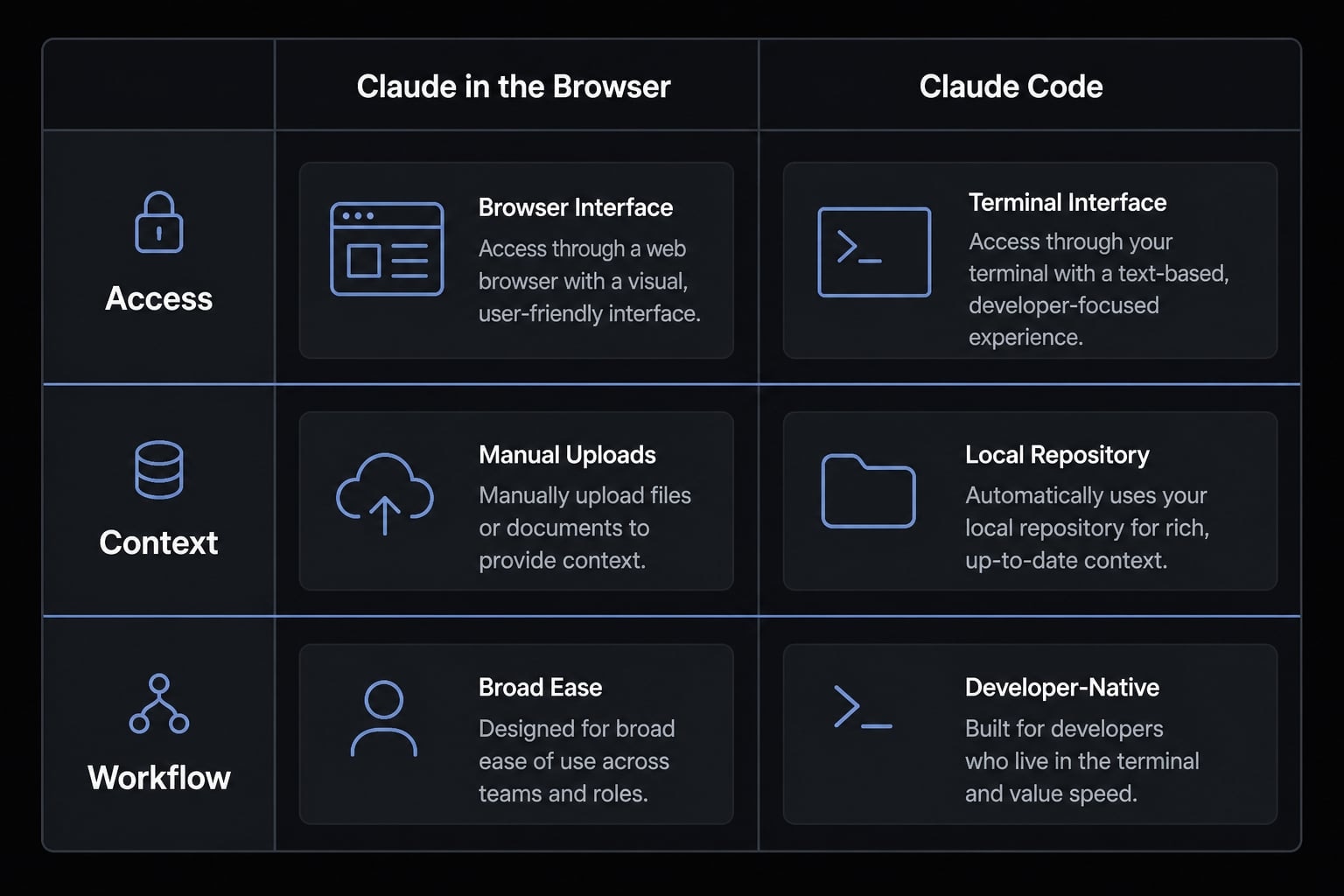
Typical workflow in simple terms
- Open a terminal on your Mac or Windows machine.
- Navigate to the project or folder you want to work in.
- Launch Claude Code from that location.
- Ask it to inspect, explain, edit, or help with a specific task.
- Review the output and confirm any changes before relying on them.
A realistic example would be opening a repository folder and asking Claude Code to explain the folder structure, summarize the key files, and identify where a certain feature likely lives. That is much faster than uploading files one by one into a browser chat.
What “local context” actually means
Local context means Claude Code can work with the files and folders already present in your current working environment. This reduces repetitive copy-paste, improves continuity across related tasks, and often makes project-based work easier to manage. Capability still depends on setup, permissions, and the type of task.
Claude Code vs Claude in the browser: What’s the difference?
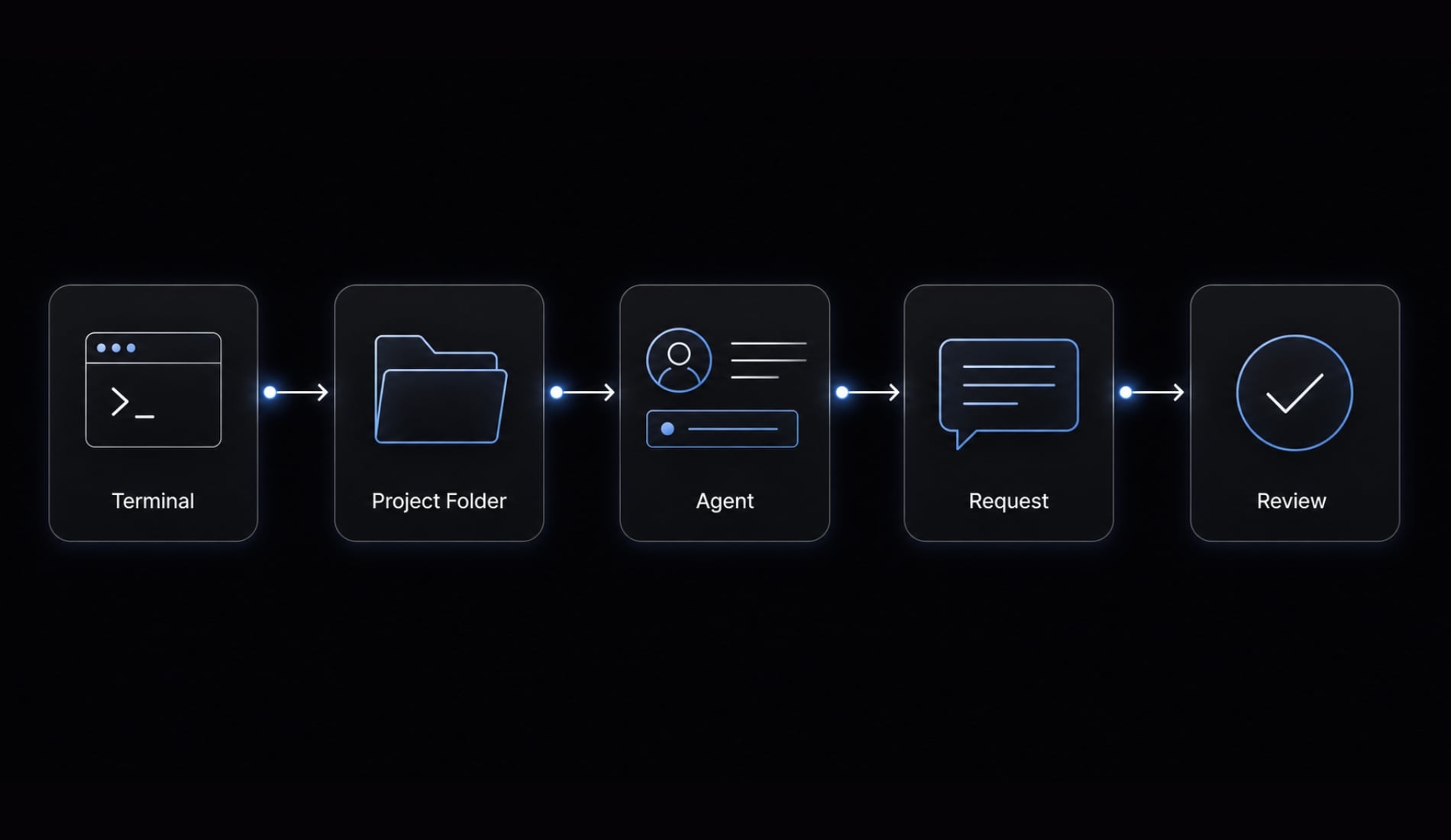
The main difference is not that one is “smarter” than the other. The real difference is how you work. Browser Claude is easier for general questions and quick tasks. Claude Code is more useful when your work revolves around files, folders, and ongoing project context.
Criteria | Claude in the Browser | Claude Code |
|---|---|---|
Access point | Browser tab or app interface | Terminal / command-line interface |
Context input | Manual paste or file upload | Works from local project or folder context |
Ease of use | Easier for most people | Requires basic terminal comfort |
Best for | Quick questions, writing, brainstorming, light file use | File-heavy, project-based, repeatable workflows |
Workflow continuity | Often chat-by-chat | Stronger continuity within local working context |
Technical comfort needed | Low | Moderate, even if you are not a coder |
For many users, browser Claude is enough. If you mainly ask questions, draft content, summarize uploads, or brainstorm ideas, the browser experience is usually simpler and more than capable.
Claude Code becomes more compelling when work is tied to a living folder or repository. That includes software projects, research directories, documentation collections, content systems, scripts, or structured operational files. In those cases, the friction of repeatedly uploading files and re-explaining context starts to add up.
A useful way to think about it is this:
- Choose browser Claude for convenience and broad everyday use.
- Choose Claude Code when your work depends on files, structure, and continuity.
This is not feature warfare. It is a workflow-fit decision. If your tasks are mostly conversational, the browser remains the lower-friction option. If your tasks are deeply connected to local project materials, Claude Code may be the better tool.
What is Claude Code used for? Common use cases by role
Claude Code is strongest when the work is file-based or project-based. Its value usually comes from working inside an existing environment rather than starting fresh in a blank chat each time.
For developers
Developers often use Claude Code to understand a codebase faster and reduce routine project friction. Common use cases include:
- Explaining a repository’s folder structure.
- Summarizing what specific files appear to do.
- Drafting or refactoring smaller code sections.
- Helping write tests or utility scripts.
- Debugging bounded issues with visible context.
A realistic example: A developer opens a project folder and asks Claude Code to identify where authentication logic lives, explain the related files, and suggest a safer refactor for one function. That is useful. Claiming it can autonomously manage an entire engineering roadmap would not be.
For solo founders and indie makers
For solo builders, the appeal is often speed and continuity. Instead of packaging context over and over, they can keep Claude closer to the actual project.
Typical use cases:
- Turning rough feature ideas into a working first draft.
- Creating lightweight scripts or automations.
- Reviewing project structure before shipping updates.
- Making small changes across multiple related files.
Example: A founder working on an MVP opens the app folder, asks Claude Code to find the settings page, update a simple form flow, and explain what changed. It can accelerate execution, but the founder still needs to review the result carefully.
For product, research, or operations work
Claude Code is not limited to code. It can also help with structured local work involving notes, docs, and repetitive file tasks.
Useful patterns include:
- Summarizing research notes stored in local folders.
- Cleaning naming conventions across files.
- Organizing project materials by theme.
- Drafting structured summaries from documentation sets.
Example: A product manager points Claude Code at a folder of meeting notes and asks it to summarize top feature requests, repeated pain points, and open questions for the next planning session.
For marketing and content teams
Marketing and content teams can benefit when they work with outlines, source files, research folders, and reusable prompt structures.
Practical uses include:
- Summarizing research documents before drafting.
- Rewriting or restructuring content from local files.
- Reusing prompt templates across campaigns.
- Organizing content operations tied to a shared folder structure.
Example: A content lead opens a research directory and asks Claude Code to compare three draft outlines, identify overlap, and produce a consolidated brief for a new article or landing page.
The key pattern across all roles is consistent: Claude Code is most useful when the work lives in a folder, evolves over time, and benefits from context continuity.
Who should use Claude Code and who may not need it?
The best way to evaluate Claude Code is not by job title alone. It is by work style. Some people will get real value from it quickly. Others may find that browser Claude already covers what they need.
Do you need to know how to code? No, not necessarily. But basic comfort with terminal habits helps, especially opening the right folder and understanding that your working location matters.
Claude Code is a good fit if…
- You regularly work with many files, folders, or repositories.
- You want to reduce copy-paste into browser chat.
- You have repeatable workflows that benefit from consistent context.
- You are willing to learn a few basic terminal habits.
- You want stronger continuity across related tasks.
You may not need it if…
- You mostly ask quick questions or brainstorm in chat.
- You rarely work with local files as part of your tasks.
- You strongly dislike terminal-based tools.
- Browser Claude already does the job well enough for you.
This is where trust matters. Not everyone needs Claude Code. For many professionals, the browser experience will remain the easiest and most sensible option.
Things to know before you start: Limitations and learning curve
Claude Code has clear benefits, but it also comes with a learning curve and practical limits. If you go in expecting magic, you will likely be disappointed.
The most common issue is not model capability. It is workflow mismatch. People often expect Claude Code to act like a fully autonomous operator when it is really a guided tool that works within permissions, folder boundaries, and user instructions. Common beginner friction points:
- The terminal feels unfamiliar at first.
- You may be working in the wrong folder or project.
- It is easy to overestimate autonomy.
- Output still needs manual review.
- Permissions and access boundaries affect what it can do.
A local workflow does not automatically make the tool risk-free, accurate in every case, or capable of acting independently without oversight.
File structure also matters more than many beginners expect. If your folders are messy, your naming is inconsistent, or you are not sure where the relevant materials live, the experience becomes less efficient. Claude Code can help with context, but it cannot replace good judgment, clean organization, or careful review.
How to get started with Claude Code (without going too deep)
The safest place to begin is with official Anthropic documentation, because setup instructions can change over time. Blog posts and social posts often become outdated, especially around installation and environment requirements.
Claude Code generally involves terminal access, a supported setup on Mac or Windows, and in many cases tools such as Node.js. But you should always verify the latest requirements from Anthropic before following any step.
- Check the latest official Anthropic documentation for Claude Code.
- Prepare the required environment and any tools listed there, such as Node.js.
- Open your terminal in the correct project or folder.
- Complete the initial Claude Code setup based on Anthropic’s current guidance.
- Start with simple tasks like reading, explaining, or summarizing before attempting edits.
Safe first tasks for beginners:
- “Explain this folder structure.”
- “Summarize these notes in this directory.”
- “Help me clean up file names in this folder.”
- “Which files seem most relevant to this feature?”
- “Give me a simple overview of this project.”
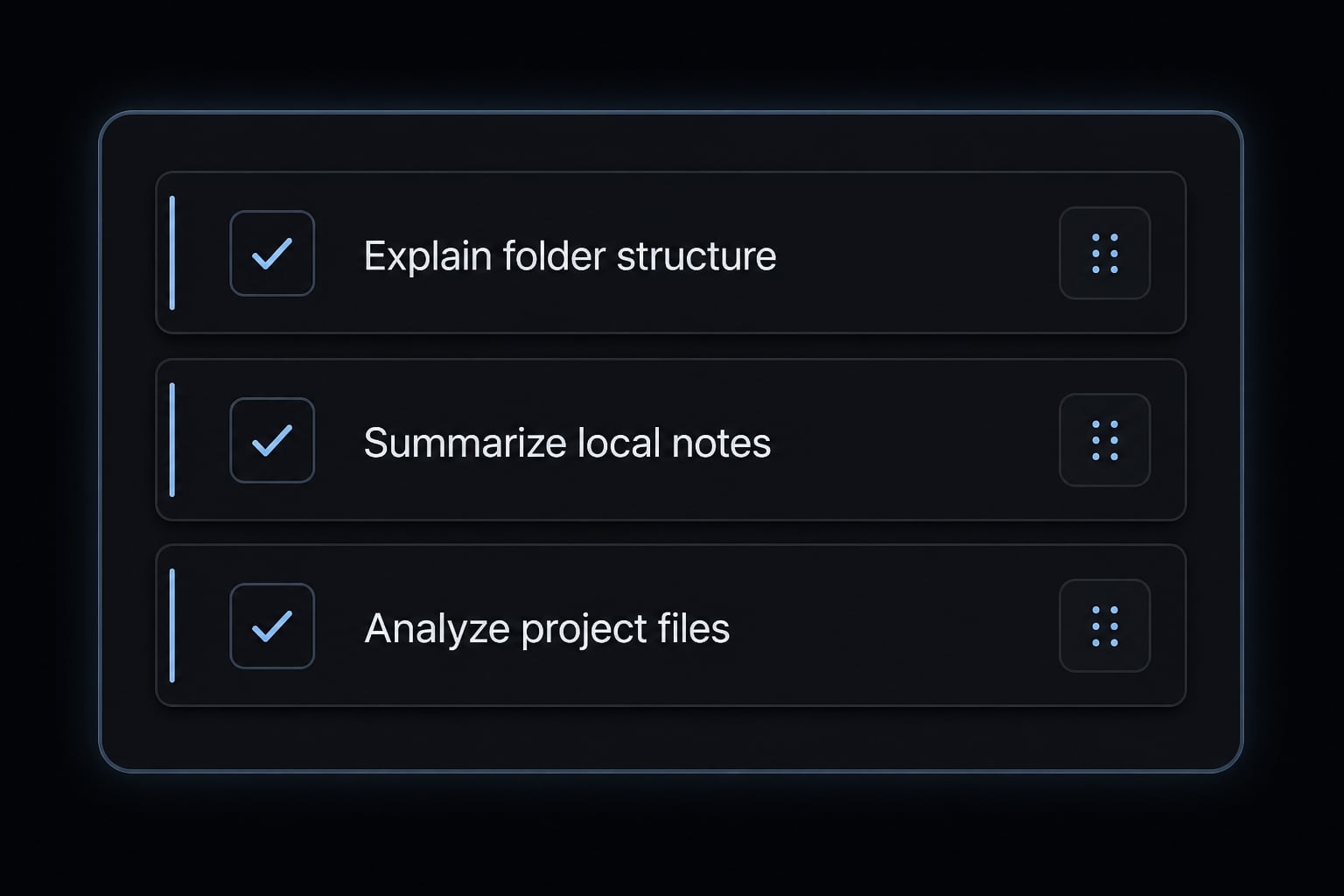
From one-off prompts to repeatable AI workflows
Many users start with one-off prompting. That is normal. Over time, though, teams usually care less about isolated outputs and more about repeatability, consistency, and control.
That is where structured prompting, reusable workflows, and specialized agents or subagents start to matter. The goal is not just to get one good answer. It is to create a reliable system that can support recurring work without rebuilding the same process each time.
For teams using Claude Code, Codex, or Copilot across development and marketing workflows, AgentKit can serve as an optional workflow layer. It is designed for organizations that want more structured, repeatable AI operations rather than ad hoc prompting alone.
Frequently asked questions
What is Claude Code?
Claude Code is a command-line interface tool developed by Anthropic that allows you to run Claude directly within your terminal. It enables the AI to interact with your local files, folders, and project context, offering a more integrated workflow than the standard browser-based chat interface.
How is Claude Code different from using Claude in the browser?
The main difference is the access point and context. Claude in the browser is a web-based chat, while Claude Code runs in your terminal, allowing it to automatically "see" and act on local files. Choose the browser version for quick questions and Claude Code for project-based, file-heavy tasks.
Do I need to be a programmer to use Claude Code?
No, you do not need to be a software engineer. However, because it runs in a terminal, you should be comfortable with basic command-line operations. If you can organize files into folders and follow simple text-based instructions, you can effectively use Claude Code for various project tasks.
What are the main benefits of using Claude Code?
The primary benefits include reduced manual copying and pasting, the ability to work directly with large local codebases or documentation, and the capacity to build repeatable workflows using slash commands. It transforms your AI from a simple question-answering tool into a more capable, project-aware assistant.
Is Claude Code fully autonomous?
No. Claude Code is a productivity assistant, not an autonomous software engineer. It requires human guidance, specific permissions to access your files, and manual review of its outputs. You remain in control of the tasks it performs and the changes it suggests to your local environment.
How do I get started with Claude Code?
To get started, visit the official Anthropic documentation to obtain the latest installation commands for your operating system. Once installed, navigate to your project directory in your terminal, launch the tool, and follow the prompts to connect your account and initialize your project context.
Will Claude Code replace my browser-based Claude usage?
Not necessarily. Many users find that browser-based Claude remains superior for general research, quick brainstorming, and one-off questions. Claude Code is intended to complement your existing tools by serving as a specialized interface for your local project files and repeatable automated workflows.
Read more:
- Claude Code tutorial: Set up and master your AI coding agent
- Claude Code install guide: Official setup steps for all OS
- Claude Code Windows: How to install, set up, and fix issues
Conclusion
Claude Code is a terminal-based way to use Claude that works more naturally with local files, folders, and project context. Its value comes from workflow continuity, not from being a magical version of AI. That makes Claude Code especially useful for project-based work, whether in software, research, operations, or content.
But not everyone needs it. If browser Claude already handles your tasks well, staying there may be the better choice. If you want to go beyond one-off prompts and build more repeatable AI workflows, explore official Anthropic resources first, then look at workflow systems that help operationalize that usage over time.