
Claude Code permissions: How to configure rules and choose the right mode
While constant permission prompts can disrupt your workflow, disabling them entirely gives Claude Code dangerously broad access to your files and commands. The goal is controlled autonomy: Routine actions proceed seamlessly, while consequential operations require human review. This guide explains how to configure least-privilege permission rules, safe matcher patterns, and a starter policy to balance speed with workstation security.
What are Claude Code permissions?
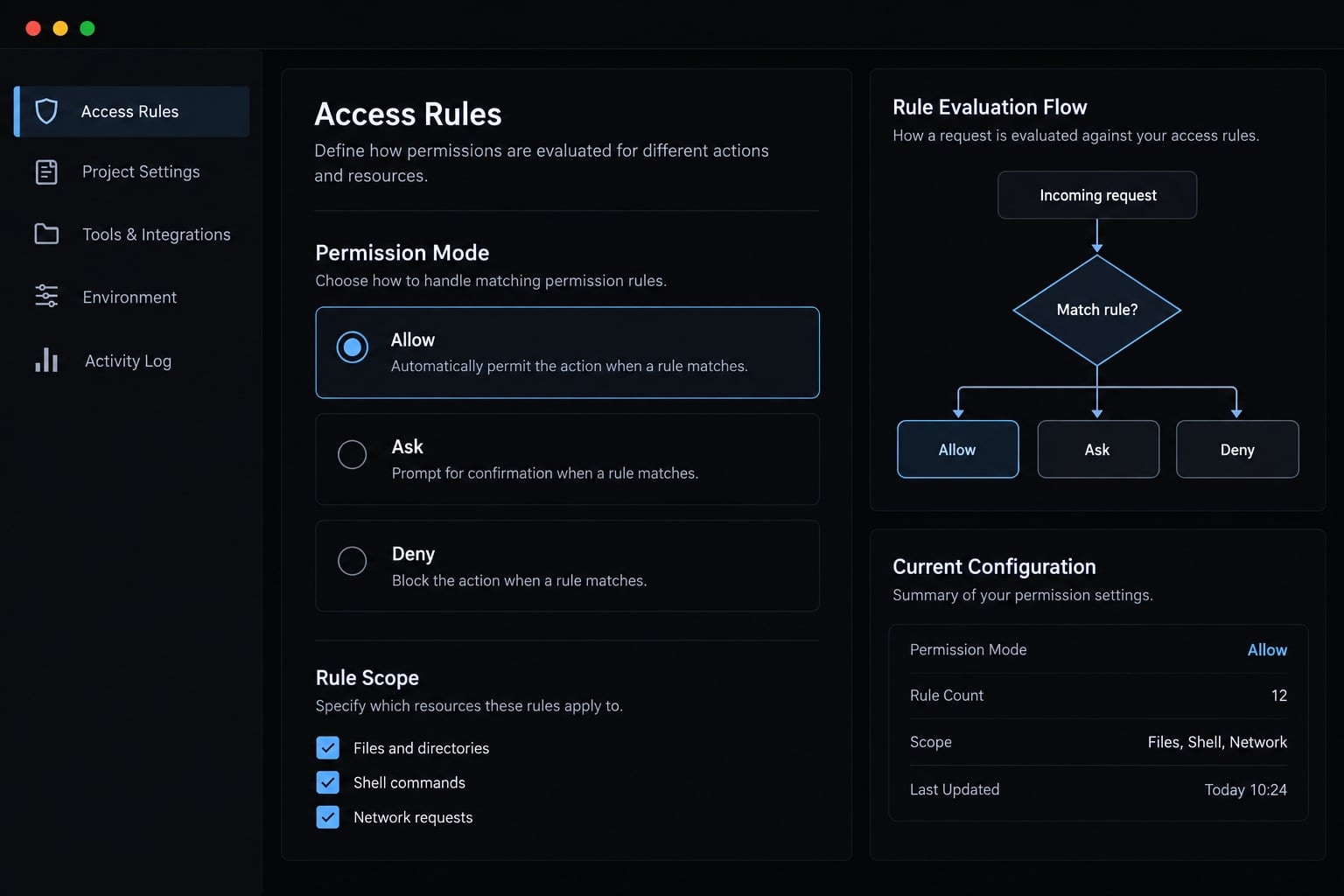
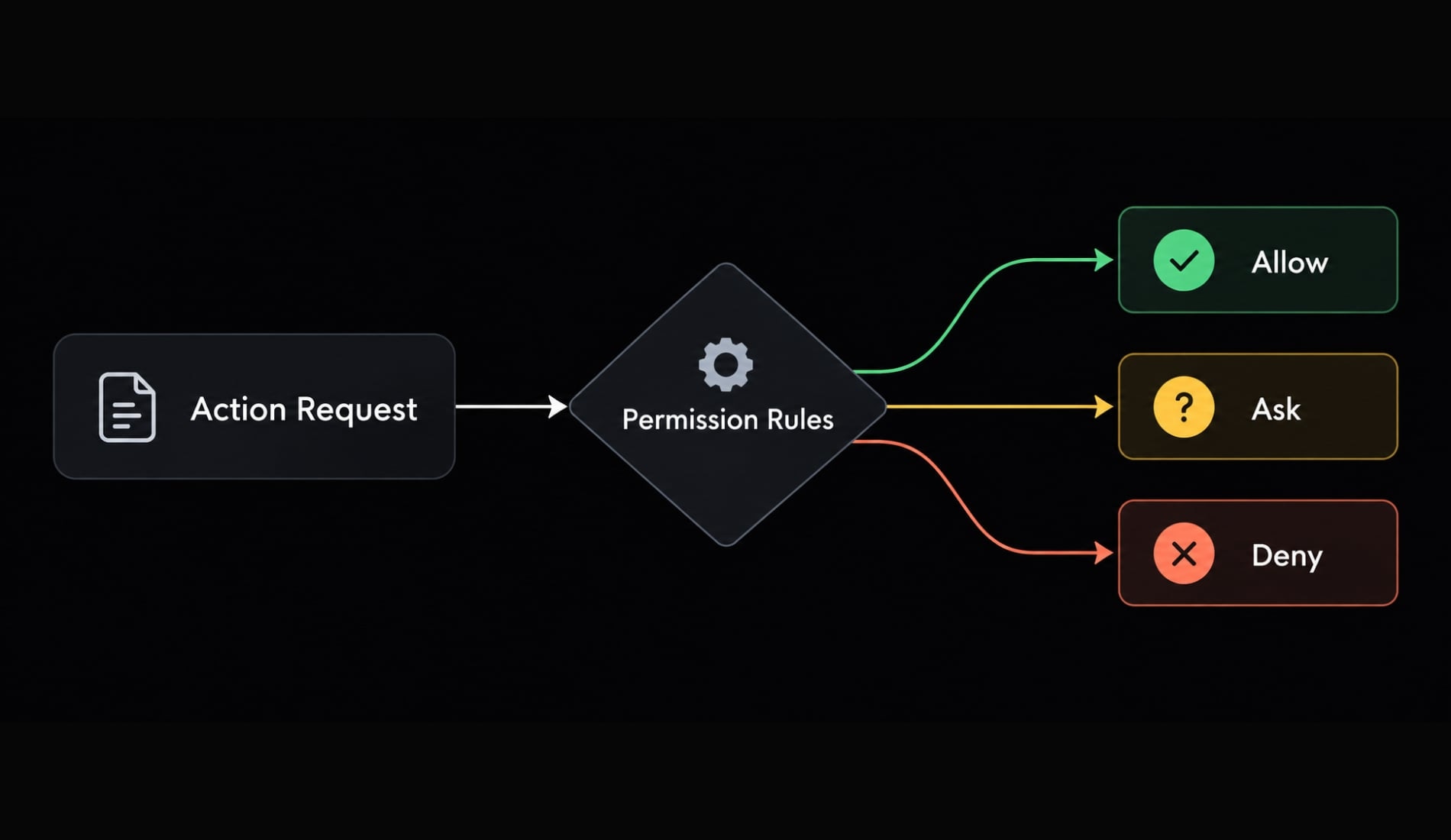
Claude Code permissions are rule-based controls that determine how supported tools and resources may be used. Matching actions can be allowed automatically, sent to the user for confirmation, or denied. Theseallow,ask, anddenyrules operate alongside the active session-wide permission mode.
The permission system acts as a Claude Code access control layer for supported actions. It can govern common capabilities such as:
- Reading files within the working directory or added directories.
- Editing or writing source code and project files.
- Running shell or Bash commands.
- Fetching content from approved web domains.
- Performing web searches.
- Invoking supported subagents or connected tools.
A rule controls a particular tool, command, path, domain, or agent. A permission mode defines the broader approval posture for the session.
Controls | Does not replace |
|---|---|
Tool authorization | OS-level isolation |
File, command, domain, and agent rules | Credential management |
Approval-prompt behavior | Source control and backups |
Session-wide approval posture | Containers or virtual machines |
Keep in mind that permissions are not a sandbox. They only control whether Claude Code can attempt actions through supported tools-not whether those actions are actually safe or isolated. They do not provide complete protection against every process, integration, credential exposure, or destructive operation.
How allow, ask and deny rules work
Claude Code evaluates rules according to the consequences of an action. Frequently used commands should not automatically be allowed if they can alter production systems, rewrite Git history, or expose credentials.
Rule type | Result | Appropriate use |
|---|---|---|
| Runs without confirmation | Narrow, routine, low-risk actions |
| Requests confirmation | Sensitive or context-dependent actions |
| Blocks the action | Secrets, restricted resources, known dangerous actions |
Permission rule evaluation order
According to the current permission rule reference, Claude Code resolves matching rules in this order:
- Evaluate matching
denyrules. - Evaluate matching
askrules. - Evaluate matching
allowrules. - Apply the active permission mode if no matching rule resolves the action.
This order means a matching deny rule takes priority over broader ask or allow rules.
Consider a repository where Claude Code may read ordinary project files, but access to environment files is denied:
Allow: Read(./src/**)
Deny:  Read(./src/config/.env)
The broader rule permits source inspection. The narrower denial still blocks the sensitive file because matching deny rules are evaluated first.
A useful policy separates actions into three categories:
- Allow:
git status,git diff, known test scripts, linting, and local builds. - Ask: deployments, database migrations, hard resets, history rewrites, and unrestricted network access.
- Deny: credentials, private keys, signing keys, production secrets, and prohibited project directories.
What “Yes, and don’t ask again” changes
Selecting “Yes, and don’t ask again” may save a project-local rule in:
.claude/settings.local.json
The saved rule applies to the repository and developer environment rather than becoming a universal team policy. This file is normally excluded from version control.
Review generated local rules periodically. A decision that was reasonable for one command can become overly broad when wildcards, changed arguments, or different working directories are involved.
You can inspect and manage current rules from a Claude Code session with:
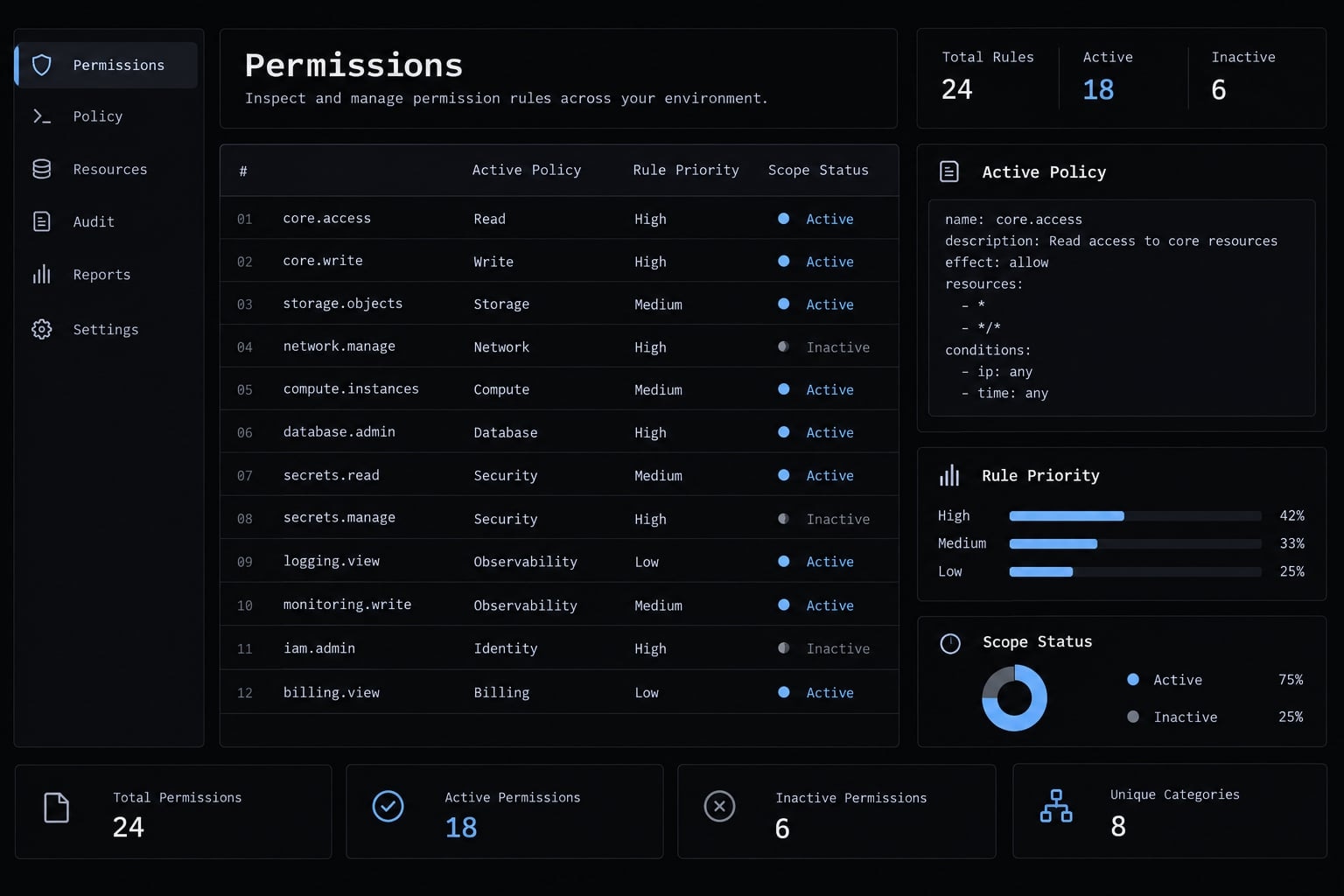
/permissions
Claude Code permission modes compared
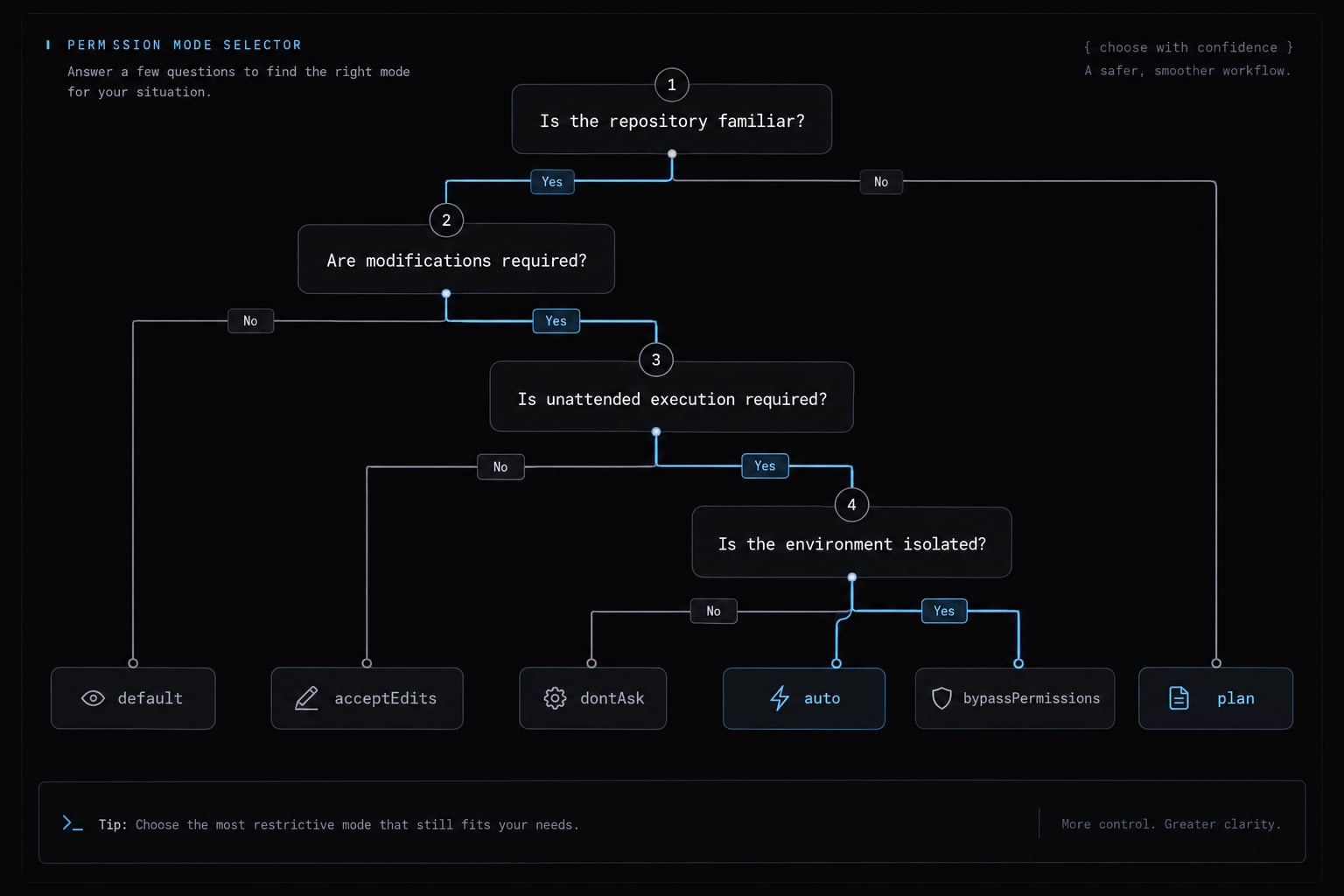
Claude Code permission modes define the session-wide approval posture. Rules still govern specific actions, but the mode determines what happens when no rule produces a final decision.
The official documentation currently lists the following modes:
Mode | Verified behavior | Best use case | Relative risk |
|---|---|---|---|
| Requests approval for actions that require permission unless a rule resolves them | Normal interactive development | Moderate and review-oriented |
| Automatically accepts file edits and common working-directory filesystem operations | Editing a trusted repository | Higher write autonomy |
| Supports exploration and planning without normal source modification | Reviewing unfamiliar code or planning changes | Lower mutation risk |
| Auto-approves tool calls while applying background safety checks | Controlled autonomous workflows | Depends heavily on environment |
| Denies actions requiring permission unless they were pre-approved | Strict allow-list automation | Restrictive but operationally sensitive |
| Skips normal permission prompts | Disposable, strongly isolated environments | Very high outside isolation |
Relative risk is contextual. It also depends on accessible credentials, network access, hooks, repository content, connected MCP servers, and environmental isolation.
Choose a mode by workflow:
- Reviewing unfamiliar code -
plan: Use an exploration-oriented posture before allowing changes or execution. - Routine interactive development -
default: Retain review points while narrowly allowing repetitive, low-risk commands. - Editing a trusted repository -
acceptEdits: Reduce file-edit approvals when the repository and proposed scope are understood. - Controlled autonomous execution -
auto: Use only after reviewing accessible resources, credentials, network destinations, and safety controls. - Strict pre-approved automation -
dontAsk: Unapproved tools fail instead of interrupting an unattended workflow. - Disposable container or isolated VM —
bypassPermissions: Consider only when the host, credentials, network, and cleanup process are controlled.
High-risk mode warning:bypassPermissionsskips normal approval controls. It is not a general solution to prompt fatigue and should not be the default for workstation development. Preferdefaultwith narrow rules. Reserve bypass behavior for disposable containers or isolated virtual machines with restricted credentials and network access.
Where Claude Code permissions are stored
Claude Code permission settings can be defined at managed, user, shared-project, and project-local scopes. The correct scope depends on who should control, review, and inherit the rule.
Scope | Official location | Intended use | Version-control guidance |
|---|---|---|---|
Managed | Platform-specific organization-managed settings path | Mandatory organizational policy | Controlled by IT or security administrators |
User |
| Personal defaults across projects | Do not commit |
Project shared |
| Team-reviewed repository policy | Commit when appropriate |
Project local |
| Developer-specific exceptions | Usually exclude from Git |
Managed configuration may restrict or override behavior that users cannot change locally. Organizations should consult the current Claude Code settings reference before distributing policy.
What belongs in shared project settings
A shared .claude/settings.json should contain rules that the whole team can review through pull requests:
- Narrow build, test, lint, and inspection commands.
- Repository-specific file access rules.
- Denials for known sensitive project resources.
- Approved documentation or dependency domains.
- Commands that work consistently across supported environments.
- Policies with a clear operational reason.
Do not include:
- Personal home-directory paths.
- Local credentials or tokens.
- Temporary experiments.
- Personal tool installation paths.
- Machine-specific exceptions.
What belongs in local settings
Use .claude/settings.local.json for:
- Personal workflow preferences.
- Temporary exceptions.
- Machine-specific paths.
- Commands dependent on local tooling.
- Rules generated through “don’t ask again” that have not passed team review.
Workspace trust is a security decision. Project-level allow rules are applied only after the repository is trusted. Inspect shared settings before trusting an unfamiliar Git repository, particularly when it requests broad Bash, network, file, agent, or MCP access.
After granting trust, run /permissions to inspect the active rule set and confirm which capabilities are available.
Permission rule syntax and useful patterns
Syntax note: The following Claude Code settings.json allow-list syntax was reviewed against the official documentation on March 8, 2025. Matcher grammar may change, so recheck the official reference after upgrading Claude Code.
Rules generally use a tool name by itself or a tool with a specifier:
Tool
Tool(specifier)
Goal | Verified Pattern | Explanation |
|---|---|---|
Match every use of a tool |
| Matches the tool broadly; usually too broad for Bash allowances |
Allow an exact command |
| Matches the stated command |
Match command variations |
| Matches approved variations beginning with |
Protect a sensitive file |
| Blocks or controls reads of the specified file |
Protect a directory |
| Applies to files below the sensitive directory |
Limit web access |
| Constrains fetching to the named domain |
Control a subagent |
| Applies to the named supported subagent |
Match Bash commands narrowly
Exact command matchers provide tight scope but may stop matching when arguments change.
For example:
Bash(npm test)
This rule should not be treated as permission for every possible test command. If the workflow uses multiple approved scripts, each command can be listed separately or covered with a carefully reviewed wildcard:
Bash(npm run test:*)
Avoid broad allowances such as:
Bash
A tool-level Bash allowance grants far more authority than a routine-development policy normally requires.
Compound commands may be evaluated as separate components. A chain such as:
npm test && git status
may require both components to satisfy the active policy. Wrappers and command variations can also affect matching behavior.
Keep the following operations under ask unless a controlled automation environment specifically requires otherwise:
- Git history rewrites.
git reset --hard.- Destructive file operations.
- Deployment commands.
- Database migrations.
- Production configuration changes.
- Commands that alter cloud resources.
Blocking one command, such as rm, does not mean you have blocked every other dangerous shell operation. Command-denial lists are guardrails, not comprehensive shell isolation.
Protect sensitive paths
Review access to:
.envand.env.*files.- SSH private keys.
- Cloud credential files.
- Package registry tokens.
- Production configuration.
- Database exports.
- Signing keys.
- Files outside the intended workspace.
Project-relative Read rules are easier to review and share than machine-specific absolute paths. Under the documented model, denying read access to a path can also prevent editing or writing that protected resource.
Restrict web and subagent access
Use domain-specific WebFetch rules instead of broad network approval where practical. Network access can expose source code, repository metadata, credentials, or internal URLs to external services.
Use named Agent rules to control supported subagents. MCP (Model Context Protocol) integrations create an additional governance surface because connected servers may expose external systems or data. Review their tools, authentication, and access scope separately.
Safe starter configuration for daily development
The following safe Claude Code configuration is designed to reduce routine prompts rather than disable Claude Code permission prompts completely. It applies least privilege by allowing selected development actions while preserving confirmation for higher-impact operations.
{
  "permissions": {
    "defaultMode": "default",
    "allow": [
      "Bash(git status)",
      "Bash(git diff *)",
      "Bash(npm test)",
      "Bash(npm run lint)",
      "Bash(npm run build)",
      "Read(./src/**)",
      "Read(./tests/**)",
      "Edit(./src/**)",
      "Edit(./tests/**)",
      "WebFetch(domain:docs.anthropic.com)",
      "WebFetch(domain:code.claude.com)"
    ],
    "ask": [
      "Bash(git rebase *)",
      "Bash(git reset --hard *)",
      "Bash(npm run deploy *)",
      "WebFetch"
    ],
    "deny": [
      "Read(./.env)",
      "Read(./.env.*)",
      "Read(./secrets/**)",
      "Read(./credentials/**)",
      "Read(./*.pem)",
      "Read(./*.key)"
    ]
  }
}defaultsupports normal interactive development. Unmatched sensitive actions return to the standard approval flow instead of being silently authorized.- Routine commands are narrowly allowed. Git inspection, tests, linting, builds, and selected source paths can proceed with less interruption.
- Riskier operations remain under
ask. History rewrites, hard resets, deployments, and broad web access retain a human review point. - Known secrets use
deny. The example blocks common repository secret paths, but it cannot identify every credential location automatically. - Isolation remains necessary for high autonomy. Use sandboxing, a container, or a VM when Claude Code will execute extended workflows with limited supervision.
Customize this Claude Code allow list for the project’s operating system, package manager, scripts, directory structure, and deployment environment. Remove any rule that the repository does not need. Sensitive assets to inventory before enabling greater autonomy include:
.envfiles and variants.- SSH keys.
- Cloud credentials.
- Package registry tokens.
- Production configuration.
- Signing keys.
- Database dumps.
- Files outside the intended workspace.
Why Claude Code is still asking for permission
When Claude Code permission prompts continue after adding an allow rule, inspect the effective policy before broadening access. The most common causes are matcher scope, rule priority, settings origin, working-directory boundaries, and repository trust.
- Run
/permissions. Inspect the active mode and currentallow,ask, anddenyrules. - Check rule priority. A matching
denyoraskrule can take priority over a broader allowance. - Identify the settings scope. Determine whether the rule came from managed, user, shared-project, or project-local settings.
- Compare the complete command. Check the actual command and arguments against the configured matcher. Small flag changes can prevent exact matching.
- Split compound commands. Inspect every command joined by
&&,||, pipes, or separators because components may be evaluated independently. - Confirm the working directory. Ensure the target path is inside the normal workspace or a directory explicitly added through
--add-diror/add-dir. - Check environmental controls. Review workspace trust, hooks, sandbox restrictions, network policy, managed settings, file ownership, and operating-system permissions.
Symptom | Likely cause | Next check |
|---|---|---|
Routine command still prompts | Matcher is too exact | Compare the complete command and arguments |
File remains blocked | A | Inspect priority and rule origin |
Shared rules do not apply | Workspace is not trusted | Review repository trust state |
Approved command still fails | Environmental restriction | Check sandbox or OS access |
Rule works in only one repository | Project-local scope | Inspect the active settings file |
Compound command partially runs | One component lacks permission | Evaluate each subcommand separately |
Local rule cannot relax a restriction | Managed policy applies | Review organization-controlled settings |
An approval decision and a successful execution are different outcomes. Claude Code may authorize a command that the sandbox, operating system, network policy, or organization-managed configuration still prevents.
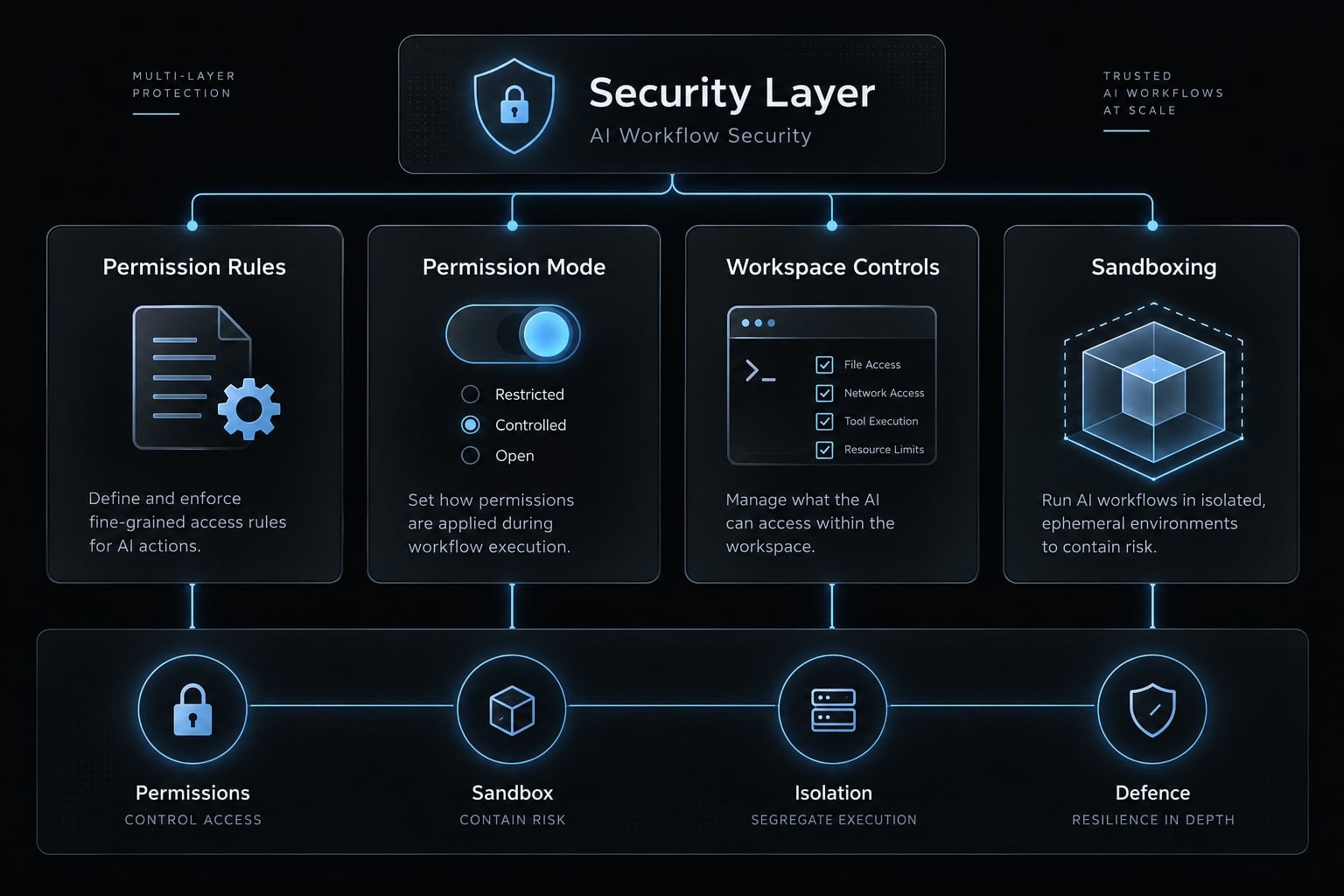
Permissions vs. Sandboxing and working directory access
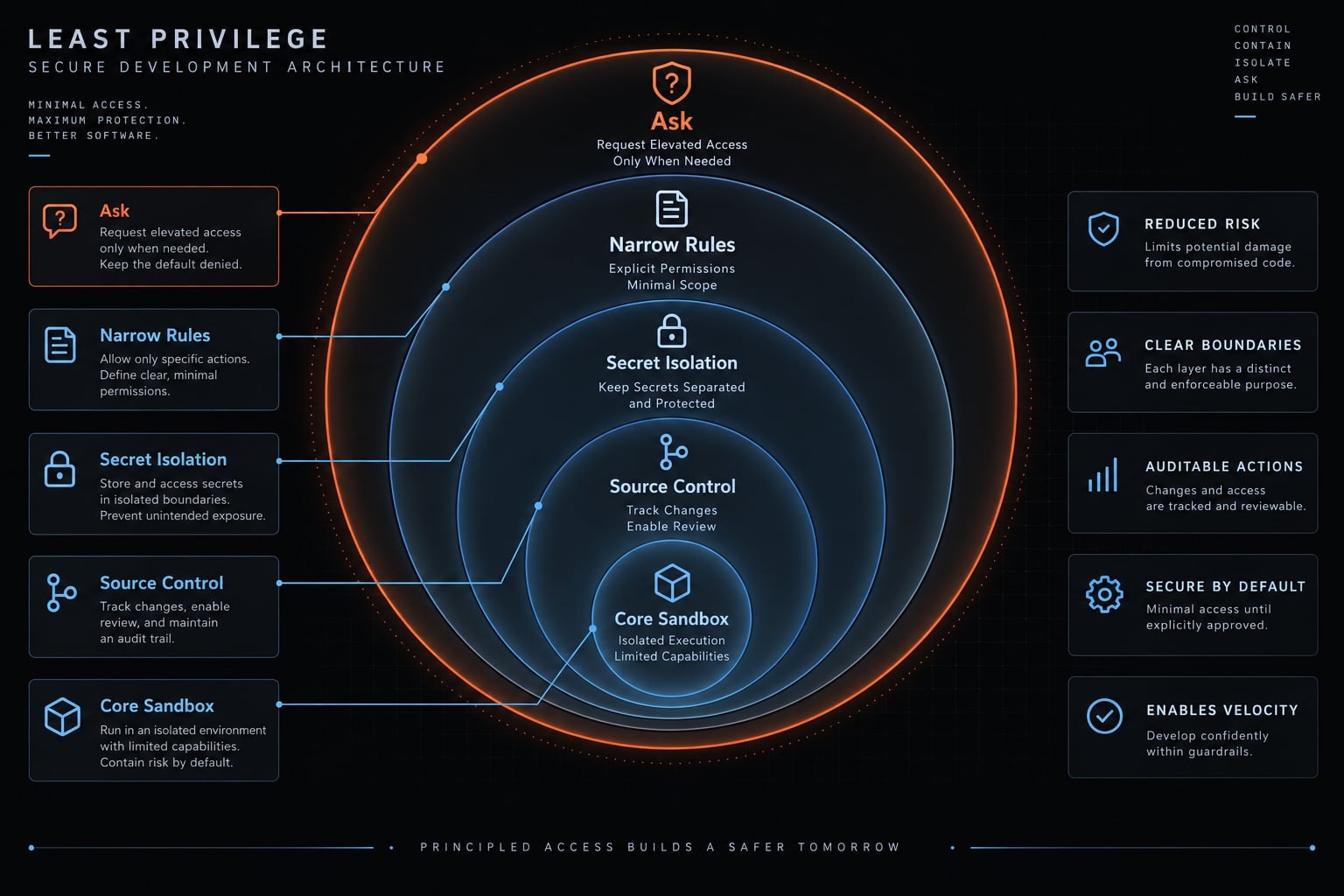
Permissions decide whether Claude Code may attempt an action through supported tools. Sandboxing provides OS-level isolation by restricting what executed processes can access. These controls solve different problems and should be used together.
Control | Primary Function |
|---|---|
Permission rules | Allow, confirm, or deny specific actions |
Permission mode | Set the session-wide approval posture |
Working directory | Define the normal project context and access scope |
Sandboxing | Enforce filesystem or network restrictions |
Container or VM | Separate execution from the primary workstation |
The working directory is Claude Code’s normal project context. Additional directories can be exposed with --add-dir <path> or /add-dir. However, workspace scope should not be treated as an impenetrable security boundary.
Use a defense-in-depth model for secure AI workflow automation:
- Use a restrictive mode when reviewing unfamiliar repositories.
- Keep credentials outside the accessible workspace where practical.
- Apply narrow rules to known sensitive files and resources.
- Use sandboxing, containers, or VMs for higher-autonomy execution.
- Maintain Git history, backups, and recovery options before allowing broad edits.
- Review shared project policy before trusting a repository.
A container or VM is particularly valuable when working with untrusted code, autonomous execution, deployment tooling, or credentials that should not be available on the host workstation.
Use least privilege, not blanket approval
Effective Claude Code permissions start with a permission mode suited to the repository and workflow. Narrowly allow routine commands, require confirmation for sensitive or irreversible actions, and deny access to known secrets. For high-autonomy execution, add sandboxing, containers, or virtual machines rather than relying on permission rules alone.
Zero prompts are not the objective. A safe configuration removes low-value interruptions while preserving review points where mistakes could affect code, credentials, infrastructure, or production data. When behavior is unexpected, begin with /permissions, verify rule priority and scope, then check environmental restrictions.
As a starting point, consider using AgentKit’s reviewable permissions template. It provides the security checks you need when configuring Claude Code permissions. Claude Code can also be configured directly without AgentKit, and every template should be reviewed before use.
Structured data
<script type="application/ld+json">
{
  "@context": "https://schema.org",
  "@graph": [
    {
      "@type": ["TechArticle", "Article"],
      "@id": "https://agentkit.best/claude-code-permissions/#article",
      "headline": "Claude Code Permissions: How to Configure Rules and Choose the Right Mode",
      "description": "Configure Claude Code permission modes, allow, ask, and deny rules in settings.json to reduce unnecessary prompts without granting broad access.",
      "url": "https://agentkit.best/claude-code-permissions/",
      "dateModified": "2025-03-08",
      "author": {
        "@type": "Organization",
        "name": "AgentKit Engineering Editorial Team",
        "url": "https://agentkit.best/"
      },
      "reviewedBy": {
        "@type": "Organization",
        "name": "AgentKit AI Development Tooling Review Board",
        "url": "https://agentkit.best/"
      },
      "publisher": {
        "@type": "Organization",
        "name": "AgentKit",
        "url": "https://agentkit.best/"
      },
      "mainEntityOfPage": {
        "@type": "WebPage",
        "@id": "https://agentkit.best/claude-code-permissions/"
      },
      "proficiencyLevel": "Intermediate",
      "dependencies": "Claude Code, JSON, Git",
      "about": [
        "Claude Code permissions",
        "Claude Code permission modes",
        "Claude Code settings.json",
        "Allow ask and deny rules",
        "Claude Code sandboxing"
      ]
    },
    {
      "@type": "BreadcrumbList",
      "@id": "https://agentkit.best/claude-code-permissions/#breadcrumb",
      "itemListElement": [
        {
          "@type": "ListItem",
          "position": 1,
          "name": "Home",
          "item": "https://agentkit.best/"
        },
        {
          "@type": "ListItem",
          "position": 2,
          "name": "Claude Code",
          "item": "https://agentkit.best/claude-code/"
        },
        {
          "@type": "ListItem",
          "position": 3,
          "name": "Claude Code Permissions",
          "item": "https://agentkit.best/claude-code-permissions/"
        }
      ]
    }
  ]
}
</script>
Frequently asked questions
What are Claude Code permissions and why are they necessary?
Claude Code permissions provide a rule-based authorization layer that controls what the agent can read, edit, or execute on your machine. They prevent unauthorized access by requiring manual approval for sensitive operations, balancing the agent's autonomy with the principle of least privilege.
What is the difference between allow, ask, and deny rules?
- Allow: Permits a specific tool or command to run silently without confirmation.
- Ask: Requires manual approval before the action proceeds, perfect for high-risk tasks.
- Deny: Explicitly blocks an action, overriding any other rule to prevent access to sensitive resources.
How does Claude Code resolve conflicting permission rules?
Claude Code evaluates rules in a strict order: Deny, then Ask, then Allow. If an action matches a deny rule, it is blocked immediately, even if a separate allow rule would otherwise permit it. The first match in this sequence determines the outcome.
Which permission mode should I choose for my workflow?
- Default: Best for routine tasks; prompts for confirmation on changes or network access.
- Plan: Ideal for auditing or exploring codebases; allows reading but disables editing.
- Auto Mode: Uses an AI classifier to intelligently approve safe actions, reducing manual prompt fatigue.
- Bypass: Use only in fully isolated environments (e.g., disposable containers) where OS-level restrictions already apply.
Where should I configure my Claude Code permission rules?
Permissions are managed across four scopes: Managed (enterprise policy), User (global defaults), Project Shared (team-reviewed rules in git), and Project Local (developer-specific exceptions). Always commit shared team rules to the repository, but keep sensitive local overrides in .claude/settings.local.json.
Why am I still receiving permission prompts for routine commands?
Common causes include overly restrictive matchers, an active "Ask" rule, or missing workspace trust. Run the /permissions command in your terminal to inspect which rule is triggering the prompt. If the matcher is too narrow (e.g., missing a wildcard for arguments), you may need to adjust your rule syntax.
Do permissions replace operating system-level sandboxing?
No. Permissions control tool authorization, but they do not provide OS-level enforcement. For high-autonomy agents or untrusted repositories, always use defense-in-depth strategies like OS sandboxing, containerization, or isolated virtual machines to ensure complete system security.
Read more:
- Claude Code permissions security: Guide to safe workflows
- Claude Code dangerously-skip-permissions: Risks and best practices
- Claude Code PreToolUse hook: Block unsafe tool calls securely
Conclusion
Effective Claude Code security relies on applying the principle of least privilege rather than eliminating all prompts. By choosing the right permission mode, narrowly allowing routine commands, requiring confirmation for sensitive operations, and denying access to known secrets, you can minimize interruptions while preserving critical human review points.
For high-autonomy workflows, always combine permission rules with OS-level isolation like sandboxing or containers, since permissions alone cannot prevent every destructive action or credential exposure. When issues arise, start troubleshooting with /permissions to verify rule priority and scope before adjusting access.