
How to Uninstall Claude Code Completely
To completely uninstall Claude Code, you need to identify which installation method was used: The native installer, a global npm package, or a Homebrew cask. While a standard uninstall command removes the command-line executable, it leaves behind user configuration files, custom skills, local logs, and active API credentials in directories like ~/.claude. This guide walks you through detecting your specific installation source, running the correct uninstaller, purging residual settings, and verifying complete removal across all terminal environments.
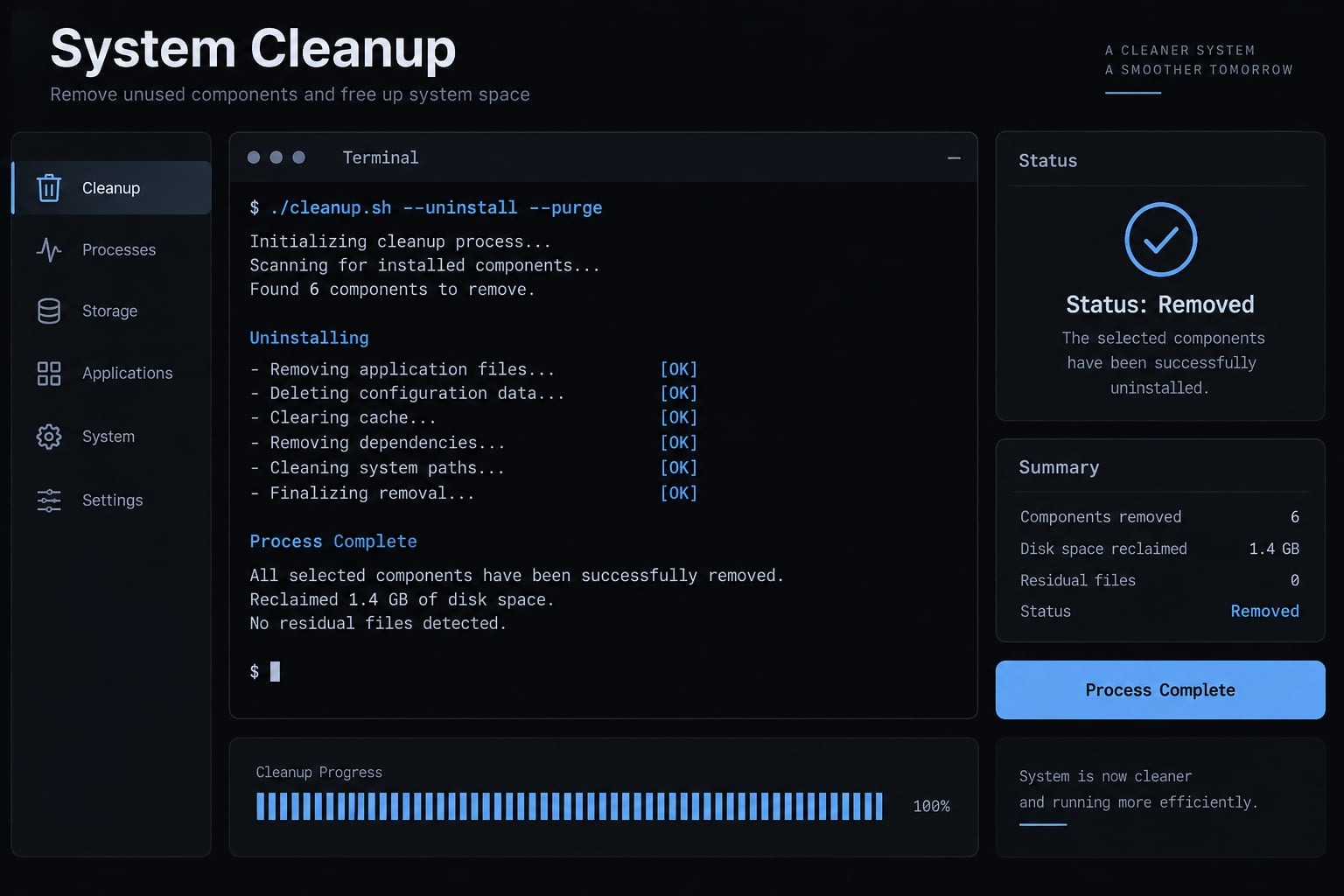
Quick answer: Claude Code uninstall commands
The correct Claude Code uninstall command depends on the installation source, not just on your operating system.
Installation method | Uninstall command | Environment |
|---|---|---|
Native installer |
| Supported native environments |
npm |
| |
Homebrew |
| macOS |
Unsure | Locate the executable first | All environments |
Each command removes only the installation managed by that method. For example, removing the global npm package does not remove a separate native or Homebrew copy.
Windows and WSL (Windows Subsystem for Linux) must also be checked independently. Each environment has its own filesystem, package installations, and System PATH.
Before you uninstall Claude Code
A standard uninstall removes the managed CLI package or executable. It normally does not remove every user-level setting, reusable configuration, or credential.
Action | What it removes | Best for |
|---|---|---|
Standard uninstall | The managed Claude Code executable or package | Routine removal, troubleshooting, or reinstalling |
Complete removal | The executable plus selected local configuration and data | Clean reset, corrupted settings, or device cleanup |
Separate these three components:
- Executable or package: The binary your shell runs when you enter
claude. - Local configuration: Settings and related data stored in locations such as
~/.claude. - Credentials: API keys or authentication tokens stored in files, environment variables, or credential managers.
Uninstalling the Claude Code CLI does not automatically:
- Cancel a Claude subscription.
- Delete your Anthropic account.
- Delete conversations stored on the Claude website.
- Uninstall the separate Claude Desktop application.
- Delete source repositories or project files.
- Revoke every API key or OAuth credential.
Important: Configuration cleanup is optional and irreversible. Complete it only if you need a clean reset or must remove local data from the device.
Inspect the Claude Code configuration directory before deleting it. Depending on your version and setup, it may include:
- Custom agents.
- Slash commands.
- Skills.
- Hooks.
- User settings.
- MCP server configuration.
- Project memory or session-related data.
Copy any reusable files to a secure backup location. One directory may not contain every credential or system-level setting.
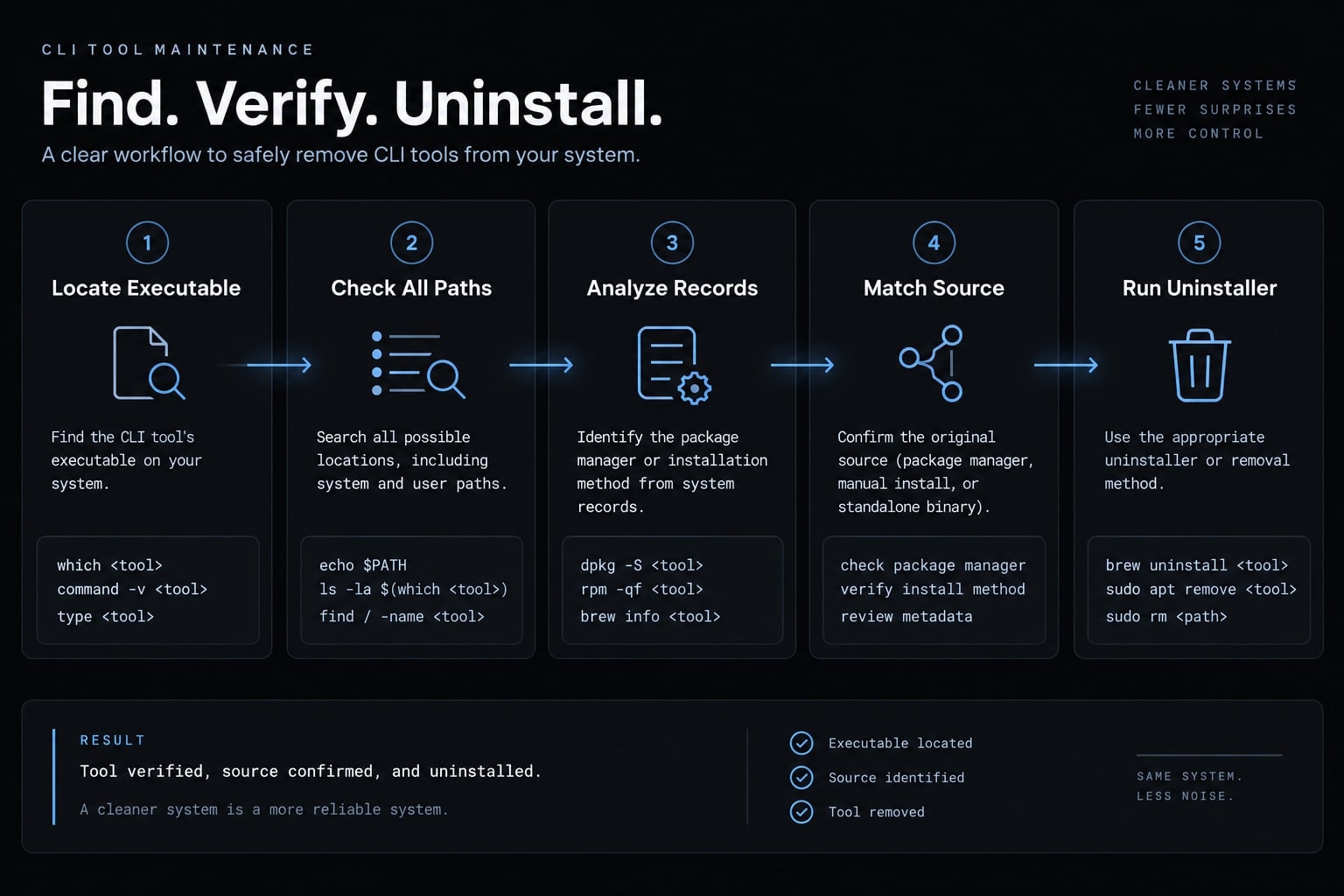
How to check how Claude Code was installed
Do not delete a manually located binary until you confirm its path and installation source.
- Run a command that locates the active executable.
- Check for additional executable paths.
- Record every returned path.
- Compare the paths with npm and Homebrew records.
- Match each copy to its installation source.
- Uninstall each copy through its corresponding manager.
On macOS, Linux, or WSL, run:
command -v claude
which -a claude
type -a claude
command -v claude shows the command currently selected by the shell. Where supported, which -a and type -a can reveal multiple matches.
On Windows PowerShell, run:
where.exe claude
Next, check whether npm manages the CLI:
npm list -g --depth=0
Look for @anthropic-ai/claude-code in the output. On macOS, also inspect installed Homebrew casks:
brew list --cask
A missing npm or Homebrew record does not prove Claude Code is fully removed. Another installation method or Node environment may still provide the executable.
Uninstall Claude Code by installation method
Use only the subsection matching the source you identified. If several executable paths were returned, you may need more than one uninstall method. Configuration removal is covered separately because it is optional.
Uninstall a native Claude Code installation
For a supported native installation, run:
claude uninstall
This command should invoke the uninstaller associated with the native Claude Code installation. After it finishes, proceed to the verification section.
If the command is unavailable, repeat the executable-path checks. Do not delete the first file named claude you find. Manual binary deletion should be a final fallback after confirming the exact path and ownership.
Uninstall Claude Code installed with npm
Remove the globally installed npm CLI package with:
npm uninstall -g @anthropic-ai/claude-code
The -g flag targets the global npm package in the current Node environment. It does not remove a native installation, Homebrew cask, or package stored under another Node version.
Tools such as nvm or fnm can maintain separate global package directories. If npm reports that the package is missing, check other active Node versions before concluding that no npm installation remains.
For permission errors, verify npm directory ownership and the active Node environment. Avoid using sudo as the default fix because it can create additional ownership problems.
Uninstall Claude Code installed with Homebrew
For a Homebrew-managed cask on macOS, run:
brew uninstall --cask claude-code
Check the remaining cask list afterward:
brew list --cask
If Homebrew reports that the cask is not installed, check for a native or npm-managed copy instead.
Uninstall Claude Code on Windows or WSL
Treat native Windows and WSL as separate environments. For a global npm installation in Windows PowerShell, run:
npm uninstall -g @anthropic-ai/claude-code
Then locate any remaining Windows executable:
where.exe claude
For WSL:
- Open the WSL distribution where Claude Code was installed.
- Run the Linux detection commands inside that distribution.
- Check its global npm package list.
- Run the matching native or npm uninstaller.
- Repeat the process for other WSL distributions when applicable.
Removing Claude Code from Windows does not remove a WSL installation. Removing it inside WSL does not remove the Windows copy.
How to completely remove Claude Code settings and local data
Completely removing local data is optional. Consider it when preparing a clean reinstall, resetting corrupted settings, cleaning a shared device, or decommissioning a machine.
Permanent deletion warning: The following commands may delete local settings, custom agents, commands, skills, hooks, MCP configuration, history, and project or session data. Back up reusable files and confirm every target path before continuing. These commands must not target your source repositories.
Exact contents can vary by platform, configuration, and Claude Code release. A missing path normally means there is nothing to delete at that location.
Remove local data on macOS, Linux, or WSL
Inspect the paths before removing them:
ls -la ~/.claude
ls -la ~/.claude.json
For permanent deletion without confirmation:
rm -rf ~/.claude
rm -f ~/.claude.json
rm -rf recursively deletes the directory without interactive confirmation. Use the safer alternatives below if you want confirmation prompts:
rm -ri ~/.claude
rm -i ~/.claude.json
If the terminal reports “No such file or directory,” the specified location does not exist. In WSL, these paths belong to the current Linux user, not the Windows user profile.
Remove local data on Windows
First, confirm the current Windows profile:
$env:USERPROFILE
After verifying the resolved location, remove the configuration directory and file:
Remove-Item -Recurse -Force "$env:USERPROFILE\.claude"
Remove-Item -Force "$env:USERPROFILE\.claude.json"
“Path not found” usually means no file or directory exists there. These commands do not necessarily remove credentials stored in Windows Credential Manager or other system-level storage.
Remove credentials and Shell references
Review these locations separately:
Get the next post in your inbox
New guides and AgentKit updates, no spam. Unsubscribe at any time.
.zshrc, .bashrc, .zprofile, and other shell startup files.Look for:
ANTHROPIC_API_KEY.- Other Claude- or Anthropic-related environment variables.
- Custom Claude PATH entries.
- Shell aliases or functions that override
claude.
Deleting a local key reference prevents that copy from being reused. It does not necessarily revoke the credential remotely. For security cleanup, revoke active API keys through the appropriate Anthropic account console.
Verify removal and fix a persistent claude command
After uninstalling, open a new terminal and run:
claude --version
In Windows PowerShell, use the same command:
claude --version
Successful removal usually returns “command not found,” “not recognized,” or another message showing that the current PATH cannot resolve a Claude executable.
If the command still works:
- Locate every remaining executable.
- Record each returned path before changing anything.
- Identify whether each path belongs to native, npm, or Homebrew.
- Remove each copy through its corresponding installation manager.
- Check aliases, functions, PATH entries, and startup files.
- Open a new terminal to refresh command resolution.
- Inspect other Node version manager environments.
- Check Windows and WSL independently.
- Run
claude --versionagain.
On macOS, Linux, or WSL:
which -a claude
type -a claude
On Windows:
where.exe claude
A common cause of a persistent claude command is a second installation on the same PATH. Another frequent cause is an npm package stored under a different Node version managed by nvm, fnm, or a similar tool. Also confirm that your terminal is not connected to:
- A remote development host.
- A container.
- Another WSL distribution.
- A virtual machine.
- A different user account.
Do not delete unrelated files merely because their names contain “Claude.” Confirm the path and package ownership first.
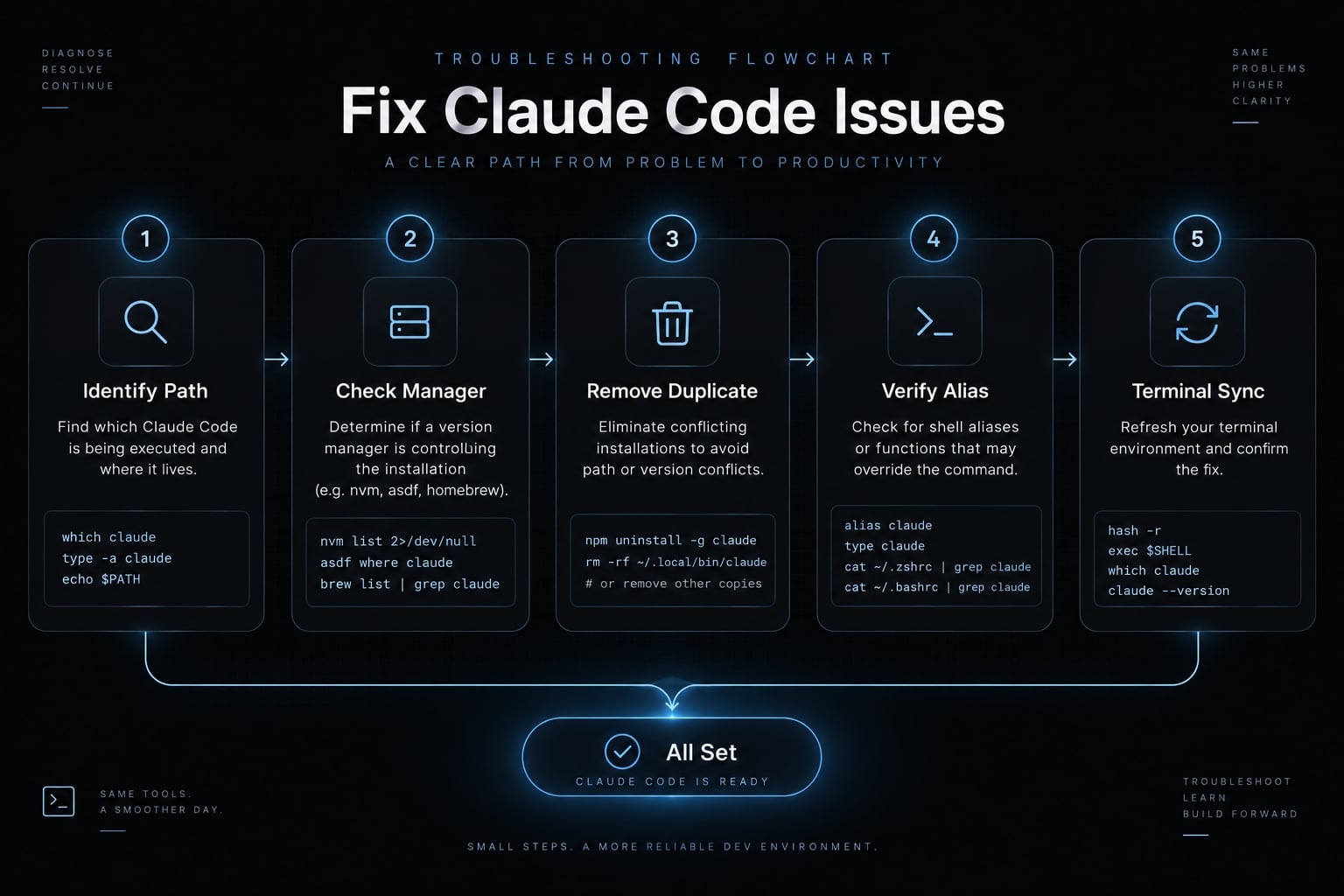
Safest sequence for removing Claude Code
The safest way to uninstall Claude Code is to identify the installation source, run its matching uninstaller, and verify that no duplicate executable remains. Delete ~/.claude, ~/.claude.json, or their Windows equivalents only when you need a complete reset.
Configuration deletion is permanent. CLI removal does not cancel subscriptions, erase Claude web conversations, uninstall Claude Desktop, or delete project source files. API keys and authentication tokens may require separate revocation.
Frequently asked questions
How do I uninstall Claude Code completely?
To uninstall Claude Code, first run the command matching your installation method: claude uninstall for the native version or npm uninstall -g @anthropic-ai/claude-code for npm. To completely wipe settings and data, manually delete the ~/.claude directory and ~/.claude.json file.
Does uninstalling Claude Code delete my configuration and project data?
A standard uninstall removes the executable but preserves your local configuration, slash commands, custom agents, and project history stored in ~/.claude. You must manually delete this directory if you want a complete reset or to perform a fresh installation.
Will uninstalling Claude Code delete my Claude Pro subscription or web chats?
No. Uninstalling the CLI tool only affects local software and your command-line environment. It does not cancel your Anthropic subscription, delete your Claude AI account, or remove chat history saved on the official Claude.ai web platform.
Why does the claude command still work after I uninstall it?
This usually indicates a duplicate installation (e.g., one via npm and one via Homebrew) or a cached shell reference. Use which -a claude or where.exe claude to find all active executable paths and remove them, then open a new terminal session.
Should I uninstall Claude Code if I am switching to another AI coding tool?
Not necessarily. Many developers keep Claude Code installed alongside other tools like Cursor or Windsurf. Claude Code remains useful for specific terminal-based tasks, while other IDE-based assistants handle workflow integration. If you decide to remove it, ensure you back up custom skills or hooks first.
How do I revoke my Claude Code API access?
Uninstalling the local tool does not revoke remote API access. To fully revoke your API keys, log in to your Anthropic Console (console.anthropic.com), navigate to the API keys section, and manually delete or revoke any active keys previously used by the CLI.
Read more:
- Claude Code install guide: Official setup steps for all OS
- How to Update Claude Code: The fastest method for every install
- Claude Code privacy: A guide for technical teams and developers
Conclusion
In conclusion, completely uninstalling Claude Code requires more than just running a single command-it involves identifying your specific installation method, removing executable binaries, and optionally clearing local configuration data and credentials.
Since a standard package removal leaves behind user settings, custom agents, and session history in directory locations like ~/.claude, achieving a total reset requires manual cleanup and API key revocation. By following a structured removal sequence and verifying remaining paths across your terminal environments, you can ensure a clean, trace-free uninstall without impacting your source code or active Anthropic account.
Ship features with Engineer Kit
Planning, implementation, review and testing workflows for AI coding agents, ready to install.
Explore Engineer Kit →Share this article
Keep reading
- Master Claude Code PostToolUse hook: Setup and examplesLearn how to configure Claude Code PostToolUse hooks for automated formatting and linting. Follow our guide to improve workflow efficiency today.15 min read
- How to use Kimi K2 with Claude Code: Setup & verification guideLearn how to configure Kimi K2 with Claude Code using Anthropic-compatible endpoints. Follow our step-by-step guide for setup, verification, and testing.13 min read
- Claude Code effort level: How to choose the right settingLearn how Claude Code effort level impacts reasoning and performance. Discover the best settings for your tasks to balance efficiency and accuracy.10 min read