How to Update Claude Code: The fastest method for every install
How to Update Claude Code: The fastest method for every install
To update Claude Code, first identify how it was originally installed, as the correct update method depends on the installation type. There is no one-size-fits-all command. Some users installed it natively, while others used Homebrew, WinGet, npm, or a Linux package manager. This is also where many update attempts go wrong, especially when people no longer remember how they originally installed the CLI. This guide covers the fastest answer first, then the exact method-by-method steps, version verification, release channels, and safe troubleshooting if the update does not behave as expected.
The fastest way to update
To update Claude Code correctly, start with the install source, not the command. There is no universal single command that works as the primary update path for every installation type. For a native install, use claude update. For a package-managed install, use that same tool again. This is the safest approach for updating Anthropic CLI without creating version drift or PATH confusion. If you are trying to handle a quick Claude Code version upgrade, use the list below before experimenting with multiple commands.
- Native install → Run
claude update - Homebrew → Update with Homebrew
- WinGet → Update with WinGet
- npm → Update with npm
- Linux package manager → Update with apt, dnf, or apk
Quick command for native installs
claude update
- Native installs may auto-update in the background.
- This command forces the update now, which is useful when you want the newest version immediately.
One-line summary by install source
- Native install → Run
claude update - Homebrew → Use Homebrew’s upgrade workflow.
- WinGet → Use WinGet’s upgrade workflow.
- npm → Use npm’s global update workflow.
- Linux package manager → Update through your system repository flow.
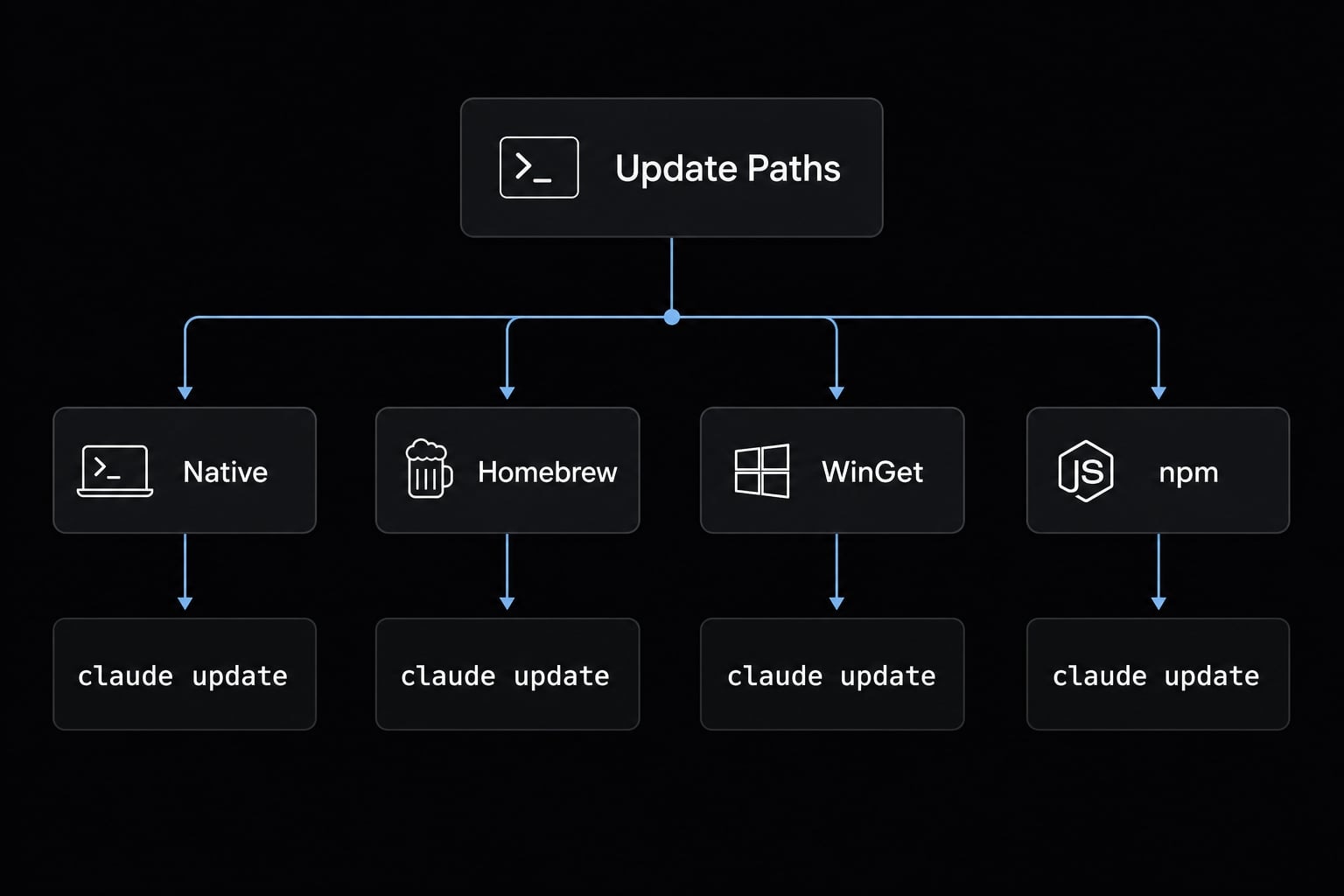
Update Claude Code by installation method
If you want to manually update Claude Code CLI without guessing, the rule is straightforward: Use the same update path as the original install source. This matters because mixed installs are a common cause of failed updates, duplicate binaries, and PATH issues. When teams ask how to update Claude Code on Windows and macOS, the real answer is usually not platform-first. It is install-source first.
Native install
If Claude Code was installed using the official native installer, the normal path is:
claude update
Native installs often auto-update in the background, but this command is the fastest way to pull changes immediately. If you need to manually update Claude Code CLI on a native installation, use this command.
Homebrew
This applies if you installed Claude Code with Homebrew on macOS.
- Refresh Homebrew metadata.
- Upgrade the Claude Code package or cask.
- Verify the installed version after the upgrade.
brew updatebrew upgrade --cask claude-code
If your environment uses a different Homebrew formula naming convention, check the installed package name first with brew list. The key point is that Homebrew users should update through Homebrew, not by treating claude update as the primary method.
WinGet
This applies to Windows users who installed Claude Code with WinGet.
- Open PowerShell or Windows Terminal.
- Run the standard WinGet upgrade command.
- Verify the version after the process finishes.
winget upgrade Anthropic.ClaudeCode
For anyone trying to update Claude Code on Windows and macOS, this is a good example of why install source matters more than operating system alone.
npm global install
If Claude Code was installed as an npm global install, update it through npm’s usual global workflow:
npm install -g @anthropic-ai/claude-code
Keep version management consistent with your Node-based tooling. If you installed through npm, keep using npm rather than switching to another package manager later.
apt / dnf / apk on Linux
If Claude Code came from a Linux repository, update it through the same system package manager. In this setup, Claude Code does not self-manage updates.
Linux install source | Practical update path |
|---|---|
apt-based systems |
|
dnf-based systems |
|
apk-based systems |
|
Keep this high level: if the CLI was installed from an OS repository, let the operating system manage the update cycle.
Which method should you use if multiple commands seem to work?
Warning: This is where update attempts often go wrong.
Always prefer the original install source. Do not mix one package manager with another unless you are intentionally removing the old install first.
Risks of mixing methods include:
- Version mismatch.
- Duplicate binaries.
- PATH confusion.
- Terminal showing one version while another install was actually updated.
- Harder rollback and supportability later.
If you are unsure which path applies, go to the version and troubleshooting sections before forcing more commands.
Does Claude Code update automatically or manually?
Claude Code update behavior depends on how it was installed. Native installs often update in the background, while managed installs usually follow the normal manual workflow of the tool that installed them. This distinction matters because Claude Code auto-update vs manual update is not just a convenience issue. It affects version consistency, supportability, and day-to-day maintaining Claude Code installation across any Terminal CLI workflow.
Auto-update behavior for native installs vs managed installs
Install type | Update behavior | What the user should do |
|---|---|---|
Native install | Often auto-updates in the background. | Run |
Homebrew | Usually manual through Homebrew. | Run Homebrew update/upgrade commands. |
WinGet | Usually manual through WinGet. | Use |
npm | Usually manual through npm. | Reinstall/update globally with npm. |
apt / dnf / apk | Usually manual through OS package flow. | Update through your Linux package manager. |
Why teams should care about update behavior
Claude Code auto-update vs manual update matters more in shared environments than it does on one personal machine.
- Do not assume all laptops or workstations are current.
- Different update models create version drift across small teams.
- Mixed expectations create command confusion during onboarding.
- A shared release channel strategy makes workflows more predictable.
- Consistent update rules reduce support overhead.
For solo users, the impact is mostly convenience. For small teams, Claude Code auto-update vs manual update becomes an operational consistency issue.
How to check your Claude Code version and release channel
Updating is not complete until you verify the result. To check your current Claude Code version, start with the quickest command and use diagnostics only if something seems wrong. A release channel is simply the update track your installation follows. In plain English, latest vs stable means choosing between faster access to new changes and lower regression risk.
Check version quickly
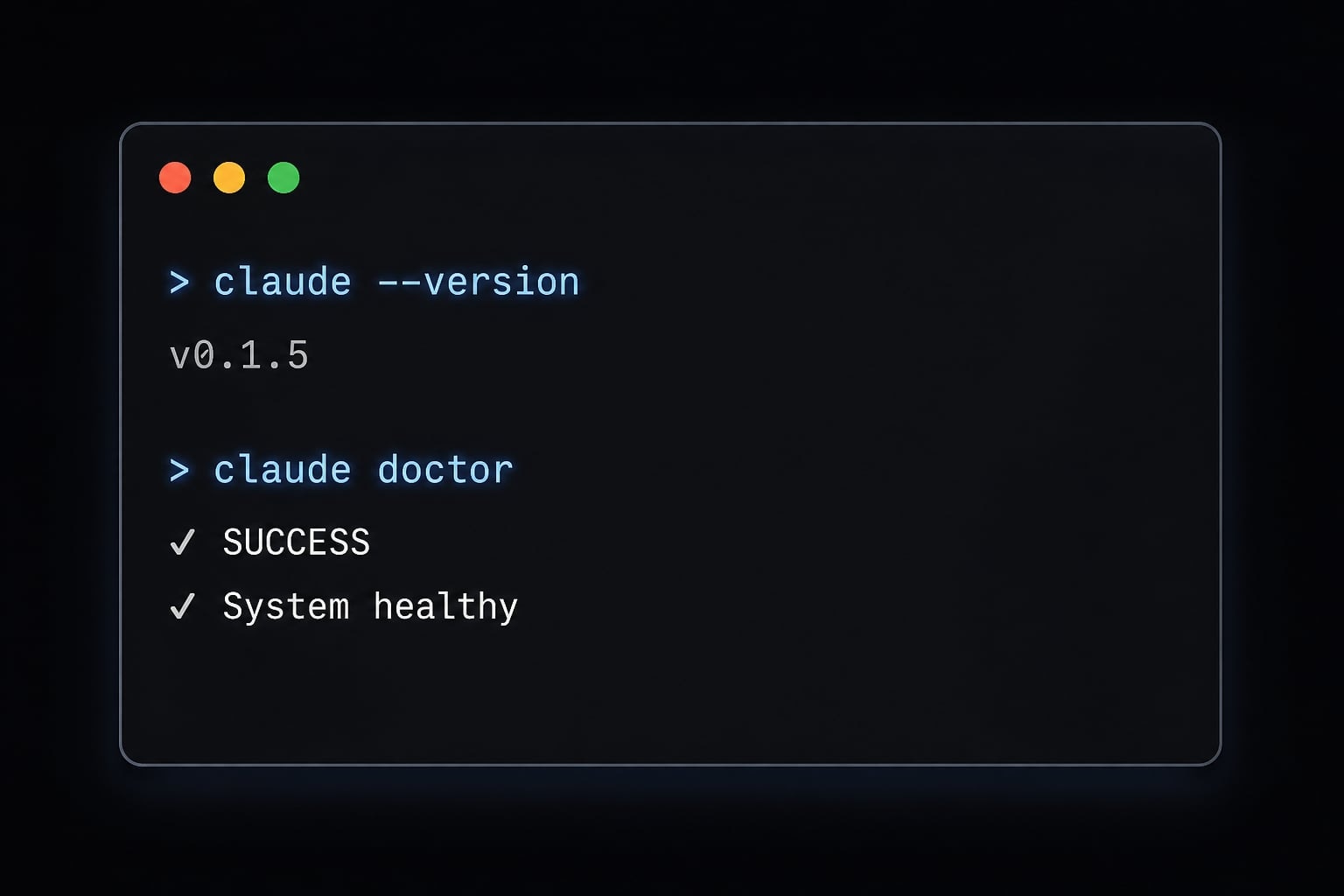
The fastest way to check Claude Code current version is:
claude --version
If the number changed after the update, the update likely worked as expected.
For a broader health check, run:
claude doctor
Use these two commands differently:
claude --version= Fastest way to confirm the installed version.claude doctor= Broader diagnostic check if behavior seems off after the update.- If you need to check Claude Code current version after changing install methods, run both.
Latest vs stable release channel
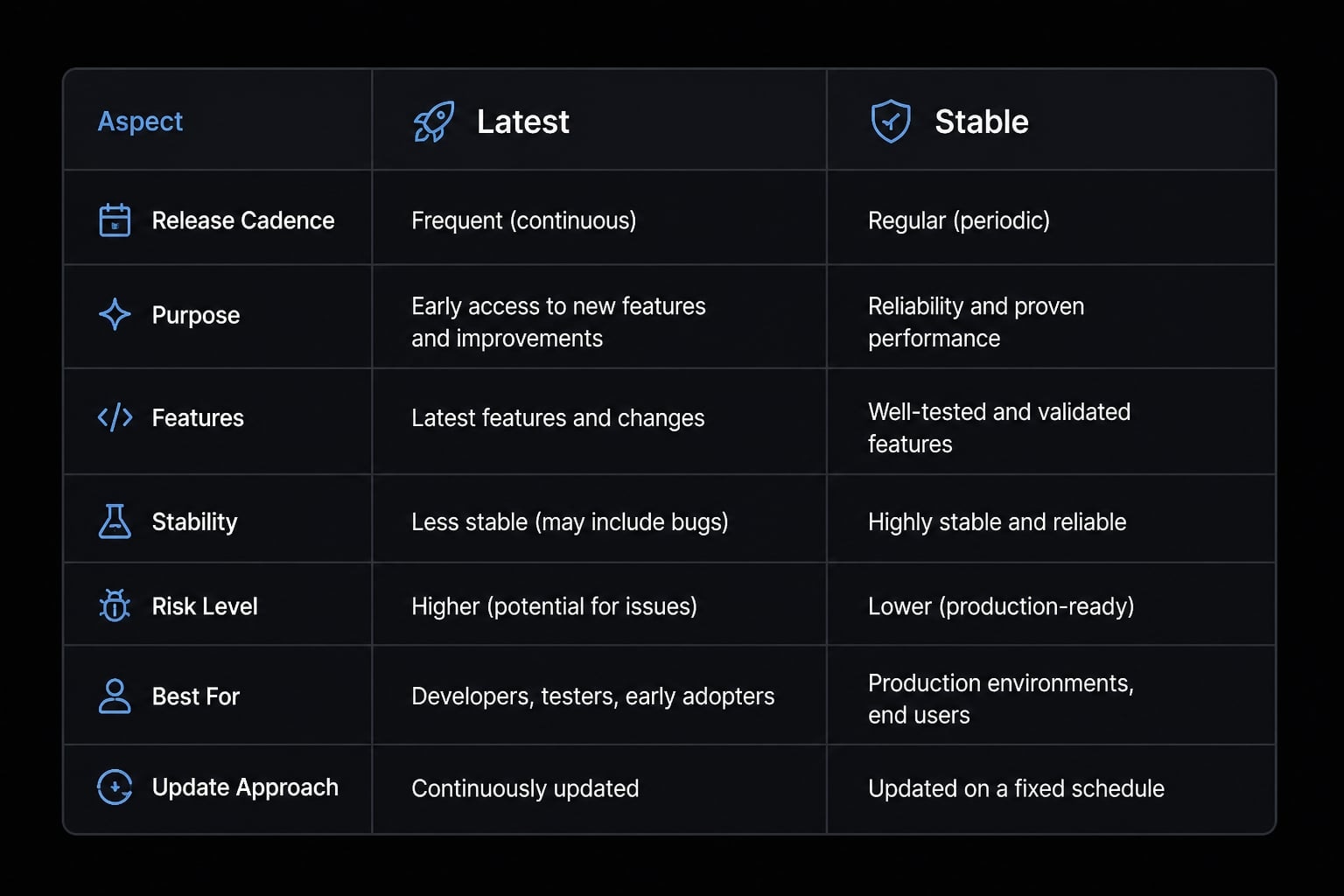
The latest vs stable choice affects how quickly your environment receives changes. Claude Code documentation references channel behavior through settings.json.
Channel | Best for | Tradeoff |
|---|---|---|
latest | Solo developers who want newer features quickly | Higher chance of encountering fresh regressions |
stable | Small teams that value consistency | Features may arrive slightly later |
Practical guidance:
- Choose latest if you work alone and want faster access.
- Choose stable if you care more about predictable workflow behavior.
- For latest vs stable, small teams should usually standardize instead of letting each user decide independently.
- If your version looks older than expected, the issue may be channel selection rather than a failed update.
Recent Claude Code updates at a glance
The summary below is based on the official Claude Code changelog and official release notes. The goal is not to mirror every release line. It is to help you understand whether recent Claude Code updates are likely to matter to your workflow right now.
What changed recently in plain English
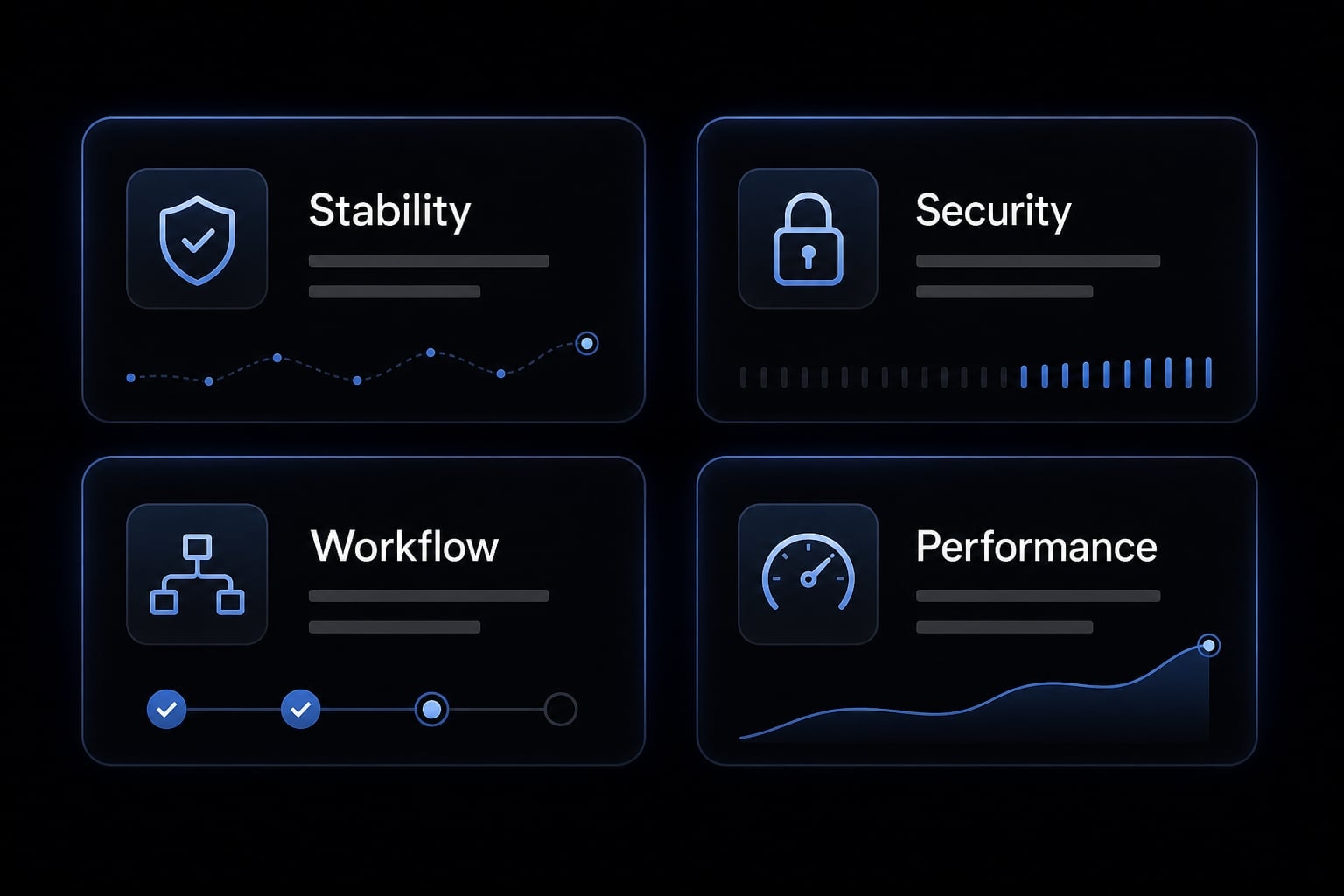
Based on the latest Claude Code changelog, the most meaningful patterns include:
- Stability and bug fixes: Fixes for crashes, session behavior, rendering issues, and command reliability. This matters if your update decision is driven by day-to-day usability.
- Security hardening: Several releases focused on permission handling, Windows path safety, and credential leak prevention. This is the category that usually justifies faster action.
- Workflow and sync improvements: Better cross-session behavior, remote control improvements, GitLab integration updates, and smoother session continuation.
- Performance and cost-efficiency improvements: Some releases improved rendering performance and reduced context cost for built-in skills. For regular users, that can mean a lighter and more responsive experience.
- Operational controls: More support for environment variables, self-hosted runner settings, and update-related workflow tuning. Advanced users may also care about subagent fork synchronization and related session orchestration behavior.
- Trust and integrity: Official setup guidance also references signed releases and binary integrity checks for users who need stronger supply-chain confidence.
When to update immediately vs wait for stable
Update immediately if:
- The Claude Code changelog includes a security fix.
- A bug fix directly affects your workflow.
- You are troubleshooting a known issue already addressed upstream.
Waiting for stable is reasonable if:
- Your current setup is working well.
- You prioritize consistency over early access.
- Your team wants fewer surprise changes from recent Claude Code updates.
Troubleshooting: If Claude Code does not update correctly
Most cases of troubleshooting Claude Code update failed are not caused by a broken command. They are caused by the wrong update path, duplicate installs, stale shell state, or a release-channel mismatch. The table below is designed to help you diagnose the issue quickly before you stack more fixes on top of a messy install.
Symptom → likely cause → practical fix
Symptom | Likely cause | Practical fix |
|---|---|---|
| You are not on a native install, or you are on | Verify install source, then run the correct update path. Check channel settings before assuming failure. |
| PATH issue, incomplete install, or shell does not see the binary yet | Open a new terminal session, verify install completion, and check whether the binary location is available in PATH. |
Package manager says updated, terminal still shows old version | Old binary is first in PATH, or shell session is stale | Restart the terminal, run |
Multiple install methods appear to exist | Native install and package manager install are both present | Remove the extra install and keep one method only. This is a common source of version mismatch. |
Expected newest features are missing | latest vs stable mismatch or different machine configuration | Confirm channel selection and compare local settings, including environment variables that may affect behavior. |
Safe fallback: When a clean reinstall is the better option
Warning: If duplicate installs, PATH conflicts, or layered fixes are piling up, a clean reinstall is often lower risk than continuing to patch the environment.
Use a clean reinstall when:
- Troubleshooting Claude Code update failed keeps leading back to mixed install methods.
- You have confirmed duplicate binaries.
- The terminal repeatedly shows a version mismatch.
- You no longer trust which install is actually active.
Best practice:
- Remove old copies first.
- Reinstall using one method only.
- Verify with
claude --version - Run
claude doctorif anything still looks inconsistent.
This is usually the fastest route back to a known-good state.
A simple update policy for solo developers and small teams
If you want lighter maintaining Claude Code installation over time, use a simple policy instead of treating every update as a one-off event. Good Claude Code CLI release management is mostly about consistency, not complexity.
- Solo developers can often use latest if fast access matters more than strict stability.
- Small teams should standardize on one install method only.
- Small teams should also standardize on one channel for latest vs stable.
- Update immediately when a release includes a security fix.
- Verify every update with
claude --version. - Use
claude doctorwhen behavior changes unexpectedly. - Avoid mixing native installs with package-managed installs.
- Favor workflow reliability over chasing every minor release.
A lightweight policy prevents most update confusion before it starts.
Frequently asked questions
Is there a universal command to update Claude Code?
No. There is no single command that works for every installation. You must use the update method corresponding to how you originally installed the tool-such as claude update for native installs or your system's package manager for others.
How do I check which version of Claude Code I am running?
Run claude --version in your terminal for a quick version check. For a more comprehensive diagnostic that includes environment details and potential health issues, run claude doctor to confirm your installation is functioning correctly after an update.
Why didn't my version change after running an update?
This usually happens if you have duplicate binaries or a PATH conflict from using multiple installation methods. Verify that the directory your terminal is calling matches your original installation path. If the issue persists, a clean reinstall is often the safest way to resolve binary drift.
Should I use the 'latest' or 'stable' release channel?
Use the latest channel if you want immediate access to new features and are comfortable with a faster pace of change. Use the stable channel if you are working in a team or production environment where predictable behavior and avoiding regressions are your top priorities.
Can I install Claude Code using multiple methods at once?
No. Avoid mixing installation methods like Homebrew and native scripts on the same machine. This often leads to "command not found" errors, version mismatches, or duplicate installations that complicate your PATH configuration and make future updates unreliable.
What is the safest way to fix a failed Claude Code update?
If updates fail repeatedly due to configuration or permission issues, perform a clean reinstall. Remove the existing binary and configuration files (referencing official documentation for your specific OS), then reinstall using only one consistent method to ensure future updates remain predictable.
Read more:
- How to update Claude Code Plugin: A step-by-step guide
- Claude Code install guide: Official setup steps for all OS
- Claude Code VS Code: Installation and setup guide 2026
Conclusion
To update Claude Code safely, always start with how it was originally installed. Native installs usually use claude update, while package-managed installs should be updated through the same package manager that installed them. After any change, verify the result with claude --version, and use claude doctor if the version looks right but the tool behaves strangely.
If update attempts start colliding with duplicate installs or PATH confusion, a clean reinstall is often the safer option. For ongoing hygiene, keep one install method, one release channel, and one simple verification habit. For related setup and workflow guidance, review the official Claude Code setup and changelog resources alongside your internal team standards.