
Claude Code Windows: How to install, set up, and fix common issues
Setting up Claude Code on Windows is usually straightforward, but many users get stuck before they even begin. The most common problem is not installation itself. It is choosing between Claude Desktop, the native CLI, and WSL 2, then troubleshooting the wrong path. This guide keeps it simple. It shows which option to choose, how to install it step by step, how to verify the setup, and what to do when common Windows issues appear. If you want the shortest route to a working setup without overengineering your environment, start here.
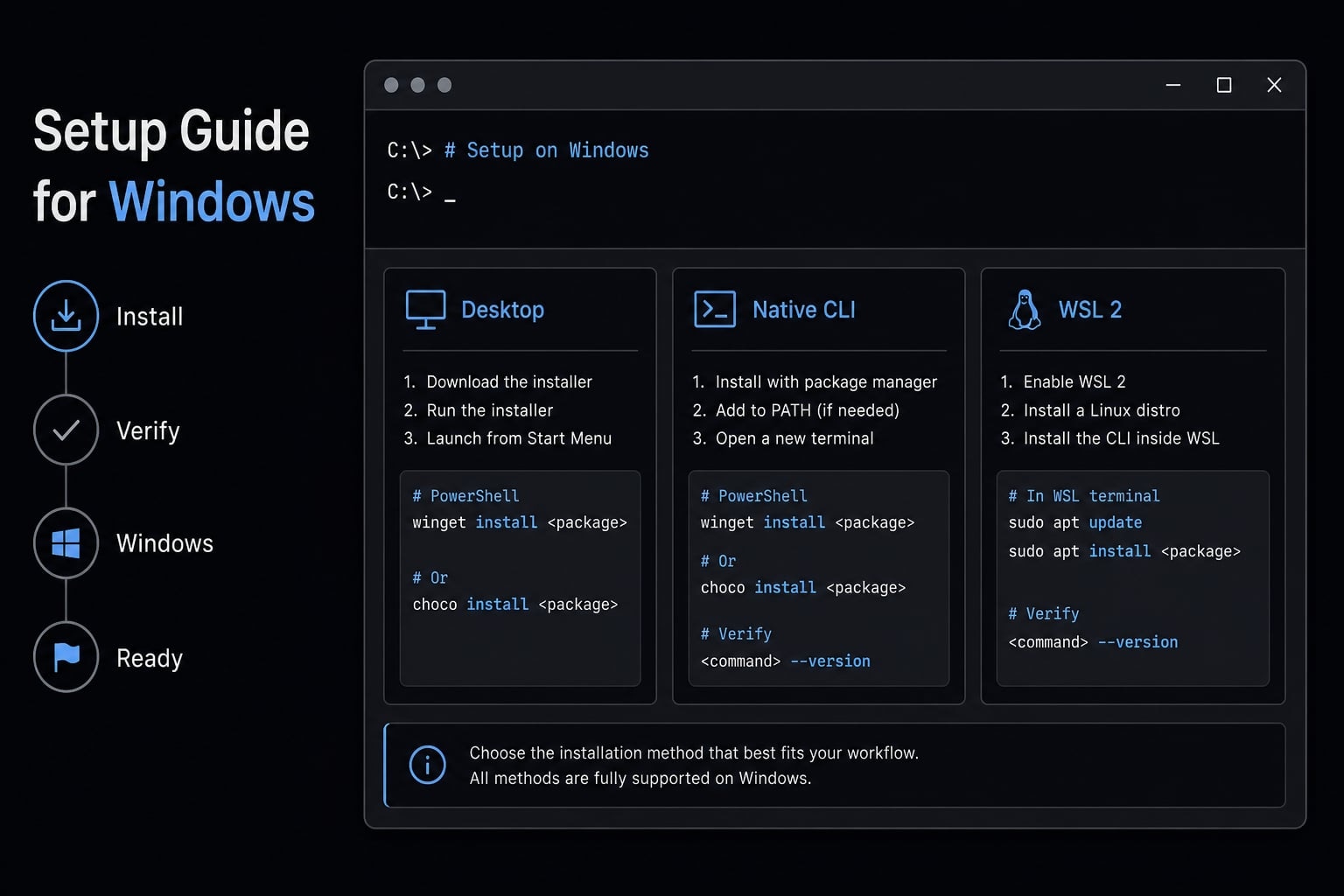
Does Claude Code work on Windows? What you need before installing
Yes. Claude Code works on Windows through the Claude Desktop app, the native CLI, or WSL 2 if you need a Linux-style environment. Most users can run it on Windows 10 or 11 with an internet connection and a supported x64 or ARM64 device, but access to Code features also depends on an eligible account plan.
Windows support is real, but many users confuse “supported” with “you must set up every option.” You do not need Desktop, CLI, and WSL together. They are different workflow paths.
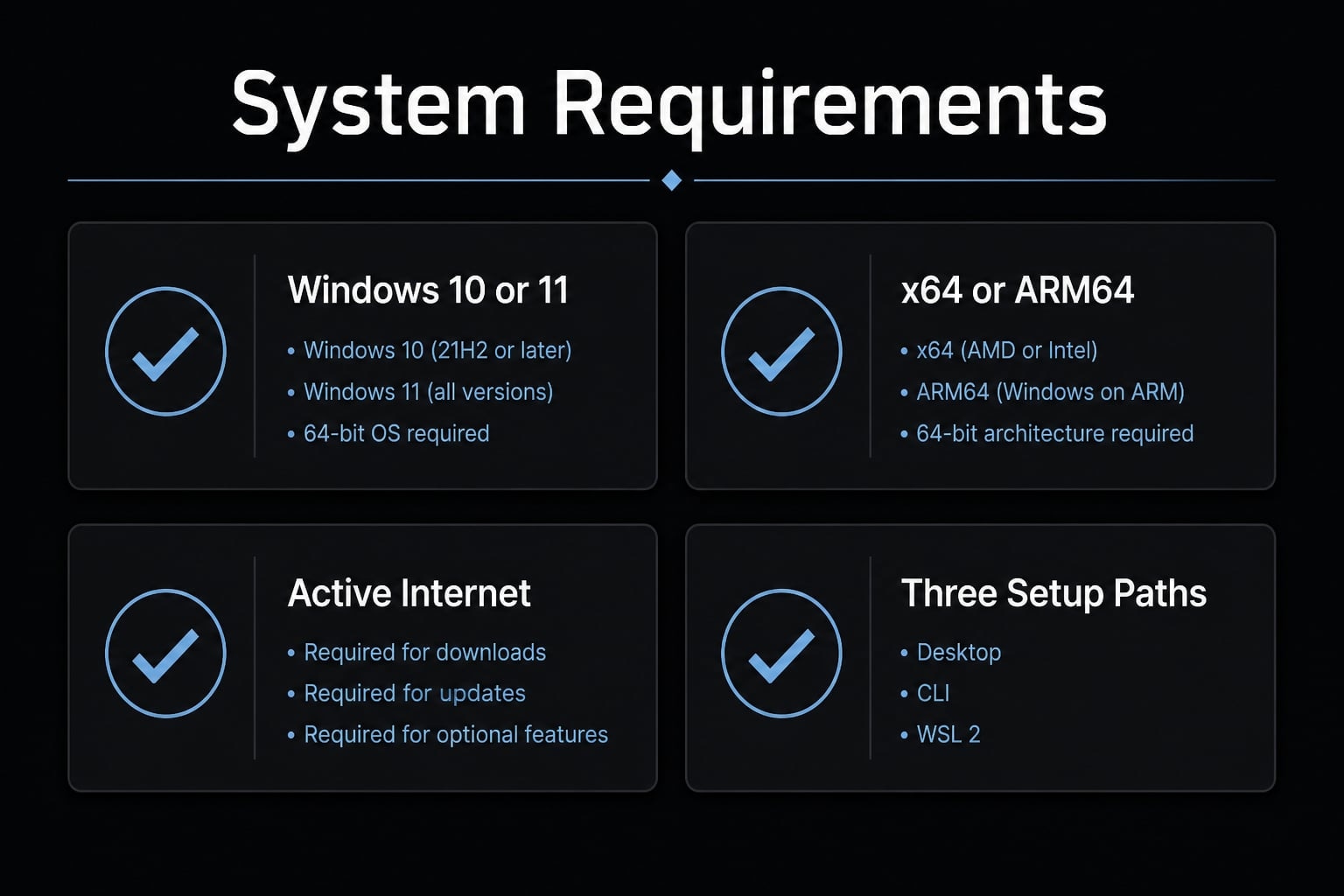
Supported Windows environment
- Operating system: Windows 10 or Windows 11, with current supported builds.
- Processor: x64 or ARM64.
- Memory: At least basic modern system resources; more helps for active development work.
- Network: Stable internet connection required.
- Install paths available:
- Claude Desktop for Windows.
- Claude Code CLI on Windows.
- Claude Code WSL 2 for Linux-based workflows.
- Terminal options for CLI users:
- PowerShell.
- Command Prompt.
- WSL terminal if you choose the Linux-style route.
Account requirement before setup
Installation and access are not the same thing. You may install the app or CLI successfully and still be blocked from using Code features if your account plan is not eligible. Simply put, the software may already be installed on your machine, but logging in to Claude Code on Windows can still prompt you to upgrade your account or sign in again if the account does not include access.
Desktop app vs native CLI vs WSL: Which Windows option should you choose?
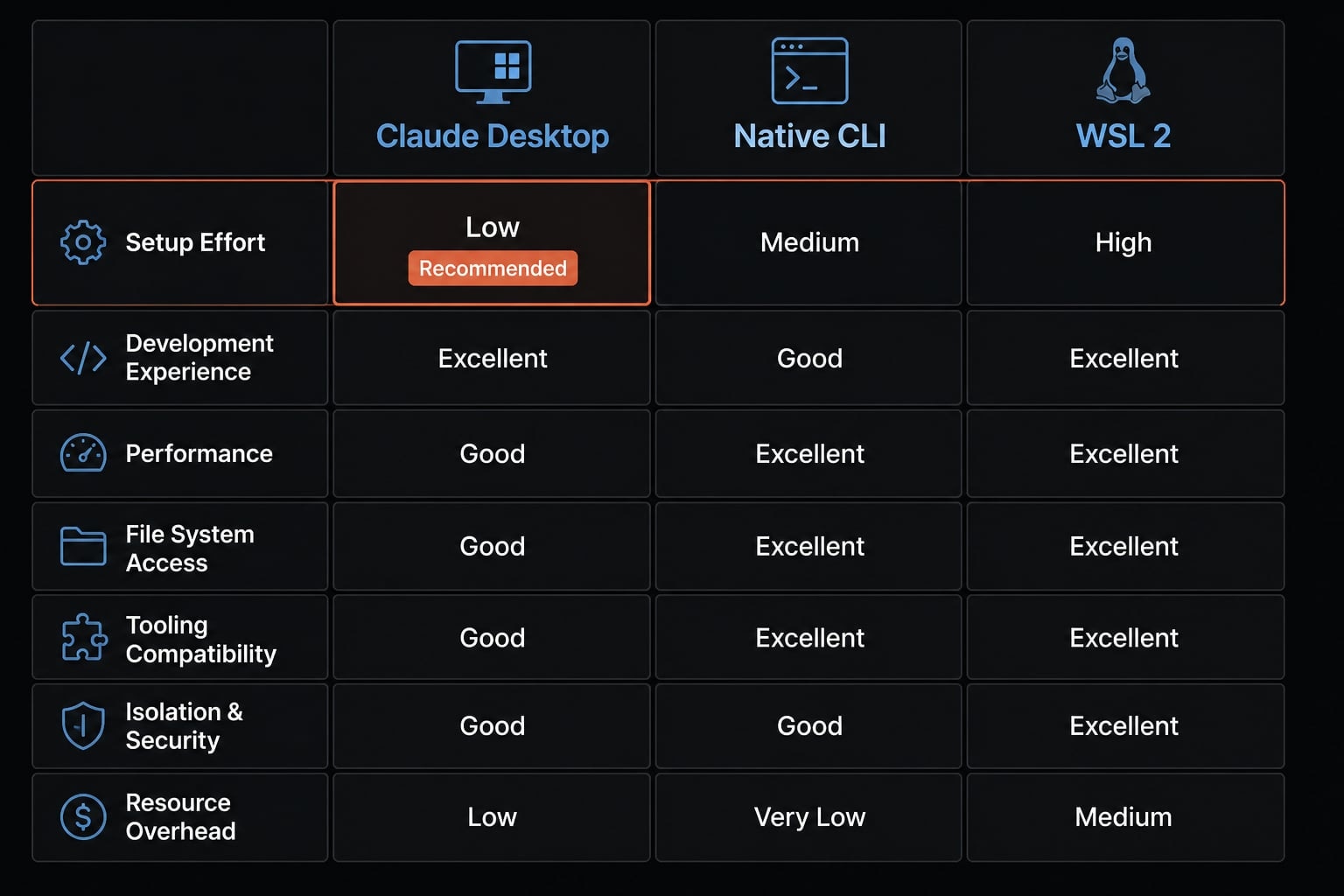
The right setup depends less on technical skill and more on how you prefer to work day to day. For most people, the fastest path is Claude Desktop. If you already work in PowerShell or CMD daily, the native CLI is a strong fit. Most Windows users do not need WSL unless their workflow depends on Linux tools or sandboxing behavior.
Option | Setup effort | Interface | Best for | Extra environment setup | Local file access | Sandboxing | Learning curve | Recommended for most users |
|---|---|---|---|---|---|---|---|---|
Claude Desktop | Low | Graphical app | Users who want the easiest start | None | Yes | Limited compared with WSL workflows | Low | Yes |
Native CLI | Low to medium | Terminal | Developers already comfortable in PowerShell or CMD | Minimal | Yes | Not supported in the same way as WSL 2 | Medium | Yes, if terminal-first |
WSL 2 | Medium | Linux terminal on Windows | Linux toolchains, sandbox-focused work, Linux-like workflows | Requires WSL 2 setup | Yes, through WSL workflow | Supported | Medium to high | No, only if needed |
Best option by user type
- Best for beginners: Claude Desktop for Windows
- Best for terminal-first users: Native Claude Code CLI on Windows
- Best when Linux tooling matters: WSL 2
- Best for least friction: Desktop
- Best if you already script and build from terminal every day: Native CLI
Quick recommendation logic
- If you want the simplest path with the least setup friction, use Desktop.
- If you already code in terminal daily, use the native CLI.
- If your workflow truly depends on Linux compatibility, package behavior, or sandboxed command execution, then consider WSL 2. Otherwise, skip it.
How to install Claude Code on Windows
The cleanest way to avoid setup confusion is to choose one path first. Do not install everything at once. If you are mainly trying to get started fast, begin with Desktop. If you know you want terminal-based work, choose the CLI.
Quick setup summary
- Decide whether you want Desktop, native CLI, or WSL 2
- Install using the correct Windows path
- Sign in with your account
- Open Code if you are using Desktop
- Run
claude --versionif you are using CLI - Use
claude doctorif anything looks off
Install the Claude Desktop app for Windows
- Download the Claude Desktop for Windows installer for your device architecture.
- Run the installer and complete the normal Windows installation flow.
- Launch the app and sign in with your Anthropic account.
- Open the Code tab at the top of the app.
- If the app asks you to upgrade before opening Code, confirm that your account plan includes Code access.
- If prompted to complete sign-in in the browser, finish that flow, then reopen or restart the app if needed.
Desktop is the easiest route because the app already includes Claude Code. Desktop users do not need separate Node.js or CLI setup for this route.
Install native Claude Code CLI on Windows
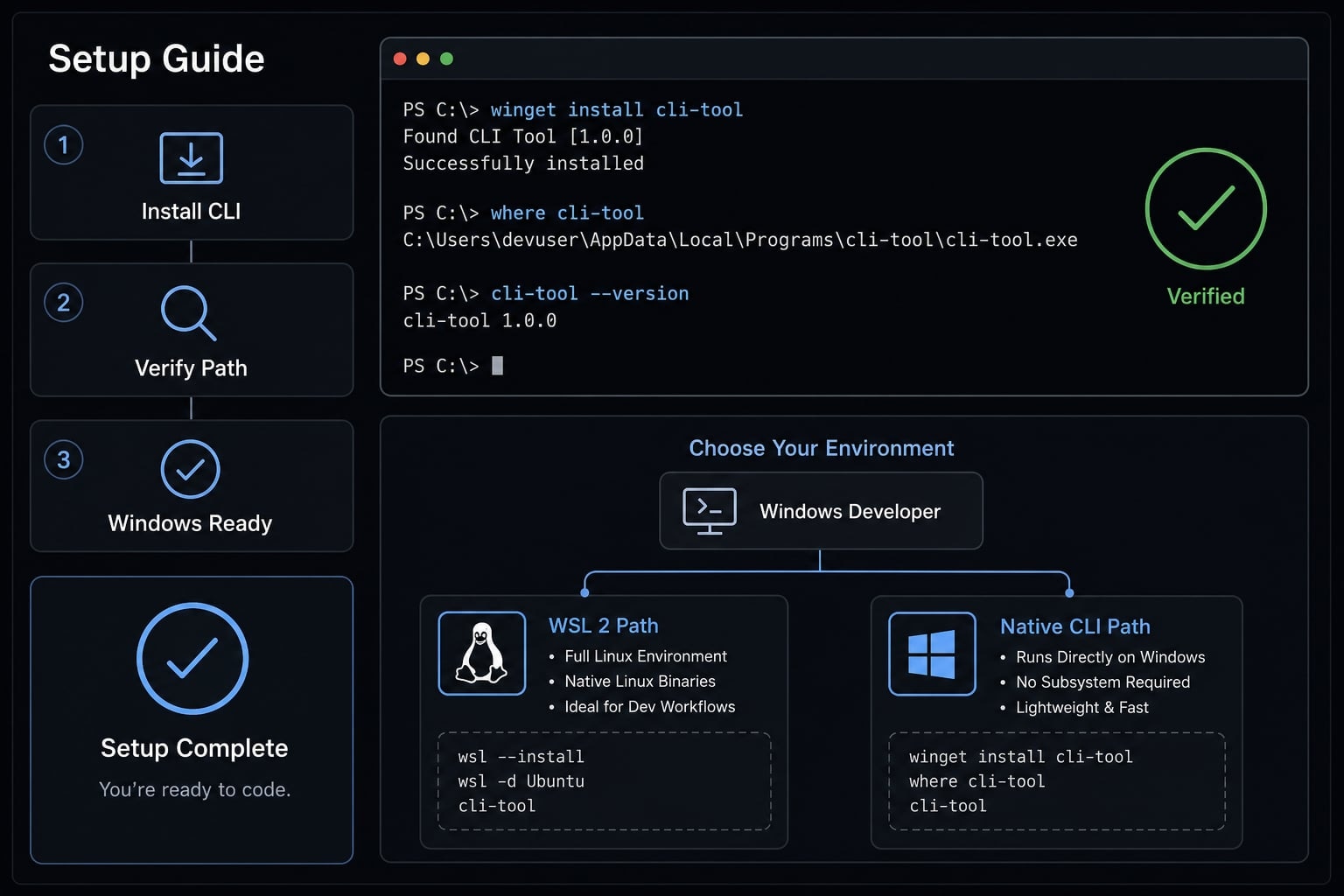
- Open PowerShell if you want the simplest Windows-native install method.
- Install with WinGet if available:
winget install Anthropic.ClaudeCode
- If you prefer the official PowerShell install script, use:
irm https://claude.ai/install.ps1 | iex
- If you are using Command Prompt instead, you can use:
curl -fsSL https://claude.ai/install.cmd -o install.cmd && install.cmd && del install.cmd
- Close and reopen your terminal after installation.
- Start Claude Code by running:
claude
- Follow the browser sign-in flow if prompted.
For most Windows users, WinGet is the easiest CLI path because it fits standard Windows package habits and is easy to repeat across machines.
Use the WSL 2 path only if you need it
- Use this path only if your workflow depends on Linux-native tools, Linux shell behavior, or supported sandboxing.
- Open your WSL 2 terminal.
- Install Claude Code inside WSL using the Linux-style install flow supported for that environment.
- Launch
claudefrom the WSL terminal. - Complete sign-in in the browser if prompted.
WSL is optional. If you are not already relying on Linux-based tooling, it usually adds complexity without improving your first-run experience.
Claude Code Windows How to verify the installation and sign in successfully
A successful install is not just “the command ran” or “the app opened.” You want to confirm that Claude is available, healthy, and linked to the right account. The two most useful checks are claude --version and claude doctor.
Run the basic verification commands
- Check that Claude is available in your terminal:
claude --version
If this returns a version number, the CLI is installed and reachable from your current terminal session.
- Run the basic diagnostic check:
claude doctor
This gives a broader health check. At a high level, it helps confirm whether your installation and environment look correct.
If claude --version works but something still feels wrong, claude doctor is usually the better next step.
Complete sign-in if the browser opens
- When you run
claude, the sign-in flow may open in your browser. - Complete the authentication fully before returning to the terminal or app.
- If you are asked to sign in repeatedly, restart the terminal or app once the browser flow finishes.
- If Desktop opens but the Code tab still asks you to upgrade, check whether your account plan includes Code access.
- If the CLI launches but access is blocked, the issue may be account eligibility rather than installation.
Common Claude Code Windows issues and quick fixes
Most Windows setup problems fall into a few predictable patterns. The fastest way to fix them is to start with the symptom, then check the most likely cause before trying anything advanced.
claude is not recognized
Symptom
- You run
claudeand Windows says the command is not recognized.
Likely cause
- The terminal was not restarted after install.
- The install did not complete correctly.
- There is a PATH issue, so the terminal cannot find the Claude executable.
Fix
- Close and reopen PowerShell or CMD.
- Run the install command again if needed.
- Check the install by running:
claude --version
- If that still fails, run the installer again using the same route you intended to use rather than switching paths midstream.
The app keeps asking you to upgrade or sign in
Symptom
- Desktop opens, but the Code tab asks you to upgrade.
- CLI or app sign-in seems to loop.
Likely cause
- Your account tier does not include Code access.
- Browser authentication did not fully complete.
- The app or terminal session needs a restart.
Fix
- Confirm that your account includes access to Claude Code.
- Finish the browser-based login completely.
- Restart the app or terminal after sign-in.
- If the issue continues, run:
claude doctor
This helps separate an environment problem from an account-access problem.
Do you actually need WSL?
If you are unsure, the answer is usually no. Use WSL 2 only when your workflow depends on Linux-specific tools, Linux shell behavior, or sandbox-focused execution. For most users, Claude Desktop or the native CLI is enough. A common mistake is assuming WSL is the “more complete” setup. In practice, it is only the better choice when your development workflow already depends on it.
Your first Claude Code session on Windows
Once setup is complete, the goal is not to automate everything at once. The best first session is small, safe, and easy to review. That gives you a clean signal that the environment works and that you are comfortable with the workflow.
Start with a small, safe task
- Open a project folder you understand well.
- If you are using Desktop, go to the Code tab.
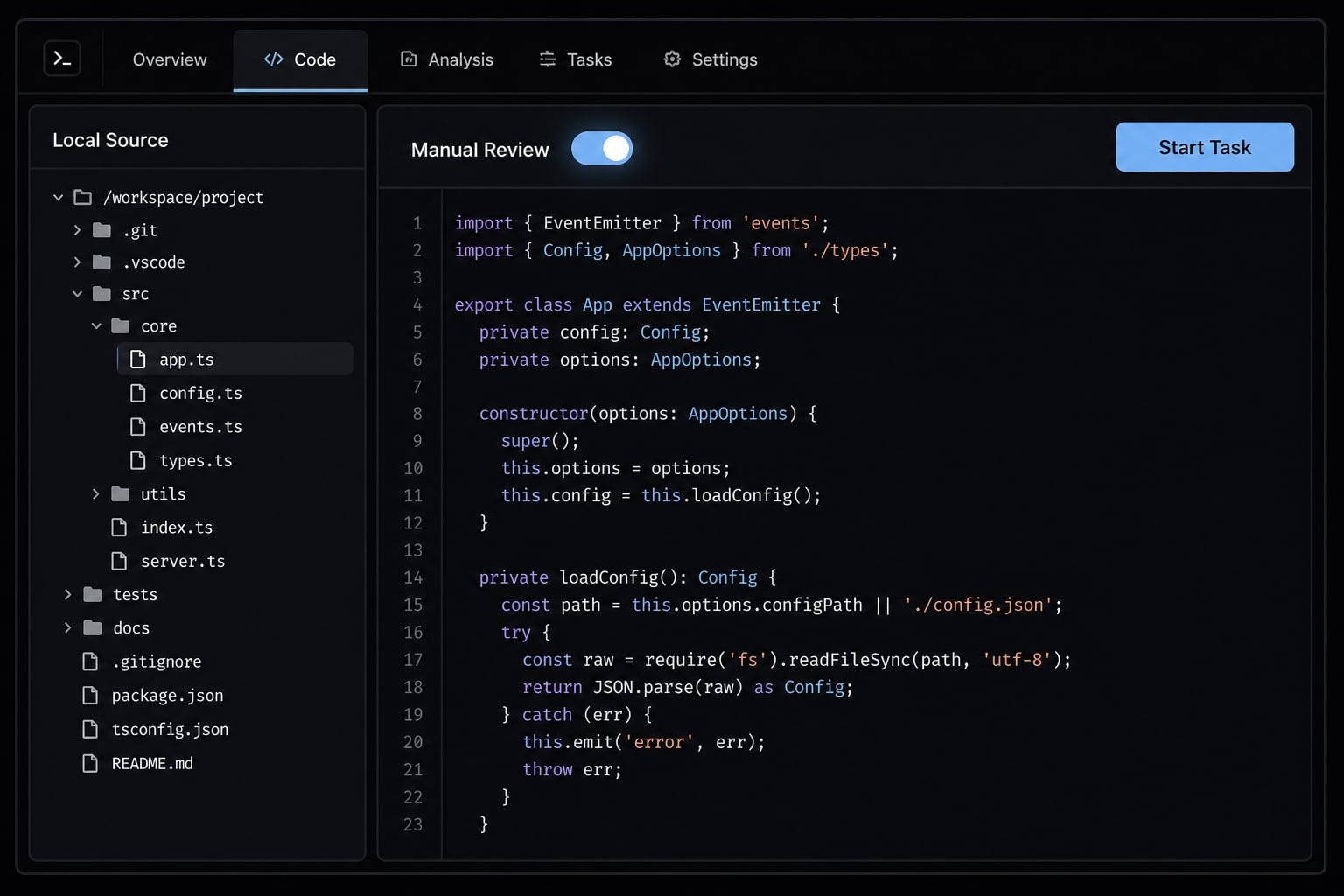
- Choose Local if you want Claude to work with files on your machine.
- Select your project folder.
- Pick a model if the interface asks you to.
- Start with one reversible task instead of a broad repository change.
- Review all proposed changes manually before accepting them.
Manual review matters, especially on first use. It reduces avoidable mistakes and helps you understand how Claude is interacting with your codebase.
Example first prompts
- Find one TODO comment in this project and fix it.
- Add tests for the main utility function in this folder.
- Create a
CLAUDE.mdfile with basic instructions for this codebase. - Review this file and suggest one safe refactor without changing behavior.
A simple recommendation for most Windows users
For most people, the best starting point is Claude Desktop. It removes terminal friction, gives a visual workflow, and makes first-time use easier to review. If you already spend most of your day in PowerShell or CMD, the native CLI is a strong alternative and often feels faster once installed. WSL 2 should be treated as a specific workflow choice, not a default requirement. If your work does not depend on Linux behavior, skip it. The simplest setup is usually the right setup, especially if your goal is to get Claude Code working quickly and reliably on Windows.
Frequently asked questions
Does Claude Code support Windows?
Yes. Claude Code supports Windows 10 version 1809 or later and Windows Server 2019 or later. Depending on your development needs, you can install the desktop application, run the native CLI, or use Claude Code through WSL 2.
Should you choose Claude Desktop, the native CLI, or WSL 2 on Windows?
Each option serves a different workflow:
- Claude Desktop: The easiest option, offering an intuitive interface for most users.
- Native CLI: Best if you regularly work with PowerShell or Command Prompt.
- WSL 2: Choose this only when you need a Linux environment or a sandbox for executing commands.
How do you verify that Claude Code was installed successfully?
After installation, open PowerShell or Command Prompt and run claude --version to check the installed version. For a more detailed review of your configuration and dependencies, run claude doctor. If these commands return a response, your system is ready.
Why is the claude command not recognized on Windows?
This usually occurs because the terminal has not refreshed its PATH after installation. Close all terminal windows and reopen one. If the command is still unavailable, review the installation process or reinstall Claude Code through WinGet so the system can configure the PATH automatically.
Do you need a paid account to use Claude Code?
Yes. Claude Code requires a Pro, Max, Team, Enterprise, or Console account. Even if the installation succeeds, you cannot access its coding features or authenticate a session without an eligible account or service plan.
Which tasks should you try first when using Claude Code?
Begin with safe, manageable tasks:
- Ask Claude Code to find and resolve a simple
TODOcomment. - Ask it to create a
CLAUDE.mdguidance file for the codebase. - Ask it to add tests for a small logic function, and always use Manual mode to review changes before approving them.
Read more:
- Claude Code VS Code: Installation and setup guide 2026
- Claude Code slash commands: Essential shortcuts for CLI flow
- Statusline Claude Code: Fast setup for workflow productivity
Conclusion
Claude Code Windows setup is fully possible, and most users can get started without much complexity. The main decision is choosing the right path: Desktop for the easiest start, native CLI for terminal-first workflows, and WSL 2 only when Linux-specific needs are real. If something feels off after installation, start with claude doctor before changing your whole setup. If you want a repeatable onboarding reference for your team, use this guide as a base and build a simple internal setup checklist around your preferred Windows workflow.