Claude Code Linux: Install, requirements, CLI vs desktop and common fixes
Many users searching for Claude Code Linux are actually looking for one of two different products: the Claude Code CLI for terminal-based coding, or the Linux version of Claude Desktop. That mix-up is where setup usually goes wrong. This guide gives you the shortest safe path: How to tell which Linux setup you need, what environments are supported, which install method to choose, the exact commands to run, and how to fix the most common Linux installation issues without wasting time on the wrong documentation path.
What “Claude Code on Linux” usually means
Claude Code on Linux is the terminal-based coding workflow from Anthropic that runs inside Linux shell environments such as Ubuntu, Debian, and Alpine. It is different from Claude Desktop Linux, which is a separate GUI app with narrower Linux support and a different installation path.
This is where Linux users usually get tripped up: They search for Claude Code Linux, land on Desktop instructions, and end up installing the wrong product. In most cases, if your goal is coding inside a repo, running commands, reviewing files, and working from the terminal, you want the Claude Code CLI.
By contrast, Claude Desktop Linux is for users who want a graphical application. It can include Claude Code-related workflows, but it is not the same setup path. On Linux, that distinction matters because the CLI path is broader and simpler, while Desktop support is currently narrower and beta-scoped.
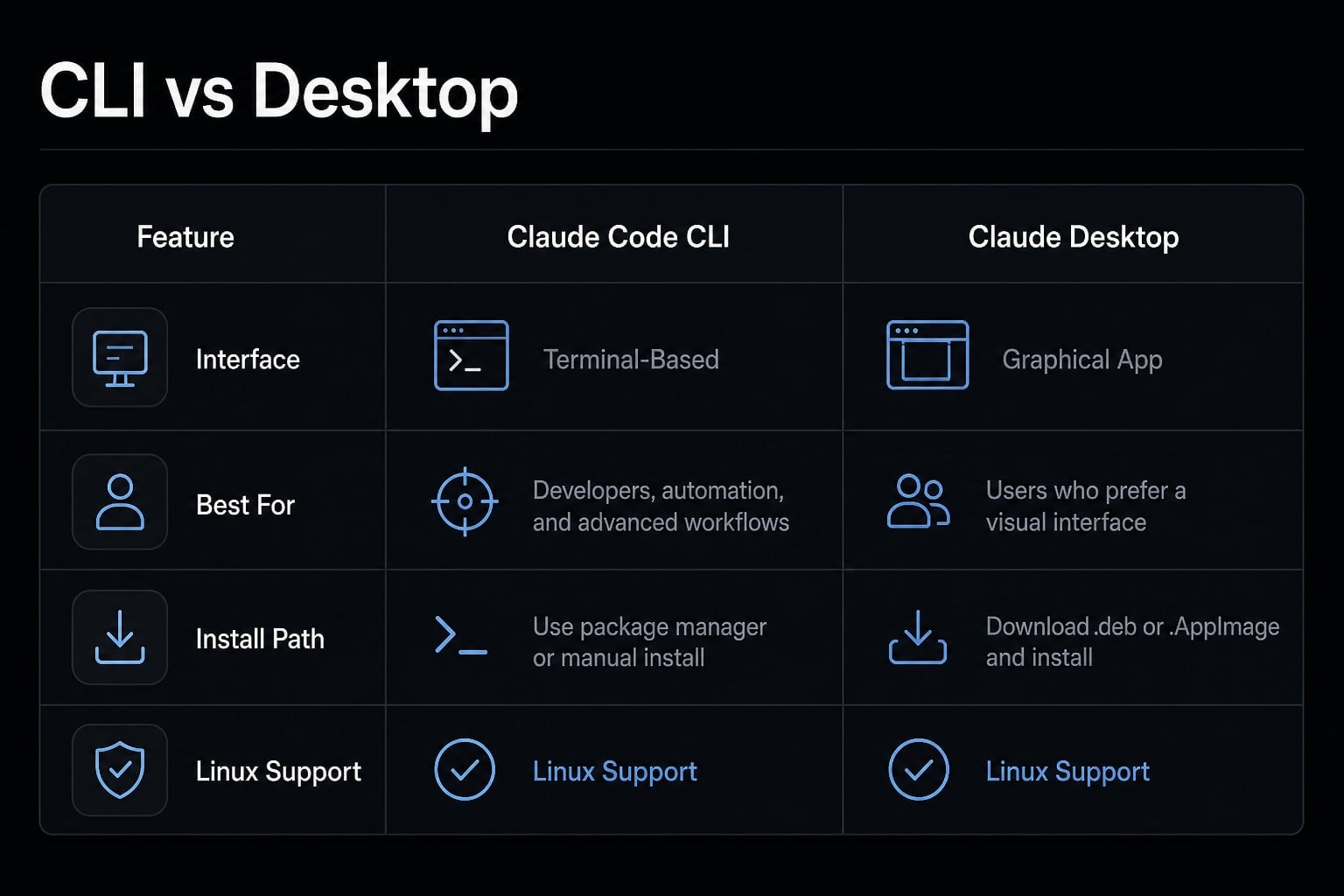
Option | Interface | Best for | Install path | Support breadth |
|---|---|---|---|---|
Claude Code CLI | Terminal-first. | Repo work, coding, shell-based workflows. | Official install script or optional npm. | Broader Linux support. |
Claude Desktop Linux | GUI-first. | Visual app usage. | apt/repository path. | Narrower, beta support. |
Use this rule of thumb:
- If your goal is a terminal-based AI coding workflow, use Claude Code CLI.
- If your goal is a graphical app, use Claude Desktop Linux.
- Do not mix CLI instructions with Desktop apt steps.
Linux requirements and supported environments
Before installing, verify the Linux requirements for the path you actually need. The practical reality is simple: CLI support is broader than Desktop Linux support, and Ubuntu Claude Code or Debian Claude Code setups usually produce the fewest surprises.
For the CLI, the environment check is straightforward.
Claude Code CLI support checklist
- Operating systems: Ubuntu 20.04+, Debian 10+
- Also supported: Alpine Linux Claude Code setups on Alpine 3.19+
- Architecture: x64 ARM64 support means x86_64 or arm64
- Shell: Bash, Zsh, or another supported shell environment
- RAM and connectivity: A normal internet-connected development machine
- Authentication: A supported Claude account path is required after install
For many users searching Linux requirements, this is the main compatibility answer. If you are running a recent Ubuntu or Debian machine, the setup is usually low-friction.
Claude Desktop Linux beta requirements
Desktop support is separate and narrower:
- Ubuntu 22.04+
- Debian 12+
- Architecture: x86_64 or arm64
- Other Debian-based distributions may work, but they are not the same as officially tested support
- Fedora and RHEL should not be treated as supported Desktop targets today
A few practical notes:
- Ubuntu/Debian typically offer the smoothest path
- Fresh systems may be missing small dependencies such as
curlorgnupg - If your distro is less common, expect more manual validation
- Authentication still requires network access and a supported account route
If your only goal is terminal usage, do not let the Desktop requirements confuse your decision. The CLI path is the primary answer for most Claude Code Linux searches.
Which Linux install method should you use?
If you want to install Claude Code Linux quickly and with the least setup friction, the default recommendation is the Claude Code install script. For most users, that is the right answer.
Use this short decision rule:
- Use the Claude Code install script by default
- Use npm Claude Code only if Node.js is already central to your setup
- Use apt install Claude Desktop only if you want the GUI app
This distinction matters because users often assume every Linux install should go through a Linux package manager. That is not the default path for the CLI.
Method | Use this when | Pros | Tradeoff |
|---|---|---|---|
Install script | Most users. | Lowest friction, recommended path. | Less tied to an existing package ecosystem. |
npm | Node.js is already managed across your toolchain. | Fits Node-based developer workflow. | Adds dependency and version-management overhead. |
apt for Desktop | You want the Linux GUI app. | Package-managed Desktop installation. | Not the default CLI path. |
Use the install script for most setups
For most Linux users, especially on Ubuntu or Debian, the script is the cleanest option. It reduces decision overhead and aligns with the official setup flow.
Use npm only when it fits your stack
If your team already manages tools through Node.js, npm Claude Code can make sense. If not, it usually adds complexity without providing a real benefit.
Use apt only for Claude Desktop
This path is separate from the CLI. If your goal is coding in the terminal, do not follow Desktop repository instructions.
If your team needs a consistent developer checklist rather than ad-hoc setup notes, use a shared runbook or internal documentation before deploying the tool across multiple machines.
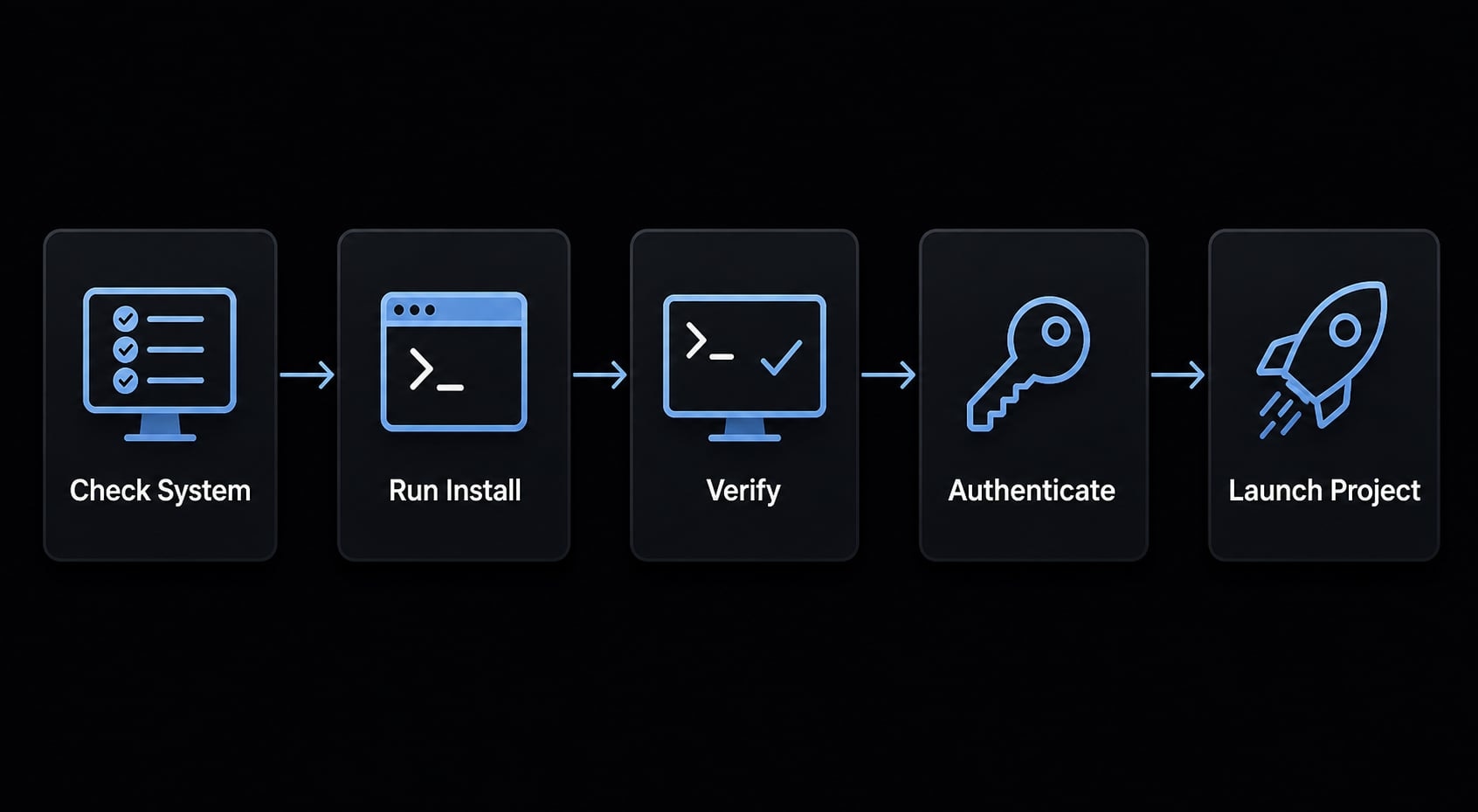
How to install Claude Code on Linux step by step
For most readers, this is the main Claude Code Linux setup path.
- Confirm your distro and architecture are supported.
- Run the official install script.
- Verify with
claude --version. - Authenticate and launch inside a project directory.
1. Check your environment first
Before installation, make sure you are on a supported Linux environment such as Ubuntu, Debian, or Alpine, and that your machine uses x86_64 or arm64. This prevents avoidable troubleshooting later. On common Ubuntu/Debian setups, the process is usually straightforward.
2. Run the official install command
The default Linux path uses the Anthropic install script:
curl -fsSL https://claude.ai/install.sh | bash
This installs the CLI in the recommended way for most users. If the command completes successfully, the next step is verification.
3. Verify that the CLI is available
Run:
claude --version
If a version number appears, the CLI is installed and available in your current terminal session. If you want a deeper diagnostic check, run:
claude doctor
The claude doctor command helps confirm whether the environment is healthy enough for normal use.
4. Launch Claude Code from a real project folder
Open a terminal in an actual repository or working directory, then run:
claude
This matters because Claude Code terminal workflows are most useful when the tool can inspect a real codebase, summarize files, and act in a project context.
5. Complete authentication
On first run, browser-based sign-in may open automatically. Follow the prompts to complete Claude authentication using a supported account path. Installation alone does not guarantee access; account availability and regional support still apply.
6. Start with a simple first task
Once the Claude Code CLI setup is complete, begin with a low-risk request such as asking Claude to explain the repository structure or summarize a file.
Optional: Install with npm
If Node.js is already part of your managed toolchain, you can also install with npm:
npm install -g @anthropic-ai/claude-code
This is valid, but it is not the default recommendation for most Linux users. Use it when npm already fits your environment governance.
How to install Claude Desktop on Linux
This section is a separate GUI path. It is not the default Claude Code CLI setup. If you actually want Claude Desktop Linux, use the apt/repository route and treat it as a narrower Claude Linux beta experience rather than a universal Linux install.
Requirements for Claude Desktop Linux
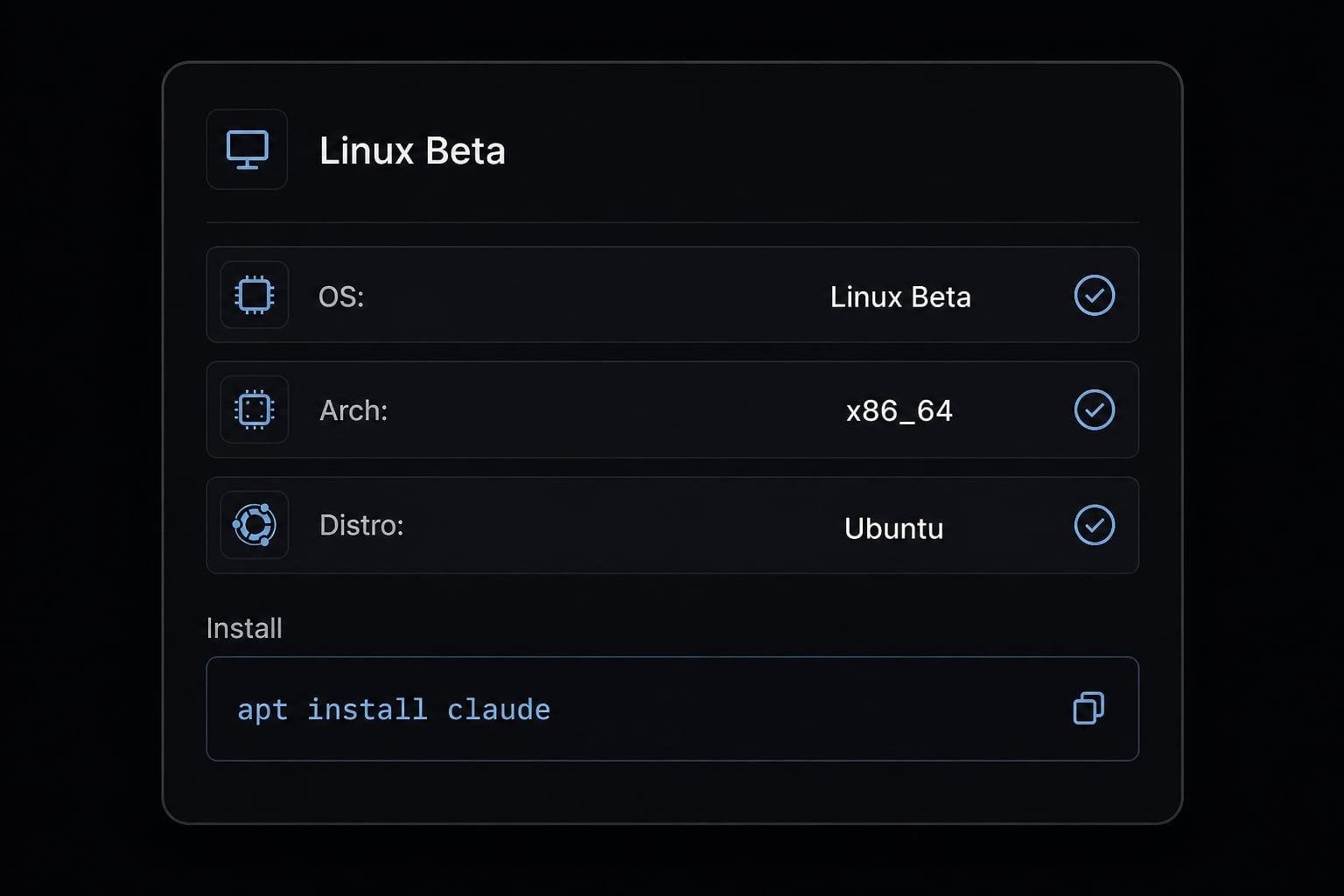
Before using claude-desktop apt, verify these conditions:
- Ubuntu 22.04 Claude Desktop is supported
- Debian 12 Claude Desktop is supported
- Architecture:
x86_64orarm64 - Linux support is currently beta
- Some fresh systems may need:
sudo apt install curl gnupg
Install flow for Claude Desktop Linux
The Desktop path uses Anthropic’s apt repository. At a high level, the process is:
- Add the signing key
- Register the repository
- Update package indexes
- Install the package
The core install command is:
sudo apt update && sudo apt install claude-desktop
After installation, you can launch the application from your app launcher or from the terminal, then sign in with your Anthropic account or organization SSO if applicable.
Important limitations in the Linux beta
Be explicit about the current support boundaries for Claude Desktop Linux:
- Linux support is beta
- Computer Use is not available on Linux
- Dictation is not available
- Quick Entry global hotkey may be limited on native Wayland
- Fedora/RHEL are not officially supported Desktop targets today
If your real goal is terminal-first coding, stop here and use the CLI path instead. This Desktop route should remain secondary for most users searching Claude Code Linux.
What to do after installation
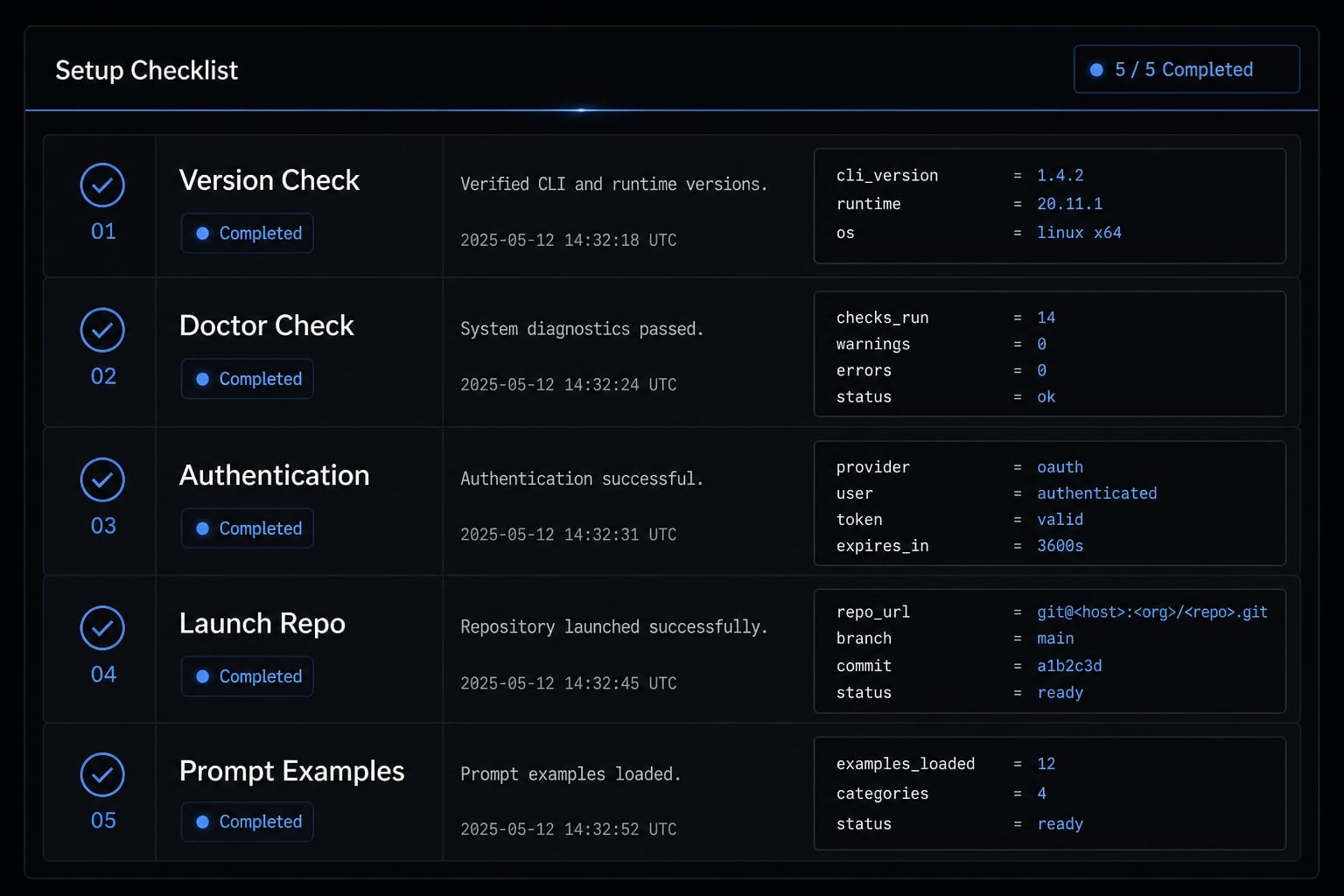
A successful install is only the first checkpoint. A proper Claude Code first run should confirm command availability, diagnostics, authentication, and safe project use inside a normal Linux terminal workflow.
Verification checklist
- Run
claude --versionto confirm the command is available. - Run
claude doctorto catch environment issues early. - Complete Claude authentication if prompted.
- Start from a real project directory Claude can inspect.
- Confirm the tool responds normally before using it on larger tasks.
Good starter prompts
For the first session, keep the scope small:
- “Explain this repo structure”
- “Summarize this file”
- “Suggest a refactor plan for this module”
This reduces risk and helps you validate the workflow before broader actions such as edits, command execution, or multi-file changes.
Security note: Claude Code can read local files and act in your environment. Avoid exposing highly sensitive data casually, and apply the same security hygiene you would use with any external AI-enabled development tool.
If you need a team-ready first-run checklist, standardize the same prompt sequence and verification steps across all new installs.
Common Linux installation problems and fixes
Most Claude Code Linux troubleshooting cases come down to one of five issues: PATH problems, wrong product path, missing dependencies, unsupported architecture, or sign-in friction. The fastest way to resolve them is to match the exact error to the next diagnostic step.
Error | Likely cause | Fix |
|---|---|---|
| Install did not complete, PATH not active, terminal session stale | Restart terminal, verify install, rerun installer if needed |
| Repository not added correctly or package index not refreshed | Check repo entry, run |
| Fresh Debian/Ubuntu install missing dependencies | Install required packages first |
Unsupported architecture | System is not | Check architecture before continuing |
Login/auth failure | Account or browser auth issue | Retry sign-in and confirm supported account access |
claude: command not found
For many users experiencing a 'command not found' error on Linux, the issue is often the shell environment rather than the product itself.
Check these in order:
- Close and reopen the terminal
- Confirm the install command completed successfully
- Run
claude --versionagain - If still broken, rerun the install script
If the install succeeded but the command is still unavailable, inspect your PATH and shell environment. This is one of the most common Claude Code Linux troubleshooting patterns.
Unable to locate package claude-desktop
The exact error unable to locate package claude-desktop usually means the repository entry is missing, incorrect, or the package index has not been refreshed.
Start with:
sudo apt update
Then verify that the Claude Desktop repository file exists and that you are on a supported Ubuntu/Debian-based system. If you are following Desktop steps for a CLI goal, switch back to the proper CLI install path.
Missing dependencies, unsupported distro, or login issues
If curl gnupg missing is the problem on a fresh Debian/Ubuntu machine, install the required packages first.
If the machine is on a less common distro, support may be partial or require manual work. Avoid assuming every Linux flavor has equal support.
To check for unsupported architecture, run:
dpkg --print-architecture
For Desktop, the result should align with amd64 or arm64. For CLI troubleshooting, verify you are still within the documented support boundaries.
If installation succeeds but login fails, focus on authentication instead of reinstalling repeatedly. Browser-based sign-in, account eligibility, and supported region access can all affect the first run.
For teams: Standardizing Claude Code workflows on Linux
A single successful install does not automatically create team standardization. In practice, the hard part begins after the first machine works: making Claude Code workflows consistent across developers, repos, and onboarding flows.
Teams usually need a lightweight standard for:
- Approved install path and version policy.
- First-run verification steps.
- Shared prompt patterns and guardrails.
- Security boundaries for local file access.
- Repeatable AI workflows across the same Linux AI development setup.
This is where an operational framework such as AgentKit can assist: not by replacing the product, but by streamlining setups, prompts, and team workflows. For growing teams, process discipline matters more than a one-off successful install.
Frequently asked questions
What is the difference between Claude Code and Claude Desktop on Linux?
Claude Code is a terminal-based CLI tool designed for repository-level coding and file interaction. Claude Desktop on Linux is a separate GUI application that provides a visual interface for chat and coding workflows. They serve different purposes and require distinct installation paths.
Is my Linux distribution supported for Claude Code?
Claude Code officially supports Ubuntu 20.04+, Debian 10+, and Alpine Linux 3.19+ on x86_64 or ARM64 architectures. While other Debian-based distributions may function correctly, they are not officially tested or guaranteed by Anthropic.
Why does the install script recommend the official repository?
The official install script is the recommended path because it simplifies setup and ensures compatibility. For the GUI-based Claude Desktop, using the official repository via apt is necessary to receive future application updates through your system’s regular update manager.
How do I troubleshoot "command not found" errors?
If your terminal does not recognize the claude command, first restart your terminal session to refresh your shell's PATH. If the issue persists, verify that the installation completed successfully, ensure your user profile's local bin directory is in your PATH, or rerun the installation script.
Is it safe to use Claude Code on sensitive research data?
Claude Code interacts with your local filesystem to read and write code. While files stay local, conversation history and file content are sent to Anthropic. Avoid using Claude Code on systems containing highly sensitive data such as HIPAA-protected information, PII, or restricted intellectual property.
How do I update Claude Code on Linux?
For the CLI version installed via the native script, updates occur automatically in the background on startup. If you installed via a package manager or npm, you may need to run sudo apt upgrade or npm update -g @anthropic-ai/claude-code depending on your specific setup.
Read more:
- Claude Code install guide: Official setup steps for all OS
- Claude Code tutorial: Set up and master your AI coding agent
- Claude Code vs OpenCode Features: Choosing the right CLI agent
Conclusion
For most users, Claude Code Linux means the terminal-based CLI, not the GUI app. The safest path is to verify your environment, use the official install script, confirm success with claude --version, complete authentication, and start inside a real project directory.
Use Claude Desktop Linux only when you specifically want the graphical application and your machine fits the narrower beta support requirements. Keeping that distinction clear will save the most time and prevent wrong-path installs. If you are documenting this internally, the next useful step is to turn the install and first-run flow into a small team checklist, then extend it into a repeatable workflow standard as usage grows.