Claude Code MCP configuration: A practical setup guide
Claude Code MCP Configuration: A Practical Setup Guide
Claude Code MCP configuration is straightforward once you understand the essentials: commands, configuration files, scopes, and environment variables. This guide explains how to add and verify MCP servers, choose the right scope, reuse secure configuration patterns, and troubleshoot common issues without requiring advanced protocol knowledge.
What Claude Code MCP configuration actually controls
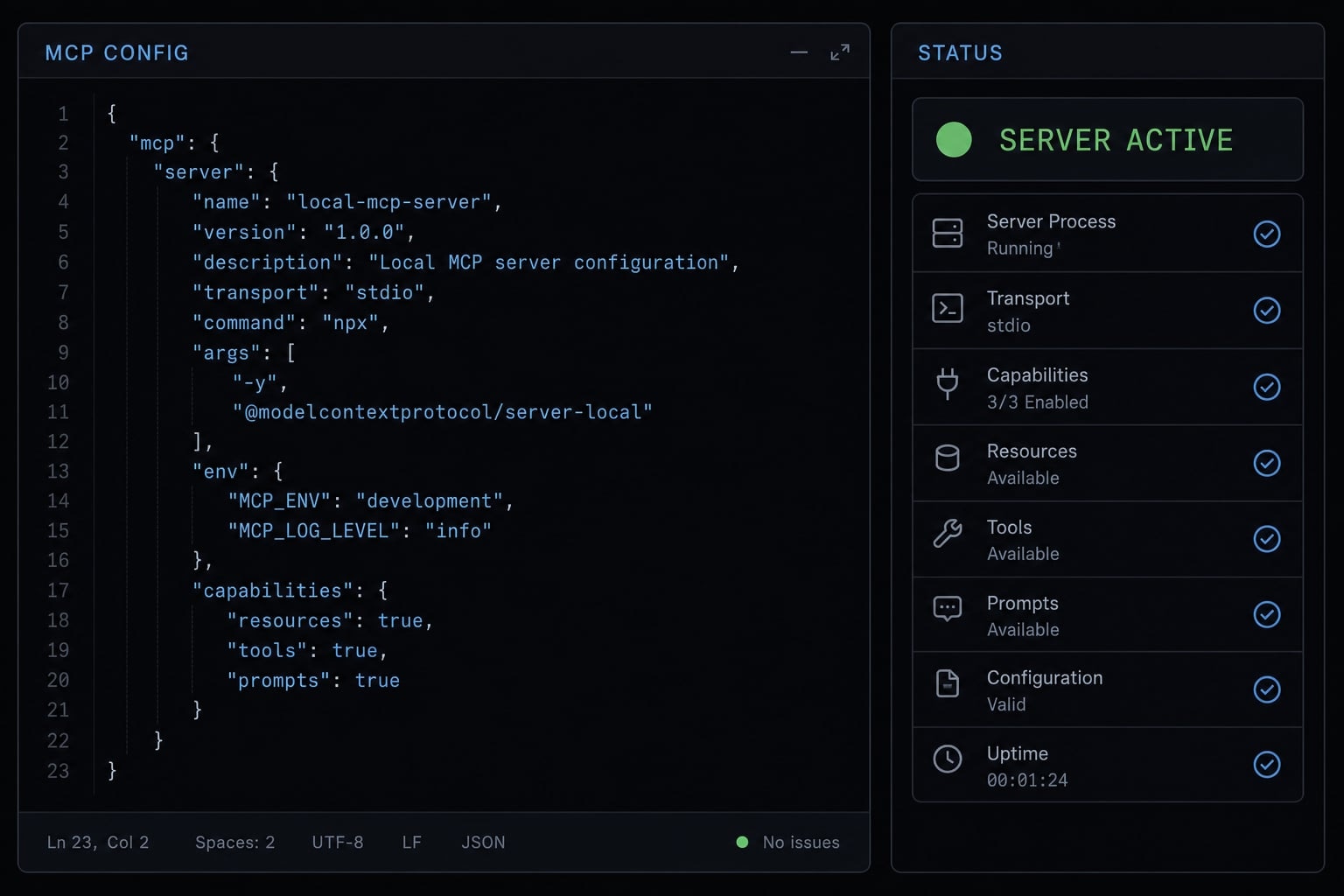
Claude Code MCP configuration is a working connection setup that tells Claude Code how to reach and use external tools exposed by MCP servers. In practice, it defines the server name, transport method, command or URL, optional credentials, and where that setup is stored so Claude can reuse it later.
Model Context Protocol (MCP) is a standard that lets Claude Code connect to external tools through a consistent interface. Essentially, this layer allows Claude to extend its built-in capabilities, such as a local tool, a remote service, or a project-specific utility.
What matters in practice is not the protocol theory. What matters is whether Claude knows how to start or reach the server, what settings it needs, and where that definition is saved.
What gets stored in the configuration?
- Server name: The label you use to identify the server
- Transport type: Usually HTTP transport for remote services or stdio transport for local processes
- Command + args or URL: Either the command Claude runs locally or the remote endpoint it connects to
- Environment variables: Credentials or settings required for the server to work
- Scope: Where the JSON configuration is stored and who can use it
The two setup paths most users need
Most users only need enough MCP knowledge to add, verify, and safely use a server. There are two common ways to do that.
- The first is the Claude Code CLI using
claude mcp add. This is usually the fastest path for first-time setup and quick testing. - The second is direct file editing in
.mcp.jsonor~/.claude.json. This gives you more control when you need shared config, version control, or more precise editing.
Fastest way to configure an MCP server in Claude Code
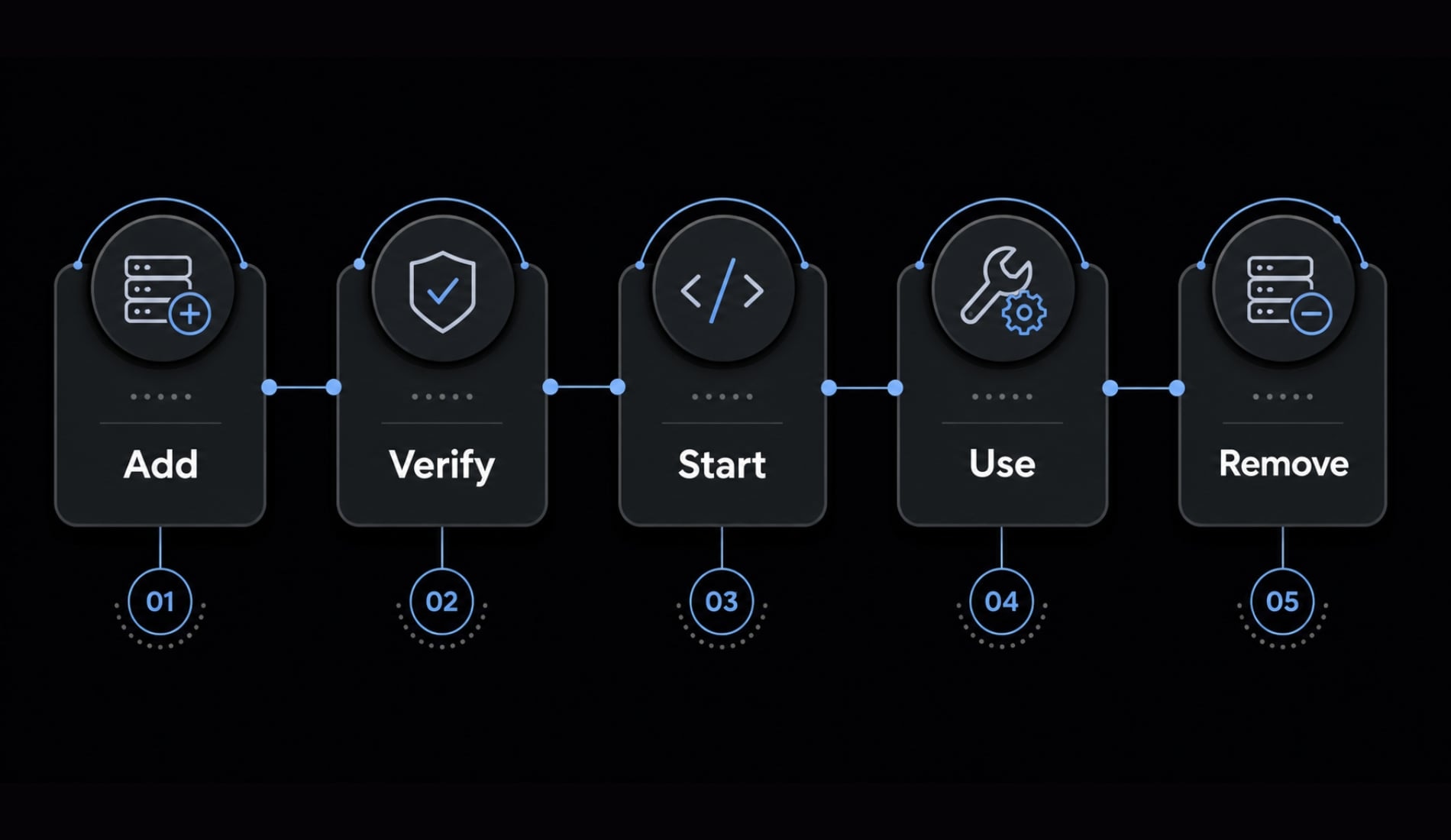
- Add the server with
claude mcp add - Verify it with
claude mcp list - Start Claude Code and call the server by name
- Remove the test server with
claude mcp removeif needed
Run these commands in your terminal, not inside a Claude chat session. For most users, this add → verify → use pattern is the fastest way to complete a working Claude Code MCP setup. Start with one simple server first. Once one server works, the rest usually follow the same structure.
Step 1: Add a remote HTTP server
Use claude mcp add to register a server with HTTP transport when the tool is hosted remotely.
claude mcp add --transport http docs-server https://example.com/mcp
This tells Claude Code to connect to a remote MCP endpoint named docs-server. HTTP is the right choice when the service runs outside your machine and exposes an MCP-compatible URL.
If you are configuring MCP servers for Claude for the first time, start here. It has fewer moving parts than a local command-based setup.
Step 2: Verify the server is registered
Run the list command to confirm Claude Code knows about the server.
claude mcp list
In the output, check that the server name appears and that its status does not indicate a connection problem. “Registered” simply means Claude Code has saved the definition and can attempt to use it.
If you do not see the server here, troubleshoot registration first before testing anything inside Claude.
Step 3: Start Claude Code and call the server by name
Launch Claude Code normally:
claude
Then ask Claude to use the registered server by name. For example:
Use the docs-server MCP server to look up the available tools.
If the setup is working, Claude should recognize the server and surface tool usage through the available MCP servers. A common confirmation pattern is that Claude can reference the server by name and access its exposed tools without asking you to re-register it.
Optional cleanup: Remove a test server
If you added a server just for testing, remove it with:
claude mcp remove docs-server
This is useful when you want to keep your setup clean before adding production or team-approved entries.
CLI vs direct JSON editing: Which configuration method should you use?
If you only need one working server, start with the CLI. If you need visibility, reuse, or team sharing, move to direct file editing. That is the practical answer for most teams managing Claude CLI configurations.
The CLI reduces syntax mistakes and gets you to a testable result quickly. Direct editing becomes more useful when the setup includes many arguments, several environment variables, or definitions that belong in version control.
Decision table: CLI vs direct config editing
Method | Best for | Main advantage | Main risk |
|---|---|---|---|
| First-time setup, quick testing, single server trials | Fast and lower syntax risk | Less convenient for repeated edits |
Direct editing in | Shared team setup, version-controlled config | Easy to share and maintain | Invalid JSON can break setup |
Direct editing in | Personal cross-project tools | Full visibility in one place | Easy to create stale or conflicting entries |
The .claude.json configuration guide approach is better when you want to inspect everything at once. It is also useful when a Claude Code config file contains several local tools, custom commands, or entries you need to copy between machines.
Recommended rule of thumb
Use the CLI to get your first working server, then move to JSON when the config needs to be shared or maintained.
That gives you the best balance between speed and control. For most users:
- Use the CLI for first setup.
- Use JSON configuration for repeatability.
- Use
.mcp.jsonwhen the team needs a shared definition. - Use
~/.claude.jsonwhen the tool is personal and reused across projects.
If your team is comparing several setup patterns, agentkit.best can provide a lightweight template for documenting server names, scopes, env requirements, and ownership without overengineering the process.
Where Claude Code stores MCP configuration and how scope works
Configuration scope determines where a server definition is stored and who can use it. This is one of the most common reasons a working server still causes confusion later.
Scope overview table
Scope | Stored where | Best for | Sharing level |
|---|---|---|---|
Local |
| Personal testing in one project | Private to you |
Project |
| Shared team setup | Shared with the repository |
User |
| Personal tools reused across projects | Private to you across projects |
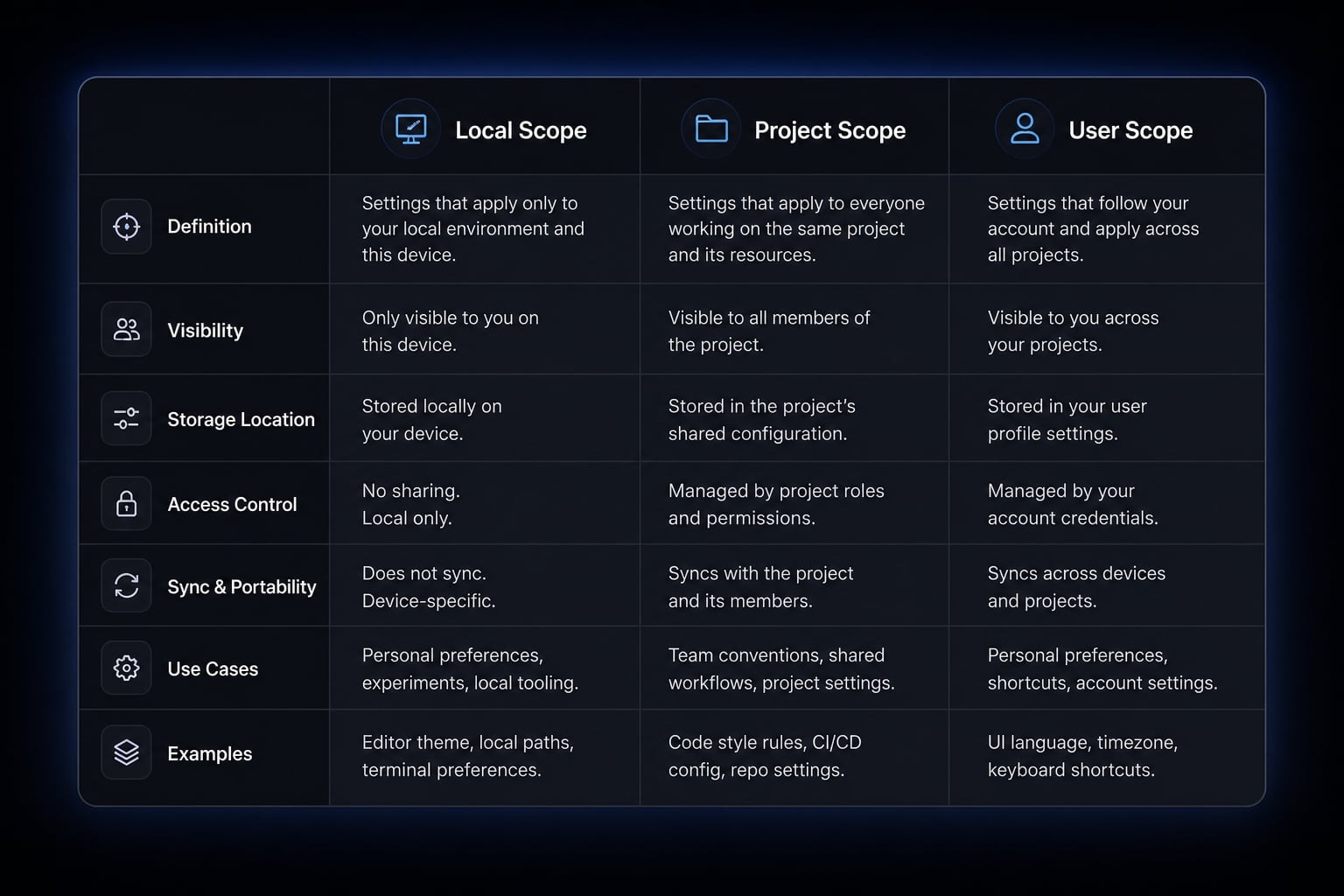
In plain language:
- Local is best for trying something in one project without affecting others.
- Project is best for project-scoped MCP configuration that teammates should inherit.
- User is best for personal tools you want in every project.
If the same server appears in more than one scope, the more specific project or local entry should be checked first so you do not troubleshoot the wrong definition.
Which scope should you choose?
- Solo experimentation: Use local scope first.
- Shared repository workflow: Use
.mcp.json - Cross-project personal tools: Use
~/.claude.jsonat user scope.
This is also where many teams create config drift. One developer tests locally, another adds a slightly different shared version, and a third keeps an older personal entry. The result is inconsistent behavior that looks like a tool problem but is really a scope problem.
Team-safe best practices for shared config
- Keep secrets in environment variables.
- Avoid committing credentials into
.mcp.json - Avoid machine-specific absolute paths when possible.
- Use consistent server names across projects.
- Document which entries are personal and which are team-owned.
For most teams, the safest pattern is simple: shared, non-secret definitions go into the repo; credentials stay outside the repo.
Common Claude Code MCP configuration examples you can reuse
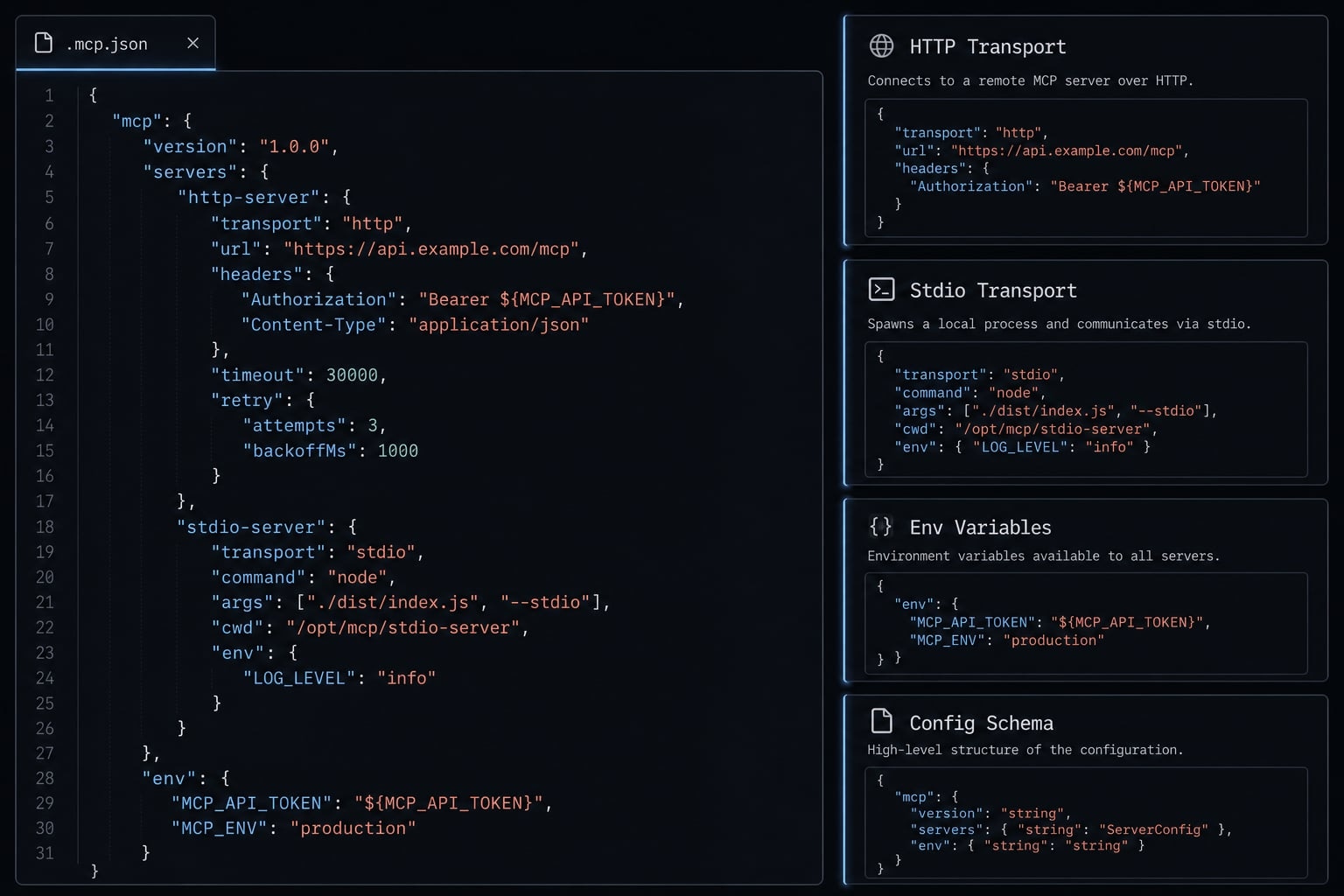
These are common setup patterns for adding custom MCP tools to Claude CLI and standard remote or local servers. Keep them minimal, readable, and easy to move into a version-controlled .mcp.json file.
Example 1: Remote HTTP server
Use HTTP transport when the MCP service is hosted remotely.
{ "mcpServers": { "docs-server": { "type": "http", "url": "https://example.com/mcp" } }}
This is the cleanest pattern for remote services with stable endpoints.
Example 2: Local stdio server with npx
Use stdio transport when Claude needs to start a local process on your machine.
{ "mcpServers": { "local-tool": { "type": "stdio", "command": "npx", "args": ["-y", "my-mcp-package"] } }}
This works well for local tools distributed as npm packages.
Example 3: Server with environment variables
Use environment variables when the server requires credentials or runtime settings.
{ "mcpServers": { "search-tool": { "type": "stdio", "command": "npx", "args": ["-y", "my-search-mcp"], "env": { "API_KEY": "YOUR_API_KEY", "API_REGION": "us" } } }}
Credentials belong in the env object, not hard-coded into commands. In shared files, do not commit real secrets.
Example 4: Custom local tool
This pattern is useful for custom MCP tools you built or compiled locally.
{ "mcpServers": { "custom-tool": { "type": "stdio", "command": "node", "args": ["/absolute/path/to/custom-tool/build/index.js"] } }}
Absolute paths can help during early testing, especially when PATH resolution is inconsistent.
Example 5: Services that require authentication
Some servers register first and complete authentication flow later.
{ "mcpServers": { "remote-service": { "type": "http", "url": "https://example.com/mcp" } }}
After registration, authentication may happen separately inside Claude Code if supported, such as through /mcp. A common pattern is that the server appears registered, but no tools show up because sign-in was never completed.
For most users, one working server is enough to understand the full setup pattern. Once you can configure one remote server, one local tool, and one env-based server, you have the reusable structure you need.
Troubleshooting Claude Code MCP configuration in 5 checks
Most troubleshooting Claude Code MCP connection issues come from five places: the command or URL, broken JSON, missing environment variables, stale session state, or local path and timeout problems.
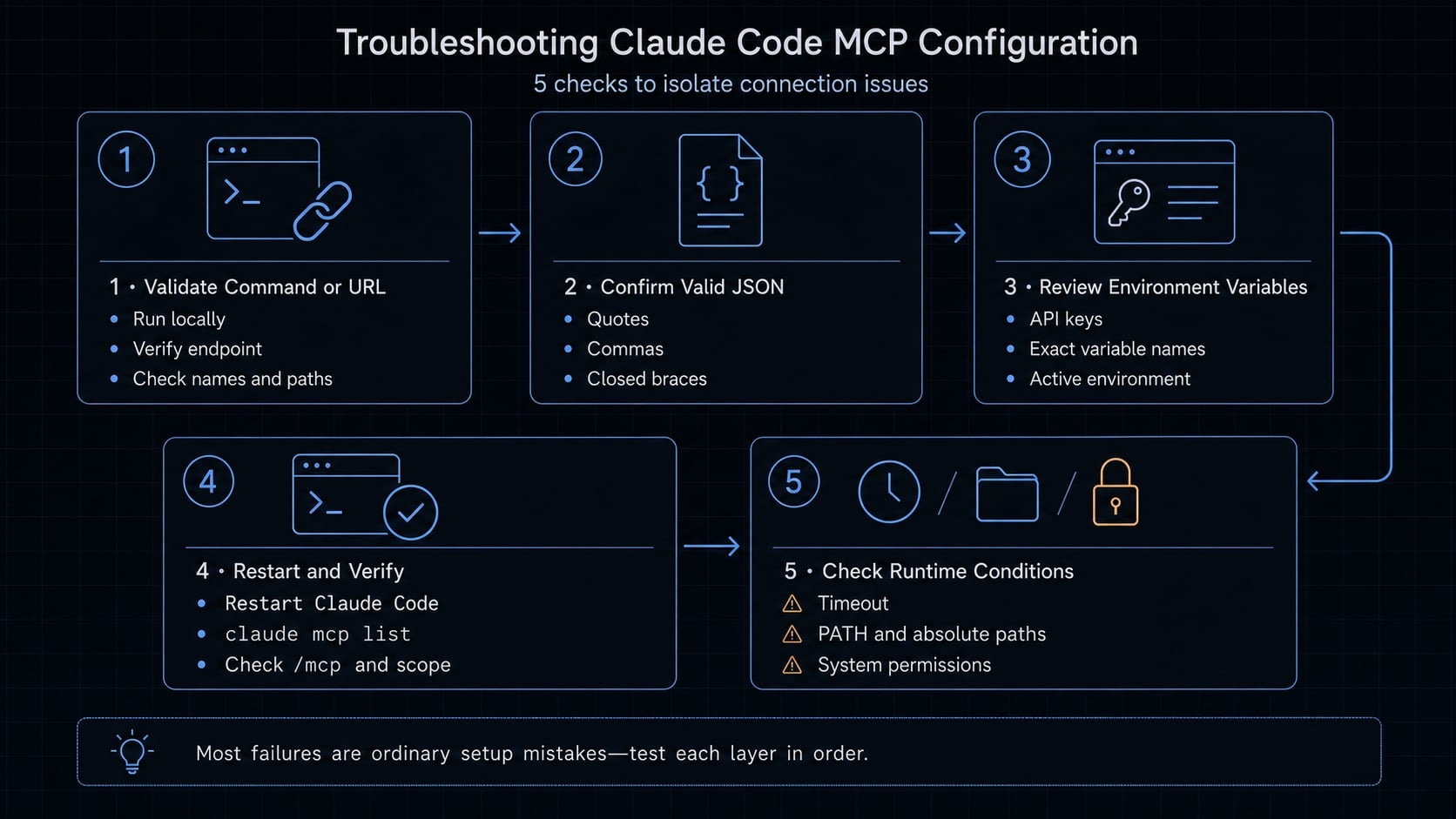
Check 1: Validate the command or URL
If you see failed to connect, start with the most direct test.
- For local servers, run the command directly in your terminal.
- For remote servers, confirm the endpoint URL is correct.
- Check for typos in server names, package names, or paths.
- If the local command fails outside Claude, fix that first.
Most setup issues are not protocol issues. They usually start here.
Check 2: Confirm the config file is valid JSON
A surprising number of failures come from invalid JSON.
- Check for missing quotes.
- Remove trailing commas.
- Confirm arrays and braces are closed correctly.
- Validate both
~/.claude.jsonand.mcp.jsonif you edited them manually.
If you edit JSON directly, validate syntax before assuming the issue is in Claude Code.
Check 3: Review required environment variables
A server can register correctly and still have missing tools if required environment variables were never provided.
- Check whether the server expects API keys or runtime settings.
- Confirm variable names match exactly.
- Recheck whether values are available in the active environment.
- Do not assume registration means full functionality.
If a server is defined in multiple scopes, prioritize checking the project or local entries first to avoid troubleshooting incorrect configurations.
Check 4: Restart Claude Code and verify with commands
Some changes do not apply cleanly until Claude Code restarts.
- Restart Claude Code after editing config files.
- Run
claude mcp listagain. - If supported, inspect status through
/mcp - Confirm you are testing the correct scope and project.
A stale session can make a correct config look broken.
Check 5: Investigate timeout, path, or permissions issues
If the server is slow or local startup is fragile, check runtime conditions.
- Review MCP timeout behavior for slow-starting servers.
- Check PATH issues if commands are not found.
- Use absolute paths for early testing if needed.
- Review permission prompts on your system.
- Watch for local tools that depend on shells, wrappers, or machine-specific setup.
Do not treat every failure as a Claude bug. Most are ordinary setup mistakes that become easy to fix once you isolate them in this order.
A simple setup pattern for solo developers and small teams
The easiest way to keep Claude Code tool integration reusable is to use the smallest scope that solves the problem. Standardize only what your team actually reuses.
This keeps setup lean and reduces onboarding friction.
- Keep personal experiments in local scope.
- Put team-critical servers into project-scoped MCP configuration.
- Keep personal cross-project tools in user scope.
- Use team-shared configuration only for tools everyone needs.
- Store secrets in environment variables, not shared files.
- Keep naming consistent so people can call the same servers predictably.
- Review config periodically to remove stale entries.
This model supports reusable AI workflows without turning a small setup into a governance project. Small teams usually do best with a short shared .mcp.json, a few personal user-scope tools, and a clear rule that credentials are never committed.
Frequently asked questions
What is Claude Code MCP configuration?
Claude Code MCP configuration is the process of defining connections to external tools, databases, or APIs using the Model Context Protocol (MCP). It involves specifying the server name, transport method (HTTP or stdio), and necessary environment variables to enable Claude Code to interact with external services.
How do I configure MCP servers in Claude Code?
You can configure MCP servers by following these four steps:
- Register the server using the
claude mcp addcommand in your terminal. - Verify the connection by running
claude mcp list. - Open a session and invoke the server by its registered name.
- Use
claude mcp removeto clean up your configuration when finished.
CLI vs. JSON: Which configuration method should I use?
Use the CLI for rapid setup and initial testing to minimize syntax errors. Switch to direct JSON file editing when you need to maintain complex configurations, share settings across team projects via version control, or manage multiple environment variables for production environments.
What is the difference between local, project, and user configuration scopes?
Scope determines the visibility and persistence of your MCP settings:
- Local: Stored in
~/.claude.json(project-specific); private and temporary. - Project: Stored in
.mcp.jsonat the repo root; shared with your team via version control. - User: Stored in
~/.claude.json(global); available to you across all projects.
Why is my MCP server not connecting or showing tools?
Most connection failures stem from these five common issues:
- Invalid server command or URL.
- Malformed JSON syntax in your configuration file.
- Missing or incorrect environment variables required for authentication.
- Stale session state (restart Claude Code after configuration changes).
- File path, permission, or timeout constraints during server startup.
Can I share my MCP server configurations with my team?
Yes. To share configurations, add the server with the --scope project flag or manually define the server in a .mcp.json file at the project root. Ensure you store sensitive credentials in environment variables rather than hard-coding them into the shared file to maintain security.
Read more:
- Connect GitHub MCP to Claude Code: Step-by-step guide
- PostHog MCP Claude Code: Practical setup guide for developers
- Blender MCP with Claude Code: A secure AI scripting setup guide
Conclusion
A working Claude Code MCP configuration is mostly about four things: Adding a server, storing it in the right place, verifying it, and troubleshooting the usual failures in the right order. You do not need deep MCP theory to make this reliable. For most users, one working server is enough to learn the full pattern. Start with the CLI, move to JSON when sharing or maintenance matters, and keep secrets in environment variables instead of shared files.