Claude Code slash commands: What to learn first and how to use them well?
Repeated prompts, cluttered context, and slow task switching are the three biggest reasons many users never get the full value from Claude Code slash commands. The real benefit is not memorizing a long list of commands. It is learning a small set of AI coding assistant shortcuts that turn Claude Code into a cleaner, more command-driven workflow. This guide explains what slash commands are, which ones matter first, how to use them in a simple routine, and when to create reusable prompt shortcuts of your own. It stays practical, beginner-friendly, and focused on real CLI usage rather than deep documentation.
What Claude Code slash commands are and why they matter?
Define slash commands in plain English
Claude Code slash commands are predefined commands entered with a forward slash to control common actions, manage context, or trigger repeatable workflows inside the Claude Code CLI (Command Line Interface). They help users move faster, reduce prompt repetition, and keep sessions more consistent than freeform prompting alone.
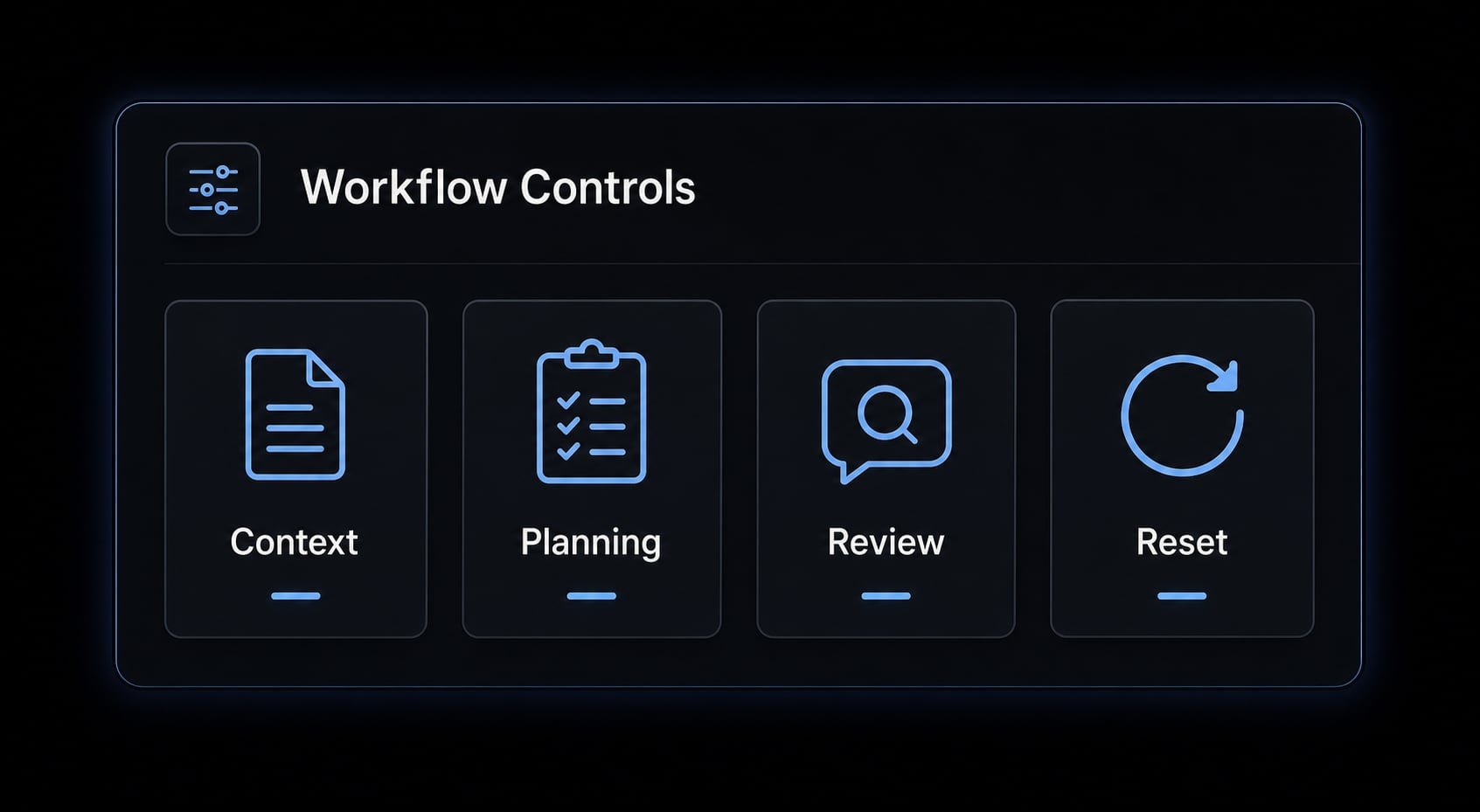
In one sentence: Slash commands are workflow controls that help you run Claude Code more deliberately instead of treating it like a generic chat window.
Many users start with freeform prompts only. That works, but it often leads to repeated instructions, mixed tasks, and stale context carrying over into work that should be fresh. A common mistake is treating Claude Code like a chat box instead of a command-led workflow.
With Claude Code slash commands, you are not replacing normal prompting. You are adding structure around the parts of your work that happen often enough to deserve consistency. Some commands control the session itself. Others act more like custom AI prompt triggers for repeated tasks.
What problems they solve in daily CLI work
- Repeated prompts waste time when you keep asking for the same review or planning behavior.
- Old context pollutes new tasks and causes irrelevant assumptions to carry forward.
- Task switching gets slower when one long thread tries to cover everything.
- Commands standardize routine actions so outputs become more predictable.
- Claude Code CLI commands help create a cleaner operating rhythm for planning, editing, and reviewing.
Not every workflow needs a large library. For many users, a small handful of Claude Code slash commands is enough to improve day-to-day speed and consistency.
Built-in vs custom slash commands: The difference most guides skip
Many articles blur four different things together: Built-in slash commands, custom slash commands, hotkeys, and CLI flags. That confusion matters because each serves a different purpose inside a real Claude Code workflow.
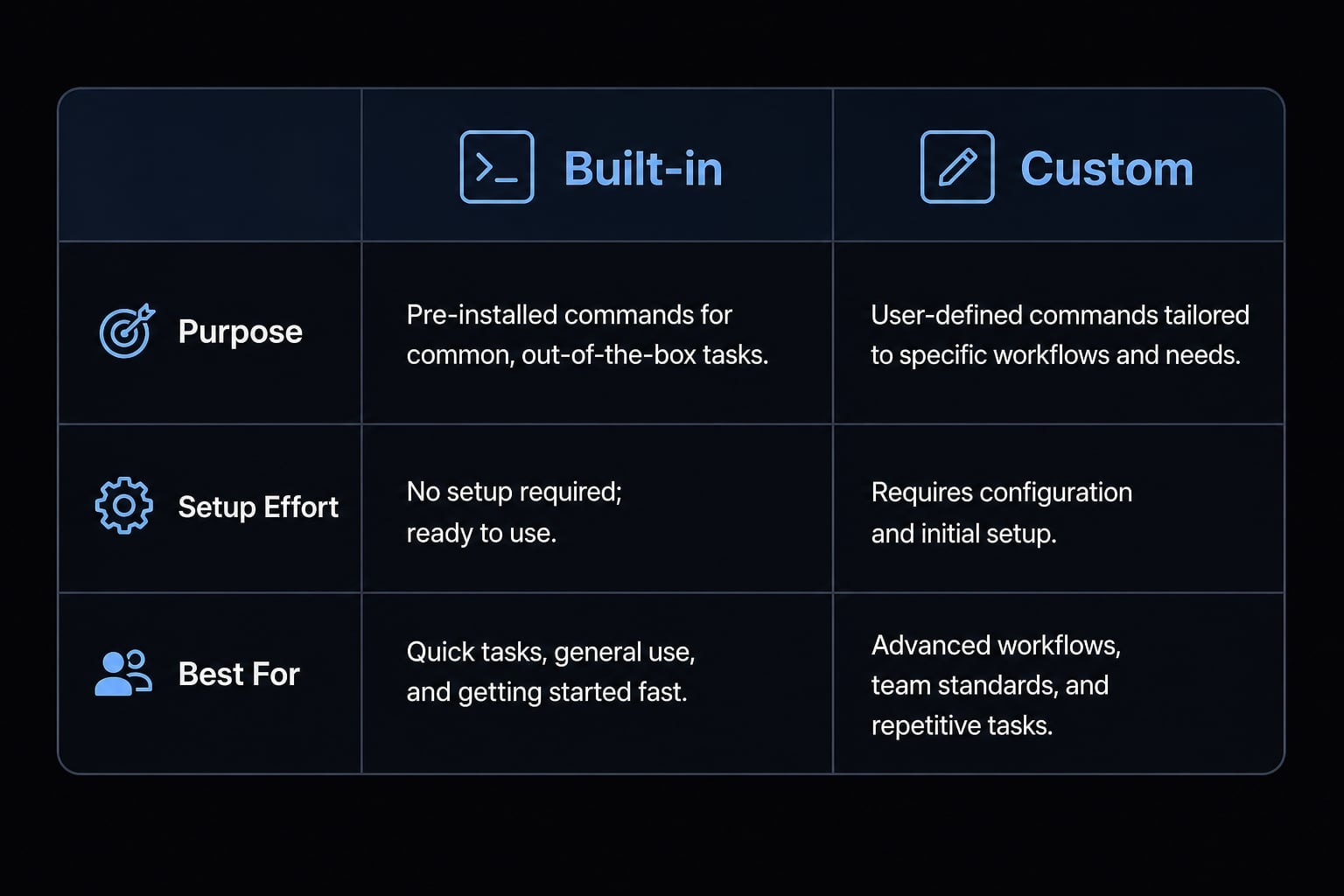
Built-in commands are native controls provided by the tool. They usually help with session handling, context control, planning, review, or output management. Custom commands are different. They are reusable prompts or task templates you create for work you repeat often.
In simple terms, built-in slash commands control how the tool behaves, while custom slash commands package repeated instructions into prompt shortcuts you can trigger consistently.
What built-in commands usually do vs what custom commands usually do
- Built-in slash commands usually handle context control, planning, review, and session management.
- Custom slash commands usually package review prompts, explain prompts, commit prompts, or impact-analysis prompts.
- One controls the tool; the other standardizes repeated instructions.
- Neither should be confused with hotkeys or command-line flags.
Criteria | Built-in slash commands | Custom slash commands |
|---|---|---|
Purpose | Control the tool or session | Save repeated instructions as reusable prompts |
Setup effort | Usually none or minimal | Requires drafting and refining prompts |
Best for | Context, planning, review, workflow control | Review, explain, commit, impact, testing tasks |
Consistency | High, because behavior is tool-defined | Depends on prompt quality and refinement |
Flexibility | Lower, focused on known functions | Higher, shaped around your workflow |
Learning curve | Easier for beginners | Easier after repeated real usage |
Ideal user stage | Early adoption | After patterns start repeating |
Quick rules of thumb
Use built-in slash commands when you want to control the session. Use custom slash commands when you keep typing the same task instructions. They are not the same as hotkeys, and they are not the same as flags passed when launching the CLI. Exact availability may vary by version or environment, so treat these as practical categories rather than rigid product doctrine.
If you only learn 5 Claude Code slash commands, start with these
This is a beginner-first shortlist, not a universal ranking of the best Claude Code slash commands for every workflow. Exact names or support may vary slightly by setup, but these five cover the most common day-to-day needs and form a practical Claude Code commands list for getting started.
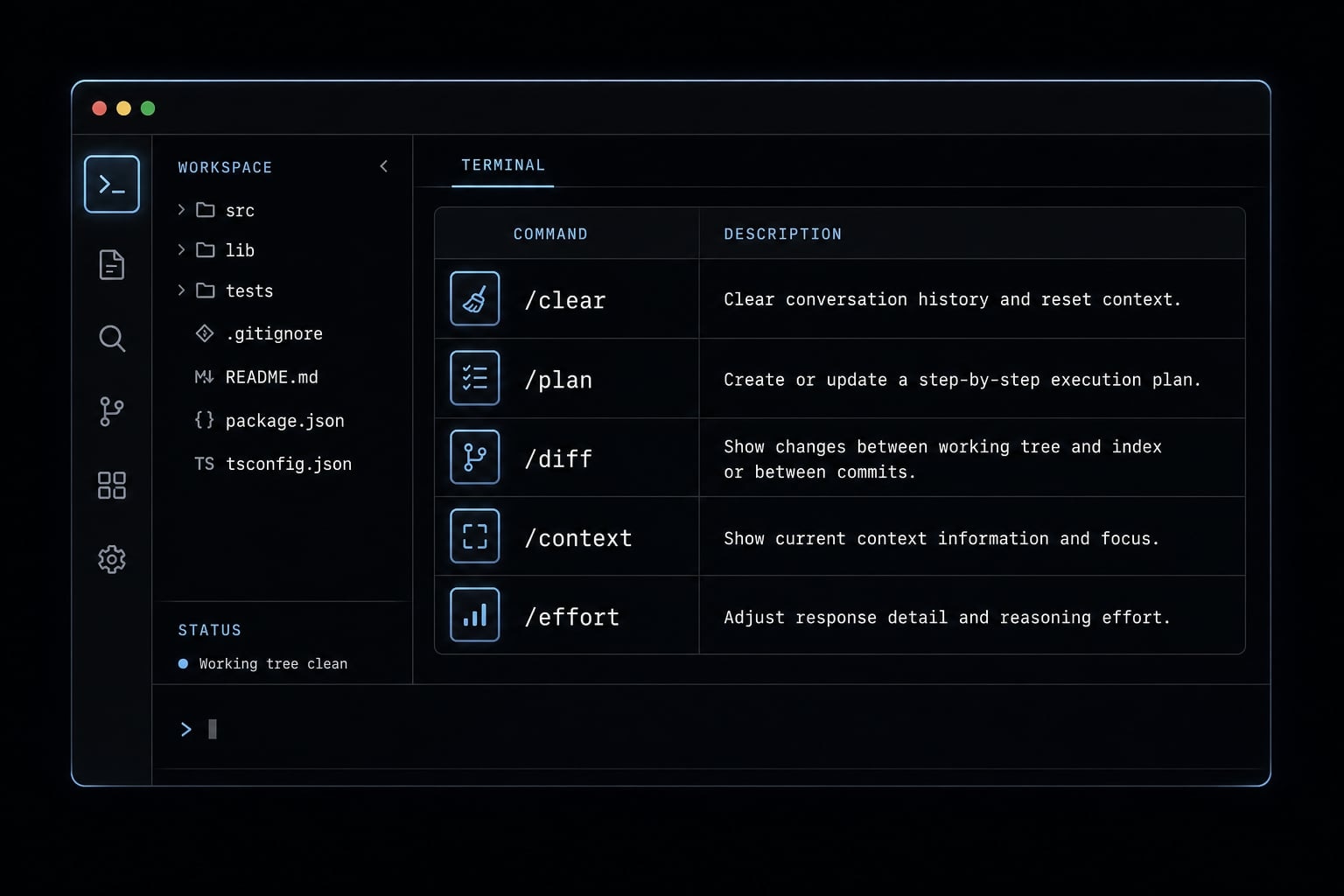
/clear/plan/diff/context/effort
If you are learning the best Claude Code slash commands to use first, start here because these commands help with context control, planning, review, and reasoning depth before you worry about anything advanced.
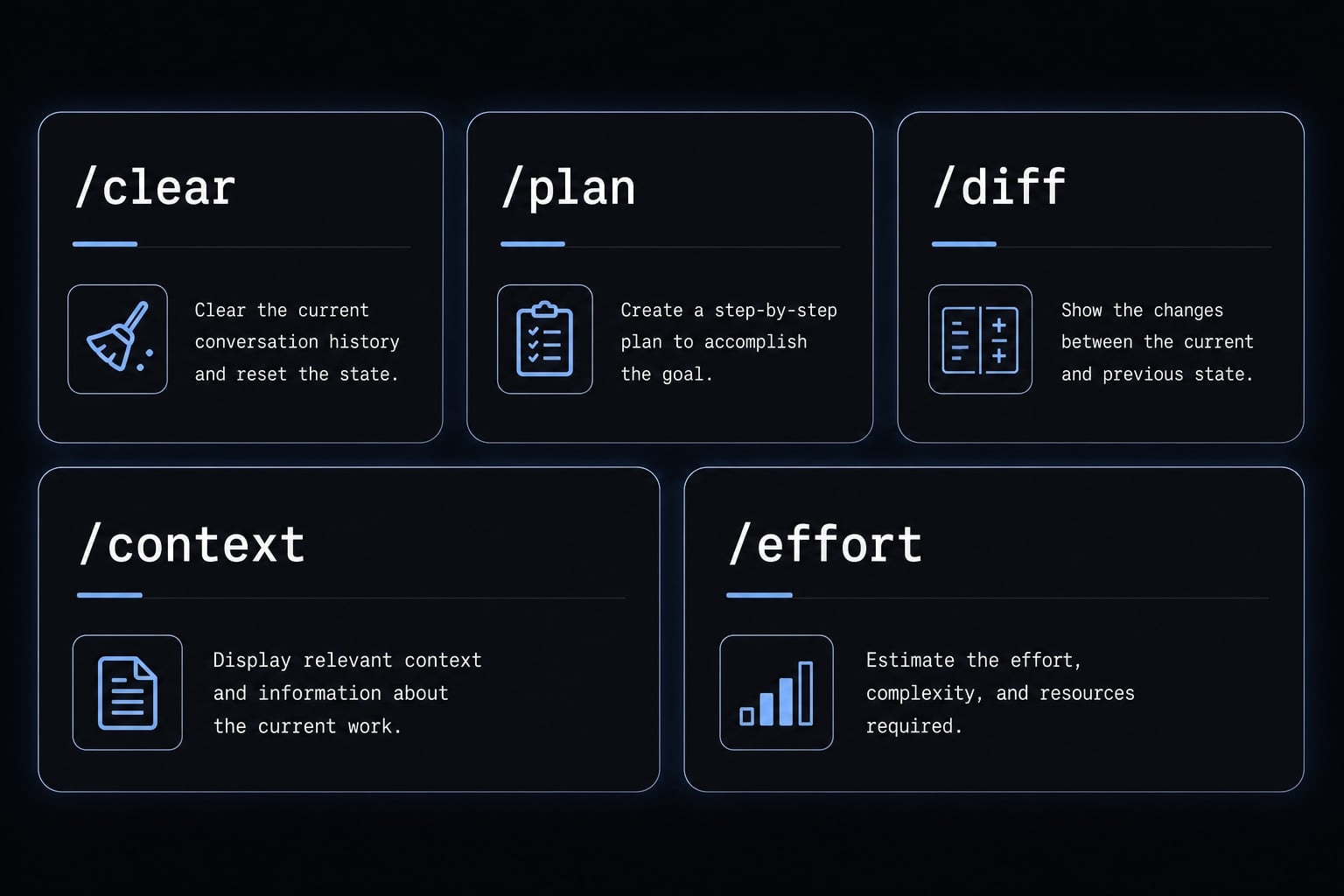
/clear
/clear resets stale or irrelevant context so your next task starts clean. It is especially useful after a messy back-and-forth, a failed direction, or a task switch from one problem to another.
This matters because old assumptions are one of the most common causes of weak output. When Claude keeps carrying previous discussion into a new task, quality often drops even if the new prompt is good.
Use it when: You are done with one task and do not want the next one polluted by prior context.
/plan
/plan asks Claude to outline the work before editing. It is useful for refactors, multi-file changes, unclear requests, or any situation where you want the approach agreed first.
This matters because many users jump straight into edits too early. Planning first reduces premature changes and helps surface missing assumptions before files start changing.
Use it when: The task spans multiple steps or you are not yet confident about the implementation path.
/diff
/diff shows what changed during the session. In practice, it acts like a review checkpoint before commit, handoff, or another round of edits.
This matters because inspection beats assumption. Reviewing a git diff helps you catch accidental edits, scope creep, or changes that do not match the intended plan.
Use it when: You want to verify changes before committing, reviewing, or asking Claude for another pass.
/context
/context checks how full or messy the current session is. It is especially useful before a long task, after many turns, or when you feel the conversation has become unfocused.
This matters for context window optimization. If the session is already crowded, long tasks become less predictable and more likely to carry noise from earlier messages.
Use it when: You are about to start something substantial and want to understand the current session state first.
/effort
/effort controls reasoning depth. In simple terms, it helps balance speed, quality, and cost based on how difficult the task is.
This matters because not every task needs the same level of thinking. Simple edits do not need maximum effort. Harder work like architecture tradeoffs or complex debugging may justify a higher setting.
Use it when: The task is unusually complex and you want deeper reasoning without applying it to everything by default.
5-command cheat sheet
Command | What it does | When to use it | Why it matters |
|---|---|---|---|
| Resets conversation state | Switching tasks | Reduces stale assumptions |
| Outlines the work first | Before large edits | Prevents premature changes |
| Shows session changes | Before commit or review | Creates a clear checkpoint |
| Checks session state | Before long tasks | Supports context window optimization |
| Sets reasoning depth | For harder tasks | Balances quality, speed, and spend |
A practical Claude Code workflow: Plan, edit, review, reset
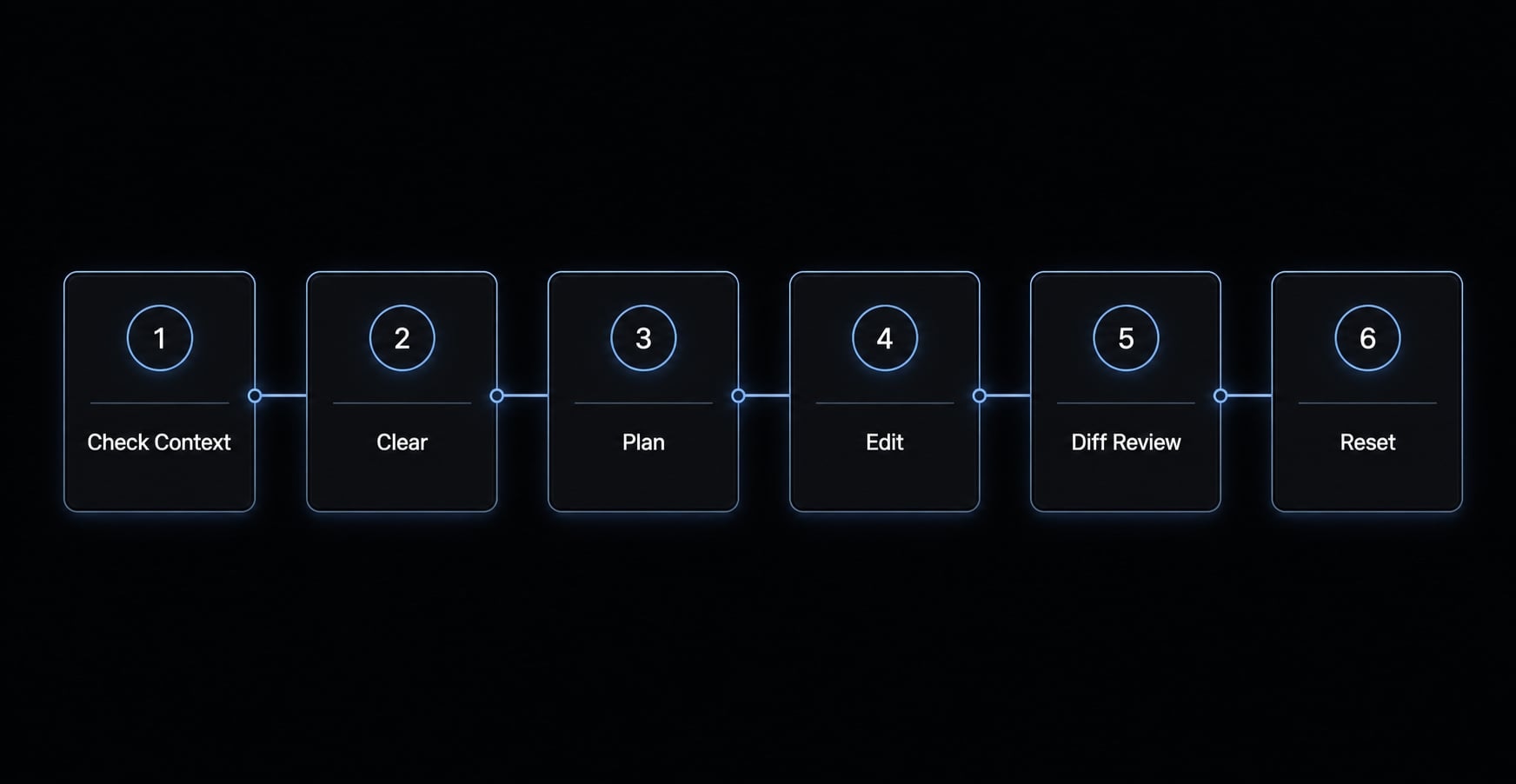
The easiest way to use these commands well is to treat them as a repeatable routine, not isolated tricks. One of the best Claude Code workflows for developers is a simple six-step loop that keeps context under control and makes review more deliberate.
- Check context.
- Clear if needed.
- Plan the work.
- Confirm the approach before edits.
- Review changes with diff.
- Reset or compact at a checkpoint.
This sequence works because order matters. Good context management in AI agents starts before the main task begins, not after the session gets messy. In practical workflow automation, you are not automating everything. You are standardizing how you start, inspect, and close work using Claude Code CLI commands.
Step 1-2: Check context and clear if needed
Start by checking the current session state. If the previous task is still relevant, continue. If it is not, clear it.
This small step prevents stale assumptions from leaking into unrelated work. It is one of the simplest habits that improves consistency.
Step 3-4: Plan before significant edits
Use /plan before larger changes, especially when the request touches multiple files or requires tradeoffs. Once the plan looks coherent, confirm the approach before editing.
This reduces unnecessary churn. Claude is usually more helpful when it works from a clear path instead of guessing the structure while editing in real time.
Step 5-6: Review and reset
Inspect changes with /diff before commit, review, or handoff. Then reset or compact at a natural checkpoint so the next task starts cleaner.
This matters because many weak sessions do not fail during editing. They fail because the user never paused to inspect what changed or never cleaned up before moving on.
Treat this as a practical default, not the only correct workflow. Some users may compact instead of fully resetting. Others may insert a custom review step before commit. The value is in the structure.
Other useful slash commands for context, branching, and large tasks
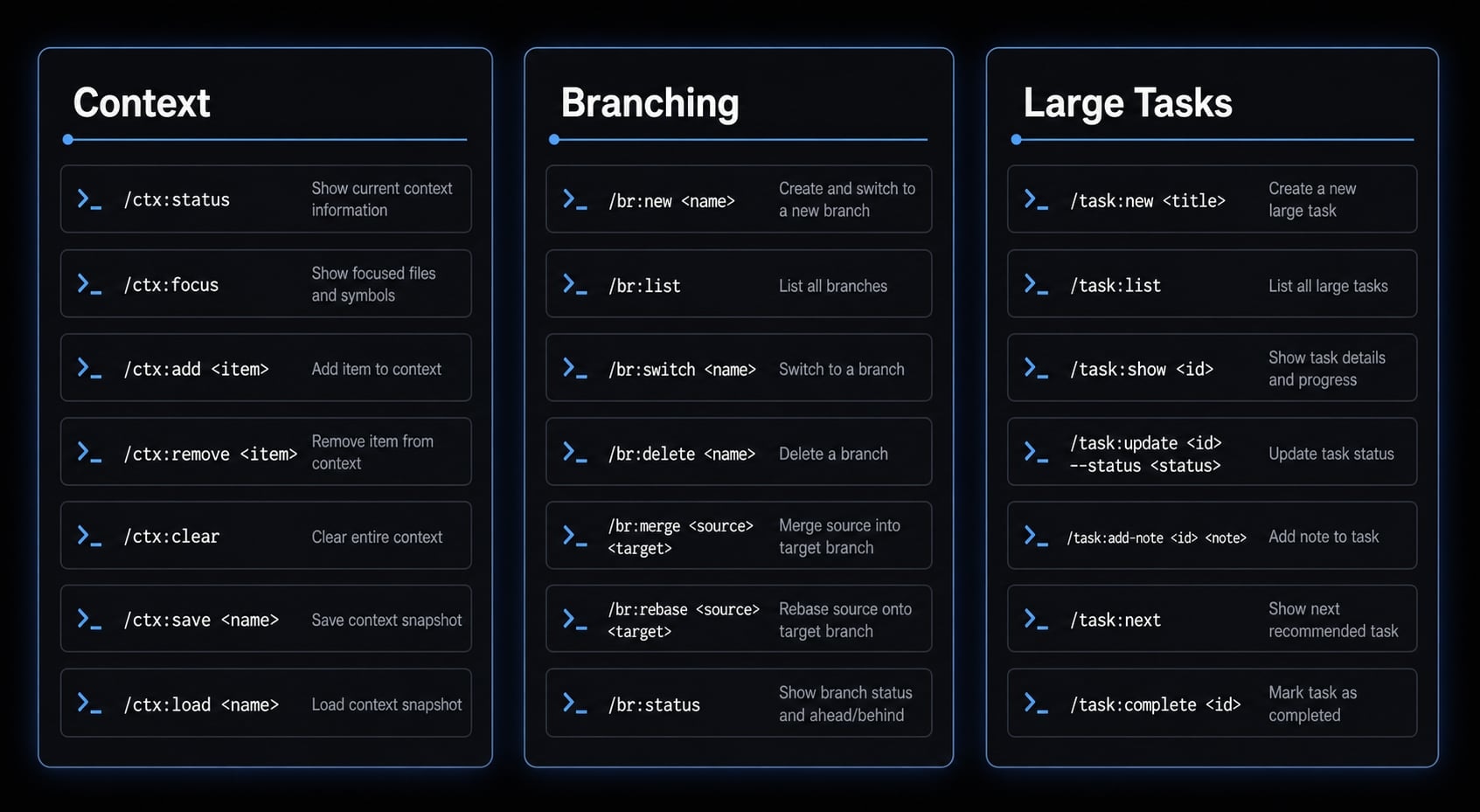
Once the basics feel natural, a few other commands become useful. The key is to group them by job to be done, not collect them randomly. That makes Claude Code commands for context management easier to understand and less overwhelming.
Context management commands
/context: Inspect the current session state before a long or sensitive task./clear: Use as a hard reset when the prior thread is no longer useful./compact: Trim bulk without fully resetting the session.
The distinction matters. /clear is best when you want a fresh start. /compact is better when some prior work is still useful, but the session has become too heavy.
Side-track or parallel exploration commands
/fork: Create a side branch for alternate approaches while protecting the main working thread.- Similar side-track workflows may also exist in some environments, if supported.
This is useful when you want to test a different approach without polluting the main path. Branching is often safer than trying to keep two competing ideas inside one conversation.
Large-scale or controlled work commands
/batch: Useful for broad, patterned work across many files or parts of a repo./cost: Check session spend after longer runs or heavier tasks./effort: Adjust reasoning depth based on task difficulty.
Use these intentionally, not casually. Repo-wide operations and higher-effort modes can be useful, but they also raise scope, cost, and review risk. In most cases, they should come after you already have a stable routine for planning and checking work.
Custom slash command ideas that save the most time
Custom commands become valuable after repeated real use, not before. If you have typed the same structured prompt several times, that is usually the moment to consider custom AI prompt triggers.
The best use case for reusable prompts is repeated, structured work with a clear output format. That is why custom commands often become more useful after the built-in workflow is already stable.
High-value custom commands for common tasks
/review: Review current changes for bugs, logic issues, and security concerns./commit: Turn staged changes into a cleaner commit message./explain: Summarize an unfamiliar file or module in plain English.
These are strong early candidates because they solve common tasks with repeatable structure. They are especially useful for teams or solo builders doing frequent review cycles or codebase navigation.
More useful custom commands once workflows grow
/impact: Check dependency and refactor impact before changing an interface or deleting code./test-gaps: Identify missing test coverage or overlooked edge cases./stuck: Ask clarifying questions before proposing code when the problem is still fuzzy.
These commands are often where users start to feel the benefit of automating code review with Claude Code CLI patterns. Not automation in the absolute sense, but repeatable review logic that saves time and reduces prompt rewriting.
What makes a good custom command
- It has a specific goal.
- It includes clear inclusion and exclusion rules.
- It asks for a compact output format.
- It supports a repeatable use case.
- It is easy to refine after real usage.
Small, refined command libraries usually outperform large messy ones. A custom command that does one thing clearly is easier to trust than a broad command that tries to handle everything.
Custom command idea board
Command | Purpose | Output style | Best time to use it |
|---|---|---|---|
| Check for bugs, logic, security issues | Short issue list | Before commit |
| Draft commit message | Subject + short body | After staging |
| Summarize unfamiliar code | Plain-English breakdown | File onboarding |
| Find dependency impact | Paths, references, notes | Before refactor |
| Spot missing coverage | Checklist | Before test updates |
| Clarify the problem first | Questions first | When direction is unclear |
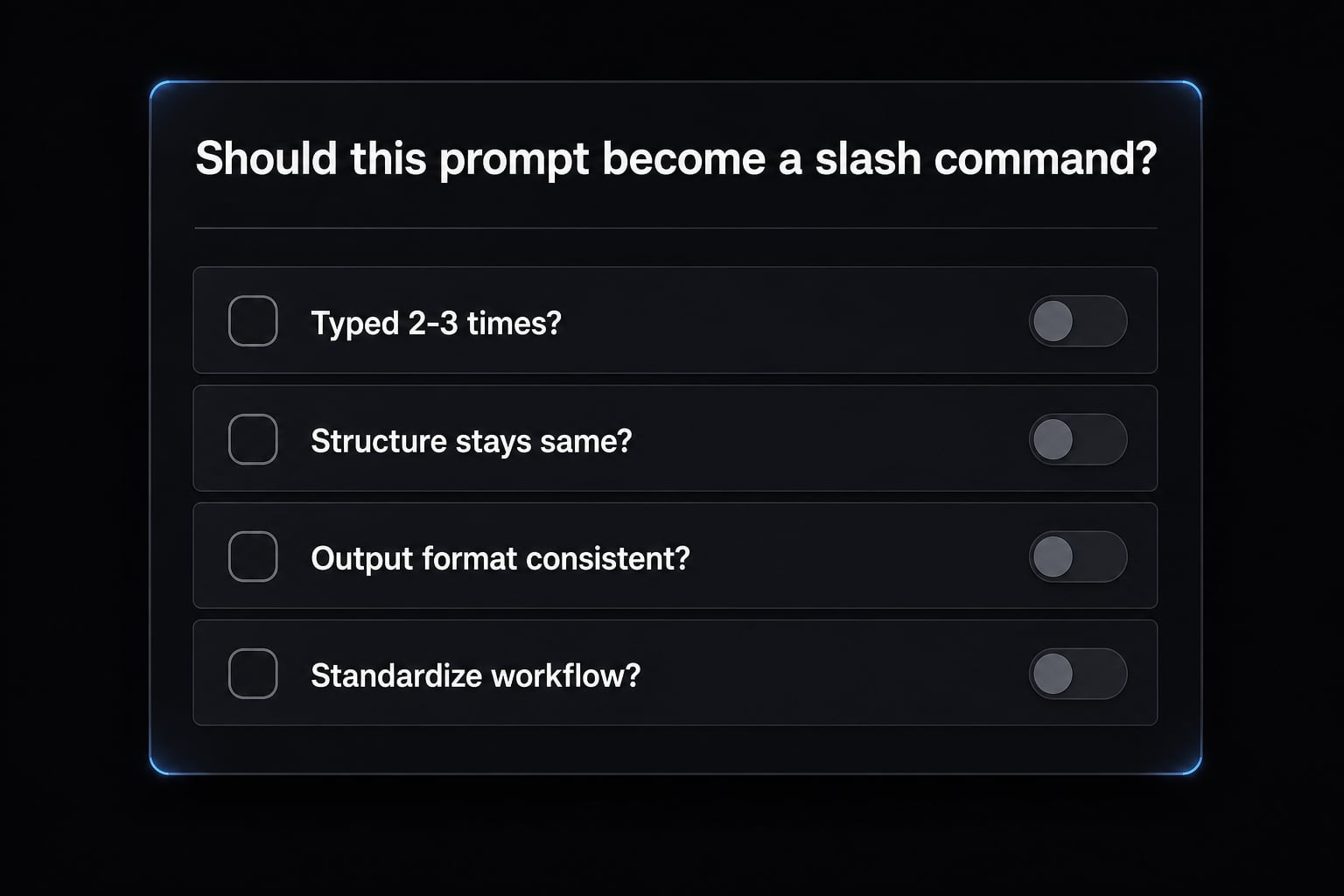
A simple rule for deciding whether a prompt should become a slash command
Most custom slash commands should come from repetition, not theory. You do not need a big framework for prompt engineering for developers. A simple threshold is enough.
Lightweight decision checklist
- If you typed the same prompt 2-3 times, it is a candidate.
- If the structure stays mostly the same, save it.
- If the output format should stay consistent, save it.
- Start small and refine later instead of designing a full library upfront.
This is really about workflow standardization. Good reusable AI workflows usually begin as repeated manual behavior, then become simple commands once the pattern is obvious. If the task still changes a lot each time, keep it as a normal prompt for now.
Example workflow: Turning repeated prompts into a cleaner coding routine
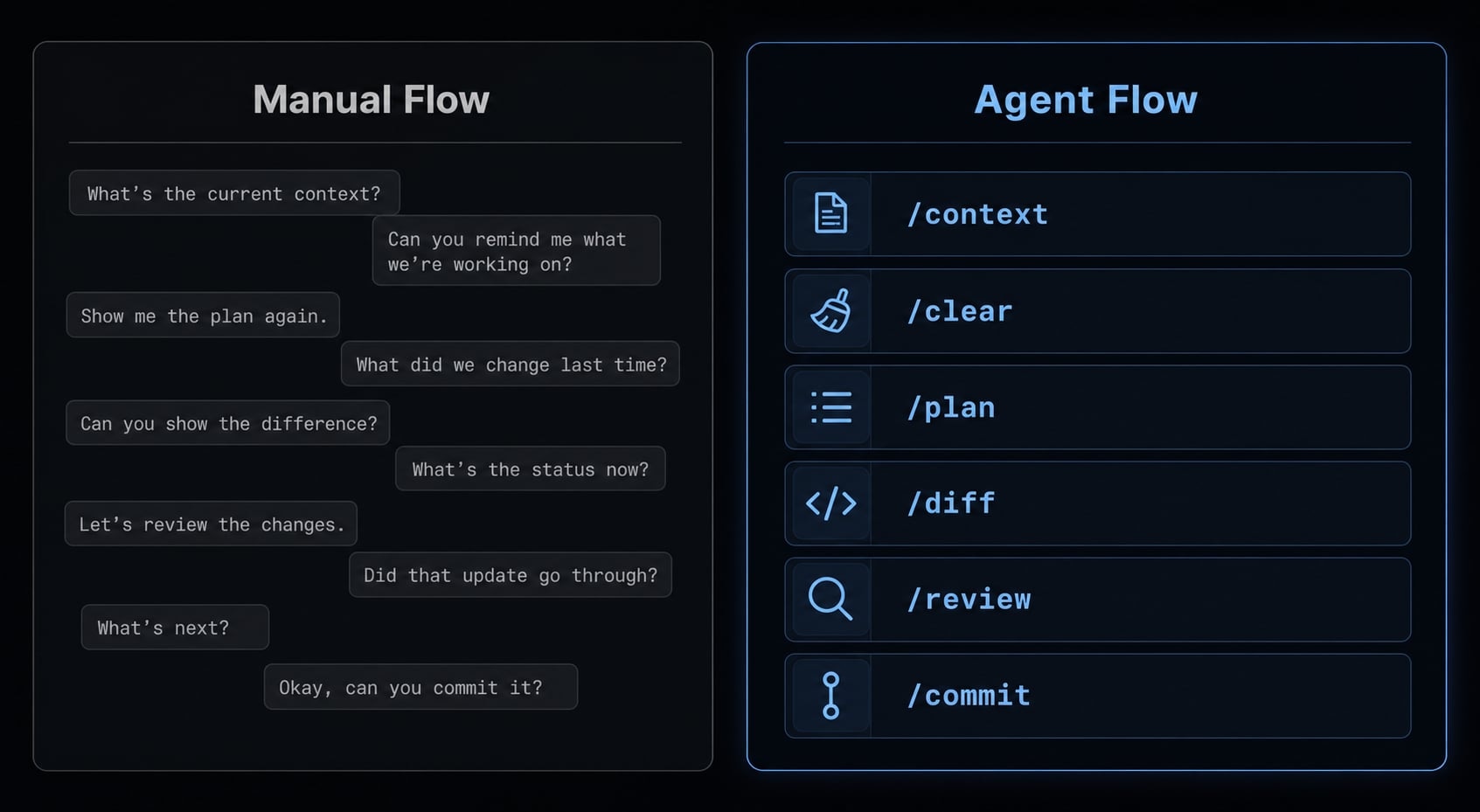
Before using slash commands consistently, many developers work in an ad hoc loop. They ask for a plan in one message, request a review in another, and then manually rewrite the same explanation or commit prompt later. That works, but it creates friction.
A cleaner version looks different. Start with /context, use /clear if needed, run /plan before meaningful edits, and inspect the result with /diff. Then add a few custom commands like /review and /commit once those tasks start repeating.
The result is not magical. It is simply more structured. In day-to-day AI-assisted software engineering, that usually means less prompt repetition, cleaner task boundaries, and faster switching between planning, editing, and review. That is where most practical Claude Code productivity gains come from: Not from doing everything with AI, but from making repeated work more repeatable.
Frequently asked questions
What are Claude Code slash commands?
Claude Code slash commands are predefined commands that begin with a forward slash (/). They are used to control common actions, manage context, or trigger repeatable workflows in the Claude Code CLI. They help developers work faster, reduce repetitive prompting, and maintain more consistent sessions than free-form instructions.
What is the difference between built-in and custom slash commands?
Built-in commands are native commands used to control a session, such as /clear and /plan. Custom commands are saved prompt templates that standardize recurring tasks, such as /review and /commit. Use built-in commands for system and session management, and custom commands to optimize your personal workflow.
Which Claude Code slash commands should I learn first?
Start with these five essential commands to optimize your workflow:
/clear: Resets the current session./plan: Creates a plan before making changes./diff: Reviews changes before committing them./context: Checks the remaining context capacity./effort: Adjusts the AI’s reasoning effort.
How can I incorporate slash commands into a practical workflow?
Follow this six-step process:
- Check the current context.
- Use
/clearwhen starting a new task, if necessary. - Use
/planto define the direction. - Confirm the approach before allowing the AI to make changes.
- Review the changes with
/diff. - Reset or compact the session at logical stopping points.
When should a prompt be saved as a custom slash command?
Consider turning a prompt into a slash command when:
- You have entered the same request two or three times or more.
- The structure of the request rarely changes.
- You need the output format to remain consistent.
- The task is repeated frequently throughout the day.
Why should I use /clear regularly in Claude Code?
Using /clear removes the previous conversation history and frees up context capacity while preserving project memory. It is one of the most important habits for preventing the AI from being influenced by outdated assumptions or unnecessary information from previously completed tasks.
Read more:
- How to authenticate Claude Code in terminal
- Claude Code Figma MCP setup: Remote vs desktop guide
- Claude Code invalid tool parameters: Causes and fixes
Conclusion
The real value of Claude Code slash commands is structure. They help turn scattered prompting into reusable AI workflows that are easier to repeat, review, and trust. For most users, the right adoption path is simple: Start with built-in commands like /clear, /plan, /diff, /context, and /effort, then add a few custom commands only after real patterns appear.
Do not try to build a huge command system on day one. A small set that fits your actual workflow is usually more useful than a large library you barely use. If you want a practical next step, explore a lightweight command checklist or build one custom command from the prompt you repeated most this week.