
Claude Code channels: How they work, setup, and comparisons
As AI coding workflows expand beyond the traditional terminal window, the ability to connect external events directly to an active session has become essential. This is where Claude Code Channels comes in, an experimental feature enabling seamless messaging integrations through the Model Context Protocol (MCP). This guide covers everything you need to get started, from essential prerequisites and safe setup sequences to integration-specific checks and troubleshooting best practices.
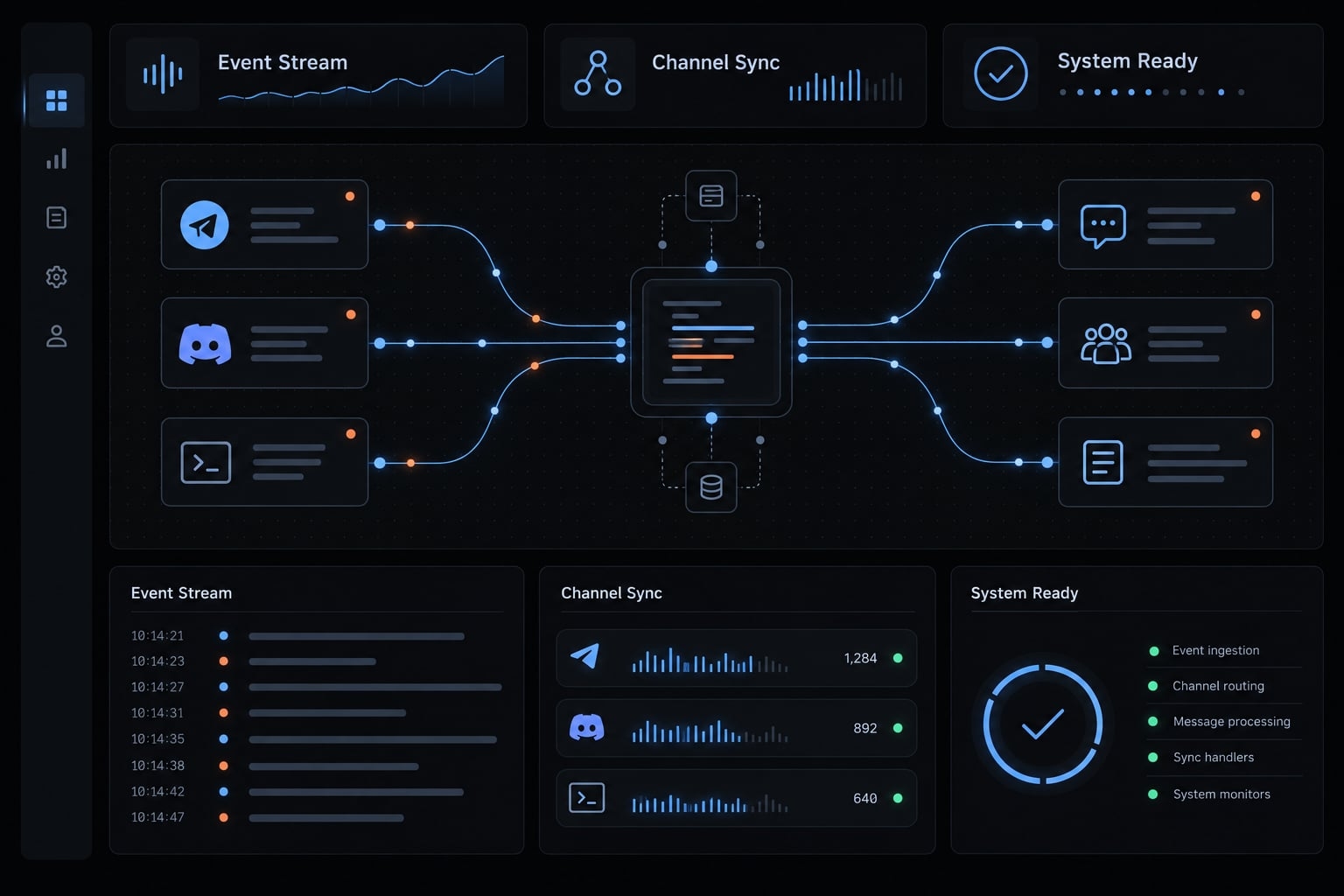
What are Claude Code channels and how do they work?
Channels provide a dedicated input path rather than unrestricted execution authority. An integration receives an external event and delivers it to Claude Code. What happens next depends on the session’s context, available tools, and permissions.
MCP (Model Context Protocol) is a standard for connecting AI applications to external capabilities and information. A channel integration uses an MCP server as the connection boundary between an external source and Claude Code.
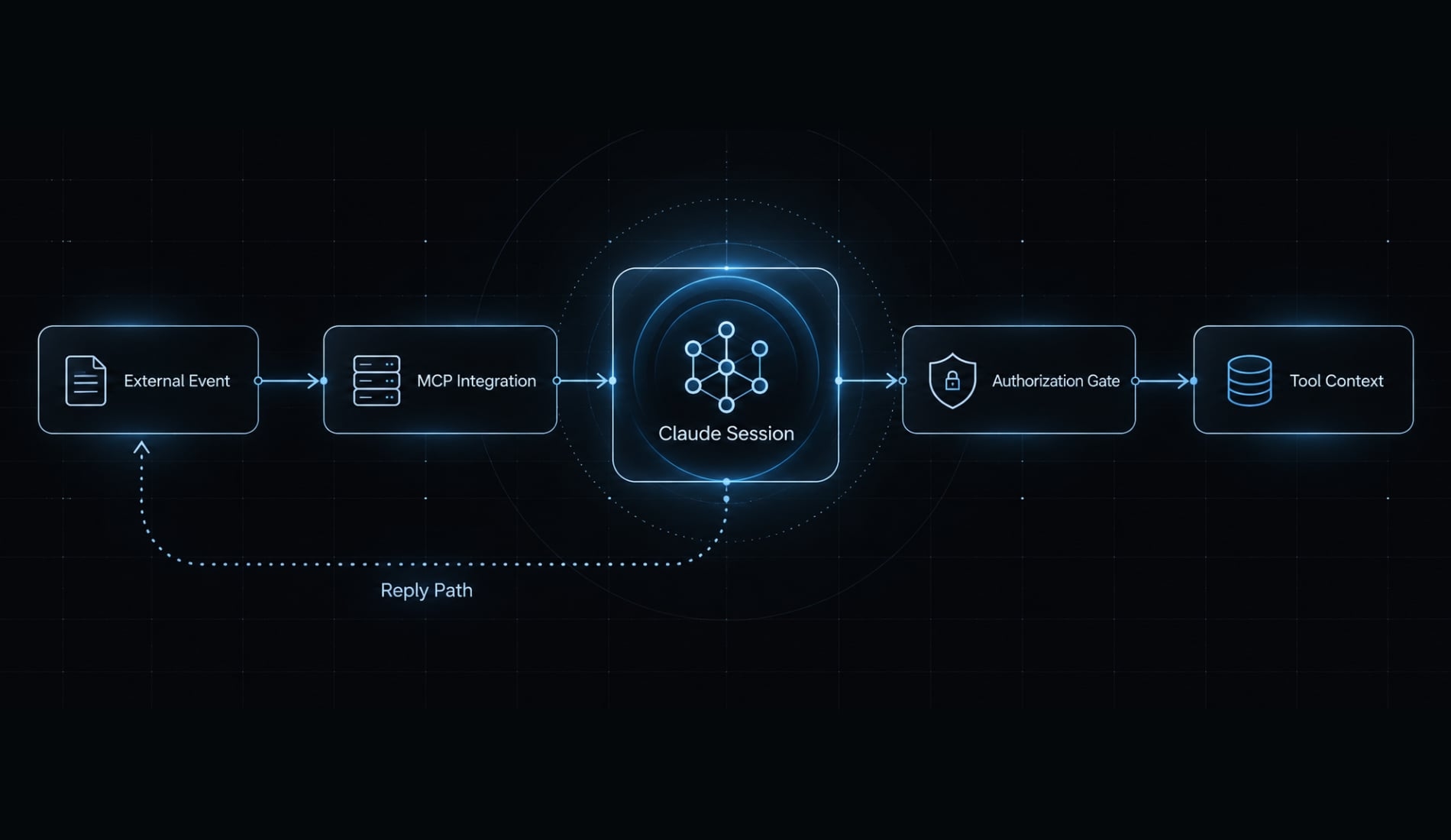
Follow an event from sender to reply
- An external sender or system creates a message.
- The integration receives or retrieves that message.
- Its MCP connection delivers the event to the running session.
- Claude evaluates the request against project context and permissions.
- A supported reply capability sends a response back.
Illustrative example: An approved sender asks, “Which command runs this repository’s unit tests?” Claude checks the project instructions and answers through the integration, if replies are supported.
Channels versus conventional MCP tool use
Conventional MCP tool use commonly starts when Claude requests a capability. Channels introduces externally initiated input. Both patterns can coexist; MCP itself is not limited to model-initiated requests.
Event channels are not software update channels
“Channels” can also refer to software release tracks controlling which Claude Code updates an installation receives. That setting is separate from external-message integrations. Changing an update track does not install a messaging plugin, authorize senders, or enable event delivery.
Requirements, availability and session limits
Verify eligibility before creating platform credentials. A compatible installation alone does not guarantee that your account or organization is authorized to activate Claude Code Channels.
Check Installation, account, runtime and policy
Requirement | What to confirm |
|---|---|
Your installed version supports the currently documented Channels feature. | |
Your sign-in or API authentication route is currently eligible. | |
Integration runtime | The selected plugin’s required runtime and supported operating system. |
Platform credentials | A dedicated bot or application with the necessary permissions. |
Organization policy | Administrator settings permit the feature and selected integration. |
Feature status | Current preview restrictions, supported plugins, and activation requirements. |
Use Anthropic’s Claude Code Channels, authentication, and managed-settings documentation alongside the selected plugin’s instructions. It is best not to assume that a runtime required by one integration applies universally to all others.
Understand the session boundary
Installed does not mean activated. Confirm both plugin installation and channel activation for the intended session. A running process also does not establish automatic recovery, durable message storage, or replay after interruption. Those are separate operational requirements.
How to set up Claude Code channels
- Confirm account, runtime, and organization requirements.
- Install a documented integration.
- Configure the required platform credentials.
- Start Claude Code with the channel enabled.
- Authorize the intended sender.
- Send a harmless test message and verify the response.
Command limitation: Exact installation commands, plugin identifiers, startup flags, and authorization commands are not independently verified here. Copy them from the current official integration instructions, not from an unrelated plugin or older tutorial.
Establish a reproducible baseline
Record your Claude Code version, operating system, integration runtime, plugin version or revision, and configuration date. Keep credentials out of this record. Choose a low-risk repository without production secrets. Confirm which local actions require approval before connecting external input.
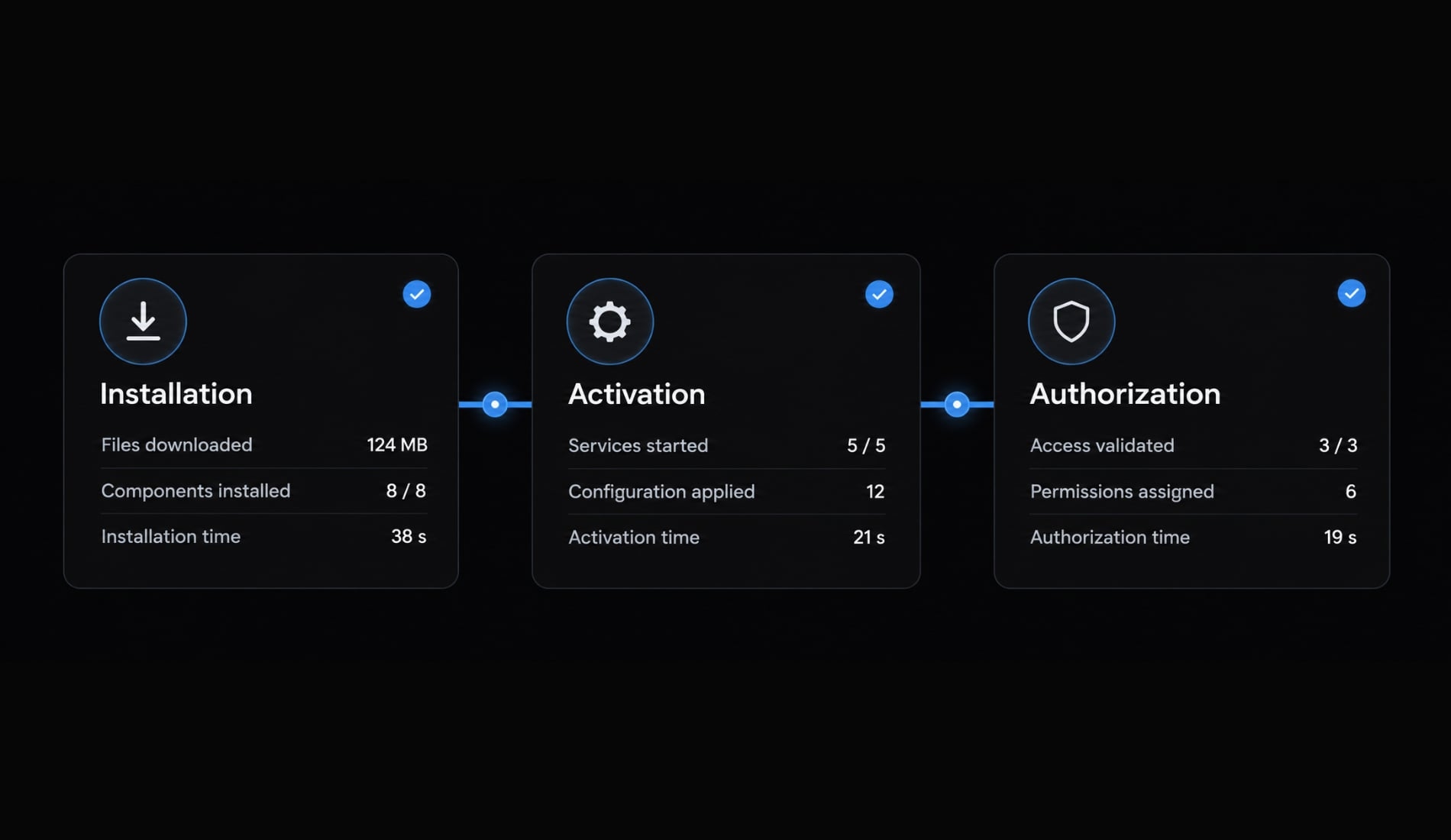
Then separate three checkpoints:
- Installation: The integration appears in the installed-plugin inventory.
- Activation: The intended session loads the integration with Channels enabled.
- Authorization: The intended platform identity is permitted to submit messages.
Check the execution location of every instruction. Slash commands belong inside Claude Code; shell commands belong in the system shell. Platform credentials may require a developer portal or a plugin-specific configuration route.
After changing configuration, follow the documented restart or reload procedure. Do not assume an existing session automatically picks up changes.
Test with fakechat only if its provenance is confirmed
A documented local test integration can help separate Claude Code configuration problems from messaging-platform problems. However, Fakechat’s current availability, publisher, and startup instructions are not established here.
If current official instructions provide it, confirm the installation source and required activation steps. Open only the test interface address reported by that integration; do not assume a fixed port.
Send a harmless request such as, “Reply with ‘channel test received’ without running tools.”
Expected success means the event reaches the intended session and, where supported, the interface receives a reply. This confirms only that test integration, not Telegram, Discord, or other platforms.
Configure Claude Code Telegram
Begin with a dedicated bot and restricted sender access. Telegram’s BotFather documentation governs bot creation; the selected Claude Code integration governs credential storage, activation, and authorization.
- Create a bot through Telegram BotFather.
- Store its token using the integration’s documented configuration method.
- Install the integration from its confirmed publisher.
- Activate it for the intended Claude Code session.
- Complete the documented pairing or sender-authorization process.
- Test from the authorized Telegram account.
A sender allowlist restricts which platform identities may submit input. Use the identifier required by the plugin; do not assume a display name is sufficient.
Start with a response-only request. Then, if appropriate, ask a read-only repository question. Expected success is receipt in the intended session and a reply in the supported conversation.
Never expose the bot token in screenshots, repositories, shell history, or shared transcripts. If it leaks, revoke and replace it through Telegram’s supported controls.
Configure Claude Code Discord
Use minimum permissions, not Administrator access. Discord’s Developer Documentation covers application creation, bot configuration, installation scopes, permissions, and gateway intents.
- Create a dedicated application and bot.
- Configure only the scopes and permissions required by the selected integration.
- Store the bot credential through its documented configuration route.
- Install and activate the integration in Claude Code.
- Restrict accepted senders and message locations where supported.
- Test in a documented conversation context.
Message Content Intent controls access to message content in applicable Discord contexts. Whether it is required depends on the plugin and how users interact with the bot. Follow the integration instructions rather than enabling every intent.
Check the bot’s effective permissions in the exact test location. Server roles, channel overrides, and thread permissions can affect behavior differently.
Expected success means a supported message reaches the session and the bot can respond in that location. A working direct message does not establish that server-channel or thread behavior is configured correctly.
Configure Claude Code iMessage only after verifying support
Anthropic has released an official iMessage plugin supporting Claude Code on macOS, alongside Telegram and Discord. Accordingly, no installation or permission-granting quickstart is provided.
Before using any implementation, verify its publisher, supported macOS versions, credential or account handling, and message-access method.
If its instructions require Full Disk Access, identify the exact application or executable receiving that permission. If Automation permission is required, confirm which application it controls and why.
These permissions can expose more than a single test conversation. Do not grant them broadly to resolve an unexplained error.
Only after those checks should you perform a controlled self-test with non-sensitive content. Confirm the receiving session, supported reply behavior, and sender restrictions before connecting other people’s messages.
Claude Code Channels vs. MCP, remote control and other options
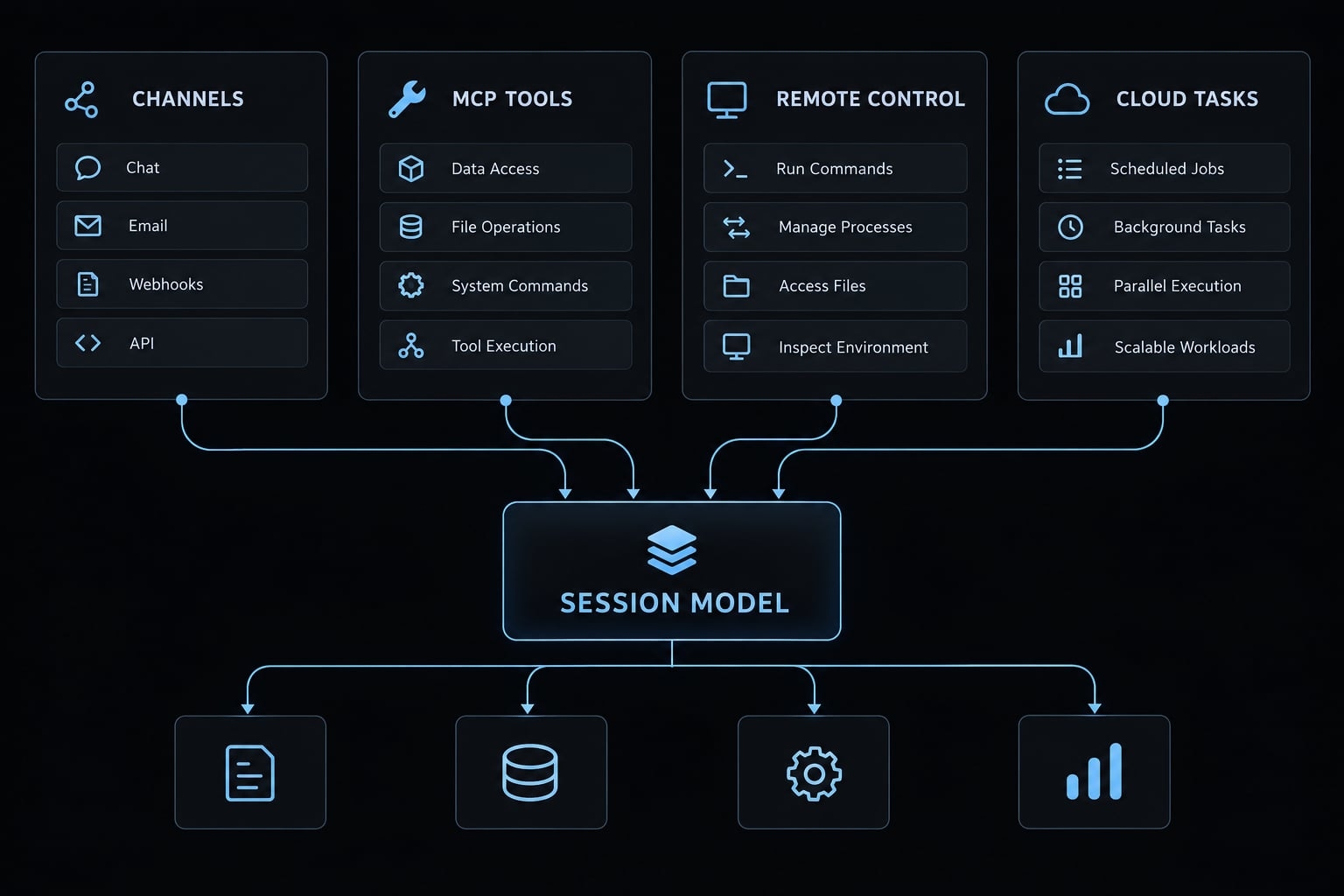
Choose by what initiates work and where execution belongs. Channels and conventional MCP tools are related mechanisms, not competing protocols.
Compare trigger and session model
Mechanism | What initiates work? | Session/context model | Best-fit purpose |
|---|---|---|---|
Channels | External message or event | Input enters a running session | Event-driven project interaction |
Conventional MCP tool use | Claude requests a capability | Tool results inform the requesting session | Retrieve information or perform permitted actions |
Separately submitted cloud task | User or system submits a task | Provider-defined execution environment and context | Run work separately from the current session |
Claude Code Remote Control | A person interacts remotely | Remote interaction with an existing session | Human steering away from the terminal |
Dispatch-style workflow | A dispatcher assigns work | Implementation-defined workers and task context | Route independent jobs |
Autonomous agent framework | Configured triggers, schedules, or goals | Framework-defined runtime and state | Coordinate broader execution lifecycles |
The cloud-task row describes a category, not a named product. Dispatch-style workflows and autonomous frameworks are architectural patterns unless a specific implementation is identified.
Anthropic’s Remote Control documentation is the relevant source for supported remote-session behavior. Do not infer its authentication, device support, or operational limits from Channels instructions.
Apply the selection rule
- External input into the current session: Evaluate Channels.
- Capabilities requested by Claude: Use suitable MCP tools.
- Human steering of a session: Evaluate Remote Control.
- Separate execution: Examine the specific cloud-task or dispatch system.
- Scheduling, retries, and recovery: Evaluate a runtime that explicitly provides them.
A messaging interface does not automatically provide remote approval for every protected action. Verify approval behavior separately. If an action still requires terminal approval, connecting a channel does not remove that requirement.
Best use cases and what channels cannot do
Good fits reuse an active project context without requiring durable job infrastructure. The examples below are illustrative, not reported deployments.
Match the workflow to the mechanism
Keep autonomy claims narrow
Event-driven Claude workflows can respond to external input, but an input path is not a scheduler, recovery service, or delivery-guarantee system. CI failures, webhook payloads, and monitoring alerts may require additional integration work. Do not assume a packaged connector exists.
Authorized messages also remain subject to content review and execution controls. A legitimate sender can forward malicious instructions, misleading logs, or sensitive information.
Security controls and common setup problems
Control identity, content trust, and execution rights separately. A sender’s authorization answers who may submit input, not whether that input is safe or what actions it may trigger.
Apply minimum security controls
- Use a dedicated integration identity.
- Restrict accepted senders and message contexts.
- Review filesystem, network, shell, and other tool permissions.
- Protect tokens in configuration, logs, backups, and screenshots.
- Separate initial tests from sensitive repositories and production credentials.
- Confirm applicable organization policy.
- Treat forwarded messages, quoted instructions, retrieved text, and webhook payloads as untrusted.
An allowlist does not prevent prompt injection. An approved sender can transmit hostile content accidentally.
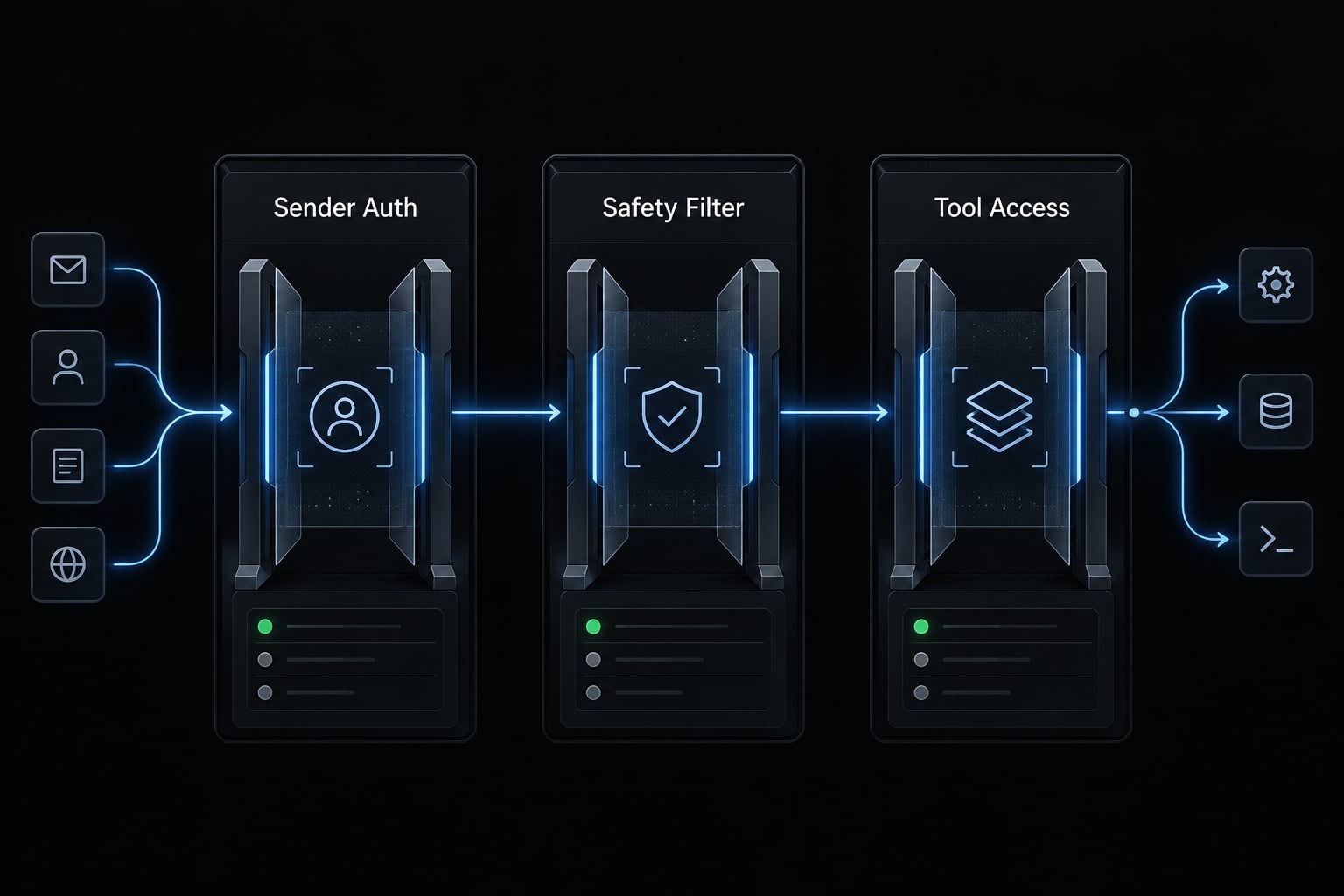
Stop and revoke: Stop the channel-enabled session or disable the integration using its documented controls. Revoke the platform credential if access is no longer needed or compromise is suspected. Check for other sessions using the same credential.
Diagnose the most likely failures
These are possible causes, not definitive diagnoses. Start with inspection rather than broader permissions.
Symptom | Possible cause | First check |
|---|---|---|
Slash command unavailable | Plugin missing, inactive, or incompatible | Inspect installation state, command spelling, and documented reload requirements. |
No inbound messages | Inactive channel, stopped session, credential issue, or unsupported message context | Check session status, startup configuration, and redacted integration logs. |
Sender denied | Pairing incomplete or incorrect allowed identity | Compare the reported sender identifier with the authorization configuration. |
Discord content unavailable | Intent or message-context mismatch | Compare the test context and Message Content Intent requirements with plugin instructions. |
Discord unable to reply | Effective channel or thread permissions differ from expectations | Inspect permissions in the exact conversation location. |
iMessage implementation cannot read or send | Unsupported configuration or missing documented macOS permission | Verify publisher instructions and the executable receiving access before changing permissions. |
Feature unavailable to the organization | Account eligibility or administrator policy restriction | Review current authentication requirements and effective organization settings. |
Replies stop after process exit | The receiving session is no longer running | Check process status; do not assume messages will replay after restart. |
Change one variable at a time. After each change, repeat the same harmless test and record whether receipt, processing, or reply behavior changed. Avoid permission-bypass flags, public sender access, or Administrator privileges as diagnostic shortcuts. They can obscure the original failure while expanding exposure.
Separate a working demo from production readiness
A successful reply proves a narrow communication path under specific conditions. It does not establish replay, durable delivery, duplicate-event protection, or automatic recovery. Before broader use, assign owners for recovery and credential revocation. Review feature changes, constrain tools, and define what happens when the session disconnects or requires approval.
Frequently asked questions
What are Claude Code Channels?
Claude Code Channels are a research-preview feature that allows external platforms, such as Telegram, Discord, or iMessage (custom webhook channels are possible in development mode), to push events and messages directly into an active, running Claude Code terminal session. This enables you to interact with your local development agent remotely without needing to be at your terminal.
How do Claude Code Channels differ from conventional MCP tool use?
While conventional MCP tool use involves Claude requesting access to a capability, Channels function as an event-driven mechanism where external input is injected into the session. Conventional tools are Claude-initiated; Channels are external-initiated, allowing the agent to react to events while you are away from the terminal.
Are Claude Code Channels available in all environments?
No. Claude Code Channels are currently restricted to specific supported integrations and require an active, running CLI session. They are not available as an "always-on" cloud service; if your local terminal process exits, the channel connection terminates and cannot process new events until the session is restarted.
Which is better: Claude Code Channels or Remote Control?
Choose Channels when you need to bridge external events—such as notifications or chat messages—directly into your active project session for multi-turn interaction. Use Remote Control when you need to observe, pause, or manually take over a running session from an external process for oversight or debugging.
Can Claude Code Channels trigger work after I close my terminal?
No. Claude Code Channels rely on a running local terminal process to maintain the state of your project. If you close your terminal or the process exits, the channel stops functioning. For workflows requiring continuous execution after you go offline, consider dedicated managed cloud runtimes or background job runners.
How do I troubleshoot a connection issue with a channel?
First, verify your installation state and session status to ensure the process is running. Check that your sender ID is correctly added to the plugin's allowlist, confirm your platform credentials are valid, and inspect the integration logs for specific error messages regarding authentication or permission scopes.
Read more:
- Claude Code Slack MCP: Setup guide and best practices
- Claude Code toolkit: Scale your AI development workflow easily
- Claude Code plugins: A guide to workflows, setup and safety
Conclusion
Claude Code Channels brings external events into an active Claude Code session. It is distinct from human remote supervision, separately executed jobs, and infrastructure that manages scheduling or recovery.
Begin with one documented integration, one restricted sender, and one low-risk repository. Verify message receipt and supported replies before allowing consequential actions. Keep sender authorization separate from content trust and tool permissions. If your workflow requires reliable execution after disconnection, evaluate a runtime that explicitly provides those guarantees rather than assuming the messaging connection supplies them.