
Claude Code Slack MCP: What it means, how to set it up, and how to avoid common mistakes
The search phrase “Claude Code Slack MCP” is often misunderstood because it combines three different workflows into a single query. Most users are not looking for protocol theory. They want the correct way to connect Slack to Claude Code, understand what this setup actually does, and avoid wasting time on the wrong documentation path. This guide focuses on the native MCP path, not every Claude-in-Slack workflow. It covers what the term means, what it does not mean, the prerequisites that matter, the fastest setup path, common errors, and when alternatives are worth considering.
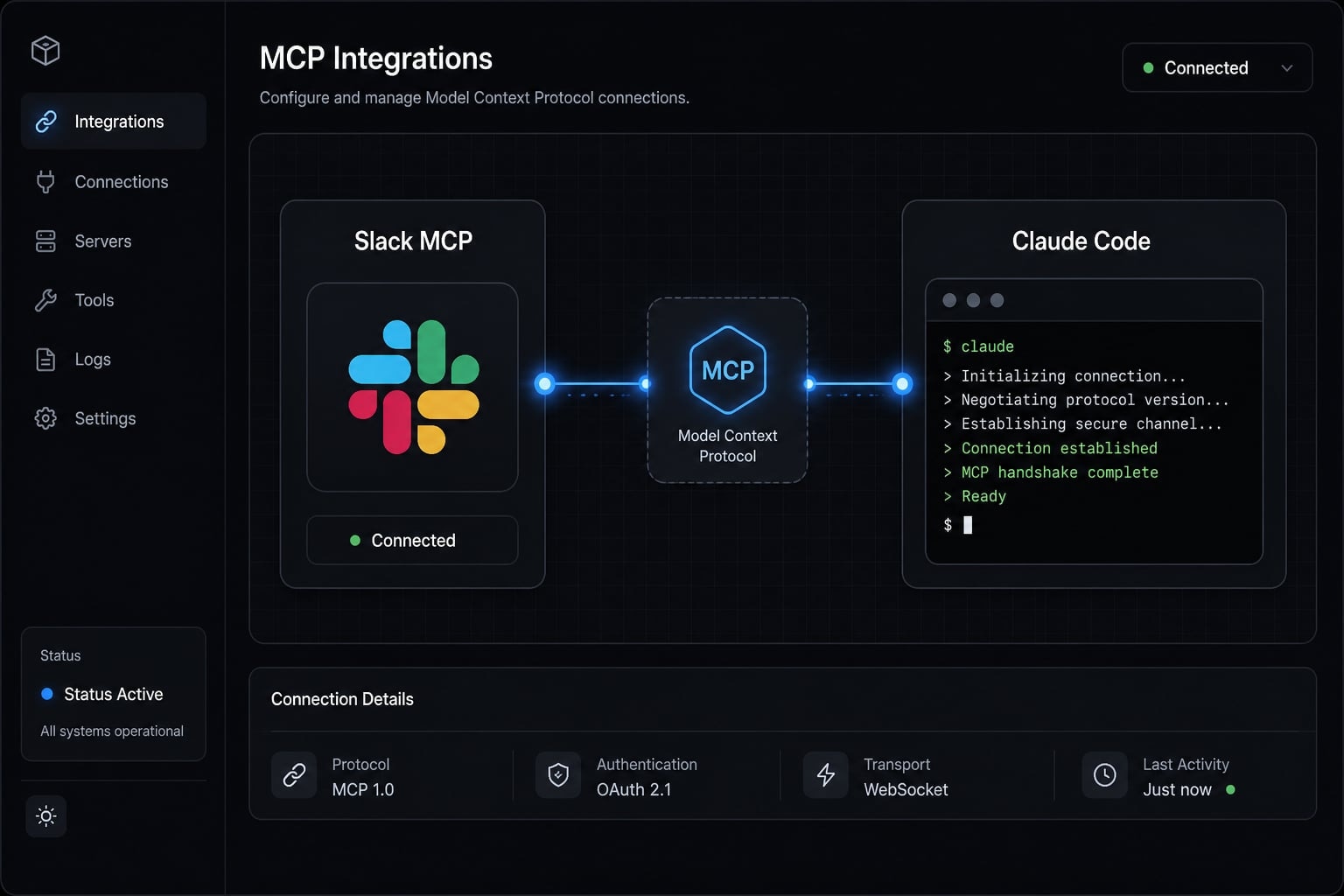
What “Claude Code Slack MCP” actually means
Claude Code Slack MCP usually means connecting the Slack MCP server to Claude Code so Claude can access Slack context through an authorized connection. In plain English, Model Context Protocol is a standard way for tools like Claude to connect to external systems and use their context without you manually copying everything into a prompt.
In practice, Claude Code Slack MCP is not a standalone product name. It describes a setup path: Claude Code → Slack MCP server → Slack workspace.
- Slack MCP server is a connector/server layer between Claude Code and your Slack workspace.
- It gives Claude access to Slack context after an OAuth flow authorizes the connection.
- It can reduce manual copy-paste from channels and threads into Claude.
- Available Slack actions depend on permissions, current connector support, and workspace authorization.
What Slack MCP is
- A Model Context Protocol connection path for Slack.
- A way for Claude to work with Slack context through approved access.
- Usually configured through a native plugin rather than a custom manual setup.
- Most useful when you want Slack information available inside Claude Code.
What this query usually does not mean
- Claude Code in Slack, where you use
@Claudeinside Slack channels. - A traditional custom Slack bot.
- A third-party orchestration platform by default.
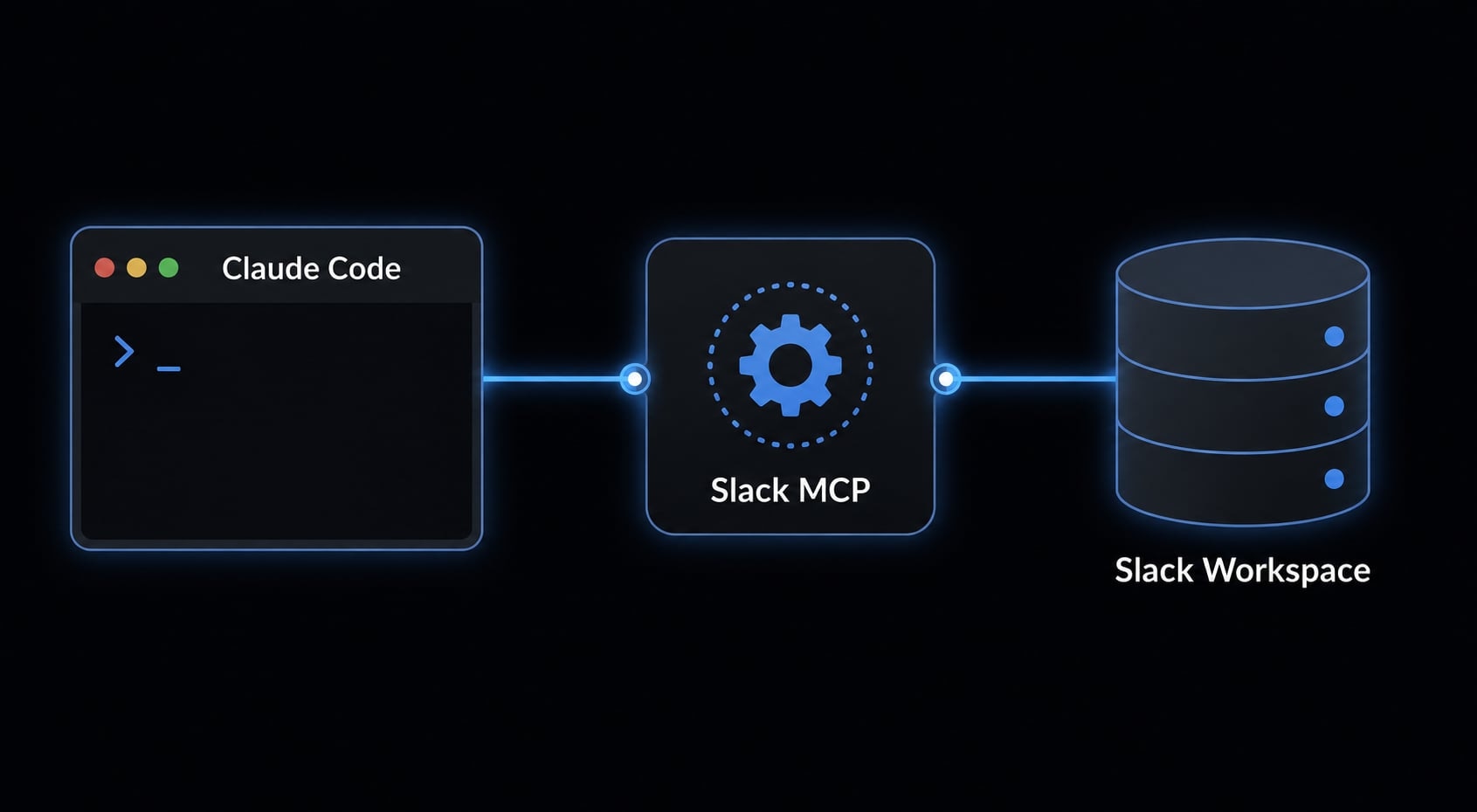
A common source of confusion is naming overlap. Users often mix up Slack MCP, Slack apps, and Claude running inside Slack. Most searchers using the phrase Claude Code Slack MCP are trying to find the native route to connect Slack to Claude Code, not build a separate integration layer.
Slack MCP vs Claude Code in Slack vs Claude Desktop Connector
Option | Main purpose | Where it runs | Setup method | Best for |
|---|---|---|---|---|
Slack MCP server | Give Claude access to Slack context from Claude. | Claude Code. | Install Slack plugin and complete OAuth flow. | Users who want Slack context inside Claude Code. |
Claude Code in Slack | Trigger Claude from Slack conversations with | Slack + Claude Code on the web. | Install Slack app, link account, enable access. | Teams that want coding tasks initiated from Slack channels. |
Claude Desktop connector | Connect Slack to the desktop Claude experience. | Claude Desktop. | Add Slack under connectors and authorize. | Users who work mainly in the desktop app. |
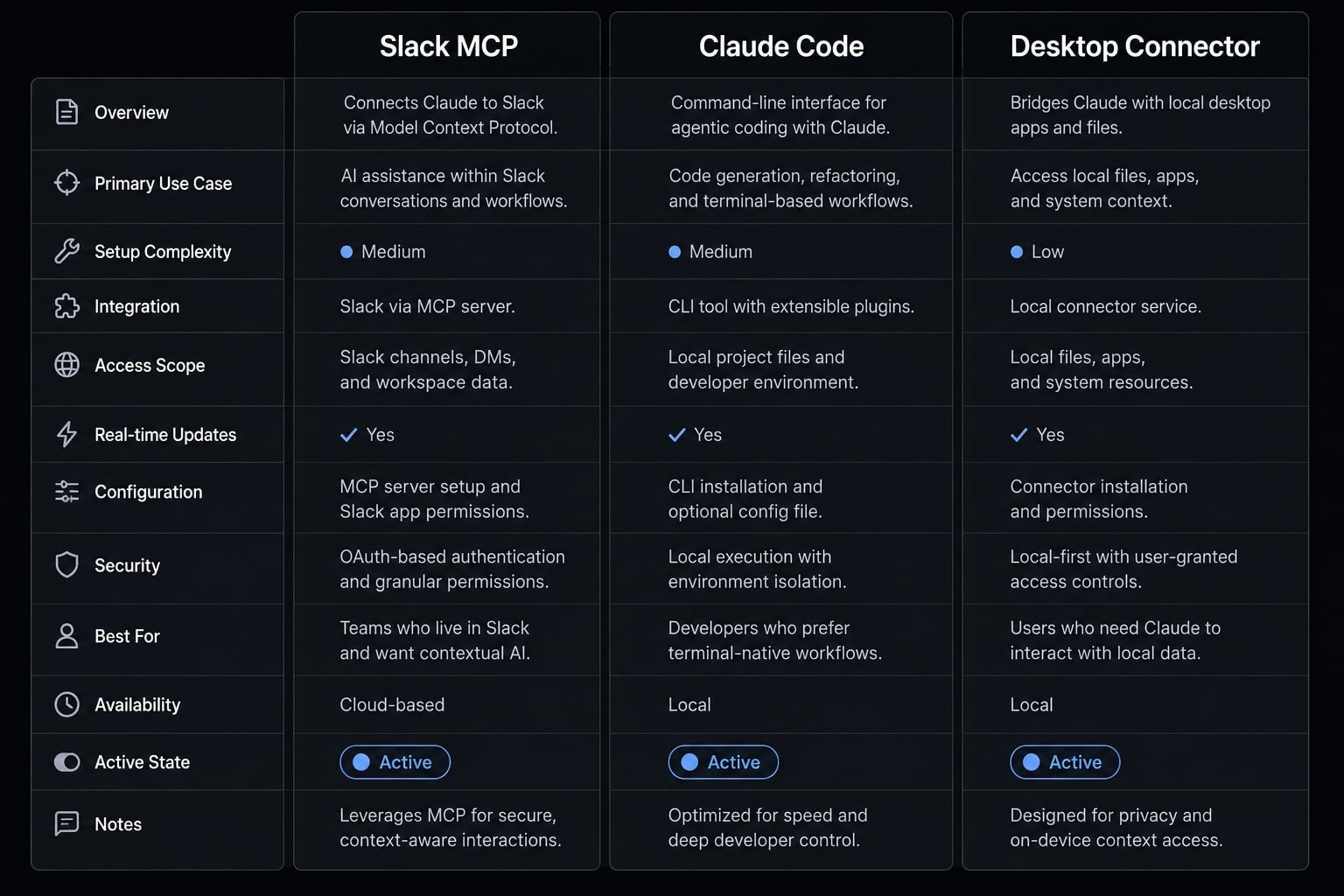
These are different workflows, and none is universally better. The right choice depends on where Claude runs and what you want to do.
Many setup failures begin with one simple mistake: Following the wrong guide for the wrong workflow.
- If your goal is to use Slack context inside Claude Code, the native Slack MCP path is usually the right one.
- If your goal is to mention
@Claudedirectly in Slack, you are looking for Claude Code in Slack. - If you mainly use the desktop app, the Claude Desktop connector is the better fit.
Most users searching this keyword want the native MCP path. They are not asking for a Slack bot or channel-based @Claude workflow. They want Claude Code to read or use Slack context after a clean plugin-based setup.
Prerequisites before you connect Slack MCP to Claude Code
Getting the prerequisites right prevents most setup failures before they start.
Required items
Before you begin, make sure you have:
- Claude Code CLI installed.
- Access to the target Slack workspace.
- Slack workspace admin approval if your organization restricts integrations.
- A browser available for the OAuth authentication step.
Before-you-start notes
A few practical points matter more than they first appear:
- A successful plugin install does not guarantee access to the right Slack workspace.
- If your workspace requires approval, missing Slack workspace admin approval can block the connection even when the plugin installs correctly.
- No OAuth prompt often means the plugin did not install or load properly.
- Workspace connection issues often come from selecting the wrong Slack account during OAuth.
- Make sure you are following the native MCP path, not a Slack app setup for a different workflow.
This is where users often get stuck. You might think the setup is broken, but the real issue is usually one of three things: Missing approval, selecting the wrong account, or following documentation for Claude Code in Slack instead of Slack MCP.
How to connect Slack MCP to Claude Code step by step
For most users, the native plugin route is the fastest and cleanest way to connect Slack to Claude Code.
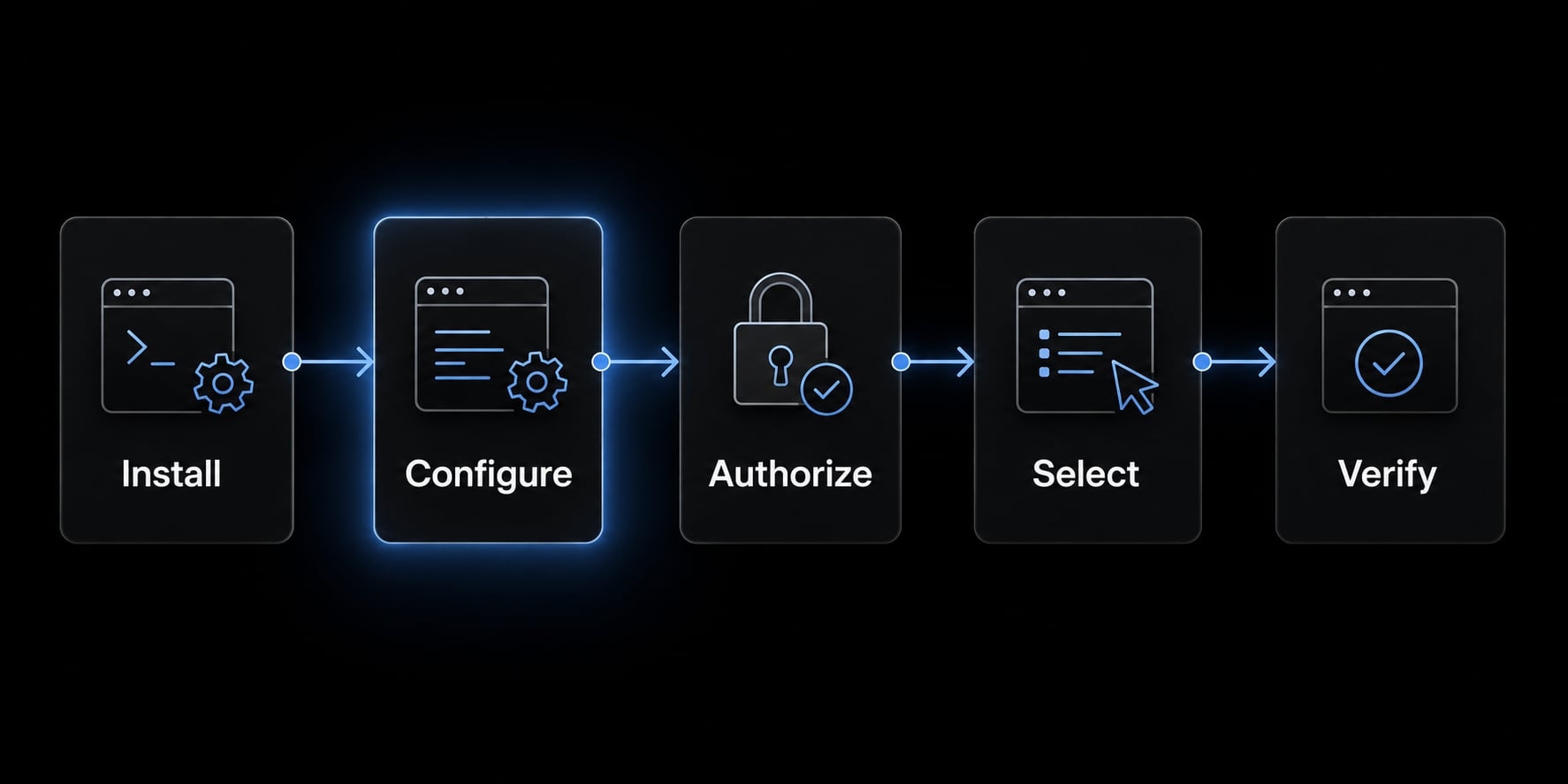
Fast-path summary
- Install the Slack plugin.
- Let it configure the MCP connection.
- Complete OAuth in your browser.
- Authorize the correct workspace.
- Verify Slack tools are available.
Install the plugin
The preferred native starting point is the Slack plugin.
/plugin install slack@claude-plugins-official
If the install completes cleanly, the Slack MCP plugin typically handles the standard setup for you.
Let the plugin configure Slack MCP automatically
In most cases, you do not need to build a custom connector or manually wire the Slack MCP server yourself. What usually happens behind the scenes:
- The plugin loads the standard MCP connection pattern.
- Claude prepares the Slack connector settings.
- You are prompted to authenticate to your Slack environment.
- The plugin reduces manual configuration friction compared with hand-editing files.
If you would rather not use the plugin: Slack documents three ways to connect. The plugin is the fastest, but these two also work:
Via the Claude Code CLI:
claude mcp add --transport http --scope local slack https://mcp.slack.com/mcp
Then run /mcp in a Claude Code session to complete the OAuth flow.
By editing the config directly, using the .mcp.json block in the next section.
Both land in the same place. Pick the plugin if you also want the Slack skills; pick the CLI if you only want the MCP connection and nothing else.
Complete the OAuth flow
Once prompted, complete the OAuth flow carefully:
- Open the browser window when prompted.
- Sign in with the correct Slack account.
- Select the intended workspace.
- Grant the requested permissions.
- Return to Claude Code after authorization.
The most common failure point here is simple: Users authenticate the wrong Slack identity or authorize the wrong workspace. If you belong to multiple organizations, double-check this step before assuming the integration failed.
Reference MCP configuration
This is the configuration the plugin writes for you - and also a valid way to set things up by hand.
{
  "mcpServers": {
    "slack": {
      "type": "http",
      "url": "https://mcp.slack.com/mcp",
      "oauth": {
        "clientId": "1601185624273.8899143856786",
        "callbackPort": 3118
      }
    }
  }
}
This tells you the connection uses the Slack MCP server endpoint and an OAuth-based authorization flow. It is useful for validation, but most native installs should configure this automatically.
Official references:
- Slack documentation:
https://docs.slack.dev/ai/slack-mcp-server/connect-to-claude - Claude documentation:
https://code.claude.com/docs/en/slack
How to know it worked
Use this quick verification checklist:
- Plugin installed without errors.
- OAuth flow completed successfully.
- Correct Slack workspace connected.
- Slack tools or Slack context are available inside Claude Code.
If all four are true, your Claude Code Slack MCP setup is likely working as intended. If not, move to the troubleshooting matrix below before reinstalling everything.
What you can do after setup
The main value of this setup is simple: Slack context for Claude. That means Claude can work with relevant Slack information without you manually pasting every thread into your session.
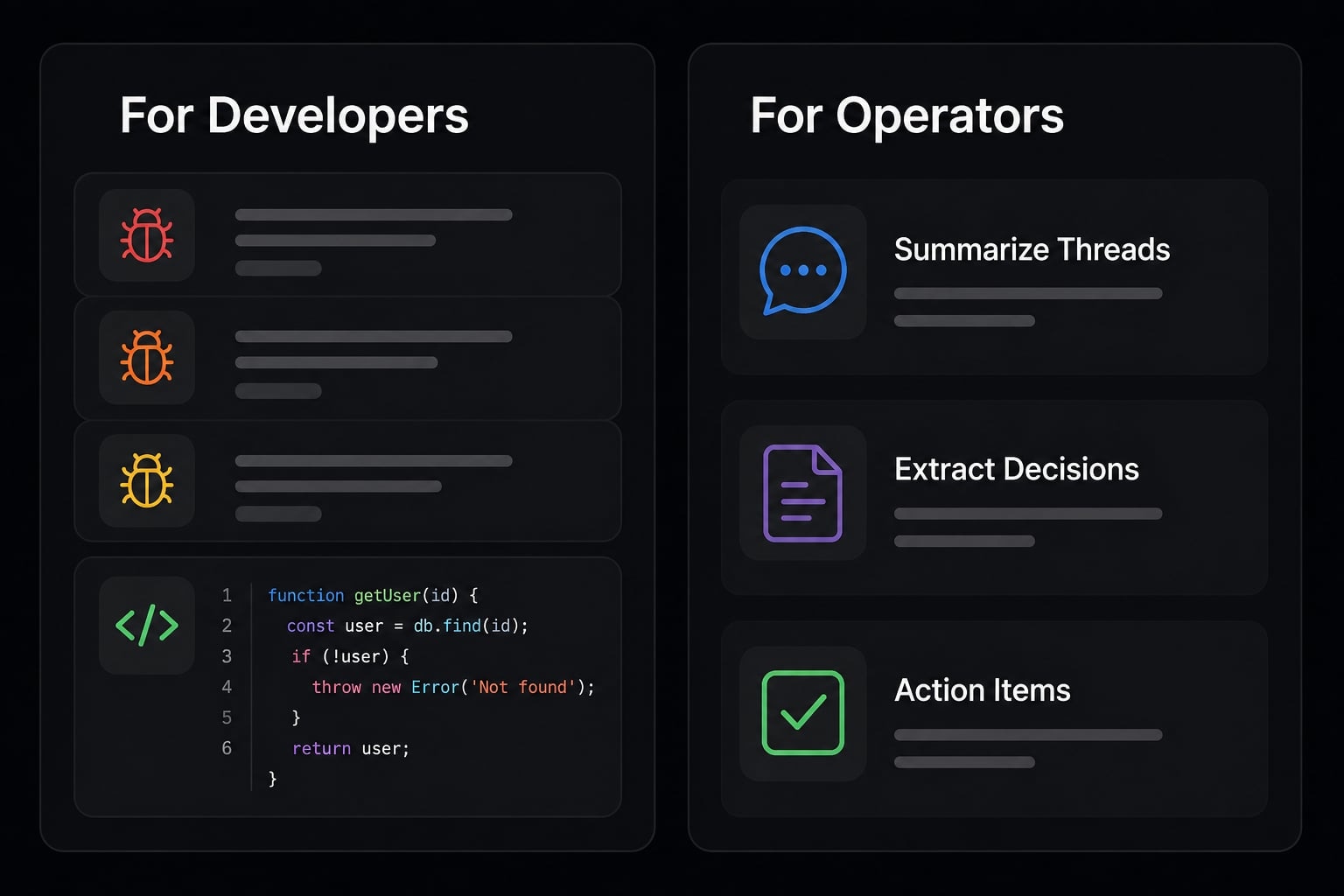
For developers
Typical developer use cases include:
- Summarize threads from long bug-report discussions.
- Pull discussion context before fixing an issue.
- Reduce context switching between Slack and the coding environment.
- Catch up on deployment rollback conversations before making changes.
If your team reports issues in Slack first, this can save time and reduce context loss.
For founders or operators
For solo founders and technical operators, the value is often operational clarity:
- Catch up on long internal threads quickly.
- Extract decisions and action items.
- Draft follow-ups using real team context.
- Review product handoff discussions without switching between tools constantly.
Practical prompt examples
Use plain requests such as:
- “Summarize the latest discussion in
#engineeringabout the deployment rollback.” - “Pull the key decisions from this Slack thread and turn them into next steps.”
- “Catch me up on unresolved questions from the product handoff thread.”
Those prompts work because the server exposes a defined set of capabilities:
Category | What it covers |
|---|---|
Search | Messages, files, users, and channels - public and private. |
Messaging | Send and schedule messages, read channel history, follow threads, add reactions. |
Canvas | Create, read, and update canvas documents. |
User management | Retrieve profiles including custom fields and status. |
Your actual scope is narrower than this table if your admin approved a limited integration or you declined some permissions during OAuth. But this is the ceiling - worth knowing before you assume something is broken when it is simply out of scope.
One framing to keep: This is a controlled context bridge, not an unlimited automation layer. Claude reaches what you authorized, nothing beyond it.
The plugin ships more than the MCP connection: Its full name is the Slack MCP and Skills Plugin, and the skills half is easy to miss.
Installing it sets up two things:
- Slack developer skills - Block Kit validation, app scaffolding, and others. They load automatically when a prompt calls for them, and most work with no MCP connection at all. The exception is
slack-search, which queries your workspace and therefore needs the server. - The MCP server connection - everything covered above.
There are commands too. /slack:draft-announcement <topic> drafts a formatted Slack announcement and saves it as a draft.
This matters for a practical reason: if you only want help building Slack apps, the skills alone may be enough, and you can skip the OAuth step entirely.
Common setup issues and how to fix them
Most Slack MCP troubleshooting is faster than it looks if you diagnose the issue by category first. Many Claude Code Slack setup errors are not product bugs. They are workflow mismatches, approval gaps, or authentication issues.
Compact troubleshooting matrix:
Issue | Likely cause | Fix |
|---|---|---|
No OAuth window appears | Plugin not loading or install did not complete properly | Re-run the plugin install, confirm it loaded, then retry |
Slack workspace cannot be connected | Missing workspace approval or wrong Slack account selected | Check admin approval, sign in with the correct account, then reconnect |
User expects | Following the wrong workflow guide | Use Claude Code in Slack docs instead of the native Slack MCP path |
Slack actions feel limited | Permissions or current connector support are narrower than expected | Review granted scopes and verify supported actions for your setup |
Docs feel inconsistent | Mixing Slack MCP, Slack app, and desktop connector guides | Pick one path end to end and ignore adjacent setup docs during implementation |
A few patterns are worth remembering:
- OAuth issues are often identity issues, not platform issues.
- “It installed” does not mean “the right workspace is authorized”.
- Many “missing features” are permission-related rather than broken functionality.
- If you want channel mentions and in-Slack interaction, you likely want Claude Code in Slack, not Slack MCP.
The fastest path to diagnosis is to stay consistent with one workflow. Do not switch between native MCP docs, Slack app docs, and desktop connector instructions in the same setup session.
When the native Slack MCP setup is enough and when to consider alternatives
For most users, native Slack MCP is the right place to start. It is closer to official documentation, has less setup friction, and fits the common use case: Giving Claude access to Slack context inside Claude Code.
Use native if
- You mainly want Slack context inside Claude.
- You want the fastest setup path.
- You want to stay close to official documentation.
- You do not need broad multi-app orchestration.
Consider alternatives if
- You need orchestration across many apps.
- You need event-driven triggers.
- You need stronger governance or broader tool coverage.
- You are evaluating a third-party MCP connector or automation platform for larger workflows.
One example is Composio, which is often positioned as a broader integration layer. That can make sense for users who need cross-app coordination rather than a simple native Slack connection. But for a straightforward Claude Code Slack MCP setup, adding extra layers too early usually increases complexity more than value.
Frequently asked questions
What does "Claude Code Slack MCP" actually mean?
"Claude Code Slack MCP" refers to the setup path where you connect a Slack Model Context Protocol (MCP) server to Claude Code. It is a configuration that enables Claude to access your Slack workspace context—such as messages and threads—to assist with development tasks directly.
Which Slack/Claude integration should I choose?
Choose based on your primary workflow:
- Use Slack MCP to connect Slack context to Claude Code for coding tasks.
- Use Claude Code in Slack if you want to interact with @Claude inside Slack channels.
- Use the Claude Desktop connector for native integration within the Claude Desktop application.
What are the main prerequisites for setting up Slack MCP?
Before starting, ensure you have the Claude Code CLI installed, active access to your target Slack workspace, a web browser for the OAuth authentication flow, and sufficient permissions (or admin approval) to install integrations within your specific Slack workspace.
Why is my Slack MCP setup not connecting?
Common issues include a failure to install/load the plugin, selecting the wrong Slack workspace during OAuth, or missing admin permissions. Verify your plugin installation status using the CLI and ensure your account has the necessary scope to authorize the integration within your organization.
Is the Slack MCP connection secure?
It uses standard OAuth, so Claude only reaches what you authorized and what your admin approved — no tokens sitting in config files. That said, "secure" depends on scope: the server can search private channels if your grant allows it. Review what you approve during OAuth, and treat sensitive workspaces more carefully than a general engineering channel.
Read more:
- Connect Notion to Claude Code: Official Notion MCP setup guide
- How to Setup and Configure MCP Servers in Claude Code
- Connect GitHub MCP to Claude Code: Step-by-step guide
Conclusion
In most cases, Claude Code Slack MCP means using the native Slack MCP route to connect Slack context to Claude Code. The setup is usually straightforward if you keep three things clear: Choose the right workflow, confirm the prerequisites up front, and complete the OAuth step using the correct Slack workspace.
If the connection fails, start with the basics before assuming the integration is broken. Check plugin loading, account selection, and admin approval first. For a clean next step, keep the official Slack and Claude docs nearby, or build yourself a short setup checklist so future reconnects and workspace changes are faster to handle.