Claude Code setup: Secure installation and usage guide
Claude Code setup guide: Install, configure and use it safely
Anthropic’s Claude Code brings an AI assistant straight into your terminal to inspect files and execute commands. However, installing it is only the first step—a safe setup requires configuring proper account access, repository context, and security guardrails before approving your first edit. This guide walks you through setting up a reliable, production-ready environment step-by-step.
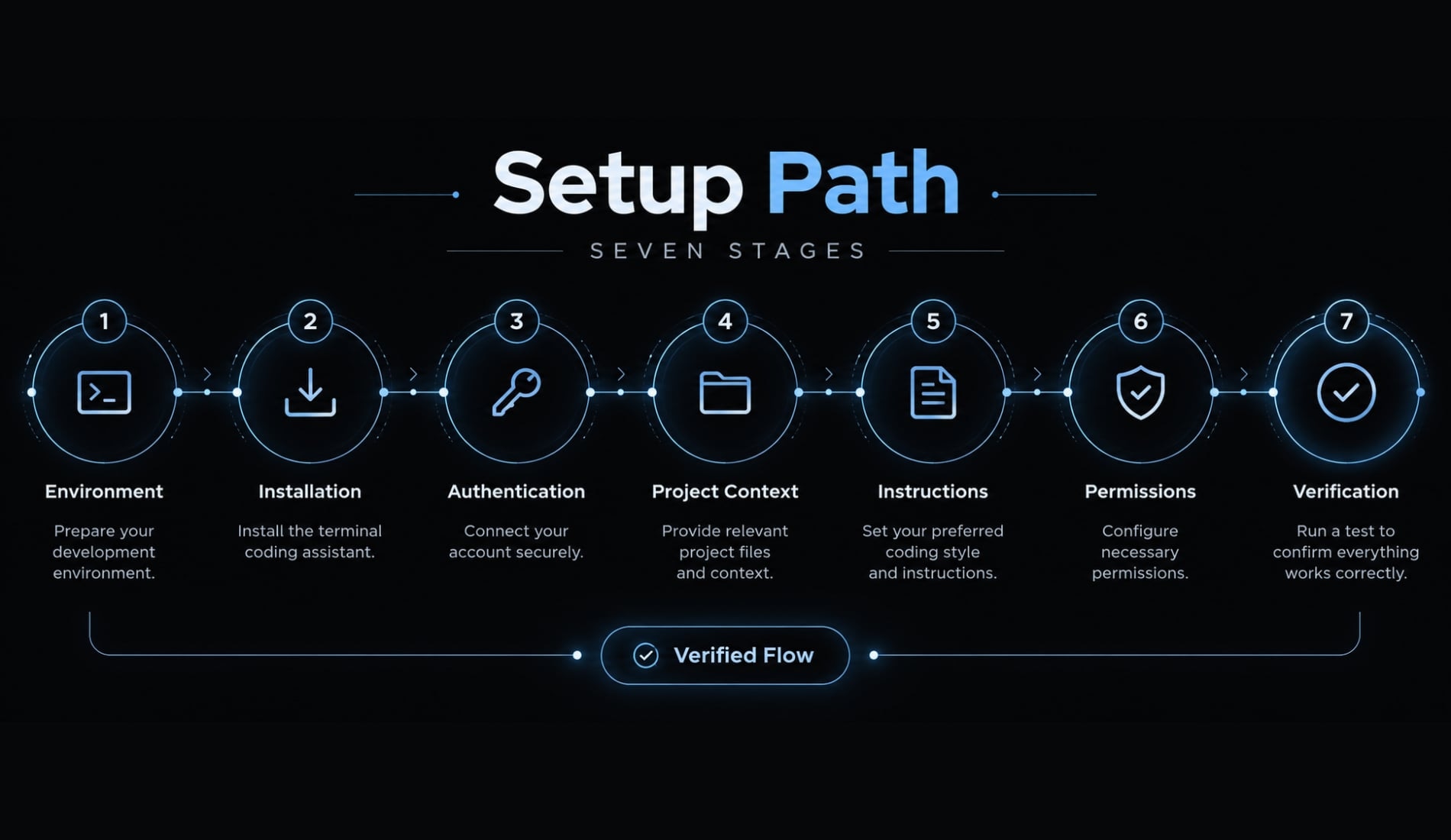
Quick answer: Install Claude Code through an official platform route, verify the executable, and authenticate with your intended account. Launch it inside your repository, inspect the project without executing scripts, and add specific CLAUDE.md instructions. Configure access restrictions, create a Git branch, then complete one small task with checks and human review.Setup path: Environment → Installation → Authentication → Project context → Instructions → Permissions → Verification
Check the Claude Code requirements before installing
System requirements by operating system
Choose your environment before choosing an installer. Native Windows and Linux inside WSL are separate installation environments.
Anthropic’s Claude Code Setup documentation is the authority for current compatibility. This table identifies what to confirm rather than asserting unverified version minimums.
Environment | Current supported baseline | Practical note |
|---|---|---|
macOS | Confirm macOS release and processor support in official setup documentation | Use the macOS native route or supported Homebrew package |
Native Windows | Confirm Windows release, architecture, and shell requirements | Check Git for Windows requirements for your selected route |
Linux | Confirm distribution, architecture, and required libraries | Do not assume every distribution has identical compatibility |
WSL | Confirm the supported Windows Subsystem for Linux environment and Linux distribution | Install and verify from inside the Linux terminal |
PATH means the locations your shell searches for executables. An installation can succeed while the current terminal still cannot locate it.
Account and billing requirements
Installation and account access are separate. Anthropic’s Authentication documentation describes these routes:
- Eligible Claude subscription: Confirm that your plan and organization allow Claude Code.
- Anthropic Console API billing: Application programming interface usage follows the Console account’s billing arrangement.
- Supported cloud-provider authentication: Follow the provider-specific setup and your organization’s access policy.
An Anthropic account alone does not establish eligibility. Confirm the active account and billing route before extended use.
Required Versus optional tools
- Required: Supported environment, installation prerequisites, network access, and eligible authentication.
- Required for this tutorial: An existing Git repository containing a small B2B SaaS application, without customer data or production credentials.
- Recommended: A trusted development environment and documented project checks.
- Optional: GitHub CLI, editor integrations, terminal multiplexers, and external connectors.
Install, authenticate and verify Claude Code
- Select your platform route.
- Install using the method currently recommended for that route.
- Open a fresh terminal if necessary.
- Check the CLI version.
- Run diagnostics.
- Complete the intended authentication flow.
- Verify behavior inside your repository.
Install with the recommended native Installer
Open Anthropic’s official setup document and select its current native-installation instructions:
- macOS, Linux, or WSL: Use the command for your Unix-like shell.
- Windows PowerShell: Use the PowerShell instructions.
- Windows Command Prompt: Use the separate Command Prompt instructions.
Do not interchange shell syntax. If your organization restricts downloaded scripts, request an approved installation method.
Shell-piped installers execute downloaded code. Review the source and organizational policy before running them. Check signing and update behavior for your specific platform rather than assuming identical behavior everywhere.
Alternative package-manager installation
macOS with Homebrew:
brew install --cask claude-code
Update through Homebrew:
brew upgrade --cask claude-code
This cask example is for macOS, not a generic Linux installation.
Native Windows with WinGet:
winget install --id Anthropic.ClaudeCode --exact
Update through WinGet:
winget upgrade --id Anthropic.ClaudeCode --exact
Package-manager routes have their own update responsibility. Avoid installing multiple copies without a deliberate reason.
Migrate from an Existing npm Installation
First identify the executable your shell resolves.
macOS/Linux/WSL:
command -v claude
PowerShell:
Get-Command claude -All
Record the installation method and preserve relevant configuration securely. Do not assume one directory contains every setting, integration, or credential.
If current migration guidance calls for removing your confirmed global npm installation:
npm uninstall -g @anthropic-ai/claude-code
Install the selected replacement, reopen your terminal, and check resolution again. Do not remove unrelated packages or configuration directories.
Verify the installation and authenticate
Check that the executable responds:
claude --version
Run installation diagnostics:
claude doctor
Then launch the interactive sign-in flow:
claude
Expect a version response, diagnostic findings, and an authentication or session interface-not necessarily identical wording across releases.
Claude Code authentication needs separate confirmation. Inspect the active account or provider using the session’s supported status interface. A version string proves neither authentication nor billing selection.
Launch Claude Code in the correct project and complete a read-only check
Start from a clean Git state
Replace /path/to/b2b-saas with your repository’s actual location:
cd /path/to/b2b-saasgit statusclaude
Review existing changes. Deliberately commit, stash, or retain them; do not discard work merely to obtain a clean status. Starting at the project root improves repository context. It does not create a filesystem sandbox.
Before allowing edits, create a Git feature branch from your terminal:
git switch -c docs/clarify-local-setup
Use another branch name if that one already exists.
Use a read-only repository discovery prompt
Inspect this B2B SaaS repository using only approved, non-sensitivefile-reading and search tools.Summarize:- Project purpose and technologies.- Important directories.- Setup and verification commands found in documentation or manifests.- Missing information and conflicting instructions.Do not edit files, install dependencies, execute project scripts,or perform network actions. Ask before expanding access.Distinguish documented commands from commands actually verified.
This prompt expresses intent, not enforceable restrictions. Configure tool permissions separately and supervise requests. From the project root, compare the summary with files you recognize. Discovered commands remain unvalidated until reviewed and deliberately executed.
Confirm the setup with a small, reversible task
A safe first task is correcting one setup instruction in the SaaS repository’s README:
- Request the proposed correction and supporting evidence.
- Approve the narrow change.
- Allow only the relevant documentation edit.
- Check consistency with the manifest.
- Review the diff.
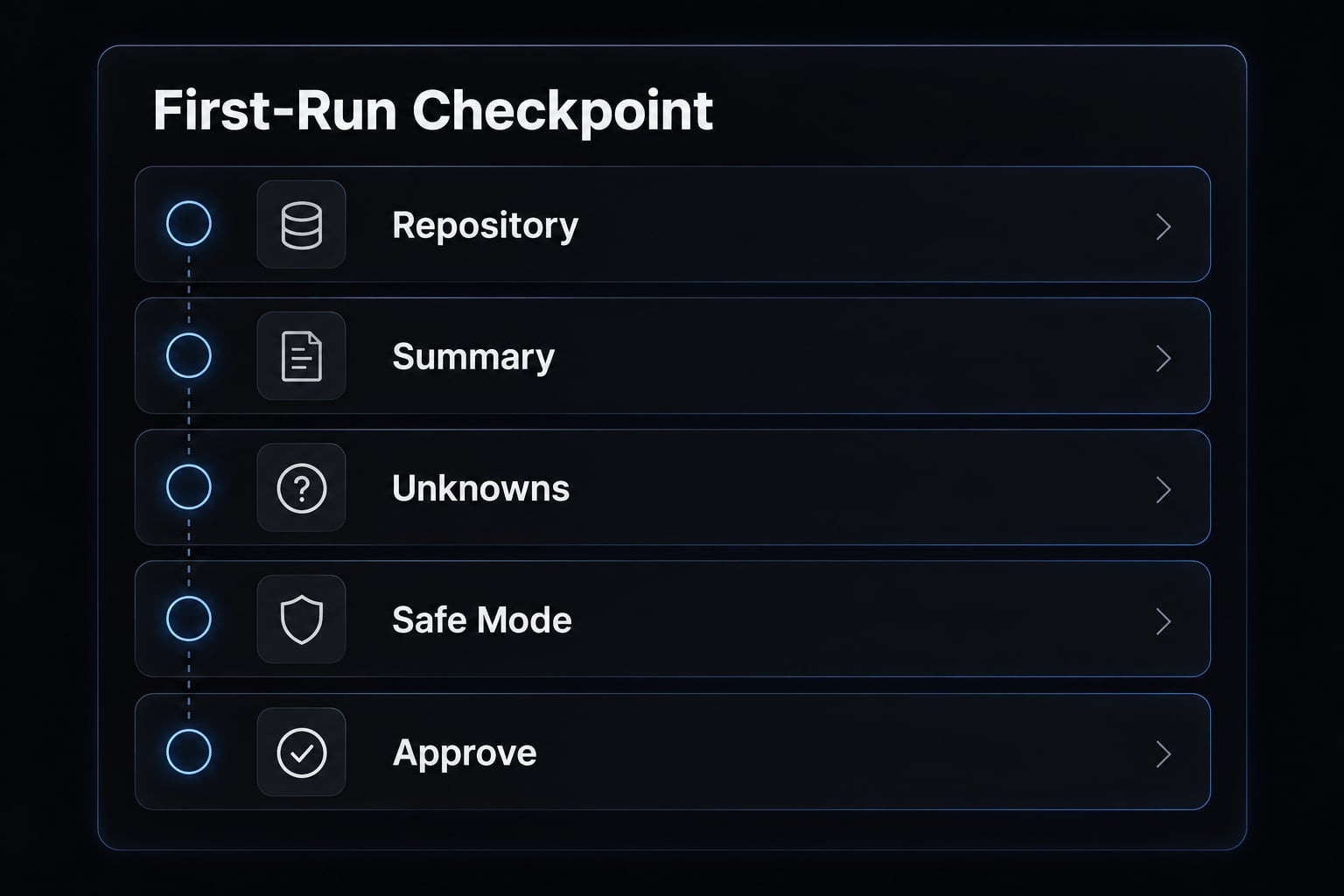
This example is illustrative, not a recorded repository test.
Create a concise CLAUDE.md that teaches Claude your project
CLAUDE.md is a Markdown file containing reusable instructions for Claude Code. Include project purpose, verified commands, coding conventions, boundaries, and completion criteria. It improves recurring project context but does not replace permissions, tests, or human judgment. Never include secrets: its contents are intended to enter the assistant’s context.
Minimum CLAUDE.md structure
Copy this starter template into your repository. Replace every bracketed field, remove irrelevant directories, and verify commands before use. The placeholders are deliberately non-executable.
# Project overview[PROJECT-SPECIFIC: Describe this B2B SaaS application's purpose.]Use synthetic development data only.## Technology stack[PROJECT-SPECIFIC: List verified languages, frameworks, and runtimes.]## Repository structureExamples only: replace or remove every entry.- src/: [Actual application-code location and responsibility.]- tests/: [Actual test location and responsibility.]- docs/: [Actual documentation location and responsibility.]## Common commandsThese placeholders are not commands. Replace with verified values.- Dependency installation: [VERIFIED COMMAND, OR NOT APPLICABLE]- Local development: [VERIFIED COMMAND]- Focused tests: [VERIFIED COMMAND]- Lint: [VERIFIED COMMAND, OR NOT AVAILABLE]- Type-check: [VERIFIED COMMAND, ONLY IF SUPPORTED]- Build: [VERIFIED COMMAND, OR NOT APPLICABLE]Inspect scripts before execution. Ask before installation or network use.## Coding conventions- Follow nearby code and repository formatter configuration.- Keep changes limited to the approved objective.- Do not add dependencies without approval.- [PROJECT-SPECIFIC: Add one important architectural convention.]## BoundariesThese instructions supplement separately configured access controls.- Do not read credentials, customer exports, or production data.- Do not deploy, push, or change shared infrastructure without approval.- Propose database changes separately; do not apply migrations.- Stop if required access exceeds the approved scope.## Definition of done- The approved requirement is addressed.- Relevant checks are reported as passed, failed, or not run.- Changed files and remaining risks are listed.- The human reviewer has inspected the diff.- Do not commit or merge without human approval.
Keep instructions specific, short and executable
Observable rules beat broad aspirations.
Weak instruction | Better instruction |
|---|---|
Keep changes clean | Modify only files needed for the approved requirement |
Test everything | Run the documented focused check; report anything not run |
Be careful with databases | Propose schema changes separately; do not apply migrations |
Use the right package manager | For this pnpm-based project only, use the repository’s documented pnpm commands |
Keep project instructions short enough to audit. Remove duplicated documentation and stale commands instead of targeting an arbitrary line count.
Separate global and project-specific instructions
Anthropic’s Memory documentation describes instruction locations and loading behavior. The usual user-level and repository-level distinction is:
Scope | Location and appropriate content |
|---|---|
Global |
|
Project | Repository-root |
Location diagram: User home → personal instructions; repository root → shared project instructions.
Additional directory-scoped or managed instructions can apply. Do not assume project rules universally override other layers. Keep shared guidance in version-controlled configuration. Resolve contradictions explicitly.
Validate the completed CLAUDE.md
Use the installed version’s supported memory or instruction inspection interface to confirm loading. Then ask Claude to restate the project commands and boundaries.
Compare its answer with the file, test one permitted workflow, and remove conflicting guidance. Restating instructions is a sanity check—not proof of future compliance.
Copy the template above and adapt it before your first editable session.
Configure permissions, secrets and Git guardrails
Protect secrets and sensitive data
File contents may enter model context when read. Running the CLI locally does not mean inference or all data processing stays on your machine. Before inspection:
- Keep secrets out of tracked files.
- Remove unnecessary production credentials from the environment.
- Configure supported file and tool restrictions.
- Exclude customer or regulated data unless access is authorized.
- Use synthetic fixtures for this SaaS example.
.gitignore controls Git tracking behavior; it is not an agent access-control mechanism.
If credentials are exposed, follow incident-response procedures and rotate them. Clearing a conversation does not reverse disclosure.
Establish Git safeguards
Review current state → Create branch → Make small changes → Inspect diff → Review → Merge
Branches support review and recovery. They do not prevent secret exposure or external side effects.
Protected branches require repository-host enforcement. A local branch name alone provides no protection. Follow the official Git documentation when handling existing changes or recovery.
Classify commands by risk
Configure Claude Code permissions around consequences, not familiar command names.
Level | Examples | Approval approach |
|---|---|---|
Lower | Metadata inspection and non-sensitive reads | Confirm scope |
Moderate | Bounded edits and approved development checks | Review scripts and expected effects |
High | Dependency installation, network requests, shared-data changes | Require explicit approval |
Critical | Production deployment, destructive database actions, force pushes | Keep outside this tutorial’s access scope |
Reading sensitive files can be high risk. Tests and builds may execute arbitrary project code, scripts, or network activity.
Use human-in-the-loop control—human approval—before consequential actions. Passing tests supports confidence but does not establish correctness.
Add hooks or sandbox rules only when the baseline is stable
A PreToolUse hook runs before a tool action and can support policies such as blocking deployment attempts or checking an approved working directory. Test the enforcement behavior; simple string matching cannot catch every destructive command.
A sandbox environment can restrict filesystem or network access, depending on platform and configuration.
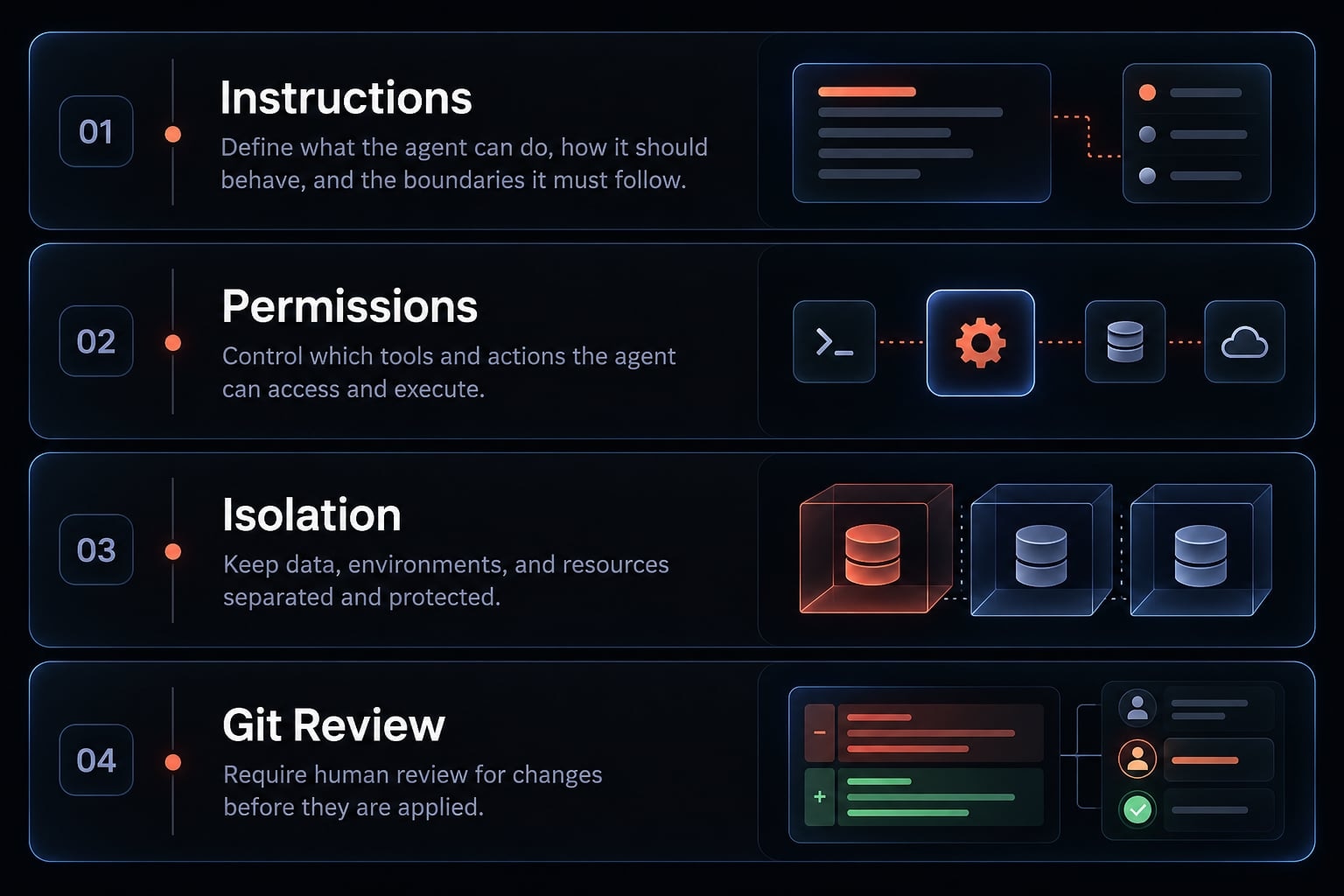
Check version-specific Claude Code permissions. These security guardrails reduce risk; none guarantees a risk-free environment.
Use a simple Plan–Implement–Test–Review workflow
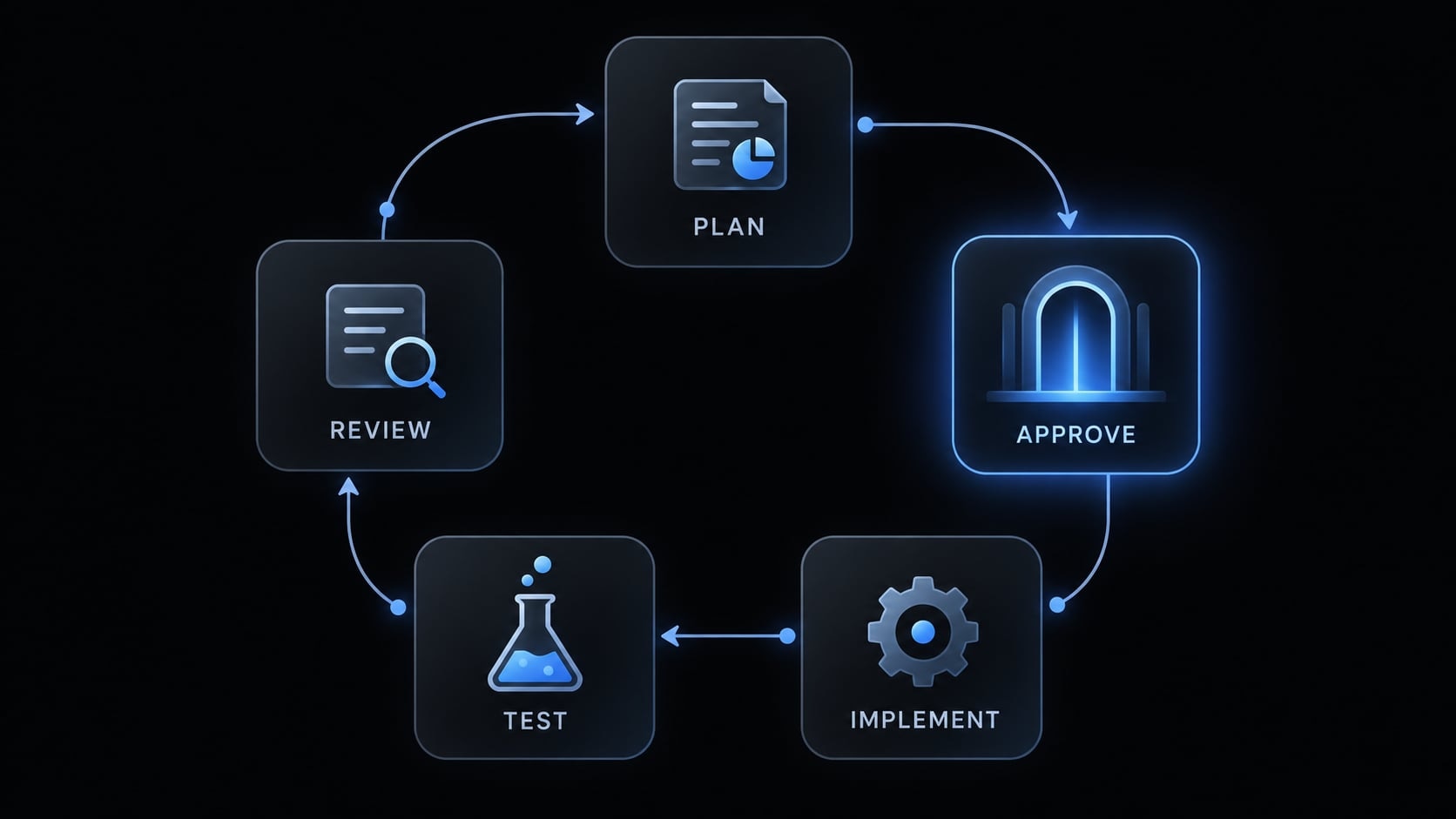
Plan → Approve → Implement → Test → Review
Return to planning when testing fails or review reveals broader scope.
Plan before allowing edits
Plan the approved README setup correction.State the objective, relevant files, proposed approach,assumptions, risks, and verification commands.Use repository evidence. Identify unknowns instead of guessing.Do not edit until I approve the implementation plan.
Planning before edits clarifies the task. It is not equivalent to an enforced product permission mode.
Implement one bounded change
Continue with the SaaS repository’s README correction. Change only the inaccurate instruction and necessary surrounding explanation.
Stop for new approval if the work requires dependencies, application changes, or shared infrastructure. Avoid turning a documentation task into general cleanup.
Test and verify the result
Start with checks relevant to the change. The following reusable verification record deliberately contains no invented results:
Check | Command or method | Observed result | Not run / remaining action |
|---|---|---|---|
Instruction accuracy | Compare README with manifest | Not run | Inspect source evidence |
Formatting | Repository’s documented check | Not run | Review script before execution |
Change scope |
| Not run | Confirm only approved files changed |
Use Passed, Failed, or Not run after performing each check. “Not run” never means “passed.”
Review the Diff and close the session cleanly
git diffgit diff --stagedgit status
Inspect unexpected files, dependency changes, removed tests, weakened safeguards, and possible secrets. Check untracked files separately because ordinary diffs do not display their contents.
Record remaining risks. Obtain human approval before committing or merging.
Manage the context window deliberately
The context window is the information available to the model for its current response. Anthropic’s Interactive Mode documentation describes these session commands; confirm availability in your installed version.
Command | Purpose |
|---|---|
| Inspect context usage |
| Summarize conversation history to reduce context pressure |
| Start fresh conversational context |
Context compaction may omit details. Preserve important decisions in reviewed project files.
Clearing the context window does not undo filesystem changes. Keep this AI coding workflow focused on one objective per session.
Add optional MCP servers, skills, hooks and subagents only when needed
Extension decision table
None of these extensions is required for the baseline setup.
Extension | Explain as | Adoption trigger |
|---|---|---|
MCP server | Connector exposing tools or resources through Model Context Protocol | Approved external context or actions are needed |
Reusable instructions and supporting resources | A stable process repeats | |
Automation triggered by lifecycle events | A specific check needs consistent execution | |
Delegated specialist with a defined role | Work benefits from bounded specialization | |
Plugin or kit | Packaging and coordination layer | Multiple capabilities need consistent distribution |
Wait when repository files already provide sufficient context or the underlying process is still changing.
Version-control reusable configuration
Review shareable definitions like code. Record purpose, requested access, ownership, and update responsibility.
Keep machine-specific values, tokens, and secret-bearing configuration out of commits. MCP servers and other extensions expand the access and maintenance surface.
Troubleshoot common Claude Code setup problems
Setup troubleshooting matrix
Diagnose the failing layer before reinstalling. Claude Code troubleshooting should begin with reversible checks.
Problem | Likely cause | First safe action |
|---|---|---|
Command not found | Installation missing or executable absent from | Check installation and command resolution; diagnostics cannot run yet |
Older version launches | Another executable resolves first | Identify the active path before removing packages |
Authentication failure | Eligibility, session, billing, or provider mismatch | Confirm the intended route and inspect its account status |
Wrong repository analyzed | Incorrect working directory or session assumptions | Exit, confirm the project root, and relaunch |
CLAUDE.md appears unloaded or ineffective | Wrong location, loading issue, or contradictory guidance | Inspect loaded instructions and compare their content |
Wrong project command selected | Stale instructions or ambiguous manifests | Check repository evidence and update the approved command |
Repeated permission prompts | Requested actions exceed configured permissions | Inspect each request; do not bypass controls |
Unfocused responses | Ambiguous objective, missing evidence, or crowded context | Restate scope and inspect context usage |
Conflicting instructions | Configuration conflict across instruction scopes | Locate overlapping rules and resolve contradictions explicitly |
For duplicate installations, a useful diagnostic pattern is an unexpected executable path resolving first. Confirm that evidence before changing PATH or uninstalling anything. This is a troubleshooting pattern, not an observed test result from this guide.
Final setup verification checklist
Copy this Claude Code setup checklist into your repository’s onboarding notes:
- Executable resolves correctly; version and diagnostics are recorded.
- Intended authentication and billing route are confirmed.
- Session starts in the correct repository.
- Project instructions are loaded and checked for contradictions.
- Commands match manifests and have explicit verification statuses.
- Approved data scope and sensitive-file restrictions are reviewed.
- Branch, diff review, and approval safeguards are established.
- Repository summary is accurate and identifies unknowns.
- One narrow task is completed, checked, and reviewed.
- Optional integrations are deferred unless justified.
Add actual test metadata: OS/version, architecture, shell, installation method, CLI version, reviewer, and review date.
Track “installed,” “authenticated,” and “verified in a project” separately. Record Git tracking exclusions separately from access restrictions.
Start with a minimum-safe setup, then extend it deliberately
A reliable Claude Code setup is more than a working executable. Verify installation and authentication separately, launch in the right repository, and supply concise project instructions. Establish permissions and data boundaries before allowing edits or script execution.
Complete one small task with explicit approval, recorded checks, and diff review. That provides evidence about your development workflow without implying that every future action is safe.
Extend only after this baseline works consistently. Additional tools should solve an observed need, not compensate for unclear instructions or unreviewed access.
Frequently asked questions
What is the purpose of the CLAUDE.md file in my project?
The CLAUDE.md file serves as a persistent context guide for Claude Code. It allows you to define project-specific conventions, essential build commands, and architectural boundaries. Claude Code loads it as project context—verify loading with your version's instruction inspection interface, since other instruction scopes can also apply.
Can Claude Code access sensitive files on my computer?
Yes, Claude Code has access to your local filesystem within the directory where it is launched and the launch directory is not a boundary by itself. Configure supported file and tool restrictions, and remove unnecessary production credentials from the environment. While it reads files to provide assistance, you should avoid using it in folders containing production credentials, highly sensitive personal data, or regulated data, as file content is sent to Anthropic during the session.
How do I ensure my Claude Code setup is secure?
Security is achieved through a layered approach: keep sensitive data out of your project folders, use Git feature branches for all changes, and perform thorough human reviews before committing code. Always treat Claude’s suggestions as a starting point, and manually verify any sensitive or destructive commands, such as database modifications or infrastructure changes.
Is Claude Code a replacement for my IDE?
No, Claude Code is a terminal-based agentic assistant designed for complex, multi-file architectural tasks and shell-based workflows. While it integrates with your existing tools, it is typically used alongside your IDE (like VS Code or JetBrains) to handle autonomous tasks, research, and coding implementation while you maintain high-level supervision.
Why should I use native installers instead of npm?
Installation routes differ in how they handle updates and signing, and that behavior varies by platform. Check the current recommendation in Anthropic's setup documentation, and note that package-manager routes carry their own update responsibility.
Does Claude Code automatically run and apply changes?
Claude Code is designed for human-in-the-loop use, but what actually requires approval depends on the permissions you configure—not on instructions in a prompt or CLAUDE.md. Set tool restrictions deliberately, keep high-impact actions outside the approved scope, and review diffs before committing.
Read more:
- Claude Code install guide: Official setup steps for all OS
- Claude Code VS Code: Installation and setup guide 2026
- Claude Code tutorial: Set up and master your AI coding agent
Conclusion
Establishing a reliable Claude Code setup goes beyond simply installing the executable; it requires establishing clear repository context, explicit instructions, and strong security guardrails.
By starting with a minimal, safe environment, creating a project-specific CLAUDE.md, and enforcing human review before approving code edits, you ensure that AI assistance enhances productivity without compromising your codebase. Validate each layer step-by-step, and only extend permissions as your workflow demands.