Claude Code tutorial: How to set it up, use it safely, and get results fast
If you are opening Claude Code for the first time, the friction is usually not installation. It is figuring out where to launch it, what to ask first, and how much to trust it. This claude code tutorial gives you the shortest practical path: What Claude Code is, how to install it, how to use it inside the right project folder, and how to complete a safe first task without getting lost in permissions or vague prompts. The goal is simple: Help you reach value quickly while avoiding the beginner mistakes that cause messy edits, privacy risk, or poor output.
What Claude Code is and when it makes sense to use it
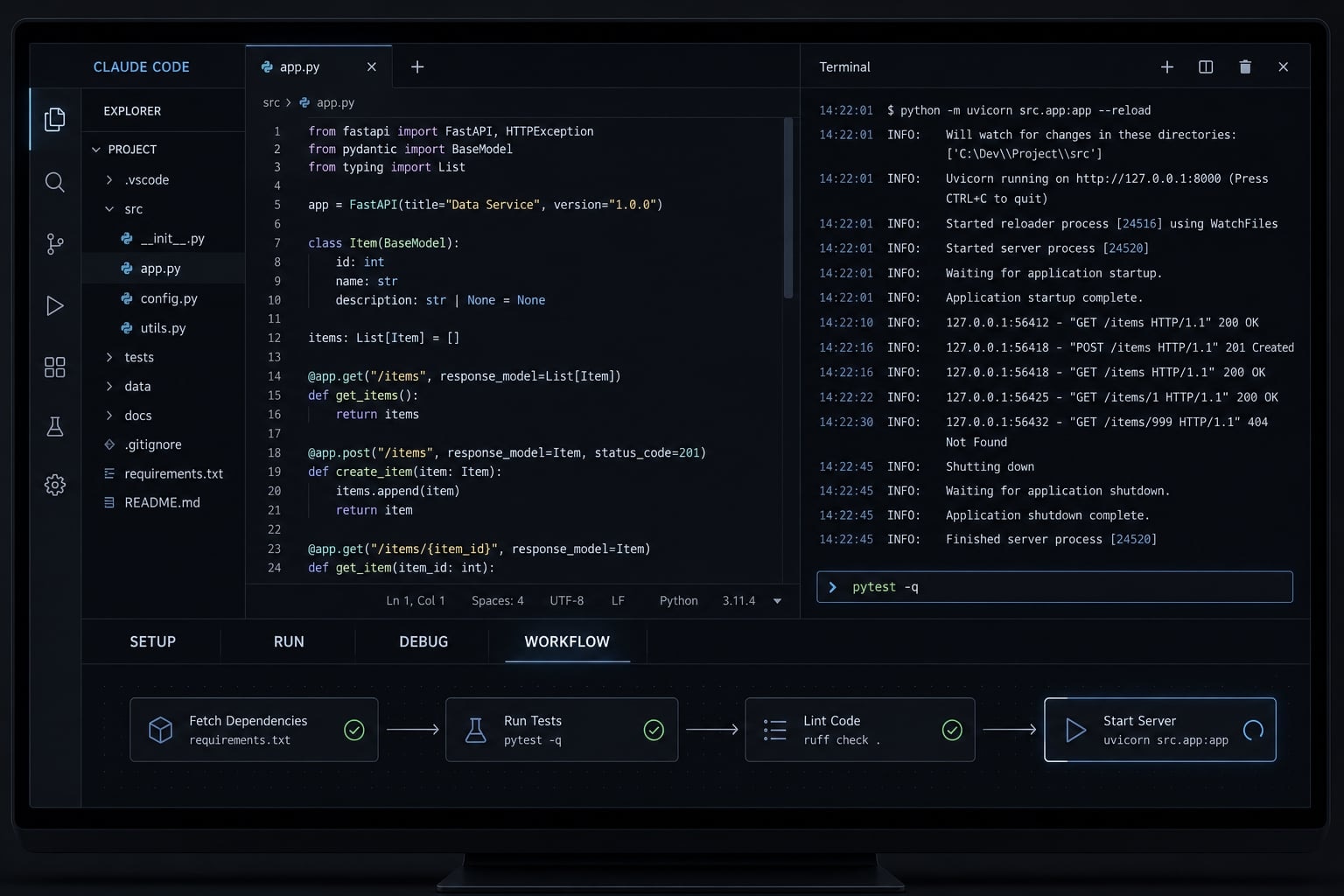
Claude Code is a terminal-based AI coding assistant that runs inside a local project folder, reads project files, suggests changes, and helps with multi-step development tasks.
That definition matters because Claude Code is not just a chat window. It works closer to your codebase. With local filesystem access, it can inspect files, understand repo structure, propose edits, and help you execute a focused workflow.
The main advantage is operational. Instead of pasting code into a browser and rebuilding context every time, you work where the project already lives. That makes Claude Code especially useful for repo-aware tasks such as reading unfamiliar code, tracing issues, drafting tests, or making a small refactor.
An AI-powered terminal agent like Claude Code is usually a good fit when you want help with:
- Understanding how a repo is organized.
- Locating likely bug sources.
- Writing tests for one file.
- Refactoring a small function.
- Generating a small utility script.
It is usually not the best first move for:
- Broad refactors across many directories.
- Destructive shell actions.
- Handling secrets or sensitive data.
- Workflows where you do not plan to review changes.
Claude Code vs browser AI tools
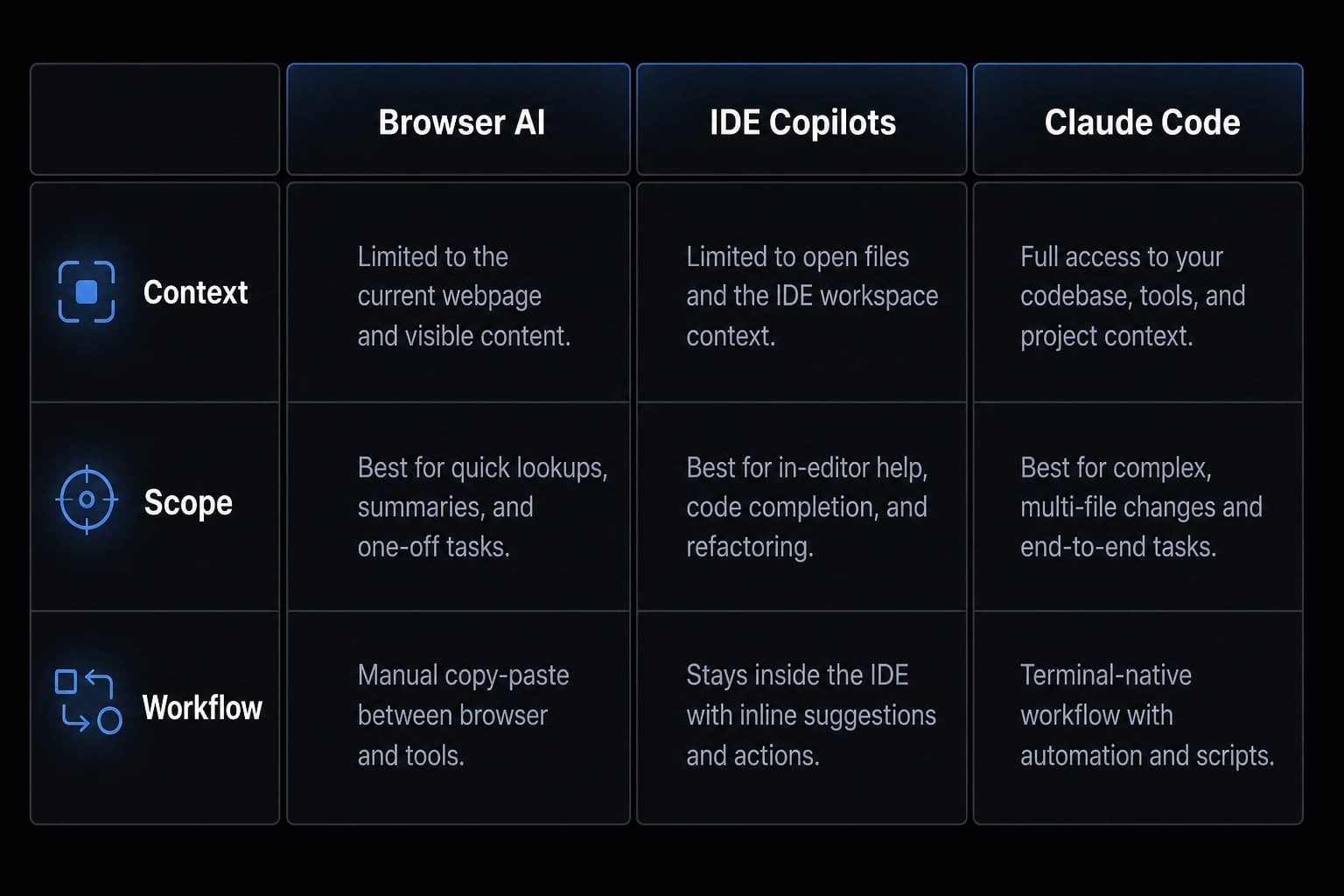
- Browser AI tools depend on code you paste or upload manually.
- Claude Code works inside the project folder, so context is easier to access.
- That convenience comes with more responsibility around scope and privacy.
- If you launch it from the wrong folder, you may expose more files than intended.
Claude Code vs IDE copilots
IDE copilots are often better for inline autocomplete, small edits, and fast suggestions while typing. Claude Code is stronger when the task spans multiple files, needs repo awareness, or requires a short sequence like inspect → explain → propose → edit. Choose based on the shape of the task, not hype.
Best beginner use cases
Start with these safe, high-value tasks:
- Map the repo structure and identify likely entry points.
- Ask for likely bug sources in one feature area.
- Write tests for a single file.
- Refactor code in one function for readability.
- Generate a script for a small automation task.
How to install Claude Code and start your first session
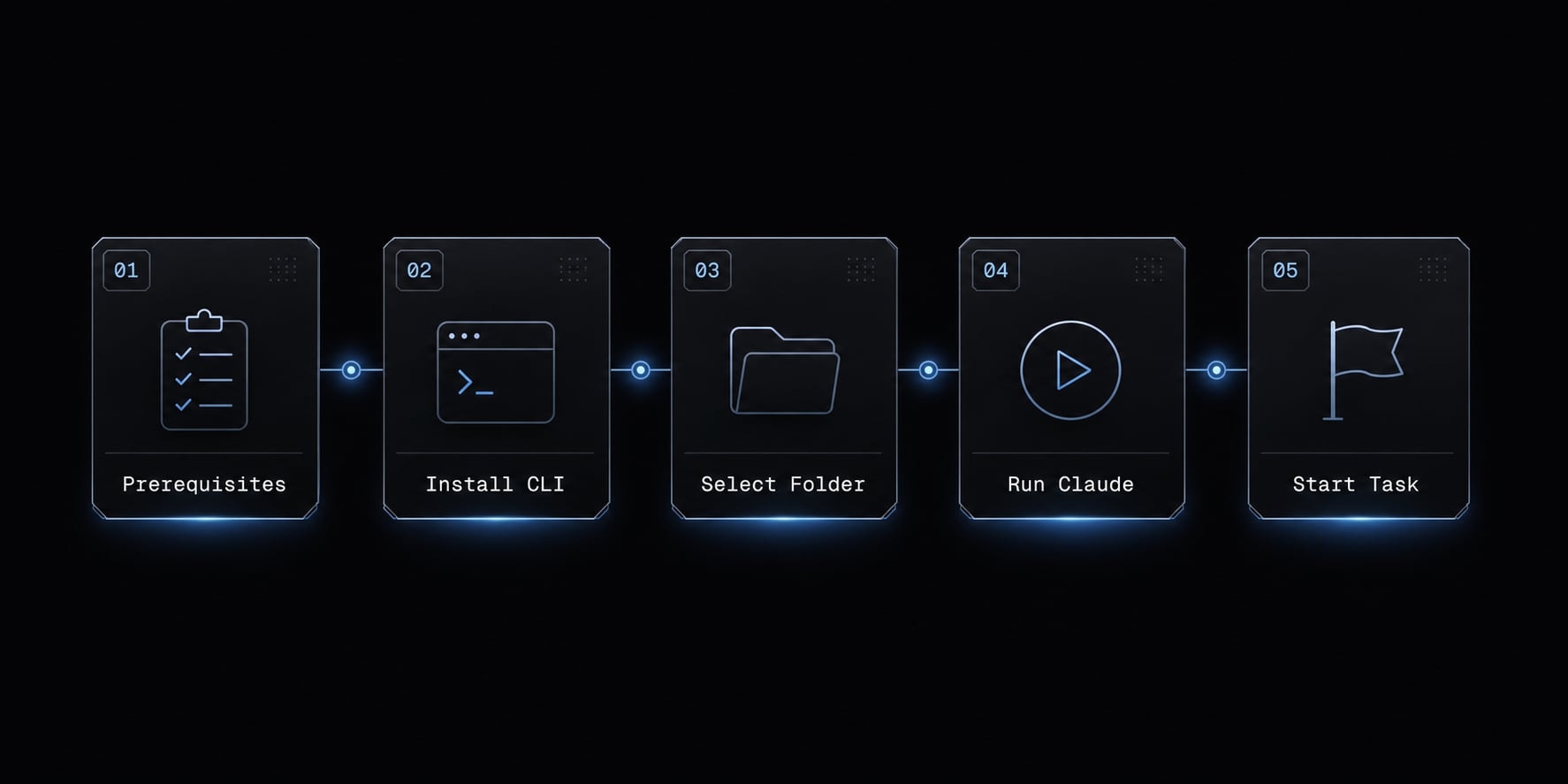
If you want to set up Claude Code for local development without unnecessary detours, follow this order. It keeps the first session controlled and low risk.
Step 1: Install prerequisites
Before anything else, check the basics:
- Confirm Node.js is installed on your machine.
- Open a normal terminal application.
- Create or choose a small test project folder.
- Make sure that folder does not contain secrets, production credentials, or unrelated files.
A common beginner mistake is testing Claude Code from a broad location like the home directory or desktop. That creates avoidable privacy and control issues. When setting up Claude Code, folder scope is critical; it is a fundamental aspect of maintaining a secure environment.
Step 2: Install Claude Code
Use npm to install the CLI globally:
npm install -g @anthropic-ai/claude-code
This command installs the Anthropic Claude CLI tool so you can run Claude Code from your terminal. After you install Claude Code via npm, you can usually confirm it is available by launching the command in your terminal.
Step 3: Launch Claude Code from the right folder
Now move into the specific project directory you want Claude Code to work with, then run:
claude
This is the most important habit when setting up Claude Code for local development. Claude Code works from the current directory, so the folder you open defines what it can inspect and help edit. Launching from the right place gives you cleaner context, better control, and safer local development.
Step 4: Complete the first session safely
During the first launch, you may need to sign in. After that:
- Pay attention to permission prompts.
- Start with a read-only or low-risk task.
- Avoid approving large edits right away.
- Ask Claude Code to explain the repo before changing anything.
For the first session, a safe starting prompt is: “Review this project structure and explain the main entry points, key modules, and which files I should inspect first.”
That approach helps you learn the environment before making edits.
Common setup issues
If something does not work, check these first:
- Node.js not installed correctly: npm commands may fail or not be recognized.
- Wrong folder: Claude Code opens, but the repo context is missing or irrelevant.
- Permission confusion: You approve actions too quickly without understanding the scope.
- Terminal unfamiliarity: You are comfortable in an IDE but not used to folder-based workflows.
Your first 30 minutes with Claude Code
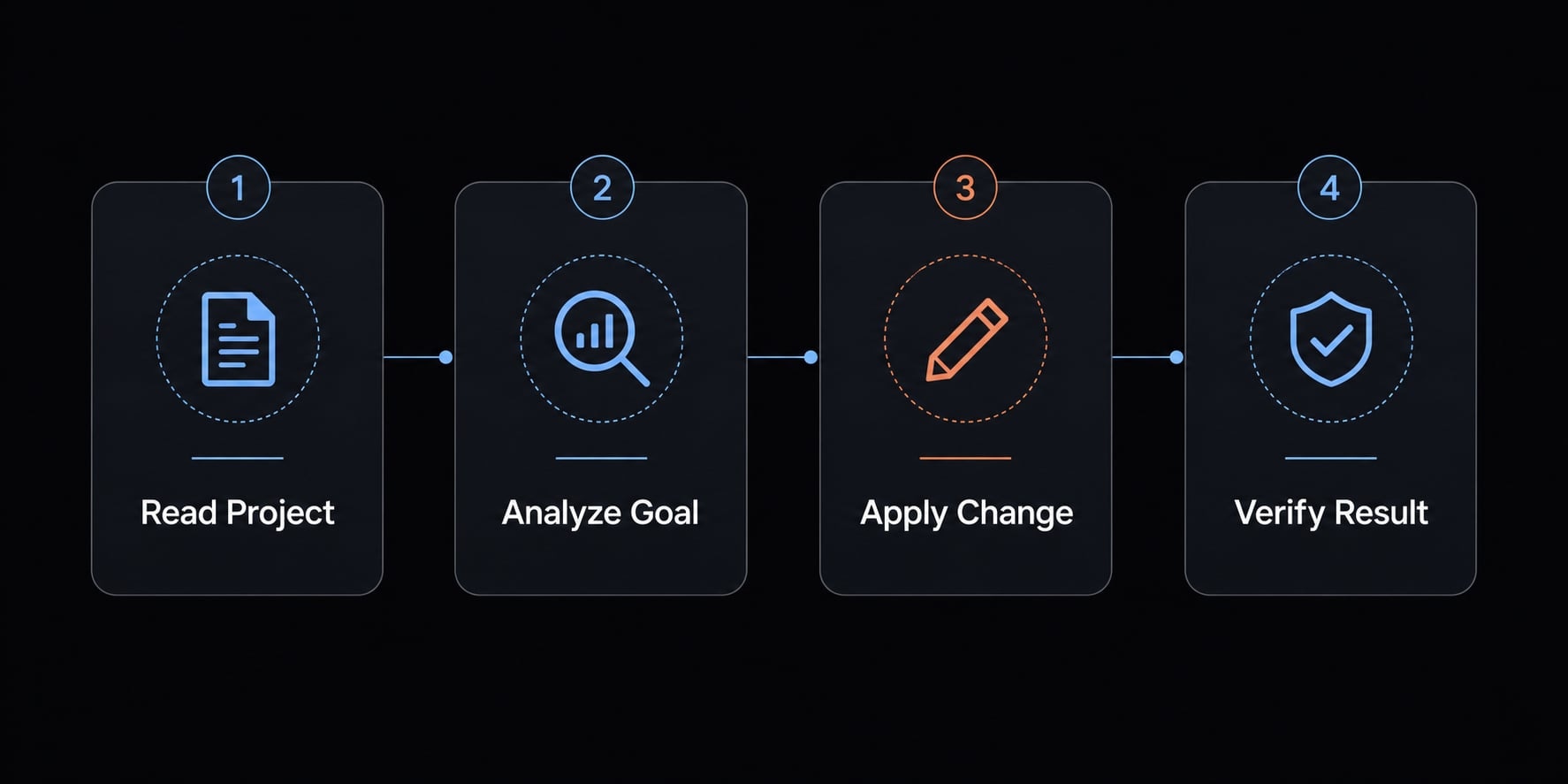
The fastest way to learn Claude Code is not to build something big. It is to follow a beginner workflow that gives you one clear result with low risk. In this claude code tutorial, the best first session is linear: read, explain, suggest, edit, verify.
Step 1: Ask Claude Code to explain the project
Start with orientation, not editing.
Use a prompt like: “Review this repo and explain the project structure, main entry points, key modules, and which files are most relevant if I want to understand the core workflow.”
This helps Claude Code build a useful mental map before changes begin. In a local project workflow, that first read is often more valuable than a rushed edit.
Step 2: Ask for one small improvement
Once you understand the basics, narrow the scope.
Examples:
- “Explain this file and identify any obvious cleanup opportunities.”
- “Inspect this module and suggest likely bug sources without editing yet.”
- “Review this function and suggest a small readability improvement.”
Keep it to one file or one issue. That improves output quality because Claude Code does better when the task is bounded. Broad prompts often produce shallow suggestions or too many assumptions.
Step 3: Approve a small edit, then review output
After Claude suggests a focused change, approve only a limited edit.
Good first edits include:
- Renaming unclear variables in one function.
- Simplifying repeated logic in one file.
- Adding comments or test scaffolding around one module.
At this stage, do not chain several major changes together. Watch the permissions, inspect the output carefully, and confirm the change still matches your intent. Treat Claude Code as an assistant, not a substitute for engineering review.
Step 4: Run or test the result
Always verify the outcome.
That usually means:
- Inspect the edited file.
- Run the relevant tests if they exist.
- Manually check behavior if the change is simple.
- Use Git or a backup before trying anything larger.
The core lesson of a safe beginner workflow is simple: Small scope creates better output, and verification catches the mistakes every AI tool can still make.
Essential commands, controls, and prompt patterns for beginners
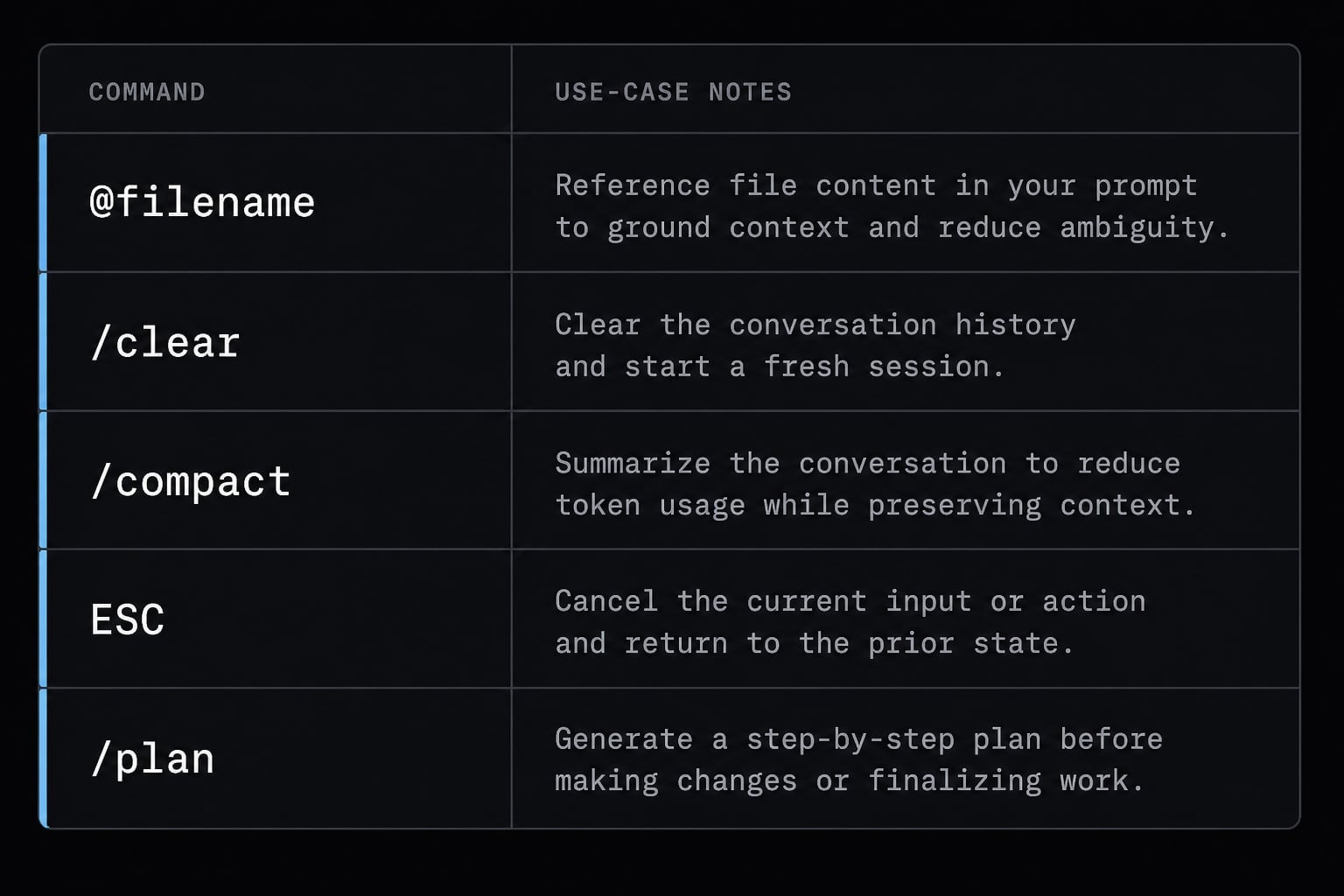
You do not need a huge command list to use Claude Code effectively. You need a few controls, basic context window management, and a prompt structure that removes ambiguity.
Essential controls to know
Command / Control | What it does | When to use it |
|---|---|---|
| Pulls a specific file into the conversation as an @file reference | When you want Claude Code to focus on one file |
| Starts a fresh conversation | When switching to a new task |
| Compresses conversation state | When context gets too long or drifts |
| Stops the current response or action flow | When Claude is heading in the wrong direction |
| Optional planning mode for read-first task framing | When you want suggestions before edits |
This small set covers most beginner needs. Good context window management matters because long conversations can blur priorities, mix tasks, and reduce output quality.
A simple prompt framework that works
Use this five-part briefing structure:
- Goal - What do you want done?
- Scope - Which file, function, or issue?
- Constraints - What should not change?
- Files or context - Which files matter most?
- Expected output - Explanation, plan, patch, or tests?
Example structure:
- Goal: improve readability
- Scope: only
utils/formatDate.js - Constraints: do not change behavior
- Files or context: review current helper functions first
- Expected output: explain proposed edits before making them
This works better than vague prompting because it reduces hidden assumptions.
Example: weak prompt vs better prompt
Weak prompt: “Fix my code and make it better.”
Why it fails:
- No file scope.
- No task boundary.
- No success criteria.
Better prompt: “Review src/auth/session.ts. Identify likely causes of repeated session timeout errors. Do not edit yet. First explain your hypotheses, point to the relevant lines, and recommend the smallest safe fix.”
Why it works:
- Specific file.
- Specific issue.
- Edit control.
- Expected output is clear.
When to use CLAUDE.md
CLAUDE.md is useful when you have instructions you want Claude Code to remember for the project. Good examples include:
- Coding style preferences
- Testing conventions
- Architecture notes
- Preferred response format
- recurring rules such as “explain before editing”
For beginners, CLAUDE.md is less about advanced customization and more about reducing repetitive prompting. If you keep repeating the same project rules, move them there.
Practical Claude Code examples for software development tasks
Claude Code is most useful when you turn natural language to code through a bounded task, not a vague request. These examples are intentionally small enough for a safe first phase.
Example 1: Understand an unfamiliar repo
Prompt example: “Map this repo for me. Explain the main entry points, major modules, how data flows through the app, and which files I should read first if I need to change the login flow.”
Expected outcome:
- A clear repo summary.
- Likely edit locations.
- Faster onboarding.
Review note: Verify the suggested entry points against the actual file structure before acting on them.
Example 2: Find and debug a likely issue
Prompt example: “Inspect src/payments/checkout.ts and related files. I am seeing duplicate charge attempts. Give me likely root-cause hypotheses first. Do not edit anything yet.”
Expected outcome:
- A shortlist of plausible causes.
- Relevant lines or conditions to inspect.
- A safer starting point for debugging.
Review note: Treat debugging hypotheses as leads, not facts. Reproduce the issue if possible.
Example 3: Write tests for one file
Prompt example: “Review lib/priceCalculator.js and write tests for the current behavior. Focus on edge cases around empty inputs, rounding, and discount thresholds.”
Expected outcome:
- Test cases based on existing behavior.
- Improved confidence before refactoring.
Review note: Check that the tests reflect intended behavior, not accidental current behavior.
Example 4: Refactor a small function for readability
Prompt example:
- “Refactor code in
src/utils/normalizeAddress.ts, but only thenormalizeAddressfunction. Preserve behavior, reduce duplication, and explain the changes before applying them.”
Expected outcome:
- Cleaner structure.
- Unchanged functionality.
- Easier maintenance.
Review note: Compare before and after logic. Readability improvements should not quietly change output.
Example 5: Generate a simple automation script
Prompt example: “Create a small Node.js script to parse leads.csv, remove duplicate emails, and export a cleaned file. Explain how to run it after generation.”
Expected outcome:
- A practical utility you can run locally.
- Repeatable data cleanup.
- Clear execution steps.
Review note: Open the output file and validate a sample of rows before using the result downstream.
These are strong early use cases because they are concrete, reviewable, and easy to verify. That is where Claude Code delivers the most reliable early value.
Permissions, context and safety: What beginners need to get right
The safest way to think about Claude Code is this: It uses an interactive permission model, so you stay in control of what it reads, edits, or runs. Strong results depend on discipline around scope, review, and clean context. That is the core of best practices for Claude Code security and permissions.
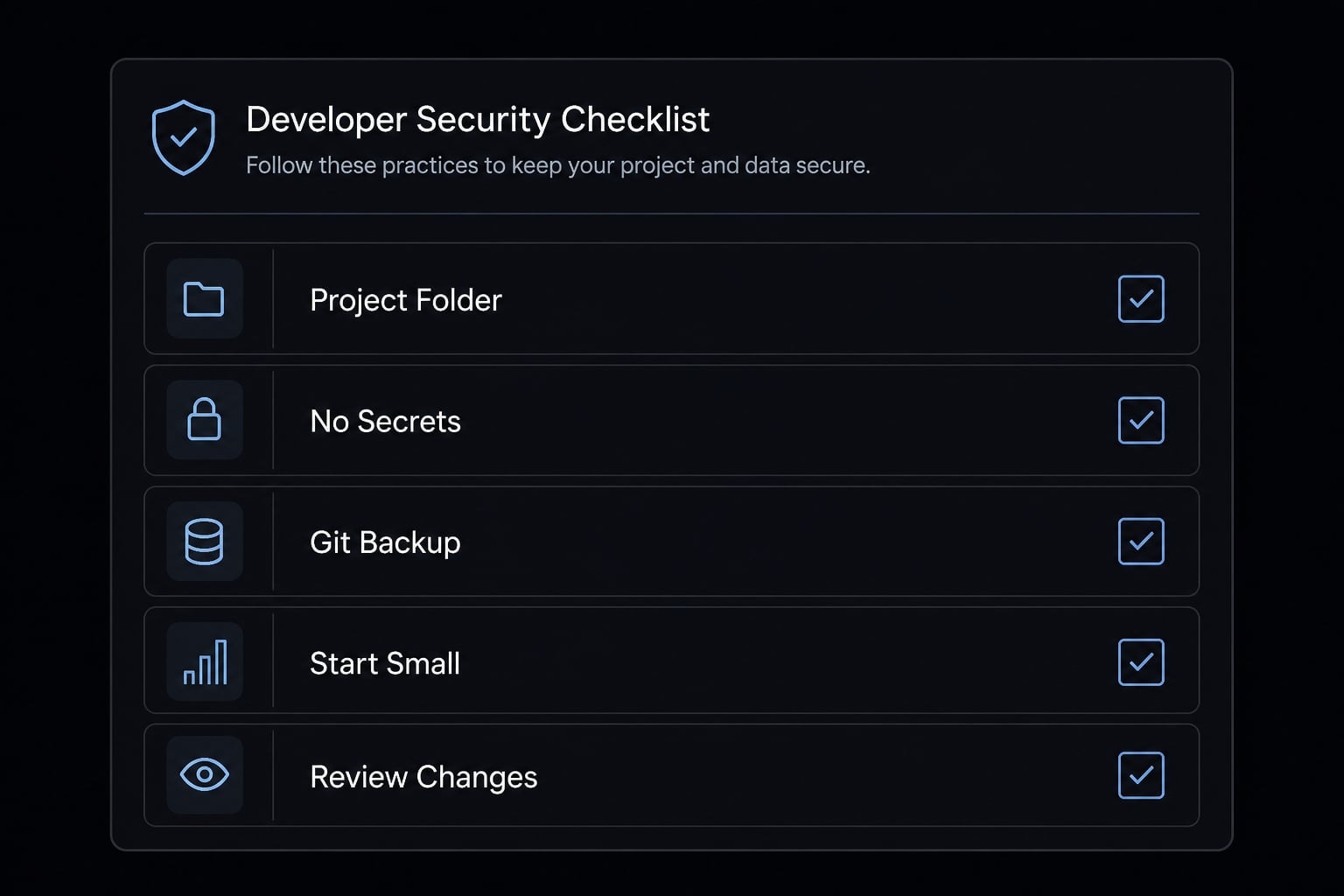
Safety checklist before you begin
Use this checklist every time:
- Launch Claude Code from a specific project folder.
- Keep secrets, credentials, PII, and other sensitive data out of scope.
- Commit to Git or create a backup first.
- Start with small, low-risk tasks.
- Review changes before approval.
- Avoid shell actions you do not fully understand.
Following these security and permission best practices is essential for new Claude Code users.
How to manage context cleanly
Context drift is a common issue. If one conversation starts with repo orientation, then moves into tests, then changes into bug fixing, the session can become noisy.
To manage this cleanly:
- Use one task per conversation when possible.
- Use
/clearwhen switching to a new job. - Use
/compactwhen the session is useful but getting too long. - Save recurring instructions in markdown or CLAUDE.md.
This is practical context window management. It keeps Claude Code focused and lowers the chance of mixed assumptions.
What not to do in your first sessions
Avoid these patterns early on:
- Massive refactors across many files.
- Broad destructive shell actions.
- Blind trust in generated edits.
- Using Claude Code around sensitive data.
- Approving changes without testing.
For local AI data privacy, the main rule is simple: If a file should not be exposed to an AI-assisted workflow, keep it out of the project scope. The strongest best practices for Claude Code security and permissions are usually operational, not theoretical: narrow scope, review output, and verify every result.
From individual use to repeatable workflows
Once you have a few successful sessions, the next step is consistency. That usually means turning ad hoc prompting into reusable workflows.
Useful building blocks include:
- A project-level CLAUDE.md with coding standards and review rules
- A few reusable prompt templates for common tasks
- A shared checklist for testing and approval
- Lightweight skills for repetitive patterns such as test generation or bug triage
- Include simple notes on when to ask for an explanation before editing.
This is the practical beginning of agentic workflow orchestration. It does not need to be complex. The goal is simply to reduce repeated setup and improve output consistency across sessions or team members.
If your workflow matures later, you may explore Model Context Protocol as an optional way to connect tools and extend context in a structured manner. For most beginners, that is future-state thinking, not day-one setup. The priority is still the same: small tasks, clear instructions, predictable review.
For teams that want more consistency across development or growth operations, agentkit.best publishes practical workflow patterns, reusable prompts, and implementation guidance that can help standardize AI-assisted work without adding unnecessary process.
Frequently asked questions
What is Claude Code?
Claude Code is a terminal-based AI coding assistant that executes directly within your local project folder. Unlike browser-based AI tools, it has direct access to your local filesystem, allowing it to read, write, edit, and run code while staying under your active supervision.
How do I install Claude Code?
To install Claude Code, ensure you have Node.js installed on your system. Open your terminal and run the command npm install -g @anthropic-ai/claude-code. Once installed, navigate to your project directory and type claude to launch the assistant.
Is it safe to use Claude Code on my files?
Claude Code is safe if you follow security best practices: always run it from a specific project folder rather than your home directory, avoid exposing sensitive data like API keys or PII, and use version control (Git) to track changes. Always review edits before approving them.
What is the best way to start a first session?
For your first session, choose a low-risk, scoped task such as summarizing a README, identifying code patterns in a single file, or writing unit tests. This allows you to observe how the agent navigates your files and handles permission requests before attempting more complex tasks.
Can Claude Code replace my IDE copilot?
Not exactly. Claude Code is designed for repo-wide, multi-step tasks like refactoring or debugging, while IDE copilots excel at inline autocompletion and quick suggestions. Many developers use both tools simultaneously, relying on the copilot for typing and Claude Code for agentic workflow tasks.
Why does Claude Code keep asking for permissions?
The interactive permission model is a core security feature. It ensures you maintain full control by requiring your confirmation before the agent performs sensitive actions like executing terminal commands or overwriting files. This constant verification helps prevent unintended changes to your codebase.
How can I keep my Claude Code conversations manageable?
To maintain performance, use context management commands. Use /clear to start a fresh session when switching tasks, and use /compact to condense conversation history. Following the "one task per conversation" rule significantly improves the quality of the AI's output and keeps token usage efficient.
Read more:
- Claude Code VS Code: Installation and setup guide 2026
- Claude Code slash commands: Essential shortcuts for CLI flow
- Claude Code hooks guide: Automate and control AI workflows
Conclusion
The simplest model for success in any Claude Code tutorial is also the most reliable: launch from the right folder, start with a small task, give clear instructions, review every proposed change, and verify the result before moving on. Claude Code is strongest when you use it as a high-leverage assistant inside a controlled local workflow, not as an autopilot.
If you want to make your usage more consistent, the next useful step is building a small set of starter prompts, a project-level CLAUDE.md, and a review checklist your team can reuse. For that, explore the workflow templates and practical guides available at agentkit.best.