How to sdd Context7 MCP to Claude Code: Setup & Troubleshooting
How to add Context7 MCP to Claude Code: Setup, verification and troubleshooting
If you’re looking to set up Context7 MCP for Claude Code, this guide helps you avoid outdated, deprecated, or version-mismatched library suggestions. Context7 is an MCP server that retrieves current, version-specific documentation and makes it available during a Claude Code session. You can connect through the hosted Context7 endpoint or start a local MCP process through npx. This guide covers installation, verification, daily prompting, and troubleshooting. Context7 reduces reliance on stale model knowledge, but it does not guarantee correct code.
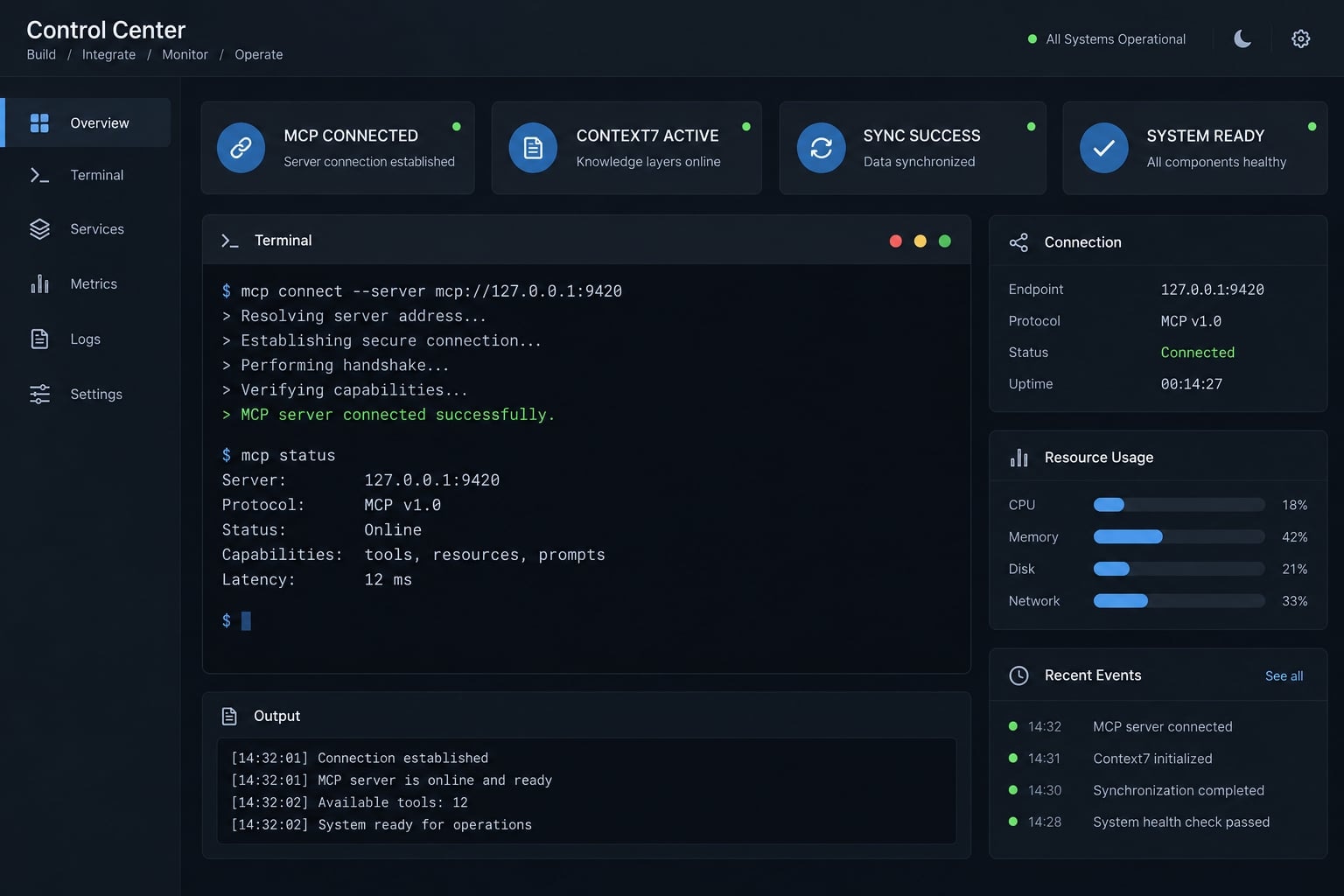
- Validation status: Commands aligned with the official documentation linked below; independently test them against your installed CLI before publication or team-wide rollout
- Claude Code version: Check with
claude --version - Node.js version: Check with
node --versionwhen using the local method - npm/npx version: Check with
npm --versionandnpx --version - Test environment: Terminal with Claude Code installed and authenticated
Quick answer: Add Context7 MCP to Claude Code
For most users, the shortest Claude Code add Context7 MCP workflow is connecting Claude Code to the hosted Context7 endpoint. Use the local npx method when you need greater control over the package version or runtime. In both cases, verify registration, connection, and actual tool use separately.
Remote method:
claude mcp add --transport http context7 https://mcp.context7.com/mcp
Local npx method:
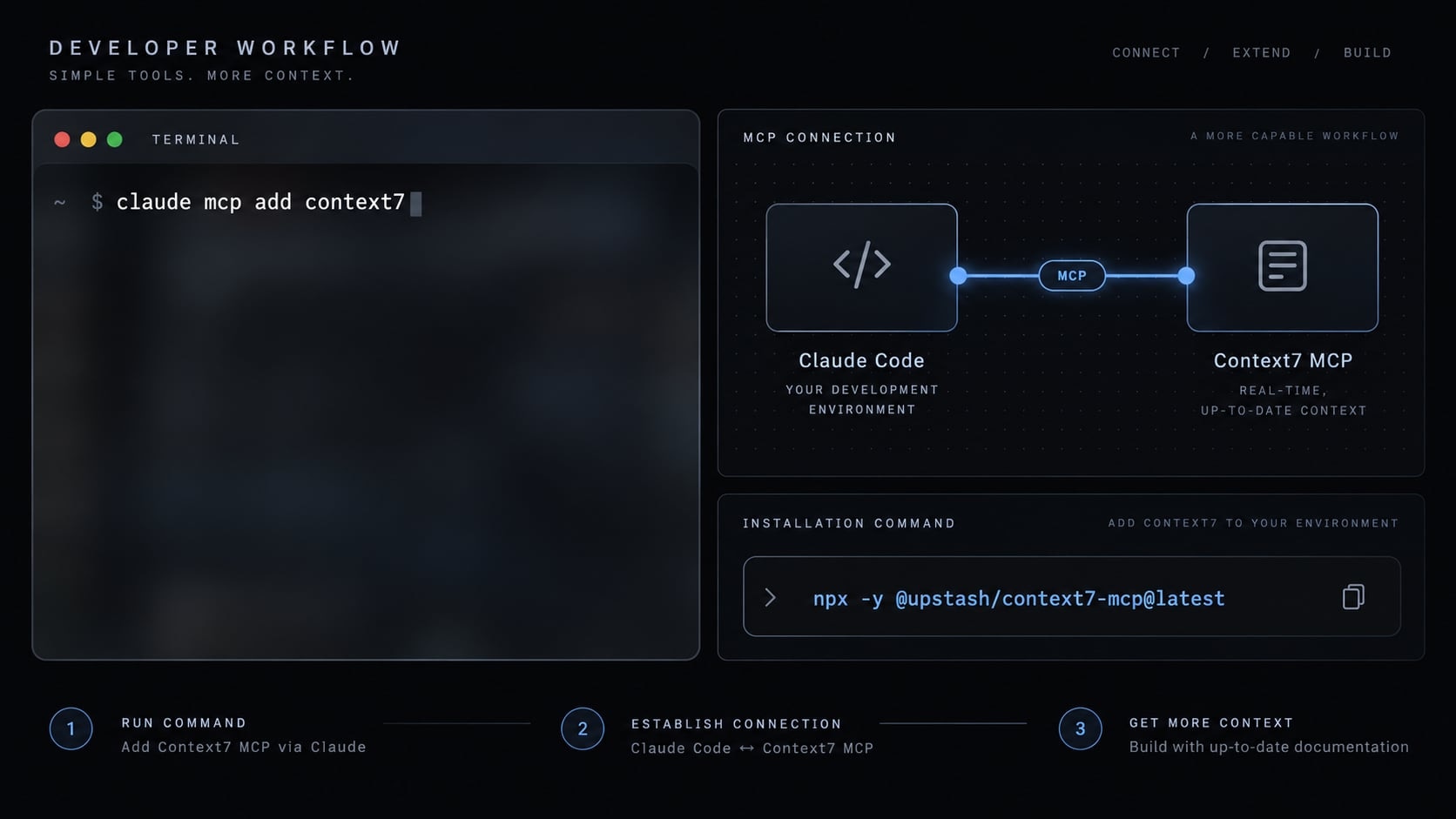
claude mcp add context7 -- npx -y @upstash/context7-mcp@latest
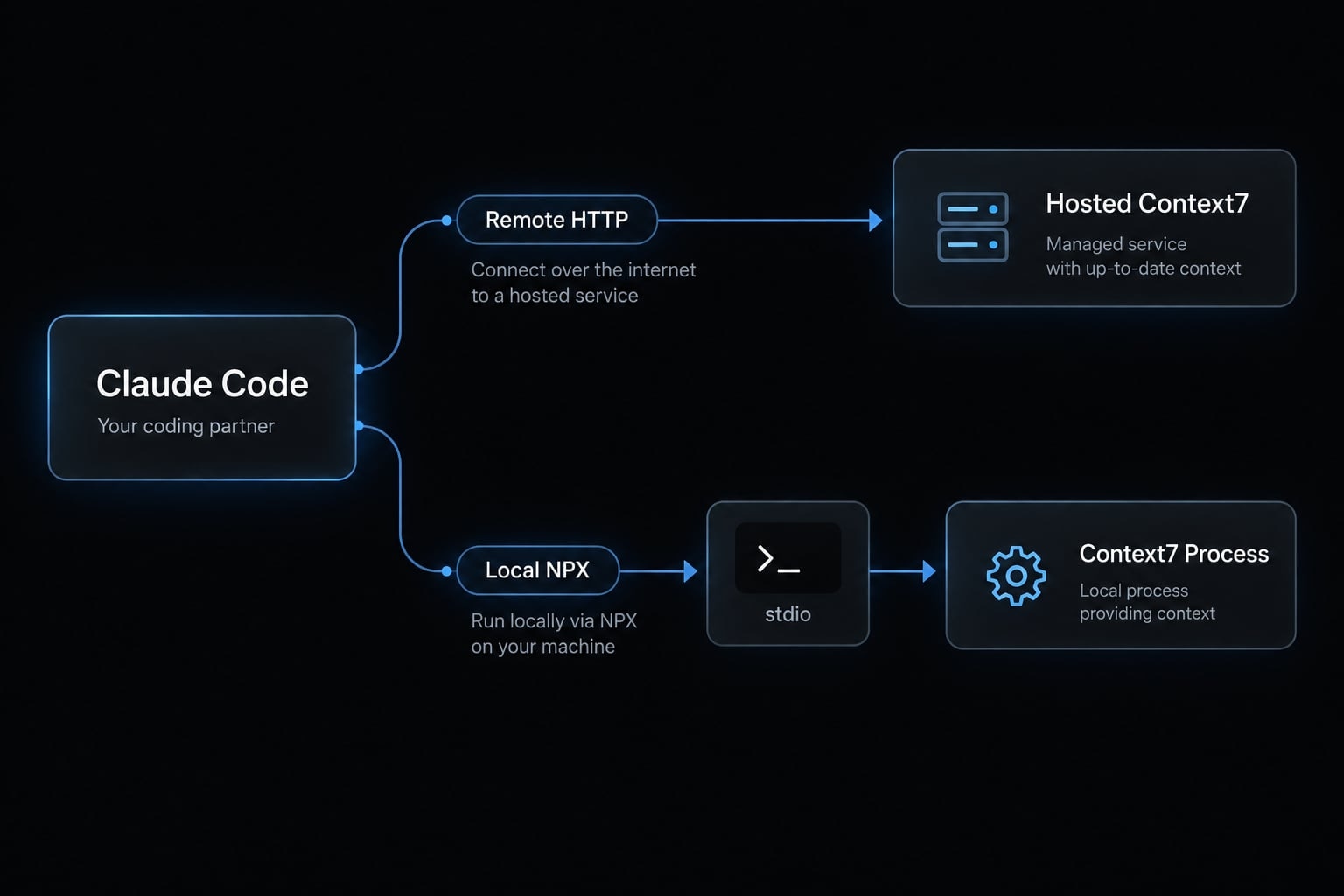
The remote command connects Claude Code to a hosted remote MCP server. The local alternative tells Claude Code to start Context7 as a child process through npx and communicate over stdio.
Check the syntax carefully against the official Anthropic Claude Code MCP documentation and the Context7 repository before applying the configuration broadly.
What the command does:
- Registers an MCP server under the name
context7. - Configures a hosted endpoint or local server process.
- Makes Context7 tools available after a successful connection.
Requirements and installation options
The remote Claude Code MCP setup requires fewer local dependencies. The local method additionally needs a supported Node.js runtime, npm, and npx.
A local MCP process is not the same as an offline documentation database. Although the server process runs on your machine, it may still require network access to retrieve documentation.
Prerequisites checklist
Confirm the following before installation:
- Claude Code is installed and authenticated.
- The
claudecommand works in your terminal. - Your network can reach the official Context7 endpoint.
- Node.js, npm, and
npxare available for the local method. - You can modify the intended MCP configuration scope.
- Your Claude Code version is current enough to support the documented command.
Claude Code can maintain MCP configurations at different scopes:
- User scope: Makes the configuration available across your Claude Code environments.
- Project scope: Associates the configuration with a specific repository and may support team sharing.
- Local scope: Keeps a project-specific configuration private to the current user.
Consult the current Anthropic documentation before relying on persistence or sharing behavior. CLI flags can change between Claude Code releases.
Remote vs. Local Context7
Criterion | Remote Context7 server | Local Context7 via |
|---|---|---|
Setup complexity | Lower | Moderate |
Node.js required | Usually no | Yes |
Server execution | Hosted by Context7 | Started as a local process |
Package management | Provider-managed | Controlled through npm |
Network dependency | Required | Usually still required |
Version control | Limited | Package version can be pinned |
Common failures | Endpoint, proxy, transport | Runtime, |
Best fit | Fast setup | Runtime and version control |
Choose the remote method for the shortest installation path. Choose the local method when package pinning and repeatable team configuration are more important.
Method 1: Add the remote Context7 MCP server
The remote command registers a server name, transport, and official Context7 endpoint. Successful registration does not prove that Claude Code can connect to or invoke the server.
Step 1: Run the remote installation command
Open a terminal where the claude command resolves, then run:
claude mcp add --transport http context7 https://mcp.context7.com/mcp
Each component has a specific role:
claude mcp addcreates an MCP server configuration.--transport httpselects the remote HTTP transport.context7assigns the local registration name.https://mcp.context7.com/mcppoints to the hosted Context7 endpoint.
This command follows the current Streamable HTTP pattern shown in first-party Context7 guidance. To set an explicit scope, first inspect the flags supported by your installed CLI:
claude mcp add --help
Use only scope values shown in that output. Do not assume commands copied from an older tutorial remain compatible.
Step 2: Confirm the server was registered
Run:
claude mcp list
Then complete these checks:
- Confirm that
context7appears in the list. - Inspect whether Claude Code reports it as connected, failed, or unavailable.
- Run
claude mcp get context7if supported by your installed version. - Restart the active Claude Code session if its server list has not refreshed.
- Continue to the functional invocation test below.
A visible entry proves registration. It proves connection only when Claude Code explicitly reports a healthy connection.
Legacy SSE Command Note
Legacy transport warning: Older tutorials may use--transport ssewith an/sseendpoint. Do not use that command as the default when current first-party documentation specifies Streamable HTTP and the/mcpendpoint.
An old SSE command failing does not justify trying random endpoints or transports. Check the current Claude Code and Context7 documentation first.
Method 2: Run Context7 Locally with npx
The local method starts Context7 as a child process under Claude Code. It requires a working Node.js installation and does not guarantee offline documentation access.
Step 1: Check Node.js, npm, and npx
Run these preflight checks:
node --versionnpm --versionnpx --version
All three commands should return version information. A “command not found” result usually means Node.js is missing or its installation directory is unavailable in your shell’s PATH.
Check the supported runtime in the Context7 repository and official npm package listing. If you install or update Node.js, reopen the terminal before repeating the checks.
Step 2: Register the Local Context7 Process
Run:
claude mcp add context7 -- npx -y @upstash/context7-mcp@latest
The command works as follows:
context7is the registration name shown inside Claude Code.--separates Claude Code arguments from the MCP server command.npxresolves and runs the Context7 package.-yaccepts the package execution prompt automatically.@upstash/context7-mcp@latestrequests the latest published package release.
The package name should match the official npm page and Upstash Context7 repository. Verify publisher ownership before installing any MCP server.
Claude Code starts the package as a local MCP process and communicates with it through stdio transport. npx does not necessarily create a permanent global installation.
Step 3: Choose @latest or a pinned version
Option | Appropriate for | Trade-off |
|---|---|---|
| Individuals prioritizing current releases | Updates can introduce unexpected changes |
Pinned version | Teams requiring repeatable setups | Upgrades must be managed manually |
Documented tested version | Shared configuration and debugging | Becomes stale without maintenance |
For a pinned installation, replace @latest with a version your team has tested:
claude mcp add context7 -- npx -y @upstash/context7-mcp@<tested-version>
Do not copy an arbitrary version from another environment. Record the Claude Code, Node.js, npm, and Context7 versions alongside shared configuration.
Verify and use Context7 in Claude Code
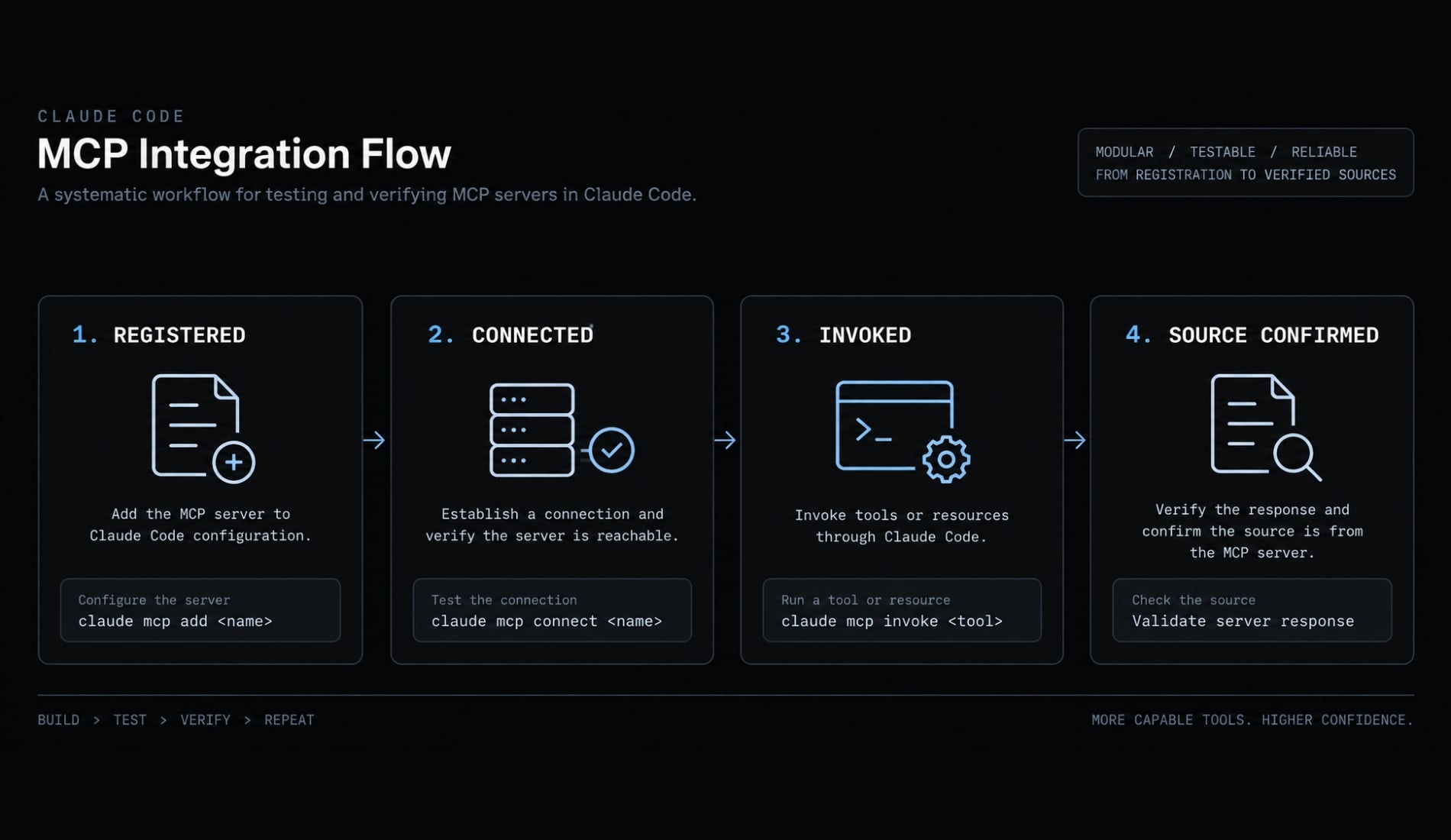
A complete Context7 MCP setup for Claude Code has three validation stages:
- Registered:
context7exists in the MCP configuration. - Connected: Claude Code can communicate with the server.
- Invoked: Claude Code calls Context7 during a relevant task.
Do not treat a listed server as proof of successful tool invocation.
Check 1: Confirm Context7 is listed
Run:
claude mcp list
Confirm that the expected registration name appears. If your CLI supports detailed inspection, run:
claude mcp get context7
Interpret the status conservatively. Exact labels vary by release, but they commonly indicate a healthy connection, startup failure, or unavailable server.
If context7 is listed but unavailable, diagnose the remote endpoint or local process before testing prompts. Restart the Claude Code session only after confirming that the configuration itself is valid.
Check 2: Run a deterministic test prompt
Avoid generic questions that Claude Code could answer from model memory. Use a version-sensitive prompt:
Use Context7 to retrieve the current Next.js documentation for middleware.Identify the current file convention and show a minimal example.Cite the documentation source or target version used.
Evidence of a working integration includes:
- Claude Code visibly invokes an MCP tool when tool activity is exposed.
- The answer addresses current, version-sensitive documentation.
- The response identifies a source, library version, or documentation target.
- Claude separates retrieved documentation from its implementation recommendation.
A plausible answer alone is not enough. Claude Code may produce a familiar response without calling Context7.
Prompt patterns for daily use
Use Context7 to check the current documentation for [library] before modifying this code.
Use Context7 and target [library version] to verify the correct API for [feature].
Retrieve the current documentation for [library/topic], summarize the documented constraints, and then propose the implementation.
Follow three practical rules:
- Specify the installed library version when known.
- Limit each request to one feature, API, or compatibility issue.
- Ask Claude Code to distinguish documented behavior from its recommendation.
Context7 can improve access to version-specific documentation, but retrieved material still requires interpretation. It does not replace automated tests, type checking, code review, security review, or manual compatibility validation.
Troubleshoot Context7 MCP in Claude Code
First determine whether you installed the remote endpoint or local npx process. Then identify whether the failure occurs during registration, connection, startup, or invocation.
Common errors and fixes
Symptom | Likely cause | Recommended action |
|---|---|---|
| Claude Code is missing or unavailable in | Verify the installation, update |
Context7 is not listed | Registration failed or the wrong scope is active | Rerun the verified command and inspect user, project, and local configurations |
Context7 is listed but disconnected | Endpoint, transport, network, or process failure | Validate the first-party endpoint and transport before editing the configuration |
Remote endpoint times out | Firewall, proxy, DNS, VPN, or service availability | Test network access and request endpoint allowlisting where required |
| Node.js is missing or | Install a supported Node.js release and restart the shell |
Local package fails to start | Package resolution, permissions, cache, or runtime incompatibility | Verify the package, supported runtime, and a known tested version |
| Package or Node.js compatibility issue | Check official runtime requirements before trying alternative runtimes |
Claude answers without Context7 | Tool not requested, server unavailable, or model memory used | Explicitly request Context7 and inspect visible tool activity |
An older SSE command fails | Legacy endpoint or transport | Replace it only with the current first-party method |
Works globally but not in one repository | Scope conflict or project override | Compare user, project, and local MCP configurations |
Duplicate Context7 entries appear | Repeated registration across multiple scopes | Inspect each scope and remove only the unused entry |
Documentation is correct but code fails | Interpretation or project-specific incompatibility | Run tests, inspect types, and review local framework constraints |
For a Claude Code MCP disconnected state, avoid immediately reinstalling packages. A remote setup cannot usually be repaired by changing Node.js, while a local process failure cannot usually be fixed by replacing the hosted endpoint.
To inspect the cleanup syntax supported by your installation, run:
claude mcp remove --help
A typical unscoped removal command is:
claude mcp remove context7
Confirm the affected scope before running it. Removing the wrong registration may disrupt another project or shared user configuration.
Safe configuration practices
- Use only official Context7 endpoints and verified package publishers.
- Apply the narrowest practical configuration scope.
- Remove duplicate and unused MCP registrations.
- Do not add secrets unless official documentation explicitly requires them.
- Pin package versions in repeatable team environments.
- Store tested version metadata with shared configuration.
- Review retrieved documentation before accepting generated code.
- Run tests and security checks before production deployment.
Context7 reduces stale documentation risk; it does not eliminate hallucinations, interpretation errors, or insecure implementation choices.
Frequently asked questions
Does Context7 MCP work offline?
No. Context7 MCP relies on network connectivity to fetch real-time, version-specific documentation from official library sources. Even when installed locally via npx, the server requires an internet connection to retrieve the latest API definitions, avoiding the hallucinations associated with stale model training data.
Can Context7 MCP prevent all AI coding hallucinations?
No. While Context7 significantly improves accuracy by injecting current, version-specific documentation into your context window, it is not a correctness guarantee. You should always treat retrieved documentation as supplemental context and continue to validate generated code through automated testing, type checking, and manual code review.
What is the difference between the remote and local MCP setup?
The remote setup connects Claude Code directly to a hosted endpoint, which is often easier to deploy. The local setup runs a child process via npx on your machine, which allows for better version pinning and reproducibility if you are working within a team that requires consistent environment configurations.
How do I verify that Claude Code is actually using Context7?
You can verify the integration by running a version-sensitive prompt, such as "Use Context7 to retrieve the current documentation for Next.js middleware." Claude Code should explicitly invoke the Context7 MCP tool and provide a response that cites the specific documentation source or library version used.
Should I use the @latest tag for the Context7 package?
Using @latest is appropriate for individual developers who want the most recent features and documentation patches. However, for team-based or production-hardened development environments, it is recommended to pin a specific package version to ensure predictable behavior and prevent unexpected breaking changes during your deployment cycle.
Read more:
- Connect GitHub MCP to Claude Code: Step-by-step guide
- Claude Code Slack MCP: Setup guide and best practices
- How to Add Supabase MCP to Claude Code
Conclusion
The recommended workflow is straightforward: Choose the remote or local method, register Context7, confirm the connection, run a version-sensitive test prompt, and explicitly request Context7 whenever current library APIs matter. This sequence distinguishes configuration success from genuine tool use.
A reliable Context7 MCP setup for Claude Code can reduce outdated API suggestions and reliance on stale model knowledge. However, every generated change still requires testing, type checking, code review, and security validation. Teams should also record endpoint, scope, runtime, and package versions whenever the setup is shared across repositories.