Claude Code Add MCP supabase: The simplest working setup
"If you are struggling to add the Supabase MCP to Claude Code, the biggest frustration is usually not the initial connection. It is the false positive: The server appears connected, but the tools never become usable. In practice, older setup patterns can still look correct but fail to allow Claude Code to discover the Supabase MCP tool definitions. This guide focuses on the simplest current path that works for most users: Generate a Personal Access Token (PAT), find the right project_ref, create a project-level .mcp.json, connect to the hosted HTTP server, and verify Claude can actually use the tools.
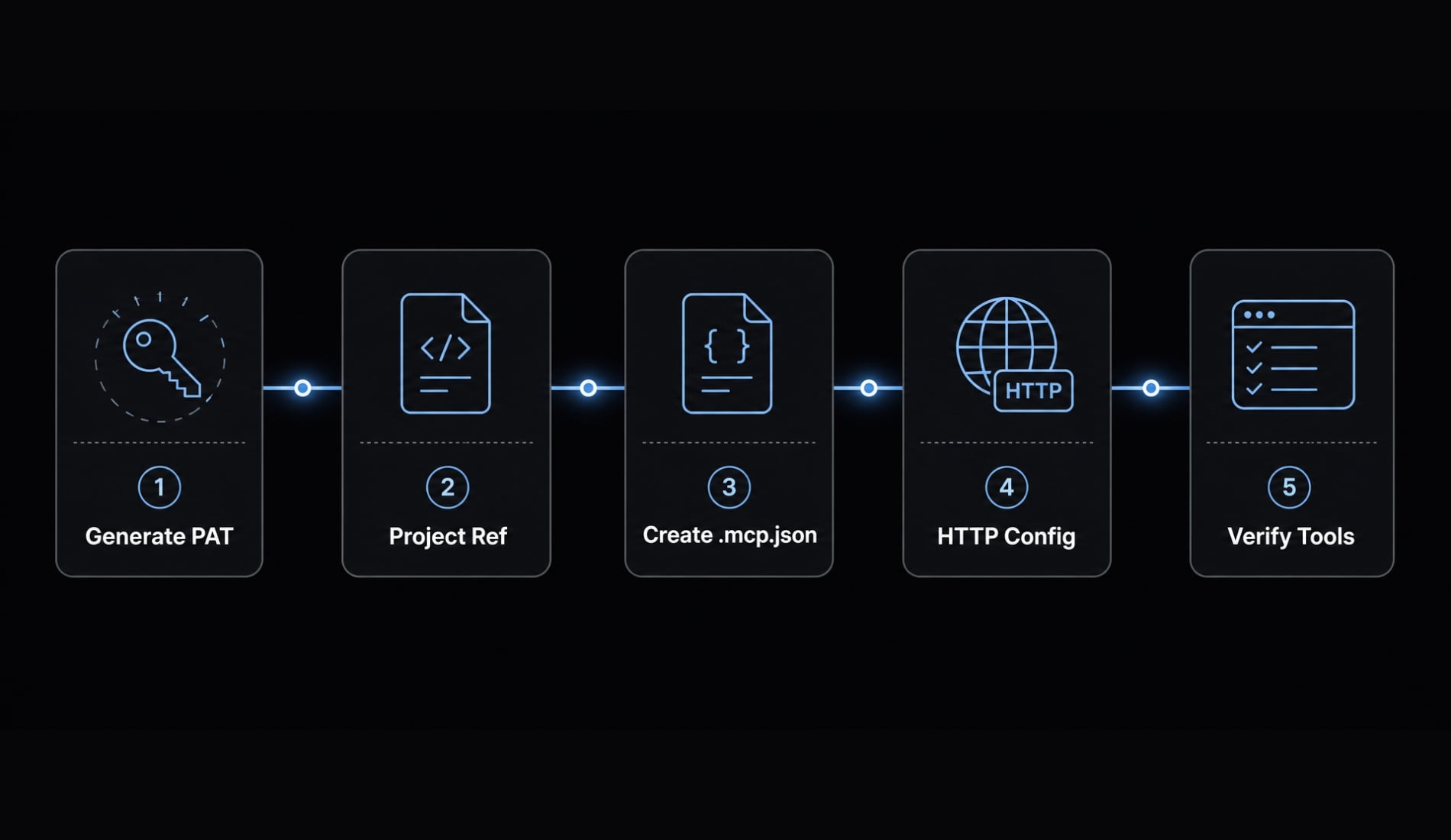
Add supabase MCP to Claude Code in 5 steps
The fastest practical Claude Code MCP path is the hosted HTTP setup. For most readers, this is the cleanest Supabase MCP setup because it avoids legacy patterns that can show as connected but still fail during tool discovery.
- Generate a Supabase Personal Access Token (PAT).
- Find your project_ref.
- Create a .mcp.json file in the project root.
- Add the hosted Supabase MCP config.
- Open Claude Code in that folder and verify the MCP tools.
Get a supabase personal access token
In Supabase, sign in and open your account menu. Go to Account Preferences or the access token area, then generate a new Personal Access Token (PAT).
Use a clear name such as:
claude-code-devclaude-code-stagingclaude-code-client-a
Save the token immediately after creation. In many setups, visibility is limited after the token is generated. If you work across environments, separating tokens by project or access boundary is usually safer.
Find the right project reference
Open the target Supabase project and go to the project settings page. Copy the project_ref, sometimes shown as the Supabase project ID or project reference.
This matters more than many guides suggest. If you work across dev/staging/prod, multiple client workspaces, or multiple Supabase organizations, the wrong project_ref can make Claude operate against the wrong database.
Create the .mcp.json File
Create a file named exactly .mcp.json in your project root. This is the Claude Code config file Claude reads from the working directory.
The most common failure here is simple: The file exists, but it is in the wrong folder. If Claude Code is opened in a different directory, the config may look ignored.
Use this minimal config example
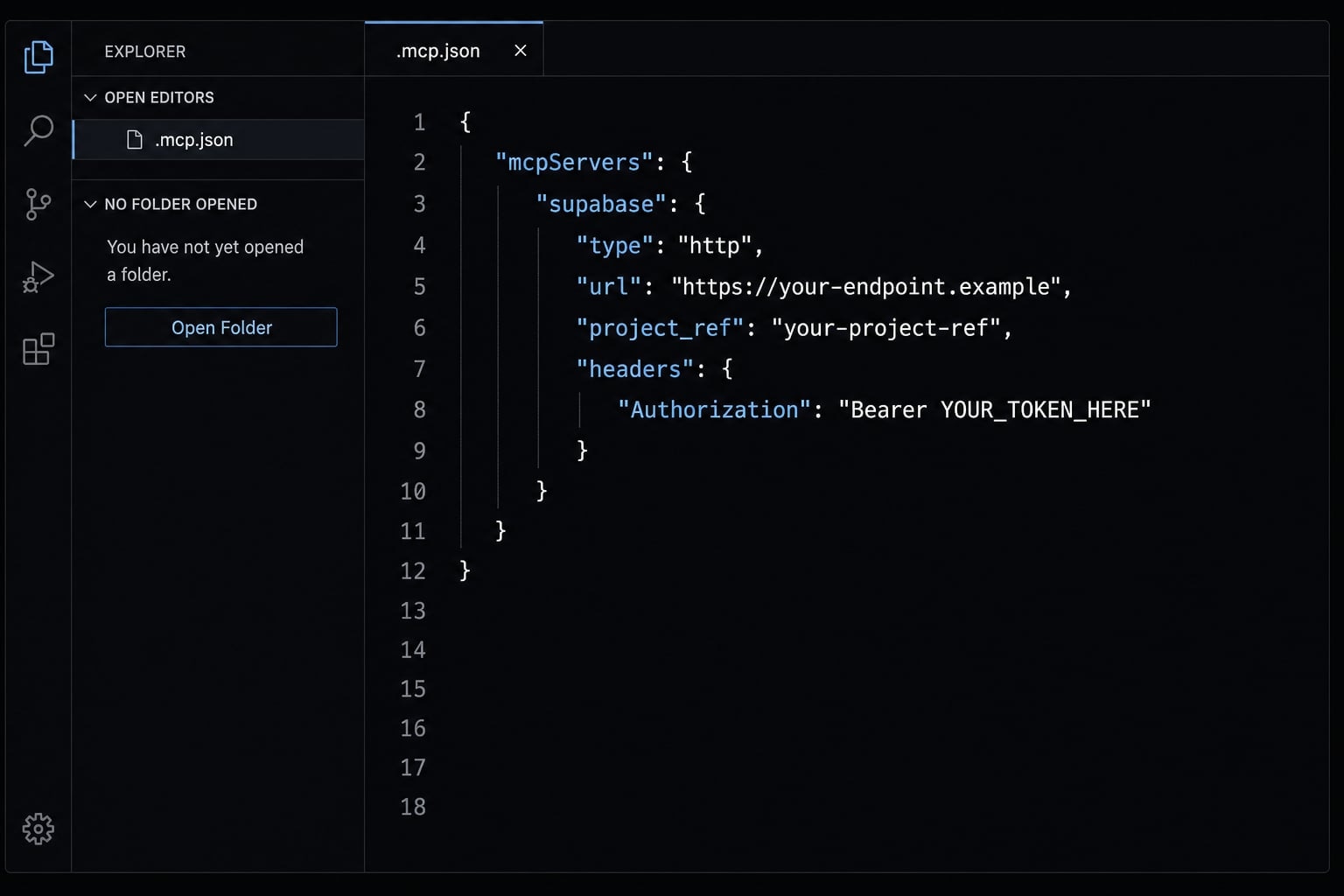
Use the hosted HTTP endpoint, not an older local transport pattern. The URL targets the hosted Supabase MCP server and scopes access with project_ref. The Authorization header passes your Bearer token.
{ "mcpServers": { "supabase": { "type": "http", "url": "https://mcp.supabase.com/mcp?project_ref=YOUR_PROJECT_REF", "headers": { "Authorization": "Bearer YOUR_SUPABASE_PAT" } } }}
Replace:
YOUR_PROJECT_REFwith your real Supabase project reference.YOUR_SUPABASE_PATwith your real token.
Use a hardcoded token only for quick local testing. For repeatable team use, switch to environment variables.
Understand the config without overcomplicating it
A Claude Code .mcp.json file is simply a project-level config that tells Claude Code which HTTP-type MCP server to use, how to reach the Supabase MCP server, which project to target through project_ref, and how to authenticate using Authorization headers. For this workflow, that is the only mental model you need.
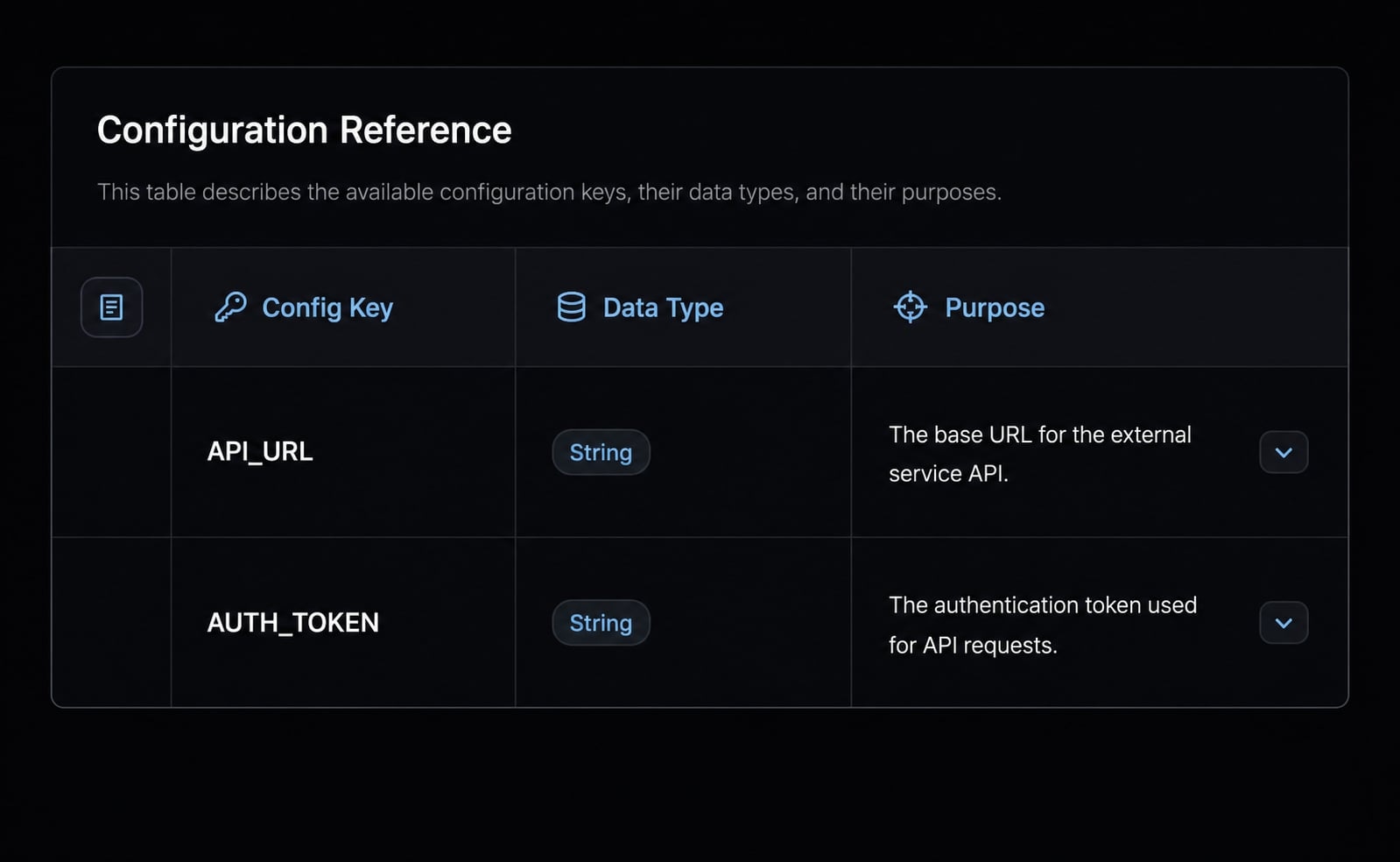
Field | What it means | Why it matters |
|---|---|---|
| Top-level object that lists your MCP server entries | Claude Code looks here to find configured MCP connections |
server name | The label you give the server, such as | Helps you distinguish environments and avoid wrong-project mistakes |
| Tells Claude Code to connect to a hosted MCP server over HTTP | This is the simplest current setup path for Supabase |
| The hosted MCP endpoint Claude should call | If the URL is wrong, Claude cannot reach the server correctly |
| Query parameter that scopes the connection to one Supabase project | Reduces confusion and keeps access pointed at the intended database |
| Bearer token header used for authentication | If this value is malformed or invalid, auth will fail even if the server appears listed |
How to confirm Claude Code can use supabase MCP tools
To verify Supabase MCP, do not stop at seeing the server in the interface. A listed server and usable Claude Code MCP tools are not the same thing. Claude still needs to discover the tools and successfully complete a real action.
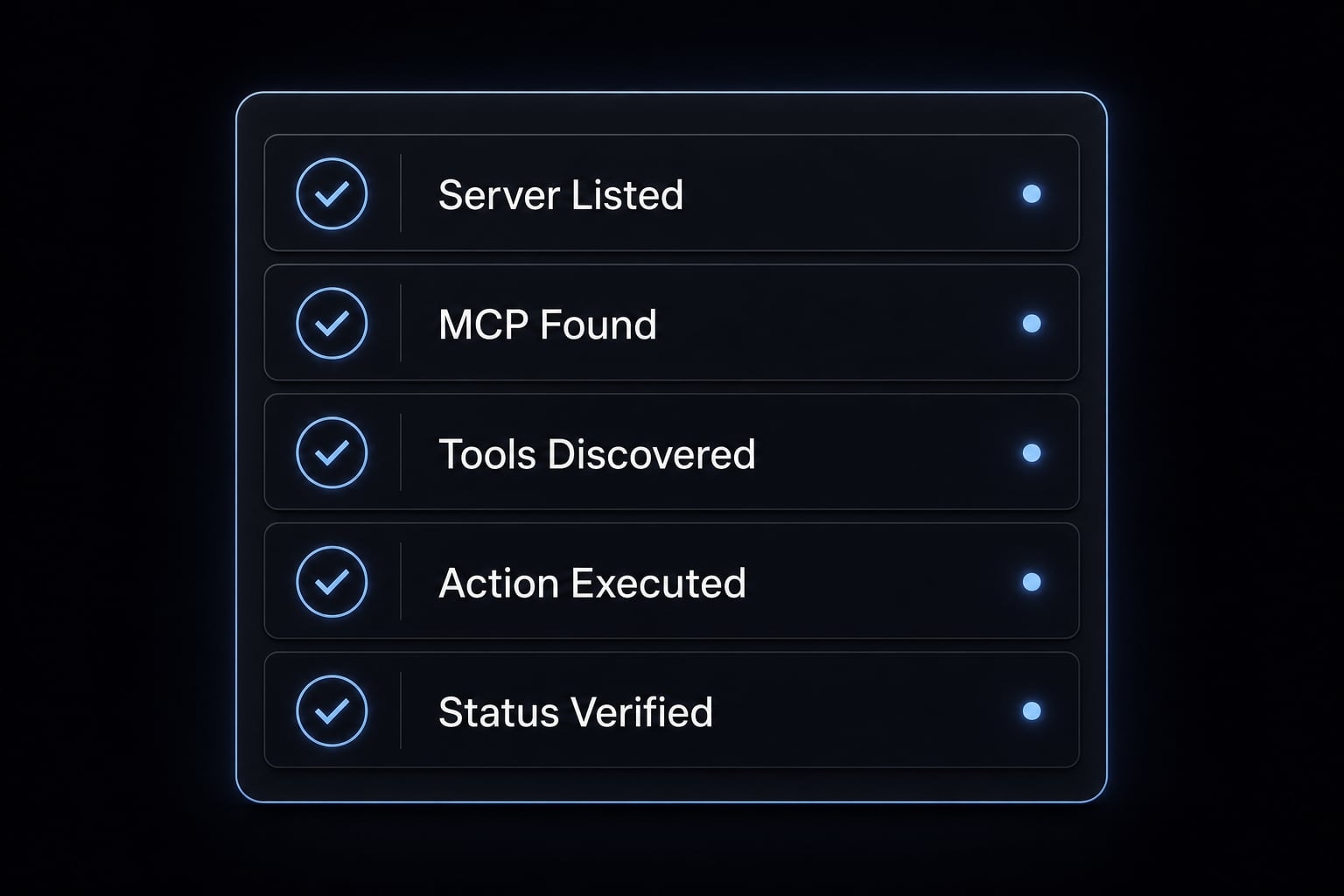
Quick validation checklist:
- .mcp.json is in the active project root.
- Your PAT is valid.
- The project_ref matches the intended Supabase project.
- Running /mcp shows the server.
- Claude can complete a read action successfully.
Use safe, read-oriented test prompts first:
- “List all tables in this Supabase project.”
- “Show the schema for the public tables.”
- “What tables are available in this project?”
- “Read the current database structure without making changes.”
In practice, start with a non-production project or a read-only configuration. That reduces avoidable risk while you confirm the integration is actually working.
Troubleshooting the setup problems most people hit
Most Claude Code MCP troubleshooting issues are not exotic. What usually breaks is one of five things: Wrong transport, bad auth, wrong project targeting, wrong folder, or confusion across multiple environments. The table below covers the most common Supabase MCP tool discovery failures and the shortest fix for each.
Symptom | Most likely cause | Recommended fix |
|---|---|---|
Server is listed, but no tools appear | Tool discovery issue caused by an outdated setup pattern or wrong transport | Move to the hosted HTTP config, reopen Claude Code in the correct folder, and recheck the JSON structure |
| Invalid PAT, expired token, or malformed Authorization header | Regenerate the token and confirm the header is exactly |
Claude is accessing the wrong Supabase project | Incorrect project_ref in the URL | Confirm the intended project ID in Supabase settings and update the config |
| Config file is in the wrong directory | Place .mcp.json in the exact project root Claude Code is opened in |
Old local setup or | Legacy tutorial uses an older local transport assumption | Replace it with the hosted HTTP route using |
Multi-project switching is confusing | One generic server name is being reused across environments | Use explicit names such as |
Tools load inconsistently across projects | Claude Code is opened from a different folder than expected | Check the active working directory before assuming the config is broken |
A few patterns are worth calling out directly:
- Server listed, no tools usually means connection visibility is not the same as tool usability.
- Wrong project is common when teams copy a config between repos and forget to change
project_ref. - Config ignored is often a directory problem, not a syntax problem.
- npx not working is a strong signal to stop following older setup instructions and use the hosted HTTP path instead.
If you are evaluating multiple MCP vendors or workflow patterns internally, agentkit.best can help your team standardize repeatable Claude Code setups and reduce prompt-by-prompt manual configuration drift.
Keep the setup usable without creating unnecessary risk
A fast setup should not become a careless one. For local testing, hardcoding a token may be acceptable. For team use or anything long-lived, better defaults reduce avoidable risk without adding much complexity.
Use these practical safety rules:
- Store tokens in environment variables instead of hardcoding them long-term.
- Add .mcp.json to .gitignore if it contains secrets.
- Use project scoping with a specific
project_ref - Start with read_only mode when validating access.
- Use descriptive server names for environment clarity.
Safer config variant:
{ "mcpServers": { "supabase-dev": { "type": "http", "url": "https://mcp.supabase.com/mcp?project_ref=YOUR_DEV_PROJECT_REF&read_only=true", "headers": { "Authorization": "Bearer $SUPABASE_PAT_DEV" } } }}
This is a safer default because it uses environment variables, limits confusion through naming, and enables read_only=true for first-pass validation.
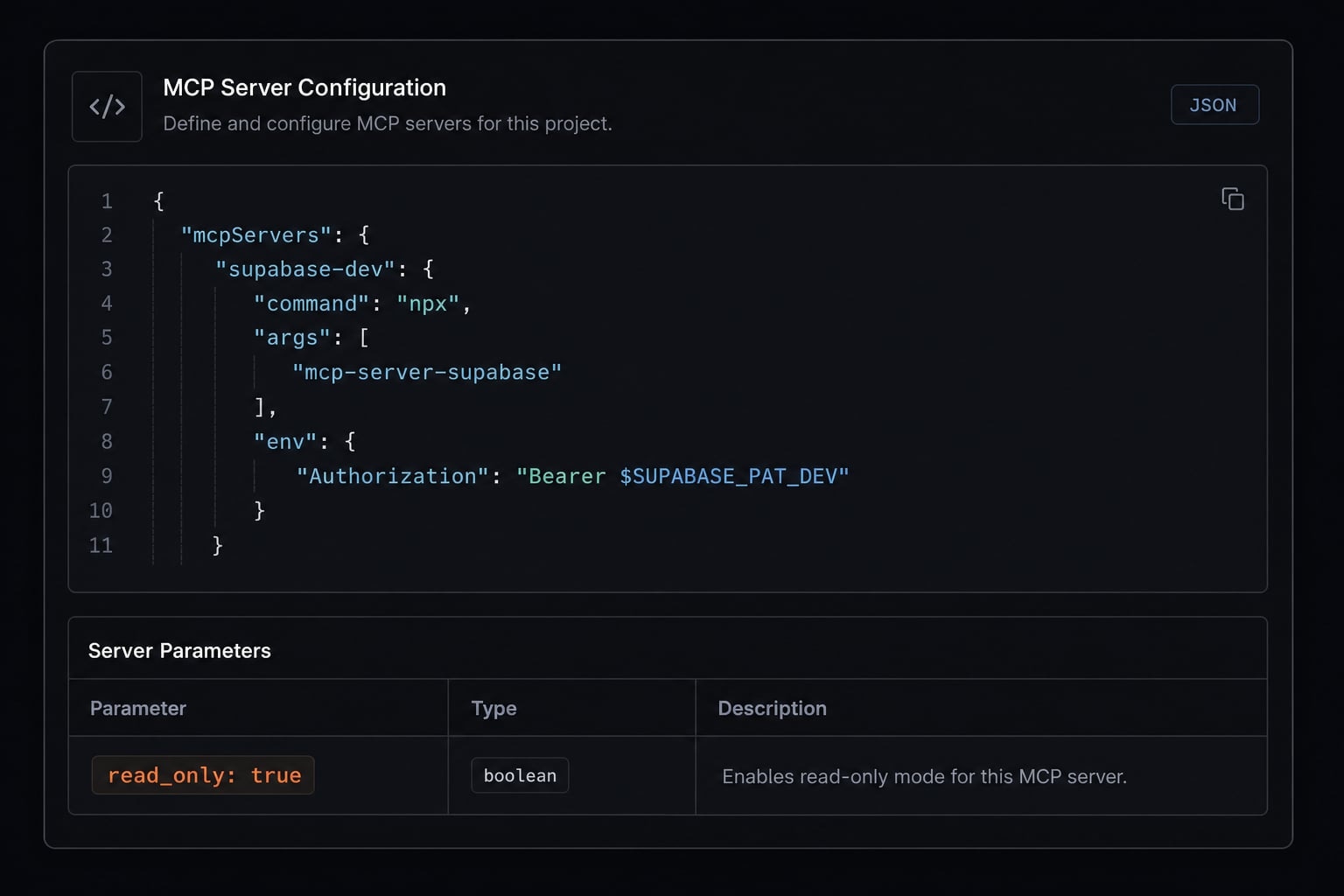
This does not make the workflow fully secure. It simply reduces common mistakes around token security, wrong-project writes, and accidental secret exposure.
Choose the simpler path for your workflow
Most readers should start with direct Supabase MCP configuration through .mcp.json. It gives you full visibility into the setup and makes troubleshooting easier. A managed connector can reduce setup friction for some teams, but it also adds abstraction.
Direct vs managed setup comparison:
Option | Direct | Managed connector |
|---|---|---|
Setup effort | Slightly more manual | Lower friction in some cases |
Control level | Higher | Lower |
Security handling | You manage tokens and scoping directly | Some auth handling is abstracted |
Best-fit user | Developers, technical operators, agencies | Teams that prefer convenience over direct control |
Troubleshooting transparency | Strong, because config is explicit | Lower, because more happens behind the connector |
Vendor dependency | Lower | Higher |
If you use a managed option such as Composio for Claude Code integration, treat it as a workflow choice rather than a universal upgrade. Direct setup remains the cleaner route if you want transparent control over auth, project targeting, and debugging.
Practical example: Adding two supabase projects to one Claude Code setup
If you work across multiple MCP servers, this pattern is useful for multiple Supabase organizations, separate client environments, or a Claude Code multi-project setup spanning dev and production.
{ "mcpServers": { "supabase-dev": { "type": "http", "url": "https://mcp.supabase.com/mcp?project_ref=DEV_PROJECT_REF&read_only=true", "headers": { "Authorization": "Bearer $SUPABASE_PAT_DEV" } }, "supabase-prod": { "type": "http", "url": "https://mcp.supabase.com/mcp?project_ref=PROD_PROJECT_REF&read_only=true", "headers": { "Authorization": "Bearer $SUPABASE_PAT_PROD" } } }}
Use explicit names so Claude can distinguish environments clearly. If you only work on one project at a time, separate folders with separate .mcp.json files may still be cleaner. That usually reduces wrong-target mistakes and keeps project context easier to manage.
Frequently asked questions
What is the fastest way to add Supabase MCP to Claude Code?
The fastest approach is to use Hosted HTTP instead of npx. Create a .mcp.json file in the project root, set the type to "http" with the URL provided by Supabase, and authenticate using a Personal Access Token (PAT) in the Authorization header.
Why does Supabase MCP show “Connected” in Claude Code even though its tools are unavailable?
The “Connected” status only indicates that the server has responded; it does not guarantee successful tool discovery. Common causes include an incorrectly located .mcp.json file, a missing or invalid project_ref, or improperly configured headers. Review the file format and verify the token’s permissions.
What is the difference between project_ref and a PAT in an MCP configuration?
The project_ref identifies the specific project that the MCP server can access, helping prevent access from extending across the entire Supabase organization. A Personal Access Token (PAT) is an authentication credential that allows Claude Code to connect securely to the organization’s API.
Should you hardcode a Personal Access Token in .mcp.json?
No. Although hardcoding the token may work, it creates a risk of exposing the credential if the file is committed to version control. Use an environment variable instead and add .mcp.json to .gitignore to protect sensitive information.
How do you confirm that Supabase MCP is working reliably?
After running /mcp in Claude Code, submit a simple read-only request such as: “List all tables in this Supabase project.” If Claude Code returns the correct database table structure, the integration has been configured successfully and is ready to use.
How can you run multiple Supabase projects in Claude Code simultaneously?
Define multiple servers in the same .mcp.json file by assigning a different name to each entry under mcpServers. Each entry can reference its own project_ref and corresponding PAT, allowing Claude Code to manage multiple independent databases.
Read more:
- Connect GitHub MCP to Claude Code: Step-by-step guide
- Blender MCP with Claude Code: A secure AI scripting setup guide
- Claude Code subagents documentation: Setup and usage guide
Conclusion
If your goal is to add Supabase MCP to Claude Code with the least friction, the working path is straightforward: Create a Personal Access Token (PAT), copy the correct project_ref, place a .mcp.json file in the project root, use the hosted HTTP Supabase MCP config, and verify with safe read-only prompts. The key operational detail is simple but important: a visible server is not enough unless Claude can actually discover and use the tools.