How to Setup and Configure MCP Servers in Claude Code
MCP Servers in Claude Code: How to add, configure, and troubleshoot them
Connecting Claude Code with Model Context Protocol (MCP) servers is simpler than it seems. Most first-time setups only fail due to basic misconfigurations in scopes, authentication, or environment variables. This guide skips the protocol theory and gives you a fast, reliable setup path: how to connect an MCP server, manage configurations, and troubleshoot common errors so it works on the first try.
What MCP Servers mean in Claude Code
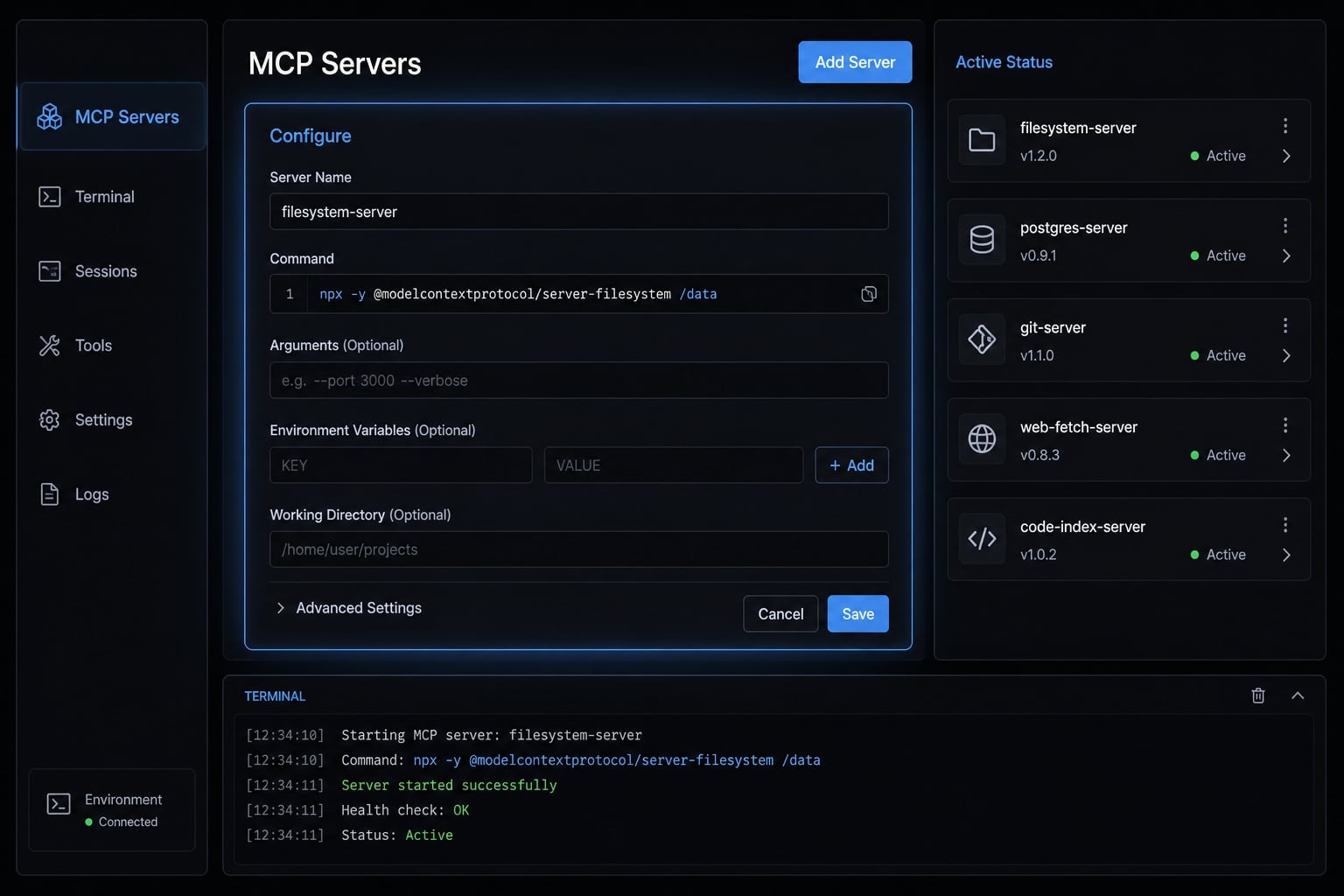
MCP servers in Claude Code are connectors that let Claude use external tools and services through the Model Context Protocol. In practice, they give Claude Code a structured way to access documentation, local scripts, browser automation, SaaS tools, or internal systems when the server is configured correctly.
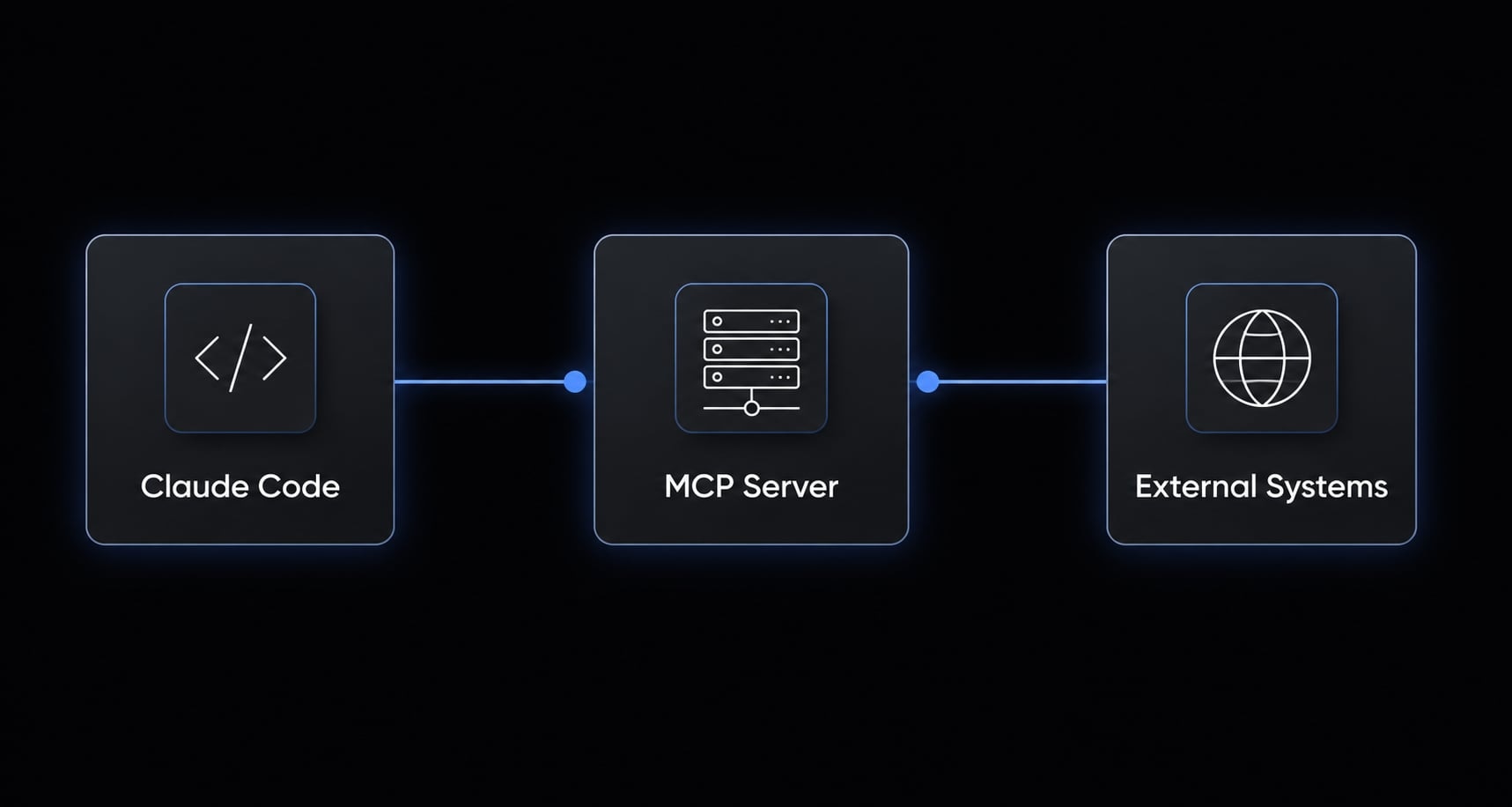
In plain terms, MCP Servers in Claude Code setups work like this:
- Claude Code understands your request and decides when a tool is needed.
- The MCP server exposes that tool in a format Claude can use.
- The external system does the real work, such as returning docs, querying data, or running a local process.
- Claude receives the result and continues the task.
This matters because tool invocation becomes repeatable. Instead of relying only on prompts, Claude Code can use connected tools when the setup matches the right transport, credentials, and config scope.
What MCP does not do
- It does not automatically grant access to a service you have not authenticated.
- It does not replace API tokens, sign-in, or required environment variables.
- It does not fix a wrong HTTP transport or stdio transport choice.
- It does not remove scope problems caused by saving config in the wrong place.
- It does not require deep protocol knowledge to get started safely.
A common misconception is that MCP gives Claude “magic access.” It does not. The server still needs valid setup, and the target service still enforces permissions.
Common MCP use cases in Claude Code
- Looking up product or framework documentation quickly.
- Running browser automation tasks through a connected tool.
- Accessing internal tools or APIs with controlled auth.
- Triggering SaaS/API actions for support, monitoring, or planning workflows.
- Running local developer scripts through a subprocess-based setup.
For most users, MCP Servers in Claude Code become useful the moment Claude needs to work beyond local code editing and built-in tools.
The fastest way to add your first MCP Server in Claude Code
If your goal is to add an MCP server to Claude Code with the least friction, start with a hosted MCP server using HTTP transport. It removes local subprocess issues, reduces dependency problems, and makes validation faster.
Step 1: Add a hosted HTTP MCP server
Use claude mcp add to register a server with Claude Code:
claude mcp add --transport http <name> <url>
What each part means:
claude mcp add: Tells Claude Code to save a new MCP server--transport http: Tells Claude this server is hosted remotely<name>: The label Claude will use to identify the server<url>: The hosted MCP endpoint
A practical example:
claude mcp add --transport http claude-code-docs https://code.claude.com/docs/mcp
This is the best first setup because it has fewer moving parts. You do not need to manage a local subprocess, command path, or local runtime before checking whether Claude can connect.
What success looks like: The command completes without an immediate registration error.
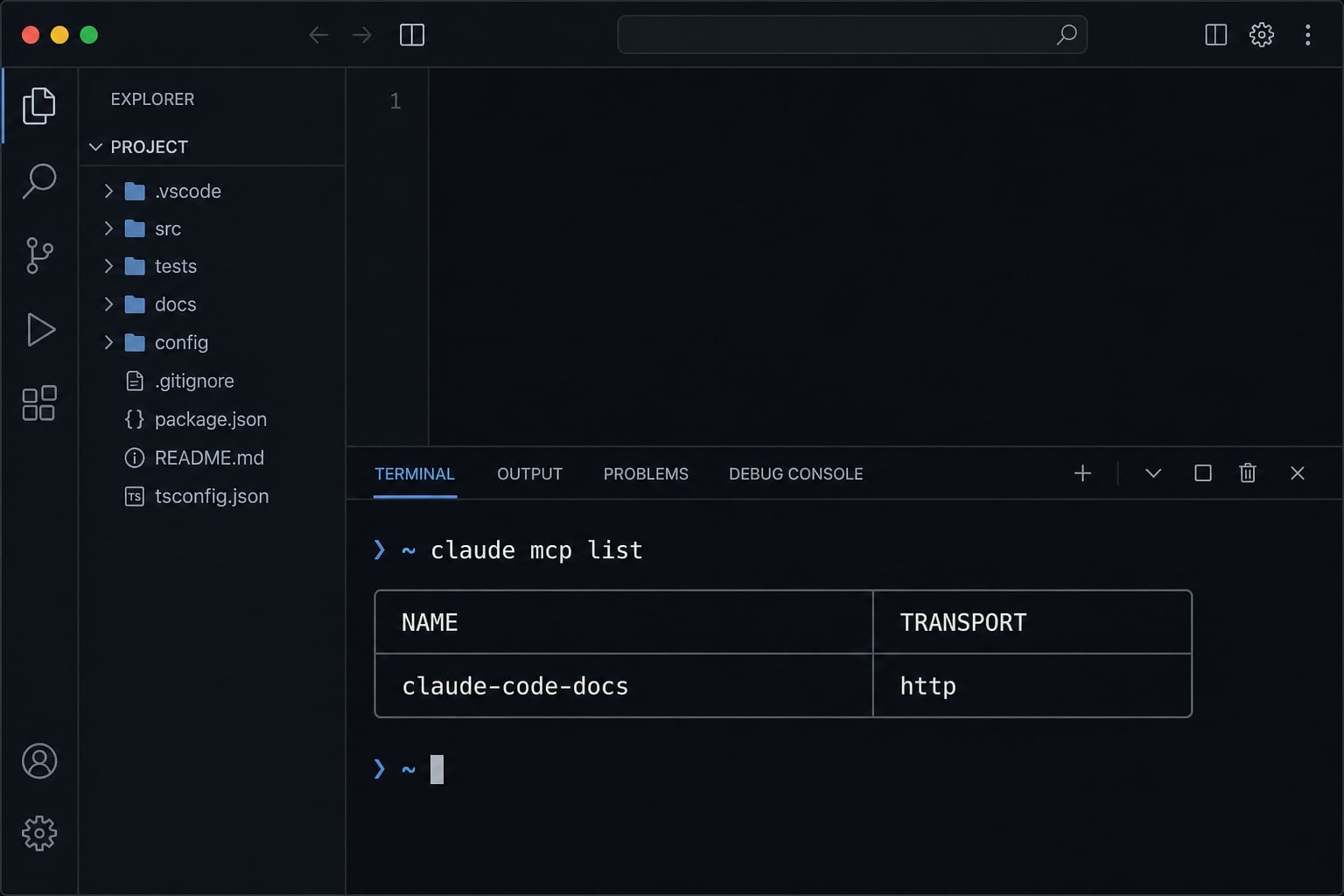
Step 2: Confirm the server is registered
Next, verify that Claude saved the server correctly.
claude mcp list
This command should show the registered server name in your list. It confirms the entry was written to config and that your basic registration step worked.
What success looks like:
- You can see the server name.
- The saved transport matches what you intended.
- The server appears in the expected scope.
If the server does not appear here, do not move on yet. Fix registration first.
Step 3: Use the server inside Claude Code
Registration alone is not enough. Real usage confirms the setup end to end.
Start Claude Code:
claude
Then give a direct prompt such as:
Use the claude-code-docs MCP server to look up the latest docs for MCP_TIMEOUT.
This step proves more than connectivity. It confirms Claude can actually perform tool invocation through the server you added.
What success looks like:
- Claude recognizes the server by name.
- The tool is available for use.
- You get a response from the connected service, not just a saved config entry.
Step 4: Remove or re-add if you need to reset the setup
If the setup is clearly wrong, resetting is often faster than patching a broken entry repeatedly.
claude mcp remove <name>
Example:
claude mcp remove claude-code-docs
In real workflows, this is often the fastest recovery method when you chose the wrong transport, name, or scope on the first pass.
If your team wants a reusable starter checklist for first-time setup, use a standard internal runbook before adding multiple servers at once. It keeps debugging small and controlled.
The short version: for how to add an MCP server to Claude Code, start with one hosted HTTP server, verify it with claude mcp list, test it inside Claude, and reset quickly if needed.
Local vs user vs project scope: Where Claude Code saves MCP server config
Scope determines where Claude Code stores the MCP server config and who can reuse it. In practice, this matters more than many readers expect. A working server saved in the wrong scope often creates confusion later, especially when you switch repos or want teammates to share the same setup.
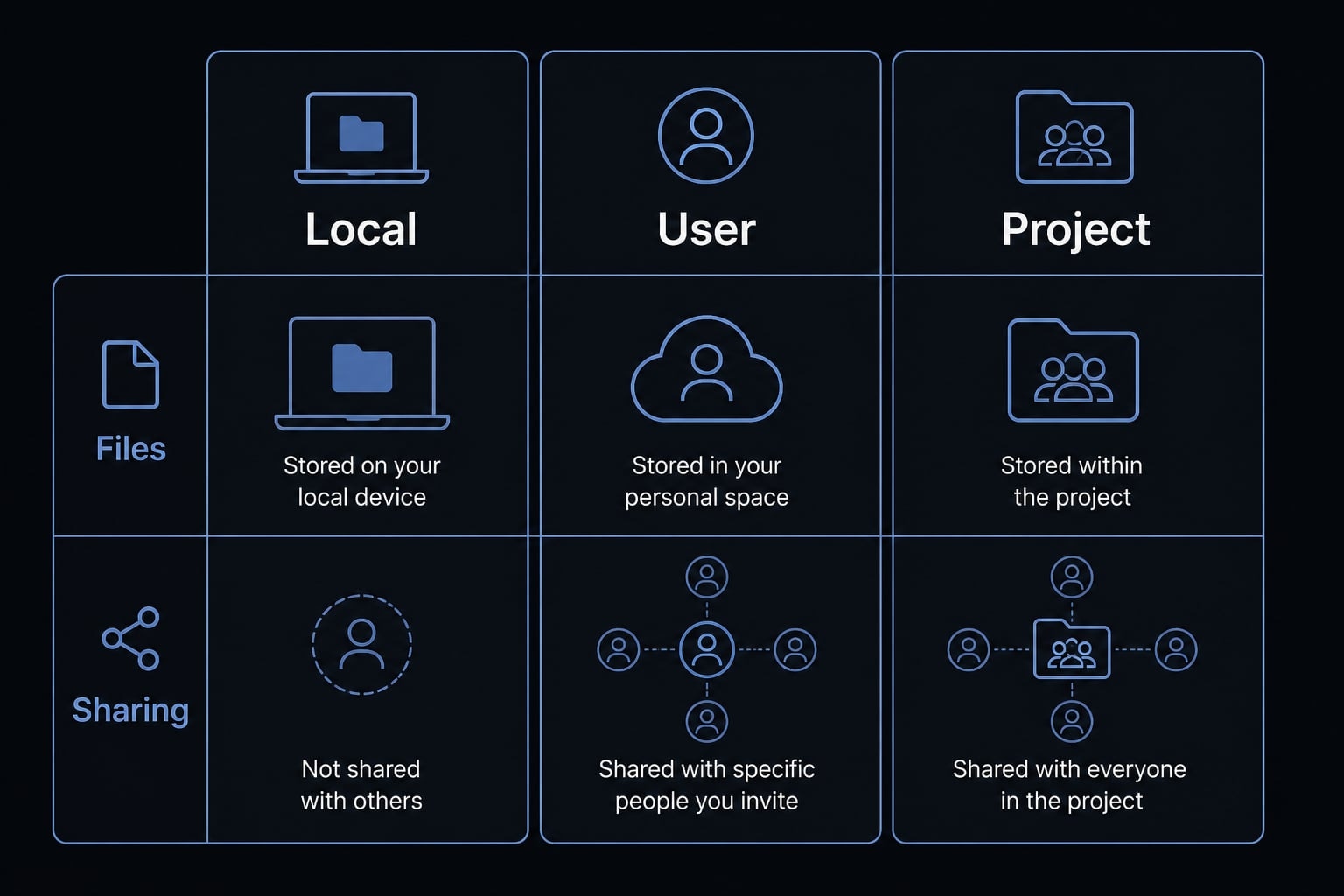
Scope | Best for | Where config is saved | Sharing level |
|---|---|---|---|
Local | Quick testing in one project. |
| Only you, only this project. |
User | Personal reusable setup across repos. |
| Only you, all projects. |
Project | Team-shared repo setup. |
| Everyone using the repo. |
This is the most practical way to think about the Claude Code .claude.json configuration guide question: Do not start from files, start from workflow.
- If the server is temporary, use local scope.
- If the server supports your personal workflow across many repos, use user scope.
- If the server should travel with the repository, use project scope and store it in
.mcp.json.
When to use local scope
- Testing a new connection without affecting other projects.
- One-off experimentation with a hosted or local server.
- Temporary setup with lower sharing risk.
- Debugging before promoting the config elsewhere.
When to use user scope
- One person working across many repositories.
- A recurring personal setup you want available everywhere.
- Cross-project reuse of the same docs, browser, or utility server.
- Cleaner personal workflow without duplicating entries.
When to use project scope
- Team onboarding where contributors need the same baseline tools.
- Repo-level standardization for repeatable commands.
- Shared workflow conventions across developers or operators.
- Storing a reusable setup in
.mcp.jsonfor collaborators.
A practical note from the Claude Code .claude.json configuration guide angle: Changing scope usually means remove the server and add it again with the desired scope. Scope is easier to choose correctly upfront than to clean up later.
Two setup methods: claude mcp add vs editing .mcp.json directly
The real choice in Claude Code mcp add vs editing .mcp.json is not about which method is “better” in absolute terms. It is about which method reduces friction for the job you are doing.
Decision rule: Use the CLI for first success, use direct editing for maintenance at scale.
Method | Best for | Strengths | Tradeoffs |
|---|---|---|---|
| First-time setup, simple testing. | Fast, guided, lower error rate. | Less visible when managing many entries. |
Direct config editing | many servers, shared config, complex settings. | full visibility, easier copying, team reuse. | easier to break with bad JSON syntax. |
The Claude CLI method works well when your goal is quick validation. It keeps the setup narrow and reduces accidental mistakes. In contrast, direct config editing becomes more useful when:
- You manage multiple servers.
- You want a shared
.mcp.json - You need more deliberate JSON configuration.
- You are maintaining environment-specific settings over time.
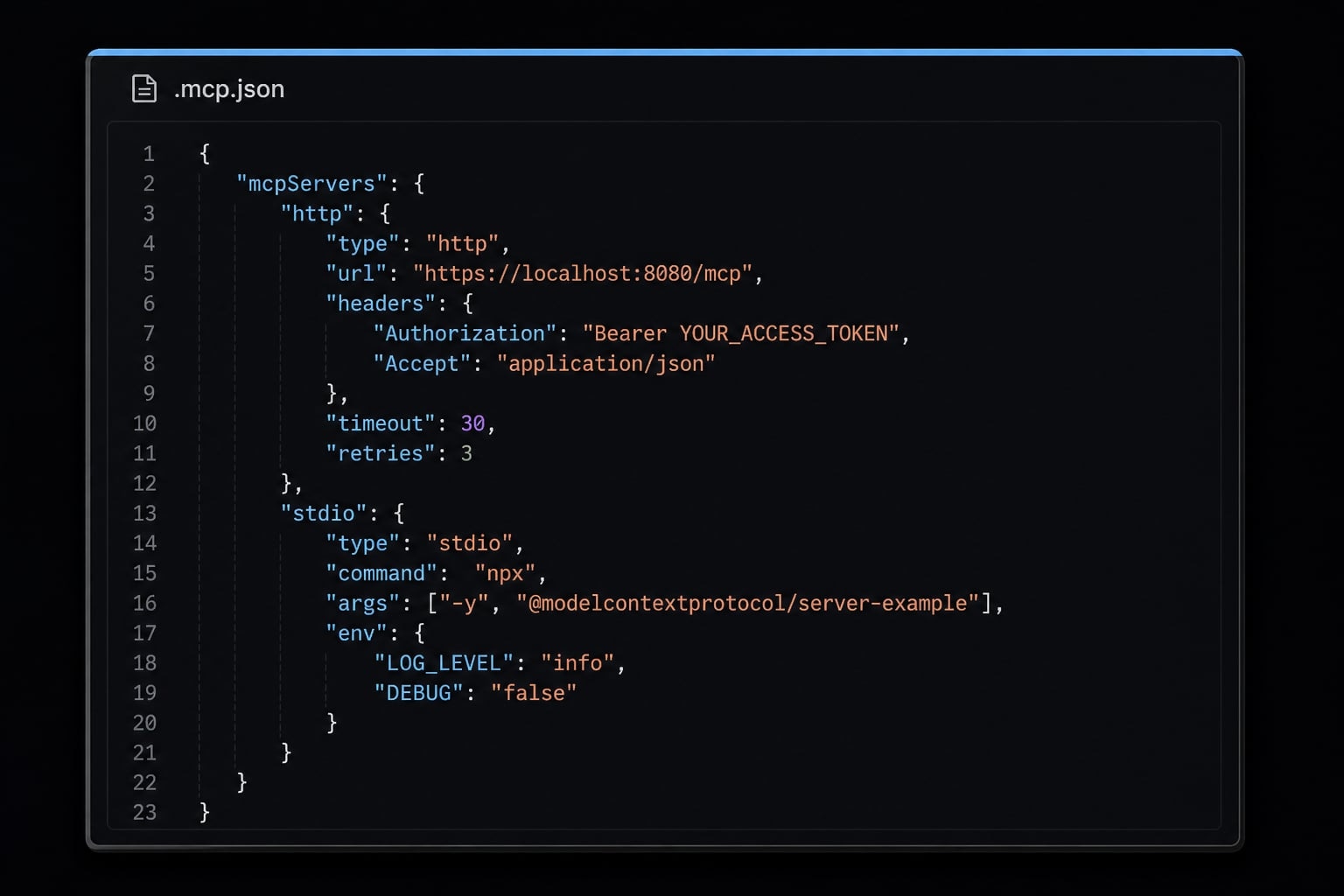
Example of a manually edited .mcp.json
A minimal manual file can include both an HTTP server and a local stdio server:
{ "mcpServers": { "claude-code-docs": { "type": "http", "url": "https://code.claude.com/docs/mcp" }, "playwright": { "type": "stdio", "command": "npx", "args": ["-y", "@playwright/mcp@latest"] } }}
This is where Claude Code mcp add vs editing .mcp.json becomes a practical decision. For one or two servers, CLI is usually faster. For maintenance, review, and team visibility, file-based JSON configuration is often easier to manage.
Mistakes to avoid when editing manually
- Broken JSON syntax, such as missing commas or braces.
- Wrong local command path for a stdio server.
- Missing env block when a server requires auth.
- Forgetting to restart or reload Claude Code after changes.
- Changing too many variables at once during debugging.
If your setup is growing, keeping a reviewed shared .mcp.json under version control is often cleaner than rebuilding config through prompts every time.
Common MCP Server examples in Claude Code
Most readers do not need every possible pattern. They need to recognize which setup type matches their use case. The three patterns below cover the majority of real-world starts: Hosted docs lookup, local automation, and authenticated SaaS or internal service access.
Use case: Documentation lookup
A hosted docs server is usually the safest first test because HTTP transport removes local dependency variables. This makes it ideal for confirming that Claude Code can reach and use a server end to end.
claude mcp add --transport http claude-code-docs https://code.claude.com/docs/mcp
This pattern is useful when you want fast answers from product docs, framework references, or structured internal knowledge. It is also the easiest way to prove your MCP Server Claude Code setup works before you add more complex tools.
Use case: Local automation or tool execution
When readers ask how to connect local stdio MCP server to Claude Code, the key idea is stdio transport. In this model, Claude Code starts a local process on your machine as a subprocess and communicates through standard input/output.
Example:
claude mcp add playwright -- npx -y @playwright/mcp@latest
This pattern is useful for browser automation, local scripts, or utilities that run best on your own machine. It is powerful, but it has more setup variables than a hosted server:
- Local runtime must exist.
- Command path must be valid.
- Required packages must resolve correctly.
- Startup can fail if local dependencies are missing.
That is why a hosted server usually remains the better first test, even if your long-term goal is to connect local stdio MCP server to Claude Code.
Use case: SaaS or internal service with authentication
This is where setup friction usually increases. The server may be reachable, but usable access still depends on auth and required environment variables.
Common checks:
- The API token exists and has the right permission scope.
- Required sign-in or authorization flow has been completed.
- The server expects secrets through environment variables.
- Tool exposure is enabled after authentication.
- Tokens are not hardcoded into a shared config file.
A key trust point: “connected” does not always mean “ready.” A server may register successfully, but the actual API integration can still fail if auth is incomplete.
Security note: Keep secrets outside shared repo config whenever possible. If a team uses project scope, share the server definition but handle tokens through secure local secret management.
Troubleshooting Claude Code MCP Servers by Symptom
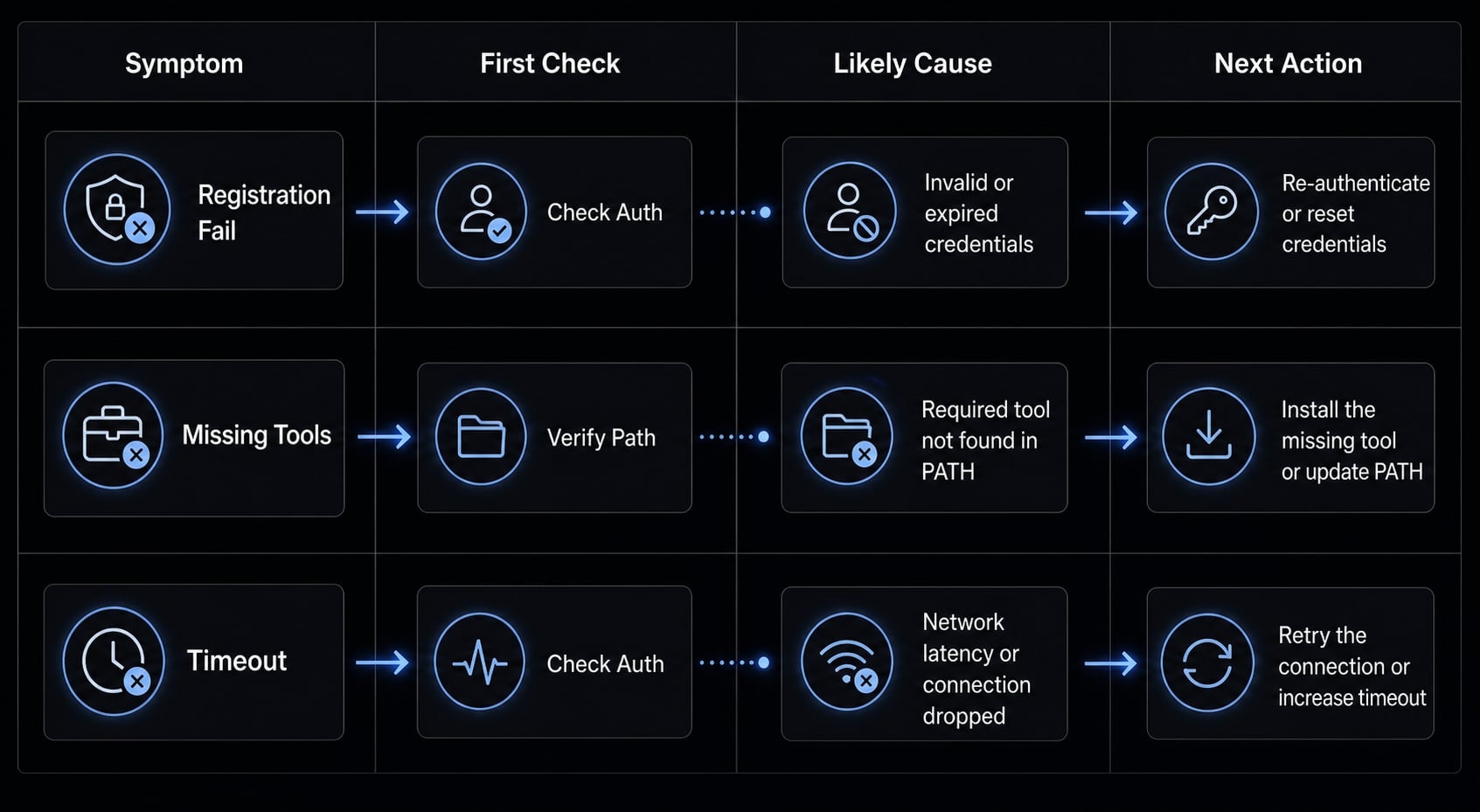
When troubleshooting Claude Code MCP connection errors, the most effective rule is simple: check one variable at a time - name, transport, URL or command, scope, auth, then environment variables. Most setup failures are caused by one mismatch, not a deep protocol issue.
“Server added, but Claude cannot use it”
Start with the server details Claude has actually saved:
claude mcp get <name>
Checklist:
- Confirm the server name matches what you are using in prompts.
- Confirm the transport is correct: HTTP vs stdio.
- Check the URL for hosted servers.
- Check the command path for local subprocess servers.
- Confirm the server was added in the intended scope.
- Restart Claude Code if you changed config recently.
Likely causes:
- Wrong server name.
- Wrong transport type.
- Incorrect endpoint or command.
- Config saved somewhere other than expected.
Next action: Fix the smallest mismatch first, then test again. In troubleshooting Claude Code MCP connection errors, broad edits usually create new problems.
“Connected, but tools are missing”
This is one of the most common cases. A connection entry can exist even when the usable tools are not ready.
First checks:
- Are required environment variables present?
- Has sign-in or server-side authentication been completed?
- Does the token have the right permissions?
- Does the server expose tools only after an auth step?
- Did you restart the session after adding env settings?
Likely causes:
- Missing env vars.
- Incomplete authentication.
- Permission scope too narrow.
- Server-specific setup not fully completed.
Next action: Verify auth before changing transport or scope. In practice, “tools not showing” usually points to auth or server requirements, not registration failure.
If your team repeatedly hits this problem, document the required variables once and store the example separately from the actual secret values.
“Startup hangs or times out”
If you see failed to connect behavior or connection timed out during startup, do not immediately rework everything.
First checks:
- Is the server unusually heavy to start?
- Are local dependencies missing for a stdio process?
- Is the remote endpoint reachable over the network?
- Did you choose a more complex server before testing with a simple one?
For longer startup cases, increase MCP_TIMEOUT:
MCP_TIMEOUT=60000 claude
Likely causes:
- Slow local startup
- Unresolved local dependency chain
- Remote network reachability issue
- Server complexity exceeding default timeout
Next action: Test a simpler hosted server first. In troubleshooting Claude Code MCP connection errors, reducing complexity is often the fastest path to a clear answer.
The practical takeaway is straightforward: When troubleshooting Claude Code MCP connection errors, work from the visible symptom, isolate one variable, and avoid rewriting the whole setup at once.
A simple starter workflow for teams using Claude Code MCP
Small teams do not need heavy governance to make MCP useful. They need a repeatable baseline that turns individual experiments into repeatable AI workflows without creating config drift.
A lightweight team workflow usually works well:
Suggested baseline governance:
- Use a simple naming convention such as
docs-main,playwright-local, orsentry-prod-readonly - Store team-shared server definitions in a shared
.mcp.jsonat the project root - Never commit real secrets; keep tokens in local secret storage or secure environment variables
This is enough to support a practical AI agentic workflow for small product teams. One person can validate the setup with CLI first, then move the stable definition into project scope once it is proven.
If your team is standardizing AI-assisted development or marketing operations, build from one working server, not five at once. That reduces onboarding friction and makes failures easier to diagnose.
Frequently asked questions
What are MCP servers in Claude Code?
MCP (Model Context Protocol) servers are specialized services that extend Claude Code’s capabilities beyond its built-in toolset. By connecting an MCP server, you enable Claude Code to interact with external systems—such as databases, issue trackers, or documentation APIs—allowing it to execute complex, multi-step workflows directly within your terminal.
How do I add an MCP server to Claude Code?
You can add an MCP server by using the Claude CLI with a simple command. Follow these steps:
- Open your terminal in the target directory.
- Run
claude mcp add --transport http <name> <url>to register the server. - Use
claude mcp listto verify the connection. - Prompt Claude to utilize the server by name.
Where is my Claude Code MCP configuration stored?
Claude Code stores MCP configuration in specific files depending on the scope chosen during registration:
- Local Scope: Saved in
~/.claude.json(specific to the project directory). - Project Scope: Saved in
.mcp.json(located in the project root, shareable with teammates). - User Scope: Saved in
~/.claude.json(accessible across all projects for your user account).
Should I use the CLI or edit my .mcp.json file directly?
Use the CLI (claude mcp add) for quick setup and initial testing to avoid syntax errors. Switch to direct manual editing of .mcp.json when you need to maintain complex configurations, manage multiple environment variables, or share standardized MCP tool settings across a development team.
How do I troubleshoot "Server connected but no tools appear"?
This symptom usually indicates that the server connection is successful, but the environment is not fully configured. First, verify that all required environment variables are passed correctly during the add command. Second, check if the server requires specific authentication or a manual sign-in process; run claude mcp get <name> to view specific error details.
What is the purpose of the MCP_TIMEOUT environment variable?
The MCP_TIMEOUT environment variable is used to resolve startup issues where an MCP server takes longer than the default threshold to initialize. If you encounter connection timeouts, setting a higher value-such as MCP_TIMEOUT=60000-before starting Claude Code provides the server more time to respond, preventing premature startup failures.
Read more:
- Connect GitHub MCP to Claude Code: Step-by-step guide
- How to Add Supabase MCP to Claude Code
- Claude Code Figma MCP setup: Remote vs desktop guide
Conclusion
The practical path for MCP Servers in Claude Code is simple: Understand what MCP does, add one server first, choose the right scope, decide whether CLI or file editing fits your workflow, and troubleshoot by symptom rather than by guesswork. For most readers, a hosted HTTP server is the fastest first win, while a shared .mcp.json becomes more useful once the setup is stable and repeatable.
Start small, validate each connection end to end, and only then expand to local automation or authenticated service integrations. If you want a cleaner rollout, build from a starter template or a reviewed shared config example rather than improvising every server from scratch.