GitHub MCP Claude Code: How to connect GitHub to Claude Code the right way
If you searched for GitHub MCP Claude Code, you likely want one practical outcome: Connect Claude Code to GitHub so your AI coding workflow can see repositories, issues, pull requests, commits, and CI context without constant tab switching. This guide is specifically for Claude Code, not Claude Desktop. That distinction matters because setup patterns differ. Below, we cover what GitHub MCP actually does, what you need before setup, how to connect it step by step, how to verify it works, what you can do with it after setup, and the fastest fixes for common setup failures.
What GitHub MCP for Claude Code actually does
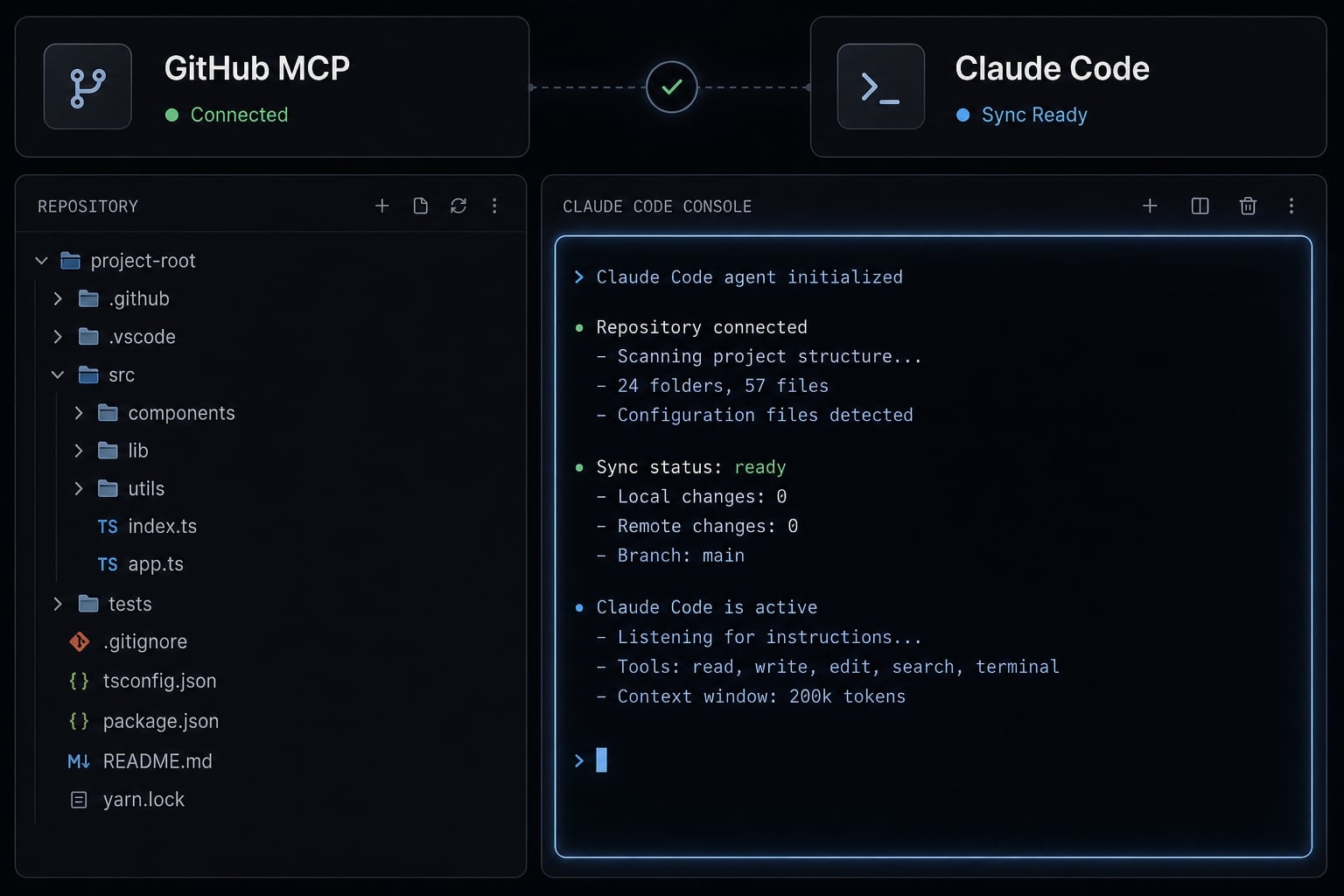
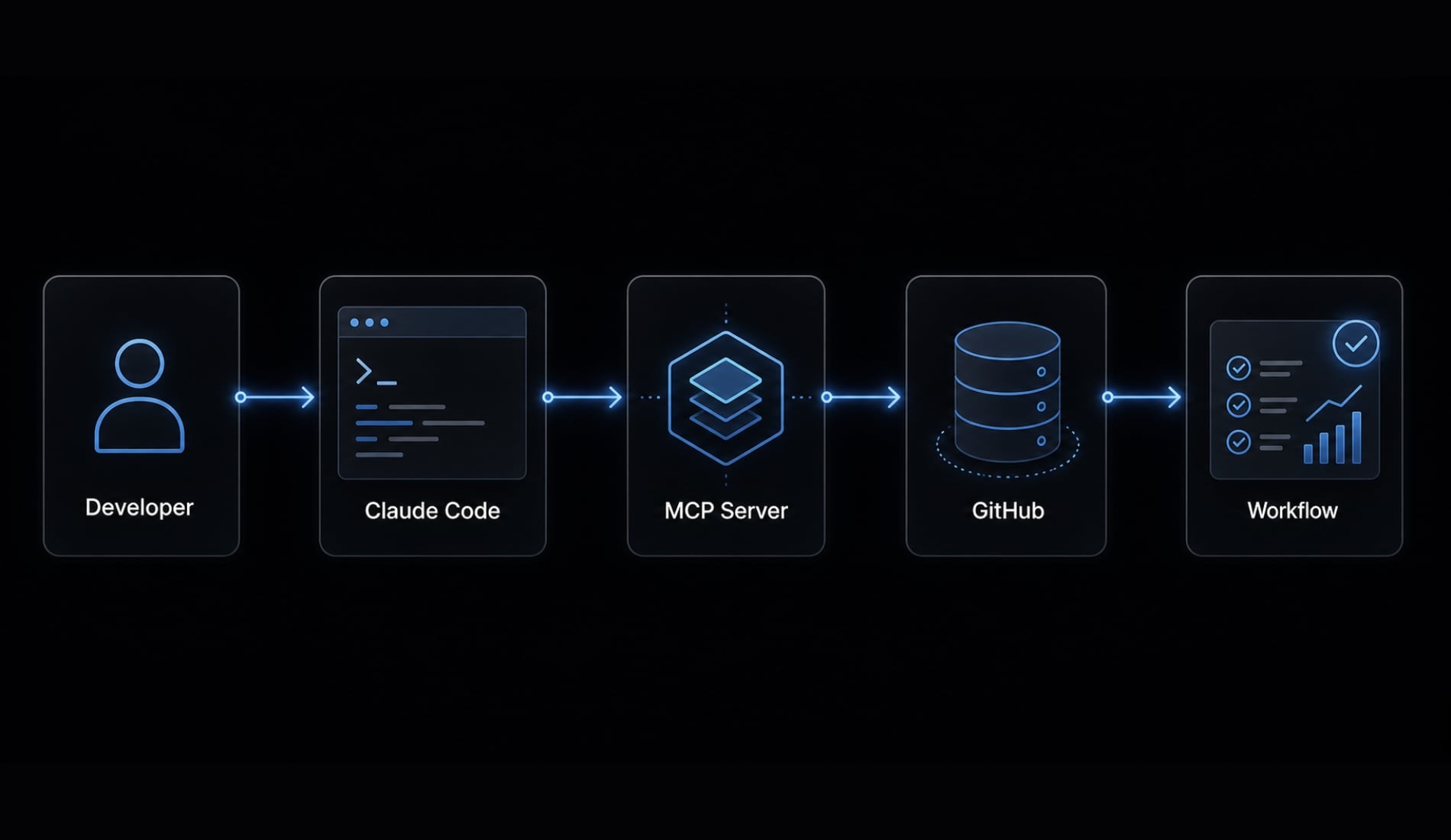
GitHub MCP for Claude Code is the connection setup that lets Claude Code access GitHub tools and context through an MCP server. In practical terms, it extends Claude beyond your local codebase so it can work with repository metadata, pull requests, issues, commits, and workflow status inside a single terminal-driven flow.
That matters because many development tasks are not purely local. You may be editing code in one branch, but the real context lives in a PR discussion, an open issue, or a failing GitHub Actions run. A working Claude Code GitHub integration reduces that friction.
What MCP means in this workflow
Model Context Protocol (MCP) is the controlled bridge between Claude Code and external tools. In this setup, the external tool is GitHub. The MCP server exposes approved GitHub actions and data so Claude can use them within the limits of your configuration and permissions.
What Claude Code can do after GitHub MCP is connected
Once connected, Claude Code can support a more complete AI coding workflow, including:
- List repositories you can access.
- Read issues and pull requests.
- Inspect commits or workflow status.
- Support PR review and change analysis.
- Help investigate CI failures.
- Optionally work with gists if enabled.
The important boundary is simple: GitHub MCP only works as far as your setup and token permissions allow. If access is missing or too broad, problems start there.
What you need before setup
A large share of failed setups comes from missing prerequisites, incorrect scope choices, or token mistakes. Before connecting anything, verify the basics first.
Prerequisites checklist
- A GitHub account.
- Claude Code CLI installed on the machine where you work.
- A GitHub Personal Access Token (PAT) with the right permissions.
- Terminal access where Claude Code runs.
- Permission to access the repositories or organization resources you plan to use.
For Claude Code, the mainstream setup path commonly uses HTTP transport, so you do not need to overcomplicate this with unrelated desktop-specific steps.
Which GitHub token scopes are usually enough
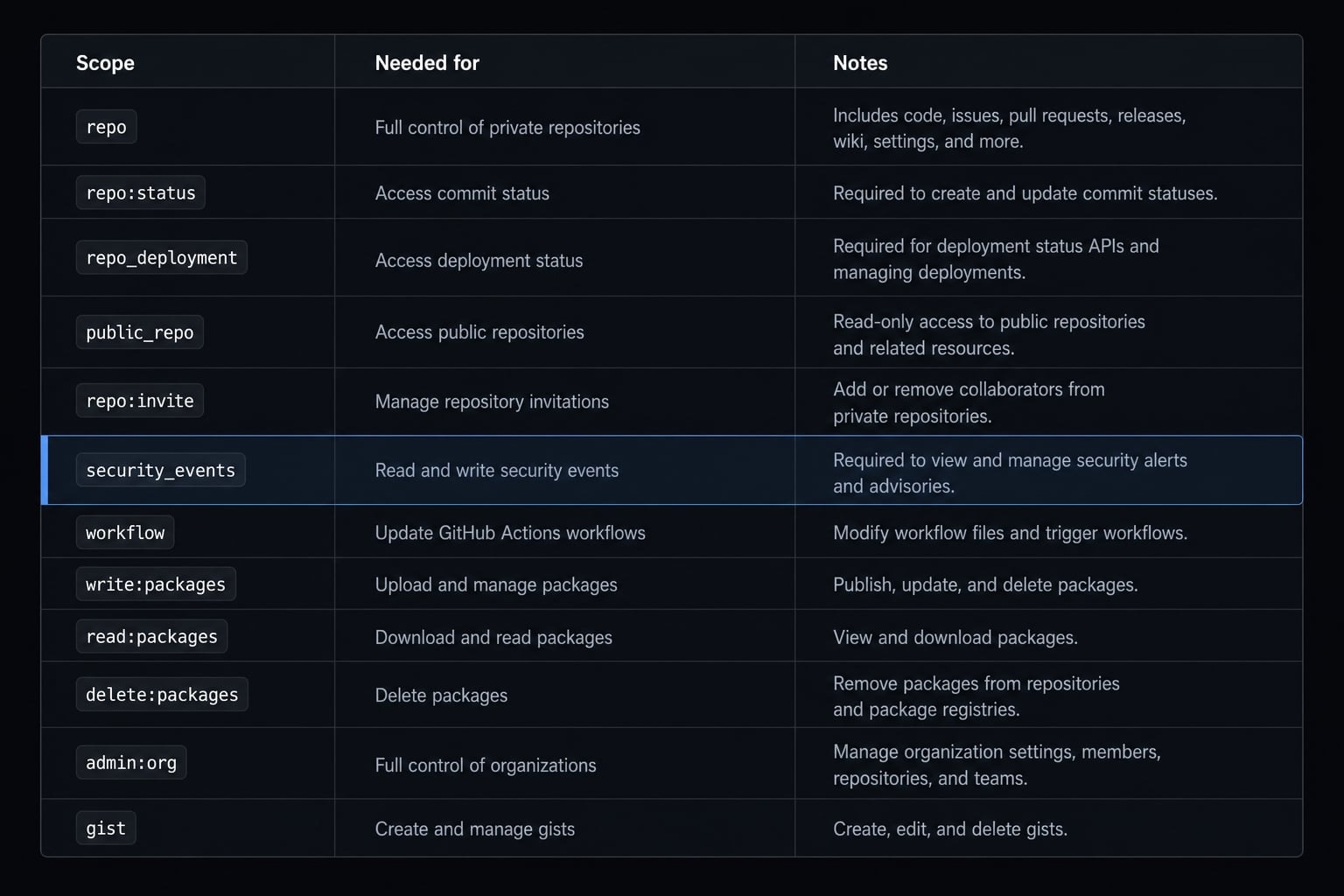
Scope | Needed for | Notes |
|---|---|---|
| Private repositories, issues, pull requests, broader repo operations. | Usually the practical default if you work with private repos. |
| Public repositories only. | Better minimum if you do not need private repo access. |
| Organization visibility and org-linked context. | Only add if org membership or org resources matter. |
| Creating and managing gists. | Optional; skip if your workflow never uses gists. |
The goal is least privilege. If your workflow only needs public repositories, public_repo may be enough. If you need private repository access, PR review, or issue work across private code, repo is typically required.
Safe Setup Checklist
Security checklist:
- Use least privilege instead of broad access by default.
- Never paste PATs into shared docs, chat, tickets, or screenshots.
- Rotate and revoke exposed tokens immediately.
- Choose scopes based on actual usage, not convenience.
How to connect GitHub MCP to Claude Code step by step
This is the fastest reliable path for connecting GitHub MCP server to Claude Code without adding extra complexity.
Step 1: Create a GitHub personal access token
- Open your GitHub token settings.
- Generate a new GitHub Personal Access Token.
- Select only the scopes you actually need.
- Copy the token immediately.
- Store it in a secure password manager or approved secret store.
A common setup choice is:
repofor private repository access.read:orgif organization visibility matters.gistonly if you plan to use gist-related actions.
Do not save the PAT in plaintext team docs or project notes.
Step 2: Add the GitHub MCP server in Claude Code
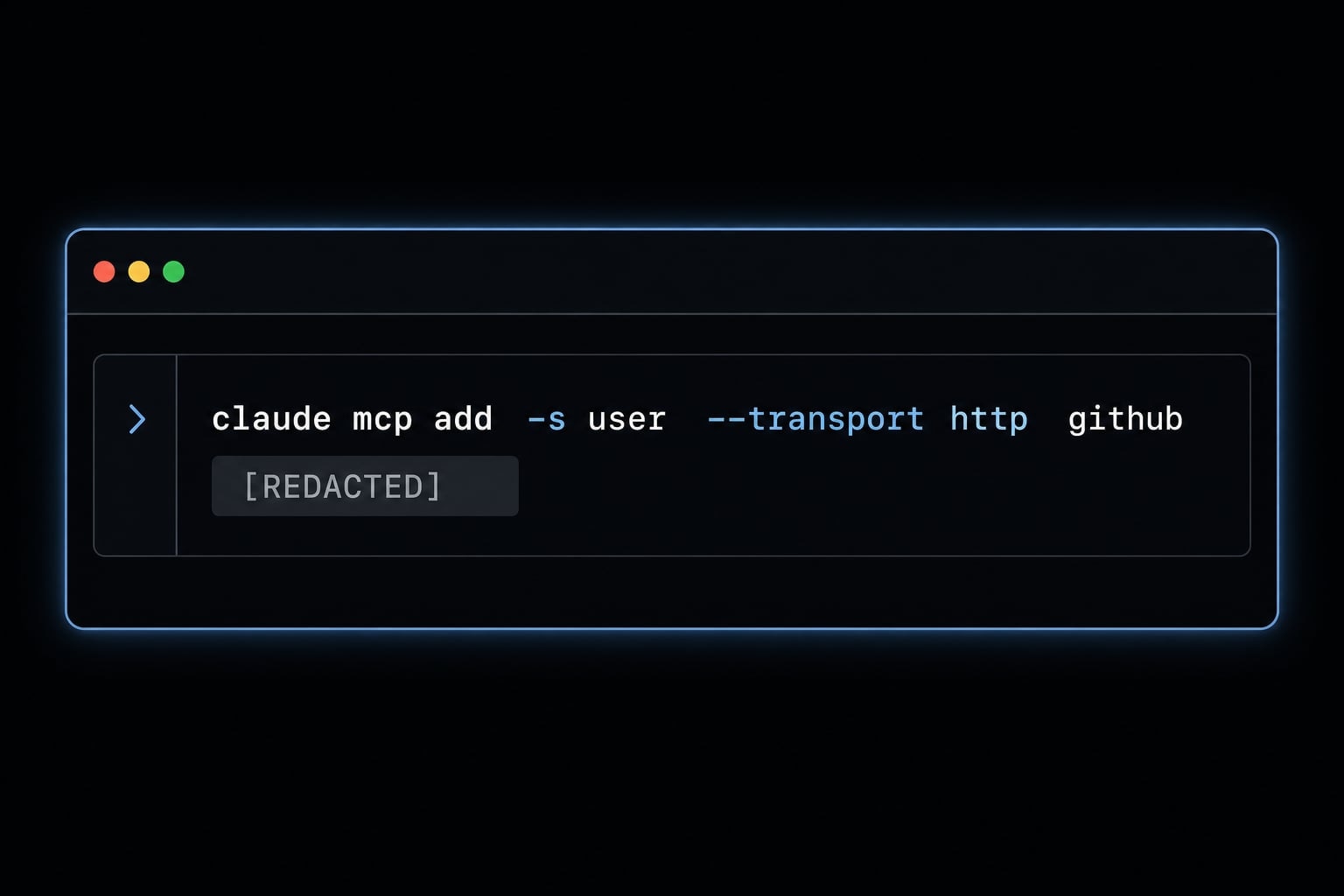
Run the setup command in your terminal, not inside a Claude conversation. A common command pattern looks like this:
claude mcp add -s user --transport http github https://api.githubcopilot.com/mcp -H "Authorization: Bearer YOUR_PAT_HERE"
What each part does:
claude mcp add: Adds a new MCP server.-s user: Saves it at user scope for reuse across projects.--transport http: Uses HTTP transport.github: The local server name in your Claude config.https://api.githubcopilot.com/mcp: The MCP endpoint.-H "Authorization: Bearer YOUR_PAT_HERE": Sends your GitHub token as the auth header.
Replace YOUR_PAT_HERE with your actual token.
Because CLI syntax can evolve, treat this as a common GitHub MCP server setup pattern and validate against current Claude Code CLI documentation if your version differs.
Step 3: Choose the right scope for your use case
Scope is not a minor detail. It affects reuse, isolation, and maintainability.
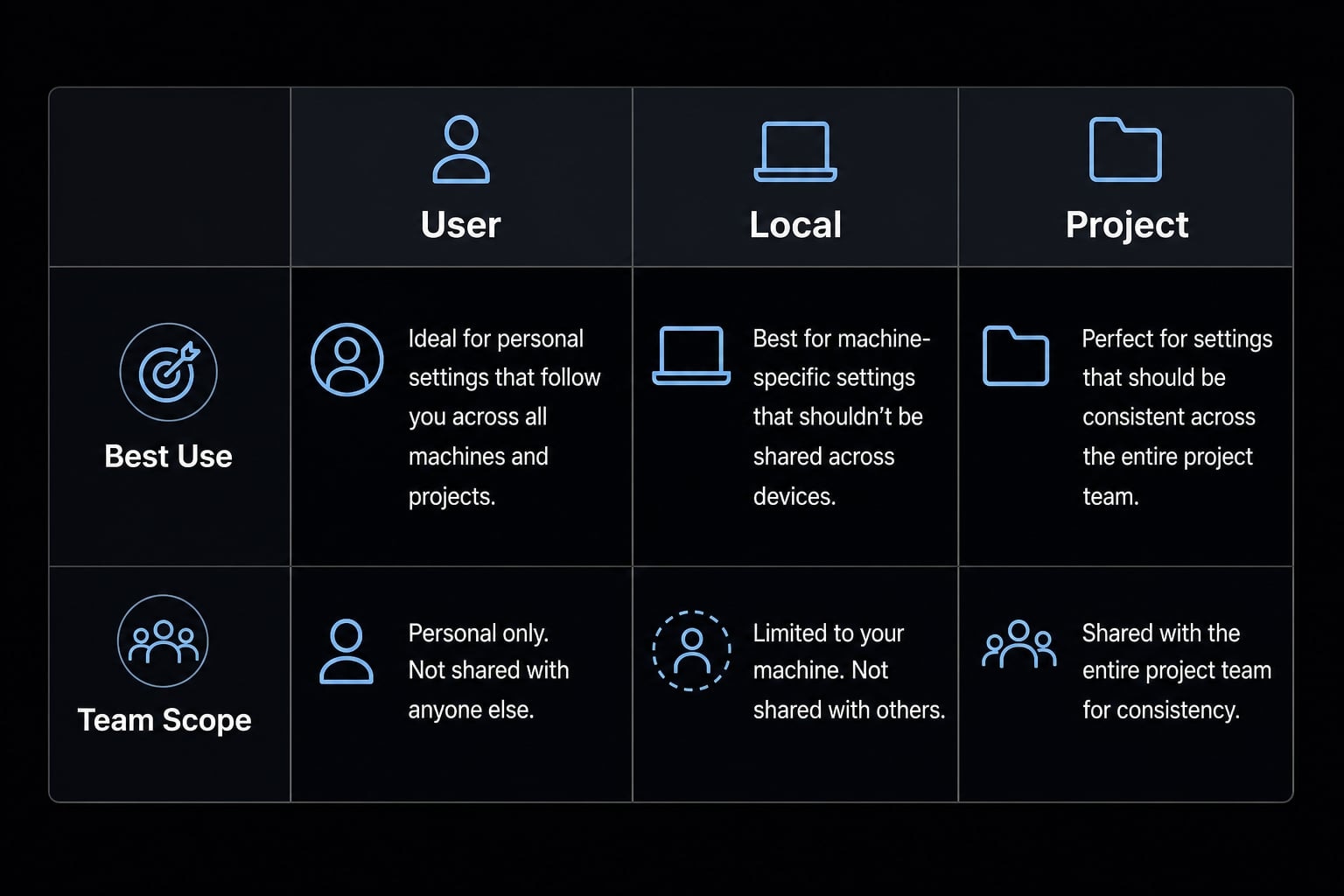
userscope: Best for personal reuse across multiple projects.localscope: Best for current project only.projectscope: Best for shared team conventions and explicit ownership.
A practical rule:
- Choose user scope for solo development.
- Choose local scope for one-off experiments.
- Choose project scope only when the team wants a shared, maintained configuration.
Do not default to project scope unless someone owns it.
Step 4: Verify the MCP Server is available
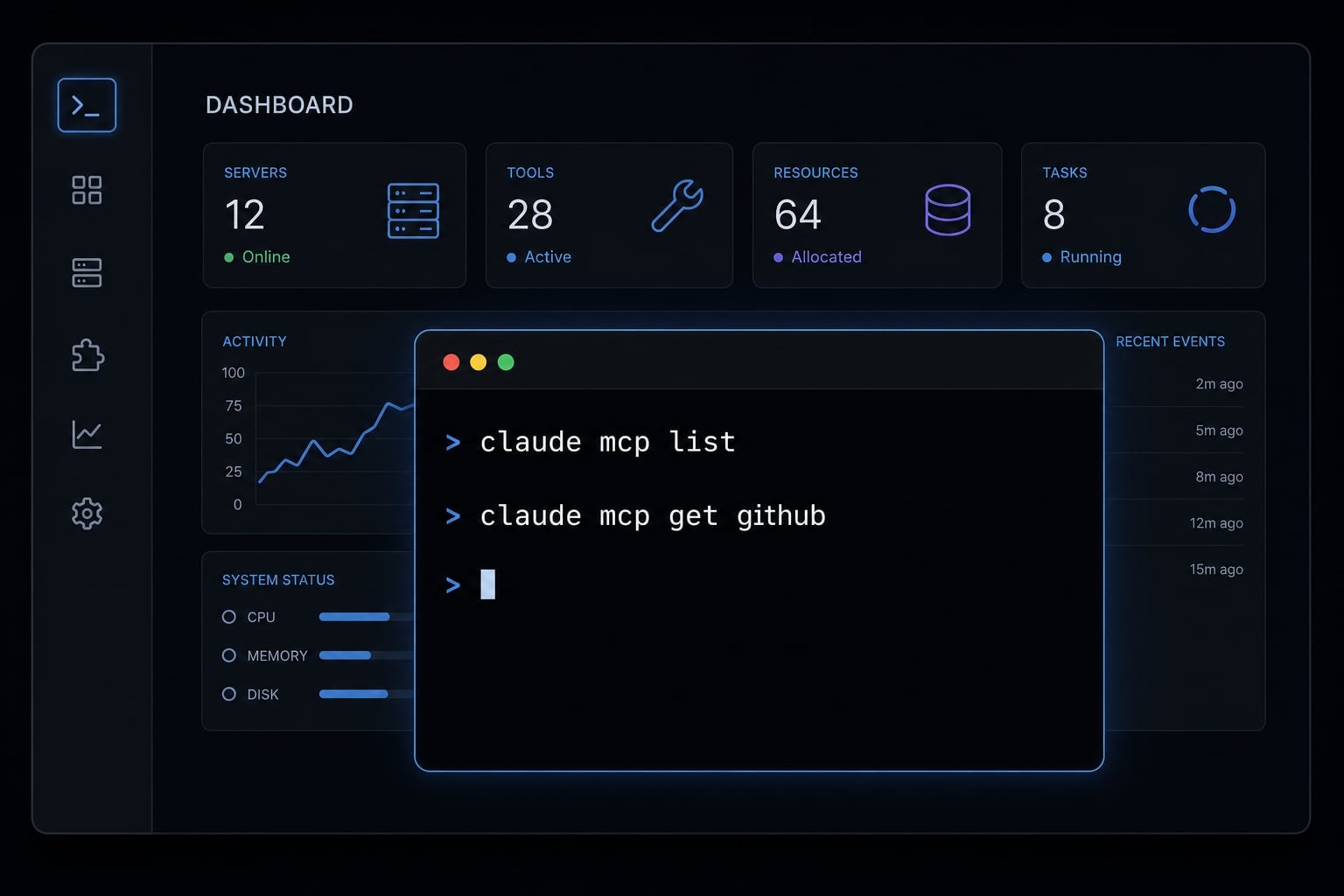
Before testing workflows, confirm that Claude Code can actually see the server.
claude mcp list
This should show your GitHub server entry.
Then inspect its details:
claude mcp get github
What success usually looks like:
- The server appears in the MCP list.
- The name matches what you configured.
- The configuration reflects the expected scope and transport.
If the server does not appear, stop here and fix setup first. Most downstream failures come from skipped verification.
Step 5: Test it with a simple prompt
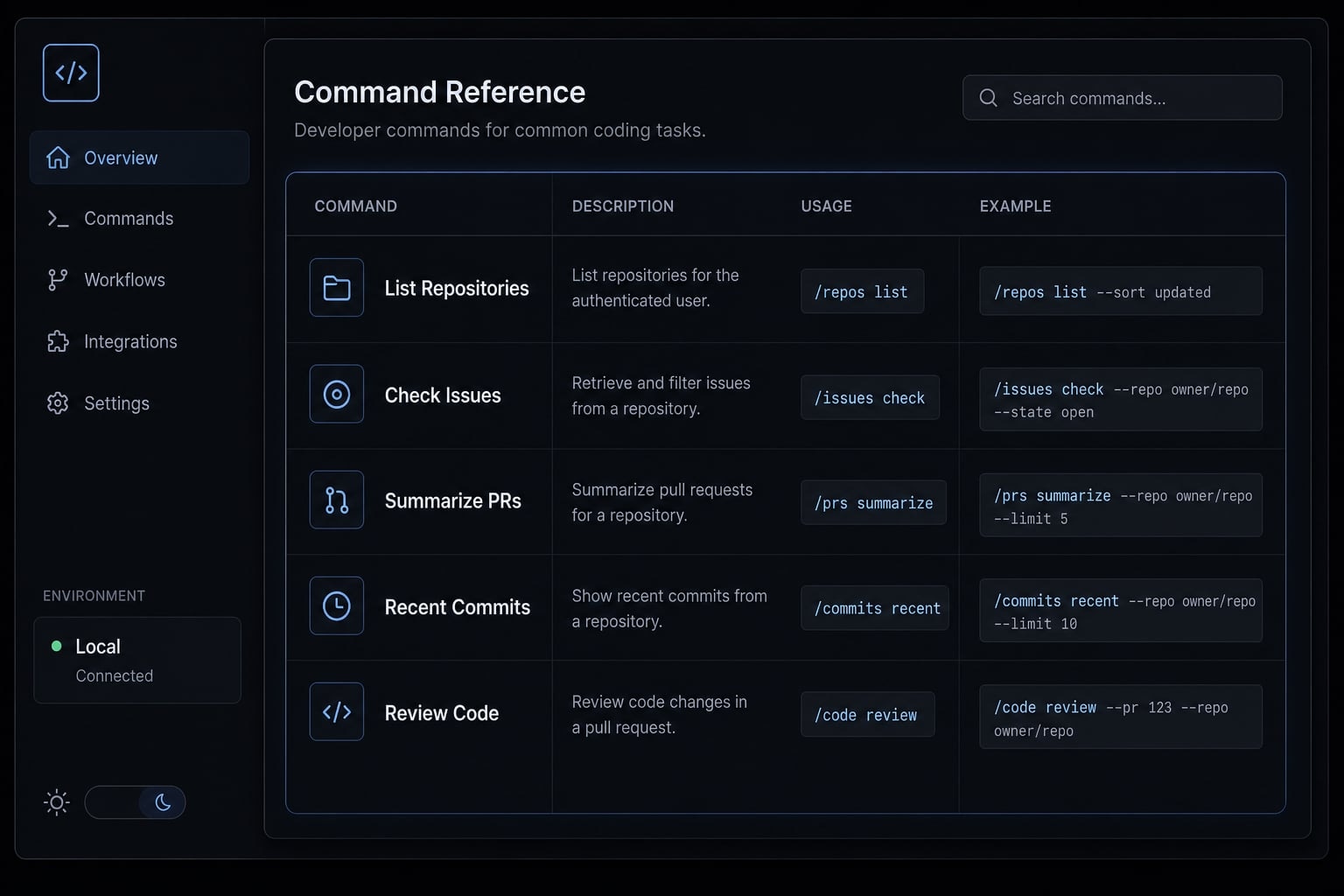
Start with a read-only action before expecting broader GitHub workflows with Claude Code.
Use prompts like:
- “List my GitHub repositories.”
- “Show open issues in owner/repo-name.”
- “Summarize open PRs assigned to me.”
- “Show recent commits in owner/repo-name.”
This approach confirms the Claude Code GitHub configuration is working before you move into PR review or CI troubleshooting.
Fast contextual checkpoint
If you are evaluating multiple developer workflow setups and want a repeatable review process, agentkit.best provides reusable workflow resources and configuration patterns that help reduce setup drift across tools and teams.
What to do with GitHub MCP inside Claude Code
Once the connection works, the value becomes immediate. The best use cases are not abstract. They are the day-to-day tasks where engineers usually bounce between terminal, browser, PR pages, and CI logs.
Common Starter Prompts
Task | Example prompt |
|---|---|
List repositories | “List my GitHub repositories.” |
Show open issues | “Show open issues in owner/repo.” |
Summarize PRs assigned to me | “Summarize open PRs assigned to me.” |
Check recent commits | “Show recent commits in owner/repo.” |
Review a PR | “Review PR #123 and highlight likely risk areas.” |
These Claude Code prompts are useful because they start with read-heavy context gathering. That is usually safer and more reliable than jumping straight into write actions.
Practical workflows where this helps most
- Checking repository state before making local changes.
- Reviewing PR context without leaving the terminal.
- Investigating CI failures with linked repository context.
- Moving from issue context to implementation faster.
This is best framed as assistive GitHub workflows with Claude Code, not autonomous repository management. Claude can accelerate context gathering, triage, and code-related follow-through, but human review still matters, especially for PR feedback, commits, and workflow-related changes.
Common setup problems and how to fix them
Most MCP connection issues fall into a few repeatable categories: token problems, config problems, scope mistakes, or team-sharing confusion. The fastest path is to diagnose them with a simple problem → cause → fix model.
Troubleshooting matrix
Problem | Likely cause | Fix |
|---|---|---|
Auth error / PAT auth error | Token is missing, invalid, expired, or placed incorrectly in the header. | Regenerate or recheck the PAT, then confirm the auth header format. |
Server not showing in MCP list | Bad command, wrong scope, stale config, or failed add step. | Re-run the add command carefully, then verify with |
Permissions denied on repo actions | Missing GitHub token scopes. | Add the minimum required scopes, such as |
Command run in wrong context | Setup command entered in the wrong place or wrong shell environment. | Run |
Team/shared config confusion |
| Define an owner, document the shared config, or revert to user scope. |
A common pattern in troubleshooting GitHub MCP server with Claude Code is this: The server appears correctly, but actions still fail. When that happens, the issue is often token scope rather than transport.
Quick verification commands
Use these before changing too many things at once:
claude mcp list
claude mcp get github
claude mcp remove github- If needed, remove the server and add it again cleanly. That is often faster than debugging a half-correct config.
- If your Claude Code flow supports it, checking
/mcpinside the app can also help confirm status and available tools.
Operational note: Some exact error messages vary by CLI version, local shell environment, or stale config state. If your setup differs slightly, verify syntax against current Claude Code documentation before assuming the endpoint itself is broken.
Solo setup vs team-friendly setup
For one developer, a personal setup is usually enough. For a small team, the real question is not just whether GitHub MCP works. It is whether the setup stays consistent over time.
Scope choice comparison
Scope type | Best for | Strength | Tradeoff | Recommended use |
|---|---|---|---|---|
User | Individual developers. | Reusable across projects. | Not automatically standardized for teammates. | Best default for most solo users. |
Local | Isolated project work. | Tight isolation. | Limited reuse. | Good for testing or one-off project setups. |
Project | Teams with shared conventions. | Better consistency across contributors. | Needs ownership and documentation. | Use only when the team intends to maintain shared MCP config. |
If your team chooses project scope Claude Code settings, assign ownership early. Without that, shared MCP config often drifts. One developer updates it, another works from stale assumptions, and setup reliability drops quickly.
Where AgentKit fits naturally
Teams that want a reusable Claude Code workflow, shared setup logic, and less configuration drift may benefit from a standardized workflow layer such as AgentKit. The goal is not to replace Claude Code setup, but to make repeatable team MCP setup easier to maintain across projects and contributors.
Frequently asked questions
What is GitHub MCP, and how does it benefit Claude Code?
GitHub MCP (Model Context Protocol) is a connection protocol that gives Claude Code direct access to GitHub resources such as repositories, pull requests, issues, and CI workflows. It allows the AI to interact with real-world data instead of processing only local files.
What do I need before setting up GitHub MCP?
Before getting started, you need a GitHub account, terminal access for running CLI commands, and a GitHub Personal Access Token (PAT) with the minimum required permissions—typically repo and read:org. Limiting these permissions helps maintain security according to the principle of least privilege.
How do I connect GitHub MCP to Claude Code?
You can add the MCP server by running claude mcp add in the terminal. Then enter a name such as github, configure HTTP as the transport, provide the GitHub API URL, and enter your PAT to authenticate the connection.
How can I verify that the GitHub MCP connection is working?
After completing the setup, run claude mcp list in the terminal. If GitHub appears in the list with a ready status, the connection has been established successfully. You can also run claude mcp get github to view the server’s configuration details.
Why am I encountering authentication errors with GitHub MCP?
Authentication errors are commonly caused by a PAT with insufficient permissions, an expired token, or an incorrectly formatted token in the configuration. Review the token’s scopes in your GitHub settings, confirm that it has repo access, and verify that the token environment variable is configured correctly.
When should I use the project scope instead of the user scope for GitHub MCP?
Use the user scope when you want to reuse the configuration across multiple personal projects. Use the project scope only when collaborating with a team and sharing standardized MCP configurations through a .mcp.json file to maintain a consistent workflow.
Read more:
- Claude Code Figma MCP setup: Remote vs desktop guide
- Blender MCP with Claude Code: A secure AI scripting setup guide
- How to authenticate Claude Code in terminal
Conclusion
A reliable GitHub MCP to Claude Code setup follows a simple sequence: understand what GitHub MCP does, create the right PAT with minimum necessary scopes, connect the server, verify it appears correctly, and test with simple read-first prompts. That is the shortest path to repo-aware workflows that actually help during coding, PR review, issue triage, and CI investigation.
For most solo users, user scope is the safest default. For teams, standardization only works when ownership and config hygiene are explicit. If you want a cleaner rollout process, use a setup checklist or a reusable workflow template rather than rebuilding the same configuration from scratch each time. Explore team-ready workflow resources and reusable agent kits at agentkit.best.