Claude Code MCP not working: Fast fixes for connection errors
Claude Code MCP not working: Fast fixes for config, scope, and connection issues
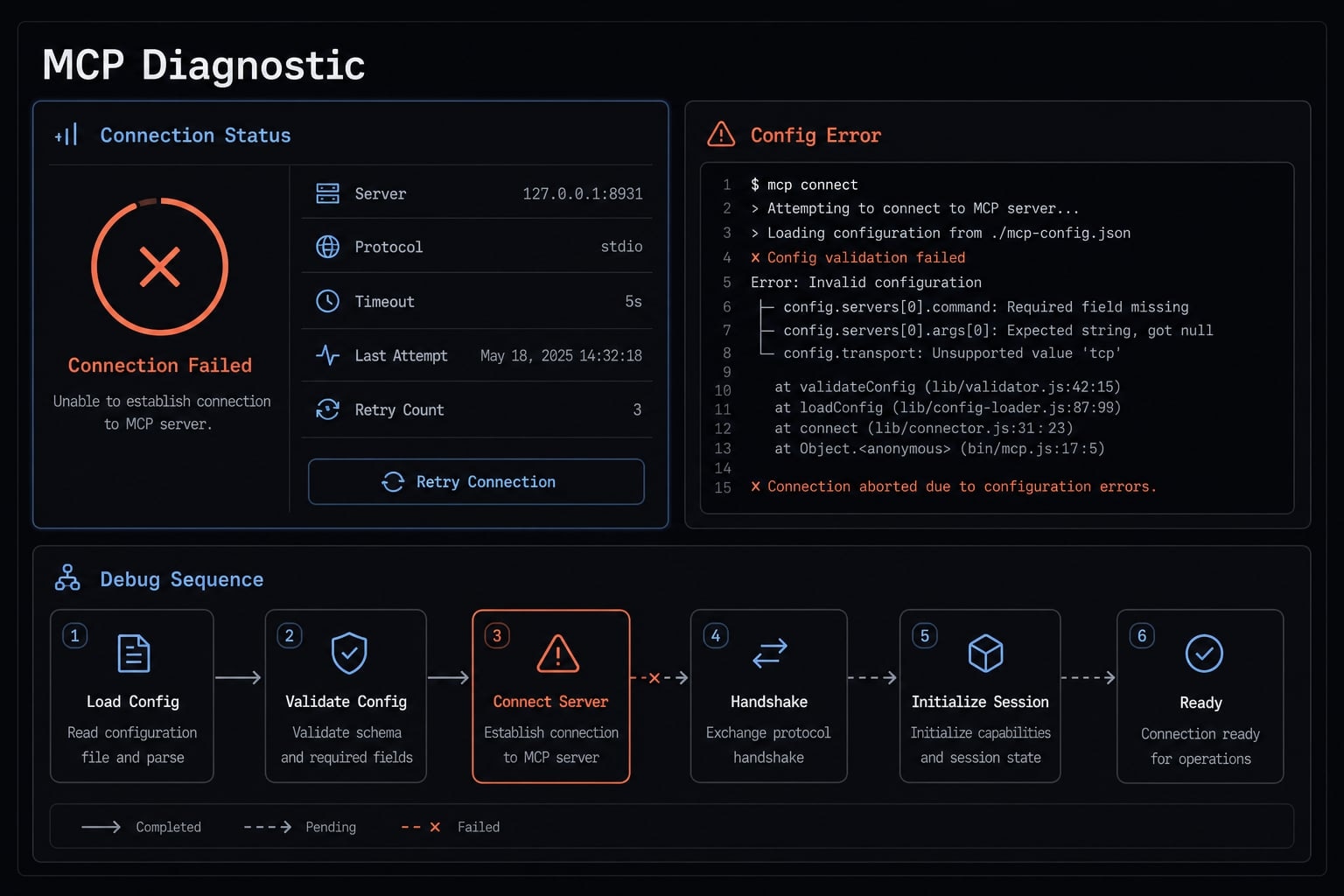
If you are struggling with Claude Code MCP, the problem is often simpler than it appears. In most cases, the failure falls into one of five buckets: Configuration, scope, transport, runtime, authentication, or a connector conflict. The visible symptoms are usually familiar: The server does not appear, /mcp shows disconnected, tools are missing, it works in one project only, or you added config and nothing changed. This guide starts with the fastest checks first, then moves into the small set of settings that most often break MCP in Claude Code.
What “MCP not working” usually means in Claude Code
When users say Claude Code MCP not working, they usually do not mean one specific error. They mean one of several symptoms: The server is missing, the server exists but shows disconnected, tools do not appear, a project-specific setup works inconsistently, or a configuration change did not load. That is why the fastest path is to identify the symptom first, then test the most likely cause.
Symptom | Likely cause | First fix to try |
|---|---|---|
Server is missing from | Wrong file, wrong scope, or config not loaded | Restart Claude Code, then verify |
Server shows disconnected | mcp server connection failure, bad transport, auth issue, or runtime missing | Check whether it is stdio or HTTP, then verify runtime or re-authenticate |
Tools are missing even though server exists | Partial auth, access limitation, connector conflict, or incomplete server startup | Re-authenticate, remove duplicates, restart, and test again |
Works in one project only | Server was added at local scope, the default — or at project scope in a repo you have since left | Run |
Config added but nothing changed | Stale session, invalid JSON, wrong path, or bad command/args | Validate the file, save it, then fully restart Claude Code |
A useful rule: Symptoms point to likely causes, not guaranteed ones. For example, mcp server not initialized often means a startup problem, but the root issue could still be bad JSON, the wrong command, missing environment variables, or an expired remote session.
If you rely on Claude CLI tools, avoid changing everything at once. The fastest recovery usually comes from checking status, restart state, scope, and config in that order.
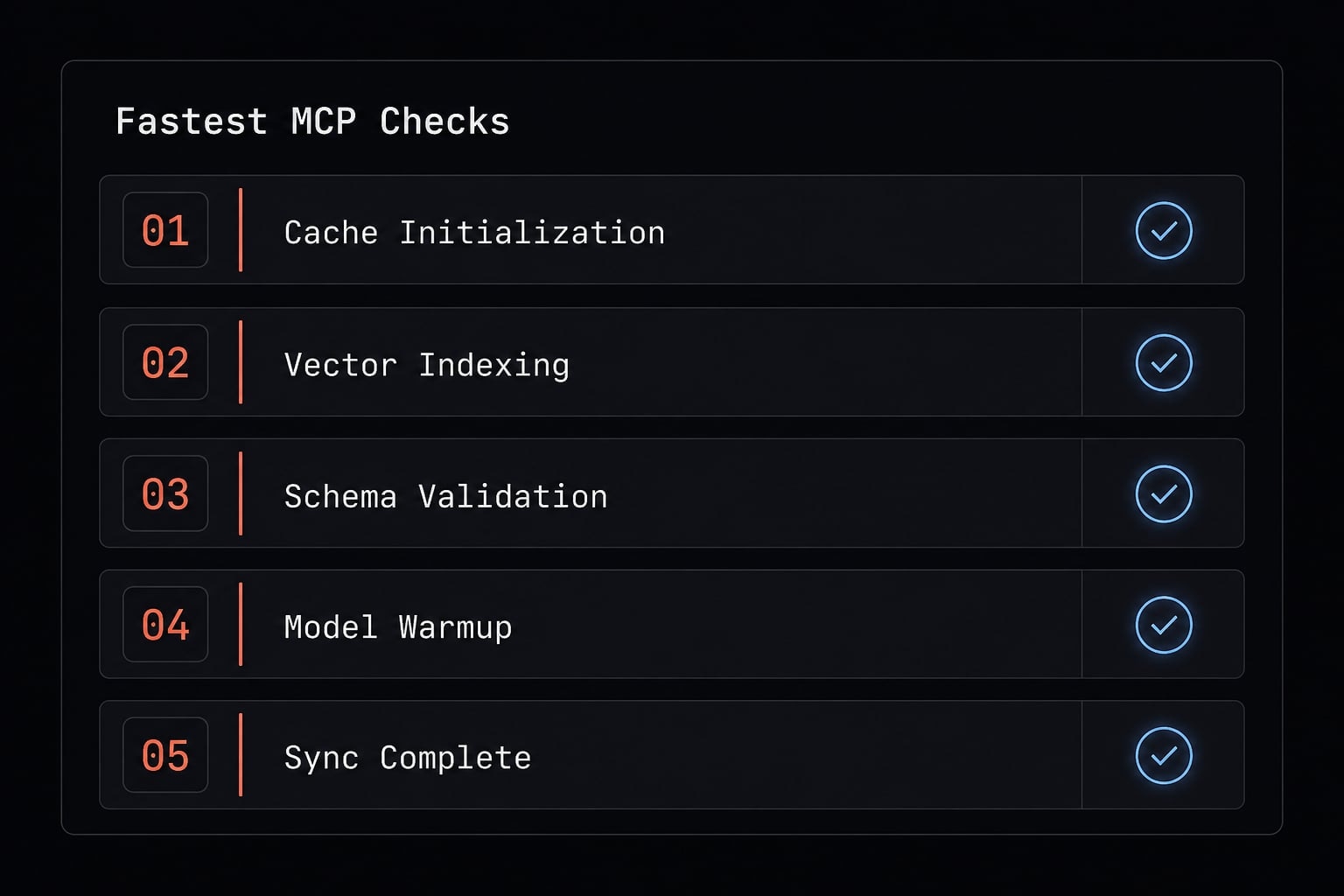
Start here: The 5 fastest checks before deeper debugging
Before changing commands or rewriting configuration, do these checks first. This is the shortest path for how to fix Claude Code MCP server not working in most setups.
- Run
/mcpand inspect the real status: Check whether the server is missing, disconnected, or present without tools. - Fully restart Claude Code: Do this after any config, auth, scope, or connector change.
- Confirm whether the MCP server is user-scoped or project-scoped: If it only works in one repo, scope is a common cause.
- Check whether you edited the correct config file: For many setups, that means
.claude.jsonat~/.claude.json. - If the server is remote, re-authenticate and remove duplicate integrations: This helps when Claude MCP add command failing led to multiple attempts or overlapping connections.
This order works because it prioritizes the highest-payoff, lowest-risk checks first. Restarting and scope verification solve a surprising number of cases without forcing you into unnecessary config edits. Only after that should you inspect transport, runtime, or authentication.
Why restarting matters more than it seems
A stale session is one of the most common reasons a valid change appears to do nothing. Claude Code may still be using the previous state even after you updated config or reconnected a service.
- Restart after editing
.claude.json - Restart after changing scope
- Restart after re-authentication or connector cleanup
Safe default: If you changed config, auth, scope, or integrations, restart before assuming the fix failed.
Why duplicate integrations create confusing behavior
Duplicate connectors or duplicate integrations can make a healthy setup look broken. One old connection may still be authorized while a newer one is only partially active.
- An old desktop connector may still be active.
- A previous MCP instance may still be authorized.
- Two paths to the same tool can cause inconsistent visibility.
Restart reminder: If you remove duplicates, fully close Claude Code first, then reopen and test only one intended integration.
Check the configuration file: Where Claude Code stores MCP settings
If quick checks do not solve it, inspect the real configuration file next. In many cases, manually editing .claude.json for MCP tools is faster and safer than rerunning an interactive setup flow several times.
For common local setups, the main file is ~/.claude.json. Inside it, the section that matters most is mcpServers. That object tells Claude Code which MCP servers to load and how to start them.
A typical Claude Code MCP configuration error is not complicated. It is usually one of these:
- Invalid JSON configuration
- Wrong
command - Wrong
argsorder - Missing required
envvalues - Editing the wrong file
- Saving the file but not restarting Claude Code
Keep your first test minimal. Do not start with a large config full of optional values unless you need them.
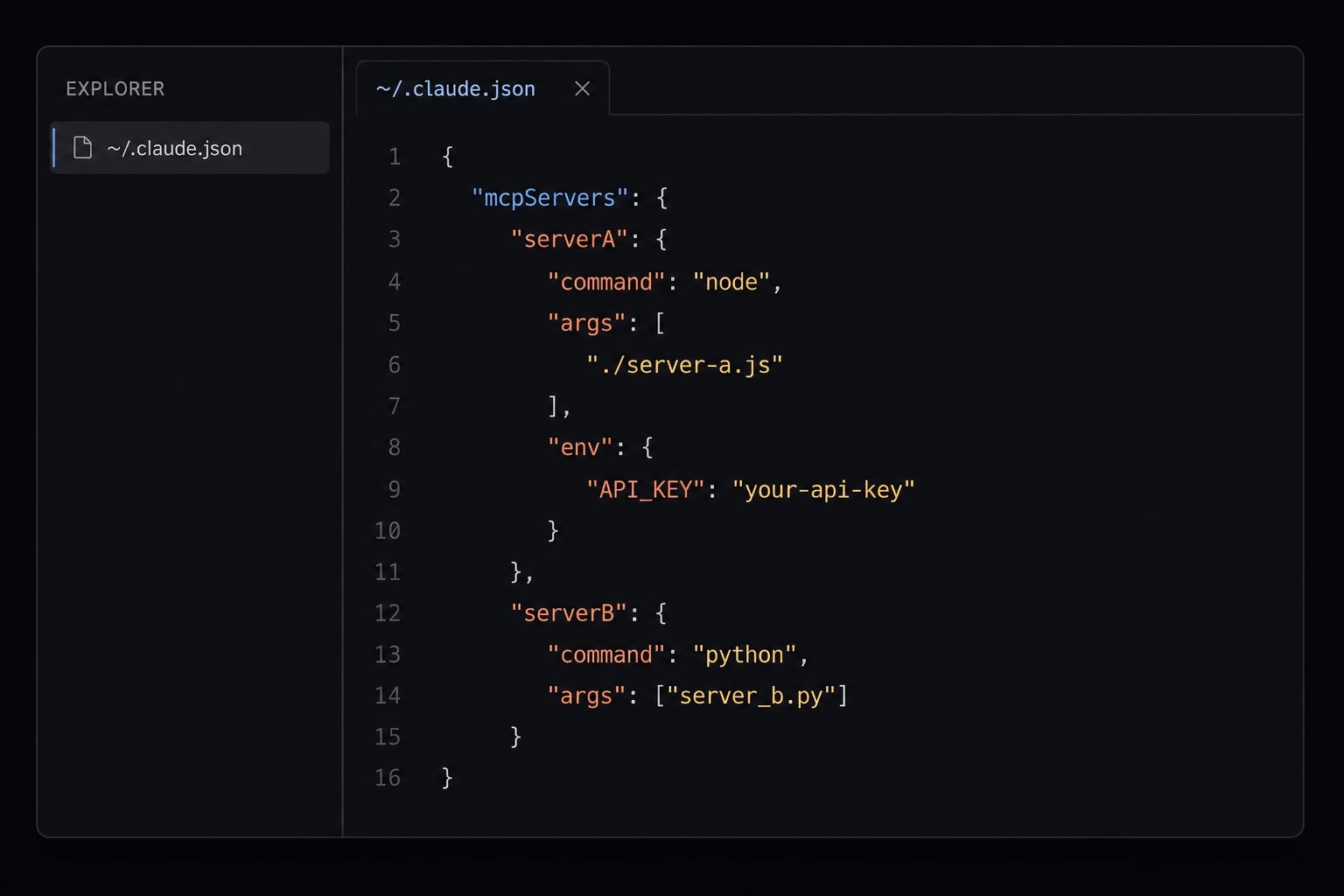
Minimal known-good local stdio example
{ "mcpServers": { "sequential-thinking": { "type": "stdio", "command": "npx", "args": ["-y", "@modelcontextprotocol/server-sequential-thinking"] } }}
This is a minimal stdio example. If this pattern fails, the problem is often command resolution, runtime availability, invalid JSON, or scope.
What to double-check after editing
- Confirm the file is valid JSON with no trailing commas.
- Confirm
mcpServersis spelled correctly. - Confirm the
commandexists on your machine. - Confirm the
argsorder is correct. - Confirm required environment variables exist if the server needs them.
- Confirm you edited the correct file for the intended scope.
- Confirm the file was saved.
- Confirm Claude Code was fully restarted.
Scope reminder: Do not assume a valid file means the right scope. A correct config in the wrong scope can still look broken.
Scope problems: Where Claude Code actually stores your MCP server
If an MCP server works in one repo and disappears in another, check scope before touching any config file. This is the single most common hidden cause - and the reason is that the default scope is the narrowest one.
Claude Code has three scopes, not two:
Scope | Stored in | Who and where it works |
|---|---|---|
local (the default) |
| Only you, only that project. Nobody else sees it. |
project |
| Everyone on the team - this file is meant to be committed. |
user |
| You, in every project on your machine. |
Every claude mcp add writes to local scope unless you add --scope project or --scope user. That default explains most "it worked yesterday" reports. You added a server while sitting in one repo, it went to local scope, and it does not follow you anywhere else.
Why this trips people up when they go looking for the file
A locally-scoped server is stored inside ~/.claude.json, specifically nested under a key for the project directory where it was added. Open the file expecting a top-level mcpServers block and you will not find your server - which reads like the config was never written at all.
Meanwhile a project-scoped server is not in ~/.claude.json at all. It is in .mcp.json at the repo root, a separate file.
So before editing anything, find out where the server actually lives:
claude mcp list
The fix, once you know the scope
If the server should follow you across projects, re-add it at user scope:
claude mcp add --scope user --transport http my-server https://example.com/mcp
If it should be shared with your team instead, use project scope - that writes .mcp.json for committing:
claude mcp add --scope project --transport http my-server https://example.com/mcp
Default decision rule: Shared remote tools and daily-use servers belong at user scope. Repo-specific tooling that teammates also need belongs at project scope. Leave things at local scope only when the config contains something personal - your own database credentials, a token you do not want in git.
Transport, runtime and authentication issues
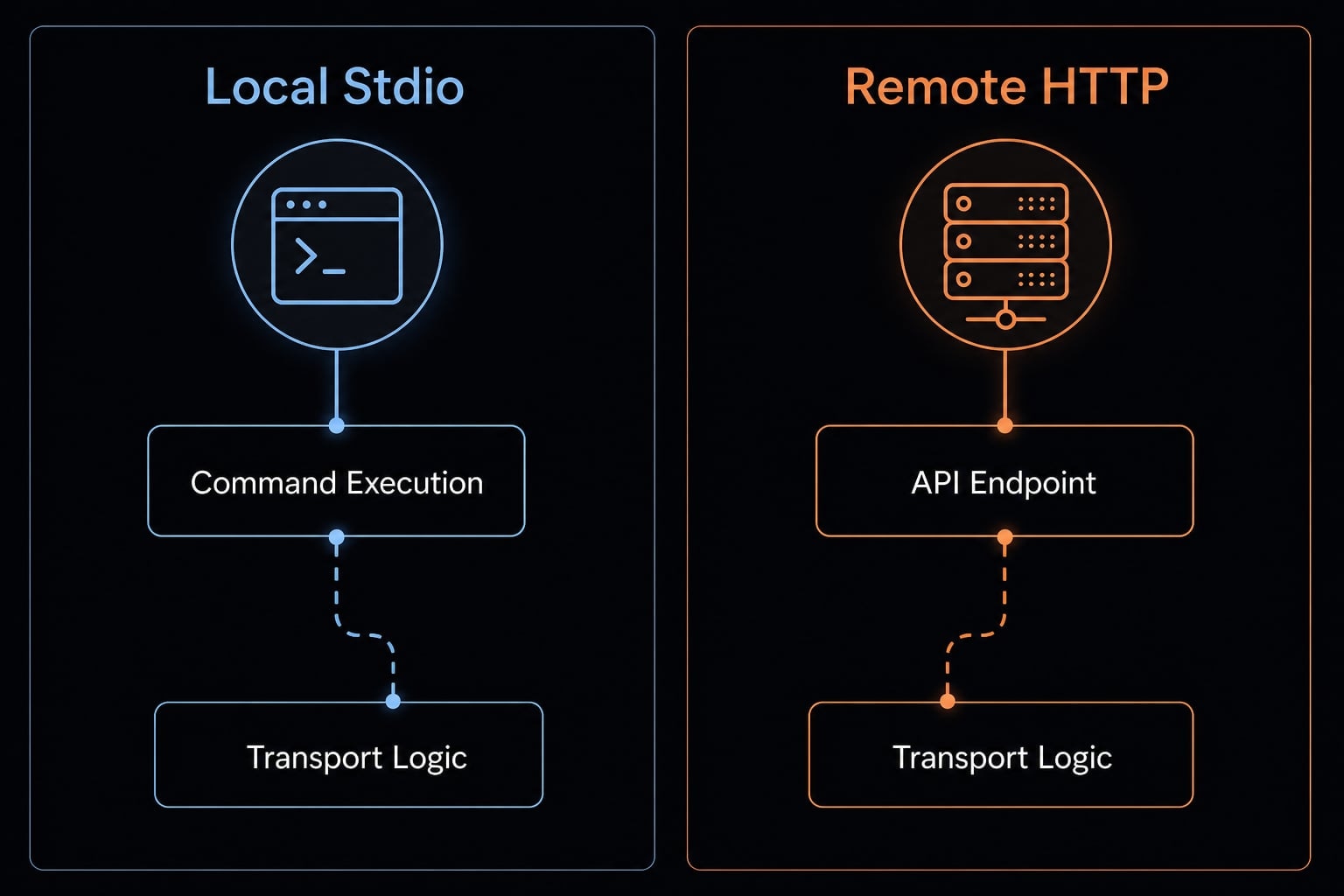
If the server is configured but still disconnected, the next step is to separate local from remote setups. This matters because debugging MCP transport errors in Claude CLI is different depending on whether the server runs locally through stdio transport or remotely through transport http.
Local MCP server example using stdio
A local MCP server using stdio transport means Claude Code starts a command on your machine and communicates through standard input and output. In practical terms, if the command cannot run, the server usually will not initialize correctly.
{ "mcpServers": { "local-tool": { "type": "stdio", "command": "npx", "args": ["-y", "some-mcp-server"] } }}
Check these first:
- Confirm the
commandis valid. - Confirm the
argsare in the correct order. - Confirm the Node.js runtime is installed if the server depends on it.
- Confirm
npxresolves on your machine. - Confirm local file paths are correct if you use
node /path/to/file.js.
A local failure is often a runtime issue, not a protocol issue. If the command does not run outside Claude Code, it is unlikely to run inside Claude Code.
Remote MCP example using HTTP transport
A remote MCP server using transport HTTP connects to an external service instead of launching a local process. In these cases, auth and access issues are often more likely than file or runtime issues.
claude mcp add --scope user --transport http figma https://mcp.figma.com/mcp
Check these next:
- Confirm the correct transport was selected: HTTP, not stdio.
- Confirm your API credentials are valid.
- Confirm an expired token/session is not blocking access.
- Confirm required environment variables are present if the service needs them.
- Confirm the service or tool is not limited by rollout, version, or account access.
This distinction matters in real use. A remote service may appear connected but still fail to expose all tools if authentication is incomplete or access is restricted. That is why a visible server does not always mean a fully working server.
Connector conflicts and missing tools: A common real-world failure pattern
Sometimes the config is correct, the scope is correct, and the server still behaves strangely. This is where connector conflict becomes a strong candidate.
A common pattern is partial visibility: Some tools show up, others do not, or the same setup behaves differently across sessions. This often happens when old integrations are still connected or when two overlapping paths exist for the same service. In practice, fixing Claude Code plugin issues often means removing duplicate integrations before doing anything more advanced.
A lightweight example comes from setups involving a Figma MCP remote server in Claude Code, where older connector paths and newer MCP paths can overlap and create confusing results.
The reason this is hard to spot is simple: The system may look partly healthy. The server appears, some tools work, but the session is not clean enough for consistent tool exposure.
Before deeper debugging, do this cleanup:
- Disconnect any old or duplicate connector tied to the same service.
- Fully restart Claude Code.
- Reconnect only the intended integration and test again.
This disconnect restart reconnect sequence is low risk and often faster than deep debugging. If tool visibility becomes consistent afterward, the issue was likely conflict-related rather than a broken config.
A known-good troubleshooting flow you can follow in 10 minutes
If you want one sequence to fix Claude Code MCP server not working, use this MCP checklist. It follows the shortest reliable path used in practical Claude Code troubleshooting and reduces wasted edits.
10-minute recovery sequence:
- Run
/mcpand note the current MCP server status. - Restart Claude Code fully.
- Check
~/.claude.jsonand confirm the config is valid. - Confirm whether the server is user-scoped or project-scoped.
- Verify the transport type and runtime requirements.
- Re-authenticate if the server is remote.
- Remove old connectors or duplicate integrations.
- Test again in a clean session.
- Escalate only if it now looks like a version mismatch, rollout issue, or server-specific bug.
This order works because each step eliminates a high-probability cause without creating new variables. If you change one thing at a time, the failure pattern becomes much easier to isolate.
Frequently asked questions
What should I do first if my Claude Code MCP server is not working?
Run the /mcp command in your terminal to check the connection status. If it shows "disconnected," restart Claude Code entirely. Often, a full restart resolves stale sessions or configuration loading errors before you need to edit any files.
Why does my MCP tool work in one project but not another?
This is typically a scope mismatch. If you configured the tool with --scope project, it will only be available in that specific repository. To make an MCP tool available globally, use the --scope user flag when running the claude mcp add command.
Where is the Claude Code configuration file located?
Claude Code stores its settings in ~/.claude.json. You can manually verify or update your mcpServers configuration here. Always ensure your JSON is valid and that you have restarted the Claude Code session after saving any manual edits to this file.
How can I tell if my MCP issue is local or remote?
Local servers typically use stdio transport and rely on your local Node.js environment. Remote servers use http transport and require valid API credentials or tokens. If your remote server is "connected" but tools are missing, check if your authentication token or session has expired.
Could an old connector be causing my MCP tools to fail?
Yes. If you previously installed desktop-based Figma or browser connectors, they can conflict with the CLI-based MCP server. Try disconnecting any legacy plugins or unauthorized connector instances, then restart Claude Code to see if the missing tools reappear.
What is the minimal configuration required for an MCP server?
A minimal stdio config requires the server name, type set to stdio, a command (like npx), and the args array. Example:
"mcpServers": { "server-name": { "type": "stdio", "command": "npx", "args": ["-y", "package-name"] }}
Should I use project-scoped or user-scoped MCP tools?
Use user-scoped for shared tools like search or sequential thinking to ensure they are available in every project. Use project-scoped only for tools that are specifically required for one codebase, such as local development utilities or project-specific database connectors.
Read more:
- Connect Notion to Claude Code: Official Notion MCP setup guide
- How to Add Supabase MCP to Claude Code
- Fixed: Claude Code process exited with code 1 - Easy solutions
Conclusion
Most cases of Claude Code MCP not working come down to five categories: Config, scope, transport, runtime or auth, and connector conflicts. The fastest checks are still the right ones: Run /mcp, restart Claude Code, verify scope, and inspect .claude.json before making broader changes.
If it still fails, separate local stdio issues from remote HTTP issues and change only one variable at a time. That approach prevents false negatives and keeps debugging manageable. If you want a reusable reference, copy this checklist into your notes or pair it with a minimal config template so future MCP setup issues are faster to resolve.