Fixed: Claude Code process exited with code 1 - Easy solutions
Error: Claude Code process exited with code 1 - What it means and how to fix it
Error: Claude Code process exited with code 1, the message looks precise but is usually not the real diagnosis. It commonly appears in VS Code, JetBrains, Claude Desktop, or a debug/runtime context when Claude Code starts, then stops unexpectedly. Because this error message is generic, don't guess. Troubleshoot in order: check authentication, session restore, environment differences, and finally configuration issues. Most cases can be resolved without deleting everything or jumping straight to reinstall.
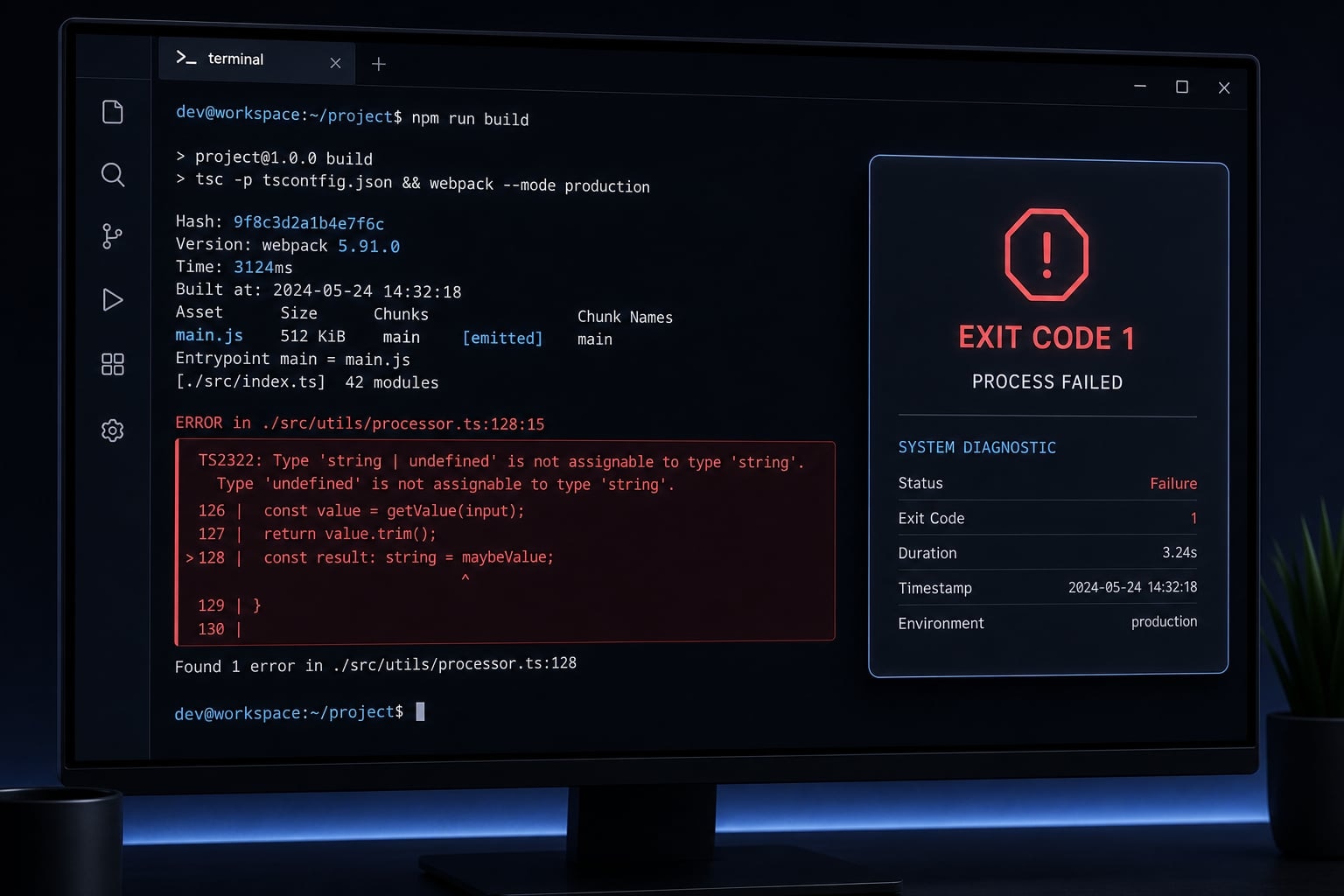
Claude Code process exited with code 1 means what in plain English?
“Claude Code process exited with code 1” means Claude Code started, then stopped with a non-zero exit code before completing normally. In plain English, it signals a general process failure, not a confirmed root cause. The real issue is usually authentication, session state, runtime mismatch, or a config-related problem.
An exit code 1 is a standard way for software to report that something went wrong. Here, it means Claude Code unexpected termination happened after launch, but the message alone does not tell you exactly why.
That distinction matters. This error is best treated as a wrapper symptom. In many cases, the actual problem sits one layer below the visible message, such as an OAuth flow issue, a conflicting ANTHROPIC_API_KEY, broken local session state, or an environment-specific runtime problem.
In practice, this kind of Claude Code failure code 1 often falls into one of a few recognizable patterns:
Immediate crash vs delayed crash vs debug-Only failure:
- Immediate crash: Usually points to an authentication conflict or a startup configuration problem.
- Delayed crash or loop: Often suggests a session loop, plugin issue, or MCP-related instability.
- Debug-only failure: If it works in a normal terminal but fails under a debugger, that usually points to a runtime environment conflict, not a universal Claude failure.
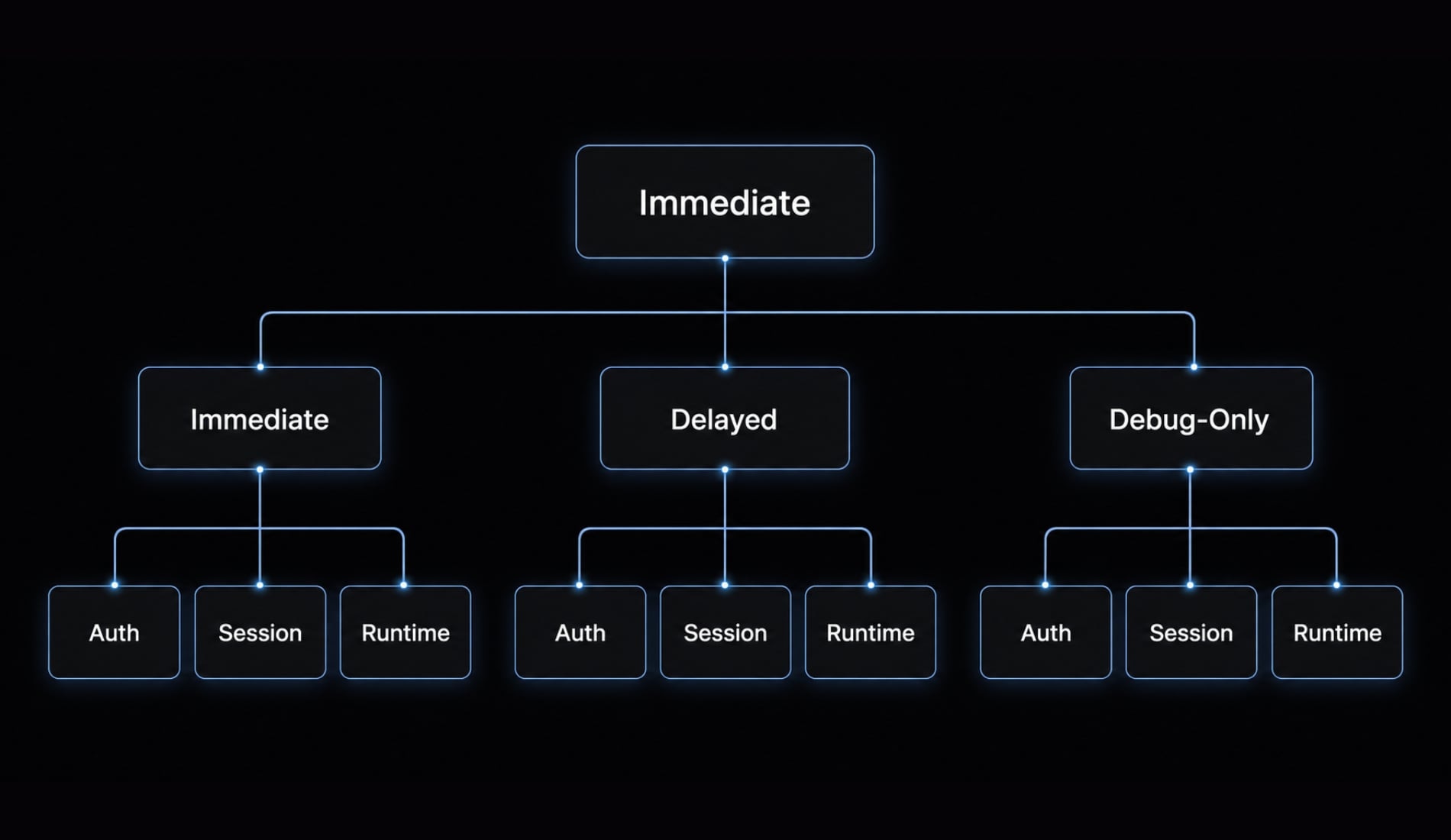
Quick triage: What to check first based on the symptom
The fastest way to troubleshoot this error is to sort by symptom and start with the lowest-risk check first. Try reversible steps before editing files or reinstalling anything.
- Check for an authentication conflict.
- Fully quit the IDE or app, then reopen it.
- Test whether a broken session restore is causing the crash.
- Compare terminal behavior versus debug console behavior.
- Run diagnostics before considering reinstall.
Quick diagnosis table:
Symptom | Most likely cause | First thing to try |
|---|---|---|
Crashes immediately after opening or login | OAuth / API key conflict | Remove |
Loads briefly, then loops or closes again | Corrupted session state | Rename the newest |
Started after an update | Auth/session/config mismatch | Restart fully, then re-authenticate |
Works in terminal but fails in debug mode | Runtime-specific mismatch | Test outside the debug console first |
Happens mostly on Windows | Inherited env var or Bash path issue | Verify system env vars and Git Bash path |
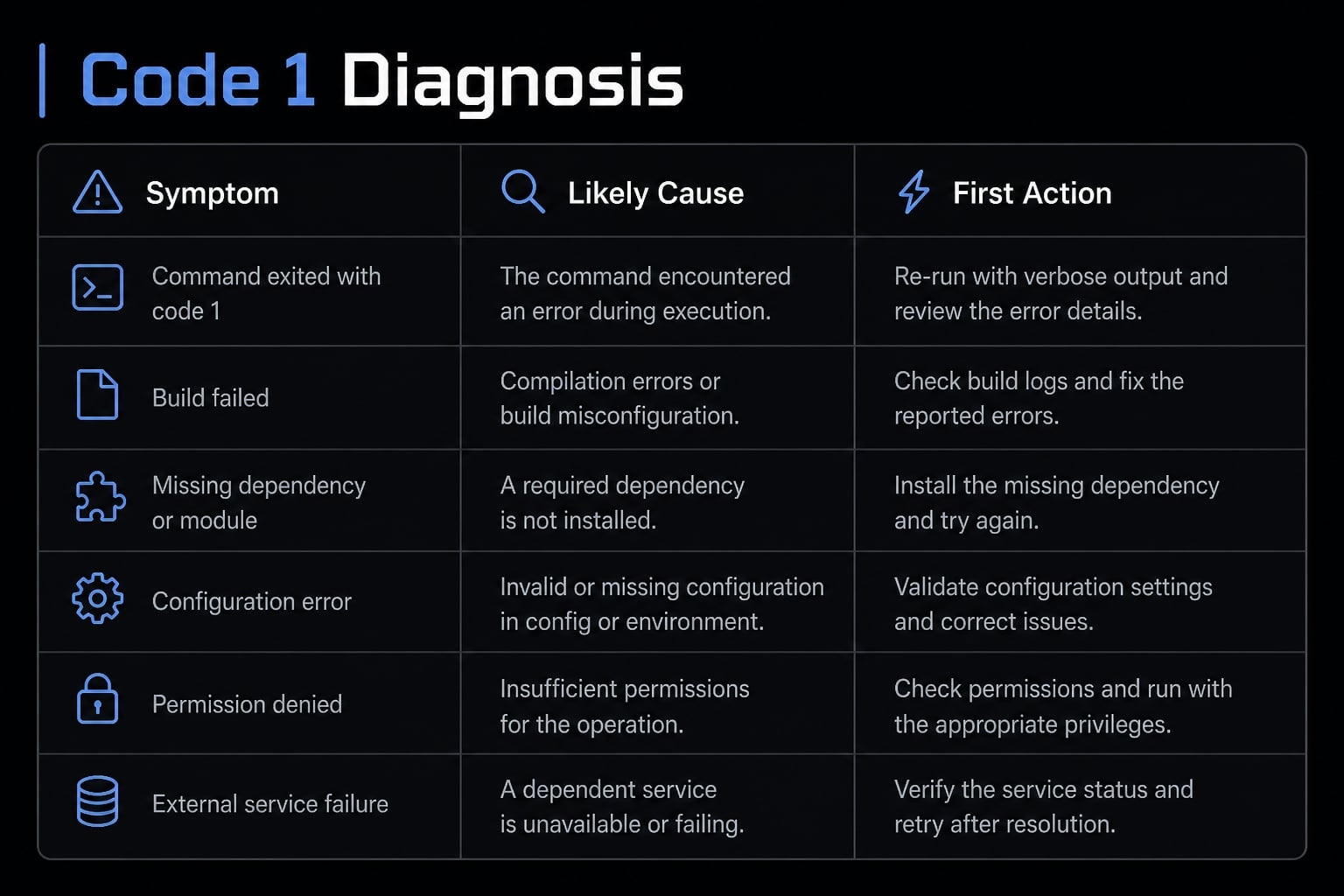
This symptom-first approach matters because troubleshooting Claude Code authentication errors looks different from fixing a session loop or a debug-only runtime problem.
As a rule of thumb:
- If it fails right after sign-in, check environment variables and the OAuth flow first.
- If it keeps reopening and crashing, inspect local session state next.
- If the VS Code Claude extension error happens only in a debugger or SDK workflow, compare that runtime against a normal shell before changing auth settings.
The most common causes and how to fix them
Most cases fall into a few repeatable buckets. Change one thing at a time, test after each change, and avoid destructive resets early.
Authentication Conflict: OAuth vs ANTHROPIC_API_KEY
One of the most common causes is that Claude Code sees two competing login methods at once. In plain English, ANTHROPIC_API_KEY is a saved environment-based login method that can conflict with OAuth sign-in.
If your IDE inherits that variable from the shell or system, Claude may try to start with one credential path while the app expects another. That mismatch can trigger an immediate crash.
- Check whether
ANTHROPIC_API_KEYis currently set. - Temporarily remove or unset it.
- Fully quit the IDE or app.
- Run
claude auth logout. - Run
claude auth login. - Reopen Claude Code and test again.
If this resolves the issue, the problem was most likely a credential conflict, not a broken install or binary.
Practical note: On Windows, this variable may exist at the system level even if you do not see it in the current terminal session.
Corrupted session file or crash loop
A second common cause is a broken restored session. Claude Code may try to reopen the most recent session automatically, and if that local state is damaged, the same crash can repeat every launch.
The first place to check is: ~/.claude/projects/
Look for the newest .jsonl session files related to the affected project.
- Close the IDE or app completely.
- Open
~/.claude/projects/. - Find the newest
.jsonlfile for the project that is crashing. - Rename it to something like
filename.jsonl.bak. - Reopen Claude Code and test again.
If Claude starts normally after that, the issue was likely session file corruption or a crash loop tied to restore behavior.
Caution: Rename only the likely session file first. Do not delete the whole folder. Back up files before changing them.
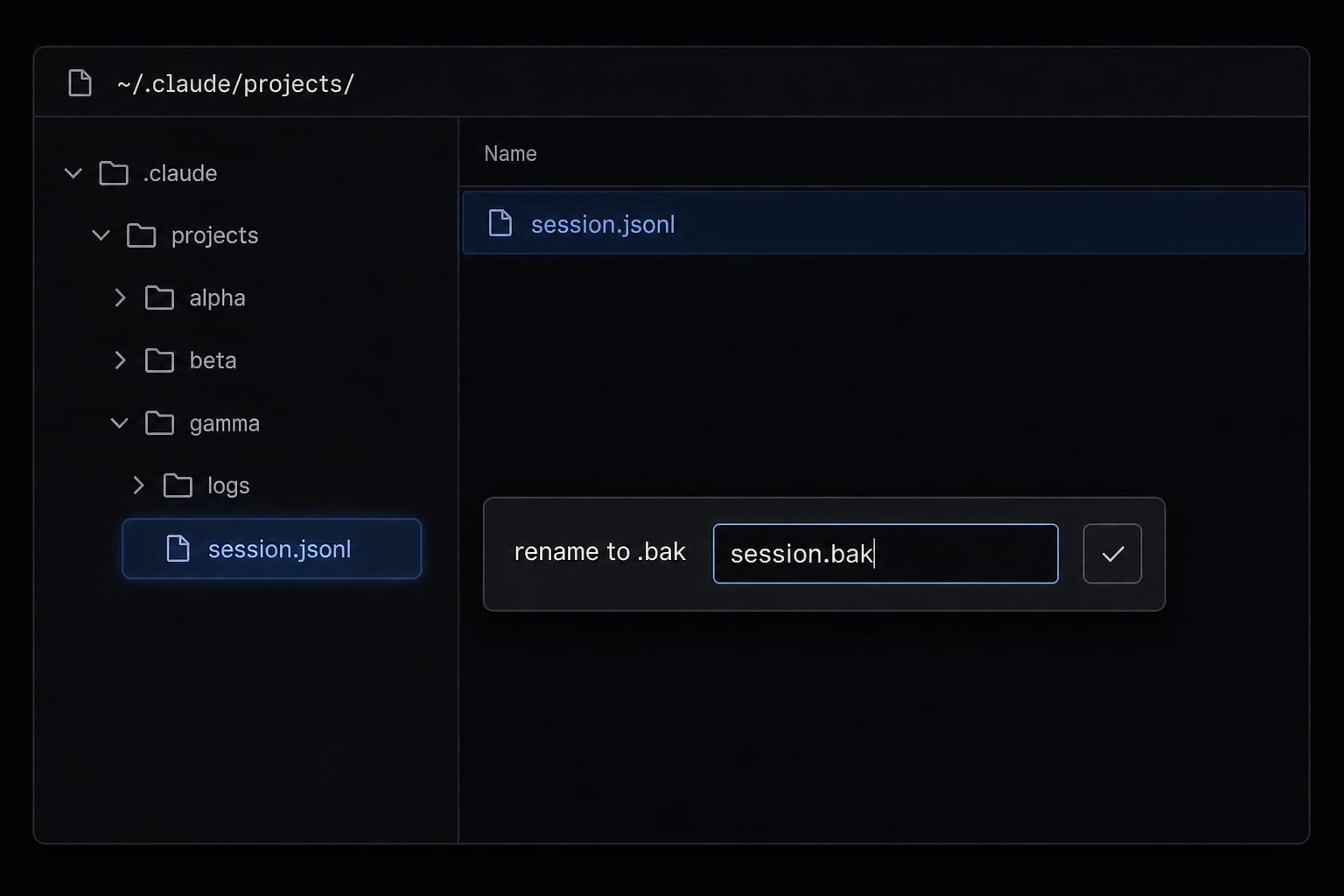
Not every repeated crash means session corruption. But when the app loads briefly, then closes again in a loop, it is one of the highest-probability checks.
Config or update-related instability
If Claude Code process crashed after update, the issue may be a temporary mismatch across local state, auth state, plugin behavior, or MCP configuration.
Use this order:
- Fully restart the entire IDE or app, not just the Claude panel.
- Re-authenticate if the issue began right after an update.
- If you recently changed MCP, hooks, or plugin settings, disable one at a time.
- Retest after each isolated change.
- Avoid changing multiple settings at once while troubleshooting.
This matters because update-related issues can look like authentication problems even when the real trigger is local configuration drift.
Common triggers include:
- Stale environment variables.
- Mismatched session restore state.
- Recently added hooks.
- Plugin instability.
- MCP server changes.
Update-related instability does not automatically mean you need a reinstall. In many cases, a clean restart plus re-authentication is enough.
Safe-first advice before editing local files
Before changing any local state, follow this checklist:
- Try
claude auth logoutandclaude auth loginfirst. - Restart the full app, not just the extension panel.
- Back up local files before renaming or deleting.
- Rename before delete whenever possible.
- Do not delete the full
~/.claudedirectory as an opening move. - Use one change at a time.
This is the safest troubleshooting pattern because the visible error message is generic. A broad reset may hide the real cause while creating extra recovery work.
Environment-specific notes: VS Code, JetBrains, Claude Desktop, and Debug/SDK setups
While the root cause remains the same, different toolings surface it differently. A startup crash inside an IDE panel triggers very different diagnostics than one in a CLI or a debugger-attached runtime.
VS Code
- Fully quit VS Code, not just the Claude side panel.
- Check whether the integrated terminal still inherits stale environment variables.
- If the VS Code Claude extension error started after an extension update, re-authentication is a strong early check.
- If the issue repeats only inside the extension, test
claudefrom a regular terminal to compare behavior.
Debug console or SDK runtime
A debugger-attached runtime can behave differently from a normal shell. This is a common pattern in SDK workflows. If Claude works in terminal but fails in a Typescript debug console, that usually points away from auth as the primary issue and toward a runtime environment conflict.
- Test the same command outside the debugger first.
- Compare environment inheritance between the normal shell and the debug configuration.
- Avoid editing auth or local session files until you confirm the problem also happens outside debug mode.
This is one of the most important “do not overreact” checks in the article.
JetBrains or Claude Desktop
- Use the same troubleshooting order: auth, session, config, restart.
- If in-app logs are limited, test from the CLI separately.
- Treat immediate crash behavior as likely auth or config related.
- Treat repeated relaunch behavior as possible session restore instability.
The logic is the same even if the surface behavior looks slightly different in JetBrains integration or Claude Desktop.
Windows-specific checks
- Verify whether
ANTHROPIC_API_KEYexists at the system level, not only the current shell. - Check
CLAUDE_CODE_GIT_BASH_PATHif your setup depends on Git Bash. - Confirm the binary path points to the shell/runtime Claude expects.
- Remember that inherited Windows variables are easy to miss because they can persist across app restarts.
For users trying to resolve Claude Code exit code 1 Windows environment issues, environment inheritance is one of the highest-value checks.
Step-by-step recovery path if the quick fixes do not work
If the quick fixes do not narrow it down, stop guessing and move to diagnostics.
- Run
claude doctoror/doctor. - Compare normal terminal behavior with IDE or debug behavior.
- Disable MCP servers, plugins, or hooks one at a time.
- Retest after each isolated change.
- Preserve local state by renaming or backing up files before deletion.
- Use a clean reinstall only as a last resort.
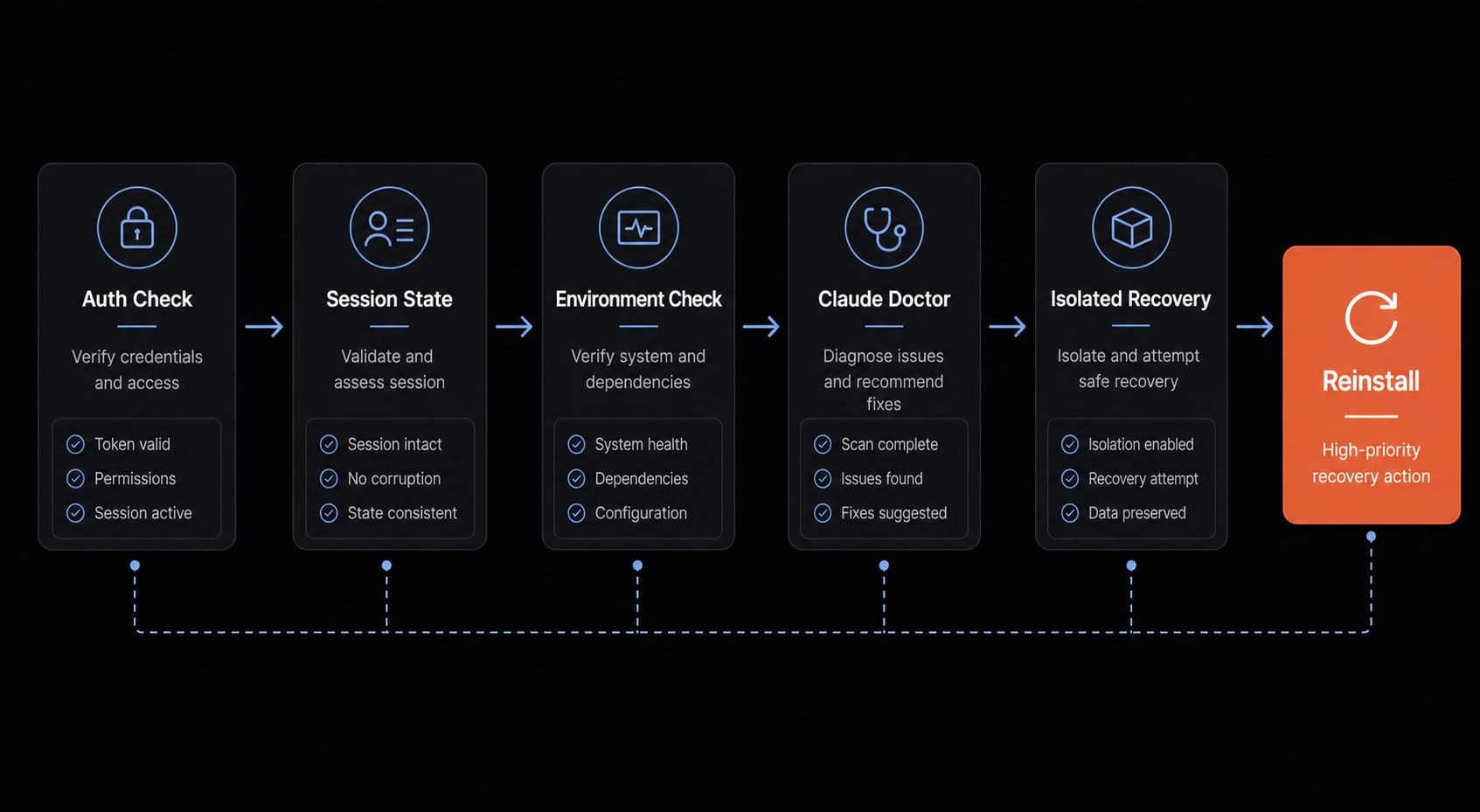
Run claude doctor or /doctor
Use diagnostics to replace guesswork with evidence.
- If Claude opens anywhere, run
/doctor. - If Claude will not open at all, run
claude doctorin your shell. - Review the output for configuration errors, auth issues, or environment problems.
- Fix only the specific issue it highlights, then retest.
This is one of the safest high-value steps because it can reveal setup issues without forcing a reset.
Check MCP, Plugins, or Hooks
If the problem started after adding MCP, hooks, or plugin changes:
- Disable them temporarily.
- Re-enable one by one.
- Test after each change.
- Use safe mode if your setup supports it.
- Isolate the trigger instead of changing everything at once.
Controlled isolation is faster and safer than random resets.
Clean reinstall as a last resort
A clean reinstall is slower, more disruptive, and may reset local state, so save it for last.
- Log out with
claude auth logout. - Back up local state if needed.
- Reinstall the extension or app.
- Run
claude auth loginagain. - Test before restoring extra plugins, hooks, or custom configuration.
Reinstall can help when local state and runtime checks fail, but it should not be the default first-line fix.
Practical example: A fast resolution flow for a real “exit code 1” case
A common scenario is that Claude Code process crashed after update in VS Code. The user opens the extension, sees the startup panel appear briefly, then gets exit code 1 again.
A practical recovery flow looks like this:
- Check whether
ANTHROPIC_API_KEYis still set. - Fully quit VS Code.
- Rename the latest
.jsonlfile under~/.claude/projects/ - Run
claude auth login - Run
claude doctor - Reopen VS Code and retest.
In this pattern, the issue is often either an auth conflict or mild session corruption, not a broken install. The key lesson is simple: A structured troubleshooting workflow usually resolves the issue faster than trying random fixes or deleting everything at once.
Frequently asked questions
What does "Claude Code process exited with code 1" mean?
The "Claude Code process exited with code 1" message is a generic error signal indicating the program stopped unexpectedly. It does not identify the specific cause by itself; instead, it acts as a wrapper error meaning the process failed to complete its startup or execution sequence due to an underlying conflict.
What should I check first when seeing this error?
You should follow a symptom-first triage approach to isolate the issue:
- Verify if
ANTHROPIC_API_KEYis conflicting with your OAuth login. - Fully restart your IDE or application.
- Check for a corrupted session file in your project directory.
- Test if the error persists outside of a debug console.
- Run the built-in diagnostic tool.
Does the fix for this error change depending on my environment?
Yes, the underlying issue might be the same, but the troubleshooting surface varies. In VS Code, you must ensure the terminal isn't inheriting stale environment variables. On Windows, verify your Git Bash paths and system-level environment variables. In debug consoles, prioritize testing in a standard terminal first to rule out runtime-specific mismatches.
How do I troubleshoot a suspected session file corruption?
If Claude Code crashes in a loop, navigate to ~/.claude/projects/ and locate the folder for your project. Rename the most recent .jsonl session file to .bak and relaunch. This forces the agent to start a clean session instead of attempting to restore a potentially broken state.
Is reinstalling Claude Code the best way to fix this?
No. Reinstalling is a last-resort action that disrupts your local configuration and state. Most "exit code 1" errors are resolved by re-authenticating, clearing environment variable conflicts, or isolating a corrupted session file. Only perform a clean reinstall if diagnostic tools confirm your installation files are permanently compromised.
When should I use claude doctor or /doctor?
Use these commands whenever the quick triage steps (re-authenticating and checking session files) fail to resolve the crash. If Claude Code won't launch at all, run claude doctor from your shell. If it launches but crashes during tasks, run /doctor inside the interface to identify configuration or MCP server issues.
Read more:
- Claude Code stuck? How to recover and troubleshoot fast
- Claude Code API Error 500: Causes and fixes guide
- Claude Code invalid tool parameters: Causes and fixes
Conclusion
Error: claude code process exited with code 1 is a general failure signal, not a diagnosis by itself. In most cases, the real issue falls into one of four buckets: auth conflict, corrupted session, environment/debug mismatch, or config/plugin/update instability.
The safest path is also the fastest in practice: start with quick checks, use claude doctor to narrow the cause, isolate one variable at a time, and keep reinstall as the final option. If you want a reusable way to handle issues like this across IDE and CLI workflows, keep a small internal recovery checklist for auth, session, runtime, and config checks before making destructive changes.