Connect Notion to Claude Code: Official Notion MCP setup guide
Claude Code Notion MCP: How to connect Notion to Claude Code the right way
Connecting Claude Code to Notion via MCP cuts out tedious copy-pasting, but the browser-based OAuth step often stalls the setup. This guide provides the shortest reliable path to get connected—from running the exact command and selecting scope to finishing authentication, testing access, and troubleshooting permission errors.
What is Claude Code Notion MCP and how it works
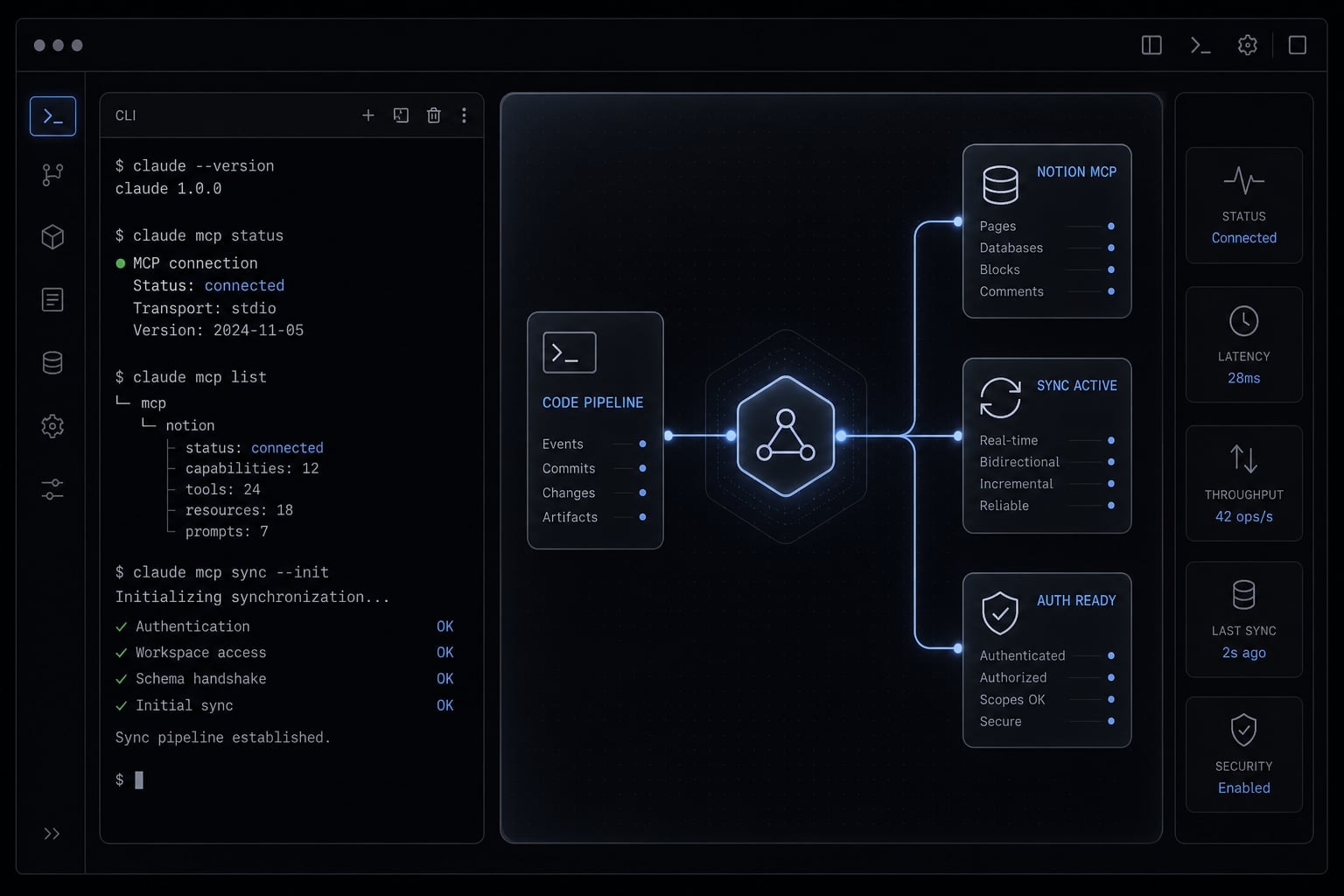
Claude Code Notion MCP is a setup that connects Claude Code to Notion through the official Notion MCP server, so Claude can search, read, and in some cases update workspace content you are authorized to access. It requires both server configuration and a separate OAuth flow before access is active.
What MCP does in simple terms
Model Context Protocol (MCP) is a standard connection layer that lets tools like Claude Code work with external systems in a structured way. In plain English, it gives Claude a clean way to interact with Notion without relying on manual copy-paste. That matters when your workflow depends on pulling meeting notes, briefs, specs, or internal pages into the same working session.
For most users, the practical value of Claude Code Notion MCP is simple:
- Reduce context switching between Claude and Notion.
- Search workspace content from inside Claude.
- Use existing pages as live context for drafting or planning.
- Avoid repeatedly pasting the same notes into chat.
What Notion MCP enables after connection
Once the Notion MCP server is configured and the OAuth flow is completed, Claude can work with content you are allowed to access.
Typical capabilities include:
- Searching your Notion workspace for pages and notes.
- Pulling pages into Claude as working context.
- Summarizing existing content.
- Creating or updating content where permissions allow.
This is where many users overestimate the setup. A working connection helps, but it still runs within a defined permission boundary.
What it does not mean
It does not mean:
- Automatic full-workspace sync.
- Unlimited access to every page in Notion.
- Completed setup the moment the CLI command succeeds.
- Visibility into content outside your authorized workspace permissions.
In practice, most setup failures happen after configuration appears successful. A working config does not automatically mean Claude can access the right Notion content.
Prerequisites before you connect Notion MCP to Claude Code
Before you run any command, make sure the setup basics are in place. This prevents the most common false starts: Missing workspace access, skipped browser login, or choosing the wrong scope too early.
Setup checklist:
- Claude Code is installed and working on your machine
- You have access to the target Notion account and workspace
- A browser is available for the OAuth 2.0 authorization step
- You have decided whether to use local, project, or user scope
- You are comfortable running basic terminal commands
Important: installation, workspace access, and authorization are separate things. Having Claude installed does not mean your Notion workspace is ready to use inside Claude.
Read more: Claude Code install guide: Official setup steps for all OS
Step-by-step: How to connect Notion MCP to Claude Code
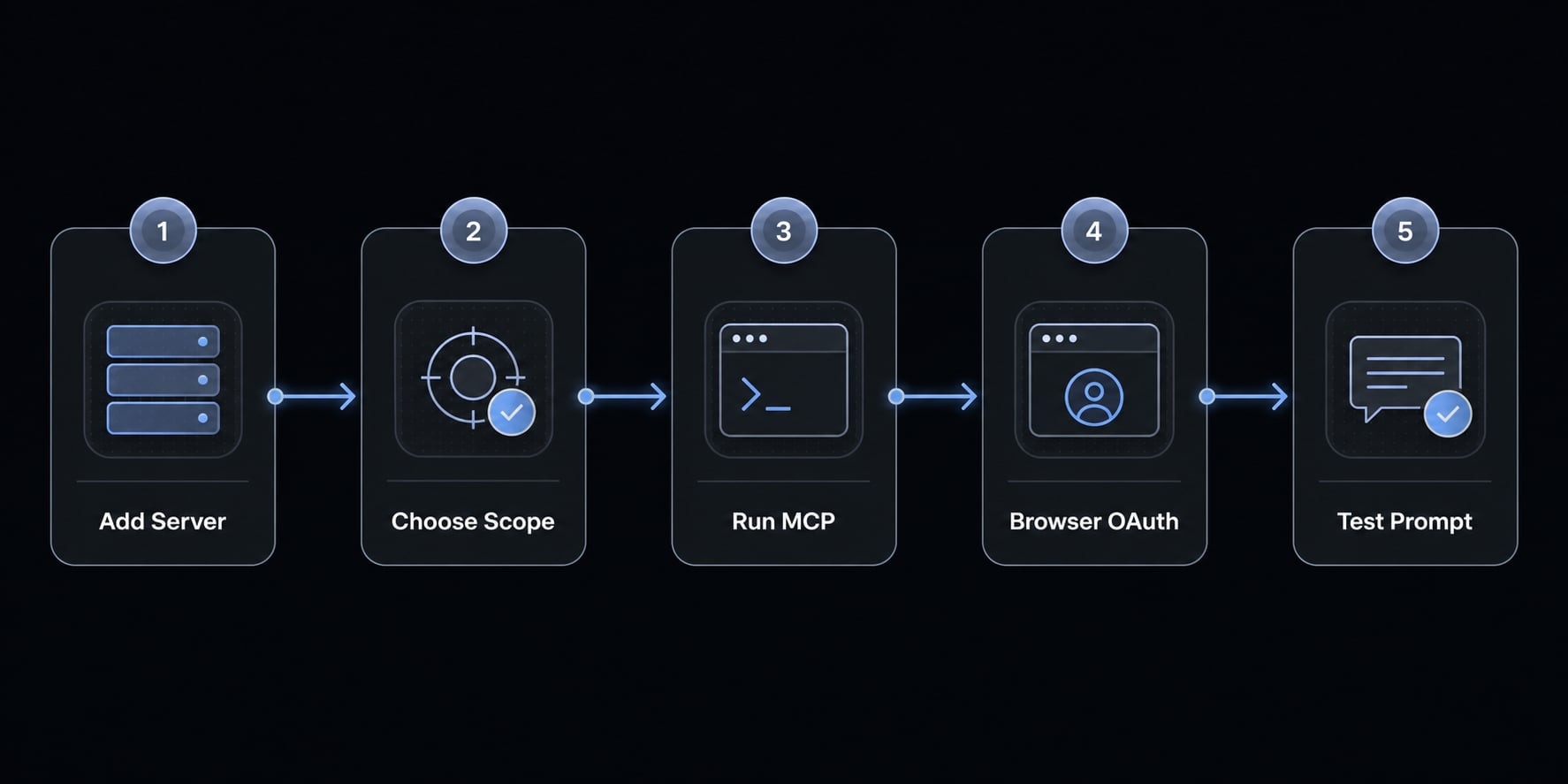
If your goal is to connect Notion MCP to Claude Code with the least friction, follow this sequence exactly:
- Add the Notion MCP server.
- Choose the right scope.
- Authenticate inside Claude Code.
- Test with a simple prompt
The critical distinction is this: Configuration is not the same as authorization.
Adding the server config is not the same as granting Claude access to your Notion workspace.
Step 1: Add the Notion MCP server
Run this command in your terminal:
claude mcp add --transport http notion https://mcp.notion.com/mcp
This claude mcp add command adds the official Notion server configuration to Claude. It uses HTTP transport, which is the recommended method for remote MCP servers.
What this step does:
- Registers the Notion MCP server in Claude.
- Tells Claude where the server lives.
- Prepares the connection path for later use.
What this step does not do:
- It does not sign you into Notion.
- It does not grant workspace access.
- It does not complete authorization.
If you are searching for a Notion MCP server setup for Claude, this is the correct starting command. But it is only the starting command.
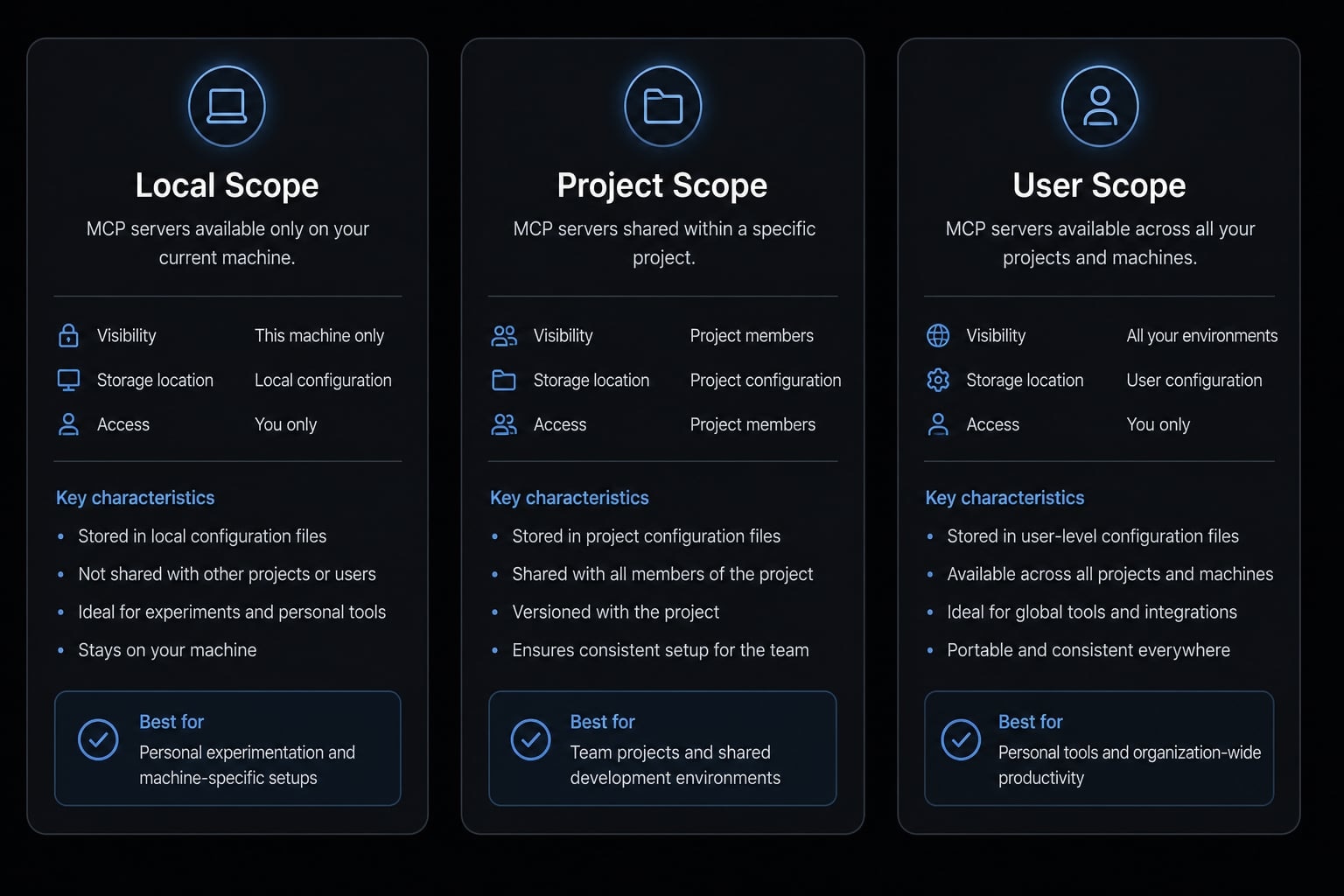
Step 2: Choose the right scope
Before you expand usage, choose the smallest practical scope.
- Local scope: Best for one project, first-time setup, or low-risk testing
- Project scope: Best when the configuration should be shared with a team
- User scope: Best when one person reuses Notion across multiple projects
If you do not specify a scope, local is the default.
For most beginners, local is the right first step because it limits setup risk and keeps the workflow easy to validate before broader reuse.
Criteria | Local scope | Project scope | User scope |
|---|---|---|---|
Best for | One project, one user. | Shared team setup. | One user across many projects. |
Shared with team | No. | Yes. | No. |
Typical use case | Testing or one-off workflow. | Standardized team workflow. | Frequent personal Notion use. |
Config behavior | Current project only. | Stored in project config. | Available across all your projects. |
Best default for beginners | Yes. | No. | Only if reused often. |
Best strategic fit | Lowest setup risk. | Best repeatability. | Best for heavy solo reuse. |
Step 3: Authenticate inside Claude Code
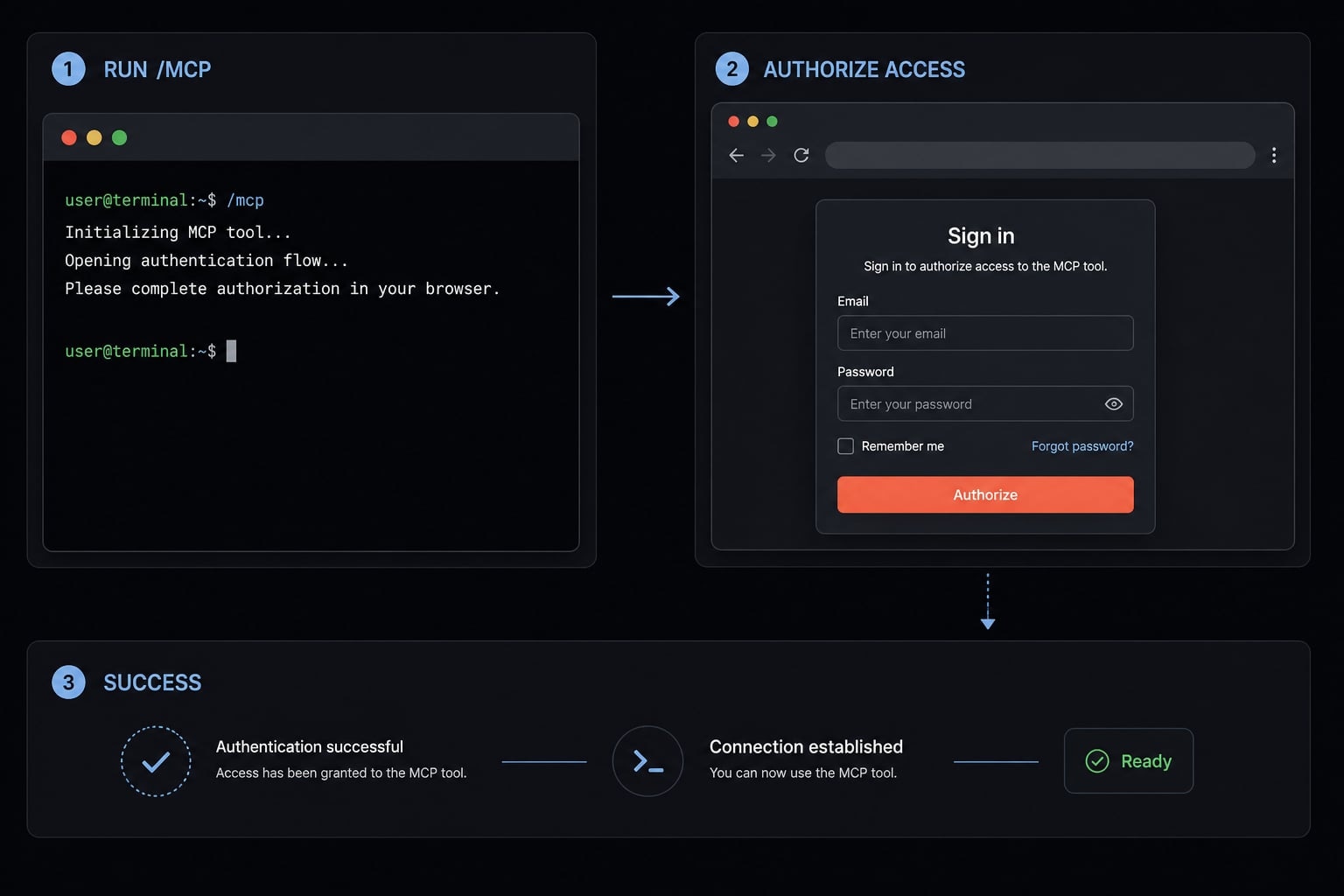
Once the config exists, move into Claude Code and complete authorization.
- Open Claude Code
- Run
/mcp - Select or inspect the Notion server
- Start the browser-based OAuth flow
- Sign in to Notion and approve access
This is the step many users miss. The command succeeds, the server appears configured, and they assume access is live. It is not live until the browser authorization is completed.
Important: If you use the right command but skip OAuth, Notion will still not be usable in practice.
Step 4: Confirm the connection works
Now test it with a simple, low-risk prompt. Try one of these:
- “Search my Notion workspace for recent pages.”
- “Find pages related to product planning.”
Expected result: Claude returns pages it is authorized to access. If results are missing, check permissions before repeating setup.
If you are evaluating how to connect Notion MCP to Claude Code for daily use, this test matters more than the config alone. It confirms both access and usefulness. If your team is standardizing AI tool connections across projects, AgentKit’s reusable MCP workflow templates can help document scope, ownership, and validation steps without turning setup into tribal knowledge.
What to do right after setup: 5 simple prompts to test the connection
A good test does more than confirm the server exists. It should verify active access, useful retrieval, and the practical value of the connection in an AI-to-Notion workflow.
Below are five copy-ready Claude Code prompts that check real usage instead of just configuration state.
1. Search recent pages
- Prompt: “Search my Notion workspace for pages updated in the last 7 days.”
- Purpose: Confirms that Claude can query your workspace and retrieve recent content.
- Expected result: This confirms active access and basic search functionality.
2. Summarize a page or set of notes
- Prompt: “Find my meeting notes about roadmap planning and summarize the main decisions and action items.”
- Purpose: Checks retrieval plus summarization quality.
- Expected result: This validates search, page retrieval, and summarization in one step.
3. Pull context into drafting
- Prompt: “Find the latest product brief in Notion and use it as context for a first draft of a launch update.”
- Purpose: Tests whether Claude can use Notion material inside a drafting task.
- Expected result: This confirms Claude can turn workspace context into useful output, not just list pages.
4. Organize research or content ideas
- Prompt: “Search my Notion workspace for notes related to onboarding friction and group them into 3 themes I can use for a content outline.”
- Purpose: Useful for research synthesis, planning, and Notion workflow prompts tied to content ops.
- Expected result: This confirms value for planning, organization, and early-stage content structuring.
5. Verify access boundaries
- Prompt: “Show me which Notion pages you can access related to Q1 planning, and tell me if anything appears unavailable.”
- Purpose: Checks the current permission boundary rather than assuming broad visibility.
- Expected result: This confirms current access scope and helps detect missing permissions without guessing.
Note: these prompts help test both access and practical workflow value. They are a better validation layer than relying on workspace synchronization assumptions alone.
Common setup problems and how to fix them
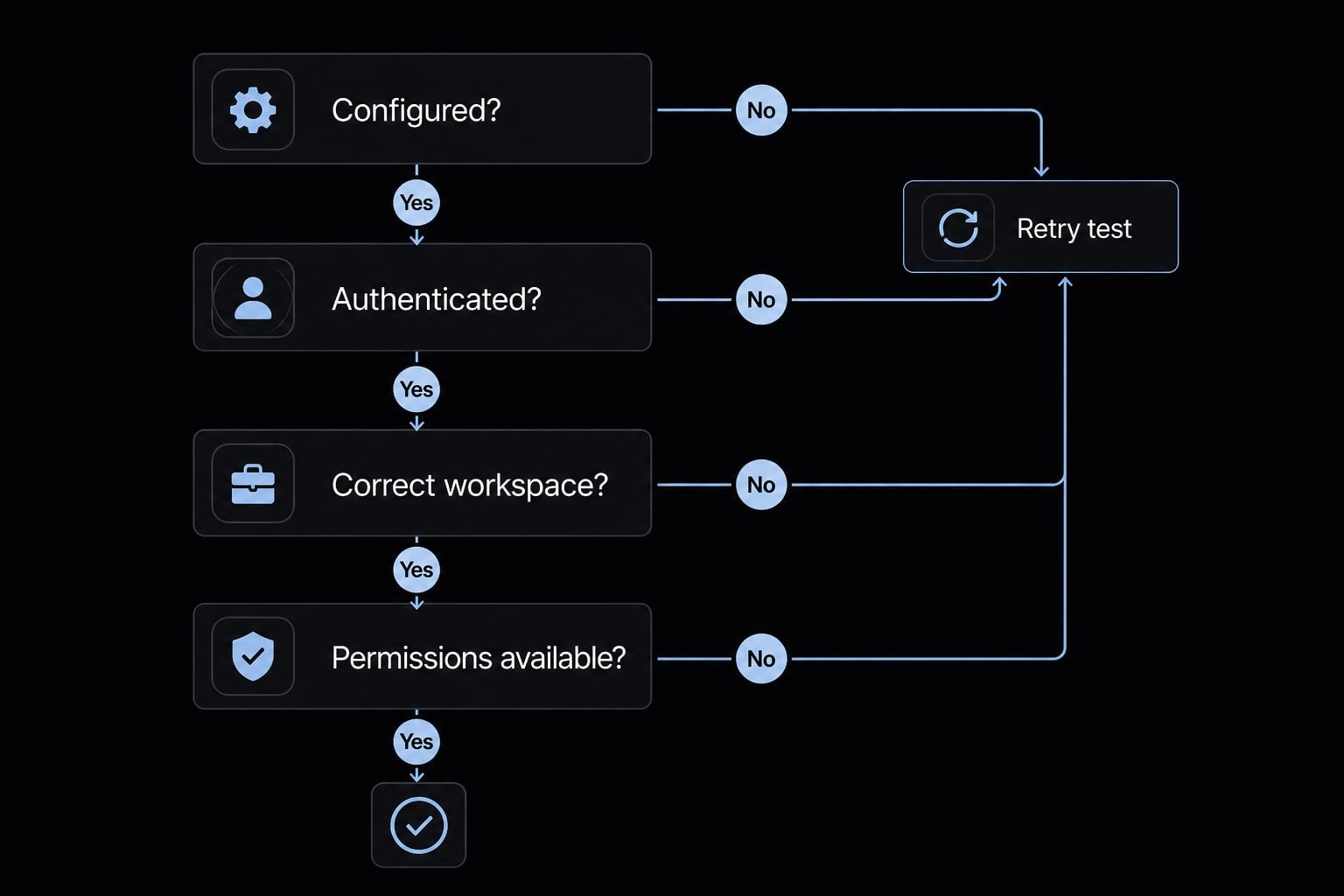
Most Claude Code Notion MCP connection issues are easier to solve if you follow a short diagnostic order instead of reinstalling or reconfiguring everything.
Configured? → Authenticated? → Authorized workspace content available?
That sequence resolves most cases of troubleshooting Notion MCP connection in Claude Code.
Problem 1: The server is added, but Notion is not usable
Symptom: The config appears to exist, but Claude cannot actually use Notion.
Likely cause: The OAuth flow was never completed.
Fix:
- Open Claude Code
- Run
/mcp - Select the Notion server
- Reconnect if needed
- Finish the browser authorization flow
This is the most common failure pattern. The command works, but access was never granted.
Problem 2: OAuth completes, but Claude cannot see the right content
Symptom: Authentication succeeds, but expected pages are missing.
Likely cause: You authorized the wrong workspace, or the page-level workspace permissions do not allow access.
Fix:
- Confirm which Notion workspace was authorized.
- Check whether the target pages are actually accessible in that workspace.
- Re-run a basic search prompt before changing config.
- Only reconnect if permissions and workspace selection are correct but results still fail.
Important: Missing pages do not automatically mean the full setup failed.
Problem 3: You are not sure whether the connection is active
Symptom: You want to confirm the server exists and inspect its current state.
Likely cause: Unclear status, incomplete validation, or multiple configs causing confusion.
Fix: Run these diagnostic commands:
claude mcp listclaude mcp get notion
Also check /mcp inside Claude Code for live MCP server status. Use these checks before removing and re-adding the server.
Problem 4: Your MCP client does not support remote HTTP servers well
Symptom: Remote HTTP setup behaves inconsistently in a nonstandard client environment.
Likely cause: The client has weak support for remote MCP over HTTP.
Fix: As an edge-case workaround, consider MCP remote bridging with mcp-remote if your environment specifically requires it.
This is not the normal path for Claude Code, so avoid overcomplicating setup unless you have a confirmed compatibility issue.
If your team is hitting repeated tool-connection issues across multiple MCP services, AgentKit can help document a repeatable diagnostic pattern instead of solving each integration ad hoc.
Best practices for using Claude Code with Notion safely and cleanly
A working connection is not the same as a clean operating model. The goal is a repeatable configuration with controlled workspace access, not the broadest possible setup.
Start with the smallest practical scope, verify read behavior first, and only expand after the workflow proves useful.
Operational tips for solo users
- Use local scope for one-off or project-specific work.
- Use user scope only if you will reuse the setup across many projects.
- Test search and summarization before trying write or update actions.
- Treat this as a least-privilege setup until your workflow is stable.
- Verify before scaling the workflow into important Notion document management tasks.
For solo operators, the cleanest path is usually simple: small scope, clear test, then gradual expansion.
Operational tips for teams
- Use project-level configuration only when the workflow should be shared.
- Assign one owner for setup maintenance and reauthorization guidance.
- Document the workflow in team notes or
CLAUDE.md - Define what content is safe for AI-assisted retrieval or drafting.
- Build safe AI workflows around repeatability, not convenience alone.
For team collaboration, shared configuration helps only when ownership is clear. Otherwise, the setup becomes fragile and hard to troubleshoot.
Practical use cases: When this setup is worth using
Not every workflow needs a Claude Code Notion integration. It is most useful when Claude and Notion are both active parts of daily work, and the same context needs to move between drafting, planning, and documentation.
Best-fit use cases include:
- Product teams: Pull product specs, issue notes, or internal docs into Claude as live context
- Founders and solo builders: Draft in Claude Code, then refine and share in Notion
- Marketers and operators: Use briefs, SOPs, campaign notes, or research docs for faster planning
- Content ops teams: Support collaborative AI document drafting where retrieval and summarization matter
- Cross-functional workflows: Reduce handoff friction between local drafting and team-facing docs
- Recurring planning work: Make workflow automation more practical when context retrieval happens often
If usage is rare or one-directional, the setup may not be worth the overhead. It becomes valuable when context reuse is frequent enough to justify a stable connection.
Frequently asked questions
What is the Claude Code Notion MCP?
Claude Code Notion MCP is a bridge that connects your local coding environment to your Notion workspace via the Model Context Protocol. It allows Claude to search, read, and update Notion content directly, effectively closing the gap between AI-assisted drafting and collaborative documentation management.
Is the Notion MCP setup automatic?
No. Adding the Notion MCP server configuration is only the first step. You must also complete a browser-based OAuth flow to authorize the connection and grant Claude specific access to your Notion workspace, ensuring that your data security remains under your control.
Which MCP scope should I choose?
Choose local scope for project-specific tasks, project scope for sharing configurations across a team, or user scope if you frequently use Notion across all your projects. For most individual developers, starting with local scope is the safest and most manageable way to begin.
Why is Claude Code unable to see my Notion pages after setup?
This usually happens because authorization is incomplete or permissions are restricted. First, ensure you have completed the browser-based OAuth flow by running /mcp in your terminal. If authorized, verify that the Notion workspace you connected actually contains the pages you are trying to access.
Can I use Notion MCP for automatic two-way synchronization?
Not currently. The Notion MCP server is designed for manual search, retrieval, and targeted content updates. It is best used to pull Notion context into your local drafts or push content to Notion, rather than as a fully automated, bidirectional file-syncing tool.
How can I verify that my Notion MCP connection is working?
Once authorized, run a simple search prompt within Claude Code, such as "Search my Notion workspace for recent pages." If Claude returns a list of your pages, the connection is active and correctly configured. If it fails, check your server status using claude mcp list.
Read more:
- Connect GitHub MCP to Claude Code: Step-by-step guide
- How to Setup and Configure MCP Servers in Claude Code
- Claude Code MCP: Connect servers, setup guide, and fix errors
Conclusion
Claude Code Notion MCP becomes much easier once you separate four things clearly: Configuration, scope, OAuth, and testing. The reliable path is simple: Add the server, choose the smallest practical scope, authenticate through /mcp, then test with a basic search prompt before expanding into broader workflows.
That sequence reduces setup confusion and makes permission boundaries easier to manage. If you want to standardize this across projects, AgentKit’s reusable MCP workflow templates and team-ready setup patterns can help you document the process cleanly without overengineering it.