Claude Code desktop app: How to install it and start coding
The Claude Code desktop app refers to the coding experience inside Claude Desktop, rather than a separate application you need to find from another publisher. Start with Anthropic’s official desktop download, then confirm that your account can access the coding workspace. This guide covers installation, project selection, permissions, and a small coding task you can review before keeping.
What is the Claude Code desktop app?
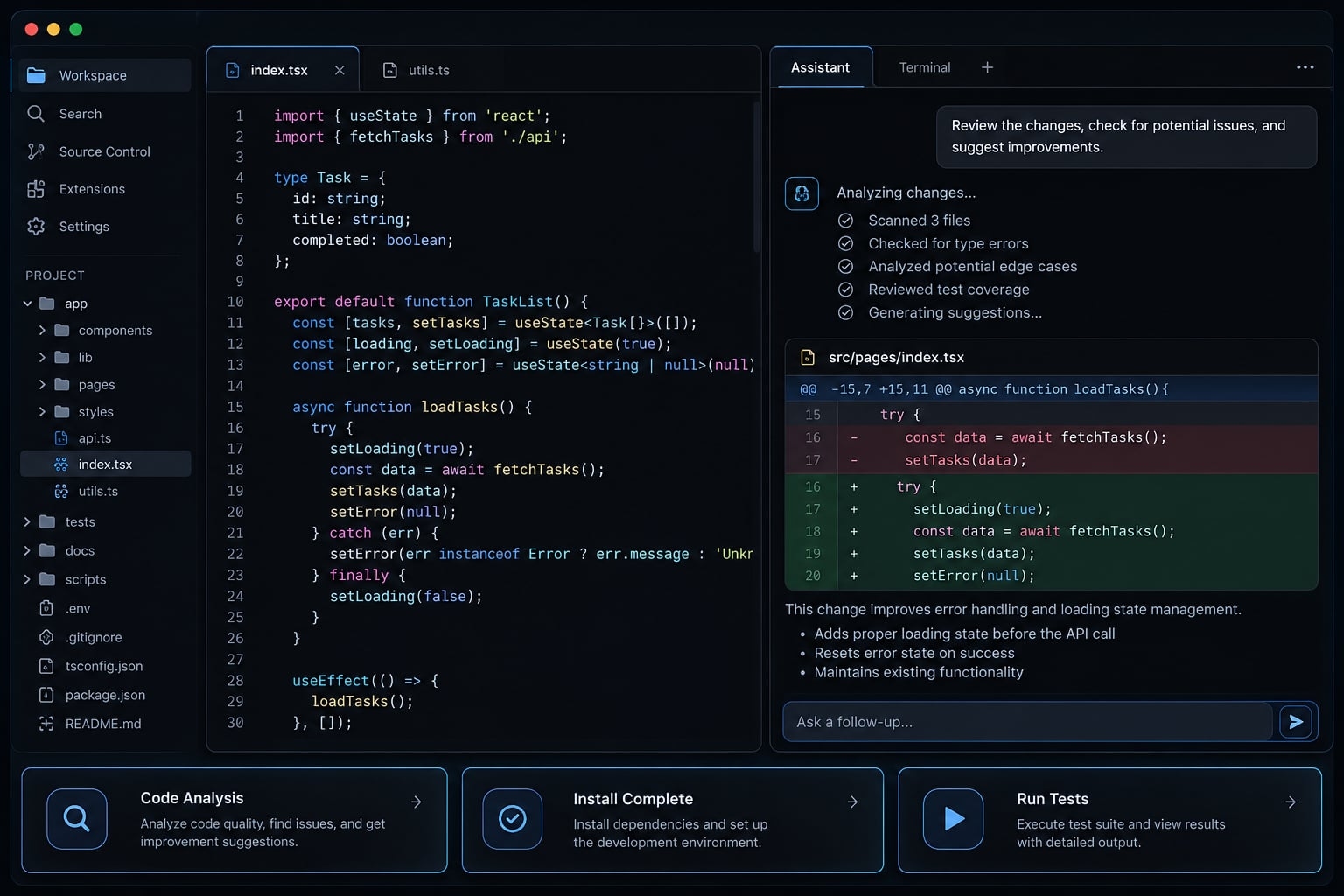
The Claude Code desktop app is the graphical coding workspace within Anthropic’s Claude Desktop application. It lets eligible users work with a software project through instructions, file changes, and development checks. You install Claude Desktop first; access to its coding workspace depends on current account eligibility and platform support.
The practical distinction is application versus workspace. Claude Desktop is what you install. Code is where you start project-based coding sessions. This Claude Code GUI provides a visual way to direct coding work. It should not be treated as a complete integrated development environment or a universal terminal replacement.
Claude desktop, code, chat and CLI explained
Interface or workspace | Primary purpose | Where it is used |
|---|---|---|
Chat | General conversations, analysis, and writing | Claude’s conversational interface |
Code | Project-based coding assistance | The coding workspace in Claude Desktop |
Claude Code CLI | Coding through a command-line interface | Your terminal |
Other workspaces may appear depending on the application version and account. Their presence does not establish that they share Code’s permissions or project access.
Anthropic’s Claude Code documentation and Claude Help Center are the appropriate references for current product boundaries.
Requirements and supported platforms
Check application compatibility and Code eligibility before downloading. They are separate requirements, and a working Chat account does not by itself confirm coding access.
Claude Code in the desktop app requires a Pro, Max, Team, or Enterprise subscription. Installers are available for macOS, Windows (x64), and Windows ARM64. Do not rely on an older tutorial or infer desktop support from CLI support.
Check your account and project requirements
Before starting, confirm that you have:
- An account currently eligible for desktop Code access.
- Organization approval, if your account is managed by an employer.
- A project folder you are authorized to share with the service.
- The tools required to run that project.
- A way to preserve existing work.
Git, a version-control tool, is recommended for tracking changes. It is not something to assume every project already uses.
Separate application prerequisites from project dependencies, the tools and packages your project needs. A JavaScript application may require Node.js to run its tests. That does not establish that Node.js is a prerequisite for installing Claude Desktop.
Likewise, do not install the separate CLI merely because you want the graphical application. Follow the desktop-specific setup requirements.
Confirm your operating system and installer
Operating system | Desktop support guidance | Installer or next step |
|---|---|---|
macOS | Claude Desktop has an official macOS distribution; check Code-specific requirements | Use Anthropic’s compatible download |
Windows | Claude Desktop has an official Windows distribution; check Code-specific requirements | Use Anthropic’s compatible download |
Linux | The desktop app is not available on Linux. Use the Claude Code CLI instead | Check Anthropic’s download information; evaluate the CLI separately if needed |
Use the official download page to confirm minimum versions and processor architecture. A Linux CLI installation, including one inside a virtualized environment, is not evidence of a native Linux desktop app.
How to install the Claude Code desktop app
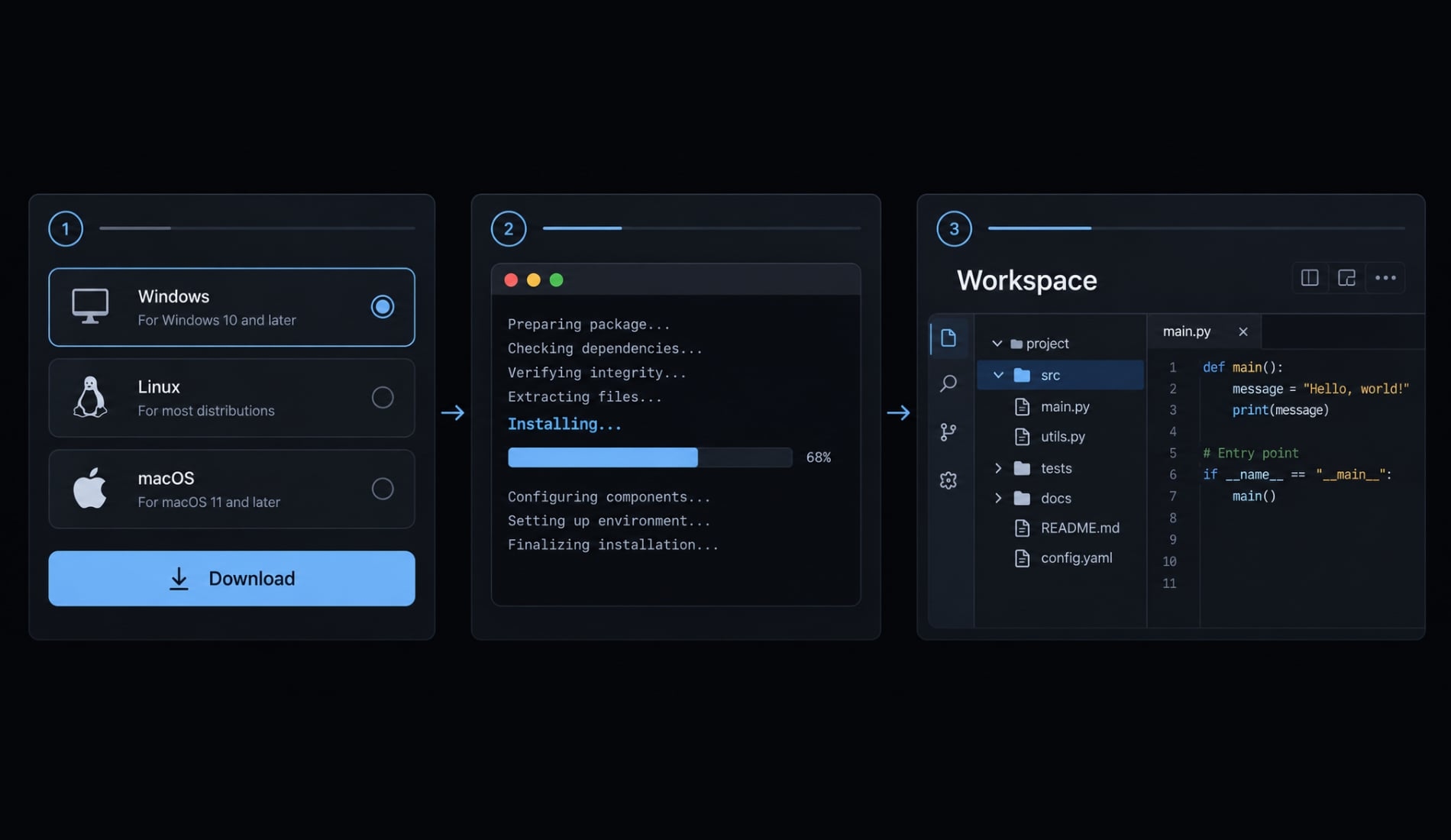
Follow this six-step sequence:
- Confirm computer and account eligibility.
- Download the official application.
- Install and launch it.
- Sign in with the intended account.
- Open the coding workspace.
- Select a project and review access settings.
The Claude Desktop download should come from Anthropic. Avoid search ads, third-party installers, and community wrappers presented as official applications.
Install on macOS
Find the desktop download through Anthropic’s official website. Check the supported macOS version and select the compatible installer if multiple options appear.
Open the downloaded installer and follow its instructions. Installer formats and deployment methods can change, so follow the current installation flow rather than assuming a particular drag-and-drop process.
Launch Claude Desktop and complete sign-in. If authentication opens a browser, finish there and return to the application.
Success checkpoint: The application opens and recognizes the account you intended to use.
If macOS blocks installation, inspect the message and verify the installer’s source. Do not disable system protections simply to force an unfamiliar package to run.
Install on Windows
Choose the official Windows download that matches your computer. Run the installer and follow its prompts. Open the application, start authentication, and complete any browser-based sign-in. Return to Claude Desktop afterward.
Install Git for Windows before your first local session, then restart the app. Do not add WSL or change administrator settings unless the instructions require it.
Success checkpoint: The application recognizes the intended account. This confirms installation and authentication, not necessarily Code eligibility.
What about Linux?
This guide does not establish current official Linux desktop support. Check Anthropic’s download information before choosing a package or following distribution-specific instructions.
If a compatible official desktop release is unavailable, consider the Claude Code CLI using its separate installation documentation. Do not substitute an unofficial wrapper and assume it has the same authentication, maintenance, or security properties.
Sign in and open code
Check the account identity and, where applicable, the selected organization or workspace. Find the coding entry point in the application navigation. If your version displays a Code tab, open it.
Successful access should let you begin the project-selection workflow. If Code is missing or unavailable, use the troubleshooting section before reinstalling or changing your subscription.
Start your first Claude Code desktop session
Make the first task small enough to inspect completely. Your goal is not to generate a large feature. It is to understand the relationship between instructions, permissions, changes, and verification. The example below uses a disposable Python project. It is a reproducible exercise, not a claimed completed desktop test.
Prepare a small project
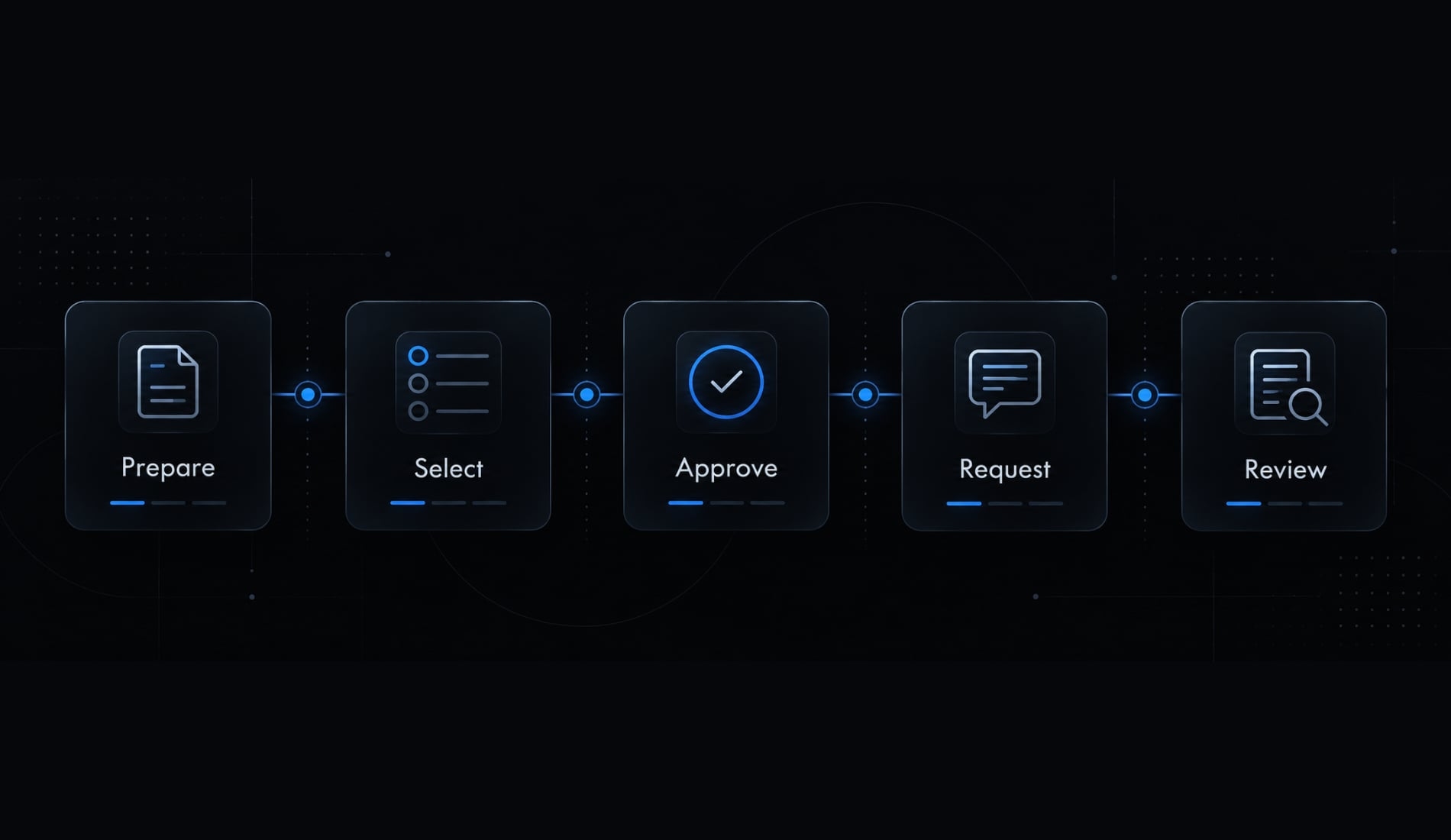
Use this five-item checklist:
- Confirm the project already runs.
- Save or commit existing work.
- Create a branch, a separate line of work, where practical.
- Run the relevant baseline check.
- Record existing failures before requesting changes.
Avoid production credentials, deployments, database migrations, and dependency upgrades.
For a clean practice project, create an empty folder named email-validation-demo. Add validation.py:
def normalize_email(value: str) -> str:
    return value.lower()
Add test_validation.py:
import unittestfrom validation import normalize_emailclass NormalizeEmailTests(unittest.TestCase): def test_lowercases_email(self): self.assertEqual( normalize_email("USER@EXAMPLE.COM"), "user@example.com", )if __name__ == "__main__": unittest.main()
This example needs Python 3 but no third-party packages. Run:
python -m unittest -v
Use python3 instead if that is your system’s Python 3 command. The starting code is designed to pass one lowercase-conversion test. Run it yourself to establish the actual baseline; that expected outcome is not a reported test result.
Select a local project folder
Start a local coding session through the application’s project-selection flow. Select the repository root, the main folder containing the project. For this exercise, select email-validation-demo, not your home directory or a parent folder containing unrelated work.
Confirm that the session points to the intended project before submitting instructions. Selecting a local project folder defines the task context. It does not prove that every other system resource is inaccessible.
Choose a permission mode
Use the most approval-oriented setting available for your first session. Consult the current desktop documentation for its exact label and behavior.
If a planning option is available, use it to request an approach before implementation. Planning is not sandboxing, and a prompt asking for approval is not a substitute for application-level controls.
Before authorizing command execution, inspect the command, working directory, and likely effects.
Give Claude one small task
Submit this exercise prompt:
Work only on validation.py and test_validation.py.Current behavior:normalize_email lowercases its input but preserves surroundingwhitespace.Expected behavior:Remove leading and trailing whitespace, then lowercase the result.First inspect both files and explain the smallest proposed change.Wait for my approval before editing.Preserve the existing lowercase test. Add a focused regressiontest using " USER@EXAMPLE.COM " and expect"user@example.com".Do not change internal whitespace, add email-format validation,install dependencies, or edit unrelated files.After approval, make the change and run:python -m unittest -vIf that Python command is unavailable, report the problem beforeusing an alternative.Finish by listing changed files, commands actually executed,their results, and any checks you could not complete.
The acceptance criteria, the conditions required to consider the task complete, are:
- Surrounding whitespace is removed and letters are lowercased.
- The original and new regression tests pass when executed.
- Only the two named files change.
The intended implementation is small:
return value.strip().lower()
That line illustrates the requested behavior. It is not evidence that Claude produced or tested it.
Review the diff and run tests
A diff compares the original and updated files, showing added and removed lines. Use the available diff view or your normal development tools:
- Inspect every changed file.
- Confirm that the implementation matches the request.
- Check for unrelated configuration, dependencies, generated files, or secrets.
- Run the focused test.
- Compare the result with the baseline.
- Keep or reject the change through your normal workflow.
The exercise is designed to finish with two passing tests. Record the actual result, including failures or skipped checks.
A suggested command is not an executed check. If Claude reports that testing was blocked, verification remains incomplete.
To reject the change, reverse only the edits introduced by this task. Preserve unrelated work and inspect the result again. Avoid broad resets or file deletion.
Main features and permission controls
The useful question is not simply what Claude can do. It is what this session is authorized to do in your project. Anthropic’s desktop documentation should establish the capabilities and controls available in your installed version. Do not assume every CLI feature exists in the graphical interface.
What the desktop coding workspace can do
Capability | Practical use | Important condition |
|---|---|---|
Read and explain project files | Understand existing behavior | Selected context and access must be appropriate |
Propose or make code changes | Implement a scoped request | Inspect edits before keeping them |
Run development commands or tests | Check project behavior | Required tools and permissions must be available |
Review changes | Compare the patch with the request | Visual diff review does not replace testing |
A request to “fix the application” leaves too much unspecified. Naming a function, expected behavior, and relevant test makes the result easier to evaluate.
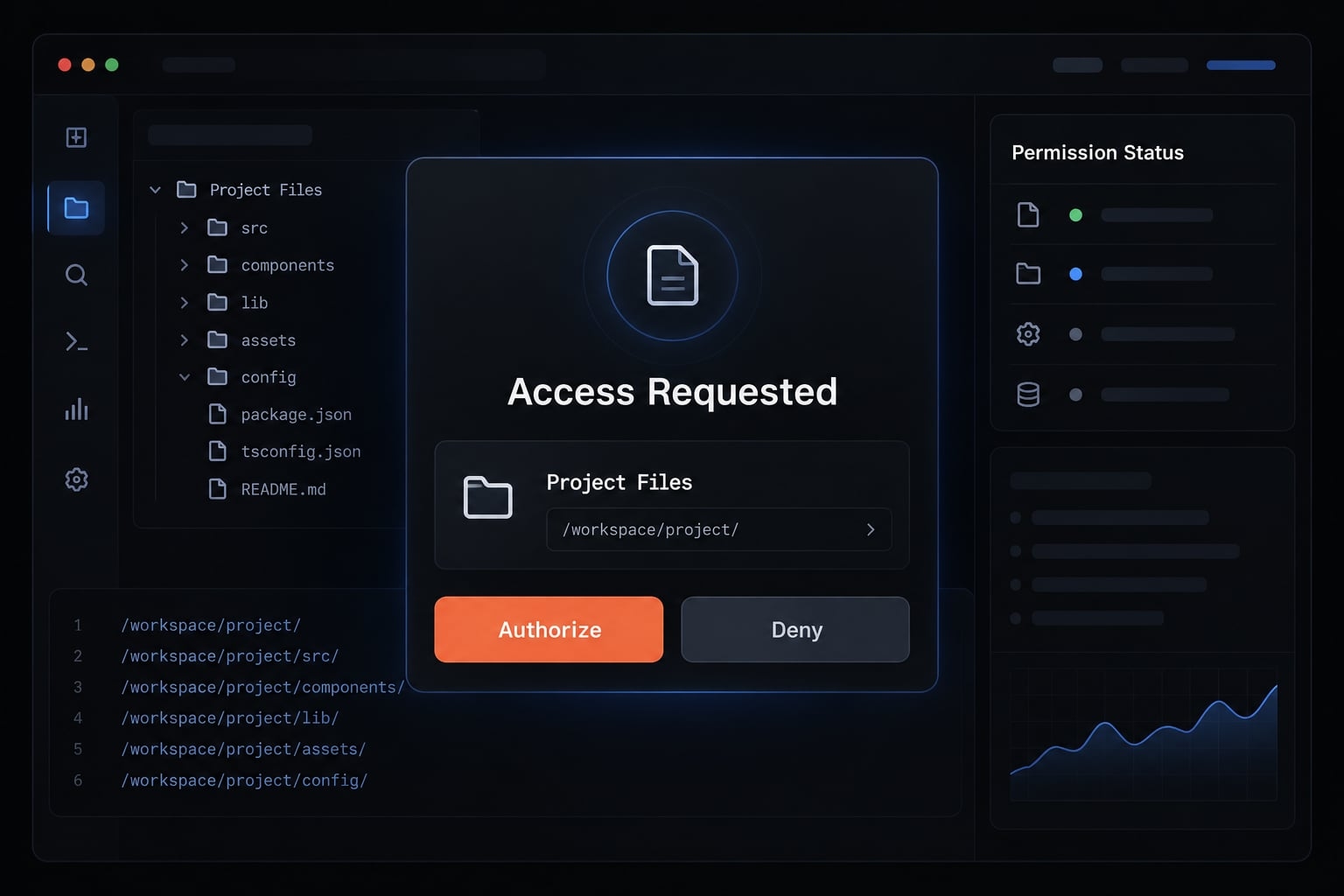
Understand permission controls
Exact permission labels and defaults are not verified here. Rather than invent a mode table, check these practical distinctions against the controls your application displays:
Permission question | What to establish | Appropriate first-session approach |
|---|---|---|
Can it access this project? | Which folder and files are in scope | Choose the smallest useful project |
Can it edit files? | Whether changes require approval | Prefer reviewable, limited edits |
Can it execute commands? | Which commands require authorization | Inspect commands before approving |
Is execution isolated? | What documented restrictions apply | Do not infer isolation from folder selection |
Approval settings do not guarantee correct code, harmless commands, or complete protection from unintended effects.
Give Claude better project context
- Identify the relevant file or function.
- Describe the expected outcome.
- Name files and behaviors that must remain unchanged.
- Include useful error output without credentials.
- Use CLAUDE.md for project instructions where supported by the documented workflow.
Project instructions can record conventions and test commands. They do not override organizational security policies or establish a security boundary.
Also distinguish local files from local processing: Opening a folder on your computer does not imply that model processing stays entirely on that computer. Consult Anthropic’s applicable privacy and data-handling documentation.
Claude Code desktop vs. CLI: Which should you use?
Choose the interface that fits your working habits. Desktop and CLI are different entry points; do not assume identical capabilities, permission defaults, or session state.
Desktop vs. CLI comparison
Criterion | Desktop | CLI |
|---|---|---|
Interface | Graphical coding workspace | Terminal interface |
Setup | Install Claude Desktop and confirm Code access | Follow separate CLI installation and authentication |
Project selection | Select the project through the application | Start from the intended working directory |
Change review | Available graphical review tools and external tools | Terminal, Git, or external review tools |
Automation fit | Primarily a visual, interactive starting point | Documented command-line and scripting workflows |
Best starting point | Preference for visual navigation | Preference for terminal-native work |
The desktop route may be easier when you want project navigation and change inspection in a graphical workflow. The terminal workflow may fit better if your existing development routine already revolves around shell commands.
Neither choice removes the need for project dependencies, careful permissions, or verification. Installing one interface also does not establish that the other is installed.
Choose the interface that fits your workflow
- Choose desktop for a visual first experience.
- Choose CLI for terminal-native development and documented scripting use cases.
- Use both when useful, but verify any session-transfer or shared-state behavior before relying on it.
Consult Anthropic’s desktop and CLI documentation separately when a particular feature determines your choice.
Troubleshooting and next steps
Start with reversible checks. Reinstalling, changing plans, or granting broader access should not be your first response to a setup problem.
Fix common setup and access problems
Symptom | First check | Next action |
|---|---|---|
Code tab unavailable | App version, account, organization, eligibility | Consult current official availability guidance |
Claude Code 403 error or sign-in failure | Session mismatch or organization restrictions | Reauthenticate if appropriate; contact official support if unresolved |
Folder will not open | Selected location and operating-system permissions | Try the intended user-owned project folder |
Command fails | Dependencies, working directory, approvals | Verify the documented command independently |
Changes are too broad | Request scope and authorization level | Stop, inspect, preserve existing work, and narrow the request |
A 403 error has multiple possible causes. It is not proof that you need a different Claude subscription. For support, record the app version, operating system, exact error, and action that triggered it. Remove credentials and private project details.
Keep the Workflow Safe and Repeatable
Use the same sequence each time:
Scope → approve → implement → test → review.
Record working test commands and project conventions. Follow your organization’s data policies, and remember that local folder access does not mean local-only processing.
Frequently Asked Questions
What is the Claude Code desktop app?
The Claude Code desktop app is a graphical interface integrated into Claude Desktop that provides a dedicated "Code" tab for AI-assisted software engineering. It allows developers to run interactive coding sessions, manage parallel tasks across local or cloud repositories, and visually review AI-proposed changes before implementation.
How does the Claude Code desktop app differ from the CLI?
The desktop app offers a graphical environment including a split-pane interface, visual diff reviews, integrated dev server previews, and drag-and-drop workspace customization. While the CLI is optimized for terminal-native workflows, the desktop app provides a "Mission Control" experience for managing complex, multi-session agentic workflows and automated routines.
Can I run Claude Code desktop sessions while my computer is offline?
No. Claude Code sessions require an active internet connection to communicate with Anthropic’s model infrastructure. However, with the "Routines" feature, you can configure tasks on Anthropic's cloud infrastructure that continue to execute independently even if you close the desktop application or put your computer to sleep.
Does the desktop app require a specific subscription?
Yes. Full access to the "Code" tab requires an active Claude Pro, Max, Team, or Enterprise subscription. If you are using a free tier, you may be prompted to upgrade when attempting to open a coding session or access project-based agentic features.
How do parallel sessions work in the desktop app?
The desktop app allows you to run multiple Claude agents simultaneously. Each session is isolated using an automated Git worktree, which creates a dedicated directory checkout. This architecture prevents concurrent agents from causing file conflicts or overlapping changes, ensuring each task remains organized within its own branch.
Is my code processed locally or in the cloud?
Claude Code desktop sessions involve a hybrid approach. While the application runs on your local machine, the actual processing of your prompts and code analysis is performed by Anthropic’s models in the cloud. You maintain control through permission modes, which determine whether Claude can edit files or execute commands on your machine.
Read more:
- Claude Code install guide: Official setup steps for all OS
- Claude Code Windows: How to install, set up, and fix issues
- Claude Code in the terminal: Installation and beginner guide
Conclusion
The Claude Code desktop app is easiest to evaluate through a controlled first session. Install the official application, confirm account access, select the intended project, and review permissions before requesting changes. Keep the task narrow and inspect the actual patch. A plausible explanation is not proof that the code works, and a proposed test is not a completed test. Try the email-normalization exercise in a disposable folder. Keep the result only after reviewing both changed files and running the relevant checks successfully.