Claude Code in the terminal: Installation and beginner guide
Claude Code in the terminal: Installation and beginner’s guide
Claude Code is Anthropic’s command-line coding agent. To get started, install the CLI, open a terminal in your project folder, run claude, and authenticate using a supported account. Begin with project inspection, then request a small change, review the proposed actions, and validate the resulting files before accepting the work.
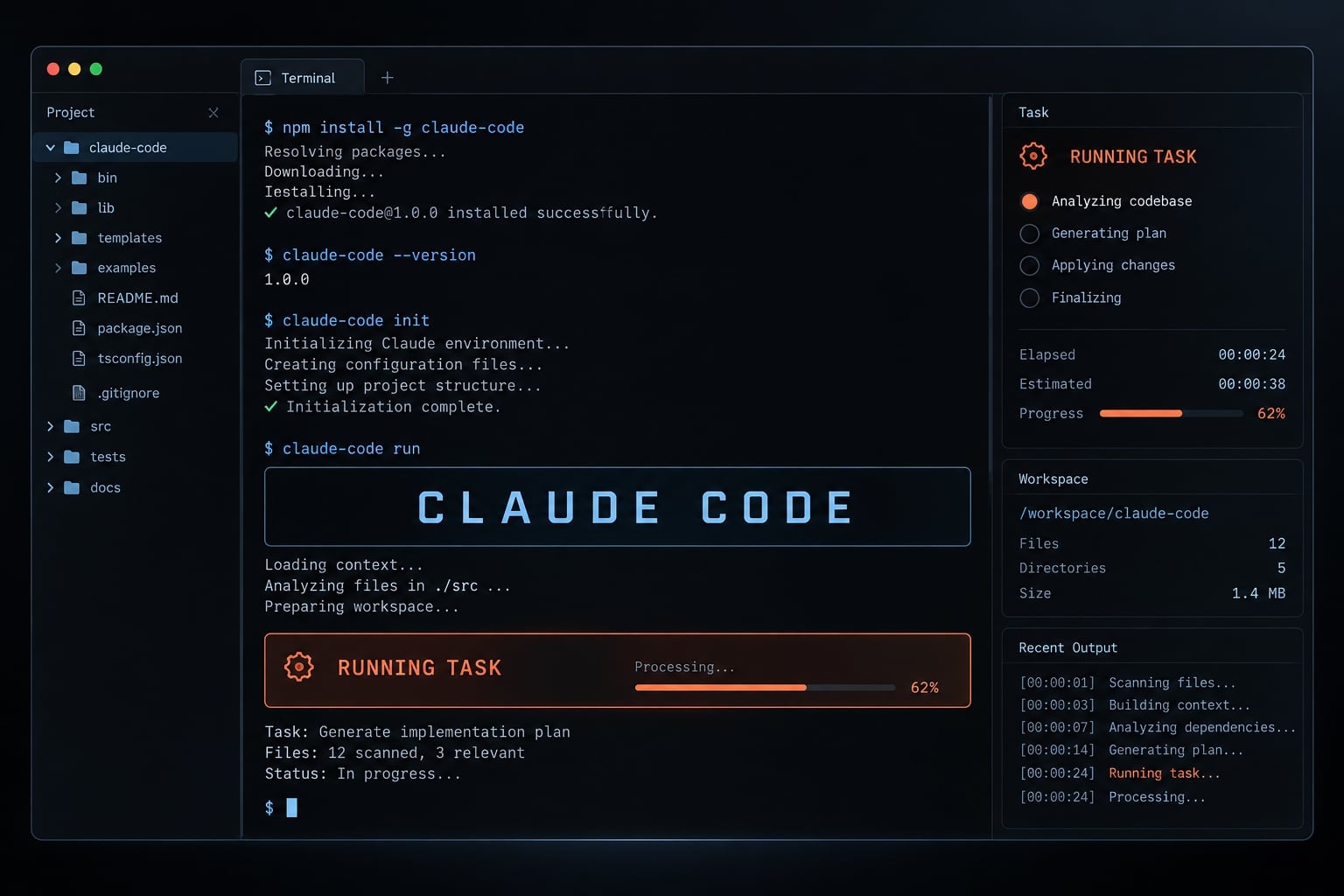
This guide covers Windows, macOS, Linux, and common setup failures. The running example is a sample B2B SaaS application with a demo-request form. Substitute an equally small task in your own test project.
Verification note: These instructions are not a hands-on test report. No environment or version was independently tested for this article, confirm update-sensitive details in Anthropic’s Claude Code documentation.
What you need before running Claude Code in a terminal
Match your operating system, shell, and account access before installing. Anthropic’s Claude Code Setup documentation is the authority for changing platform requirements. Check these six items:
- Supported OS: Confirm your operating-system version against the current requirements, particularly on older machines.
- Terminal and shell: Identify the program interpreting your commands your shell environment.
- Dependencies: On native Windows, Git for Windows is optional: with it, Claude Code uses Git Bash for shell commands; without it, Claude Code uses PowerShell instead. Native installers do not require Node.js.
- Network access: Installation and authentication need internet access. Managed networks may impose additional restrictions.
- Account access: You need supported Claude or organization-provided access. Installing the CLI does not provide free or unlimited usage. Your account type also determines whether coding sessions can be used for model training; check your privacy settings first.
- Safe project: Use a sample repository without credentials or customer data. Back it up or establish a version-control baseline.
Platform | Starting terminal/shell | Important setup note |
|---|---|---|
macOS | Terminal with Zsh or Bash | Use the macOS/Linux installer syntax. |
Linux | Terminal with Bash or a compatible shell | Check distribution requirements. |
Windows | PowerShell, optionally inside Windows Terminal | Git for Windows is optional; PowerShell is used if Git Bash is absent. |
Windows Terminal hosts shells; it is not itself a shell. Windows Subsystem for Linux (WSL) is a separate Linux environment, not native PowerShell.
How to Install Claude Code on macOS, Linux, and Windows
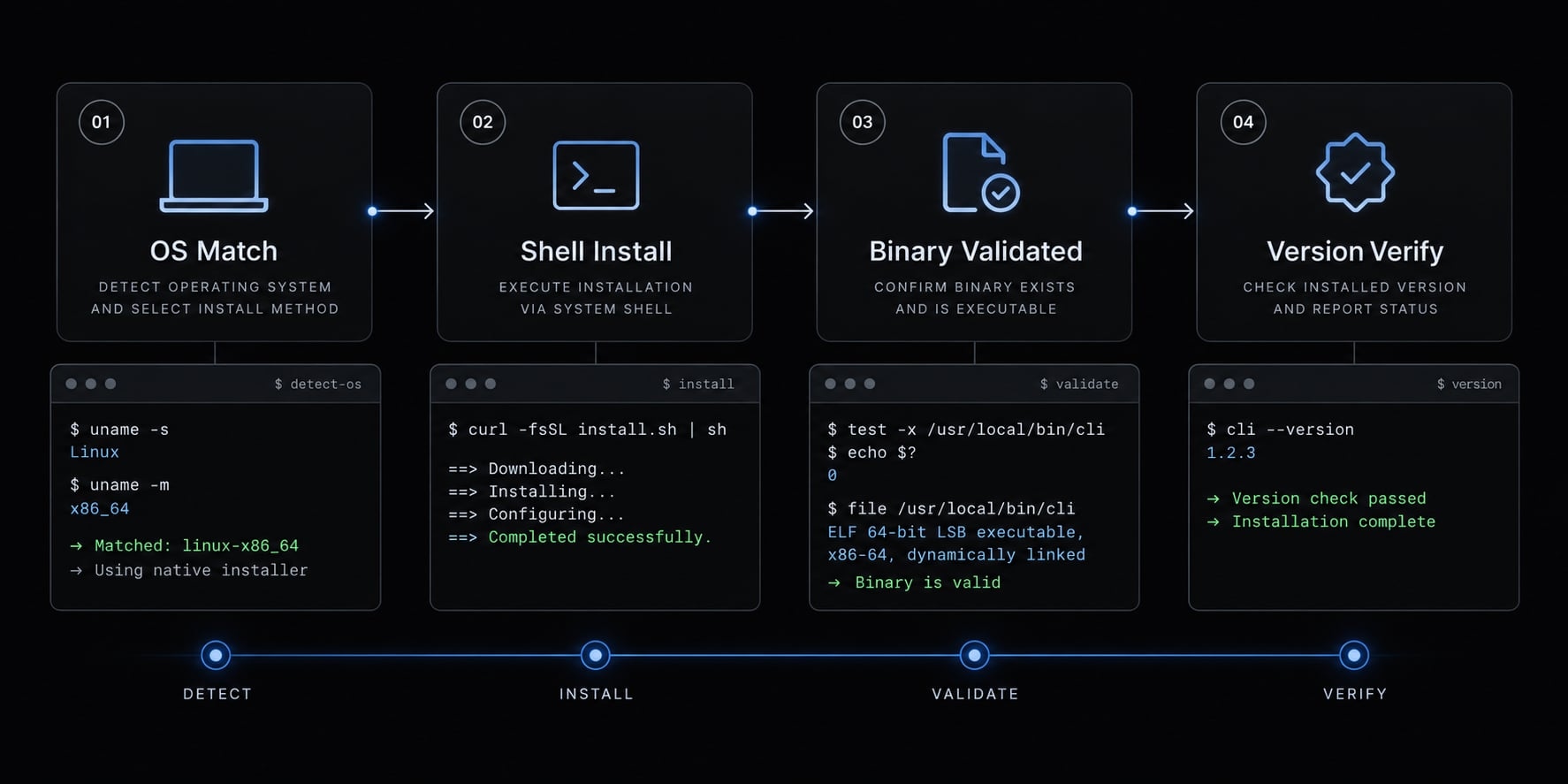
Use the installer matching your shell, then verify that the claude executable is available before opening an interactive session.
- Check platform requirements.
- Select the matching shell instructions.
- Run the official installer.
- Read its completion message.
- Refresh the terminal if instructed.
- Check the installed version.
These commands download and execute code. Compare them with Anthropic’s current Claude Code Setup instructions before running them. An official installer does not override your organization’s software-approval requirements.
Do not default to administrator privileges, disable endpoint protection, or broadly change PowerShell execution policies.
Install Claude Code on macOS or Linux
Run this in Bash or Zsh:
curl -fsSL https://claude.ai/install.sh | bash
The command downloads Anthropic’s installation script and executes it with Bash. The native installation route avoids setting up a separate Node.js runtime.
Read the output rather than assuming that returning to the prompt means success. A completed installation should provide completion information and may identify additional shell configuration needed.
Check current support requirements for your macOS release or Linux distribution. A shell that accepts the command does not establish platform compatibility.
Install Claude Code on windows with PowerShell
Open a PowerShell profile, not Command Prompt, and run:
irm https://claude.ai/install.ps1 | iex
PowerShell downloads the script with irm and executes it with iex. Installing from PowerShell or CMD only changes which install command you run; Git for Windows remains optional.
If you want Claude Code to use Git Bash, install Git for Windows. If Claude Code cannot find Git Bash afterward, set its path as described in Anthropic's setup documentation rather than guessing executable paths.
Read the completion message. If installation updates your command-search path, close and reopen PowerShell before verification.
Install Claude Code from Windows CMD
For Command Prompt, the native installer command is:
curl -fsSL https://claude.ai/install.cmd -o install.cmd && install.cmd && del install.cmd
This downloads a temporary install.cmd file, executes it, and deletes it if the preceding steps succeed. Run it from an appropriate writable location without an existing file of that name. CMD and PowerShell syntax are not interchangeable.
Confirm That Installation Succeeded
In your shell, run:
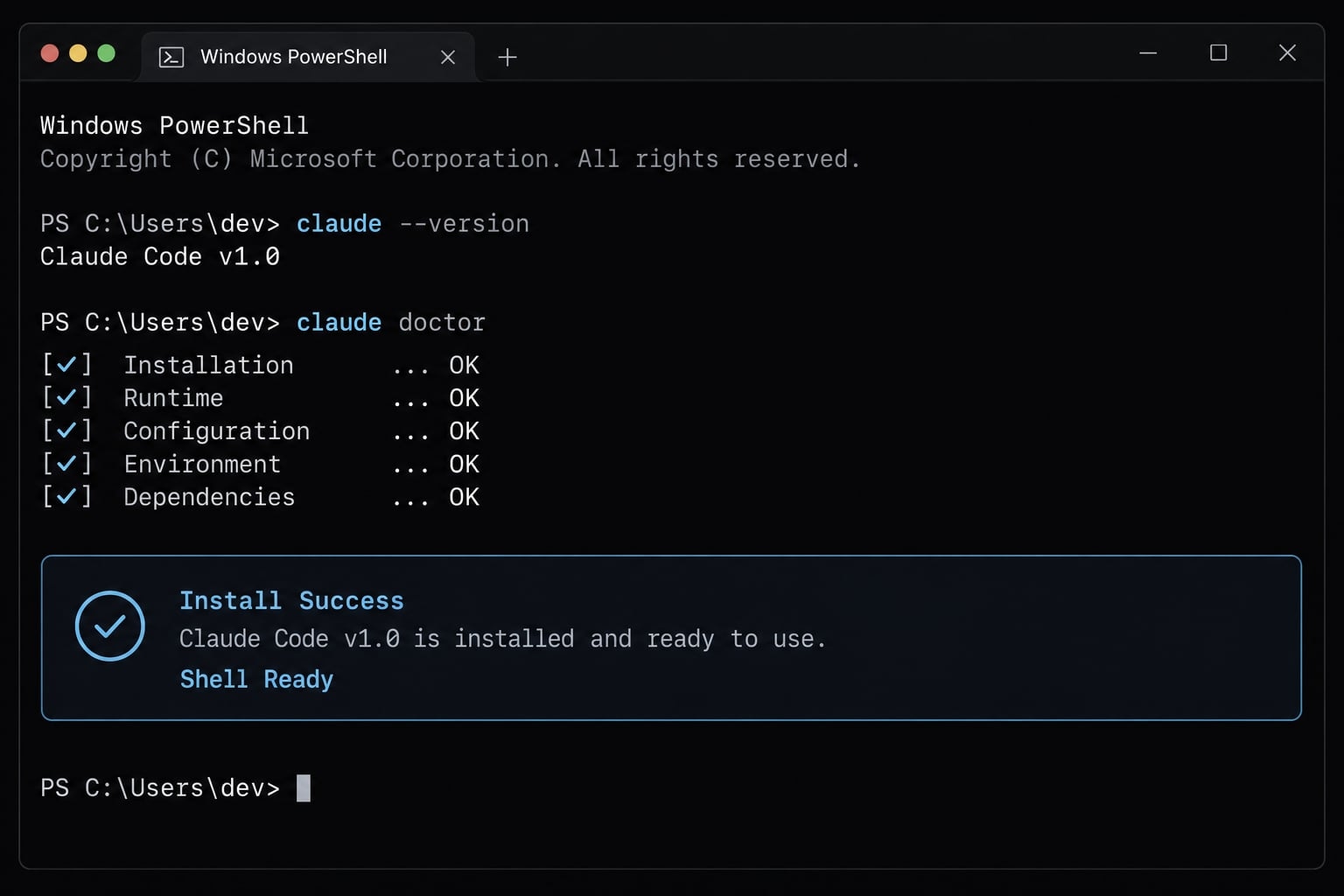
claude --version
Expect version information, not an interactive conversation. A successful version check establishes executable availability, it does not verify account eligibility or authentication. If the command is unrecognized, use the troubleshooting section before reinstalling.
Open the correct project folder and start Claude Code
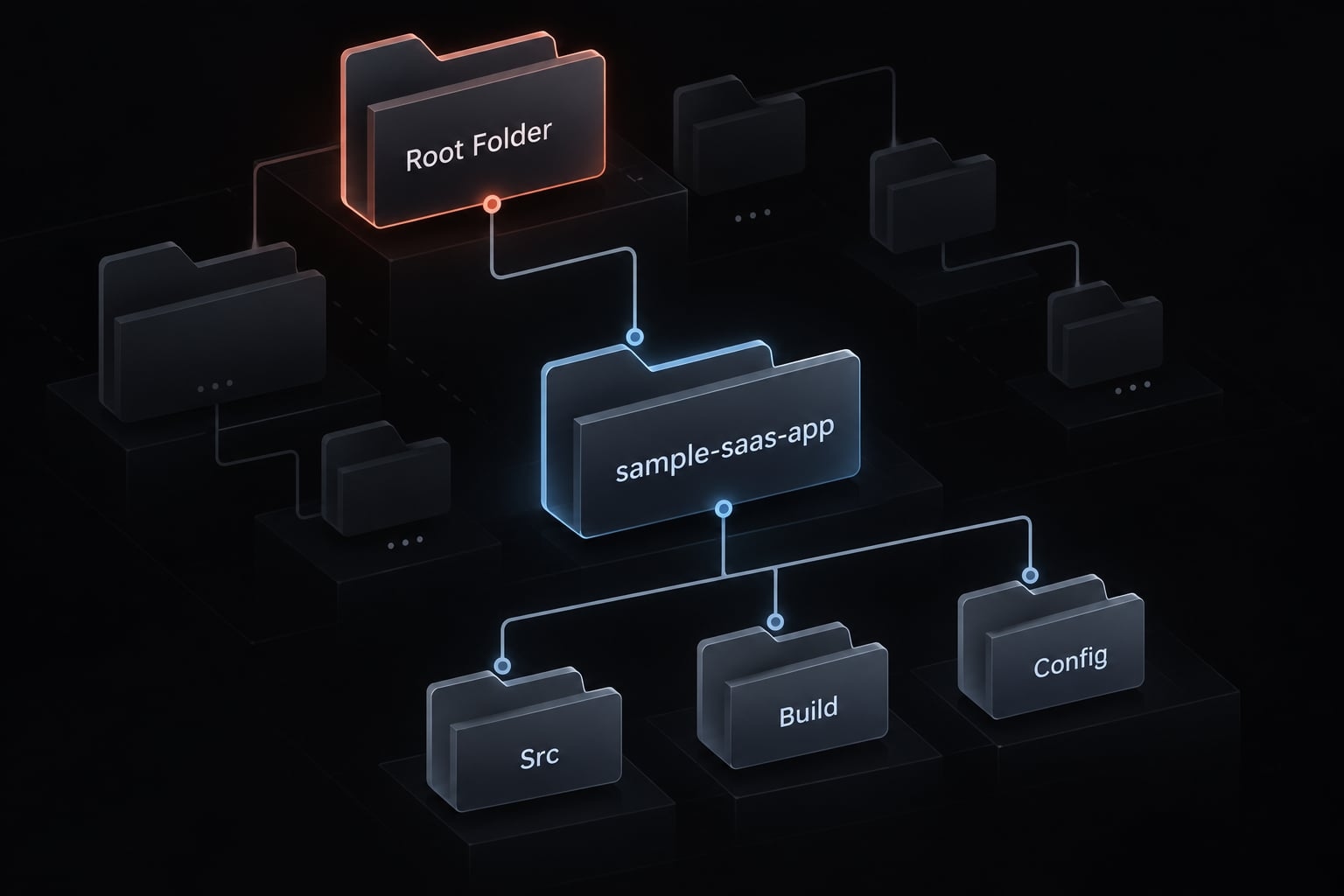
The working directory is the folder your shell currently points to. Starting Claude Code there gives the session its initial project context. Launching elsewhere can produce irrelevant inspection or missing-file confusion. It does not mean every file is automatically read, and the starting folder is not a guaranteed security boundary.
Navigate to the project directory
Replace these example paths with the location of your sample project. Keep quotation marks around paths containing spaces.
macOS or Linux:
cd "/path/to/sample-demo-app"pwdls
PowerShell:
cd "C:\path\to\sample-demo-app"Get-LocationGet-ChildItem
The location command confirms where you are; the listing shows what is present. Look for recognizable source folders and project documentation.
Files such as package.json or pyproject.toml are examples, not requirements. Your project may use another language or structure.
Avoid launching from your home directory, drive root, or a broad folder containing unrelated repositories. Keep the sample project free of secrets and customer information.
work/├── unrelated-project/└── sample-demo-app/ ← Start here ├── README.md ├── src/ └── tests/
File system access also depends on permissions and configuration. Choosing a directory does not replace those controls.
Start Claude Code and Sign In
From the selected project folder:
claude
Then:
- Follow the authentication route offered by your installation.
- Complete browser sign-in if that route is presented.
- Return to the terminal.
- Confirm that the interactive prompt is available.
- Enter
/helpto inspect available commands.
For a typical individual-account route, sign-in involves your browser. Organization-managed access and alternative provider configurations may differ; consult Anthropic’s Authentication documentation. Do not share authentication URLs, one-time codes, or tokens. Successful sign-in also does not establish unlimited usage.
Before requesting changes, check that the session refers to the intended repository rather than a similarly named folder.
Complete your first Claude Code task safely
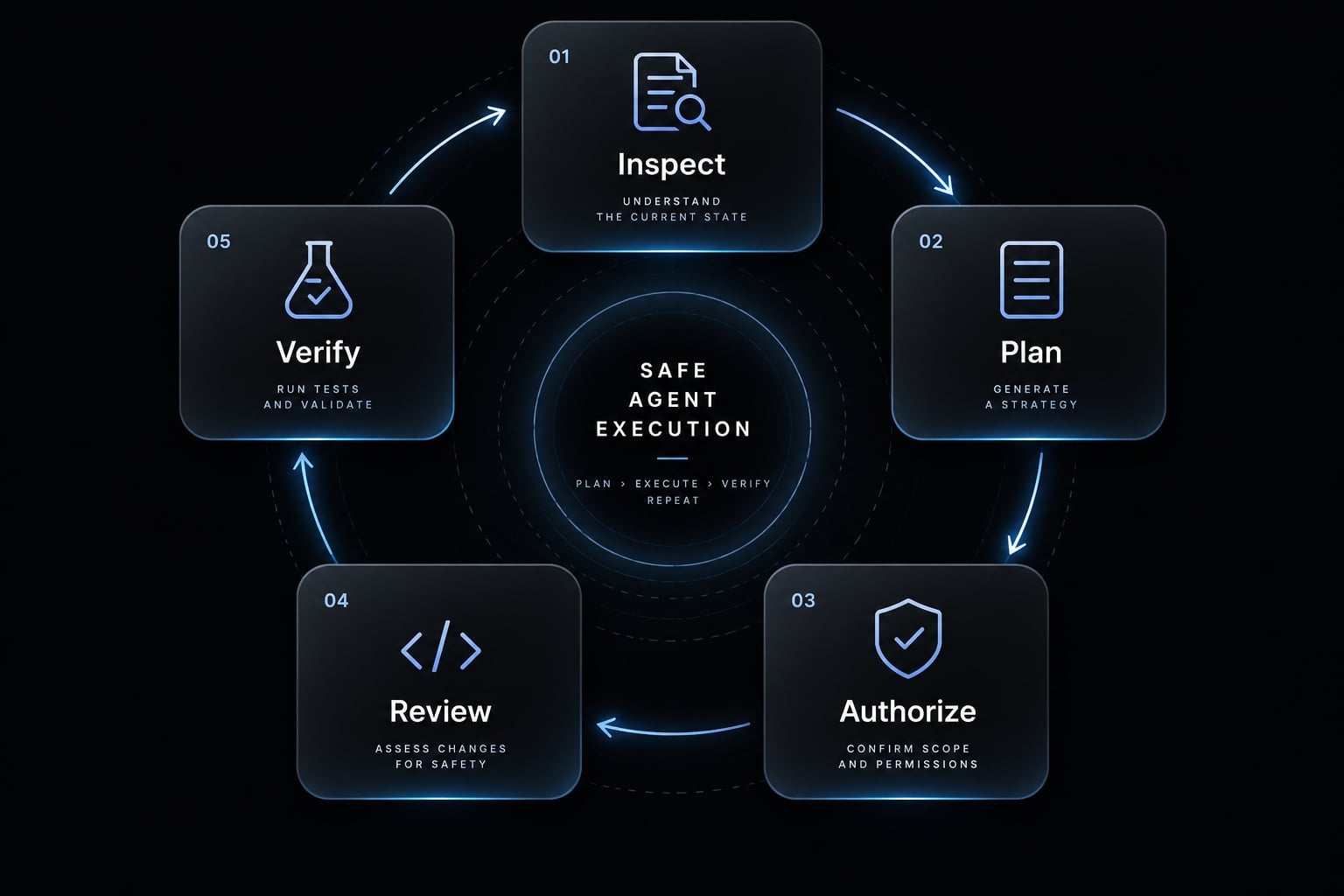
A good first Claude Code workflow produces a small, reviewable change not a broad application rewrite.
- Back up the project or establish a clean version-control baseline.
- Confirm the launch folder.
- Inspect without requesting edits.
- Request a short plan.
- Authorize a narrowly scoped implementation.
- Review the diff and run relevant checks.
If existing changes are present, record them first. A new branch alone does not preserve uncommitted work.
Ask Claude to inspect before editing
Use this project inspection prompt:
Inspect this sample project without changing files.Summarize its purpose, main folders, entry points, and existingrun/test instructions. Identify missing information and askbefore making assumptions. Do not install dependencies or runthe application yet.
This reduces assumptions but is not an access-control mechanism. Written instructions differ from enforced permissions.
If you need enforced planning restrictions, consult Anthropic’s Permission Modes documentation for your installed version. Do not assume that asking for a plan activates a restricted mode.
Request a plan for the first change
For the sample B2B SaaS application:
Plan a small demo-request form change: reject an empty ormalformed email using existing validation conventions.Identify intended behavior, expected files, exclusions, and tests.Do not implement yet. Exclude dependencies, deployment,database, billing, and authentication changes.
If your project has no demo form, substitute an equally limited validation fix. Check that the plan matches existing behavior. Client-side validation improves feedback but does not replace server-side validation.
Approve, review, and test the change
Authorize only the agreed scope:
Implement the agreed validation change and relevant tests.Stop and ask if additional files or dependencies are needed.Report checks run, their results, and anything not validated.
Read permission prompts before approving actions. Their frequency depends on configuration; do not expect a separate prompt for every edit or command. Review code changes in your editor and, for a Git repository, run:
git status --shortgit diffgit diff --cached
An ordinary Git diff does not show untracked file contents. Inspect new files separately and review staged changes too. Run the project’s documented checks. Distinguish tests passed, tests failed, tests not run, and no tests available. Manually exercise the form where appropriate.
Essential Claude Code terminal commands and controls
Shell commands launch or inspect the program. Slash commands operate inside Claude Code. Keyboard controls act on the current interactive state.
Use this short reference alongside /help and Anthropic’s Interactive Mode and CLI Reference documentation. Installed versions and terminal keybindings can affect available behavior.
Command or control | Purpose | Where/how to use it |
|---|---|---|
| Display installed version | In the shell, before launching a session. |
| Start an interactive session | In the shell, from your selected directory. |
| Show available help | Inside Claude Code. |
| Interrupt current generation or cancel input | Keyboard shortcut inside Claude Code; behavior depends on state. |
| Exit the interactive session | Inside Claude Code. |
| Summarize conversation context | Inside Claude Code; review important retained details. |
| Clear the current conversation | Inside Claude Code; not a file rollback. |
| Navigate prompt history | At the interactive input prompt. |
Interrupting an operation does not undo changes already made. After stopping unexpected activity, inspect the repository before proceeding.
What happens when context grows too large?
Context is the information available to the active session. Context management helps keep Claude Code commands and requests focused:
- Start a new session for unrelated work.
- Compaction summarizes earlier conversation and may lose details.
- Clearing conversation does not reverse edits or remove project instruction files.
After compaction, restate critical scope limits and validation requirements. Do not assume every earlier detail remains available.
Common Claude Code terminal errors and how to fix them
Diagnose the visible symptom before changing your installation. Start with terminal refresh, directory checks, and the exact error message not broad permissions or repeated reinstalls.
The PATH environment variable lists locations your shell searches for executable commands. An installed program may remain unrecognized if its location is missing from that list.
Symptom | Possible cause | First safe action |
|---|---|---|
| Incomplete installation or stale PATH | Read installer output, reopen the terminal, retry the version check. |
PowerShell: “The term 'claude' is not recognized” | Executable unavailable in this shell | Confirm native Windows installation completed, then reopen PowerShell. |
Browser authentication fails | Blocked sign-in flow or unsupported account access | Separate browser/network errors from account eligibility errors. |
Expected project files are missing | Wrong directory or environment | Check location and filenames before restarting Claude Code. |
| OS restrictions or a denied tool action | Identify which layer rejected the action; inspect its specific message. |
Installer fails | Network, platform, dependency, or security restriction | Preserve the error and compare requirements with official setup instructions. |
Unexpected file changes | Misunderstood scope or permissive configuration | Interrupt activity, review differences, and preserve pre-existing work. |
For unexpected edits, restore only changes you understand. Avoid indiscriminate resets that could remove your own work.
Command unrecognized? → Did installation complete? No: investigate the installer error. Yes: reopen the matching shell. → Still unrecognized? Check documented executable location and PATH setup.
Diagnose the working directory before reinstalling
Use the earlier navigation commands to check:
- Your current folder.
- Recognizable project filenames.
- The correct path and drive.
- The intended user account and environment.
- Native Windows versus WSL.
Installing inside WSL does not establish a native PowerShell installation, or vice versa. Keep their executable locations and troubleshooting steps separate.
A wrong-folder launch requires navigation and a new session, not another installer run. Likewise, an account-access failure is not necessarily an installation failure.
When to use official support documentation
Consult Anthropic’s Claude Code Troubleshooting documentation when the platform is unsupported, installer behavior differs, authentication repeatedly fails, or your version behaves differently.
For managed proxies or endpoint-security restrictions, involve organizational support. Do not bypass those controls.
Collect the error text, OS, shell, installation method, and available version output. Redact credentials, authentication URLs, private paths, and sensitive repository details before sharing logs.
These details make Claude Code troubleshooting more useful than a generic “it does not work” report.
Standalone terminal vs IDE terminal, desktop, and web
Standalone and IDE-integrated terminals can run the same CLI when configured with the same environment. Choose based on how you prefer to inspect files and review changes not an assumption that one interface produces better reasoning.
An IDE is an integrated development environment. Its terminal is distinct from a dedicated Claude Code extension.
Interface | Main advantage | Limitation or distinction | Best fit |
|---|---|---|---|
Standalone terminal | Direct command-line workflow | File review may require another window | Terminal-oriented users |
IDE terminal | Code and terminal together | Not the same as an IDE extension | VS Code or Cursor users |
Claude Code desktop surface | Graphical session management | Availability and capabilities depend on current support | Users preferring a graphical workflow |
Claude Code web surface | Browser-based workflow | Execution environment and repository access differ from local CLI | Supported remote tasks |
Complete one controlled session before standardizing it. Put recurring project guidance in CLAUDE.md, which supplies instructions and context not persistent model training or guaranteed compliance.
Add reusable skills when a repeated need becomes clear. AgentKit is an optional way to organize reusable kits, skills, and workflows, it is not required to install or use Claude Code. Keep human review and project-specific validation in reusable agent workflows too.
Frequently asked questions
What is Claude Code in the terminal?
Claude Code is an agentic command-line tool developed by Anthropic that allows you to automate software engineering tasks directly from your terminal. It can read your project files, execute terminal commands, manage Git workflows, and perform complex coding tasks by following your natural language instructions.
Do I need to know how to code to use Claude Code?
While designed for developers, Claude Code helps non-technical users by performing tasks based on plain English instructions. However, you should have a basic understanding of your project structure and always review the agent’s proposed actions to ensure they align with your intended outcome.
Is it safe to run Claude Code in my project folder?
Claude Code operates within the folder you start it from. While it has tools to read and edit files, you must review its proposed changes before approving them. Always keep a backup or use version control, such as Git, before allowing any agent to modify your project files.
Why do I see a "command not found" error when typing "claude"?
This error typically means the installation directory is not in your system’s PATH. Ensure the installation finished successfully, then try restarting your terminal. If the issue persists, verify that your operating system and shell environment meet the requirements specified in the official setup documentation.
Does Claude Code learn from my private project data?
Claude Code sends your prompts and relevant project context to Anthropic to generate responses. Whether those coding sessions can also be used to train future models depends on your account: on Free, Pro, and Max plans, they may be used if the "Help improve Claude" privacy setting is on, and data shared this way can be retained for up to five years. C
ommercial plans do not use your code or prompts for training by default. Review your privacy settings before working with sensitive code. A CLAUDE.md file guides Claude's behavior in your project; it does not train the model.
Can I use Claude Code in an IDE instead of a standalone terminal?
Yes, Claude Code can be run inside the integrated terminal of IDEs like VS Code or Cursor. This allows you to combine the power of a terminal-based coding agent with the visual benefits of an IDE, such as easier file navigation and visual diff reviews.
Read more:
- Claude Code managed-settings.json: Admin guide & security
- Connect Docker MCP to Claude Code: Step-by-step guide
- AI generated code review checklist: A pre-merge guide
Conclusion
Using Claude Code in the terminal begins with a straightforward sequence: install for the correct shell, verify the executable, open the intended project folder, and authenticate. Inspect the project before editing, agree on a small plan, then review the resulting changes and run relevant checks.
Keep installation, account access, and project validation separate. Success at one step does not establish success at the next. Likewise, a completion message does not prove that the application behaves correctly.
You do not need to memorize a command catalog. Clear scope, deliberate approvals, and readable changes matter more. If behavior differs, use /help alongside Anthropic’s Claude Code Setup, Interactive Mode, and Troubleshooting documentation.