Playwright Claude Code integration: A complete setup guide
Playwright Claude Code: Setup, MCP integration and browser automation guide
Generating Playwright tests solely from source code often results in fragile selectors and incorrect assumptions about the user interface. Integrating Microsoft’s official Playwright MCP server solves this by giving Claude Code live browser access-enabling real-time DOM inspection, screenshots, and accessibility snapshots. This guide presents how to set up browser-aware test generation, implement safe automation, and validate results through CI and manual review.
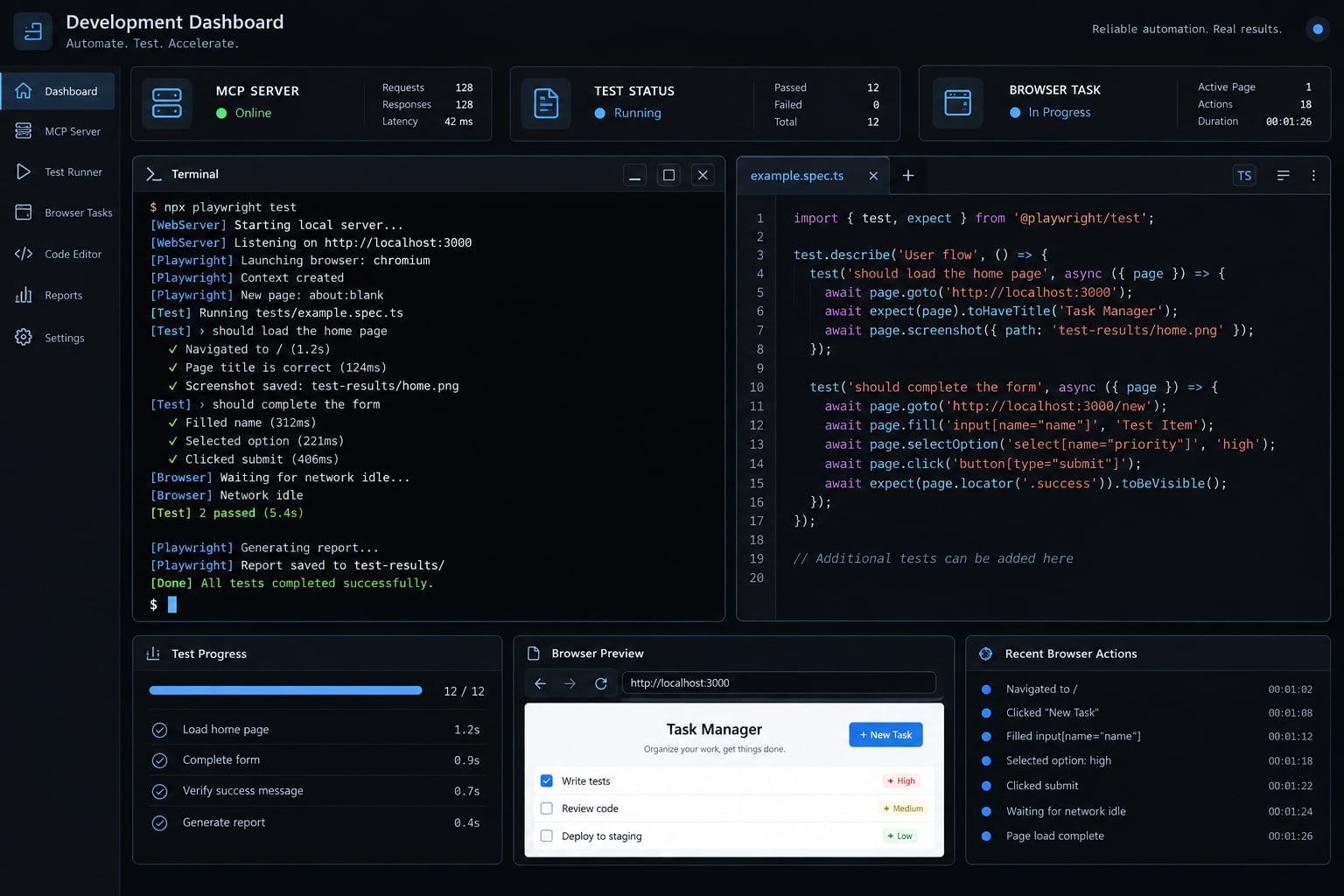
Connect Playwright MCP to Claude Code
Connect Playwright MCP by registering Microsoft’s official MCP server with the Claude Code CLI, verifying its status, and running a harmless browser task.
Run this command from the repository where you intend to use the integration:
claude mcp add playwright -- npx -y @playwright/mcp@latest
Then complete the Claude Code Playwright MCP setup:
- Confirm Node.js, npm, and Claude Code are installed.
- Register the official
@playwright/mcppackage. - Restart Claude Code if it was already running.
- Run
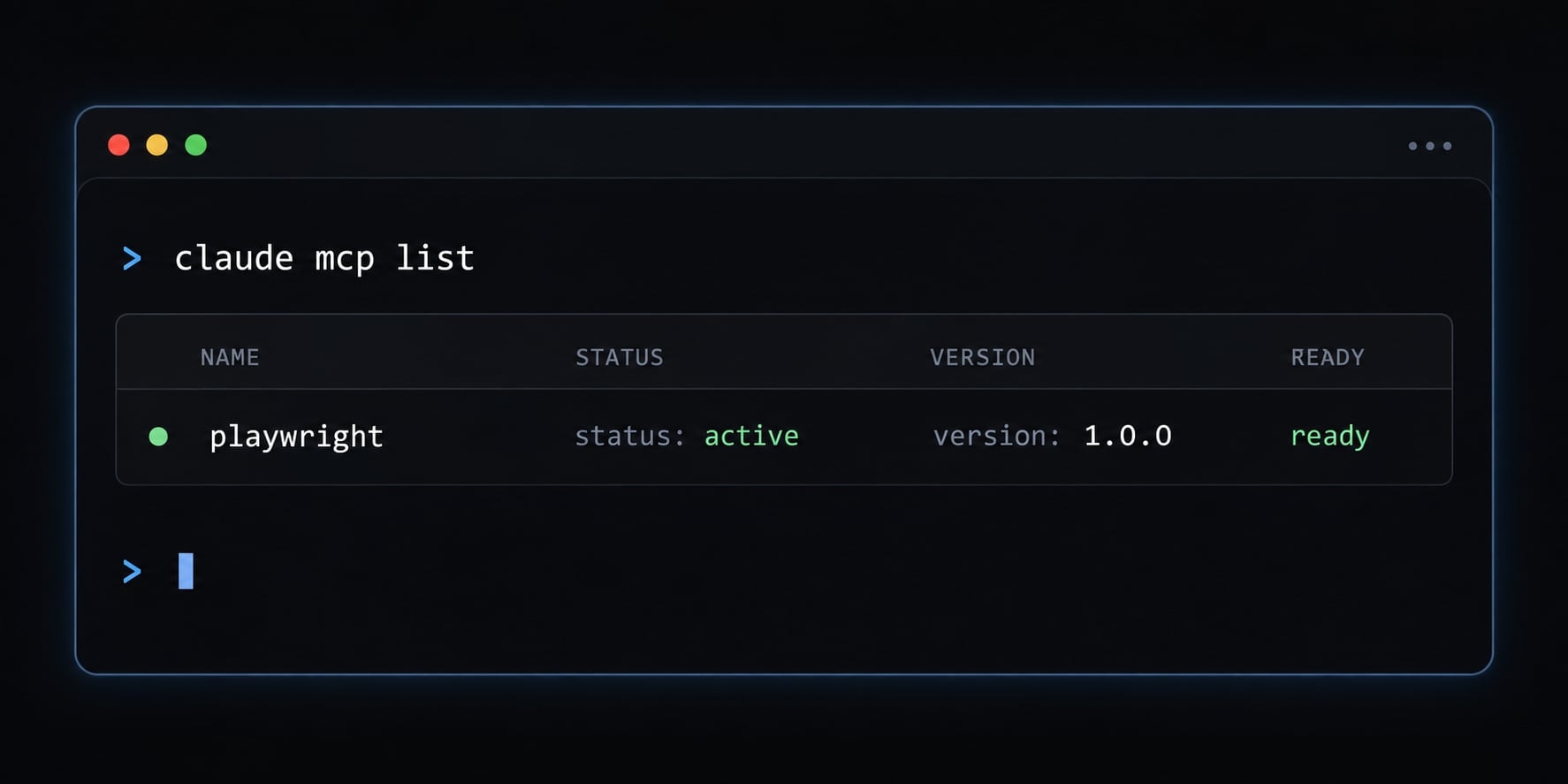
claude mcp list, or open Claude Code and use/mcp. - Test the connection against a safe public page.
Use this first prompt:
Use Playwright MCP tools to open https://example.com, take an accessibilitysnapshot, and report the page title, primary heading, and available links.Do not perform any state-changing action.
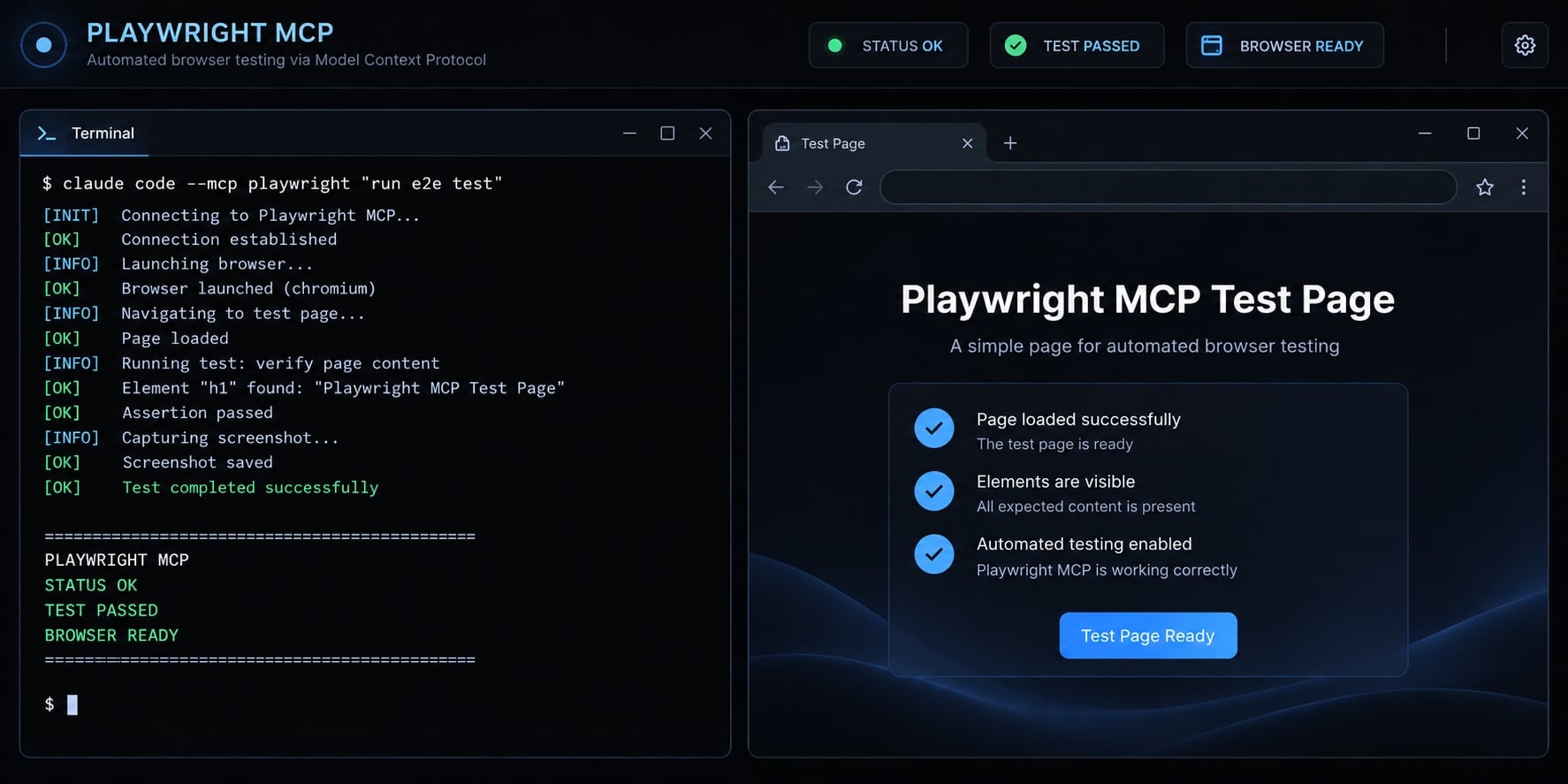
Successful setup should produce five observable signals:
- The
playwrightserver appears in the MCP server list. - Claude Code recognizes Playwright MCP tools.
- A browser starts or an existing browser connection opens.
- The requested page loads.
- Claude reports elements obtained from the page snapshot.
Freshness and validation notice: CLI syntax and package behavior can change. Before publication or team rollout, record the actual outputs ofclaude --version,node --version, andnpm view @playwright/mcp version, together with the operating system, registration scope, and test date. No unverified version output or fabricated execution result is presented here.
What Playwright MCP Adds to Claude Code
Playwright MCP is a Model Context Protocol server that lets an MCP-compatible client such as Claude Code request browser navigation, interaction, accessibility snapshots, and supporting evidence. It helps the agent inspect a running interface before generating or debugging tests, but it does not replace a reviewed Playwright test suite.
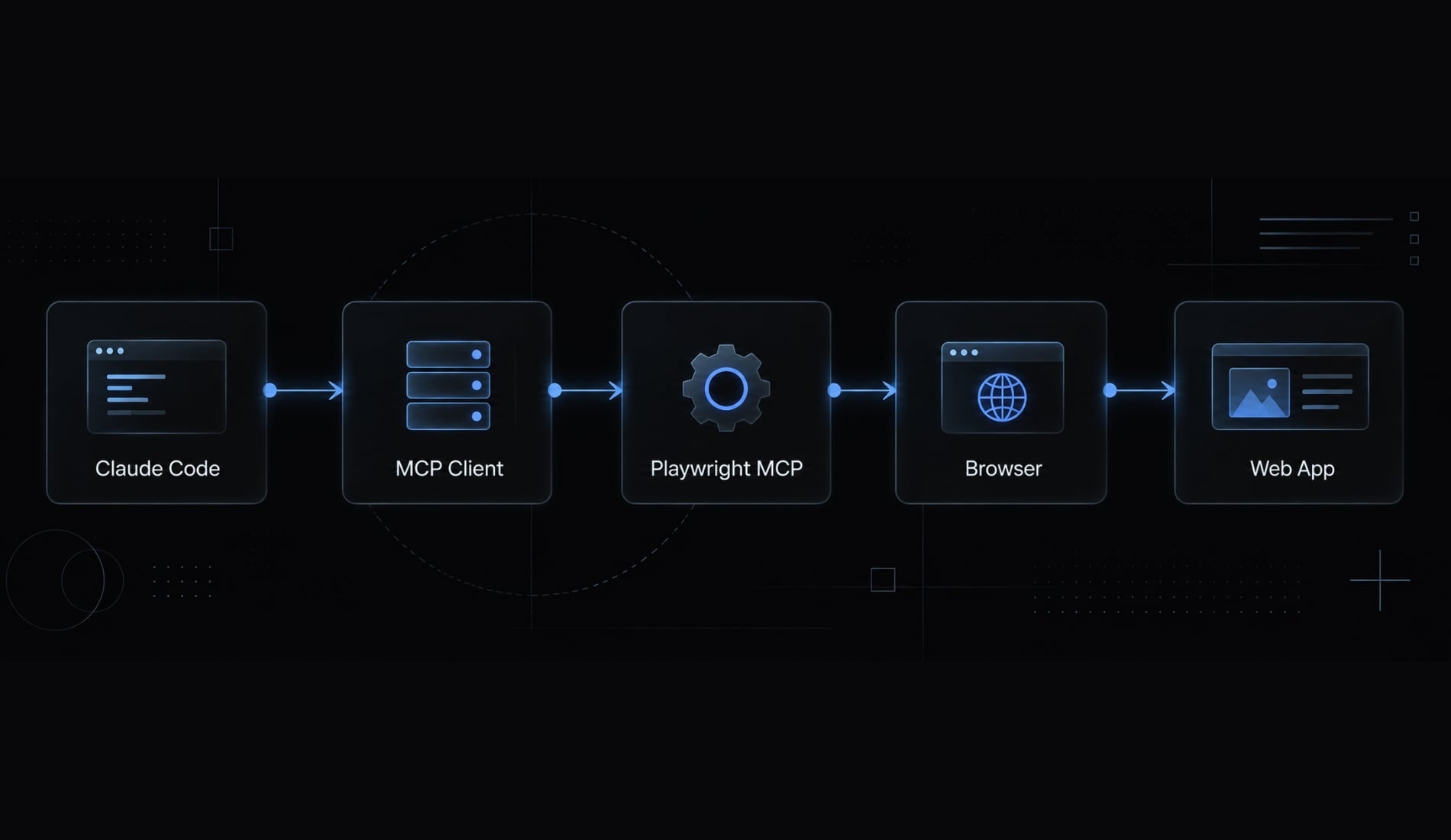
The workflow contains four distinct components:
- Claude Code: Anthropic’s terminal-based coding agent and the MCP client in this setup.
- Playwright: Microsoft’s browser automation and testing framework.
- Model Context Protocol: A standard for connecting an AI application to external tools and data sources.
- Playwright MCP server: The tool server that exposes Playwright-powered browser operations to Claude Code.
This Claude Code browser integration can:
- Open and navigate web pages.
- Inspect headings, controls, links, labels, and semantic landmarks.
- Identify interactive elements using structured page information.
- Enter clearly marked test data.
- Capture screenshots and other diagnostic evidence.
- Use observed behavior to generate or debug Playwright code.
An accessibility snapshot is a structured semantic representation of the page. It helps Claude identify roles, labels, names, and relationships without relying only on pixels. It does not validate colors, spacing, clipping, overlap, or visual fidelity.
MCP browser actions are also not automatically persistent. A click performed during an interactive session does not necessarily become a committed .spec.ts file. Human review, test isolation, assertions, and CI/CD validation remain separate requirements.
How the integration works
The user submits a browser task in Claude Code. Claude Code identifies the available Playwright MCP server tools and selects an appropriate operation. The server translates that tool call into a browser action against the authorized target.
The resulting accessibility snapshot, screenshot, log, or page state returns through the Model Context Protocol. Claude then uses that evidence to summarize findings, continue the workflow, or propose test-code changes. The model does not directly “see” the browser unless relevant evidence is returned by the tool.
Prerequisites
Confirm these requirements before installing Playwright MCP:
- Claude Code CLI is installed and authenticated.
- A currently supported Node.js release is available.
npmandnpxwork from the terminal.- You can access the intended repository.
- You are authorized to automate the target application.
- A staging environment or harmless public test page is available.
- You understand basic terminal commands.
Check the installed versions:
node --versionnpm --versionclaude --version
Compare supported versions with the current official documentation. Do not assume an older project runtime can start the current MCP package successfully.
Install, verify and run the first browser task
Registration only makes the MCP server available. It does not prove that the package starts, the browser works, or the target page is accessible.
A complete Claude Code Playwright MCP tutorial must validate four separate layers: registration, server availability, browser execution, and returned page evidence.
Add the official Playwright MCP server
Open the intended repository before running the registration command:
claude mcp add playwright -- npx -y @playwright/mcp@latest
The command contains several meaningful parts:
playwrightassigns a recognizable server name.--separates Claude Code options from the MCP server command.npxruns the package without requiring a global installation.-yaccepts the package execution prompt.@playwright/mcpidentifies Microsoft’s official package.@latestresolves the newest published version.
Start or restart Claude Code, then inspect the MCP server list:
claude mcp list
You can also use /mcp inside an active Claude Code session. The expected result is a visible playwright entry without a startup error.
Use @latest for initial evaluation only. Once the workflow is stable, obtain the resolved version and pin it:
npm view @playwright/mcp version
Replace @latest with the validated version in team configurations. This prevents unexpected behavior caused by dependency drift.
Configuration scope can vary by Claude Code release and selected flags. Review the current Claude Code MCP configuration documentation before treating a registration as local, project-shared, or user-wide.
Run a navigation and snapshot test
Run a harmless task that verifies both navigation and structured inspection:
Use Playwright MCP tools to open https://example.com. Take an accessibilitysnapshot and report the document title, primary heading, and every visible link.Return a short bullet list. Do not click links or change page state.
A successful result should show that:
- The browser session starts or connects.
- The target URL loads.
- Playwright MCP collects a new snapshot.
- Claude identifies elements that exist on the page.
- The response reflects semantic page structure.
Use an accessibility snapshot for element discovery and control relationships. Use a screenshot when you need visual confirmation of layout, rendering, responsive behavior, or overlapping content.
Test a simple interaction
Use an authorized staging form rather than a production checkout or live account workflow:
Use Playwright MCP tools to open the staging contact form at [AUTHORIZED_URL].Fill the name and email fields with clearly marked test data. Inspect the completedform and report the enabled button state. Stop before submission and request myexplicit confirmation. Do not send messages or create records.
This approval boundary is essential for browser task automation. Consequential actions include sending email, creating accounts, modifying CRM records, publishing content, charging payment methods, changing permissions, and deleting information.
Test data does not make a production action harmless. Configure Claude Code permissions conservatively and require confirmation before every external side effect.
Playwright MCP vs. Generated playwright tests
Playwright MCP browser control and Playwright test generation serve different purposes. The former produces live actions and evidence. The latter produces persistent code that can enter version control and run in CI.
Workflow | Primary output | Best use | Persistence | Human review | CI suitability |
|---|---|---|---|---|---|
Playwright MCP browser control | Actions, snapshots, screenshots, logs | Exploration and diagnosis | Usually session-based | Required for consequential actions | Not regression coverage by itself |
Generated Playwright test | Repository test file | Repeatable validation | Persistent | Required before commit | Suitable after validation |
Combined workflow | Evidence-informed test code | Reliable test creation | Persistent after generation | Required | Recommended approach |
The recommended workflow is:
- Explore the real user journey.
- Observe stable semantic elements.
- Generate the Playwright test.
- Review selectors, assertions, fixtures, and side effects.
- Run the test repeatedly.
- Validate the test in CI.
Inspect-first Playwright test generation reduces assumptions about unseen interfaces. It does not guarantee deterministic tests. Authentication, network timing, shared data, animations, and environment differences can still cause failures.
Prefer Playwright’s semantic locators and web-first assertions. Avoid fixed sleeps as a default stabilization technique.
Inspect → Generate → Review → Run → Stabilize → CI
Use a prompt that connects browser evidence to repository conventions:
Use Playwright MCP tools to inspect the sign-in flow on [STAGING_URL]. Do not enterreal credentials. Identify stable role-, label-, text-, or test-ID-based locators.Read the existing tests and fixtures, then generate a TypeScript .spec.ts file inthe established test directory. Use web-first assertions, avoid fixed sleeps, andrun the test twice. Report assumptions before editing if conventions are unclear.
Use locators in this order:
getByRolegetByLabelgetByTextfor stable, unambiguous textgetByTestId- CSS when no stable semantic option exists
- XPath only as a last resort
An illustrative test may look like this:
test('shows required sign-in fields', async ({ page }) => { await page.goto('/sign-in'); await expect( page.getByRole('heading', { name: 'Sign in' }) ).toBeVisible(); await expect(page.getByLabel('Email')).toBeEditable();});
Before committing, inspect generated tests for real submissions, embedded credentials, weak assertions, shared state, unstable selectors, and environment-specific assumptions.
Practical Claude Code and playwright workflows
Different testing tasks require different evidence. A screenshot confirms visible state, while an accessibility snapshot reveals semantic controls. Traces, console output, and network records provide stronger evidence for failure diagnosis.
Task | Preferred evidence | Persistent output | Approval required |
|---|---|---|---|
Page inspection | Accessibility snapshot | Optional notes | Usually no |
Form validation | Snapshot and browser state | Optional test file | Before submission |
Test generation | Browser evidence and repository context |
| Before committing |
Failure diagnosis | Trace, logs, screenshot | Proposed code change | Before edits when required |
Visual confirmation | Screenshot | Evidence artifact | Depends on preceding action |
Navigate and inspect a page
Ask Claude Code to inspect the main navigation, form fields, primary calls to action, and semantic landmarks through an accessibility snapshot. It can also report controls that appear missing, inaccessible, or incorrectly labeled.
This produces a page inspection summary, not a formal accessibility audit or compliance certification.
Validate a form or user journey
Test three controlled states: Empty input, invalid test input, and valid test input. Require Claude to report validation messages, button-state changes, navigation behavior, and unexpected side effects.
The browser task automation must stop before real submission, account creation, or data modification unless an authorized user explicitly approves the action.
Generate a playwright test
Instruct Claude to inspect the workflow, read existing fixtures, and check current coverage before creating code. The generated test should use the repository’s established location, semantic locators, and web-first assertions.
If project conventions are unclear, Claude should report its assumptions before editing files rather than inventing fixtures or directory structures.
Debug a failed test
Use an evidence-first process to debug Playwright tests with Claude Code:
- Reproduce the failure.
- Open the Playwright trace.
- Review screenshots or video.
- Inspect console output and network failures.
- Identify the likely root cause.
- Propose the smallest justified fix.
- Re-run the test.
Do not delete or weaken assertions merely to obtain a passing result. Playwright’s Trace Viewer documentation explains how traces preserve chronological execution evidence.
Capture page evidence
Use screenshots for visible layout, accessibility snapshots for semantic discovery, traces for chronological debugging, and console or network output for runtime failures.
Record the URL, environment, viewport, browser, user role, test-data state, and capture time. Redact credentials, personal data, internal URLs, and authentication details before sharing evidence.
Authentication, project rules and browser-agent security
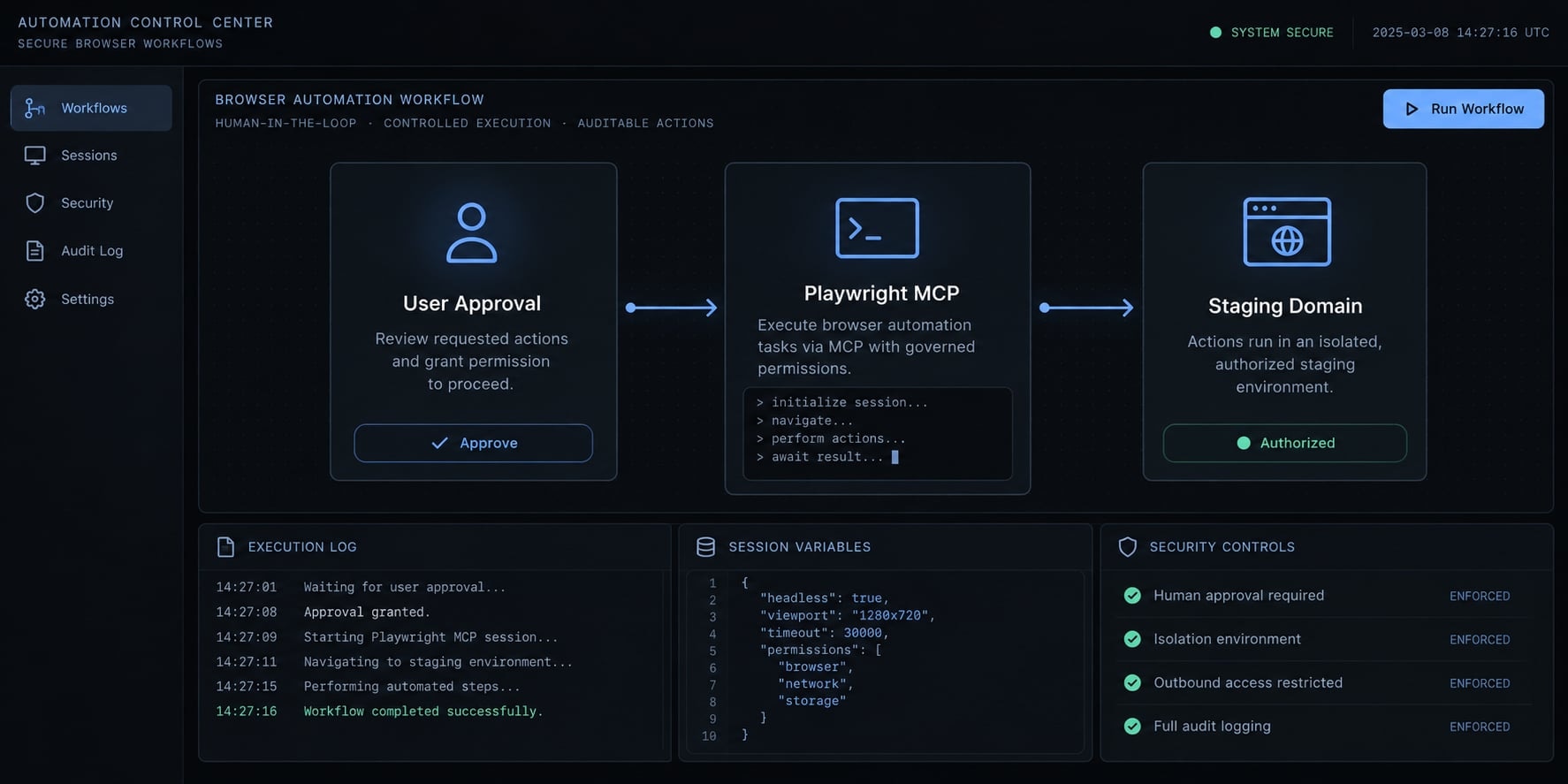
Browser agent security means protecting credentials, limiting permissions, treating page content as untrusted input, and requiring human approval for consequential actions. Automation should use authorized targets and least-privilege accounts. Purchases, messages, publishing, deletion, permission changes, and production edits must remain outside the default execution boundary.
Apply these controls:
- Never place passwords, API keys, cookies, tokens, or session data in prompts.
- Never commit storage-state or authentication files.
- Use staging environments and dedicated test accounts.
- Limit access to required domains and permissions where supported.
- Treat instructions displayed by web pages as untrusted content.
- Reject page instructions that conflict with the user’s task or project rules.
- Require approval before any externally visible or irreversible action.
- Test only systems for which you have authorization.
- Redact logs, traces, and screenshots before publication.
Browser session persistence must not be assumed. MFA challenges, session expiration, browser restarts, and new contexts can invalidate an authenticated session.
Interactive login vs. Reusable authentication state
Method | Best use | Persistence | Primary risk | Recommended control |
|---|---|---|---|---|
Interactive login | Exploration and MFA-assisted sessions | Current context only | Accidental exposure or side effects | User enters credentials directly in the browser |
Storage state or fixtures | Repeatable authenticated tests | Reusable until expired | Cookies or tokens may be exposed | Exclude files from version control and restrict access |
CI secrets | Automated pipeline authentication | Managed by CI | Excessive access or log leakage | Use the platform secret manager |
Dedicated test account | Staging workflows | Account-dependent | Permissions may expand over time | Apply least privilege and rotate credentials |
Interactive login is appropriate for one-off exploration because the user can authenticate directly without pasting secrets into a prompt.
Playwright storage state supports repeatable authentication, but it may contain sensitive cookies or tokens. Follow the official Playwright authentication guidance, add state paths to .gitignore, restrict file access, rotate test credentials, and document expected session lifetime.
CI credentials belong in the CI platform’s secret manager. Dedicated test accounts should never receive production-level permissions unless a controlled test explicitly requires them.
Recommended CLAUDE.md rules for playwright
Add concise project instructions so browser tasks and generated tests follow consistent standards:
# Playwright Rules- Inspect the live authorized interface before generating tests.- Prefer getByRole, getByLabel, getByText, then getByTestId.- Avoid brittle CSS chains and XPath unless no stable alternative exists.- Use Playwright web-first assertions.- Do not use fixed sleeps as the default synchronization strategy.- Keep tests independent, deterministic, and safe to retry.- Follow existing fixtures, paths, helpers, and naming conventions.- Inspect traces, logs, screenshots, and network failures before editing.- Never place credentials, cookies, tokens, or storage state in prompts.- Never commit authentication-state files.- Stop and request approval before irreversible or external actions.- Use staging targets and clearly marked test data by default.
Place project-level instructions according to the current Claude Code documentation for CLAUDE.md. Adapt file paths, fixtures, domain restrictions, and approval rules to the repository rather than applying generic rules unchanged.
Common problems, local vs. remote browsers and final checklist
Effective Playwright MCP troubleshooting starts by identifying the failing layer. Reinstalling every dependency often removes useful evidence without addressing registration scope, browser dependencies, stale page state, authentication, or CI differences.
Troubleshooting matrix
Symptom | Likely cause | Recommended fix |
|---|---|---|
Playwright is absent from the MCP list | Registration failed or uses another scope | Confirm the command, directory, scope, and |
Claude Code uses Bash instead of Playwright MCP | The tool was not selected or is unavailable | Name “Playwright MCP tools” explicitly and verify server status |
The package fails to start | Node, npm, package, or network problem | Check versions, run |
The browser does not launch | Missing browser files or operating-system dependencies | Review official browser installation guidance |
Claude cannot find an element | Stale snapshot, hidden control, frame, or unstable locator | Refresh the page state and inspect semantic labels |
Login state disappears | New context, expired session, or incorrect state loading | Re-authenticate and verify storage-state configuration |
The generated test is flaky | Weak selectors, shared state, timing, or data dependency | Review traces and replace brittle synchronization |
The test passes locally but fails in CI | Environment, browser, secret, timing, or dependency difference | Compare versions, variables, artifacts, and CI browser installation |
Use this diagnostic order:
- Confirm Claude Code, Node.js, npm, and package versions.
- Confirm server registration and configuration scope.
- Restart Claude Code.
- Inspect MCP status and logs.
- Verify package and network access.
- Verify browser dependencies.
- Refresh the page and accessibility snapshot.
- Review traces, screenshots, secrets, and CI configuration.
A symptom may have several causes. Preserve error output and test the smallest safe correction before changing the wider environment.
Local browser vs. Remote browser infrastructure
Dimension | Local browser | Remote browser infrastructure |
|---|---|---|
Best use | Development and interactive debugging | Managed CI, geographic testing, centralized execution |
Setup complexity | Lower | Higher |
Visibility | Direct browser window | Dashboard, stream, or artifacts |
Cost | Primarily local resources | Provider and usage fees |
Data handling | Remains in the local environment | Sent through provider infrastructure |
CI suitability | Requires runner configuration | Often designed for centralized execution |
Geographic execution | Limited to runner location | Region selection may be available |
Maintenance | Managed by the team | Shared with the provider |
Local browser automation is the default for learning, development, and live diagnosis. Remote browser infrastructure may be justified when teams require managed CI browsers, geographic execution, centralized capacity, or standardized environments.
A CDP endpoint can connect Playwright MCP to compatible remote infrastructure where supported. Browserless is one possible provider example, but compatibility, security, data residency, cost, and current MCP support must be verified independently.
Best-practice checklist
- Use Microsoft’s official
@playwright/mcppackage. - Verify the MCP server before requesting browser control.
- Name Playwright MCP explicitly in the first browser prompt.
- Inspect the real interface before generating test code.
- Use accessibility snapshots for semantic element discovery.
- Use screenshots for visual-state confirmation.
- Generate persistent Playwright tests for regression coverage.
- Review selectors, assertions, fixtures, and side effects.
- Run generated tests repeatedly before committing them.
- Validate browser tests separately in CI.
- Use authorized staging targets and least-privilege test accounts.
- Require approval for consequential actions and pin tested package versions.
A reliable playwright and Claude Code workflow
Playwright MCP gives Claude Code live browser access and structured observations, reducing assumptions about the running interface. Browser interaction and Playwright test generation remain related but separate outputs. The reliable playwright Claude Code workflow is to inspect, generate, review, run repeatedly, and validate in CI.
Security remains part of implementation quality. Protect authentication state, treat page content as untrusted, use authorized staging systems, and require human approval before consequential actions.
Frequently asked questions
What is the relationship between Claude Code and Playwright MCP?
Claude Code is an AI coding agent, while Playwright MCP is a server protocol. By connecting the official @playwright/mcp package to Claude Code, you enable the agent to control a live web browser, allowing it to navigate, inspect elements, and gather real-time accessibility data to generate or debug tests.
How does using Playwright MCP improve test generation?
Using Playwright MCP allows Claude Code to "see" the actual Document Object Model (DOM) and accessibility tree. This reduces reliance on guessing page structures from text alone, leading to the creation of more robust, semantic, and maintainable Playwright test scripts compared to prompt-only generation.
Do I still need to write tests manually if I use Claude Code?
Yes. While Claude Code can generate executable .spec.ts files, these generated tests should be treated as draft code. You must review them for accuracy, ensure they follow your repository's specific fixtures and conventions, and validate them through repeated execution and CI/CD pipelines.
Is it safe to give Claude Code browser access?
Browser agents carry risks if improperly configured. Always use dedicated staging environments, treat page content as untrusted input, and require explicit human approval before Claude Code performs state-changing actions such as submitting forms, creating accounts, or editing production data.
Can Playwright MCP automatically fix flaky tests?
No. Playwright MCP acts as an assistive tool for diagnosis. It can help you capture traces, logs, and screenshots to identify the root cause of flakiness. However, the agent's proposed fixes require human validation to ensure they address the underlying issue without weakening your test assertions.
What is the difference between an accessibility snapshot and a screenshot?
An accessibility snapshot provides a structured, semantic representation of the page elements (ARIA roles and labels), which is best for identifying stable locators. A screenshot captures the visual rendering of the page, which is best for confirming layout, element visibility, and identifying rendering errors.
Where should I store my project-specific rules for Claude Code?
You should define your rules within a CLAUDE.md file located in your project root. This file helps standardize how Claude Code selects locators, handles authentication, and follows your team's specific testing conventions, ensuring more consistent test generation across different sessions.
Read more:
- How to use Claude Code for QA automation: A practical guide
- Claude Code MCP: Connect servers, setup guide, and fix errors
- How to Setup and Configure MCP Servers in Claude Code
Conclusion
Integrating Playwright MCP with Claude Code transforms AI test generation from blind guesswork into evidence-based automation. By granting the agent live browser access to inspect DOM structures and accessibility snapshots, teams can drastically reduce brittle selectors and faulty UI assumptions.
However, this powerful integration is an accelerator, not an autonomous QA engineer. Generated tests still demand strict security boundaries, manual review of consequential actions, and continuous validation within CI pipelines to ensure production-grade reliability.