How to connect Stripe MCP to Claude Code Safely (step-by-step)
How to safely connect the Stripe MCP server to Claude Code
Debugging subscription billing often means switching between application code, logs, and the Stripe Dashboard. Integrating Stripe MCP into Claude Code brings Stripe workflows directly into your dev session, eliminating constant context switching. Use Stripe’s hosted MCP server for the direct connection route. Start with a non-production environment and synthetic billing data - not live customer records. Registering the tool alone does not configure authentication, access permissions, or the target environment for your requests.
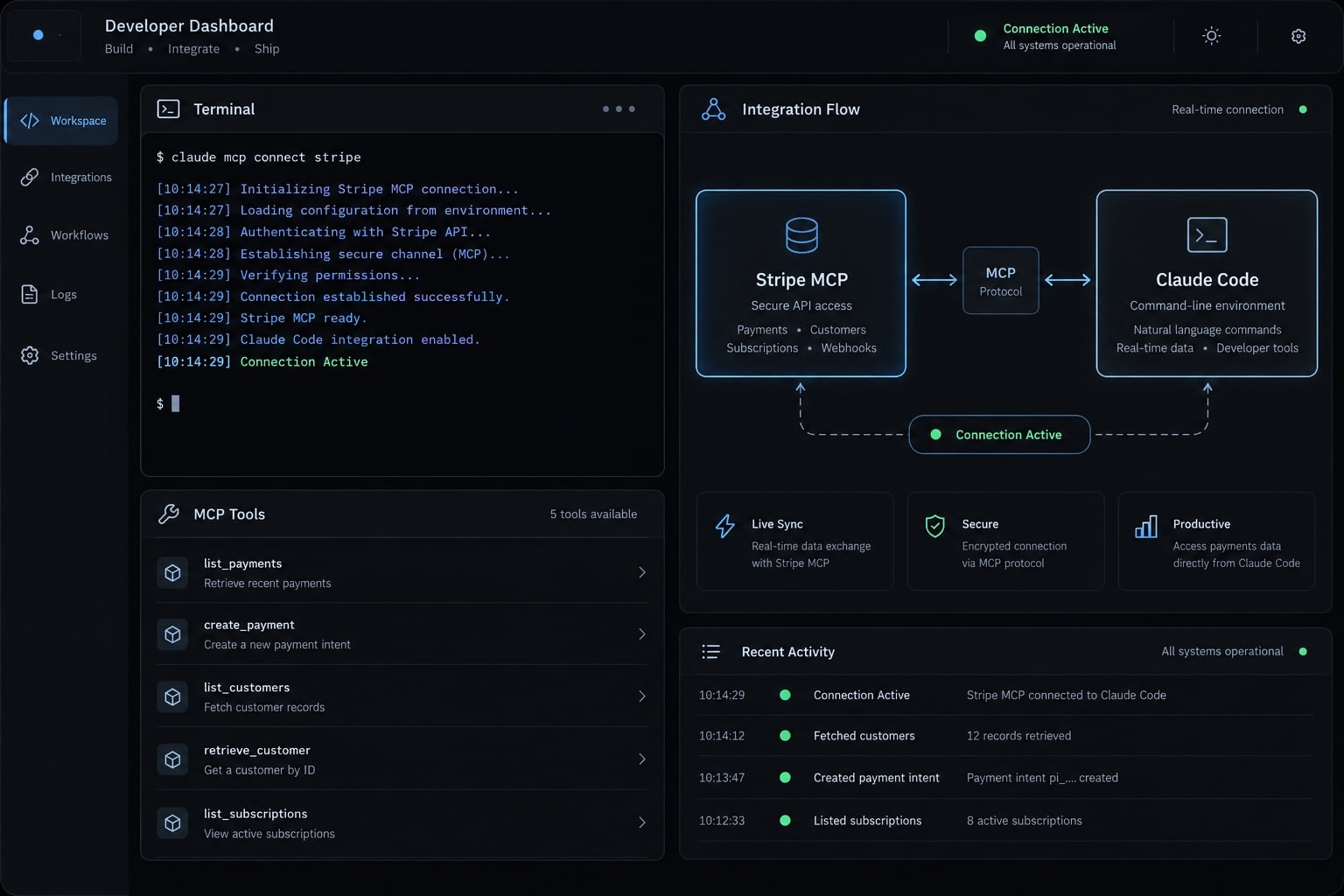
Quick answer: Register Stripe’s remote server, authorize it through Claude Code’s MCP controls, inspect the available tools, and run one limited read-only request after confirming non-production access.
What stripe MCP lets Claude Code do
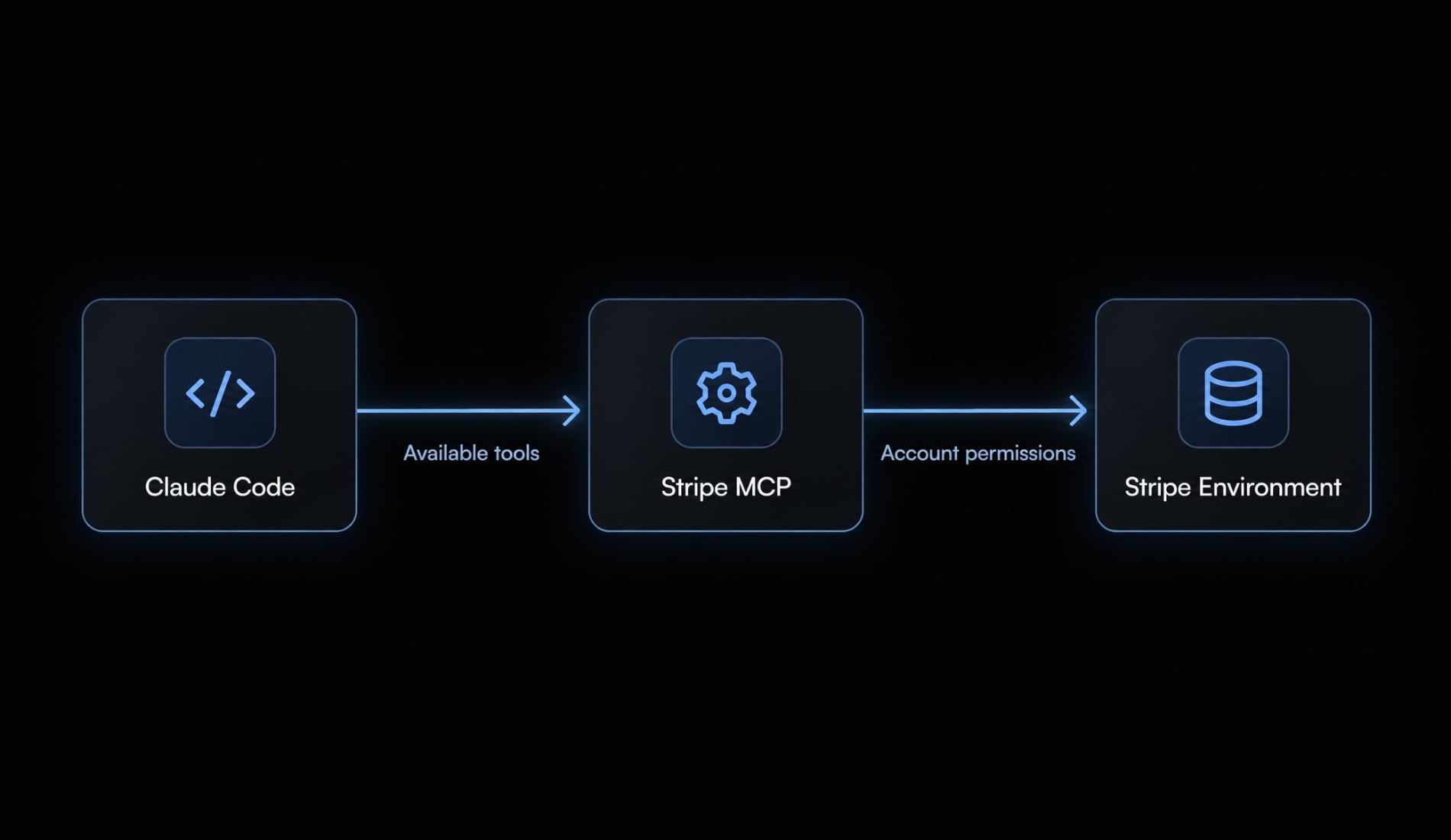
The Stripe MCP server for Claude Code exposes structured operations through MCP (Model Context Protocol), letting the assistant request Stripe actions through tool calling. It does not replace the Stripe API or automatically expose every endpoint. Available operations depend on the server’s current tool catalog and your authorization.
Claude Code → Stripe MCP server → Authorized Stripe environment Available tools Account permissions
Stripe’s “MCP server” documentation describes the integration. Inspect your connected catalog before relying on a particular operation.
Capability | Example, when exposed | Risk |
|---|---|---|
Inspect billing records | Read a small set of test invoices | Lower mutation risk; data exposure remains |
Review subscription state | Retrieve a test subscription’s status | Lower mutation risk; sensitive billing context |
Create test objects | Create a synthetic product | Write operation; persistent state |
Perform financial actions | Issue a refund through an available tool | High-impact mutation; exclude from initial testing |
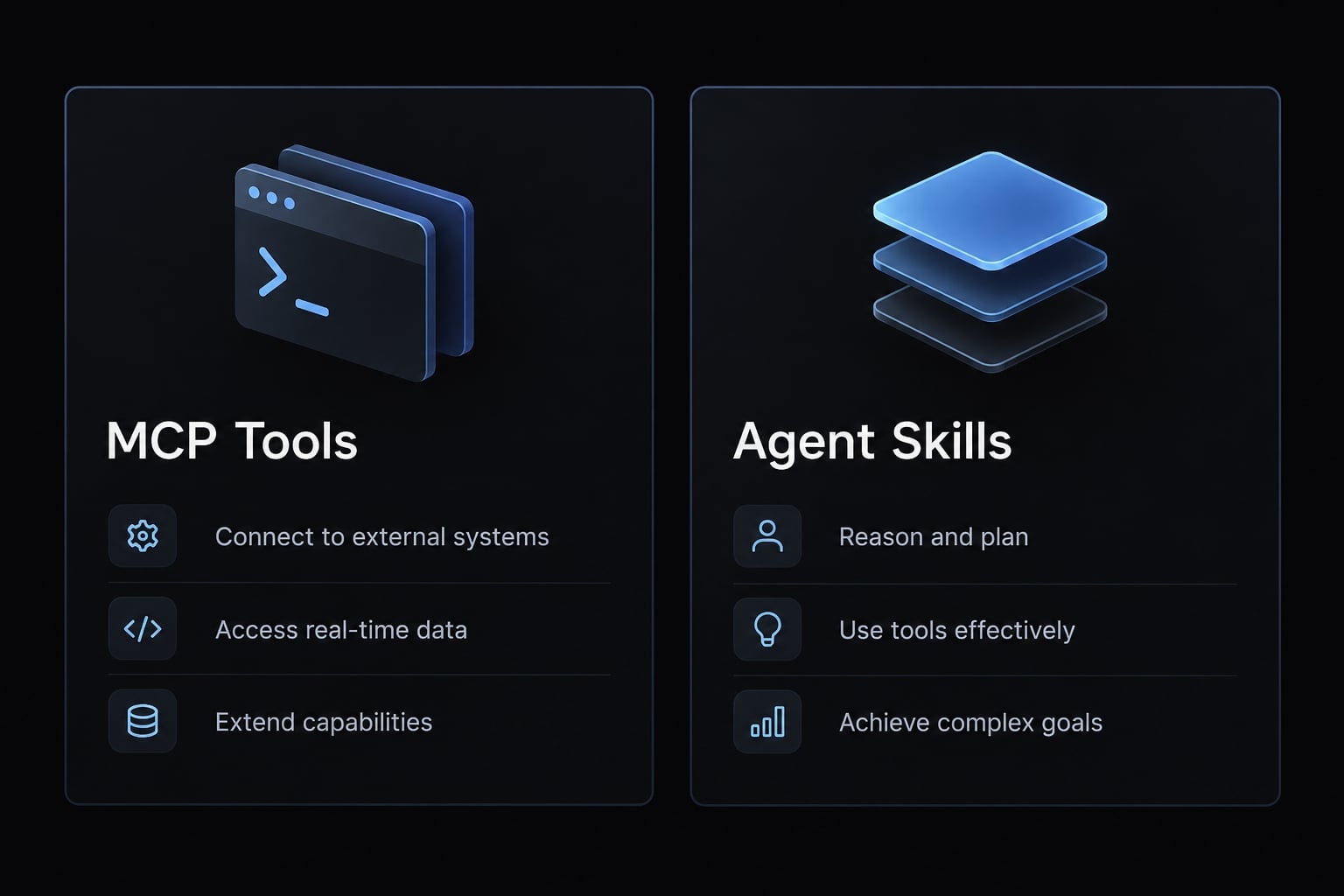
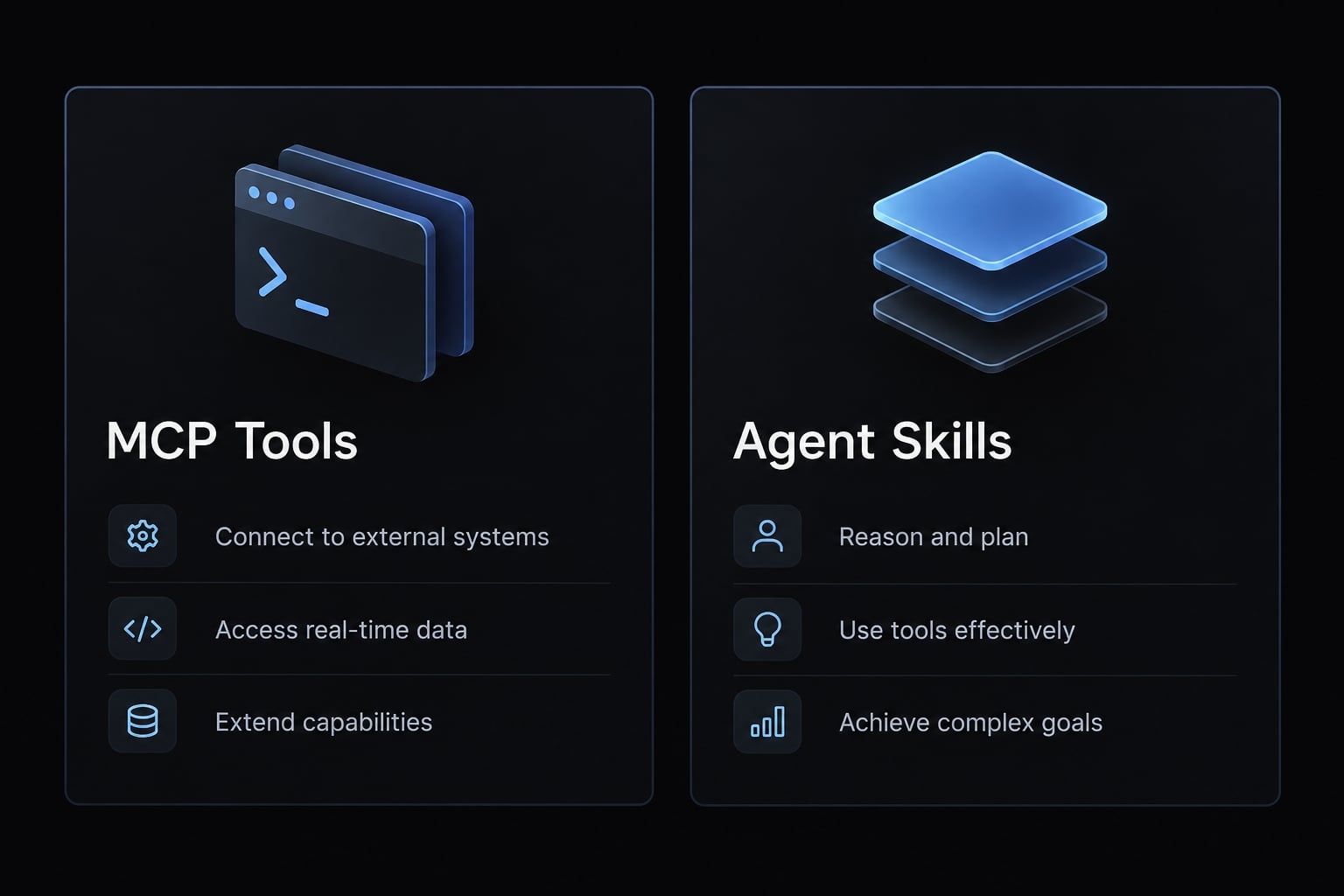
MCP tools vs. Stripe agent skills:
- Tools perform exposed operations using the connection’s authorization.
- Skills provide instructions and implementation patterns. They do not grant Stripe account access.
Prerequisites for connecting Stripe to Claude Code
Prepare the following before registering the server:
- A working Claude Code installation, with account authentication confirmed separately.
- A client version supporting remote HTTP MCP connections.
- Appropriate Stripe account permissions.
- A supported non-production connection and synthetic records.
- Permission to configure MCP under your organization’s policies.
- Browser access for OAuth authentication—the browser-based authorization process.
- Outbound HTTPS connectivity on port 443, including required authorization destinations.
Anthropic’s “Connect Claude Code to tools via MCP” documentation covers configuration and connection controls. The version check appears in Step 1 below.
Stop if the environment is uncertain. A Stripe sandbox and test mode are distinct mechanisms. Confirm the connection’s environment using Stripe’s documented controls. An unrelated Dashboard tab or “test mode” in a prompt does not configure the MCP session.
How to connect stripe MCP to Claude Code
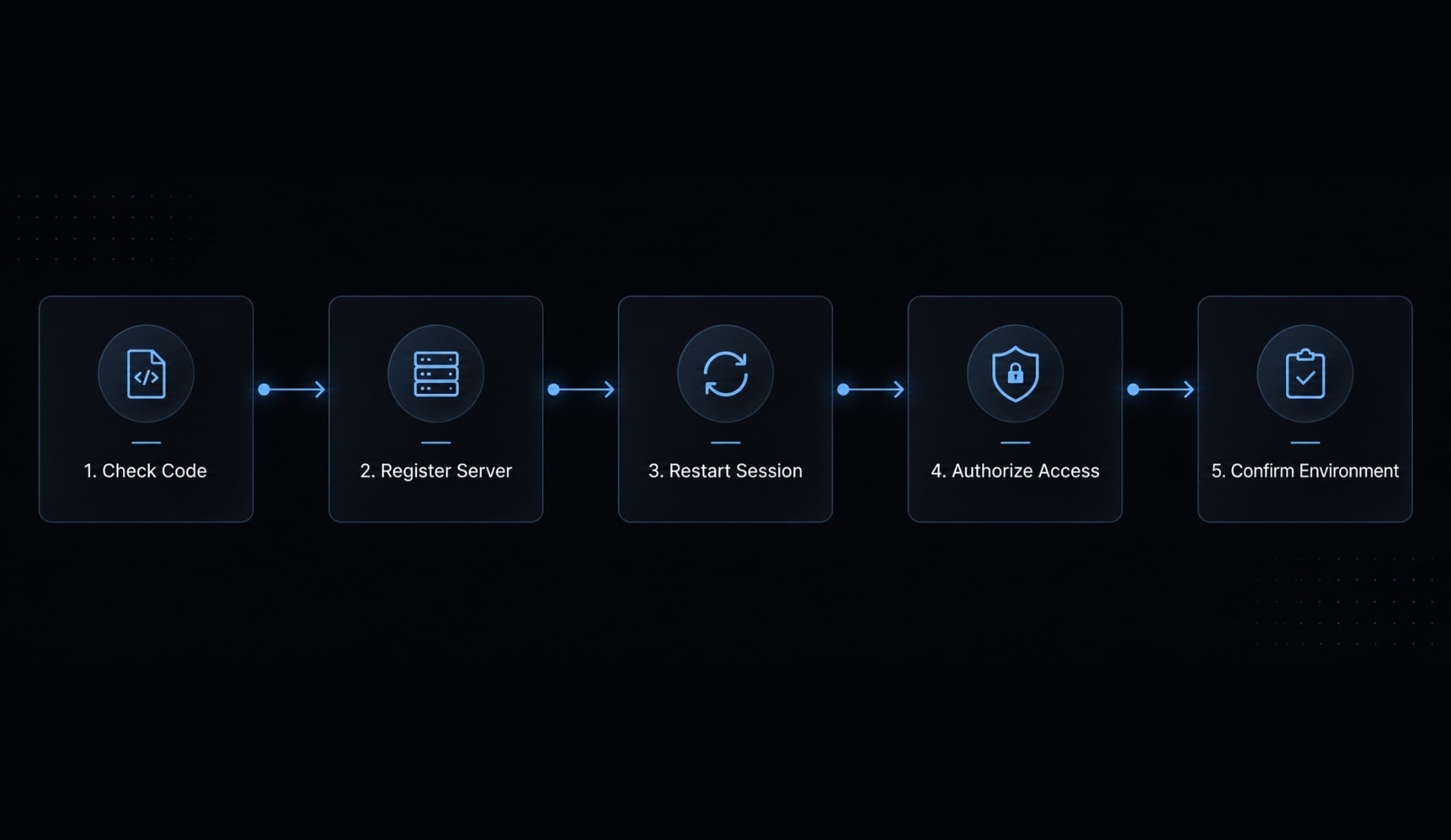
Use one route, not multiple overlapping installations. Stripe recommends stripe agent setup, which configures the MCP server and installs Stripe’s skills. This guide also shows direct remote registration for teams that prefer manual configuration.
- Check Claude Code.
- Register Stripe’s hosted server.
- Restart the session.
- Complete authorization.
- Confirm connection, tools, and environment.
Step 1 - Verify Claude Code
Run this in your terminal:
claude --version
Expected result: A version string. This checks CLI availability, not account authentication, and changes no configuration.
If the command isn't recognized, check your installation or shell PATH first. Also, make sure Claude Code launches and completes authentication before you start troubleshooting Stripe.
Step 2 - Register stripe’s remote MCP server
Run the following in Bash, from the project directory where you intend to use Stripe. Copy the endpoint from Stripe’s official “MCP server” documentation when prompted:
read -r -p "Paste Stripe's official MCP endpoint: " STRIPE_MCP_ENDPOINT
Expected result: Bash stores the entered endpoint in a shell variable. This does not register a server or request credentials.
Enter the complete HTTPS endpoint, without surrounding quotation marks. If you mistype it, repeat the command.
Then register the connection:
if [[ "$STRIPE_MCP_ENDPOINT" == https://* ]]; then claude mcp add --transport http --scope local stripe "$STRIPE_MCP_ENDPOINT"else printf '%s\n' "No HTTPS endpoint supplied; registration skipped."fi
Expected result: Claude Code adds a server named stripe using HTTP transport and local scope. Authentication may still be pending.Anthropic documents local scope as private to you within the current project. It is not the shared project configuration. This route requires no locally operated MCP server.
If stripe already exists, inspect that configuration before adding or replacing anything. Confirm the endpoint against Stripe’s documentation; the shell check only validates the HTTPS prefix.
Step 3 - Restart Claude Code and authenticate stripe
Close any existing Claude Code session, then launch it from the same directory:
claude
Expected result: An interactive Claude Code session opens with the applicable project configuration. Complete Claude Code’s own login if requested.
Inside that session—not in Bash—enter:
/mcp
Expected result: MCP controls display configured servers and their connection states. Select Stripe and follow its authentication action.
Complete the browser authorization flow. Review the account and requested access before approving. OAuth authorization does not inherently mean read-only access.
Establish the non-production environment through Stripe’s documented connection controls, not an assumed selector. If the authorization flow does not establish it clearly, consult the environment instructions before requesting account data.
Return to MCP controls and inspect the connection state. Successful authorization is a checkpoint, not proof that the expected tools or environment are available.
Verify the connection with safe test prompts
Treat registration, authentication, and tool discovery as separate checks. A connected server can still expose fewer operations than your workflow needs.
Check the MCP status
From your project terminal, run:
claude mcp list
Expected result: Claude Code lists applicable MCP servers and connection information. The command does not prove that a particular Stripe operation will succeed.
If Stripe is missing, check the directory and scope. In the interactive MCP controls, inspect exposed tools and their parameter schemas before account queries.
Run a read-only test
After independently confirming non-production access, use this discovery-aware Stripe MCP test prompt:
Use only the already-verified non-production Stripe connection.If an available tool supports reading invoices, retrieve at mostthree synthetic test invoices using its documented parameters.Return only status, currency, and amount due. Exclude personal data.Do not modify anything. If unsupported, stop and explain.
Successful Stripe tool calling returns a tool result, not merely an assistant’s assertion. An empty successful response may indicate an empty dataset; it is not an authentication failure.
Optional: Test a low-impact write after read access works
Writing is optional. Require a verified non-production environment, exact tool-and-parameter preview, explicit approval, and Dashboard verification. Clean up only where supported; events and audit history may remain.
Troubleshoot common stripe MCP setup problems
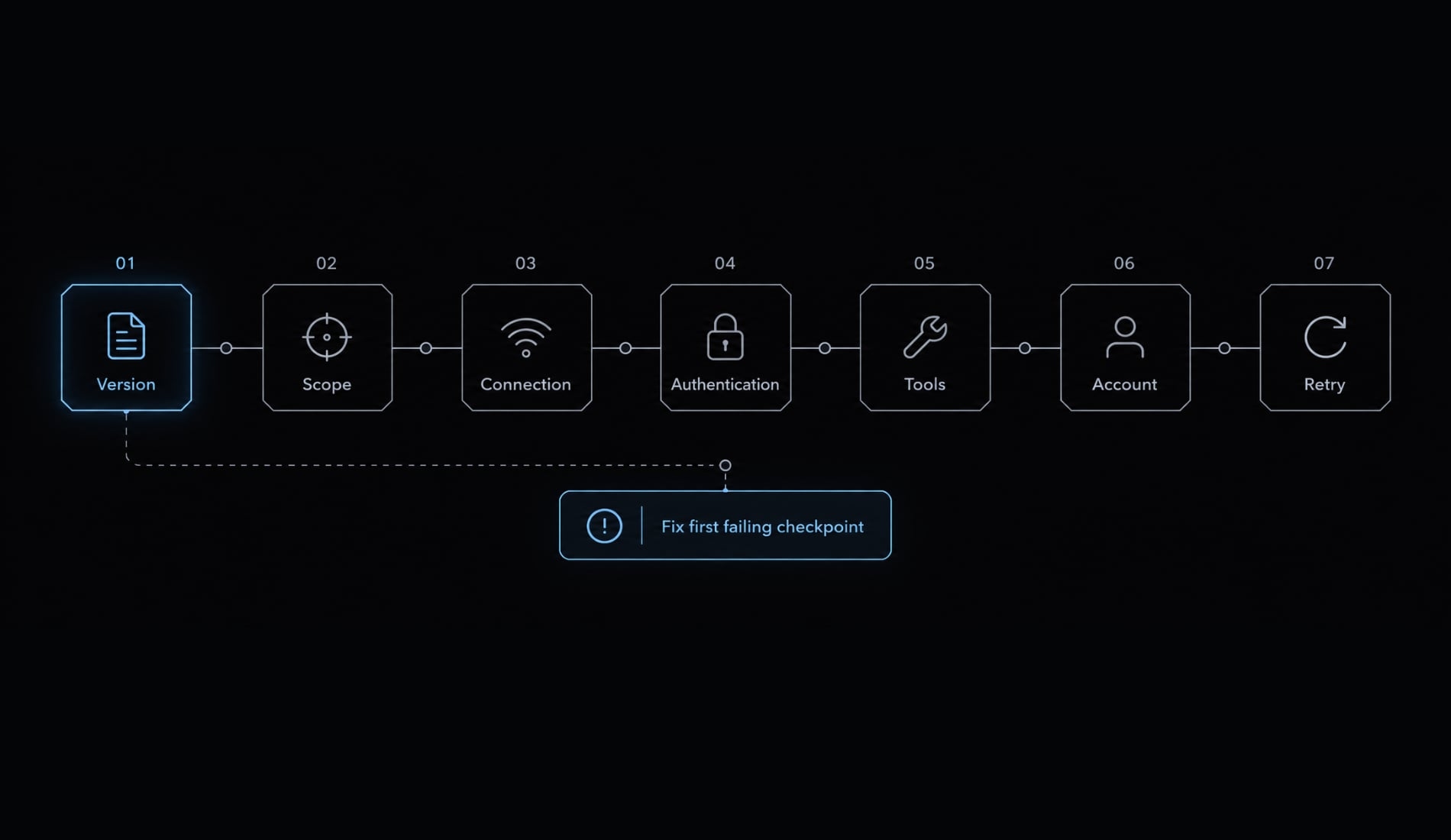
Stripe MCP troubleshooting works best when you isolate the failing checkpoint. The causes below are hypotheses, not diagnoses.
Symptom | Likely cause | Next check or fix |
|---|---|---|
Stripe missing from MCP controls | Wrong directory or configuration scope | Inspect the registration’s scope and project |
Registered but disconnected | Endpoint or connection failure | Compare endpoint with Stripe documentation; inspect status |
OAuth error or incomplete authorization | Interrupted flow, expired access, or policy restriction | Inspect the error; reauthorize only when indicated |
MCP tools unavailable | Discovery failure or catalog mismatch | Inspect exposed tools; do not assume full API coverage |
Permission denied | Operation outside granted access | Check intended permissions without automatically broadening them |
No matching records | Wrong filters, environment, account, or empty data | Verify each before retrying |
Network or proxy failure | HTTPS filtering or proxy configuration | Check service and authorization connectivity on port 443 |
Unexpected account or environment | Incorrect authorization context | Stop requests and correct the connection |
Minimum diagnostic sequence:
Version → scope → connection → authentication → tools → account/environment → limited read-only retry.
Avoid reinstalling everything or reauthorizing for a simple filter mismatch. If unexpected mutations occur, stop further calls, preserve relevant evidence without exposing secrets, and disable or revoke access as appropriate.
Use Stripe MCP safely in development and production
Authentication is not least privilege. Stripe MCP security requires both account-side permissions and Claude-side approval controls. Neither replaces the other.
Separate development and production connections. Use the narrowest enforceable permissions the selected integration supports. A restricted API key belongs only in a route that explicitly supports and requires it, not in an OAuth prompt.
Keep secrets out of prompts, repositories, screenshots, and logs. Minimize PII (personally identifiable information) returned to the model; read-only access still exposes data.
Retain human approval for sensitive writes. Treat tool output as untrusted data, not instructions. Preserve operational records without unnecessarily retaining sensitive payloads. Production access requires a separate permission and approval review.
Stripe’s “API keys” and sandbox documentation explain credential and environment boundaries.
Recommended first-run safety sequence
- Confirm non-production access.
- Inspect tools and permissions.
- Run a limited read.
- Preview proposed writes.
- Approve only an optional low-impact test.
- Verify the result.
- Review controls before production.
Official vs. Managed vs. Self-hosted stripe MCP
Option | Appropriate use | Main trade-off |
|---|---|---|
Official plugin, if documented by Stripe | Packaged setup and guidance | Verify publisher, contents, and scope |
Official remote server | Direct hosted connection | Permissions and operations depend on hosted support |
Managed gateway | Provider-documented centralized controls | Additional data processor and configuration layer |
Local/self-hosted implementation | Custom deployment requirements | You maintain credentials, updates, and security |
A marketplace listing alone does not establish Stripe authorship. Likewise, self-hosting does not automatically improve security, and a gateway’s controls require independent review.
Frequently asked questions
What can you do once the Stripe MCP is connected to Claude Code?
Once integrated, Claude Code gains the ability to query your Stripe account and execute tasks directly. Key capabilities include listing customers, inspecting subscription statuses, generating new products or prices, and debugging payment intents. You can also fetch invoice details and verify webhook configurations without leaving your terminal environment.
Why use the Stripe plugin vs. a raw MCP server registration?
The official Stripe agent plugin bundles the Stripe MCP server with "Stripe Agent Skills." While raw server registration provides the functional tools to interact with your data, the plugin adds curated system prompts and updated integration patterns, ensuring the agent uses best practices when writing your billing logic.
Is the Stripe MCP connection safe for live account data?
Stripe allows you to authorize MCP connections using OAuth via the Stripe Dashboard, which lets you bind sessions specifically to sandbox or live accounts. For maximum security, use restricted API keys limited to the specific tools required, and configure organization-wide MCP controls within your Stripe account settings to restrict access levels for team members.
How do I troubleshoot a "connection lost" error in Claude Code?
First, verify your authentication status by running the MCP list command within Claude Code. If the server is registered but disconnected, check your outbound network access to the Stripe MCP endpoint. Ensure your API keys are not expired and that your account permissions still grant the integration access to the specific Stripe environment you are targeting.
Does connecting Stripe MCP allow Claude Code to edit my production code?
The Stripe MCP server interacts with your Stripe account’s API, but it does not automatically edit your local source code. However, Claude Code can be instructed to generate and apply code patches based on Stripe data - such as creating an API route for a checkout session - provided you review and approve every code change before it is committed.
Read more:
- How to Add Supabase MCP to Claude Code
- Shopify MCP for Claude Code: Setup, use cases and safety guide
- Claude Code Slack MCP: Setup guide and best practices
Conclusion
Stripe MCP for Claude Code is useful when the connection is reproducible and its access boundaries are explicit. Register the remote server, complete authorization, inspect the tool catalog, and validate one limited read against synthetic non-production data.
Connectivity is only the first checkpoint. Confirm the account, environment, and permissions before requesting billing records. Keep writes optional and approval-gated, and remember that read-only responses can still disclose sensitive information. Your next step is straightforward: complete the read-only test, then record the client version, configuration scope, authorized environment, and observed result for your team’s repeatable setup procedure.