Shopify MCP for Claude Code: Setup, use cases and safety guide
Shopify MCP for Claude Code: Setup, use cases and safety guide
Shopify MCP connects Claude Code to Shopify development tools via the Model Context Protocol (MCP), enabling AI-assisted documentation lookups, code validation, and API interactions. By default, the base installation operates without live store credentials, strictly separating static developer support from authenticated store execution to ensure safe, controlled access.
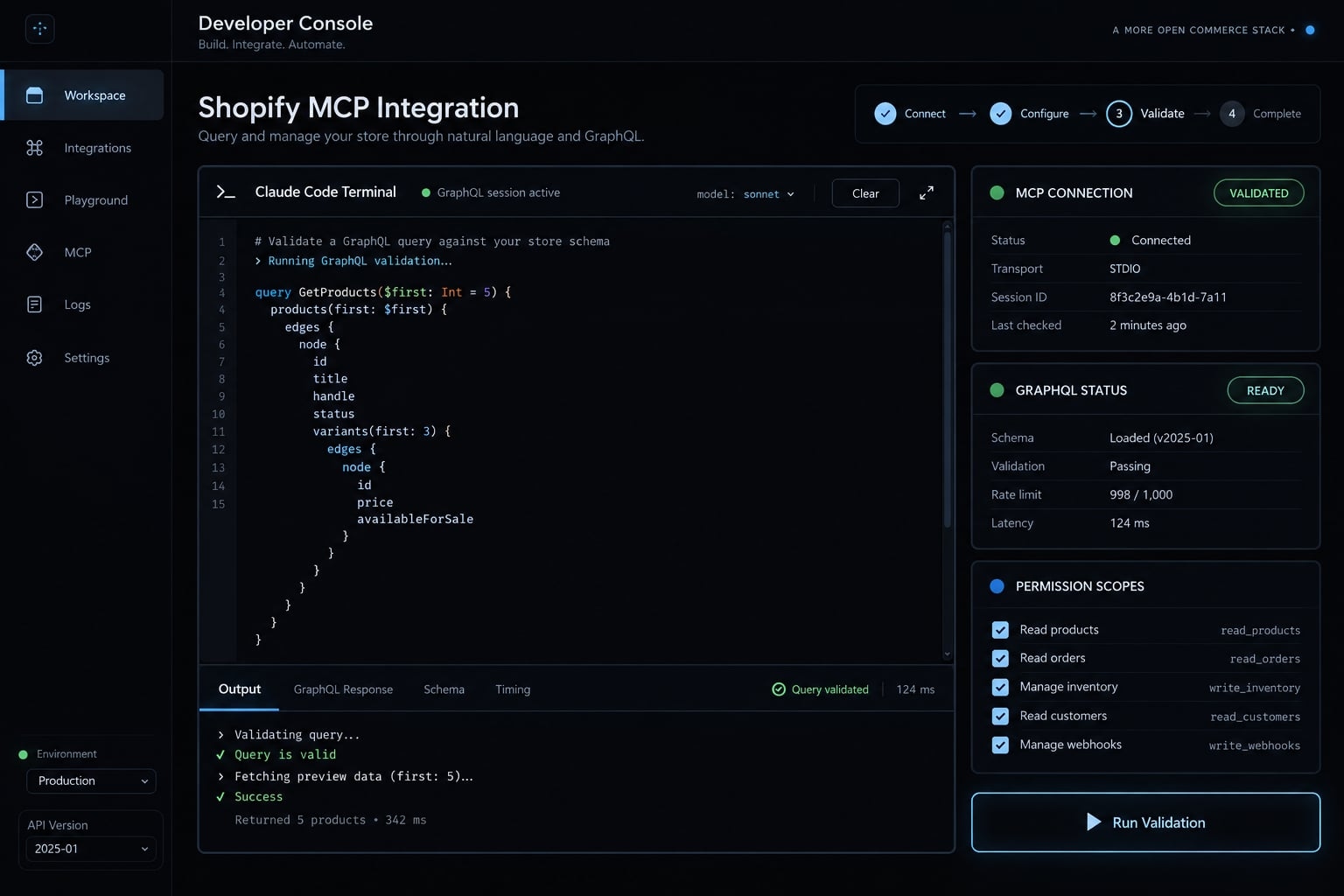
Which Shopify MCP should you use with Claude Code?
Choose by operation, not by the shared MCP label. An authenticated Admin integration means an approved tool connected through appropriate Shopify authentication and permissions - not developer tooling with assumed store access.
Shopify MCP selection table
User goal | Recommended path | Authentication | Typical access |
|---|---|---|---|
Documentation lookup | Shopify Dev MCP | No store token expected | Public developer references |
Code or schema validation | Supported Dev MCP validators | No live Admin token expected | Supported code and schemas |
Catalog and cart experiences | Storefront MCP, where supported | Implementation-dependent | Catalog reads; potentially cart changes |
Store-specific Admin operations | Reviewed Shopify Admin API integration | Appropriate app authentication | Explicitly permitted reads or writes |
Customer-account workflows | Supported customer-account integration | Customer authorization as required | Customer-specific operations |
Cross-platform analysis | Provider-specific analytics MCP | Connected-system credentials | Provider-defined datasets |
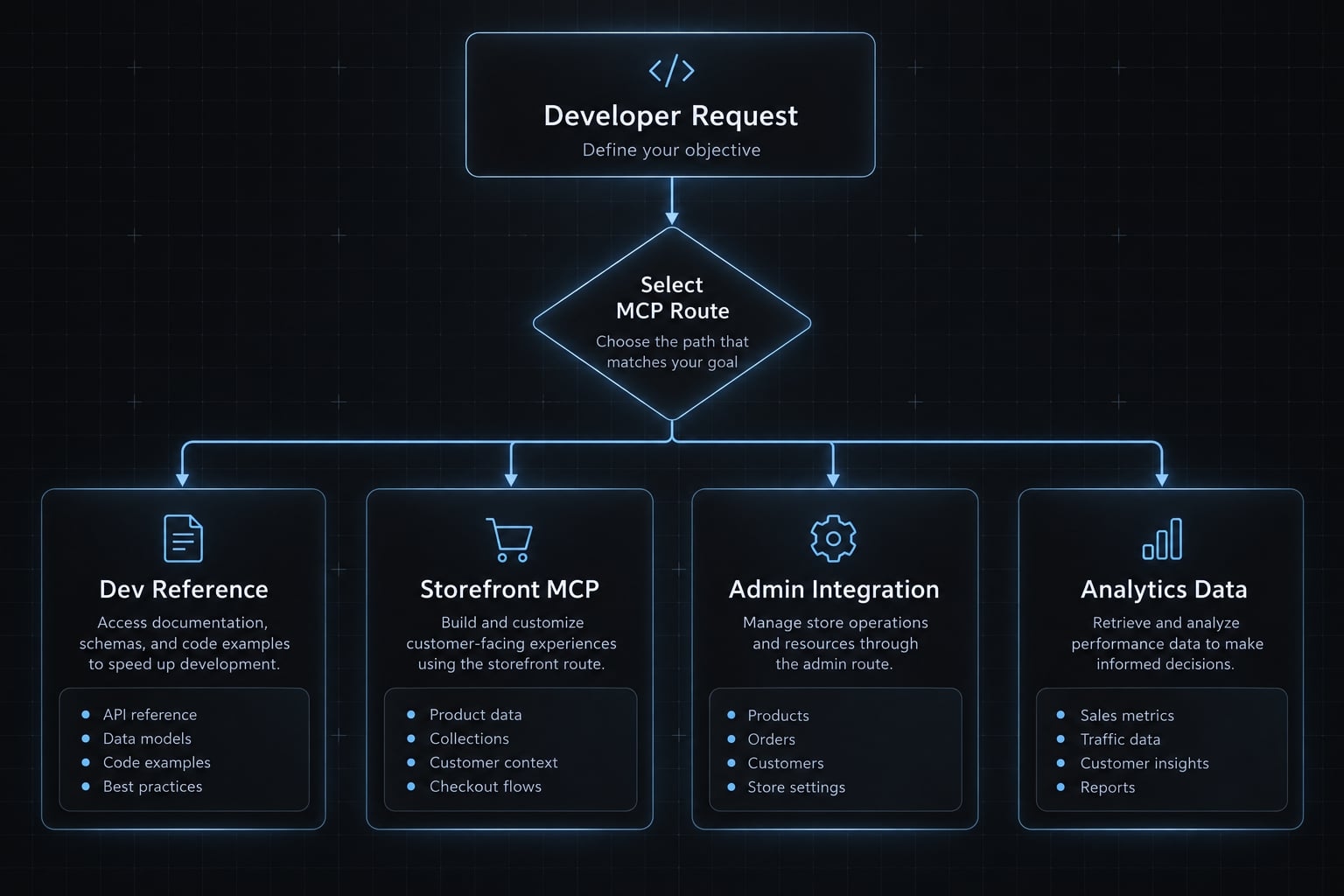
Confirm current Customer Account MCP availability and supported behavior before selecting that route. Analytics MCP is a provider category here, not a verified Shopify product.
For a developer maintaining a client store, checking a GraphQL query structure belongs in Dev MCP. Retrieving that client’s live products requires an authenticated store integration.
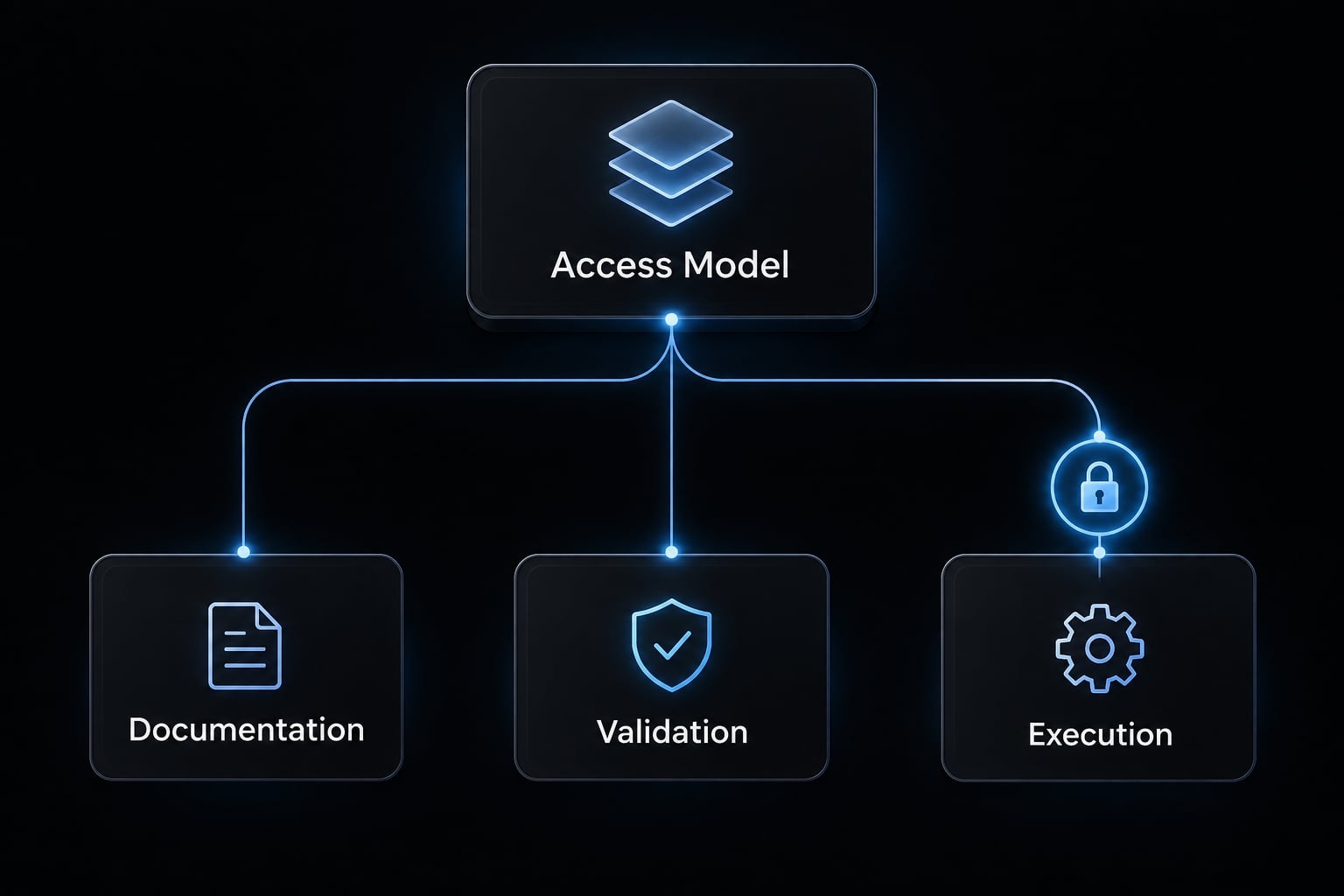
The Three-level access model
This is an editorial mental model for AI Engineering Systems, not an official Shopify permission hierarchy:
- Documentation: Find platform guidance and API specifications.
- Validation: Check supported syntax or schema rules without executing store operations.
- Execution: Run a live operation through a separately authorized integration.
Installation does not automatically progress through these levels.
Prerequisites for the Shopify MCP setup
Prepare the local environment before creating credentials. Runtime requirements depend on the selected server release.
Check the local environment
- Confirm Claude Code is installed and authenticated.
- Check the package manifest for supported Node.js versions.
- Confirm
npmandnpxare available for direct registration. - Allow required package-registry and documentation-service access.
- Open the appropriate project directory.
- Record the operating system, shell, and tool versions.
- Install Shopify CLI only if the development workflow requires it.
claude --versionnode --versionnpm --versionnpx --version
Version output proves neither authentication nor MCP connectivity. Record the resolved Shopify package version, installation route, configuration scope, and test date alongside these results.
Decide whether store credentials are actually needed
- Public documentation: No store token expected.
- Supported public-schema/code validation: No live Admin token expected.
- Store-specific data or writes: Separate authenticated integration required.
Do not create broad Admin credentials for documentation tests. API scopes are strict permissions defining which resources or operations an app may access.
How to install Shopify dev MCP in Claude Code
To install Shopify MCP in Claude Code safely, follow this sequence:
- Choose the developer workflow.
- Confirm the official distribution.
- Install one supported route.
- Inspect registration or plugin-provided tools.
- Reload the session if required.
- Run a documentation-only test.
Plugin installation and direct registration are alternatives. Installing both can duplicate tools and complicate diagnostics when setting up Shopify MCP Claude Code.
Option 1 - Install the official Shopify plugin
Use a Claude Code Shopify plugin only after confirming its current identifier, marketplace requirements, and manifest in official distribution instructions.
The Shopify AI Toolkit plugin route is not independently verified here, so no plugin installation command is presented as approved. Check whether the distribution actually includes Dev MCP, what permissions it requests, and how its tools appear.
An installation-success message proves package installation - not successful MCP invocation.
Option 2 - Register Shopify dev MCP directly
The following is a reference registration example, not an execution-tested command. Confirm the package identity, runtime requirements, and flags against Shopify Dev MCP and Claude Code documentation first.
claude mcp add --transport stdio --scope local shopify-dev-mcp -- npx -y @shopify/dev-mcp@latest
stdio means communication with a local process through standard input and output. shopify-dev-mcp is the chosen server alias; @shopify/dev-mcp is the package identity.
The example selects local scope: Registration associated with the current project for your user, rather than intentionally shared project configuration. Confirm storage behavior in your installed Claude Code release.
npx downloads and runs package code locally. A credential-free server is still an executable dependency. Review its publisher, source, dependencies, and access to local files.
@latest resolves a changing release. For repeatable installations, record the resolved version and replace that tag with the exact approved version.
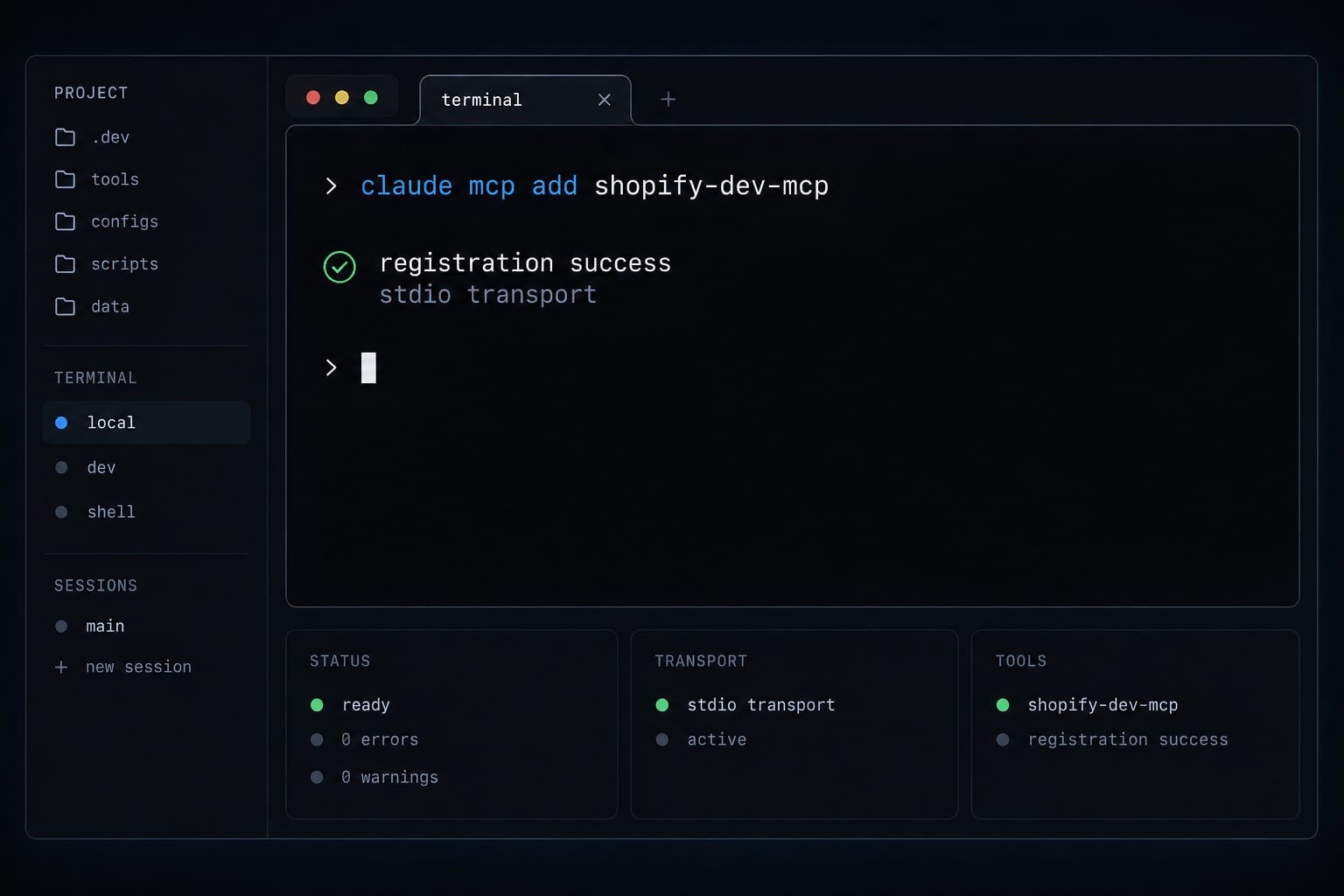
Confirm that the server is registered
Check supported diagnostic syntax first:
claude mcp --help
Common listing and inspection commands are:
claude mcp listclaude mcp get shopify-dev-mcp
Confirm these against your installed release. The direct route should show your alias; plugin-managed tools may use different names.
Registered, connected, and successfully invoked are separate states. MCP server configuration is only the first checkpoint.
Verify that Shopify MCP is actually working
Shopify MCP verification requires a visible tool invocation and returned result. A fluent answer - or a documentation citation - does not prove MCP use.
Test 1 - Search current Shopify documentation
Use the installed Shopify documentation tool to find guidancefor querying product IDs and titles through Admin GraphQL.Report the documentation title and explicit API version.Do not execute store operations, access live data, or edit files.If no relevant tool is available, report that limitation.
For Shopify documentation search, inspect the actual tool call rather than accepting the final response alone.
Test 2 - Validate GraphQL without executing it
Prepare a minimal product-title mutation for Admin API 2026-01.Use the installed schema validator without executing the mutation.Report the exact tool name, validation result, and requiredpermissions separately. If this version is unsupported, stop;do not substitute another version. Do not write files.
A GraphQL mutation is an operation that can change data when executed. Displaying or validating its text does not execute it.
GraphQL schema validation checks schema rules; it does not prove authorization or business correctness.
Test 3 - Review liquid or theme code
Use this synthetic fixture:
{% if product %} <h2>{{ product.title | escape }}</h2>{% endfor %}
Review this Liquid using an available Shopify validator.Explain the mismatched closing tag and return corrected code.Do not edit files. If validation requires a file artifact,report that requirement instead of creating one.
Liquid validation is not established by model reasoning alone.
Test | Evidence of MCP use | What must not happen |
|---|---|---|
Documentation | Actual tool name, arguments, returned source | Live-store access |
GraphQL | Actual validator name, version, result | Mutation execution |
Liquid | Actual validator result, or explicit limitation | Unapproved file creation |
Record tool names from your installation; none are asserted here without a trace.
What Claude Code can and cannot do through Shopify MCP
Dev MCP alone does not provide authenticated product, inventory, order, customer, or theme-publishing capabilities. Local development tools in Claude Code are distinct from remote server capabilities.
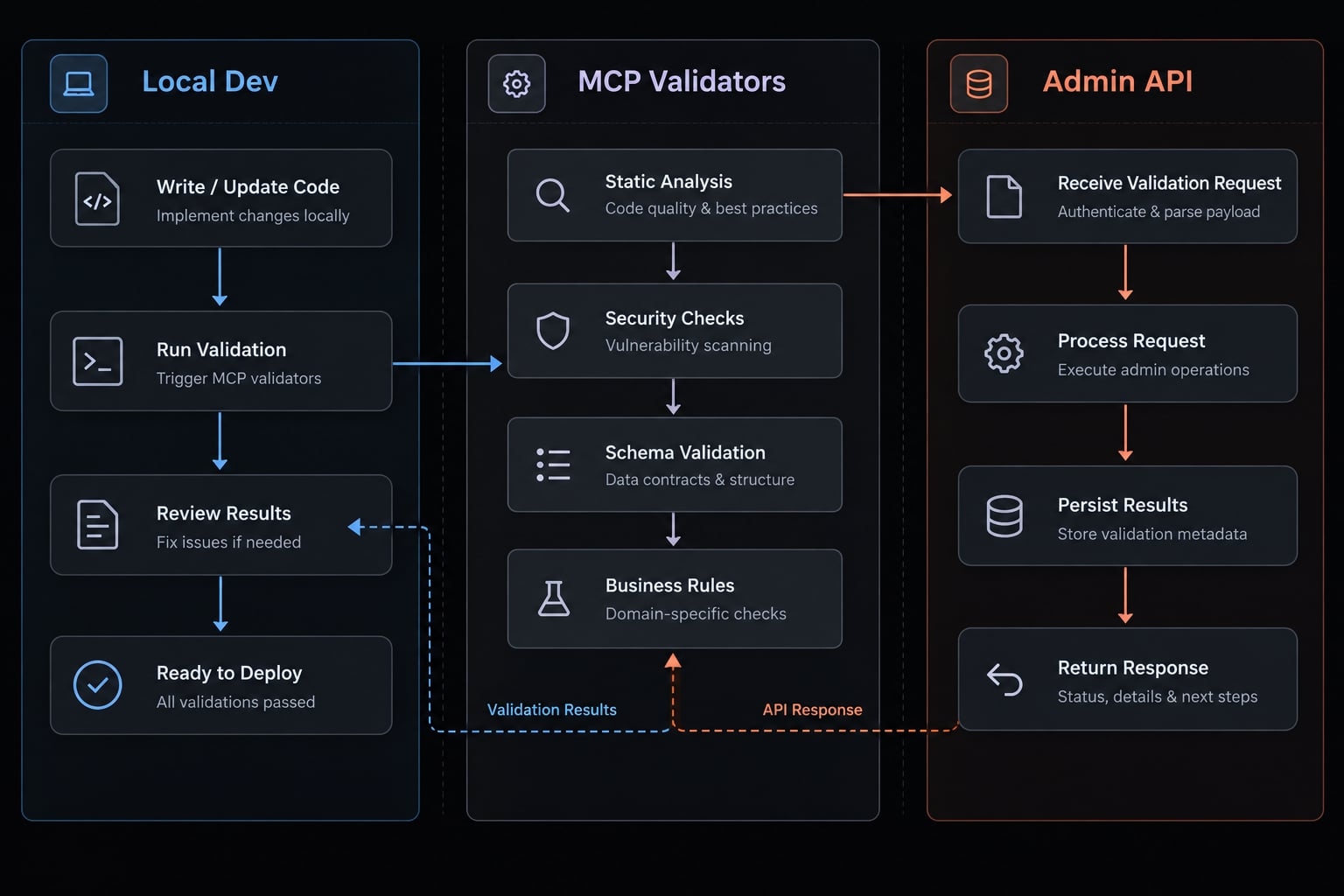
Typical developer capabilities
Capability | Available with Dev MCP tooling? | What else is needed? |
|---|---|---|
Documentation lookup | Through exposed documentation tools | Successful invocation |
GraphQL validation | For supported API families and versions | Explicit target schema |
Code generation | Claude Code assistance informed by MCP context | Review and tests |
Liquid review | Dependent on installed validators | Supported inputs; possibly fixtures |
Local theme-file editing | Not an exclusive Dev MCP capability | Claude Code file-tool permissions |
Product or inventory updates | Not through developer tooling alone | Authenticated write integration |
Order or customer queries | Not through developer tooling alone | Scopes and possibly protected-data approval |
Theme publishing | Separate from local editing | Authorized deployment workflow |
Five practical Read-Only prompts
Apply this shared instruction:
Do not execute operations, write files, or call live-store APIs.
1. Identify product-query fields for the selected API version.2. Validate this mutation as text; separate permissions from syntax.3. Check this query for deprecated fields in the target version.4. Review this Liquid section and explain supported validation limits.5. Propose a change plan with tests and approval checkpoints.
These read-only prompts support AI-assisted development workflows. They supplement - not replace - tool restrictions.
When a traditional integration is still better
MCP-assisted development suits contextual guidance and human-reviewed tasks. Deterministic automation suits scheduled, high-volume, or business-critical work.
Both can coexist: an MCP tool may call a deterministic backend. Authorization, monitoring, retries, and idempotency - preventing duplicate effects from repeated requests - remain backend responsibilities.
How to connect Claude Code to live Shopify store data safely
Define the intended operation before choosing authentication. Shopify Admin API security depends on app type, supported authentication flow, permissions, and enforced tool boundaries.
Define the intended operation before requesting scopes
Task | Access category | Main concern |
|---|---|---|
Read product titles | Product read | Catalog confidentiality |
Update descriptions | Product write | Incorrect published content |
Adjust inventory | Relevant inventory/location access | Fulfillment disruption |
Analyze orders | Order read; additional approvals where required | Commercial and personal data |
Review customer records | Customer read; protected-data requirements | Privacy exposure |
Issue refunds | Operation-specific authorized access | Consequential financial action |
Least privilege means granting only permissions required for a defined task. Least-privilege scopes reduce exposure; read-only access lowers mutation risk, not necessarily confidentiality risk.
App secrets, client identifiers, and access tokens are not interchangeable.
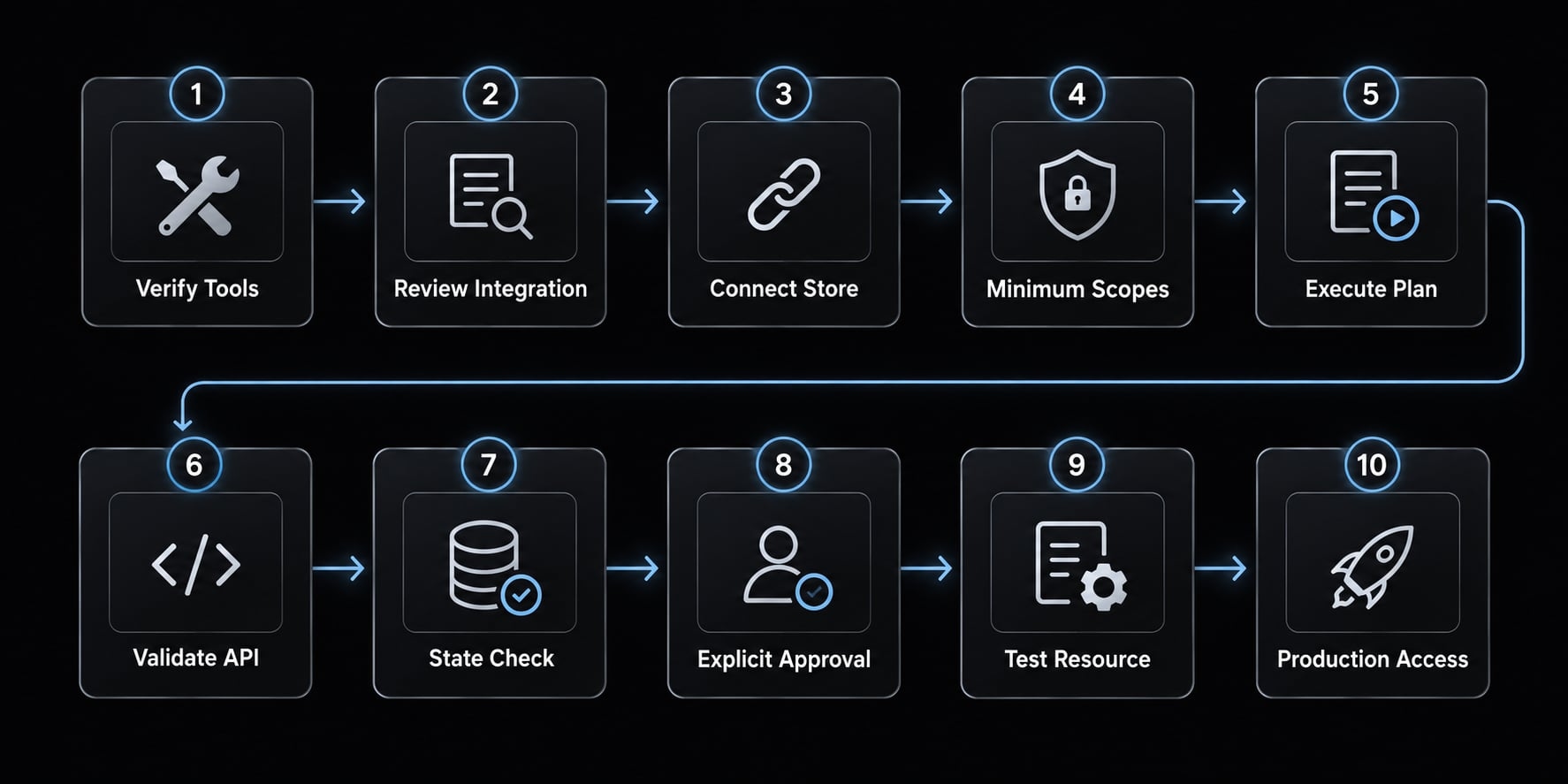
Apply the safe execution sequence
- Verify developer tools without store credentials.
- Select and review the authenticated integration.
- Connect to a development store.
- Begin with minimum read permissions.
- Generate and review the operation plan.
- Validate against the target API version.
- Preserve relevant state and identify recovery limits.
- Require explicit approval before a write.
- Test on one development-store resource.
- Inspect results and logs before expanding access.
Production access requires separate approval. Successful testing neither authorizes production nor guarantees complete rollback.
Protect credentials and production data
Use approved secret storage. Keep secrets out of prompts, logs, screenshots, and repositories; exclude local secret files from version control. Rotate or revoke exposed credentials. Review provider data handling, restrict executable tools and outbound access where practical, and retain audit records without unnecessary personal data.
Environment variables do not prevent authorized local processes from reading secrets. Prompt wording is not an enforceable security boundary.
Troubleshoot common Shopify MCP and Claude Code problems
Diagnose observable symptoms before reinstalling packages. Treat causes as hypotheses until confirmed by configuration checks or diagnostic logs.
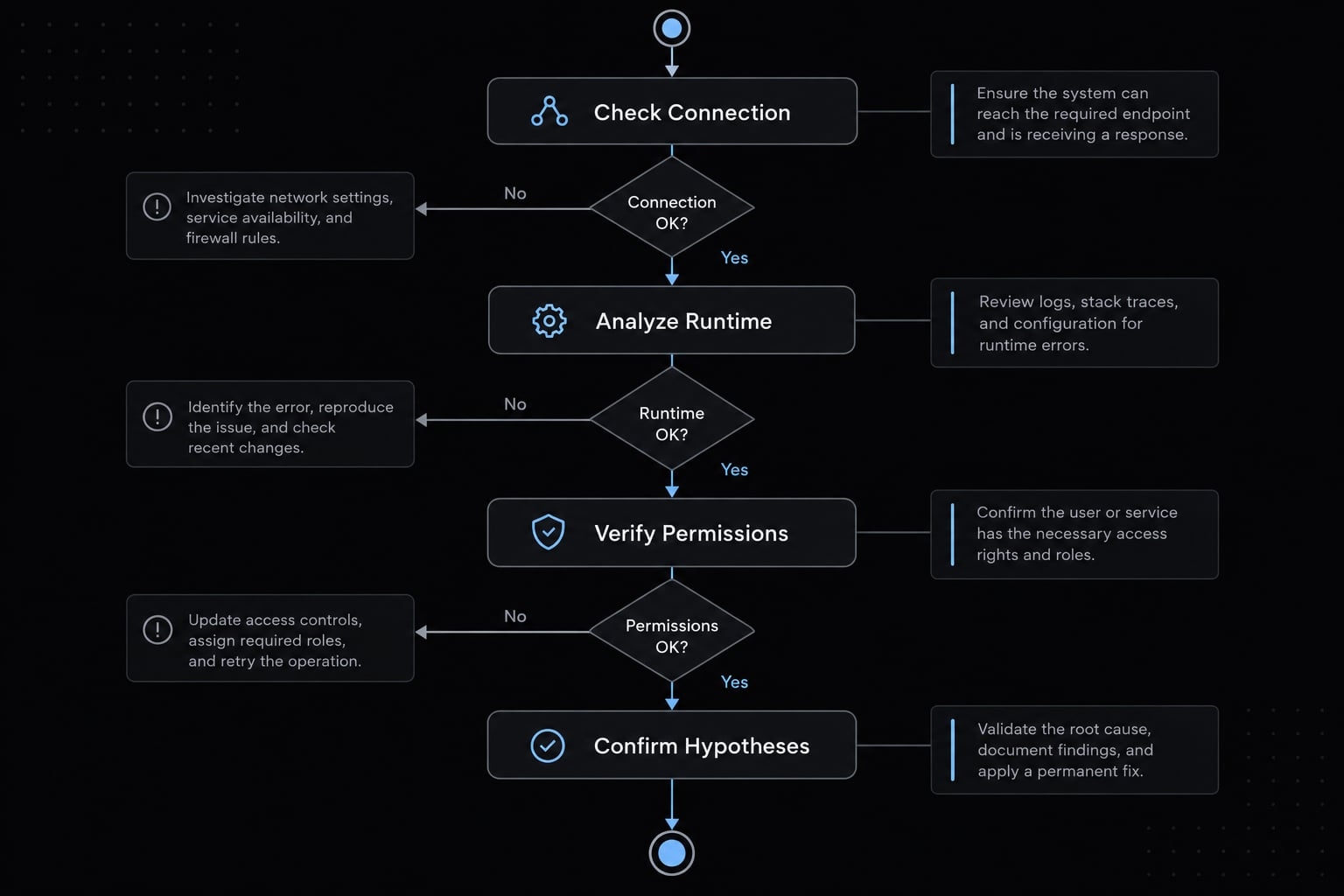
Symptom-based troubleshooting table
Problem | Likely cause | First safe fix |
|---|---|---|
Server missing | Wrong scope or working directory | Inspect registration in the original project context |
Package fails to run | Runtime, registry, or executable-path problem | Compare runtime requirements and redacted startup logs |
Tools listed but unavailable | Startup, session, or permission issue | Inspect connection diagnostics before reloading |
Documentation works; store actions fail | Developer-only tooling | Check whether an authenticated execution tool exists |
Authentication or authorization failure | Invalid token or insufficient permission | Distinguish identity failure from denied access |
GraphQL validation mismatch | Different schema version or unsupported family | Compare validator and target API versions |
Liquid passes but fails at runtime | Missing context or unsupported assumptions | Test in an isolated theme environment |
Unsafe operation proposed | Overbroad tools or missing approval gate | Block execution and narrow permissions |
Unexpected community-server behavior | Dependency or configuration issue | Stop the process and review its provenance |
GraphQL can return errors in the response body despite a successful HTTP status. Inspect both.
No reproduced incident is claimed here. A registration entry without a successful tool response establishes configuration presence-not operational readiness.
Remove or reconfigure the MCP Server
Check your release’s removal syntax:
claude mcp remove --help
For direct local registration, the reference cleanup command is:
claude mcp remove --scope local shopify-dev-mcp
Confirm the alias and scope first. Plugin removal follows its own lifecycle.
Removing MCP configuration does not revoke Shopify tokens or uninstall a Shopify app. Handle credential revocation separately, and stop any independently running process.
Standardize a proven workflow
Store tested prompts, API-version constraints, permission rules, and verification steps as project instructions or reusable agent skills. Record package versions and review dates. Require a fresh tool-call check after dependency changes instead of assuming a previously successful setup remains valid.
Frequently asked questions
Can I connect Shopify to Claude Code and what access does this grant?
Connecting Shopify to Claude Code via MCP provides a standardized interface for developer assistance, such as documentation lookup and GraphQL schema validation. Installing Shopify Dev MCP does not automatically grant the AI agent access to modify or read your live Shopify store data.
Which Shopify MCP implementation should I use for my task?
Choose your implementation based on your operational goal: use Shopify Dev MCP for documentation, Liquid template validation, and code scaffolding. Use Admin API MCP servers with scoped credentials only when you require authenticated read or write access to live store data like products, orders, or customers.
What are the prerequisites before installing Shopify MCP?
Before installation, ensure you have Claude Code authenticated, a compatible Node.js environment, and the necessary package manager (npm or npx) installed. Avoid creating live Admin API credentials if you only need the Dev MCP for documentation search or schema validation purposes.
How do I install Shopify Dev MCP in Claude Code?
You can install it by either using the official Shopify AI Toolkit plugin via the Claude Code marketplace or by manually registering the @shopify/dev-mcp server using the claude mcp add command. Only choose one installation route to avoid tool duplication, and verify registration in your configuration settings.
How can I verify that Shopify MCP is working without touching my store?
Verify the integration by running non-mutating tasks, such as searching for specific API documentation or validating a draft GraphQL query against the current schema. Successful execution of these read-only diagnostic tools proves the MCP server is correctly registered and communicating with the platform.
Can Claude Code update store data like inventory or product prices?
Claude Code can perform live operations only if you have configured an authenticated Admin API MCP server with the specific required scopes. The standard Dev MCP tools are read-only and cannot execute mutations, write files, or modify your store's live catalog data.
Read more:
- Claude Code MCP configuration: A practical setup guide
- Connect GitHub MCP to Claude Code: Step-by-step guide
- Claude Code Figma MCP setup: Remote vs desktop guide
Conclusion
Setting up Shopify MCP for Claude Code should begin with developer assistance, not production credentials. By starting with the Shopify Dev MCP, engineering teams can safely validate GraphQL mutations, review Liquid section syntax, and search official documentation without risking live catalog changes or customer data exposure.
When architectural needs require connecting to live store data, apply the principle of least privilege:
- Use scoped Admin API credentials.
- Test thoroughly in isolated development stores.
- Enforce explicit human confirmation checkpoints before executing write operations.
Integrating Model Context Protocol tools into AI Engineering Systems - built with modular scaffolding like AgentKit - allows teams to combine contextual AI guidance with reliable, production-safe workflows. Maintain clear tool boundaries, record environment configurations, and periodically verify active MCP server connections to keep your AI-assisted Shopify development secure.