Connect Google Calendar to Claude Code: Setup & Best practices
How to connect Google Calendar to Claude Code: MCP and CLI setup
A Claude Code Google Calendar integration brings schedule information into your terminal workflow. Claude Code can access calendar actions through a compatible MCP server or a command-line tool—but installing a connector does not automatically authorize Google access. Follow these steps: select an integration method, configure the tools, authorize your account, and verify read access before enabling write permissions. This guide uses a managed MCP workflow, then explains self-hosted and CLI alternatives.
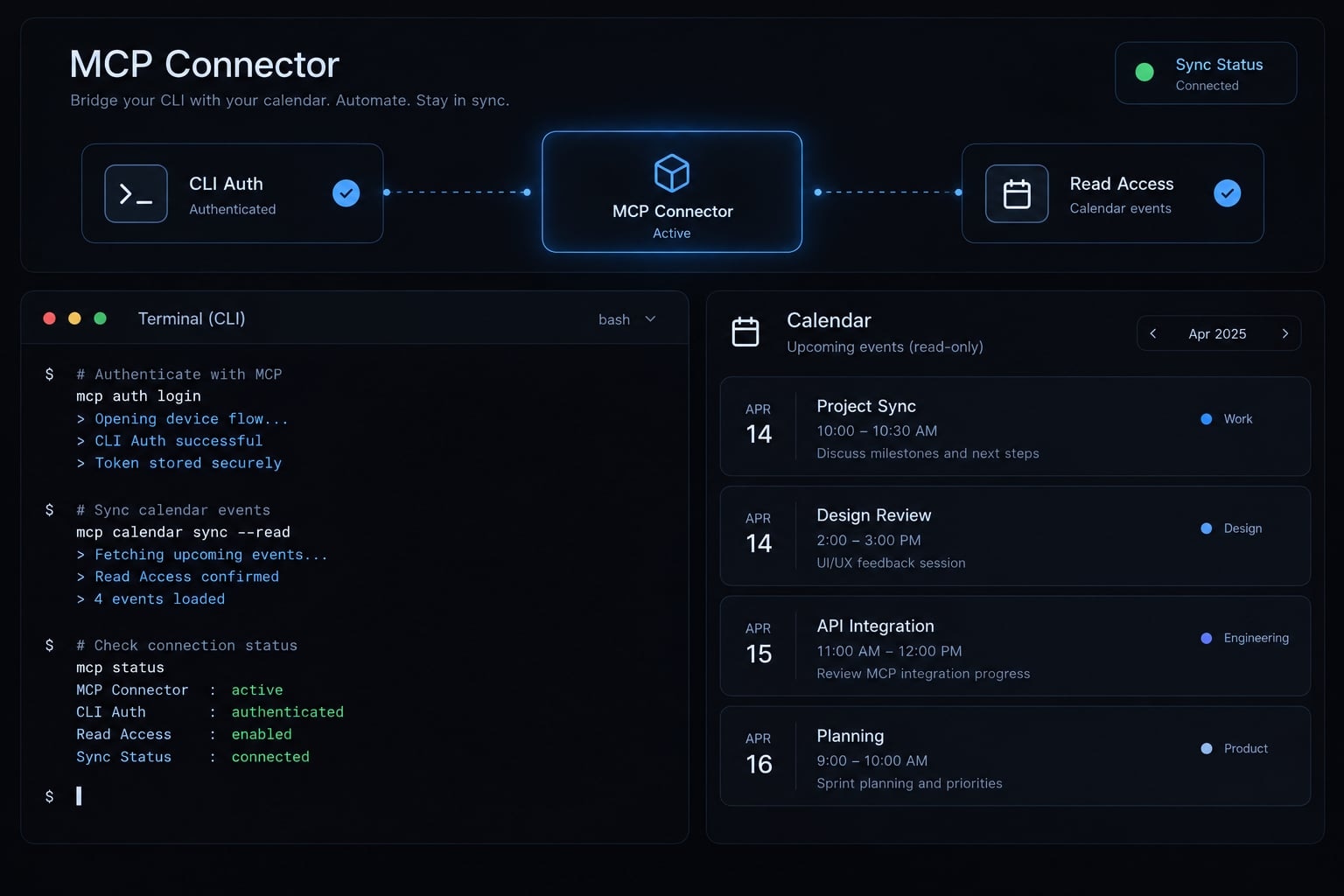
Choose the right Claude Code–Google Calendar integration method
MCP vs. CLI in plain language
MCP is Model Context Protocol, a standard through which a client discovers and invokes external tools. A CLI, or command-line interface, exposes commands executable in a terminal. Claude Code can use either approach when configured appropriately. Neither automatically grants Google access; authorization and calendar permissions remain separate requirements.
Integration method comparison
Method | Best for | Setup effort | Credential control | Maintenance | Main trade-off |
|---|---|---|---|---|---|
Managed MCP | Teams avoiding connector infrastructure | Usually lower; provider-dependent | Provider participates in authorization | Less server maintenance | Additional data processor |
Self-hosted MCP | Teams needing configurable infrastructure | Higher; runtime and OAuth setup | Under your infrastructure policies | You maintain the server | More operational responsibility |
gcalcli, a community Calendar CLI | Existing terminal automation | Depends on Python and OAuth configuration | Local credential configuration | You maintain the installation | Not a full Workspace CLI |
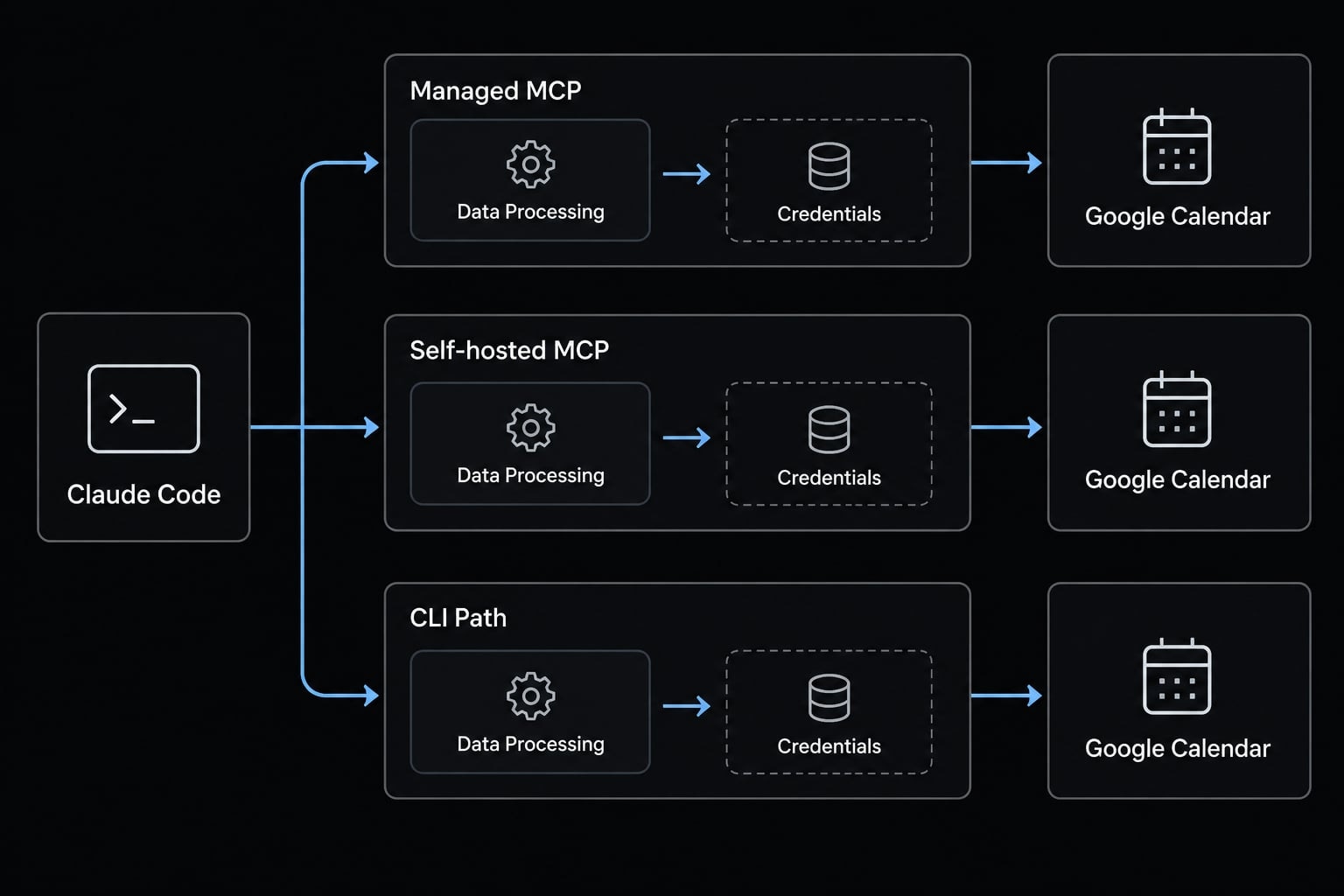
- Choose a managed MCP connector for reduced infrastructure work.
- Choose a self-hosted MCP server for greater configuration control.
- Choose a CLI when shell automation already fits your operating model.
Claude Desktop settings cannot be used for Claude Code. Similarly, having a Google Calendar connector in other Claude interfaces does not mean it works with Claude Code.
Self-hosting controls the connector infrastructure; calendar content supplied to Claude can still leave that infrastructure. Access to several calendars also does not establish continuous synchronization.
Prerequisites and safe permission settings
Setup checklist
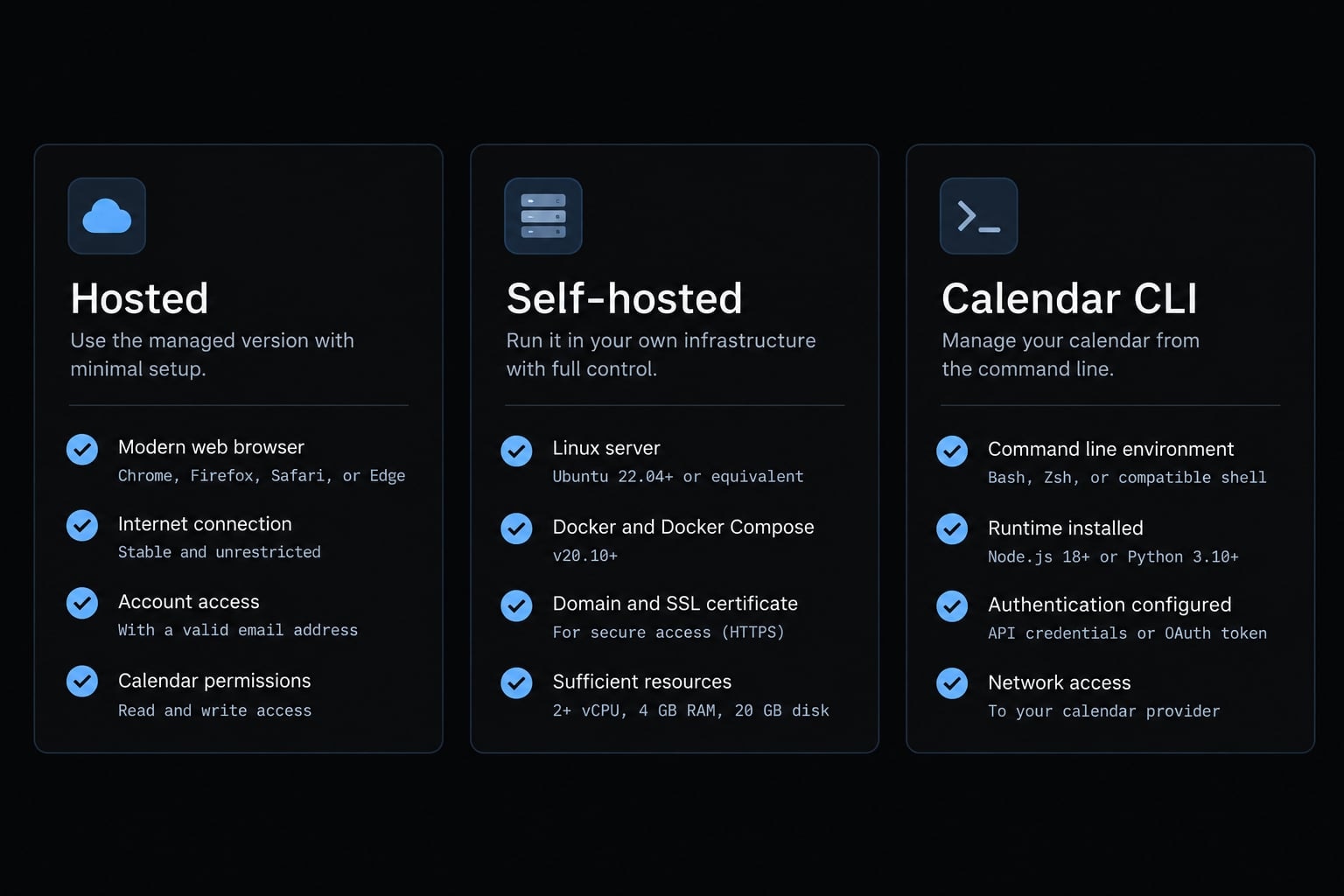
Prerequisites for connecting Google Calendar to Claude Code:
- Installed, authenticated Claude Code.
- A Google account with access to the intended calendar.
- The runtime required by your connector, if any.
- Its documented installer or package manager, if applicable.
- Google Cloud configuration and OAuth credentials when required by the method.
- A non-critical calendar named AgentKit Calendar Sandbox.
Managed browser-based connectors may require no local runtime. Self-hosted servers and some CLIs require your own Google Cloud project.
Verification commands
Run in your terminal:
claude --version
Version output confirms installation—not calendar connectivity. Check Node.js, Python, or other runtimes only when your selected implementation requires them.
Minimum access for read-only use
Google’s Calendar API Authorization documentation distinguishes calendar scopes—the access an application requests. Listing calendars, reading event details, and checking free/busy can require different permissions and supported tools. OAuth authorizes application access; signing into an account identifies the user.
When write access is necessary
Creation, updates, invitation responses, and deletion are separate operations. Enable only those needed, subject to calendar sharing rights and execution controls.
Quick setup - Connect Google Calendar through a managed MCP connector
Zapier MCP is a managed-provider example that avoids installing a connector CLI. Its MCP documentation describes server configuration and app-tool selection. Confirm current Google Calendar actions, account requirements, and usage charges before proceeding.
This is a configuration walkthrough, not a tested endorsement. Zapier participates in the authorization and calendar-data path. Review its security and retention documentation before connecting business calendars.
Step 1: Create the managed server
Sign into Zapier and open its MCP configuration interface. Create an MCP server and select the Google Calendar tools you need.
Expected result: A server configuration with identifiable Calendar actions.
Initially expose only required read tools. If the provider cannot restrict tools, or requires unacceptable Google permissions, stop and choose another method. Removing write tools limits execution but does not narrow an existing OAuth grant.
You do not need a local connector CLI for this method. Avoid using unofficial or unverified installation commands.
Step 2: Authenticate the provider account
Complete the provider’s account sign-in and check the workspace owning the server.
Expected result: You can manage its tools and connection settings.
Provider login does not necessarily authorize Google Calendar or authenticate Claude Code’s MCP session. Keep those three states separate.
Step 3: Register the server in Claude Code
Use the provider’s current Claude Code connection instructions. For a compatible remote HTTP endpoint, Anthropic’s Claude Code MCP documentation describes this registration pattern:
claude mcp add --transport http --scope local calendar-managed "<PROVIDER_MCP_ENDPOINT>"
Replace the placeholder with your server’s endpoint. This is a syntax template, not a live endpoint or tested command output.
Expected result: The server is registered for the current project’s local configuration.
Registration alone does not complete authentication. Follow the provider’s documented authentication mechanism; treat secret-bearing endpoints as credentials and avoid exposing them in logs or shell history.
Step 4: Authorize Google Calendar
In the provider’s connection interface, connect the intended Google account. Review the requested permissions before granting consent.
Expected result: The Calendar connection identifies the correct account and reports authorization success.
Google consent does not necessarily let you select arbitrary individual scopes. If requested access exceeds your requirements, cancel. For Workspace restrictions, contact the administrator rather than bypassing controls.
Step 5: Confirm tools and read access
Inside an active Claude Code session—not your shell—run:
/mcp
Inspect connection status and available tools. Complete any documented MCP authentication step, then try:
List the calendars I can access and show tomorrow’s events in America/New_York. Do not create or modify anything.
Replace the time zone. Calendar listing works only if the connector exposes it and permissions allow it.
Expected result: Connected status, visible read tools, completed Google authorization, and events matching the intended account. Confirm no write tool ran.
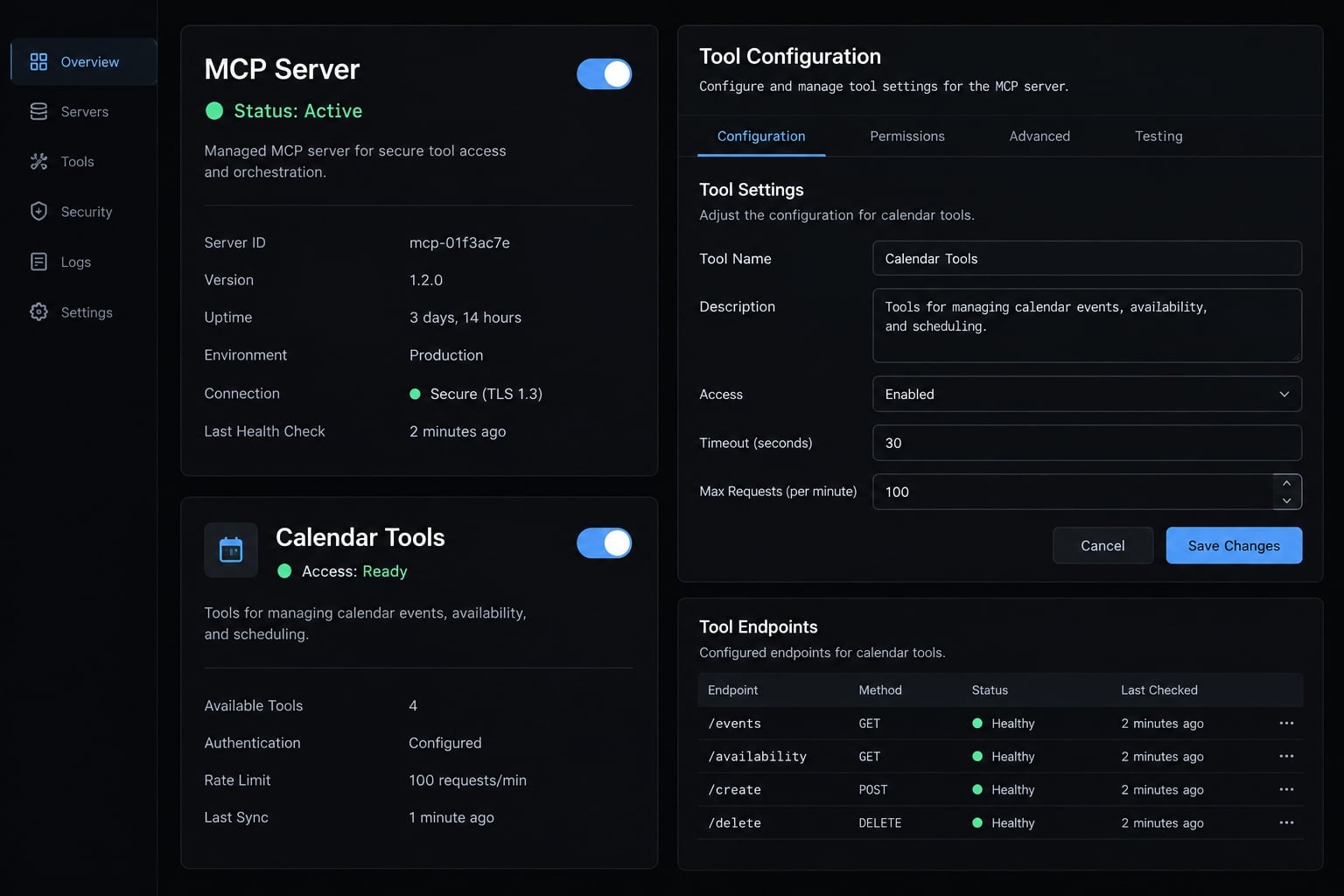
Alternative setups - Self-hosted MCP and Google Workspace CLI
Option A - Run a self-hosted Google Calendar MCP server
For a self-hosted Google Calendar MCP implementation, nspady/google-calendar-mcp is a community project to evaluate - not an official Google server. Check its current README and releases before installing.
Review publisher identity, maintenance, license, dependencies, supported tools, and credential storage. Then follow its documented sequence:
- Select a maintained release.
- Create or select a Google Cloud project.
- Enable the Calendar API.
- Configure the OAuth consent screen.
- Create the required OAuth client type.
- Add test users where applicable.
- Store credentials outside the repository.
- Install and register the server.
- Complete Google authorization.
- Check MCP status and read the sandbox calendar.
Google’s OAuth 2.0 documentation describes refresh-token limits, including conditions affecting external apps in testing. Do not assume every configuration expires identically or that publishing alone resolves verification requirements.
Option B - Use a Calendar CLI
“Google Workspace CLI” can describe different projects; it is not sufficient installation guidance. A Calendar-specific alternative is gcalcli, maintained by the gcalcli community.
Follow its current installation and authorization documentation. Verify a direct calendar-listing or agenda command before allowing Claude Code to execute it. This alternative is not hands-on validated here.
A project instruction or skill can document release-conflict checks, but it does not enforce a security boundary. Pair it with restricted credentials and execution permissions. Scheduled background checks require a separate trigger or scheduler.
Verify Calendar actions and use practical Claude Code prompts
Progressive validation sequence
Validate Claude Code calendar access in this order:
- List accessible calendars, if supported.
- Read a known sandbox event.
- Check free/busy, if supported.
- Create an isolated event after confirmation.
- Update that event after confirmation.
- Delete it after confirmation.
Steps four through six are optional. Authentication success does not establish every capability: Test calendar event retrieval and each availability query separately.
Read-Only test prompts
Replace calendar IDs and dates before use:
Summarize events on calendar <CALENDAR_ID> for 2026-09-15 in America/New_York.
Find a 45-minute opening from 14:00–17:00 on 2026-09-15 across <CALENDAR_IDS>, in America/New_York. Report inaccessible calendars as unknown, not free.
Check <RELEASE_CALENDAR_ID> for conflicts from 10:00–12:00 on 2026-09-15, America/New_York. Report conflicts without changing events.
These instructions clarify intent; they do not enforce read-only access.
Write-action test prompts
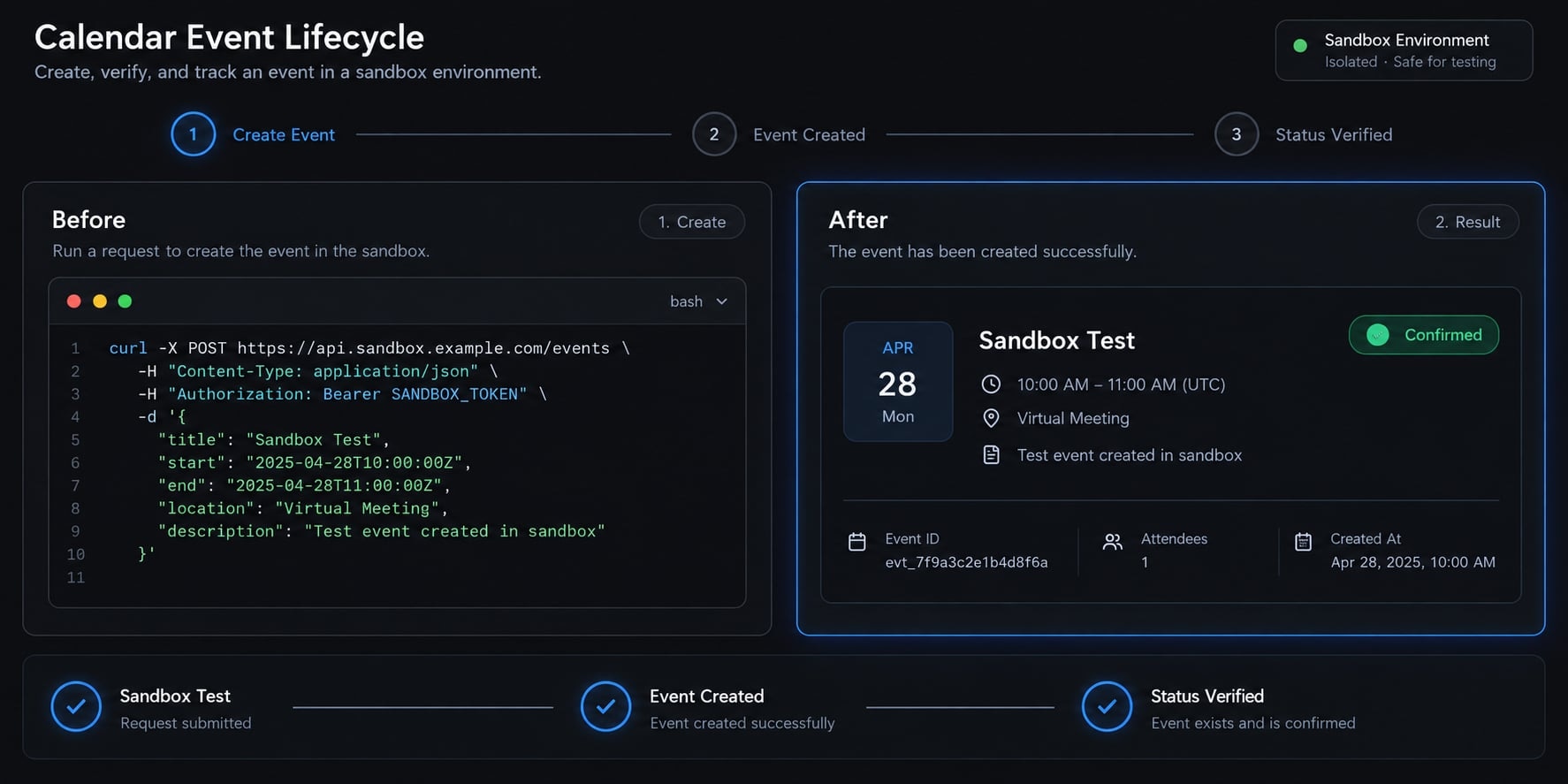
For isolated event creation:
On <SANDBOX_CALENDAR_ID>, prepare “Claude Calendar Integration Test” for 2026-09-15, 10:00–10:15, America/New_York. No attendees or conferencing. Preview reminders and notification behavior. Wait for my confirmation before creating it.
After confirming creation, retain the returned event ID:
Preview moving event <EVENT_ID> on <SANDBOX_CALENDAR_ID> to 11:00–11:15 on the same date and time zone. Wait for confirmation before updating.
Preview deletion of event <EVENT_ID> on <SANDBOX_CALENDAR_ID>. Wait for confirmation before deleting.
Verify each result in Google Calendar. Never target updates or deletion by title alone.
Useful developer and operations workflows
- Release-window conflict checks.
- Morning schedule briefings.
- Meeting preparation from authorized calendar context.
Secure OAuth, tokens and calendar write access
Recommended permission model
This is an operational policy, not a literal mapping to Google OAuth scopes.
Action | Initial recommendation | Execution approval |
|---|---|---|
Calendar listing | Enable if needed | Within approved boundary |
Event reading | Enable for selected calendars | Within approved boundary |
Free/busy | Enable if supported | Within approved boundary |
Creation | Disable until tested | Confirm each action |
Updates | Disable until tested | Confirm each action |
Invitation responses | Keep disabled initially | Confirm response and effects |
Deletion | Keep disabled initially | Confirm exact event ID |
Recurring-event changes | Keep disabled initially | Confirm occurrence versus series |
Reduce routine read approvals only where policy permits and the approved boundary is explicit. Do not assume default settings guarantee confirmation.
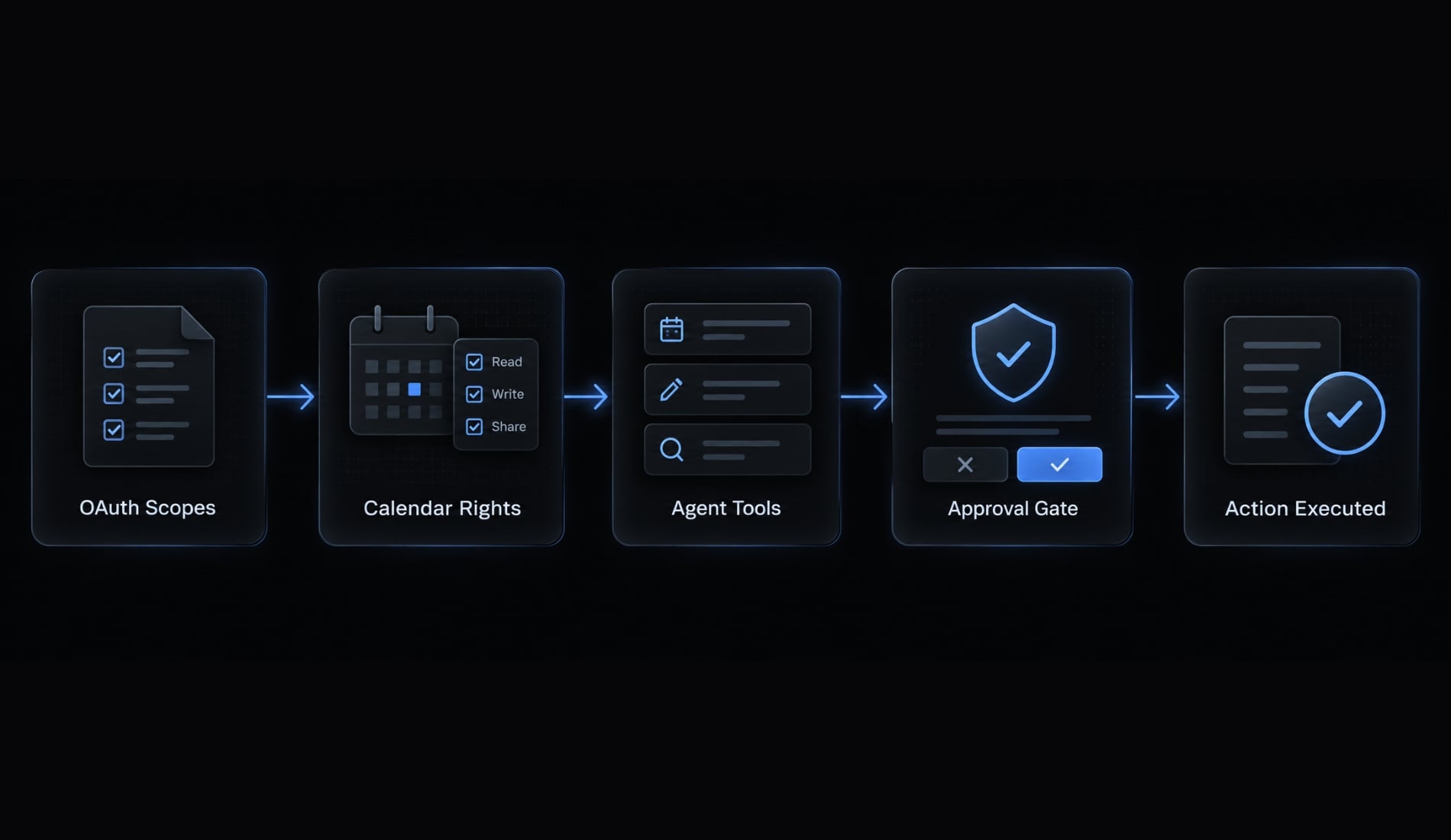
OAuth scopes, calendar rights, exposed tools, and Claude Code execution permissions are separate controls. Human-in-the-loop approval supplements-not replaces-least-privilege access.
Data and token handling by method
- For managed providers, inspect storage, processing, retention, and subprocessors.
- For self-hosted servers, inspect credential files and server access; returned event data can still reach Claude.
- For CLI workflows, review the project’s actual authentication model.
Credential management must cover both access tokens and refresh tokens.
Credential and token checklist
- Keep secrets outside repositories using supported secret storage.
- Treat
.gitignoreas prevention, not remediation for leaked secrets. - Revoke exposed or unused credentials.
- Revoke Google authorization and remove Claude Code configuration separately.
- Review provider-side disconnection and deletion controls.
- Treat event descriptions as untrusted content, never agent instructions.
Environment variables are not a complete security solution. Revocation does not prove deletion of previously retained data. Event titles, attendees, and descriptions can reveal sensitive business information; “private” visibility is not an absolute access barrier.
Troubleshoot common Claude Code and Google Calendar errors
Diagnostic table
Diagnose the failing layer before reinstalling. An MCP connection error and a Google authorization failure require different remedies.
Symptom | Likely cause | Safe next step |
|---|---|---|
Server missing | Registration scope, path, or transport mismatch | Inspect registration and status before re-registering |
Command not found | Installation or | Verify executable location and documented runtime |
OAuth window absent | Authorization has not started through the required interface | Use the documented flow; never share authorization codes or private URLs |
OAuth access blocked | Test-user configuration or Workspace policy | Check your app configuration, or contact the administrator |
Empty calendar list | Wrong account, missing rights/scopes, unsupported tool, or filtering | Inspect each separately; verify a known calendar ID |
Reads work; writes fail | Missing write scope, tool, calendar right, or execution permission | Inspect the denied operation; do not enable everything |
Repeated token expiration | Refresh failure or OAuth testing conditions | Review refresh behavior and Google app status |
Wrong event time | Ambiguous date, offset, or daylight saving | Specify the date and IANA time zone, such as America/New_York |
Wrong calendar targeted | Incorrect account or calendar ID | Stop writes and verify both identifiers |
Rate-limit failures | Excessive requests or quota limits | Reduce concurrency, narrow queries, and use supported backoff |
Batching does not automatically bypass Google Calendar API quotas. Likewise, a time zone error should not be “fixed” by repeatedly moving production events.
Before reinstalling everything
Check:
- Installed versions and release notes.
- Environment variables and credential paths.
- MCP connection status and separate Google authorization.
- Sanitized error messages identifying the failed operation.
Do not paste full tokens, private endpoints, event descriptions, or client data into public support requests. Preserve useful error codes while redacting sensitive values.
Frequently asked questions
What can you do once the Google Calendar MCP is connected to Claude Code?
With Google Calendar connected via MCP, Claude Code can list and query events, check free/busy availability across multiple calendars, and manage event details like attendees or descriptions. With appropriate permissions enabled, Claude can also create, update, or delete calendar events directly from your terminal session.
Is Google Calendar access in Claude Code secure?
Access is controlled through OAuth scopes and explicit human-in-the-loop confirmation. Claude requires your approval before executing write operations like creating or deleting events. To enhance security, use a dedicated test calendar for initial setups and verify that your connector provider handles tokens according to your team's security standards.
How do I verify that Google Calendar is successfully integrated?
After registering the MCP server, run the /mcp command in your Claude Code session to ensure the server status shows as connected. Then, use a read-only prompt like "List events for today on my primary calendar" to confirm that Claude can retrieve your data without errors.
Why does Claude Code require browser-based OAuth for my calendar?
OAuth is required to grant Claude secure, temporary access to your calendar data without storing your Google account password. The browser flow allows you to authorize specific permissions and verify which Google account you are connecting, ensuring that Claude only has access to the calendar information you choose to share.
What is the difference between a Managed MCP and a self-hosted server?
Managed MCP connectors provide pre-configured infrastructure, simplifying setup and token management but requiring trust in the provider. Self-hosted servers offer greater control over your credentials and data path but demand manual maintenance of your Google Cloud project, OAuth configuration, and API quotas.
Can Claude Code automatically reschedule my meetings?
Yes, Claude Code can handle rescheduling if write permissions are enabled. You can provide natural language instructions, such as "Move my 3 PM meeting to tomorrow at 10 AM." Claude will fetch the event ID, request your confirmation, and execute the update, provided your calendar permissions allow for modification.
How do I troubleshoot connection errors with the Calendar MCP?
First, check your MCP server registration in the configuration file and ensure the required runtime (e.g., Node.js or Python) is installed. Verify your OAuth status by re-running the authentication flow, and check the Claude Code session logs for specific API error codes related to authentication or scope permissions.
Read more:
- Claude Code Google Drive MCP: Ultimate setup & Auth guide
- Claude Code Slack MCP: Setup guide and best practices
- Claude Code Jira integration: MCP setup and safe workflows
Conclusion
A successful Claude Code–Google Calendar integration begins with verified access rather than broad automation. Whether using a managed MCP, self-hosted server, or CLI, always follow a progressive setup sequence: connect, authorize, verify reads, and test an isolated event before enabling write permissions.
Always double-check account details, calendar IDs, and time zones, and keep a record of your permission checklists to ensure safe terminal-based calendar management.