How to authenticate Claude Code in terminal
To quickly authenticate Claude Code in your terminal, simply run the 'claude' command, sign in via your browser, and return to the terminal. Where people get stuck is also predictable: The browser does not open, the terminal asks for a code, or login appears to use the wrong credential source because an API key is already set. This short, practical guide focuses on those exact issues first, so you can finish setup without digging through unrelated documentation. If you want a fast, reliable Claude Code authentication guide, start with the default login flow below and use the matching fix for your symptom.
Troubleshooting Claude Code authentication
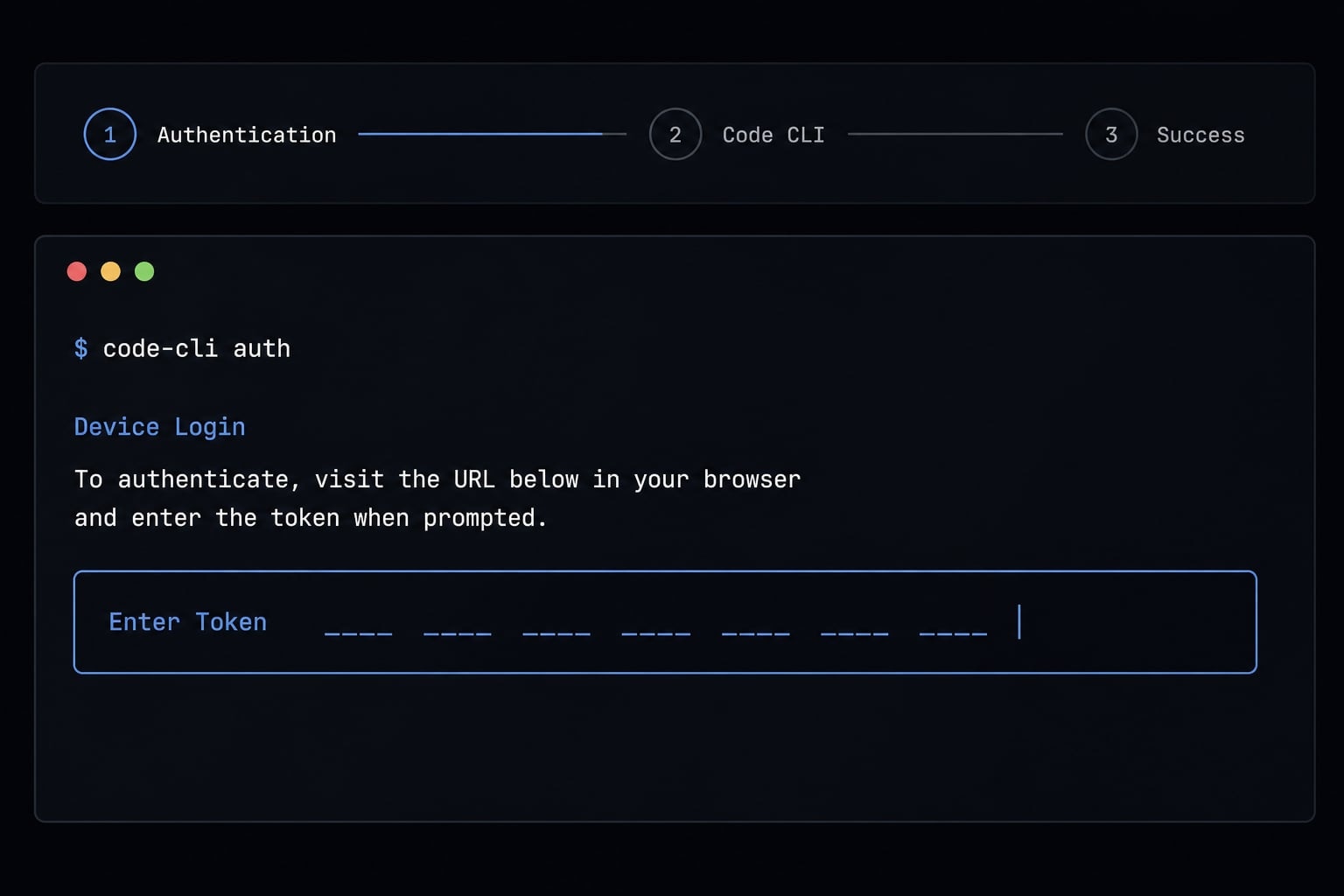
- Open your terminal.
- Run
claude. - Let the browser open and sign in to your account.
- Return to the terminal after approval.
- Confirm the session is active and continue.
For most users, that is the full answer to how to authenticate Claude Code in terminal. The default Claude Code sign-in process uses browser-based authentication, then hands the session back to the CLI. If that handoff succeeds, you can continue immediately. If not, Claude Code usually gives you a fallback path instead of failing silently.
Run Claude Code for the first time
- Open your terminal in any directory.
- Run the
claudecommand. - Wait for your browser to open.
- Sign in with the account you want to use.
- Return to the terminal and continue the session.
claude
In a normal Claude Code sign-in process, the terminal waits while the browser handles approval. After sign-in, control returns to the CLI session and you can start using Claude Code right away. This is the default path for most local setups and the easiest way to authenticate Claude Code in terminal without extra configuration.
Which account types can authenticate?
- Claude Pro or Max: Sign in with your Claude account.
- Claude for Teams or Enterprise: Sign in with the organization-linked Claude account your admin enabled.
- Claude Console: Use your Console-linked credentials if your organization manages access that way.
- Supported provider-based access: Some users authenticate through a supported third-party or cloud provider path.
What success looks like in terminal
A successful login usually ends with a clear confirmation in the terminal, such as login successful, followed by a prompt to continue. At that point, your CLI session is authenticated and ready.
Important: If login succeeds but access still looks wrong, the problem may be credential precedence, not a failed sign-in.
What to do if the browser does not open?
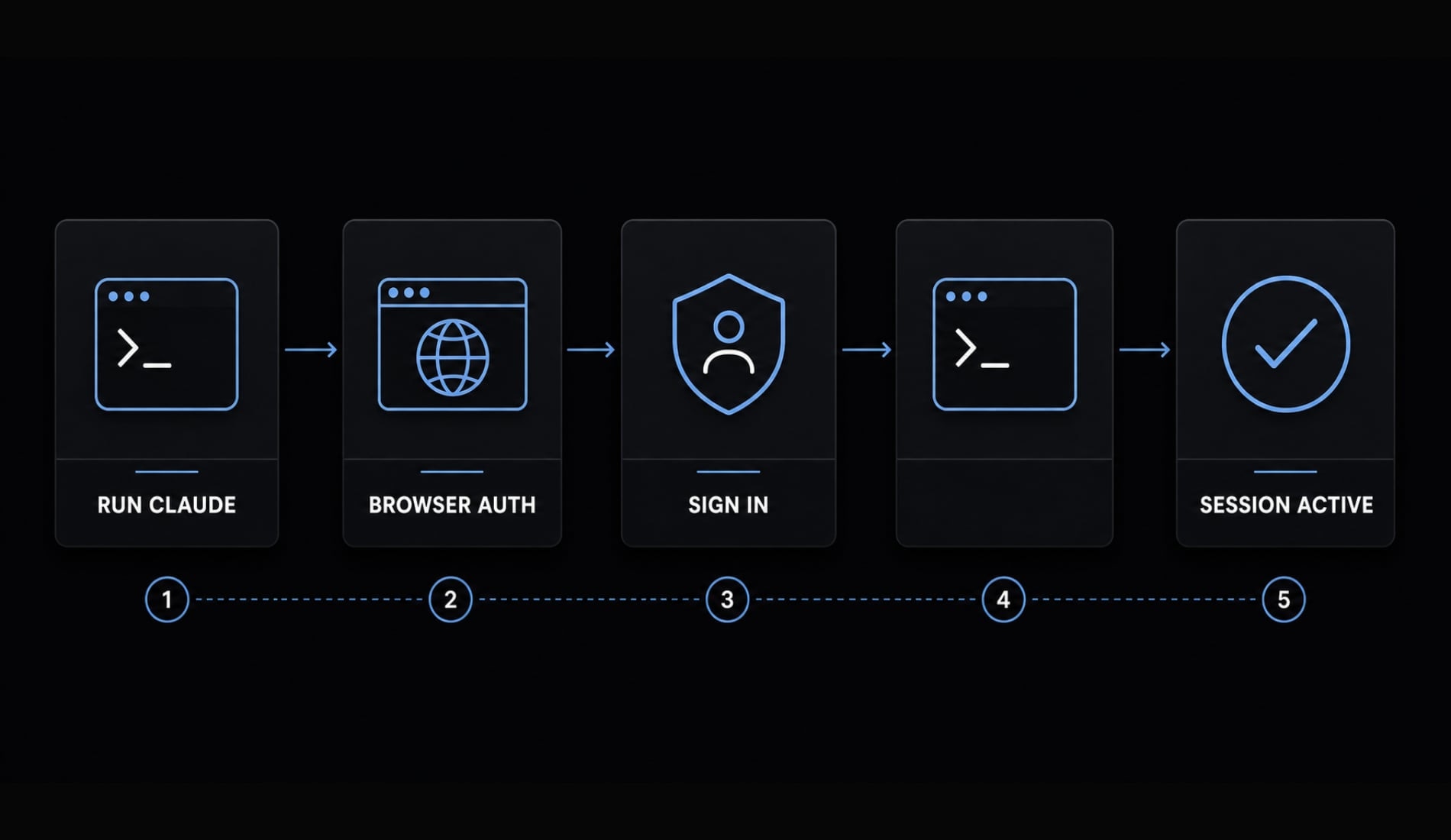
If Claude Code login not working in browser is your issue, start with the direct workaround: Press c, copy the login URL, and open it manually in your browser. In most cases, this solves the terminal authentication issue immediately. The browser launch step is a convenience layer, not the authentication itself.
This matters because browser-based OAuth can still work even when the terminal cannot launch your default browser automatically. The login flow is still valid; only the browser handoff is missing.
Copy the login URL manually
- Run
claudein the terminal. - If the browser does not open, press
c. - Copy the generated login URL.
- Paste it into a browser manually.
- Complete sign-in there and return to the terminal.
This is the fastest solution if Claude Code fails to open the browser automatically.
Common reasons browser launch fails
- WSL / WSL2.
- SSH session.
- Containerized environment.
- Remote machine without GUI.
- Restricted terminal-to-browser integration.
- Desktop/browser association not configured correctly.
In these cases, the browser-based OAuth step can still succeed, but the terminal may not be able to trigger it automatically.
This is normal in remote setups
In remote and hybrid development environments, browser auto-open often fails for practical reasons unrelated to your account. That does not mean the callback flow or sign-in path is broken. It usually means only the browser launch step needs to be done manually.
Why Claude Code asks you to paste a login code
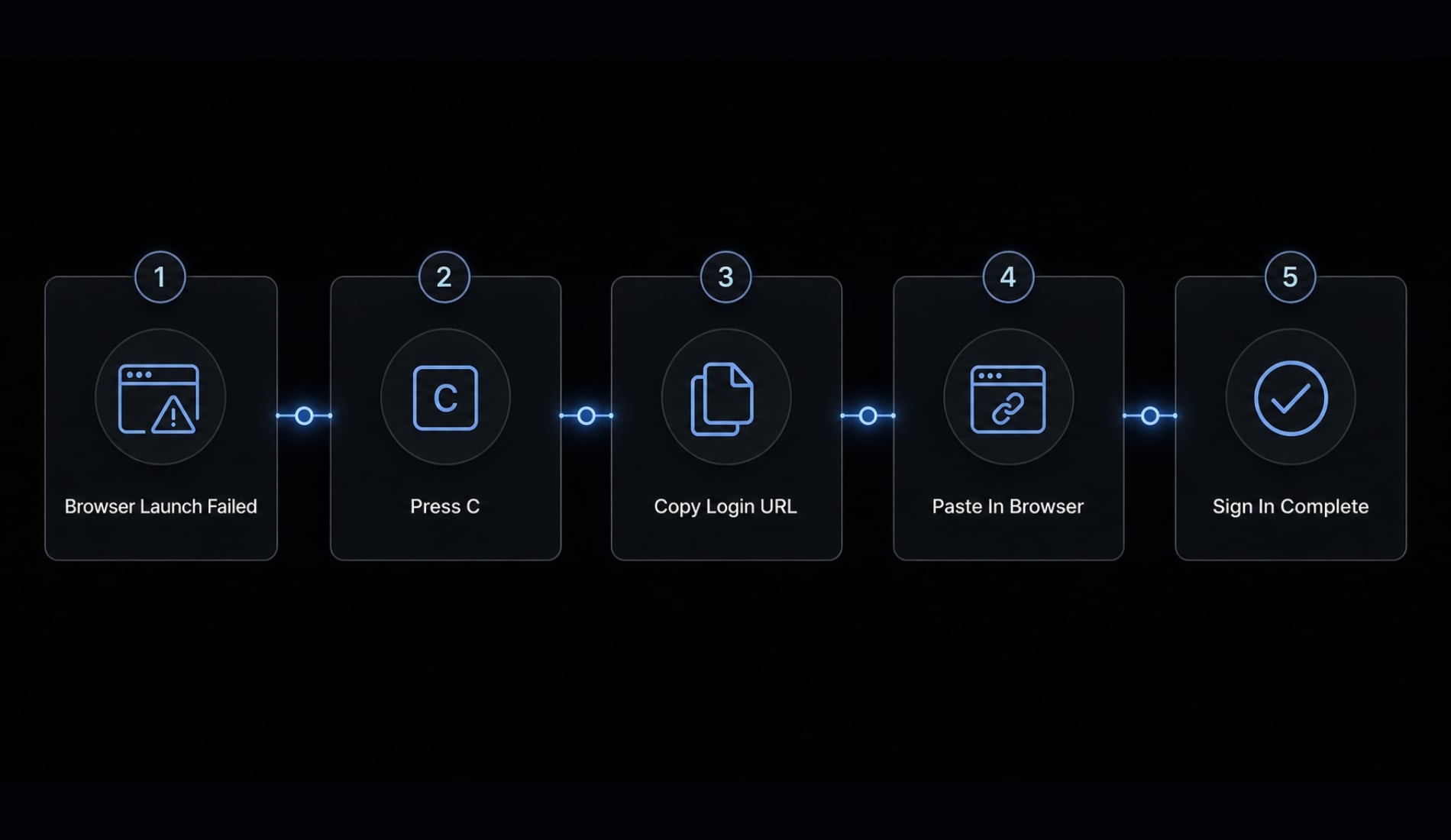
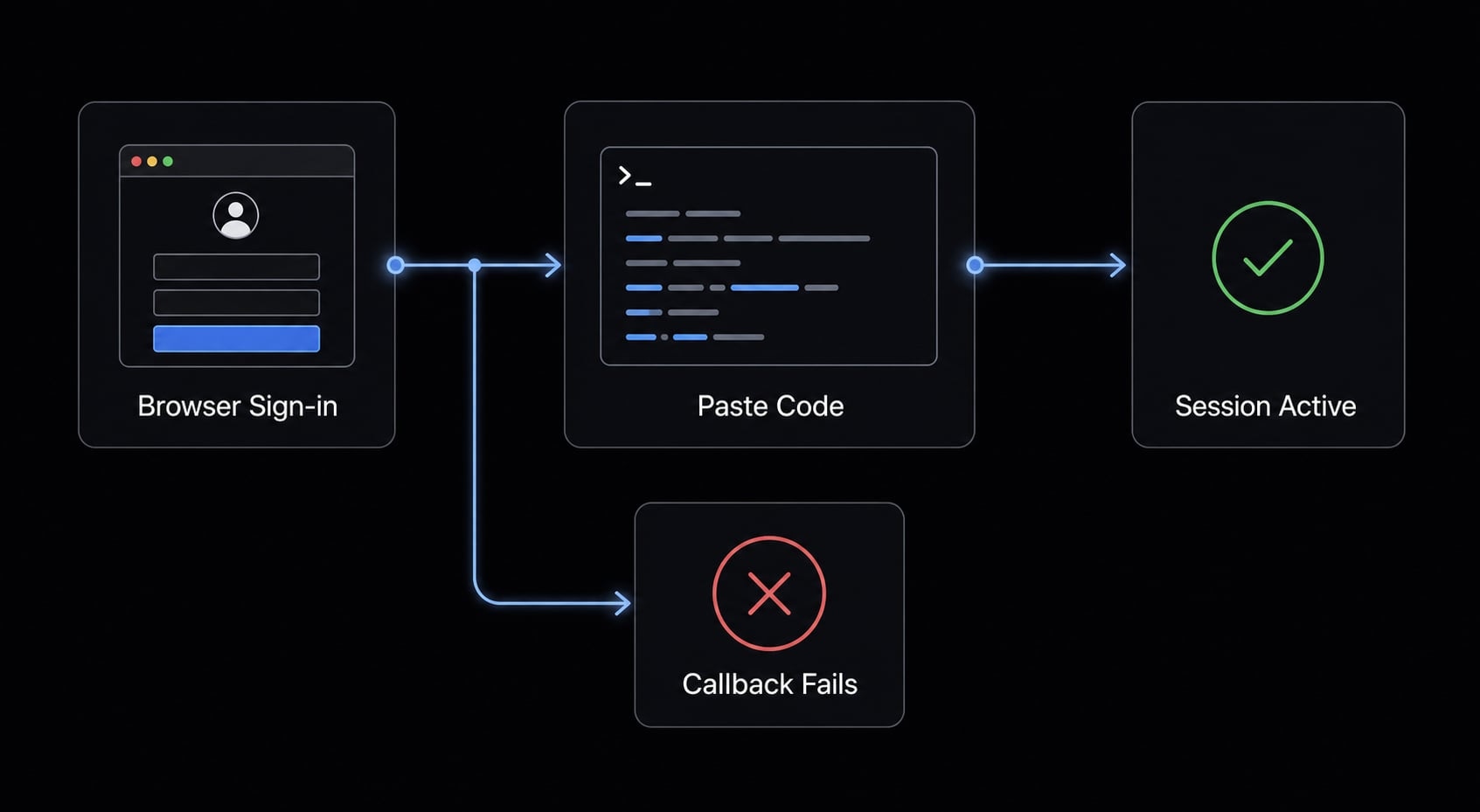
Claude Code asks you to paste a code when browser sign-in succeeds but cannot hand control back to the terminal. This is common in WSL, SSH sessions, containers, and other remote environments. It is a normal fallback path, not automatically a failed login or account problem.
If you see Paste code here, the browser step likely worked. The issue is usually the OAuth callback back into the CLI session, not your password, plan, or account status.
What the local callback means
In plain English, the browser login completed, but the return path back to your terminal did not. That return step is sometimes called a local callback. When the OAuth callback cannot complete, Claude Code falls back to manual code entry so you can finish authentication without restarting the process. This is why a terminal login code appears instead of a normal redirect.
How to finish the login?
- Complete the browser login as usual.
- Copy the code shown in the browser.
- Paste it into the terminal where it says Paste code here.
- Wait for the confirmation message.
- Continue your session.
If the code screen appears again later in a similar environment, that usually points to the same callback limitation rather than a new account issue.
This is not an account error
Note: Seeing Paste code here is usually not a wrong-password issue, not the wrong plan, and not a failed subscription check. It is typically an environment or callback behavior issue.
How to re-authenticate, switch accounts, or refresh an expired login
If you are unsure whether the current session is wrong or simply expired, check /status first. Authentication problems are often one of three things: The wrong account is active, the session is nearing expiration, or the login completed but you are not using the account path you expected. This is where recovery commands matter more than repeating the same browser flow.
Wrong account is active
- In the Claude Code session, run
/logout. - Start login again with
/login. - In the browser, choose the correct account.
- Return to the terminal and verify the session state.
This is the cleanest way to handle a Claude Code switch account scenario, especially if multiple browser accounts are already signed in.
Login is expiring or already expired
- Claude Code may warn you when a session is close to expiration.
- If you suspect an expired session, run
/loginto renew it. - If you are not sure whether renewal is necessary, run
/statusfirst. - After renewal, continue in the same CLI session if prompted.
Using /status before retrying can save time and prevent unnecessary login loops.
Access still looks wrong after login
- Run
/logout. - Run
claude update. - Fully restart the terminal.
- Run
claudeagain. - Select the correct account in the browser.
- Verify the session after returning.
This recovery path is useful when login technically succeeds, but the wrong plan or wrong account context still appears. That can happen with Claude Pro or Max account switching, cached sessions, or conflicting credential sources.
How API keys affect Claude Code login
Claude Code uses the highest-priority valid credential source it finds. If ANTHROPIC_API_KEY or another higher-priority credential is already present, browser login may be skipped or may not behave the way you expect. This is the most common cause of confusion around subscription vs API auth.
In practice, many users think they are “signed in correctly” because the terminal works, but the active credential source is not the one they intended. That is why understanding credential precedence matters.
Why browser login may be skipped
Claude Code checks available credentials in order and uses the highest-priority valid option first. If environment variables such as ANTHROPIC_API_KEY or ANTHROPIC_AUTH_TOKEN are already set, they can override the expected browser login flow. This is why browser-based sign-in may seem skipped even though Claude Code is authenticating successfully.
Simple credential precedence summary
Credential source | What it means | What to expect |
|---|---|---|
Cloud/provider credentials | Managed third-party or cloud provider auth | May be used first when configured |
| Token-based auth from environment | Can override browser login |
| API key-based authentication | May use API-based auth instead of subscription flow |
Helper/script-provided credentials | Credentials injected by local tooling | May take priority before browser session |
| Persistent CLI OAuth token | Useful for non-browser workflows |
Browser | Standard interactive login | Default path when higher-priority credentials are absent |
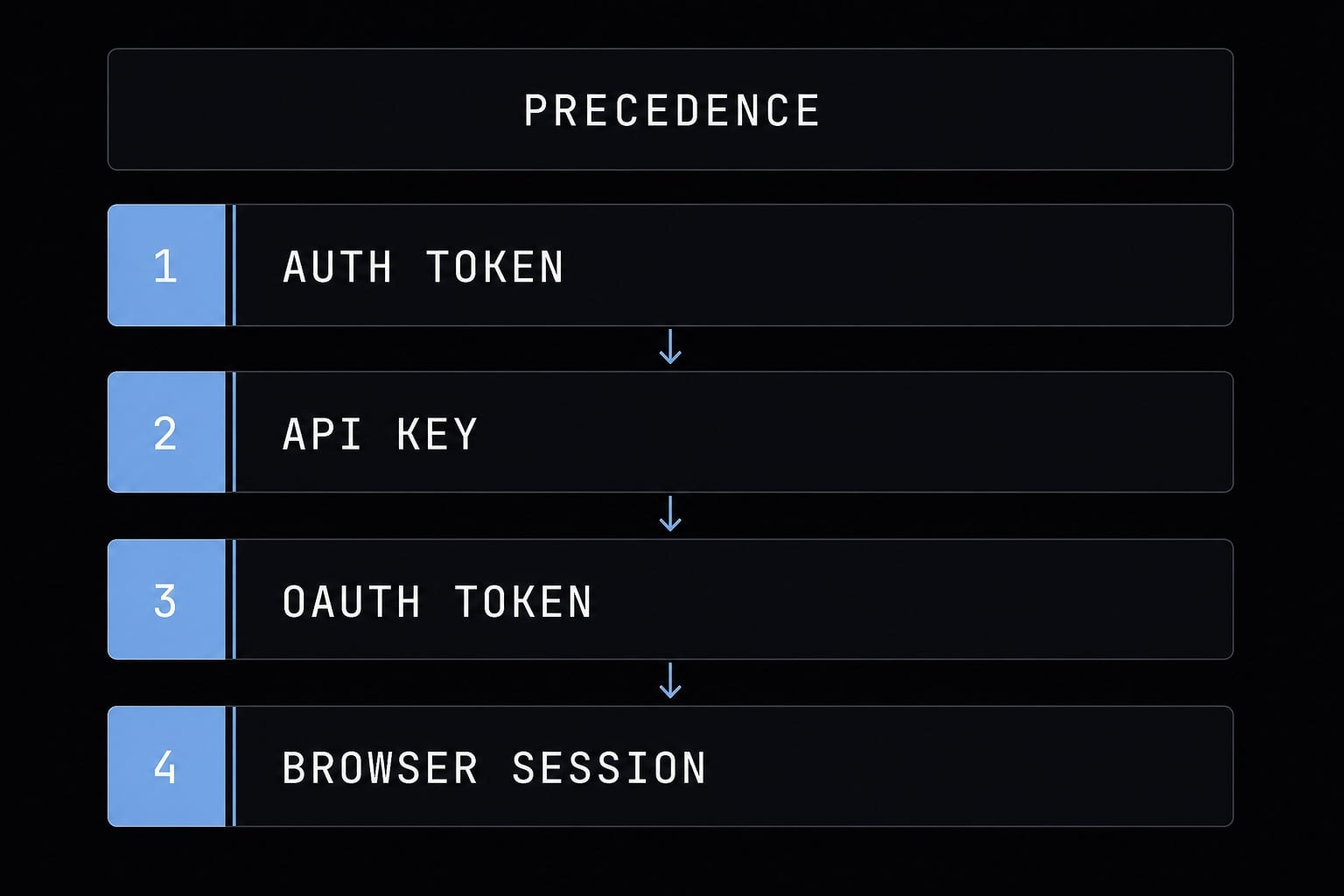
The key point is simple: Credential precedence determines which login source wins. If ANTHROPIC_API_KEY is active, Claude Code may use API-based authentication even when you expected a browser-based subscription session.That affects subscription vs API auth operationally. A subscription-linked browser login and API-key auth are not the same path. If API credentials are active, behavior may follow API-based usage rules, including separate API usage limits, instead of the account path you expected.
If you want subscription-based browser login instead
- Check whether
ANTHROPIC_API_KEYis set in your shell or profile. - Also check for
ANTHROPIC_AUTH_TOKENorCLAUDE_CODE_OAUTH_TOKEN. - Remove or unset conflicting environment variables if browser login is the goal.
- Run
/logout. - Start login again with
/loginor restart withclaude. - Verify afterward that the session now follows the expected browser flow.
If you are managing multiple credential methods, this is really a credential management issue more than a broken login.
Advanced authentication options for headless, CI and cloud environments
Advanced / edge cases
If browser login is not practical, Claude Code supports alternatives designed for automation and remote workflows. Most local users do not need this section, but it becomes relevant in a headless environment, CI pipeline, or managed cloud setup.
Generate a long-lived token
claude setup-token
export CLAUDE_CODE_OAUTH_TOKEN=your-token
Use claude setup-token when interactive browser login is not practical. This creates a long-lived token that can be used for non-interactive sessions, remote workflows, or CI authentication where a browser callback is not realistic.
Supported cloud-based auth paths
- Amazon Bedrock.
- Google Cloud.
- Microsoft Foundry.
These are examples of supported cloud provider authentication paths. They are useful in managed enterprise or infrastructure-driven setups, but they are not the default starting point for most terminal users.
Use these only when browser login is not practical
This is not the default setup path. Most local users should start with browser login and only move to claude setup-token or provider-based methods if the environment truly requires it.
Quick troubleshooting checklist
Use this section to troubleshoot Claude Code login quickly based on the symptom you see.
- Browser did not open → Press
cand open the login URL manually. - Browser showed a code → Paste it into the terminal at Paste code here.
- Wrong account is active → Run
/logout, then/login. - Login seems skipped → Check for
ANTHROPIC_API_KEYor other environment variables. - Access still looks wrong → Run
claude update, restart the terminal, and retry. - Unsure whether the session is bad or expired → Run
/status. - Need to authorize terminal session in a remote workflow → Consider
claude setup-tokenonly if browser login is not practical. - Repeatedly seeing the wrong auth behavior → Review credential management and active credential source order.
This checklist covers the majority of cases where users need to troubleshoot Claude Code login without digging into deeper configuration.
Frequently asked questions
How do I authenticate Claude Code in the terminal?
To authenticate Claude Code, run the claude command in your terminal. A browser will open automatically, allowing you to sign in with your Claude account. Once you have signed in successfully, return to the terminal and press Enter to complete the setup and start your session.
Why does the browser not open automatically when I run the claude command?
This commonly occurs in remote, SSH, or container environments. Press c in the terminal to copy the authentication URL to your clipboard, then paste it into a browser on your computer to complete the sign-in process manually.
Why does Claude Code ask me to paste an authentication code?
If the browser displays a code instead of redirecting you to the terminal automatically, the local callback process has been blocked. Copy the code, paste it into the “Paste code here” field in the terminal, and press Enter to confirm access to your account.
How do I switch accounts or log out of Claude Code?
You can manage your session using built-in commands. Enter /logout to sign out of your current account, then run /login to sign in with a different account. Use /status at any time to check your current authentication status.
Why does Claude Code skip browser-based authentication?
Claude Code prioritizes an ANTHROPIC_API_KEY or other preconfigured environment variables over browser-based authentication. If you want to use a Pro or Max subscription, check for and remove these environment variables, or run /logout before restarting the sign-in process.
What should I do if authentication still does not work?
Try this quick recovery process: run /logout, then execute claude update to ensure you are using the latest software version. Fully restart the terminal, run the claude command again, and make sure you select the correct account in the browser when prompted.
Read more:
- Claude Code slash commands: Essential shortcuts for CLI flow
- Claude Code invalid tool parameters: Causes and fixes
- Claude Code Figma MCP setup: Remote vs desktop guide
Conclusion
To authenticate Claude Code terminal access successfully, remember the three main buckets: the normal browser login flow, browser or callback fallbacks such as manual URL opening and code pasting, and credential precedence issues caused by API keys or other stored credentials. Most login problems are resolved once you identify which of those three paths you are actually in.
If you are setting up Claude Code for the first time, pair this guide with your install steps and a simple Claude Code onboarding checklist so you can verify account selection, session state, and credential source in one pass.