Claude Code Google Drive MCP: Ultimate setup & Auth guide
Claude Code Google Drive MCP: Setup, authentication, testing and security
Connecting a Claude Code Google Drive MCP server lets Claude Code search, read, and-where explicitly permitted-create files using your organization’s Google Drive context. This guide focuses on Claude Code’s terminal workflow, not the separate custom connector interface in Claude.ai.
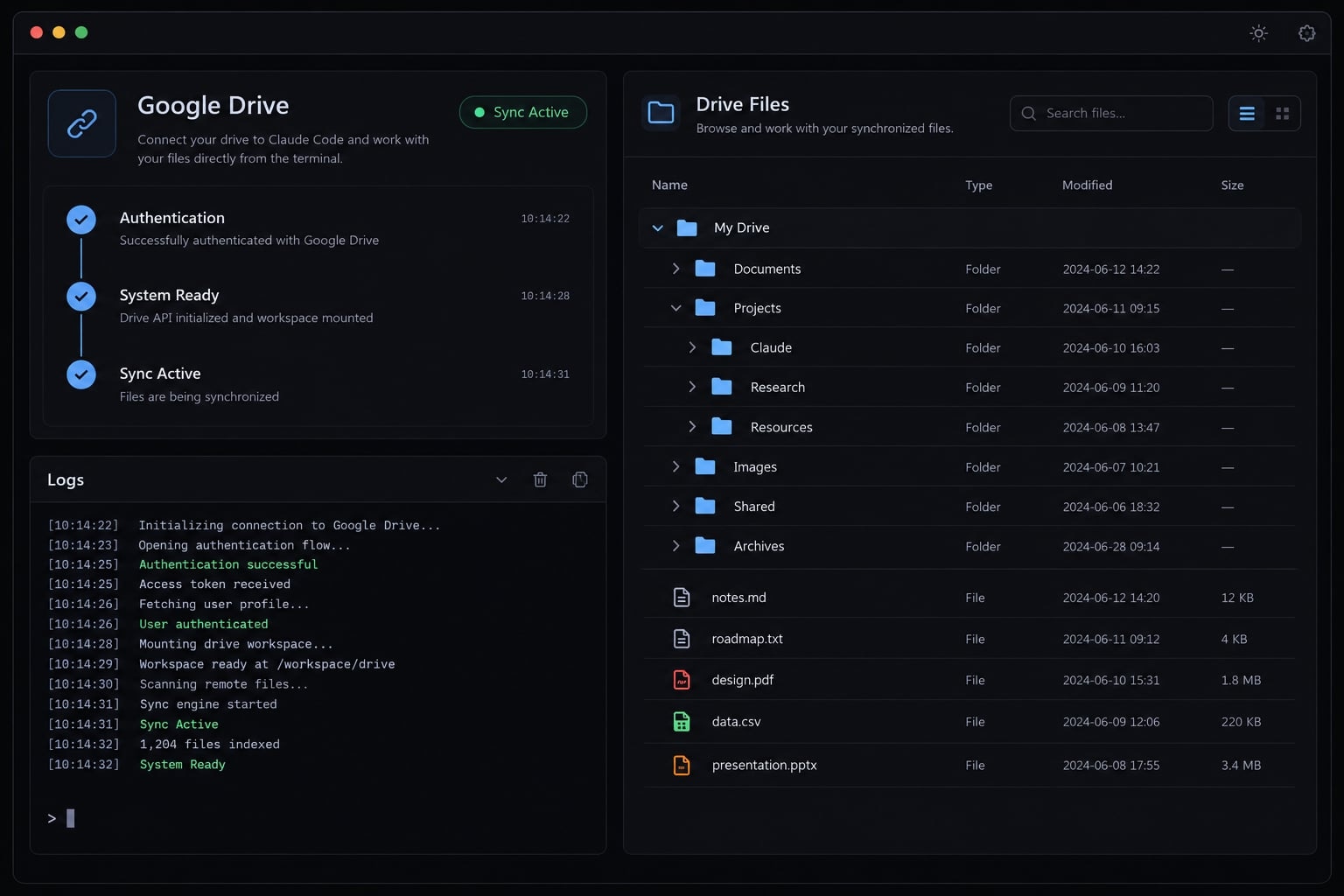
The implementation process consists of the following steps:
- Choose a direct, managed, or self-hosted route.
- Verify Claude Code and Google account prerequisites.
- Configure Google Cloud or the selected provider.
- Register the Google Drive MCP server.
- Authenticate the correct Google account.
- Validate tool execution before enabling write actions.
Compatibility warning: MCP commands, OAuth behavior, provider URLs, and Google service availability can change. Confirm version-sensitive instructions against the linked first-party documentation before production deployment.
Environment and verification statusLast documentation review: Current publication revisionClaude Code version: Verify locally with claude --versionOperating systems: macOS, Linux, and WSL terminal workflowsMCP transport: Remote HTTPRoutes covered: Google remote service, Merge Agent Handler, and ComposioAvailability: Google documents the Drive MCP endpoint, but its Claude instructions currently describe Claude.ai rather than a complete Claude Code OAuth flowValidation status: Documentation-verified; no independent live-account test is claimed1. Choose the right Google Drive MCP setup method
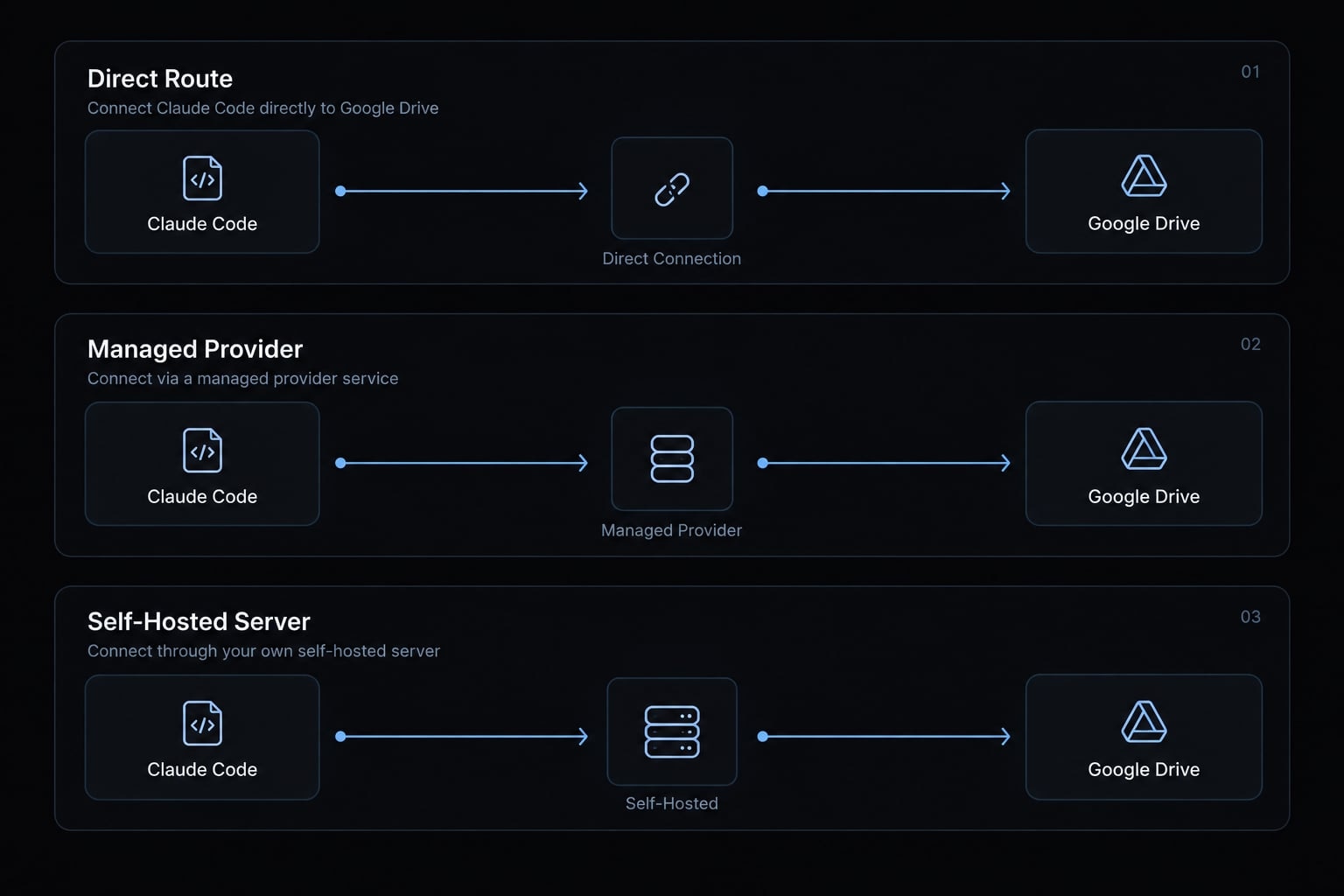
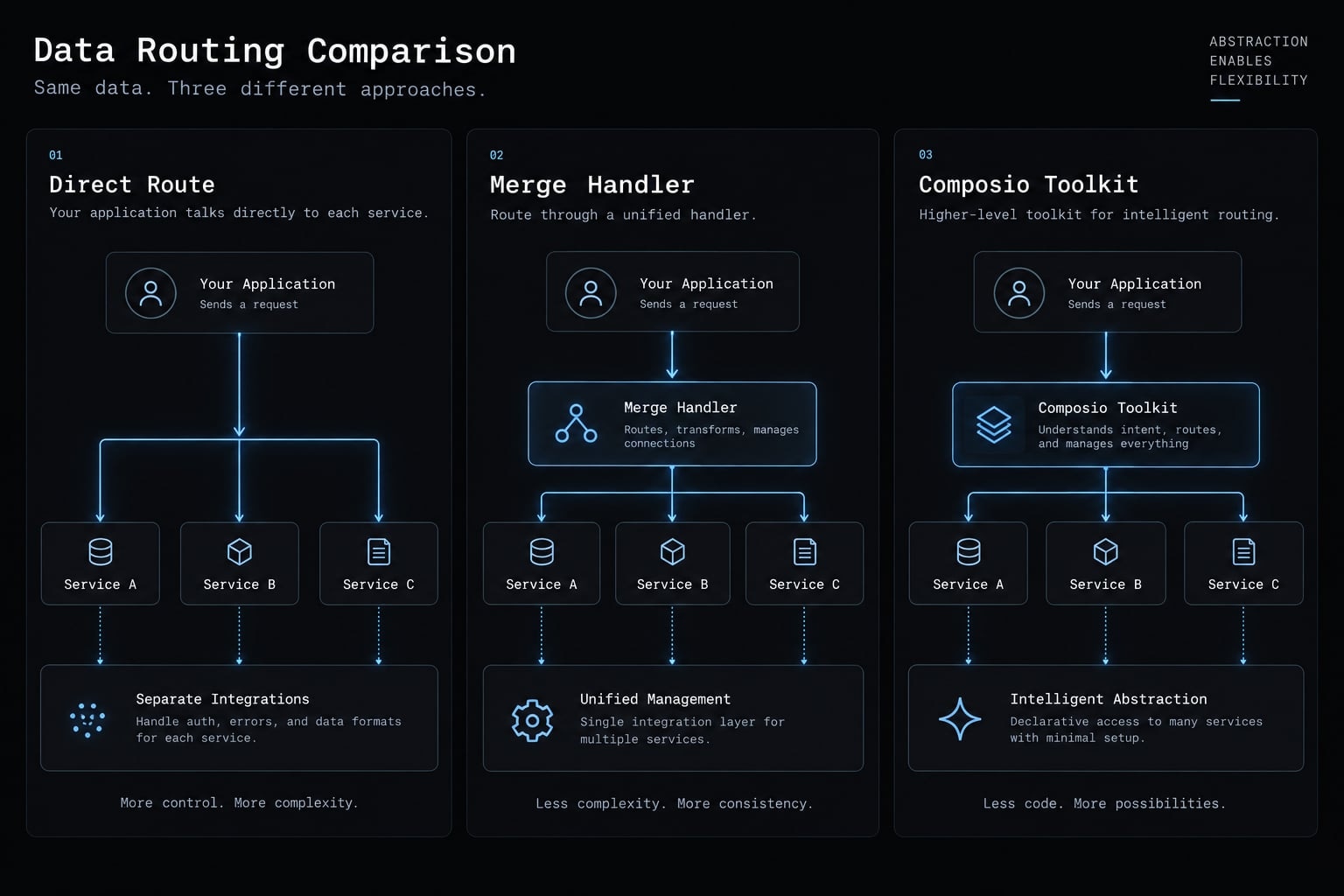
The implementation method you choose depends on who is responsible for managing OAuth credentials, token storage, infrastructure maintenance, and data routing for Claude Code Google Drive MCP. A direct Google route minimizes intermediary platforms, while a managed provider reduces operational work. A self-hosted MCP server offers the most customization but transfers security and maintenance responsibility to your team.
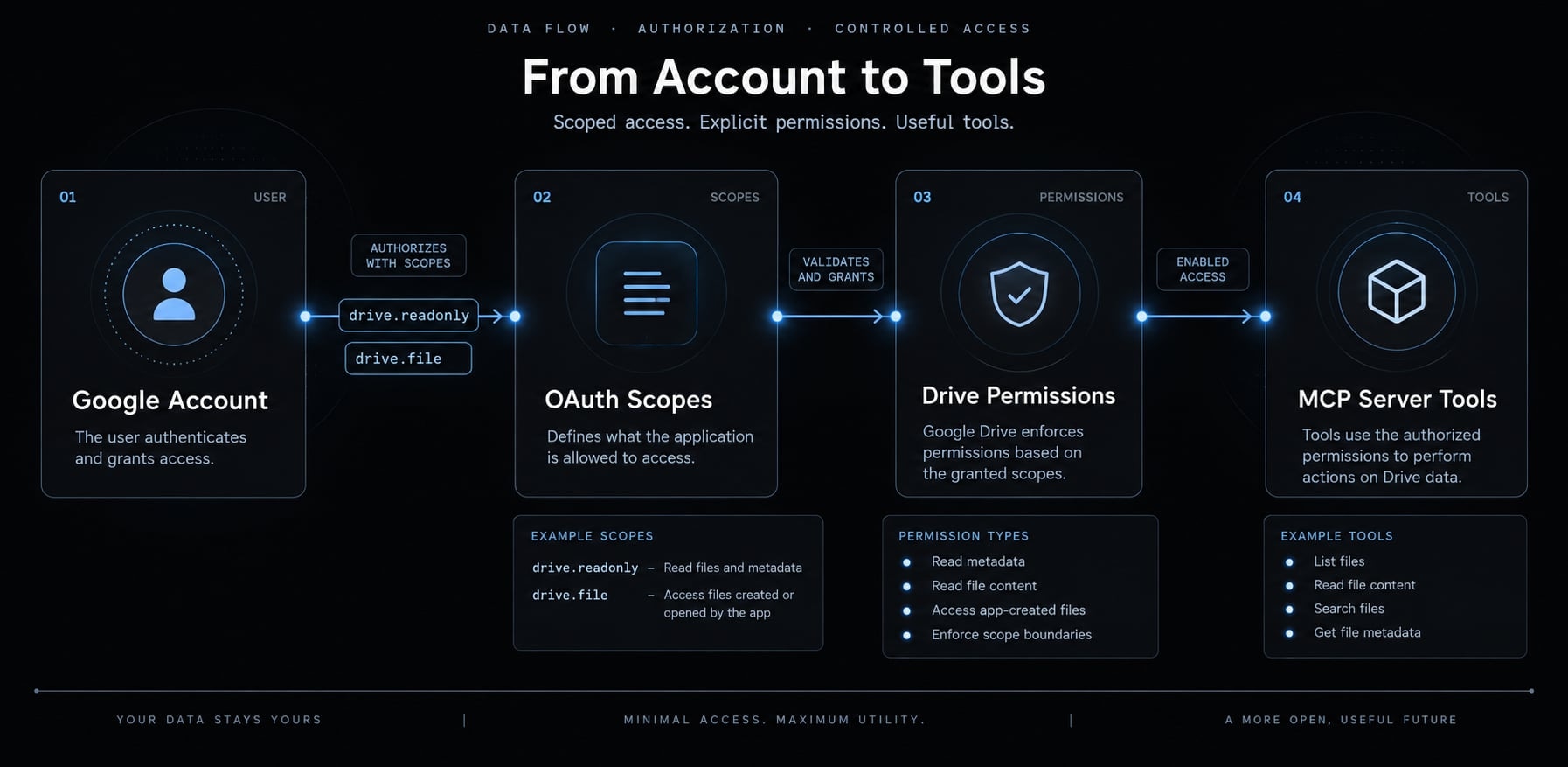
Available Drive actions depend on three controls:
- The tools exposed by the MCP server.
- The OAuth scopes granted to the connection.
- The target Google account’s existing Drive permissions.
A broad OAuth scope does not guarantee that the server implements a matching tool. Conversely, a server may expose a create or share tool that still fails if the account lacks the required permission.
Route | Best use case | Setup effort | OAuth maintenance | Data routing | Deployment control | Vendor dependency | Multi-user suitability | Maintenance |
|---|---|---|---|---|---|---|---|---|
Google direct | Teams prioritizing direct infrastructure ownership | High | High | Claude Code → Google | High | Low | Medium | High |
Managed provider | Teams prioritizing faster setup | Low | Low | Claude Code → Provider → Google | Medium | High | High | Low |
Self-hosted | Custom tools, compliance, private infrastructure | High | High | Controlled by your deployment | High | Low–Medium | High | High |
Use this decision logic:
- Choose Google’s direct route when it is available to your account and its OAuth flow is compatible with your Claude Code version.
- Choose a managed MCP provider when reduced setup and token-management work justify an additional data processor.
- Choose self-hosting when custom Drive operations or infrastructure requirements justify ongoing maintenance.
Provider disclosure: “Managed” does not mean “official,” automatically compliant, or inherently safer. Review where tokens, prompts, file content, and tool responses are processed.
2. Check the prerequisites for connecting Claude Code to Google Drive
Complete preflight checks before changing Google Cloud or OAuth settings. Use a dedicated Drive folder containing no customer data, credentials, financial records, or confidential product documents.
Verify Claude Code
claude --version
Expected result: The terminal returns an installed Claude Code version.
This confirms the executable is available in the current shell. If the command is missing, follow the current Claude Code installation documentation.
Check existing MCP registrations:
claude mcp list
Expected result: Claude Code displays registered servers or an empty list. An empty list is not an error.
Verify the Google Cloud CLI for the direct route
gcloud --version
Expected result: The command returns the installed Google Cloud CLI version.
Managed providers may not require gcloud. The direct Google route does.
Check the active CLI account:
gcloud auth list --filter=status:ACTIVE --format="value(account)"
Expected result: The intended Google Cloud identity is returned.
Then check the active project:
gcloud config get-value project
Expected result: The exact project ID appears. A project ID is not the project’s display name.
Confirm account and Drive access
Before configuration, verify that you have:
- Browser access for OAuth authorization.
- Permission to configure Google Cloud services and OAuth settings.
- Access to the Google Drive account you intend to authorize.
- Permission to open the files used for testing.
- A dedicated folder containing a non-sensitive test file.
- Organization approval for third-party OAuth applications, if applicable.
The active gcloud account and the Google account authorized in the browser can be different. Confirm both identities during troubleshooting.
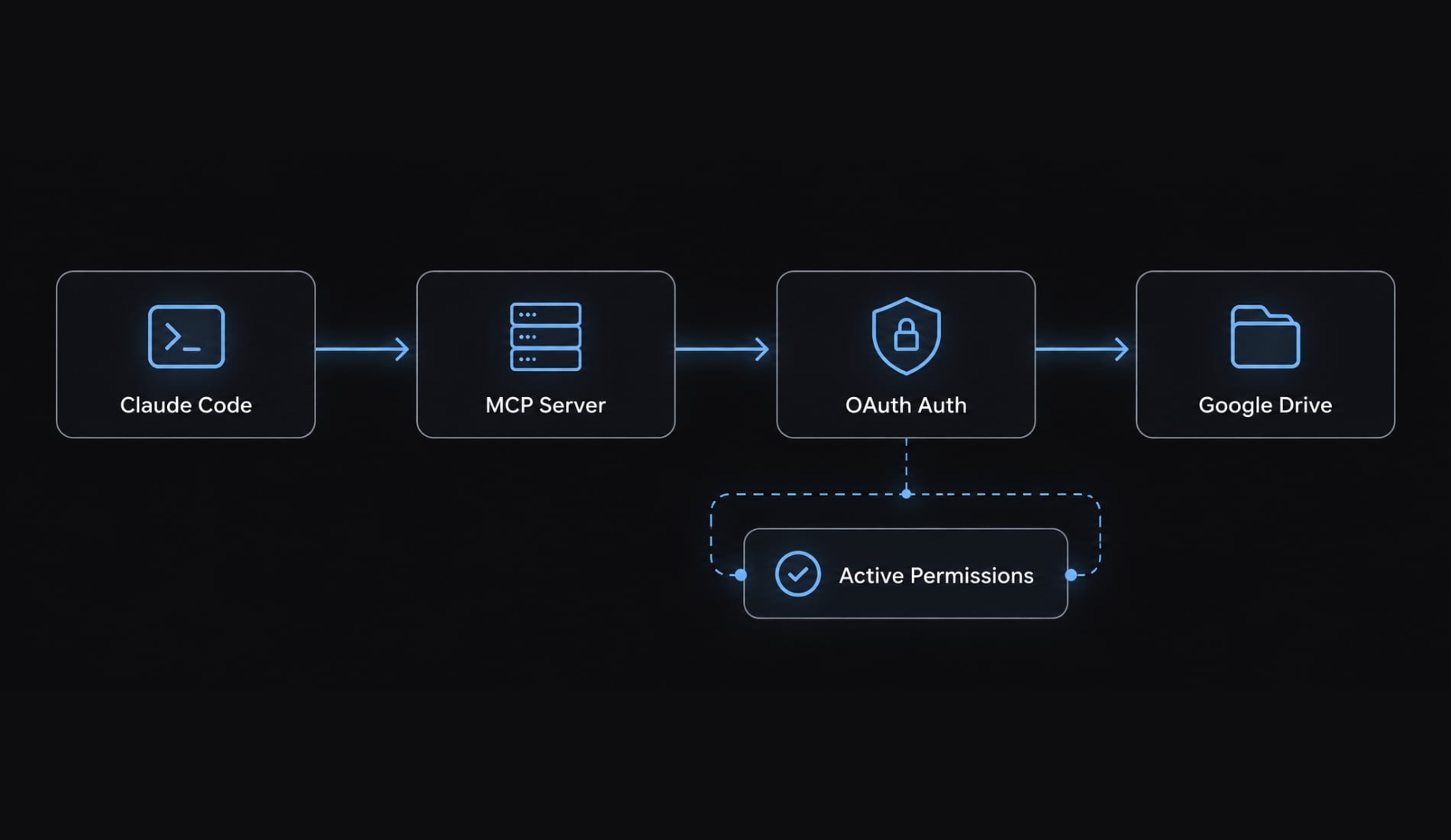
Understand the four components
- Claude Code MCP client: Registers servers and invokes their tools.
- MCP server: Exposes structured search, read, create, or other Drive tools.
- Google Drive API: Performs permitted operations against Google Drive.
- OAuth 2.0: Authorizes a specific Google account without giving Claude Code the account password.
OAuth does not bypass file permissions. The authenticated account can only access files already available to that account.
3. Configure Google’s Drive MCP service for Claude Code
Google documents a remote Drive MCP endpoint and the required Google Cloud services in its Drive MCP server configuration guide. However, the documented Claude OAuth instructions currently target Claude.ai custom connectors, not a fully specified Claude Code callback flow.
You can configure the Google-side prerequisites below. Before production use, confirm that your Claude Code version can complete OAuth with the documented endpoint. Do not reuse the Claude.ai redirect URI or invent a callback URI for Claude Code.
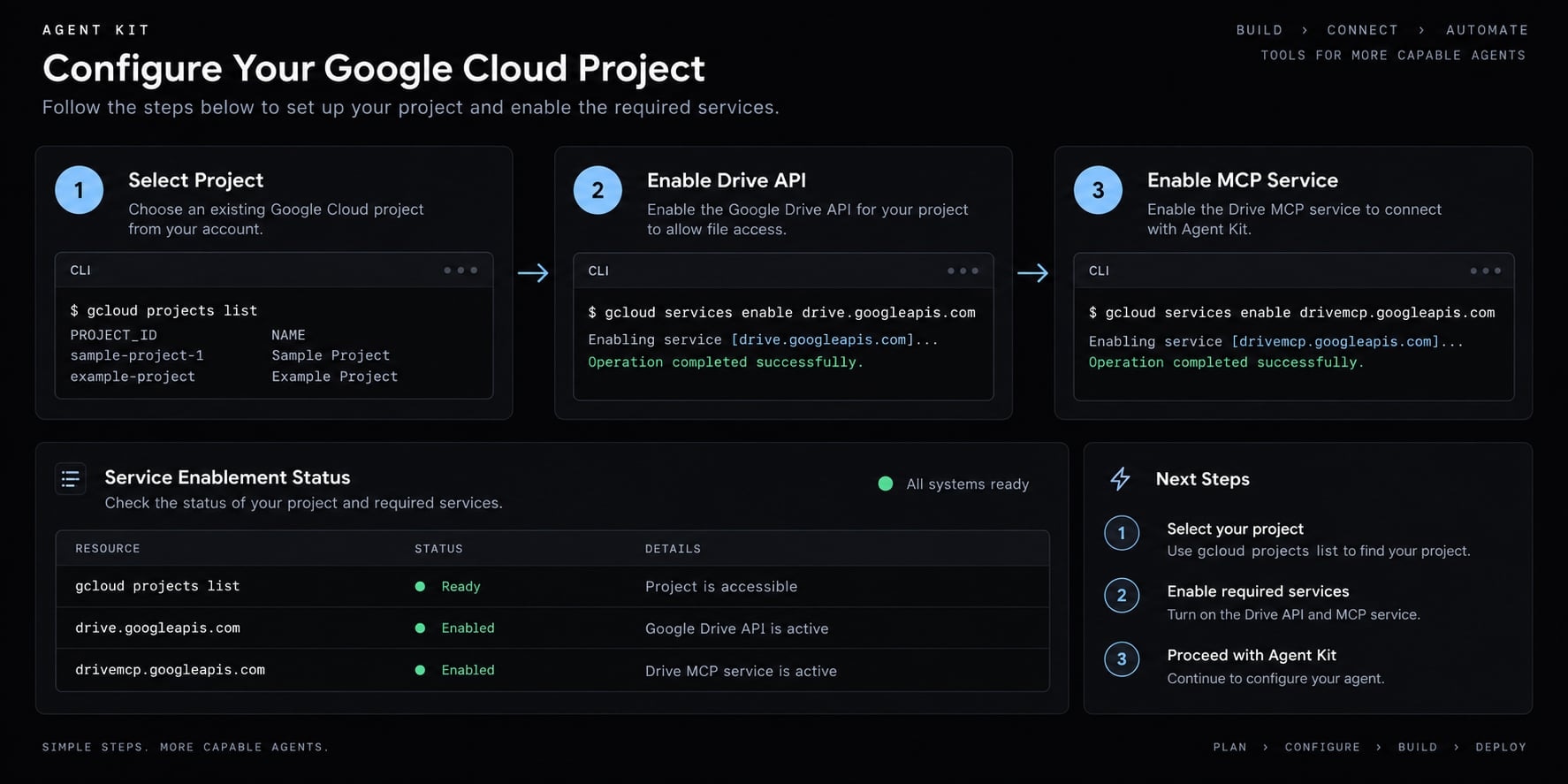
Step 1: Select the Google Cloud project
List projects available to the active identity:
gcloud projects list
Expected result: The intended project appears with its PROJECT_ID.Set that project as active:
gcloud config set project PROJECT_ID
Replace PROJECT_ID with the exact project ID, not its display name.
Confirm the selection:
gcloud config get-value project
Expected result: The command returns the selected project ID.
If this fails: Run gcloud auth list and verify that the active account has access. Organization policies may also restrict project visibility or service enablement.
Step 2: Enable the documented Google services
Google’s current guide identifies these services:
Service | Purpose |
|---|---|
| Provides Google Drive API access |
| Provides the documented remote Drive MCP service |
Enable the Google Drive API:
gcloud services enable drive.googleapis.com --project=PROJECT_ID
Enable the Drive MCP service:
gcloud services enable drivemcp.googleapis.com --project=PROJECT_ID
Expected result: Each command completes without a service-enablement error.
Confirm enabled services:
gcloud services list --enabled --project=PROJECT_ID
Expected result: Both service names appear in the output.
If this fails: Verify that your identity has permission to enable services. Google Workspace or organization policies may require administrator approval, billing configuration, eligibility, or allowlisting.
Step 3: Configure the OAuth consent screen
Open: Google Cloud Console → Google Auth Platform → Branding
Configure:
- App name: Use a recognizable internal name, such as
Drive MCP Server. - User support email: Select a monitored address.
- Developer contact information: Add an operational contact.
- Audience: Select Internal or External according to your organization.
- Test users: Add authorized test accounts when using an External app in testing.
Then open: Google Cloud Console → Google Auth Platform → Data Access
Expected result: The intended Google account is eligible to authorize the application.
The audience setting controls who can authorize the OAuth app. It does not grant access to every file in Google Drive.
- Internal: Generally limited to users inside the associated Google Workspace organization.
- External: Can support accounts outside the organization but may require test users, publishing controls, or verification.
If this fails: Ask the Google Workspace administrator whether third-party apps, unverified OAuth applications, or specific scopes are blocked.
Step 4: Add the required Google Drive OAuth scopes
Google’s current Drive MCP guide lists:
https://www.googleapis.com/auth/drive.readonlyhttps://www.googleapis.com/auth/drive.file
Add them under:
Google Cloud Console → Google Auth Platform → Data Access → Add or Remove Scopes
Scope | Authorizes | Does not guarantee |
|---|---|---|
| Read-only access to Drive files available to the user | Access to files the user cannot open |
| Per-file access to files created or opened through the application | Unrestricted editing of every file in Drive |
The drive.file scope is not equivalent to general write access across the user’s entire Drive. Its behavior is application-specific and remains constrained by file permissions and the server’s implemented tools. Review Google’s OAuth scope documentation.
Expected result: Only the scopes required by the documented implementation appear in the app’s data-access configuration.
Security note: Begin with search and read workflows where the chosen route allows narrower authorization. Add write-capable tools only after read validation. If Google requires both listed scopes for this service, isolate initial testing to a dedicated account or folder.
Step 5: Create OAuth credentials only for a documented client flow
Google’s current Claude instructions specify a Web application OAuth client with this redirect URI:
https://claude.ai/api/mcp/auth_callback
That redirect URI belongs to the Claude.ai custom connector flow. It should not be assumed to work for Claude Code.
Open: Google Cloud Console → Google Auth Platform → Clients → Create Client
Before creating credentials, confirm from current Anthropic and Google documentation:
- The client type required by Claude Code.
- The exact callback URI.
- Whether the flow uses static credentials or dynamic client registration.
- Which component consumes the client ID and secret.
- Whether the Google endpoint is available to your Workspace account.
If no current source specifies these fields for Claude Code, stop and use a documented managed or self-hosted route.
Store OAuth secrets in an approved secret manager. Never place them in:
- Git repositories.
- Committed
.envfiles. - Shell history.
- Screenshots.
- Support tickets.
- Shared documents.
- Browser-side code.
- Public logs.
Expected result: Credentials match a documented Claude Code OAuth flow and are stored outside the project repository.
Step 6: Register the remote server in Claude Code
Anthropic documents remote MCP registration through the claude mcp add command. Subject to compatibility verification, the registration pattern is:
claude mcp add --transport http google-drive https://drivemcp.googleapis.com/mcp/v1
Check the registration:
claude mcp list
Then start Claude Code:
claude
Open the MCP interface:
/mcp
Expected result: The google-drive server is listed. If the endpoint and client support a compatible OAuth flow, the MCP interface should expose an authentication action.At this point, distinguish three states:
- Listed: The registration exists.
- Connected: Claude Code can reach the server.
- Authenticated: A Google account has authorized access.
The integration is not fully validated until a Drive tool retrieves a known file.
Compatibility warning: If browser authorization does not begin, do not use the Claude.ai callback URI as a workaround. Recheck current Claude Code MCP documentation, Google’s endpoint eligibility, and supported OAuth registration behavior.
4. Use a managed Google Drive MCP provider for faster setup
A managed provider can handle OAuth token management and Google API requests on your behalf. This reduces setup work but adds another platform to the authentication and data path.
Review supported tools, account requirements, pricing, logging, data retention, and revocation controls before authorization.
Option A: Merge Agent Handler
According to Merge’s Claude Code Google Drive documentation, install its CLI with pipx:
pipx install merge-api
Expected result: merge --version returns the installed version.
Authenticate your Merge account:
merge login
Register Agent Handler with Claude Code:
merge setup claude-code
The documented manual alternative is:
claude mcp add --transport http agent-handler https://ah-api.merge.dev/mcp
Start Claude Code, run /mcp, and confirm that agent-handler appears. The first Google Drive request should return a browser authorization link.
Provider disclosure: Claude Code connects through Merge’s Agent Handler layer rather than directly to Google’s MCP endpoint. Review Merge’s current plan requirements, supported Drive actions, token policies, logs, and retention terms.
Option B: Composio Google Drive MCP
Composio provides a managed MCP URL for its Google Drive toolkit. Its documented SDK flow requires a Composio account, API key, and user identifier.
After generating the MCP URL, store it and the API key as environment variables:
export COMPOSIO_MCP_URL="YOUR_MCP_URL"export COMPOSIO_API_KEY="YOUR_API_KEY"
Register the endpoint using the current command documented by Composio:
claude mcp add --transport http googledrive-composio "$COMPOSIO_MCP_URL" --headers "X-API-Key:$COMPOSIO_API_KEY"
Restart Claude Code and verify:
claude mcp list
Invoke a Google Drive tool to trigger browser authentication.
Provider disclosure: Requests and tool responses pass through Composio’s platform. Confirm the current account tier, toolkit capabilities, logging behavior, authentication model, and data-processing terms.
Managed-provider due-diligence checklist
- Where are OAuth access and refresh tokens stored?
- Are tokens and file content encrypted?
- Are prompts, file contents, or tool responses logged?
- What is the retention period?
- Which subprocessors receive data?
- What data residency options exist?
- Are user-level audit logs available?
- How is a connection revoked?
- Which OAuth scopes and Drive tools are enabled?
- What pricing and rate limits apply?
5. Verify that Google Drive MCP works in Claude Code
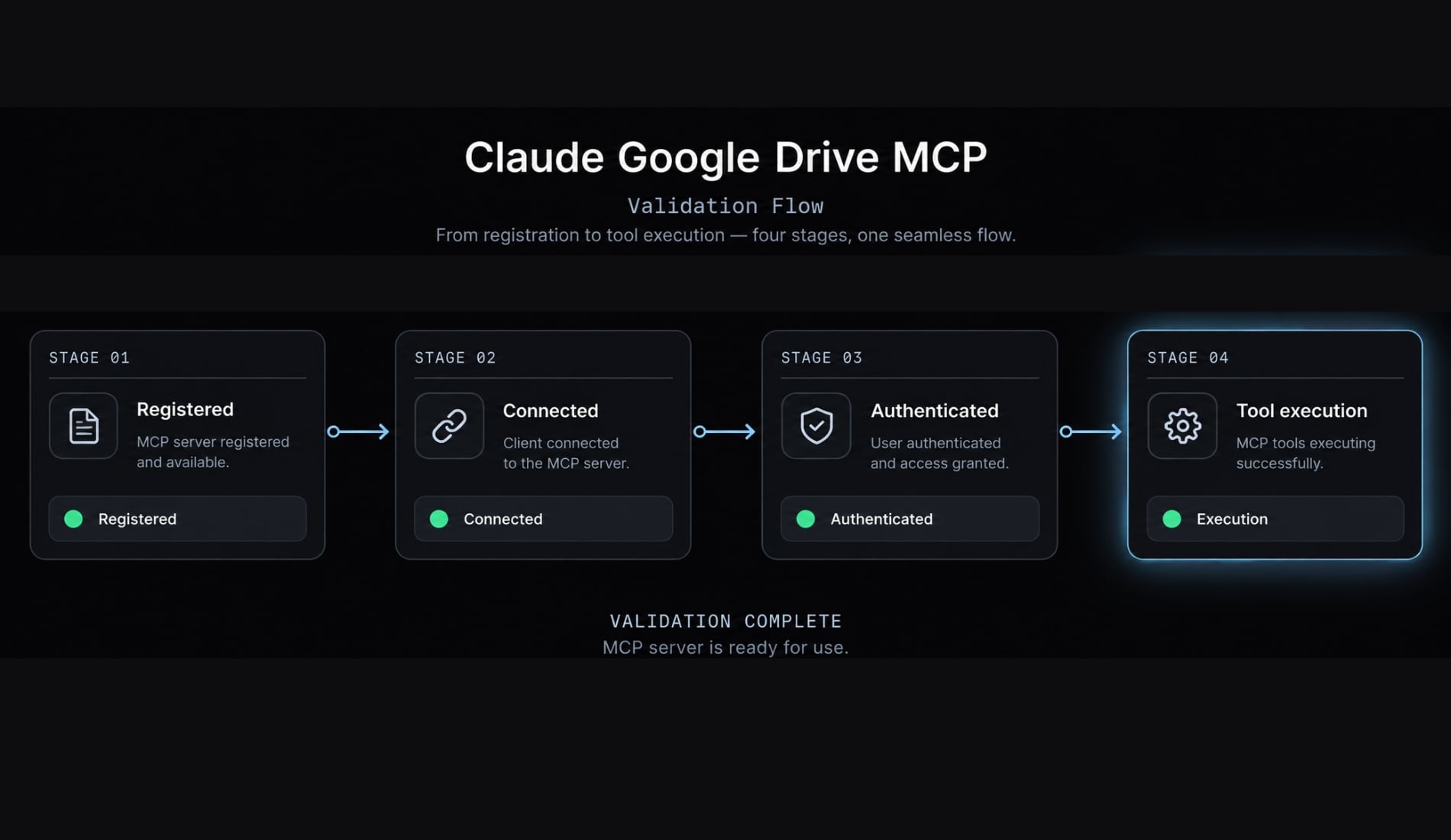
A server appearing in claude mcp list proves only that it was registered. Registration is not authentication, and authentication is not successful Google Drive tool execution.
Create a non-sensitive file named MCP Test Document containing:
- Project codename: Silver Finch.
- Review day: Thursday.
- Test value: 4827.
Use the following validation model:
Stage | Test action | Pass condition | Failure meaning | Next diagnostic step |
|---|---|---|---|---|
Registered | Run | Server appears | Missing registration | Re-run the documented add command |
Connected | Open | Status shows connected | Transport or endpoint failure | Check URL, network, and provider status |
Authenticated | Complete browser OAuth | Correct account is authorized | OAuth configuration failure | Check account, audience, and callback |
Tool execution | Read the test file | Unique facts are returned | API, permission, scope, or tool issue | Test exact-name search and metadata |
Run read-only test prompts
Exact-name search:
Search Google Drive for a file named "MCP Test Document". Return its exact file name and metadata only.
Metadata retrieval:
Retrieve the metadata for "MCP Test Document", including file type and modified time if available.
Read and summarize:
Read "MCP Test Document" and return the project codename, review day, and test value.
Recent-file listing:
List the five most recent files accessible through the Google Drive connection. Do not modify anything.
A grounded result should return Silver Finch, Thursday, and 4827 from the correct file. A generic explanation of Google Drive is not proof of retrieval.
Optional write test
Run this only when write access was intentionally configured:
Create a file named "MCP Write Test" in the approved test folder containing: "Created after successful read-only validation." Ask for confirmation before creating it.
Verify the new file manually in Drive. Human review should precede every create, move, share, permission-change, or delete operation.
6. Troubleshoot common Claude Code Google Drive MCP errors
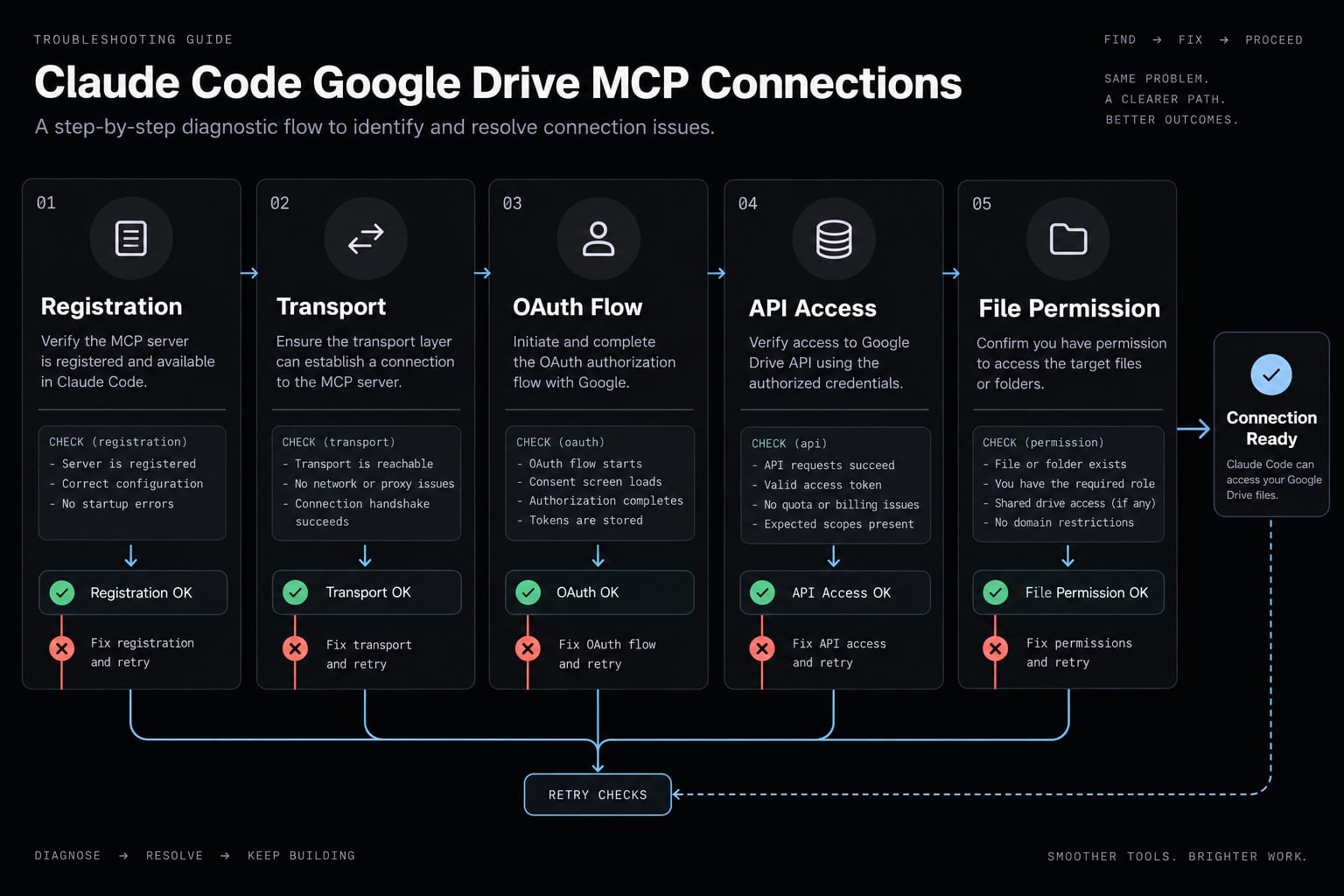
Start with the first failed stage: Registration, transport, OAuth initiation, OAuth authorization, API access, file permission, or tool capability. Do not reinstall everything or create multiple OAuth clients before isolating the failure.
Symptom | Failed stage | Likely cause | Recommended fix | Verification |
|---|---|---|---|---|
Server missing from list | Registration | Add command failed or wrong configuration scope | Re-run the documented command |
|
Server listed but disconnected | Transport | Wrong URL, blocked network, unavailable server | Check endpoint and network policy | Open |
Browser does not open | OAuth initiation | Client-server OAuth flow unsupported | Check current client and server docs | Retry Authenticate |
| OAuth authorization | Callback differs from OAuth client configuration | Use only the provider’s exact callback | Restart authorization |
API or service disabled | API access | Required Google service not enabled | Enable documented services | List enabled services |
OAuth access denied | Authorization | User denied access or admin blocked app | Review consent and Workspace policy | Reauthorize |
App unavailable to user | Audience | User is outside Internal audience or test list | Update audience or test users | Retry with approved account |
Tool cannot find file | File permission | Wrong account, name, folder, or sharing | Open the file manually with that account | Exact-name search |
Read works but create fails | Scope/tool | Write scope absent or create tool unavailable | Inspect scopes and server tools | Create in test folder |
Authentication keeps expiring | Token lifecycle | Refresh failure or revoked grant | Revoke and reconnect once | Repeat read test |
Provider URL expired | Provider session | URL revoked or session ended | Generate a new provider URL | List and reconnect |
Wrong Google account used | Identity | Browser selected another account | Revoke connection and reauthorize | Check exact test file |
Organization blocks OAuth | Governance | Admin policy blocks app or scopes | Request administrator review | Authorize approved test user |
Minimal diagnostic sequence:
- Run
claude mcp listand confirm the expected server name. - Open
/mcpand inspect its transport status. - Confirm the server URL against current source documentation.
- Start authentication and note the first visible error.
- Verify the exact Google account selected in the browser.
- Confirm required services, OAuth audience, and test-user eligibility.
- Open MCP Test Document manually with the authorized account.
- Run an exact-name, read-only query against the non-sensitive test folder.
If a file is still missing, determine whether the server exposes search and read tools. A Drive permission error, insufficient OAuth scope, and unsupported MCP tool are separate conditions.
If read succeeds but create fails, do not immediately add broad scopes. First verify that:
- The MCP server exposes a create tool.
- The chosen implementation supports write operations.
- The authenticated account can write to the target folder.
- The current OAuth grant covers the intended action.
7. Secure Google Drive access before production use
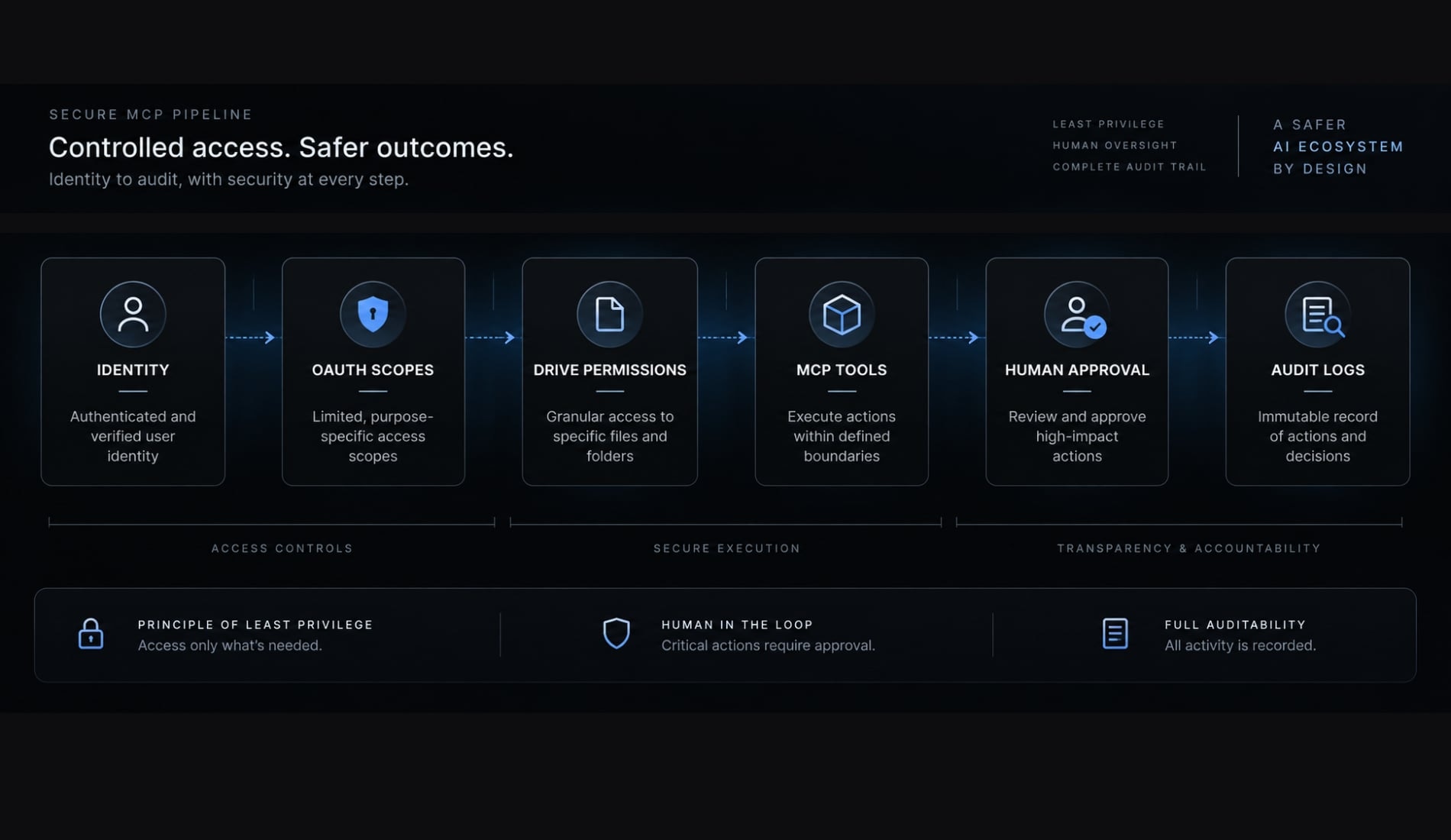
MCP security depends on the client, server, tools, OAuth scopes, account permissions, and retrieved content. No single control makes the integration risk-free.
Treat Drive documents as untrusted input. Indirect prompt injection occurs when a retrieved document contains instructions aimed at the AI, such as requests to reveal unrelated information or invoke another tool. Document content must not override system rules, user intent, access policies, or approval requirements.
Risk level | Example actions |
|---|---|
Lower | Search metadata, list files |
Moderate | Read and summarize content |
Higher | Create, edit, move, or upload files |
Critical | Share files, change permissions, or delete content |
Actual risk depends on data sensitivity and organizational context.
Production security checklist:
- Apply least-privilege access to scopes, accounts, folders, and tools.
- Begin in a dedicated, non-sensitive test folder.
- Separate test and production identities where practical.
- Vet the MCP server and its maintainers.
- Store OAuth credentials in a secret manager.
- Redact credentials and file content from logs.
- Allowlist only the tools required by the workflow.
- Disable write tools until read-only validation passes.
- Require human approval for create, move, upload, share, permission, and delete actions.
- Treat retrieved content as data, not trusted operational instructions.
- Review Google Drive file permissions regularly.
- Audit active sessions and OAuth grants.
- Document how users and administrators revoke connections.
- Review provider subprocessors, retention, and data residency.
- Assign ownership for access reviews and incident response.
For managed routes, revoking Google authorization may not remove provider-side logs or retained metadata. Review both the Google account connection and the provider account.
Frequently asked questions
What is the Google Drive MCP server for Claude Code?
The Google Drive MCP server is a technical implementation of the Model Context Protocol (MCP) that enables Claude Code to securely interact with your Drive files. It allows your AI agent to search, read, create, and manage documents directly within your terminal environment.
Why should I connect Google Drive to Claude Code?
Connecting Drive via MCP grounds your AI in your team’s actual documentation, such as API specs, architecture diagrams, and requirements. This reduces hallucinations by ensuring Claude uses internal source-of-truth files rather than relying solely on its pre-trained knowledge base during coding tasks.
Is it safer to use a managed MCP provider or host my own?
Managed providers (like Merge or Composio) simplify authentication and token management, which reduces setup friction. However, self-hosting offers full control over data routing and infrastructure. Both require careful security practices, such as applying least-privilege OAuth scopes and human-in-the-loop review for file-write operations.
How do I verify that the Google Drive connection is working?
After registering the server in Claude Code, run a specific test prompt, such as "Search my Google Drive for the file [Exact Name] and summarize the authentication section." A successful response that correctly pulls data from the targeted file confirms that authentication and tool execution are functioning.
What are the security risks of connecting my Drive to an AI agent?
The primary risks include unauthorized data access if broad OAuth scopes are granted, and "indirect prompt injection," where malicious content inside a retrieved document might influence the AI's behavior. To mitigate this, always use narrow scopes, test with non-sensitive data, and require human approval for destructive actions.
What should I do if Claude Code shows "Disconnected" status?
First, verify your MCP server registration using claude mcp list. If it is listed but disconnected, check your internet connection, ensure the remote server endpoint is reachable, and verify that your authentication session (OAuth token) has not expired or been revoked.
Read more:
- Claude Code Slack MCP: Setup guide and best practices
- How to Add Supabase MCP to Claude Code
- Playwright Claude Code integration: A complete setup guide
Conclusion
A successful Claude Code Google Drive MCP setup requires four observable outcomes: the server is registered, the connection is established, the correct Google account is authenticated, and a Drive tool retrieves known content successfully. Stopping after claude mcp list is not sufficient validation.
Use the first-party route when direct infrastructure ownership matters and Google and Anthropic currently document a compatible Claude Code authentication flow. Use a managed provider when reduced OAuth and token-maintenance work justifies the additional vendor layer. In either case, validate search and read operations before enabling write-capable tools.
Use the AgentKit Google Drive MCP configuration template to standardize server registration, validation prompts, least-privilege checks, and security reviews across each Claude Code workflow. Recheck commands, endpoints, and authentication behavior before every material rollout.