Claude Code Vercel deployment: Setup, deploy and troubleshoot
Claude Code Vercel deployment: Setup, deploy and troubleshoot
Claude Code accelerates Vercel deployments by assisting with code changes, while Vercel CLI manages the underlying publication pipeline. Using the baseline CLI path, developers can authenticate, link projects, test previews, and publish approved releases without requiring optional plugins or AI Gateway. This guide provides a documentation-based breakdown of configuration, deployment validation, and common pipeline errors using a SaaS customer portal as a practical example.
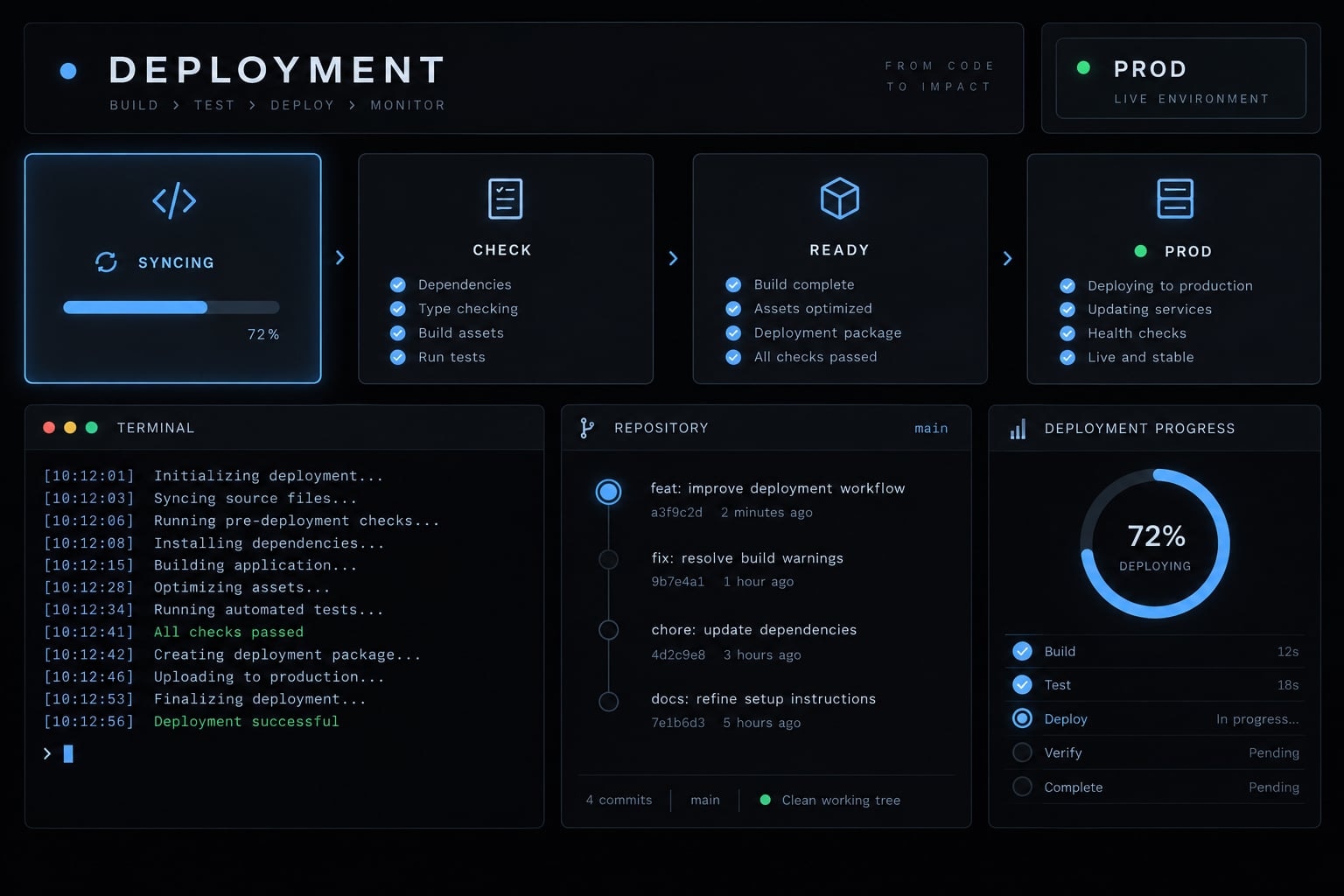
The fastest Claude Code Vercel deployment path
To deploy to Vercel from Claude Code, start with the CLI rather than depending on a plugin command.
- Open the intended repository: Confirm Claude Code is working in the application directory and review pending changes.
- Install Vercel CLI: In a terminal, run
npm install -g vercelwith a compatible Node.js/npm installation. Confirm installation succeeds. - Authenticate: Run
vercel login, thenvercel whoami. Check the reported account. - Link the project: Run
vercel linkfrom the intended directory. Confirm the team and existing project. - Create a preview: Run
vercel. Check the returned deployment URL and application behavior. - Release only after approval: Follow the production workflow below; do not treat preview success as authorization.
These are terminal commands, not Claude Code slash commands. Vercel CLI documentation describes their authentication, linking, and deployment roles. An optional plugin can be evaluated later.
Quick prerequisite check
- Claude Code is available in the correct directory.
- Node.js and the repository’s package manager are compatible.
- Your Vercel account has project access.
- The local build succeeds.
- The framework and build settings are supported.
What success looks like
Success means the correct team/project association, a deployment URL, working critical routes, and no unresolved relevant errors. A URL alone proves too little.
Vercel deployment plugin vs. Vercel AI gateway
Deployment and model inference are separate operations. A Claude Code Vercel plugin may expose deployment-related capabilities; Vercel AI Gateway routes supported model requests.
Tool or integration | Primary role | Typical output | Required for this path? |
|---|---|---|---|
Claude Code | Assist coding and authorized tool use | Changes and diagnostics | Assistance layer |
Vercel CLI | Configure and deploy projects | Deployment URL/status | Yes |
Verified Vercel plugin | Integration-specific assistance | Version-dependent actions | No |
Vercel Git integration | Deploy from repository activity | Git-triggered deployments | No; alternative trigger |
Vercel AI Gateway | Model routing | Model responses and usage data | No |
MCP connection | Expose server-provided tools | Authorized tool results | No |
MCP (Model Context Protocol) connects agents to external tools. Its capabilities depend on the server and granted permissions, not the protocol name.
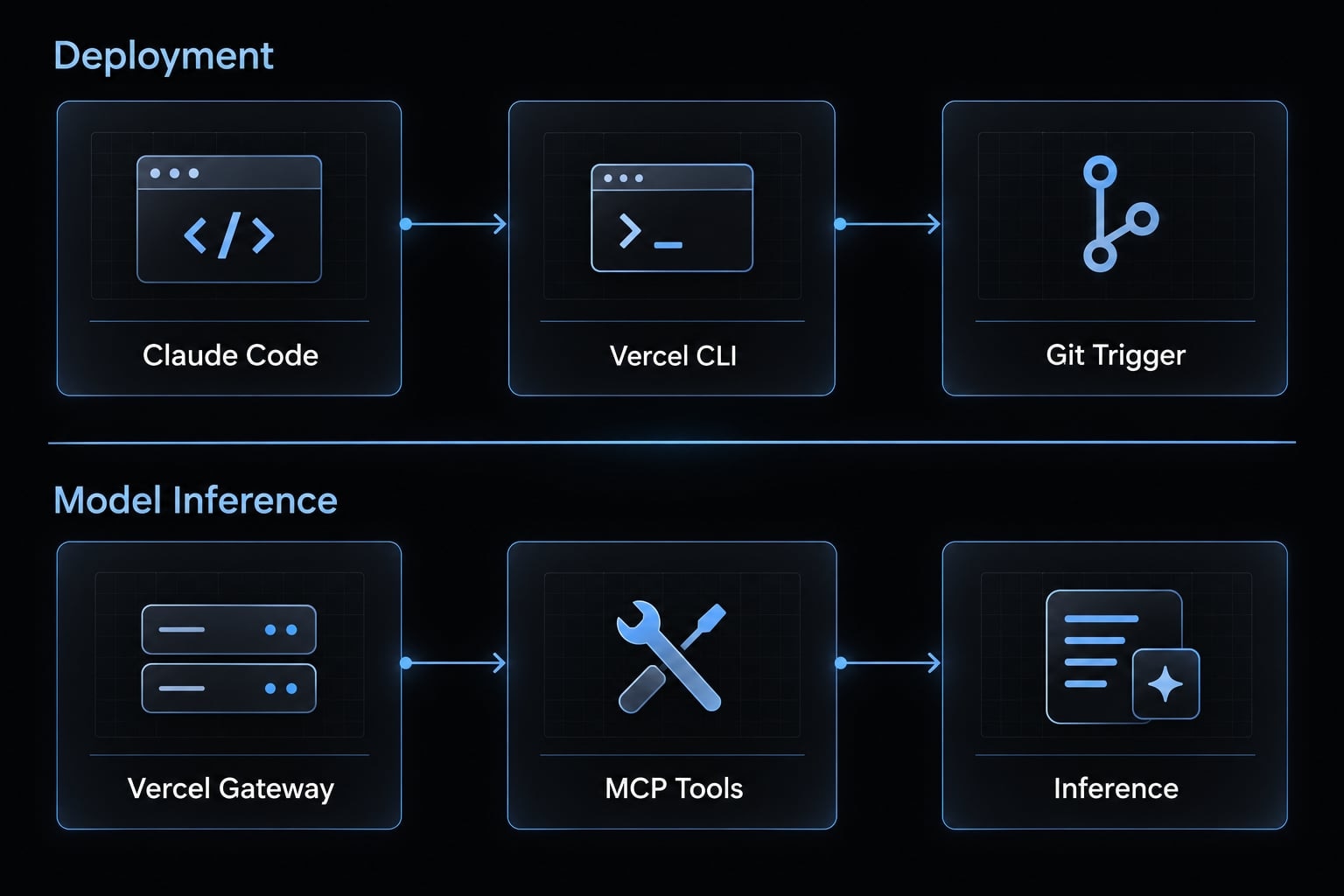
When AI gateway is relevant
Vercel AI Gateway documentation describes supported model access, usage visibility, and access management. It matters when your application needs supported providers such as Anthropic—not simply because Claude Code helped build it.
When AI gateway is not the answer
Gateway configuration does not link your project, supply application environment variables, repair build failures, or replace deployment authentication.
Install the plugin and configure the Vercel project
Verify account, team, and project separately. Plugin installation is optional; correct project configuration is not.
Requirement | How to verify | Common failure |
|---|---|---|
Claude Code | Available in intended repository | Wrong working directory |
Node.js/package manager | Match repository requirements | Version mismatch |
Vercel CLI | Executable available after installation | Installation or PATH issue |
Vercel identity | Check authenticated account | Personal account selected |
Team/project access | Confirm dashboard access | Missing team membership |
Local build | Run documented build script | Unresolved compilation error |
Framework/build settings | Inspect root, preset, output | Incorrect application root |
Authenticate the correct Vercel account or team
From a terminal with Vercel CLI installed:
vercel loginvercel whoami
The first command establishes authentication; the second reports identity. Neither proves that your intended company team is selected.
For the illustrative customer portal, a developer might authenticate successfully under a personal account while lacking company-project access. Confirm membership and project visibility before proceeding.
Verify plugin installation
No plugin package, publisher, or slash-command syntax is verified here. Use the CLI fallback.
Before adopting a plugin, check its first-party listing, publisher, compatible Claude Code version, installation instructions, and documented command names. Confirm whether each action creates a preview or changes production.
An unavailable command may indicate a missing installation, incorrect namespace, or version mismatch—not failed Vercel authentication. Reload only when the plugin documentation requires it.
Link the local directory to the correct project
From the intended application directory, run:
vercel link
Select the intended team and existing project rather than creating a duplicate. Then inspect the project name, root directory, framework preset, build command, output settings, and production domain in Vercel.
CLI project linking does not automatically configure Git integration. They are distinct associations.
Move from preview deployment to production safely
Review → Local checks → Preview → Approval → Production → Verification
The CLI is this guide’s deployment route. Vercel Git integration can trigger deployments according to repository and project settings. Plugin-assisted actions require separate verification.
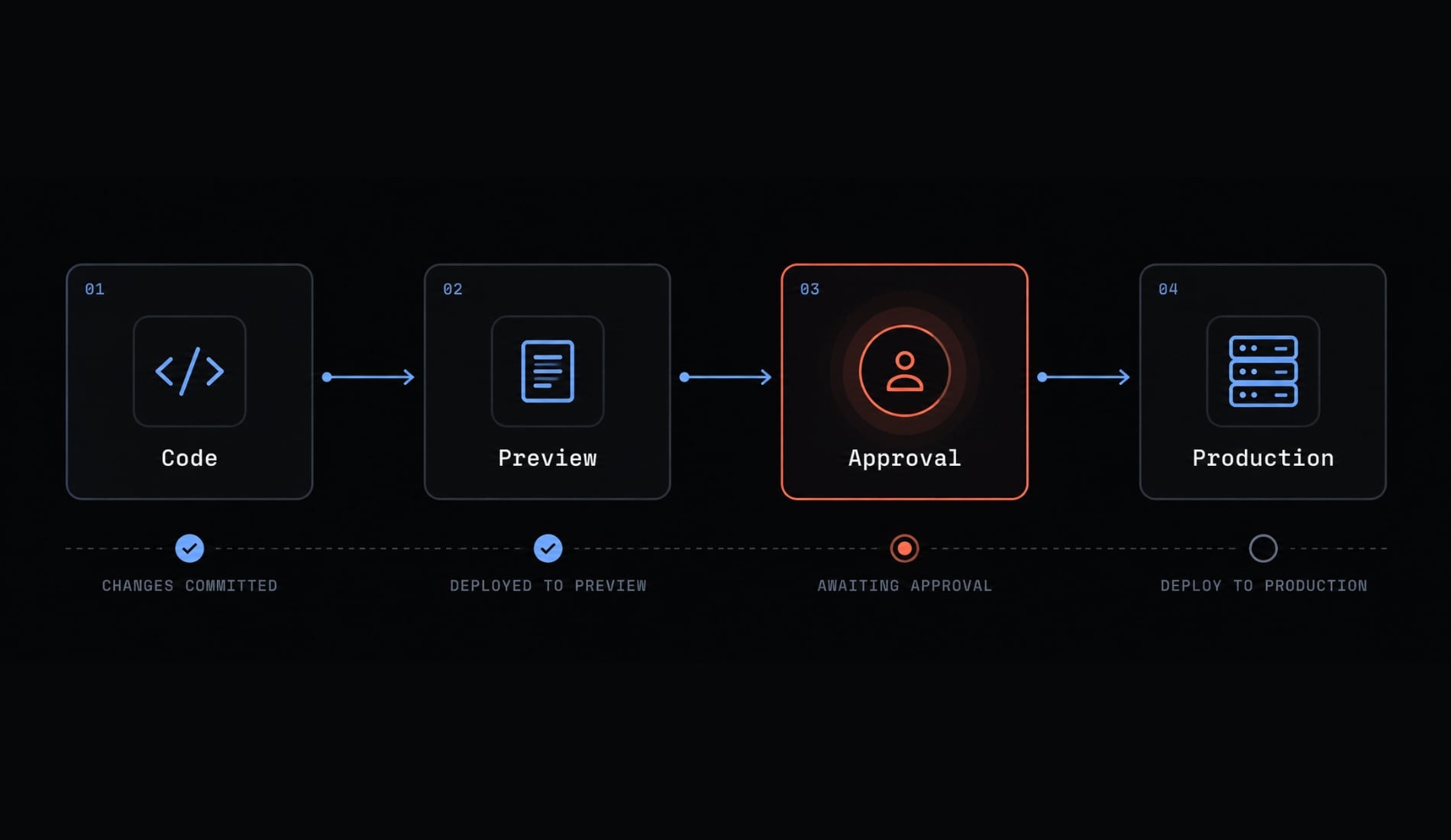
Run local checks before deployment
Review the diff, dependencies, configuration changes, and potential secrets. Run repository-defined build, test, lint, and type-check scripts where available.
Do not assume a framework build includes every check. Record the commit and any uncommitted changes so reviewers know which code state was validated.
Create and validate a preview deployment
With authentication and project linking confirmed, run in the terminal:
vercel
The default CLI deployment targets Preview. Inspect its status and returned URL.
For the customer portal, verify:
- Login completes.
- Protected routes reject unauthorized users.
- The API integration responds correctly.
- A core form or business action works.
Confirm Preview-scoped environment variables, identity-provider callbacks, and external-service allowlists. Use test accounts and nonproduction data. With Git integration, inspect the preview associated with the intended branch or pull request instead.
Deploy to production
The following command affects production. First confirm the team/project, production configuration, validated code state, and explicit human authorization.
Only then run in the terminal:
vercel --prod
This initiates a production deployment. It is not necessarily promotion of the exact preview artifact; artifact-promotion workflows require separate validation.
Post-deployment verification and rollback
Smoke-test the production domain, authentication, and critical actions. Inspect relevant runtime logs and record the deployment URL, identifier, status, and previous known-good deployment.
Vercel’s deployment and rollback documentation describes available recovery operations. Confirm the applicable procedure before release.
Rollback does not inherently reverse database migrations, sent emails, payments, or external effects. Stateful changes need their own recovery plan.
Save these checks as the repository’s release checklist before delegating deployment actions.
Troubleshoot common Claude Code Vercel deployment errors
Identify the failing stage before changing configuration. To fix a Vercel deployment error, treat likely causes as hypotheses and validate the smallest correction in a new preview.
Symptom | Likely cause | Corrective action |
|---|---|---|
Plugin command unavailable | Missing installation or changed namespace | Check publisher, version, command list; use CLI fallback |
Login/authorization failure | Wrong identity, expired session, insufficient access | Verify account, authentication, and project permissions |
Wrong or duplicate project | Incorrect team scope or local association | Inspect linking and select the intended existing project |
Framework/output detection failure | Wrong root or build settings | Check root, preset, build command, output directory |
Dependency installation failure | Package-manager or lockfile mismatch | Match repository versions; inspect installation logs |
Compilation/type-check failure | Code or configuration error | Find first actionable build error; reproduce locally |
Missing environment variable | Wrong name or environment scope | Check name/scope without exposing value; redeploy |
Deployment succeeds; route breaks | Routing, output, or client-side issue | Inspect route configuration, browser evidence, relevant logs |
Function/API failure or timeout | Dependency, configuration, connectivity, or limit issue | Inspect runtime logs and applicable platform limits |
Authentication/callback failure | Origin or provider-setting mismatch | Verify deployed origin, callback URLs, environment |
Build logs vs. Runtime logs
Build logs explain dependency installation, compilation, and build-stage behavior. Start there for a build failure.
Runtime logs explain relevant application execution after deployment. Browser-only failures may require browser developer tools rather than server logs.
Use the Vercel dashboard when no verified plugin logging command is available. Vercel’s Build Logs and Runtime Logs documentation provides the relevant distinction.
An illustrative failure: The portal builds successfully, but its API route fails because an API credential exists only in Production. Check the variable name and Preview scope, configure an approved test credential, and redeploy. This is a diagnostic example, not a verified incident.
A safe Claude Code debugging prompt pattern
Inspect only the supplied redacted logs and relevant code. Identify the first actionable error, explain the likely cause, and propose the smallest change. Do not deploy to production or change secrets without approval. Run approved checks and revalidate a preview after the fix.
Remove customer records, authentication headers, connection strings, and sensitive payloads before sharing logs. Avoid granting unrestricted access to secret files simply to accelerate diagnosis.
Manage environment variables, tokens and permissions
Deployment access, application configuration, and model access are different security boundaries. Secure API key management starts by identifying which operation each credential authorizes.
Keep four credential types separate
Credential category | Purpose | Recommended handling |
|---|---|---|
Vercel login/access token | Authorize deployment or management | Documented authentication; approved secret storage |
Application environment variables | Configure application behavior and services | Separate secrets from public configuration; select environment scope |
Anthropic credentials | Authorize applicable model access | Follow the actual Claude Code or application authentication method |
AI Gateway credentials | Authorize gateway requests | Manage separately when that integration is used |
These are logical categories, not four credentials every deployment requires. An application key stored as an environment variable does not become a deployment credential.
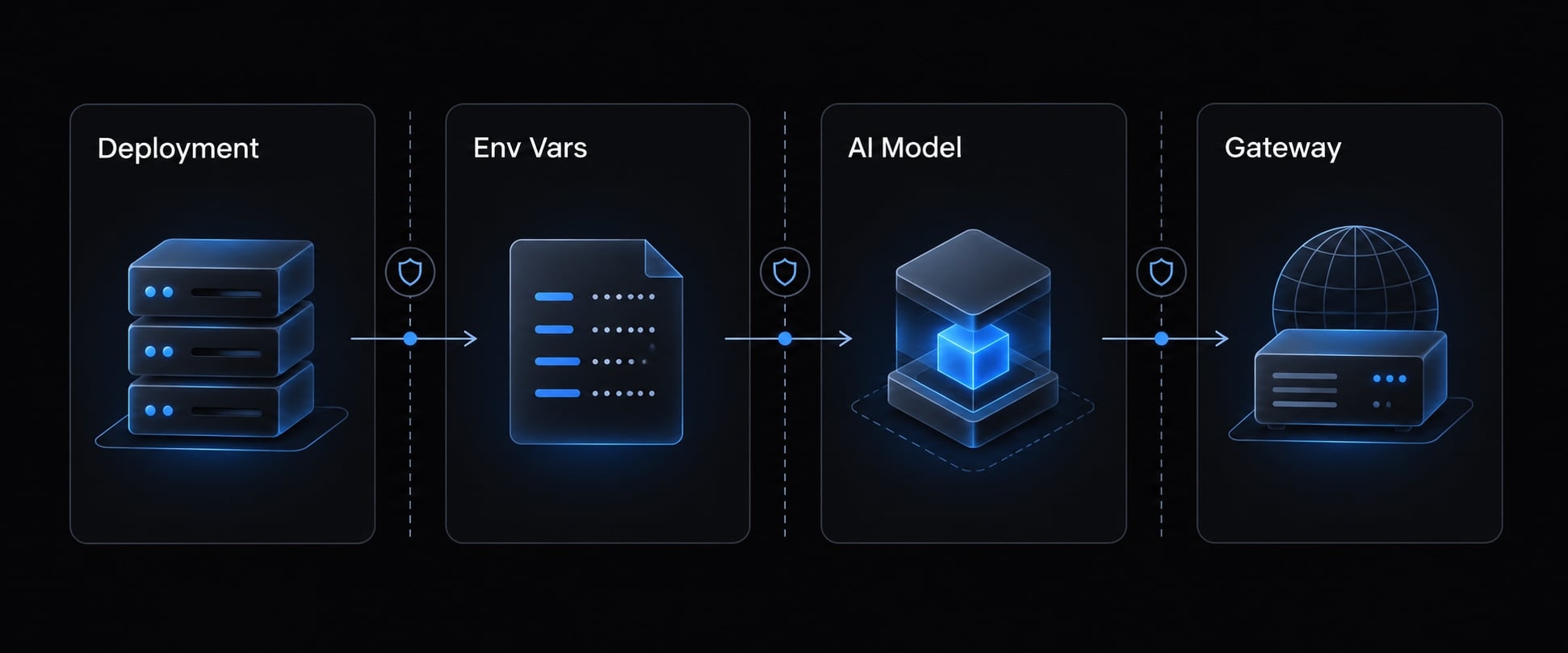
Vercel distinguishes Development, Preview, and Production scopes. Environment-variable changes generally apply to subsequent deployments; redeploy the affected environment and verify behavior. Follow Vercel’s Environment Variables documentation for configuration-specific details.
Never place secret values in prompts, screenshots, commits, or repository instructions. Variables deliberately exposed to browser code cannot protect server-side credentials.
Minimum production permission model
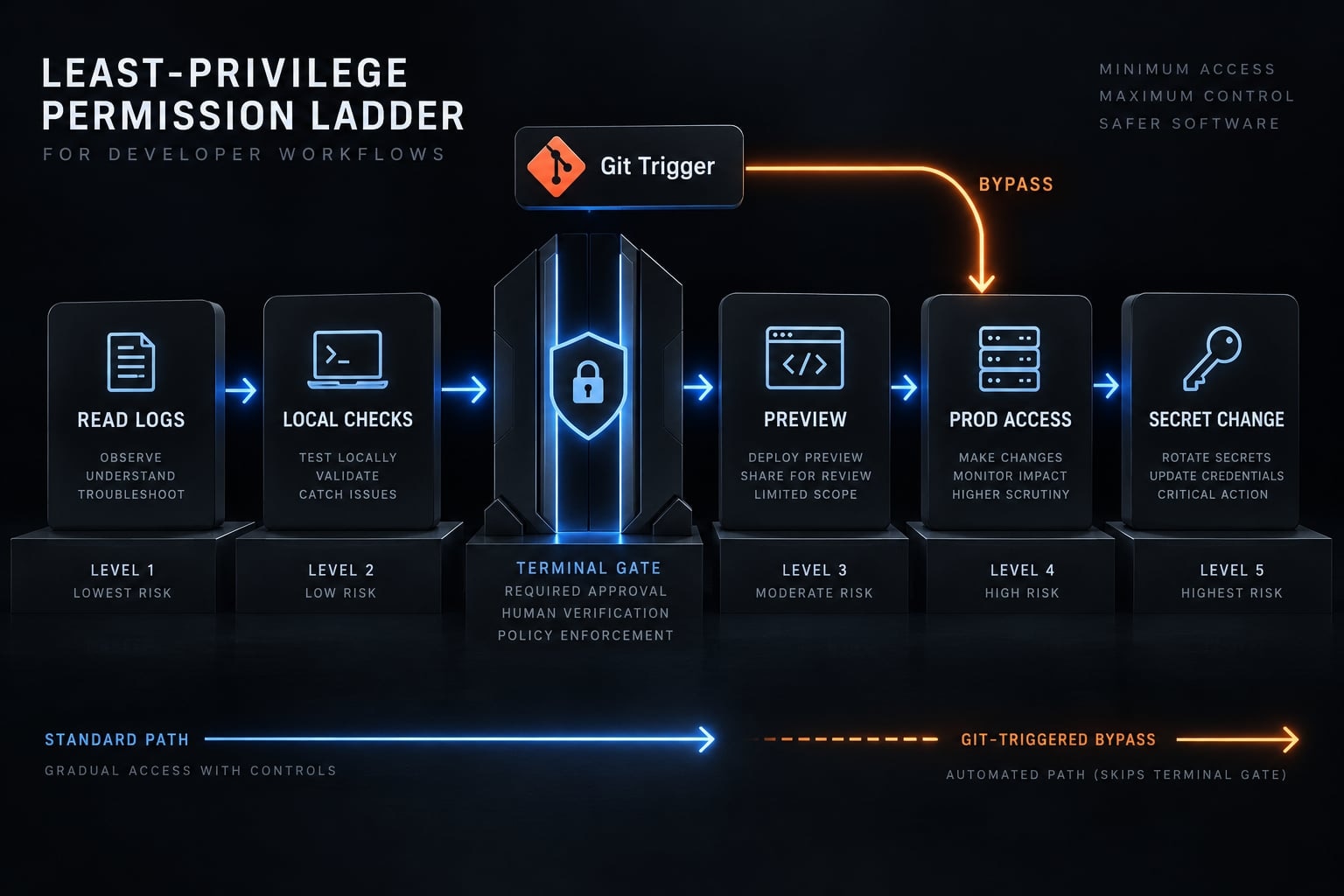
Apply a least-privilege access ladder:
- Read authorized metadata and redacted logs.
- Run approved local checks.
- Create previews within defined limits.
- Require explicit production authorization.
- Handle secret changes through a separate controlled process.
CLAUDE.md supplies guidance, not a security boundary. Back it with Claude Code tool permissions, appropriately scoped credentials, and Vercel access controls.
Check Git-triggered production deployments too. Blocking a terminal command is insufficient if the same agent can push directly to a production branch.
Frequently asked questions
Can Claude Code help deploy an application to Vercel, and what is required?
Claude Code assists in the deployment workflow by managing code changes, verifying build scripts, and invoking Vercel CLI tools. To deploy, you need an active Vercel account, the Vercel CLI installed, and correct project permissions. A deployment plugin may exist, but verify its publisher, listing, and documented commands before relying on it — the CLI path is the verified route.
What should I run first when deploying to Vercel with Claude Code?
Start by verifying your environment in the project directory. First, authenticate using the Vercel CLI with vercel login. Next, link your local directory to the correct Vercel project using vercel link. Finally, perform a local build check to ensure your application is ready before triggering a preview deployment.
Which Vercel integration is relevant to the deployment process?
Vercel CLI and deployment plugins handle code publication and project management. Conversely, Vercel AI Gateway routes inference traffic for observability and cost management. Vercel AI Gateway is relevant when your application requires supported model providers, regardless of whether Claude Code was used to build it. It does not manage project linking, build processes, or production deployment authentication.
How do I safely move from preview deployment to production?
Validate your changes in a preview deployment first. Thoroughly test protected routes, API connections, and core business logic. Once validated, use an explicit production deployment command, such as vercel --prod after explicit human approval of the target project, configuration, and validated code state. Preview success is not authorization. Finally, perform smoke tests on your production domain and review runtime logs to ensure application stability.
What should I do if my Vercel deployment fails during the process?
First, identify the stage of failure: Build logs often indicate compilation or dependency issues, while runtime logs highlight execution errors. Check for missing environment variables or project-linking mismatches. Use a minimal fix, re-run your local validation tests, and create a new preview deployment to confirm the fix before moving to production.
How do I manage credentials and permissions for Claude Code?
Maintain logical boundaries by keeping Vercel access tokens, application environment variables, and model credentials separate. Follow the documented authentication method for each credential type and your organization's approved secret storage. Enforce the principle of least privilege by ensuring the agent only has the permissions necessary to perform its assigned deployment tasks.
Read more:
- Claude Code automation: Build repeatable and low-risk workflows
- Claude Code tutorial: Set up and master your AI coding agent
- Claude Code hooks guide: Automate and control AI workflows
Conclusion
Deploying applications with Claude Code and Vercel combines the speed of AI-assisted development with the reliability of standard CLI release workflows. By keeping deployment permissions, application settings, and model credentials strictly separated, teams can safely iterate through previews before committing changes to production.
Ultimately, relying on verified CLI commands, thorough local checks, and human authorization ensures that your deployments remain secure, predictable, and resilient against unexpected pipeline errors.