Claude Code Firebase setup: Connect and automate workflow
Claude Code Firebase setup: Connect Firebase with MCP and agent skills
Integrating Claude Code with Firebase connects your AI assistant to Firebase tools via a plugin or local MCP server. Since setup alone doesn't grant access, this guide walks you through installation, project verification, and safe modifications-focusing on manual registration to ensure you target the right project without risking changes.
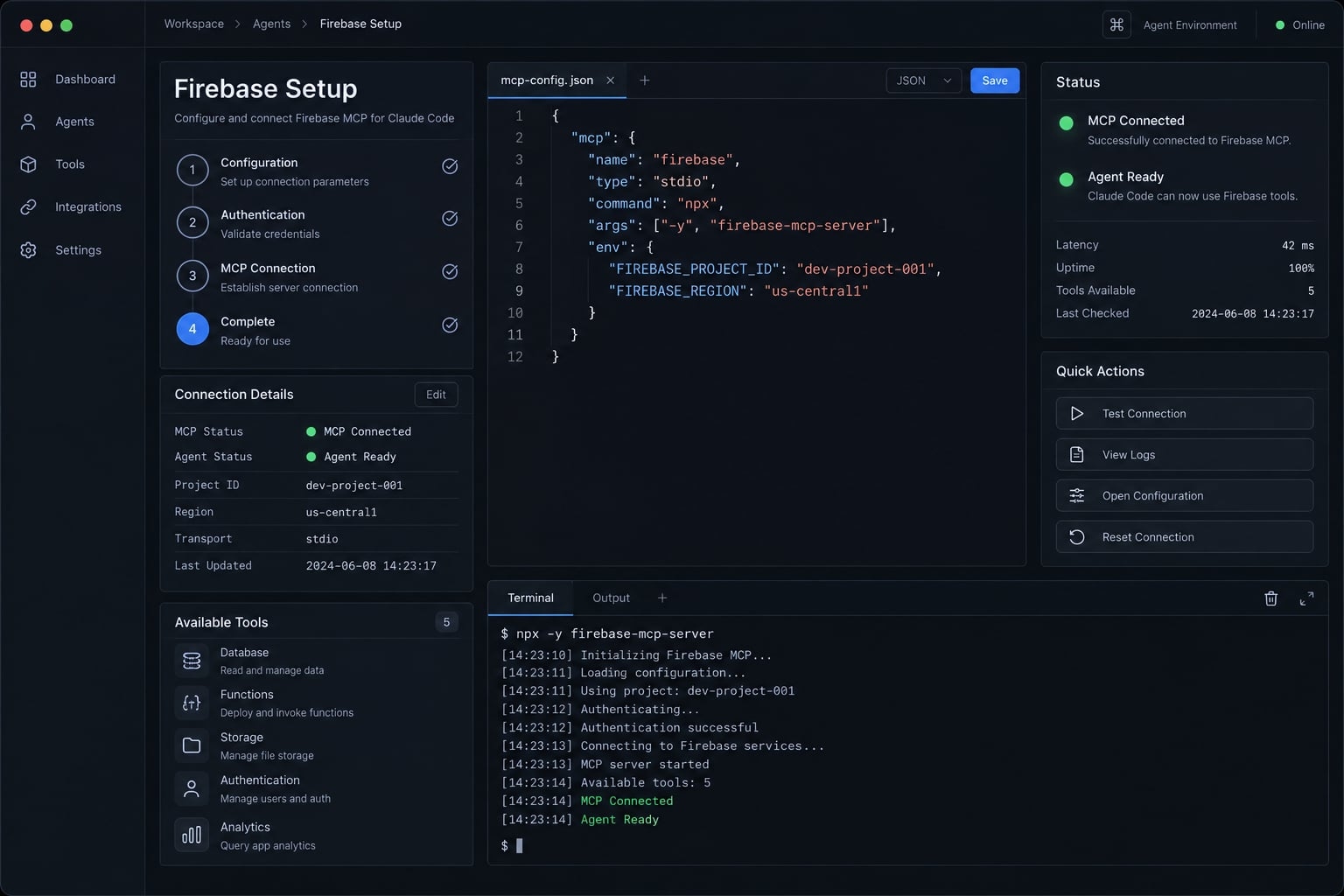
How do I connect Claude Code to Firebase? - Register the Firebase MCP server from your application directory, authenticate with Firebase Tools, and confirm the project through non-mutating checks. A Firebase plugin is an alternative—not an additional requirement. Avoid registering both routes for the same integration unless you deliberately need separate configurations.
Run in your terminal:
npx -y firebase-tools@latest loginclaude mcp add --transport stdio --scope local firebase -- npx -y firebase-tools@latest mcp
These commands use the current package release, not a version tested for this article.
How the Claude Code–Firebase integration works
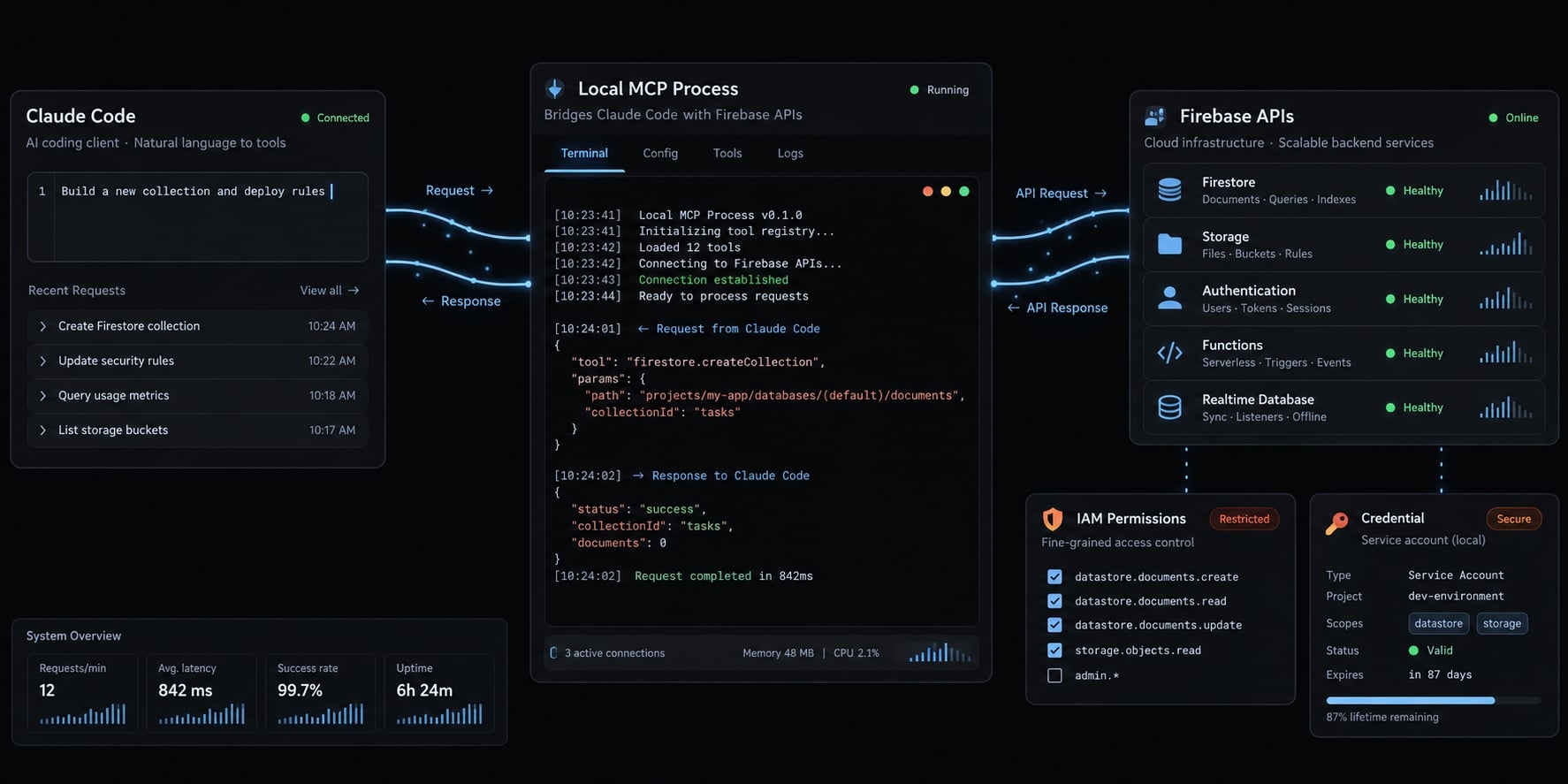
Claude Code is the MCP client; Firebase Tools provides the local server process. They communicate through stdio transport, meaning standard input and output rather than a separately hosted web endpoint.
The process runs locally, but its tools can contact remote Firebase APIs. Its effective identity and IAM (Identity and Access Management) permissions determine which operations are authorized. A running server does not prove access to every service.
Prerequisites
- A working Claude Code installation.
- Node.js and npm versions supported by the selected Firebase Tools release.
- Access to the intended Firebase project.
- A documented authentication method.
- The correct application directory.
- Permissions appropriate to the planned operations.
Files such as firebase.json and .firebaserc provide local context. They do not prove which cloud project a subsequent operation will target.
Run a basic environment check
node --versionnpm --versionnpx --versionclaude --versionnpx -y firebase-tools@latest --version
A global Firebase CLI installation is unnecessary for this route. The firebase --version command works only when that executable is installed and available.
Record versions before troubleshooting. For repeatable onboarding, replace @latest with a reviewed version after validation. Follow Firebase CLI documentation for runtime requirements and authentication behavior.
Install the Firebase plugin for Claude Code
Use the plugin route only after confirming its current marketplace source and package identifier. Marketplace registration, plugin installation, and an active MCP connection are separate states.
The supplied installation references disagree between Firebase repositories. Consequently, this guide does not present either marketplace registration command as verified or label an unconfirmed package “official.”
Step 1 - Confirm and add the Firebase plugin marketplace
In Claude Code, open the plugin manager:
/plugin
Marketplace registration makes packages discoverable. It does not install them or authenticate Firebase.
Step 2 - Install the Firebase plugin
Install the package identified by the confirmed marketplace. If its marketplace name and package name are both firebase, the terminal installation command is:
claude plugin install firebase@firebase
That identifier is conditional on the marketplace manifest; it is not proof of provenance.
Inspect the package contents before adoption. Determine whether it supplies MCP configuration, Agent Skills, or both. Do not add a second manual Firebase server merely because installation has completed.
Step 3 - Confirm the Plugin Is Available
Return to /plugin to inspect installation and enablement. Then inspect MCP connection status inside Claude Code:
/mcp
An installed plugin may not be enabled for the current scope or loaded into the active session. Follow the interface’s activation instructions rather than repeatedly reinstalling it.
Expected state: The intended package is enabled, its Firebase server connects, and tools appear. Cloud access still requires the verification steps below.
Choose | When it fits |
|---|---|
You have confirmed its source and want its packaged defaults. | |
Manual MCP | You want explicit startup configuration or plugin-independent setup. |
Configure the Firebase MCP server manually
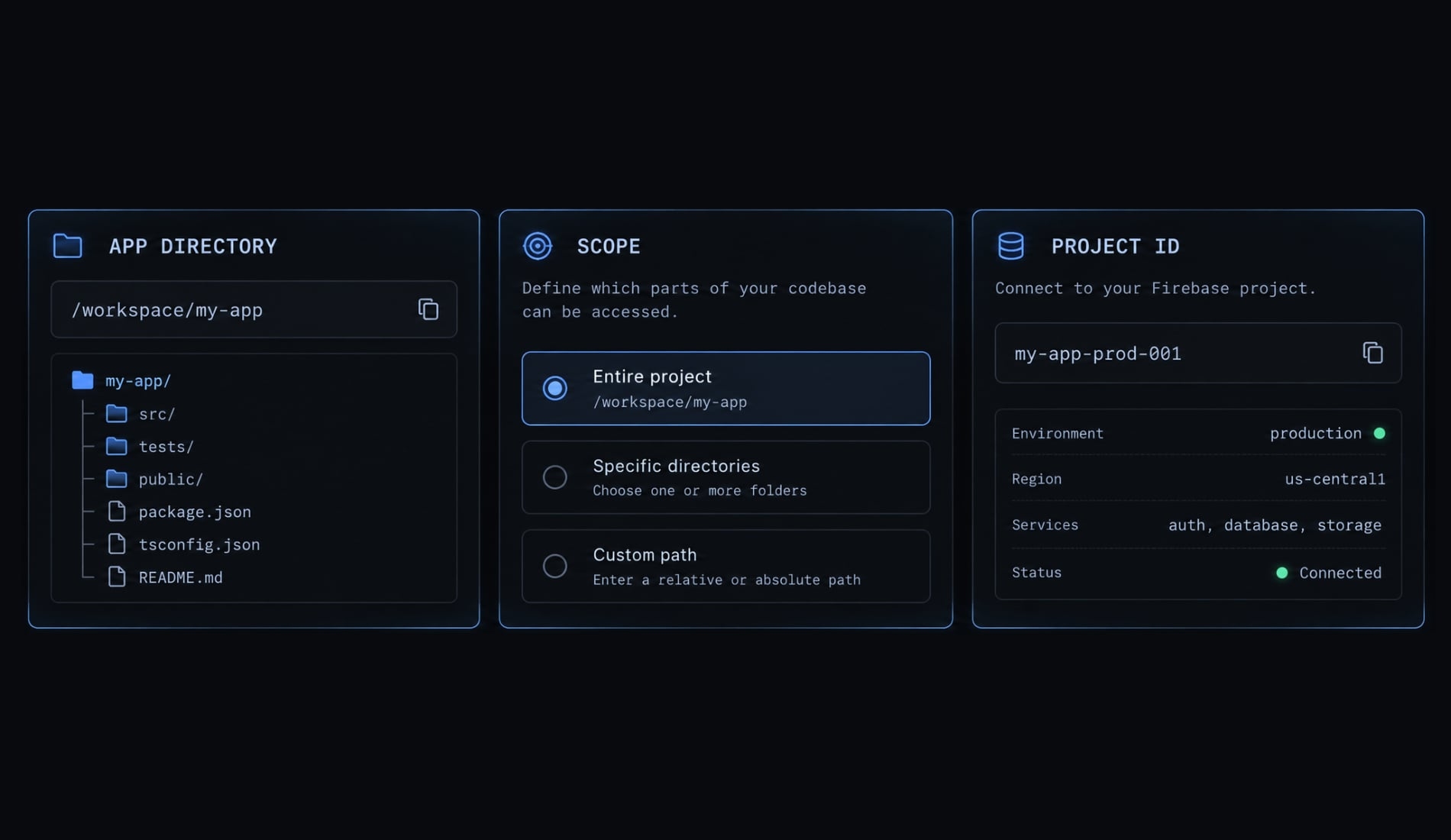
Manual Firebase MCP setup registers a startup command directly with Claude Code. Run it from the application directory, especially when a repository contains multiple applications.
Add Firebase MCP to Claude Code
claude mcp add --transport stdio --scope local firebase -- npx -y firebase-tools@latest mcp
The meaningful parts are:
firebase: Claude Code’s name for this server registration.--scope local: Keeps registration local to your project context rather than sharing it repository-wide.--transport stdio: Launches a subprocess using standard input and output.--: Separates Claude Code options from the server command.npx -y: Accepts npm’s package-execution confirmation.firebase-tools@latest mcp: Runs Firebase Tools’ MCP entry point.
The -y option does not approve Firebase writes. npm execution, Claude Code tool approval, and cloud authorization are different controls.
For team use, pin a reviewed Firebase Tools version and update it deliberately. Also inspect existing registrations before adding another server with overlapping tools.
Set explicit project context when needed
In a monorepo, register and launch Claude Code from the Firebase application directory. Check existing overrides if behavior differs from that directory’s configuration.
Inspect supported server options with:
npx -y firebase-tools@latest mcp --help
Use directory flags only when the installed release documents their syntax. Starting an MCP process directly does not register it with Claude Code.
Limit exposed Firebase features
If your release supports feature filtering, select documented identifiers from its help or documentation. Do not copy an assumed --only list across versions.
Filtering reduces exposed tools; it does not replace IAM or restrict every shell command Claude Code might run.
Verify the connection and run your first safe workflows
Verify Firebase MCP connection status, repository context, and live access separately. Seeing tools in Claude Code proves discovery—not correct project selection or successful authorization.
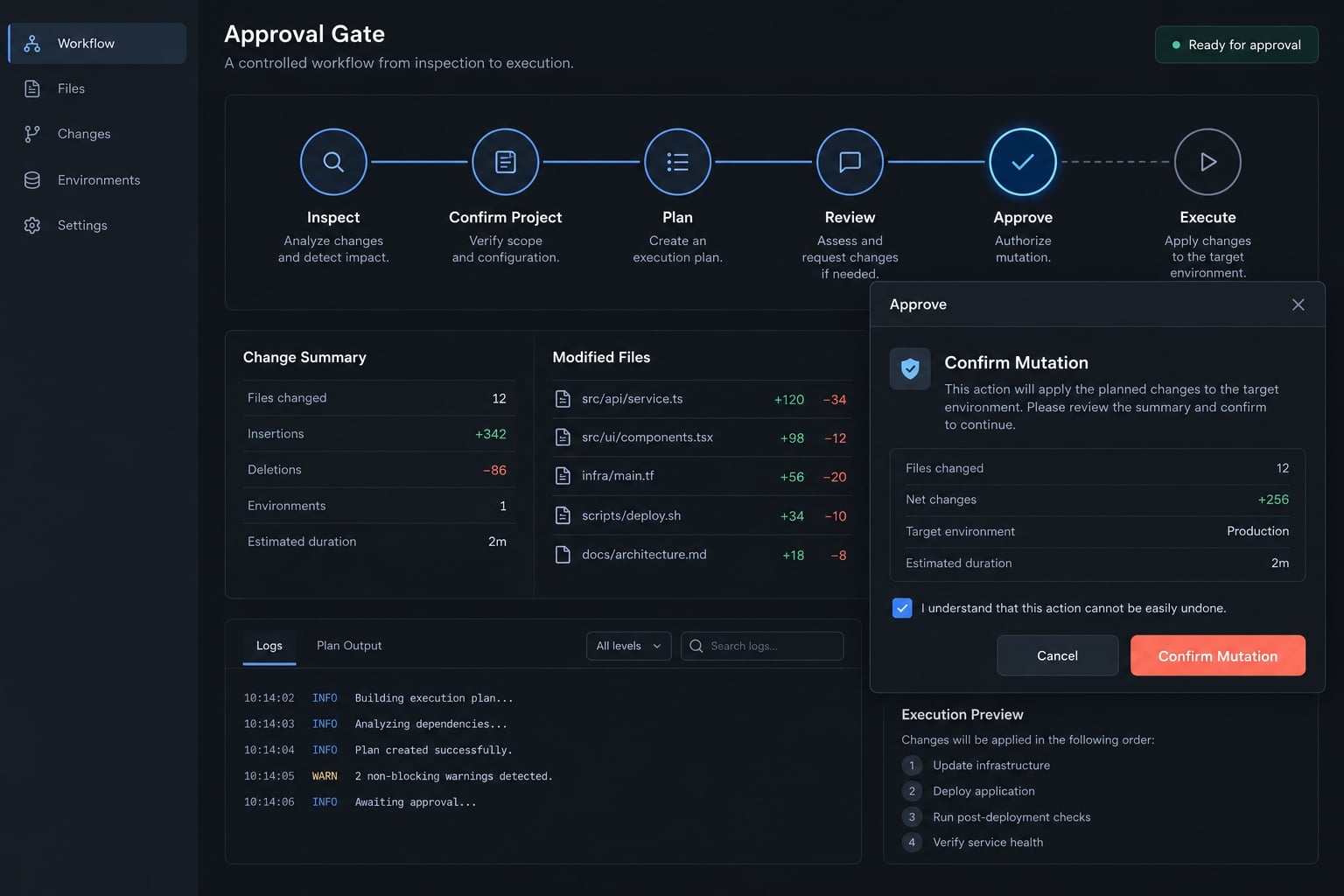
First inspect /mcp. Then use narrowly scoped requests. A read-only prompt communicates intent, but restricted credentials and tool permissions provide stronger protection.
Read-only verification prompts
- Check accessible projects
Using available Firebase tools, list accessible project IDs if supported. Do not modify files, configuration, or cloud resources. Report unavailable checks instead of guessing. - Resolve the target
Inspect this repository's Firebase configuration and identify the resolved project ID, aliases, and any visible overrides. Make no changes. Distinguish confirmed information from unresolved assumptions. - Inspect local services
Summarize Firebase services configured in local files without editing them. Do not infer that local configuration proves live cloud deployment. - Identify missing setup
Report missing authentication, permissions, configuration, or supported tools.
Do not initialize, deploy, repair, or modify anything. Wait for approval.
What a successful result should show
Use this reusable acceptance checklist:
- The exact expected project ID, not only a friendly alias.
- The effective identity confirmed through an appropriate authentication check.
- Relevant configuration files located, or their absence reported.
- Local findings separated from live API findings.
- No observed application-file changes or cloud mutations.
- Unsupported checks explicitly identified.
A login listing alone may not establish the identity used by a process with credential overrides. Inspect those overrides without displaying secret values.
Check repository diffs and tool history. For sensitive environments, consult available audit records; an empty Git diff does not prove no remote changes occurred.
Stop if the project context is wrong
Stop before any write-capable workflow if the identity, project ID, or environment is unexpected.
Inspect the working directory, Firebase configuration, aliases, explicit overrides, and authentication context. Correct one cause at a time, then repeat verification.
What Claude Code can do with Firebase MCP and agent skills
Available operations depend on the installed tools, credentials, permissions, and project setup. Treat the active tool inventory as the capability boundary—not a broad Firebase feature list.
Agent Skills provide task-specific instructions. They do not authenticate a session or grant cloud access.
High-value Firebase workflows
Workflow | Local assistance | MCP or CLI boundary |
|---|---|---|
Project inspection | Read configuration and explain aliases | MCP can inspect supported project information when authorized. |
Firestore planning | Propose collections, indexes, and access patterns | Document inspection requires an exposed tool and appropriate access. |
Authentication implementation | Draft sign-in flows and integration plans | User administration requires separately supported operations and approval. |
Security Rules review | Explain rules and draft tests | Validation or emulator execution depends on available tooling. |
Deployment planning | Review code changes and affected services | Deployment requires a supported execution path and explicit approval. |
Crashlytics investigation | Relate available diagnostics to source files | Use only when the installed server exposes suitable tools. |
Do not infer that MCP implements every workflow in this table. Claude Code may instead read local code or propose a Firebase CLI command.
For the hypothetical SaaS team, Firestore modeling can begin without reading customer records. Share a sanitized schema and representative synthetic examples first.
Firebase MCP vs. Agent Skills vs. Firebase CLI
Component | Primary role | Best used for | Limitation |
|---|---|---|---|
MCP server | Structured tool interface | Supported project operations | Tool availability and effective authorization |
Agent Skills | Task-specific guidance | Implementation patterns and workflow instructions | No independent access grant |
Firebase CLI | Command-line execution | Initialization, local workflows, deployment | Correct identity, project, permissions, and review required |
Progressive disclosure means relevant skill instructions can load when needed instead of placing all guidance into the initial context. It does not guarantee lower token use or correct generated code.
Install Firebase agent skills
Confirm repository provenance and installer syntax against Firebase Agent Skills documentation before installation. The supplied references identify inconsistent repository names, so no Skills installation command is presented here as verified.
Review the installer’s destination and select the intended Claude Code scope. Prefer project-specific installation when guidance belongs to one repository.
Check whether the Firebase plugin already supplies equivalent skills. Duplicate or conflicting instructions can make behavior less predictable.
After installation, inspect the installed skill files and Claude Code’s available-skills interface. Confirm that a relevant task discovers the intended skill. Discovery is distinct from evidence that the skill executed correctly.
Safe prompts to try
- “Review these Firestore Rules for tenant isolation. Explain risks without modifying files.”
- “Plan Authentication integration using this project’s SDK versions. Do not change users or claims.”
- “Propose a Firestore model from this synthetic schema. Do not query production records.”
- “Prepare a deployment plan and rollback considerations. Do not deploy.”
- “If supported, inspect Crashlytics issue metadata without changing issue state. Avoid sensitive payloads.”
Generated rules, implementation plans, and patches still require review and relevant tests.
Security and troubleshooting checklist
A local MCP server can still change production resources. Prompt wording, tool permissions, IAM, and Firebase Security Rules operate at different layers.
Production safety checklist
- Confirm the effective identity before sensitive work.
- Confirm the exact project ID and environment.
- Separate development and production projects where practical.
- Begin with non-mutating checks.
- Restrict exposed tools and assign task-specific privileges.
- Require review before database writes or deletes.
- Require approval for Authentication changes and custom claims.
- Test Security Rules with both allowed and denied cases.
- Review code diffs, deployment targets, and rollback options.
- Keep secrets and sensitive customer data out of prompts and captures.
- Record material production changes and approvals.
- Treat retrieved content and skill instructions as potentially untrusted.
Read operations can disclose sensitive information and incur usage costs. Request only the minimum data needed, even during troubleshooting.
Claude Code permission settings can restrict tool execution, but their exact behavior depends on configuration. Review shell access alongside MCP permissions; restricting one path does not necessarily restrict another.
Common setup problems
Symptom | Possible cause | Next check |
|---|---|---|
Plugin not found | Wrong source or identifier | Compare marketplace manifest with Firebase instructions. |
MCP tools missing | Registration or session loading failure | Inspect |
| Node/npm missing from process environment | Check versions and executable search path. |
Authentication failure | Missing, expired, or overridden credentials | Identify the effective authentication method. |
Permission denied | Identity lacks the required permission | Map the failed operation to a narrow role. |
Wrong project | Alias or explicit override | Compare resolved ID with the expected development ID. |
Inconsistent configuration | Files belong to another application | Inspect configuration paths and repository structure. |
Tool group unavailable | Version, filtering, or unsupported capability | Inspect active tools and server help. |
Monorepo mismatch | Wrong working directory | Start from the intended application directory. |
Duplicate Firebase tools | Plugin and manual registration overlap | Retain the intended configuration and remove redundancy. |
Do not assign Owner or Editor as a generic fix. Missing firebase.json also does not explain every cloud-access failure.
Diagnostic order
- Confirm runtime availability.
- Check registration and session loading.
- Identify authentication context.
- Confirm directory and project identity.
- Check permissions for the failed operation.
- Retry a non-mutating request.
- Review redacted logs.
Change one variable at a time. Reauthentication cannot fix an unsupported tool, and a package update cannot correct an unintended project alias.
Before sharing logs, remove tokens, account details, document contents, and sensitive project identifiers. Preserve error categories and version information for diagnosis.
Frequently asked questions
What is the Firebase MCP server for Claude Code?
The Firebase MCP server is a local integration that connects Claude Code to your Firebase project. It uses the Model Context Protocol to expose Firebase tools—like Firestore, Authentication, and Crashlytics—directly to your AI agent, allowing it to perform operations securely without requiring manual service account keys.
How does the Firebase plugin differ from manual MCP registration?
Manual MCP registration is the route this guide leads with, because the available plugin installation references point to conflicting repositories. Confirm the current marketplace source and package identifier before using the plugin route; it offers packaged defaults, while manual registration gives explicit control over the startup command and directory context.
Do Firebase Agent Skills grant access to my cloud project?
No. Agent Skills provide task-specific guidance and modern SDK patterns to help Claude Code write accurate, secure code. They do not grant cloud access; the Firebase MCP server provides the tools and actual connectivity, while your local Firebase CLI authentication determines your permissions.
How do I verify that Claude Code is targeting the correct project?
Always use read-only prompts to confirm project context before running operations. Ask Claude Code to list the current resolved project ID and verify it matches your intended Firebase development environment. Never perform mutations or deployments until you have explicitly confirmed the project ID within the active session.
Are my production resources protected when using Claude Code?
Claude Code interacts with your project using your own identity and credentials. To protect production, always isolate your development projects, apply least-privilege IAM roles, and require human review for any code changes, security rule modifications, or database mutations before they are deployed to a production environment.
Can I limit the tools exposed to Claude Code?
Possibly, depending on your release. If feature filtering is supported, read the identifiers from npx -y firebase-tools@latest mcp --help rather than copying a list from a tutorial. Filtering reduces exposed tools; it does not replace IAM authorization or restrict shell commands.
Read more:
- Claude Code Jira integration: MCP setup and safe workflows
- Claude Code Google Drive MCP: Ultimate setup & Auth guide
- Connect Google Calendar to Claude Code: Setup & Best practices
Conclusion
A reliable Claude Code Firebase integration requires choosing a single setup route, authenticating properly, and verifying your project ID using non-mutating checks before making changes. While MCP, Agent Skills, and the Firebase CLI streamline operations and offer guidance, they do not replace strict IAM permissions, code reviews, and explicit human approval.
Keep setup simple for single projects, and evaluate reusable workflows as you scale across repositories—always ensuring Firebase credentials and core decisions remain firmly under your control.