Vibe code directory: How to set up your AI coding workspace
A vibe code directory is an informal name for the project folder an AI coding agent uses as working context, not a universal technical standard. For a single-repository project, start at the repository root, then verify the working directory, supported instructions, and permissions before asking the agent to change files.
Opening the wrong folder can produce misplaced files, missing context, or commands that fail despite correct code. This guide covers project structure, startup checks, persistent instructions, and safeguards. The example is a demonstration repository for an internal operations dashboard-not a production case study.
What does “Vibe code directory” mean?
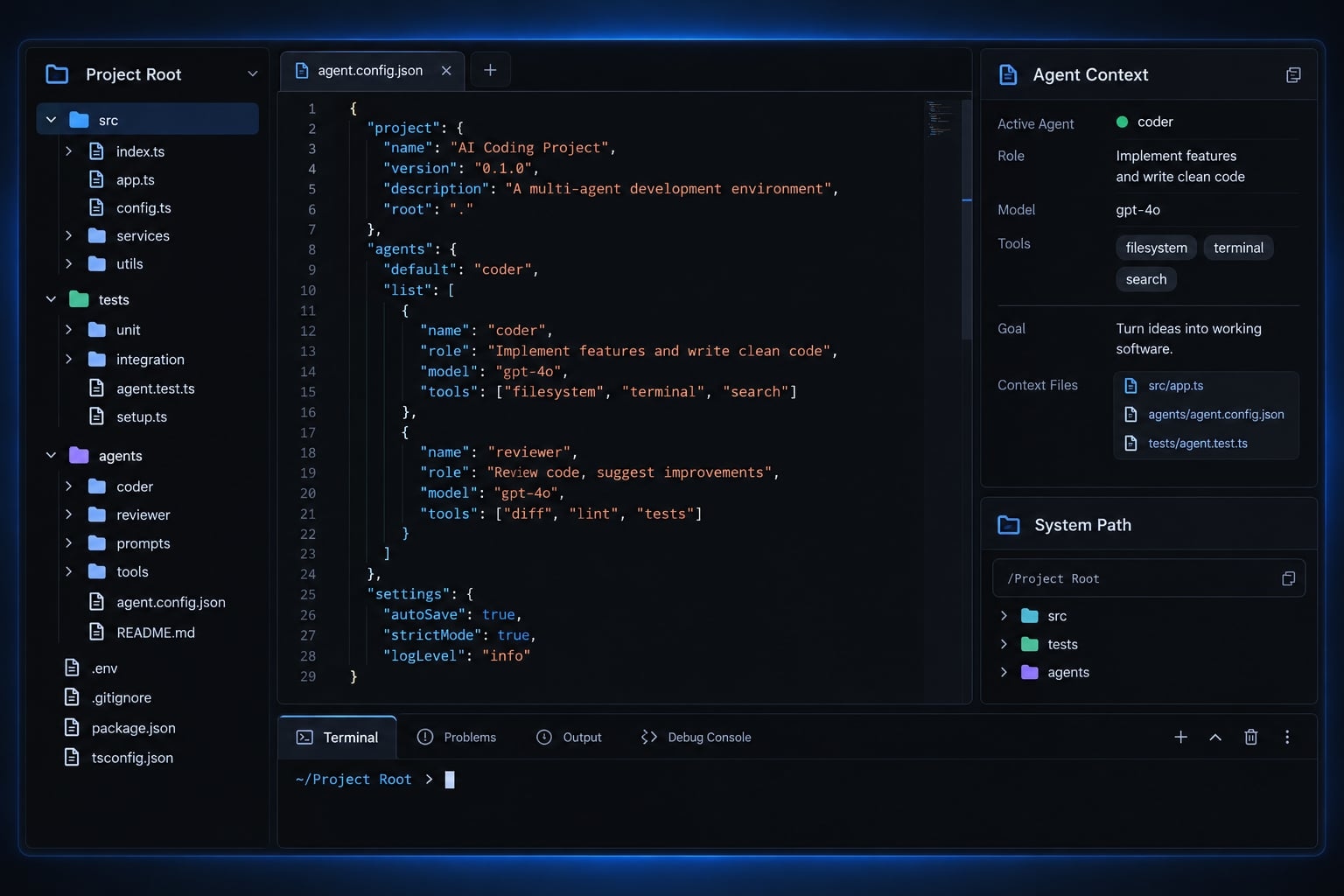
In modern AI-assisted development, a vibe code directory refers to the project working folder provided to an AI coding agent as its operational context. While "vibe coding" broadly describes guiding code generation through natural-language prompts, generating working code is not equivalent to verifying its correctness, architectural fit, or security.
It is important to distinguish between three different uses of the term "directory" in the AI ecosystem:
Meaning | Purpose |
|---|---|
Project working directory | Current folder used for relative paths and often command execution. |
Agent configuration directory | Stores settings; location may be project-local or user-level, depending on the tool. |
Vibe coding tool directory | A catalog for discovering development tools, integrations, or reusable resources. |
An editor workspace is the folder-or collection of folders-opened in an editor. It need not match a terminal’s current directory.
Why the working directory controls AI agent behavior
Where you launch your agent dictates what it sees. Directory choice shapes agent behavior because relative paths resolve from the current working location, and workspace boundaries heavily influence automated context retrieval and instruction discovery.
The repository root is Git’s top-level folder. The project root belongs to an application and may sit inside a larger repository. Neither boundary automatically restricts filesystem access at the OS level; explicit permission rules and workspace scoping remain necessary.
The Five-part directory control model
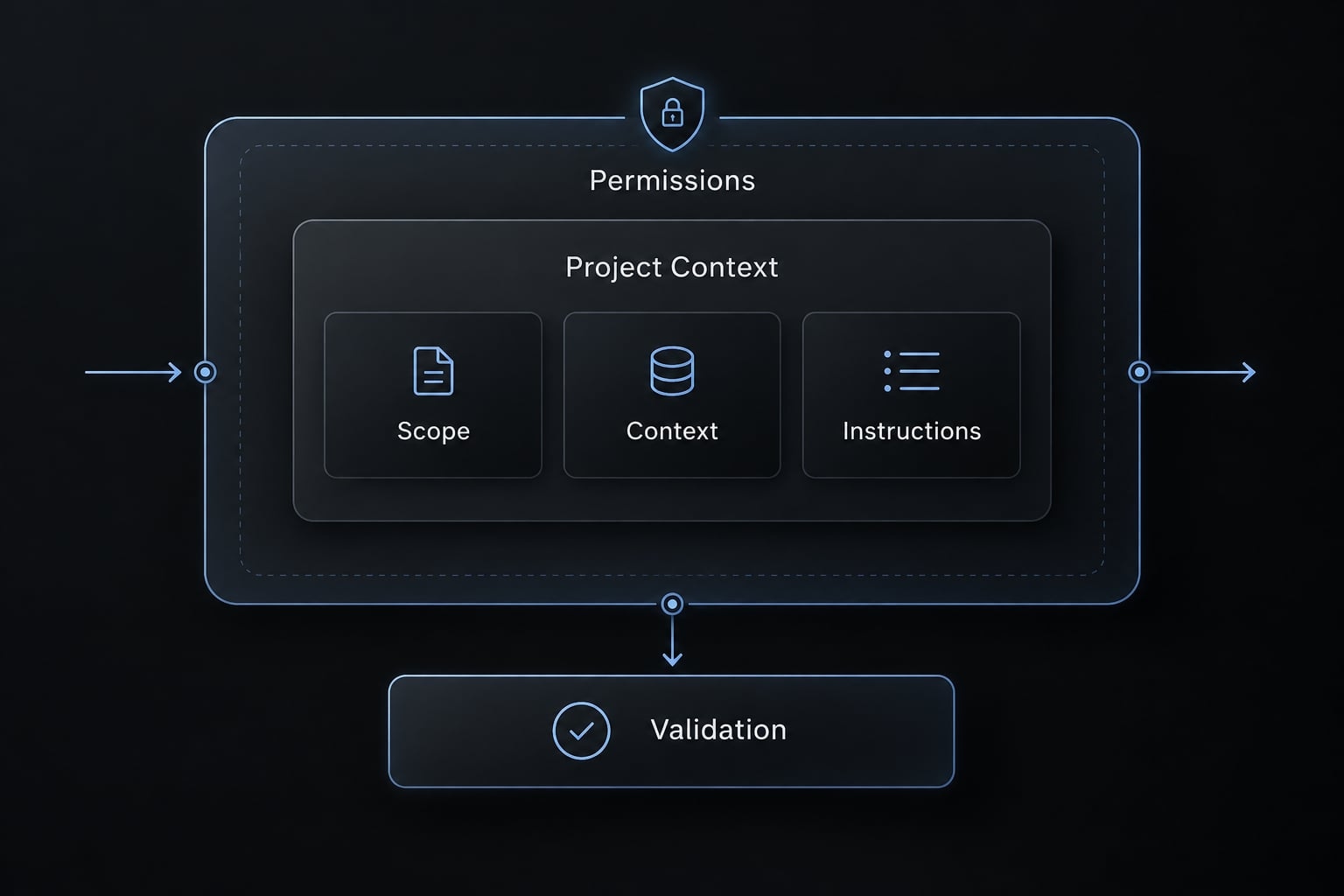
Use this editorial framework for setup decisions, not as a universal tool specification:
- Scope: Identify files relevant to the task.
- Context: Supply documentation and code that inform decisions.
- Instructions: Confirm which rules the selected tool discovers or receives.
- Permissions: Configure execution and access restrictions separately.
- Validation: Use tests and review to evaluate the result.
Signs you opened the wrong directory
If an AI agent is operating in the wrong directory, you may notice:
- Generated files appearing outside the intended project subtree.
- Missing project manifests or duplicate configuration files being created.
- Unrelated folders entering context inspection windows.
- Build and test commands failing due to incorrect relative paths.
Example: Opening the parent directory of operations-dashboard/ may cause the agent to overlook the dashboard's existing package.json, leading it to mistakenly attempt initializing a fresh project.
Recommended vibe coding directory structure
Preserve your framework's existing conventions whenever possible. The structure below is a production-tested starting pattern for a JavaScript-based operations dashboard:
operations-dashboard/
├── README.md
├── AGENTS.md
├── .gitignore
├── .env.example
├── project-manifest       # Placeholder, not a filename
├── docs/
│   ├── requirements.md
│   ├── architecture.md
│   └── decisions.md
├── src/
├── tests/
└── scripts/
For this JavaScript dashboard, the manifest would be package.json. Other stacks use different files. AGENTS.md requires tool support or an explicit supported loading mechanism.
Essential root files
File | Operational purpose |
|---|---|
| Project purpose, setup prerequisites, and verified run commands. |
| Operating guidance for compatible agents-not enforced protection. |
| Patterns for files Git should leave untracked; separate from agent exclusions. |
| Required environment variables with empty values or unmistakably fake placeholders. |
Stack-specific manifest | Dependencies and project metadata; commands may be defined here or elsewhere. |
A README setup checklist should identify prerequisites, installation steps, configuration variables, local startup, and validation commands. Confirm these against the application rather than copying commands from another project.
Documentation for context continuity
Keep three distinct questions answerable:
- Requirements: What should the dashboard do, and what constitutes acceptance?
- Architecture: Which components exist, and where are their boundaries?
- Decisions: Why were important implementation choices made?
Current documentation supports continuity when loaded. Stored files do not guarantee permanent model memory or automatic discovery.
Source, tests and automation
Use src/ for maintained source code, tests/ for checks, and scripts/ for repeatable automation when these match existing conventions.
Colocated tests and framework-specific layouts are equally valid. Document the actual validation entry point rather than assuming a particular test directory or command.
Keep generated artifacts separate where practical. Do not create empty folders simply to match the diagram.
Minimal structure for a small prototype
operations-dashboard/
├── README.md
├── AGENTS.md
├── .gitignore
├── .env.example
├── package.json
└── src/
    └── status.test.js
Add docs/ and standalone automation when needed. A smaller layout does not remove the need for testing, secret handling, review, or recovery.
How to start an AI coding agent in the correct directory
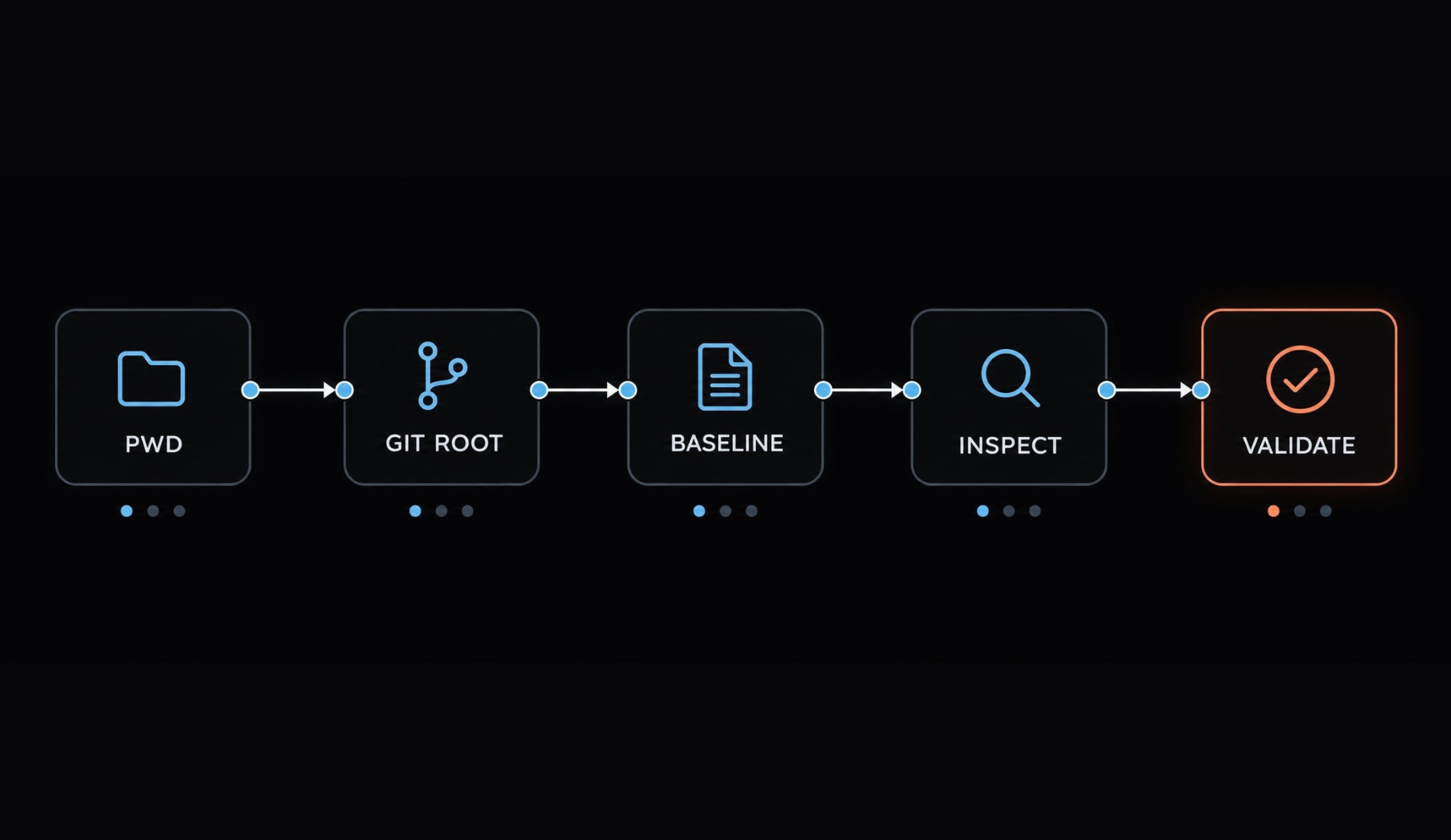
Start with inspection, then authorize one small change. These shell examples inspect state; they are not a captured execution record.
Identify the repository root
Look for the README, manifest, source, and tests. Git metadata may appear as a .git directory or file.
In a monorepo-a repository containing multiple projects-the application root may be nested below Git’s root.
Open the intended folder
In an editor, open the relevant folder. For a command-line agent, navigate there before launching it.
Check terminals separately: changing the editor workspace does not necessarily change an existing terminal’s location.
Verify the current path
Confirm your active directory using native terminal commands:
macOS/Linux, Bash or Zsh:
pwd
git rev-parse --show-toplevel
git status
Windows, PowerShell:
Get-Location
git rev-parse --show-toplevel
git status
Compare the current path with Git’s reported root. git status also works from subdirectories; success alone does not prove you opened the root.
Git’s git-rev-parse and git-status documentation describe these inspection commands.
Create a safe baseline
Review existing changes and secret exclusions. Commit only reviewed files, or make an appropriate backup.
Initialize Git first if the project needs version control and is currently unversioned. Avoid indiscriminate staging.
A Git baseline supports recovery of recorded files-not reversal of external actions or credential exposure.
Inspect before editing
Inspect without editing.
Summarize the project structure and relevant instructions.
Identify runtime and validation commands from project files.
Propose the smallest change to improve the dashboard's
empty-state message, including its test.
List uncertainties and wait for approval.
A read-only request is behavioral guidance, not a read-only permission mode.
Validate the first change
Review git diff and git status. Run documented checks, then confirm that only the intended message and relevant test changed.
Check for unrelated files and secrets before accepting the result.
Where to store AI agent instructions and project context
Keep durable requirements out of ephemeral chat sessions. Persistent instruction files keep agents aligned across multiple development sessions.
The three layers of agent context
Layer | Location and update timing |
|---|---|
Project context | README and documentation; update when behavior or architecture changes. |
Operating rules | Supported instruction files; update when conventions or validation change. |
Task context | Issue, task note, or supplied prompt; update for each assignment and handoff. |
What to put in AGENTS.md
Use this editable skeleton where supported:
# Project Purpose and Stack
# Source and Test Locations
# Coding Conventions
# Setup and Validation Commands
# Planning and Approval Requirements
# Restricted or Sensitive Areas
# Expected Change Report
Fill the headings with concrete information. Identify the dashboard’s stack, source locations, test commands, approval-sensitive areas, and reporting expectations.
For example, “Run the documented test command and report failures” is more useful than “write clean code.” Require the final report to list changed files, checks performed, and unresolved issues.
Instructions guide behavior; they do not enforce access restrictions.
How to avoid conflicting instructions
Maintain a shared source of truth where practical. Keep tool-specific adapters-small files that supply shared guidance to a particular tool-minimal.
Check documented instruction precedence and nested-file behavior. Intentional scoped overrides can be useful, but obsolete or contradictory rules should be removed.
Naming a document “authoritative” does not make every tool prioritize it. Before implementation, ask the agent to identify the applicable rules and any conflicts.
Files and folders AI coding agents should avoid
Separate Git tracking rules, routine retrieval exclusions, and actual access permissions. .gitignore is not access control.
Control | What it addresses |
|---|---|
Git ignore rules | Keeping matching untracked files out of normal staging. |
Agent retrieval exclusions | Reducing routine indexing or context inclusion, where supported. |
Tool/environment permissions | Restricting actual reads, writes, execution, or network access. |
Git’s gitignore documentation distinguishes ignored files from files already tracked.
Sensitive files
Keep these out of supplied context:
- Real credentials in
.env, private keys, and signing material. - Production secrets and sensitive configuration values.
- Database exports and customer or internal data.
- Personal files outside the project.
Not every production configuration value is secret. Review sanitized versions when needed.
Adding ignore rules does not remove tracked secrets or history. If a credential is exposed, follow its revocation or rotation process; deleting the file is insufficient. OWASP’s Secrets Management Cheat Sheet provides relevant guidance.
Large or generated directories
Dependencies, build output, caches, coverage, large assets, and temporary exports are usually unnecessary for routine inspection.
Targeted debugging may require them. Configure ignored directories separately for Git and agent retrieval where supported.
High-risk operations requiring approval
Require approval for:
- Bulk deletion or moves.
- Dependency and database changes.
- Authentication, payment, or permission logic.
- Continuous integration/delivery configuration, publishing, deployment, pushes, or merges.
- Commands outside the intended scope.