Claude Cowork: What it is, how to use it and what it can actually do
Getting an answer is different from delegating a piece of work. Claude Cowork is designed for the latter: Give it a defined objective and relevant source material, then review the deliverable it produces. A useful first task is turning a few project notes into a client update, not handing over your entire workspace. This guide explains what Cowork is, how to check access, how to prepare a safer first task, and which five prompts to try.
What is Claude Cowork, and how does it work?
Claude Cowork in plain English
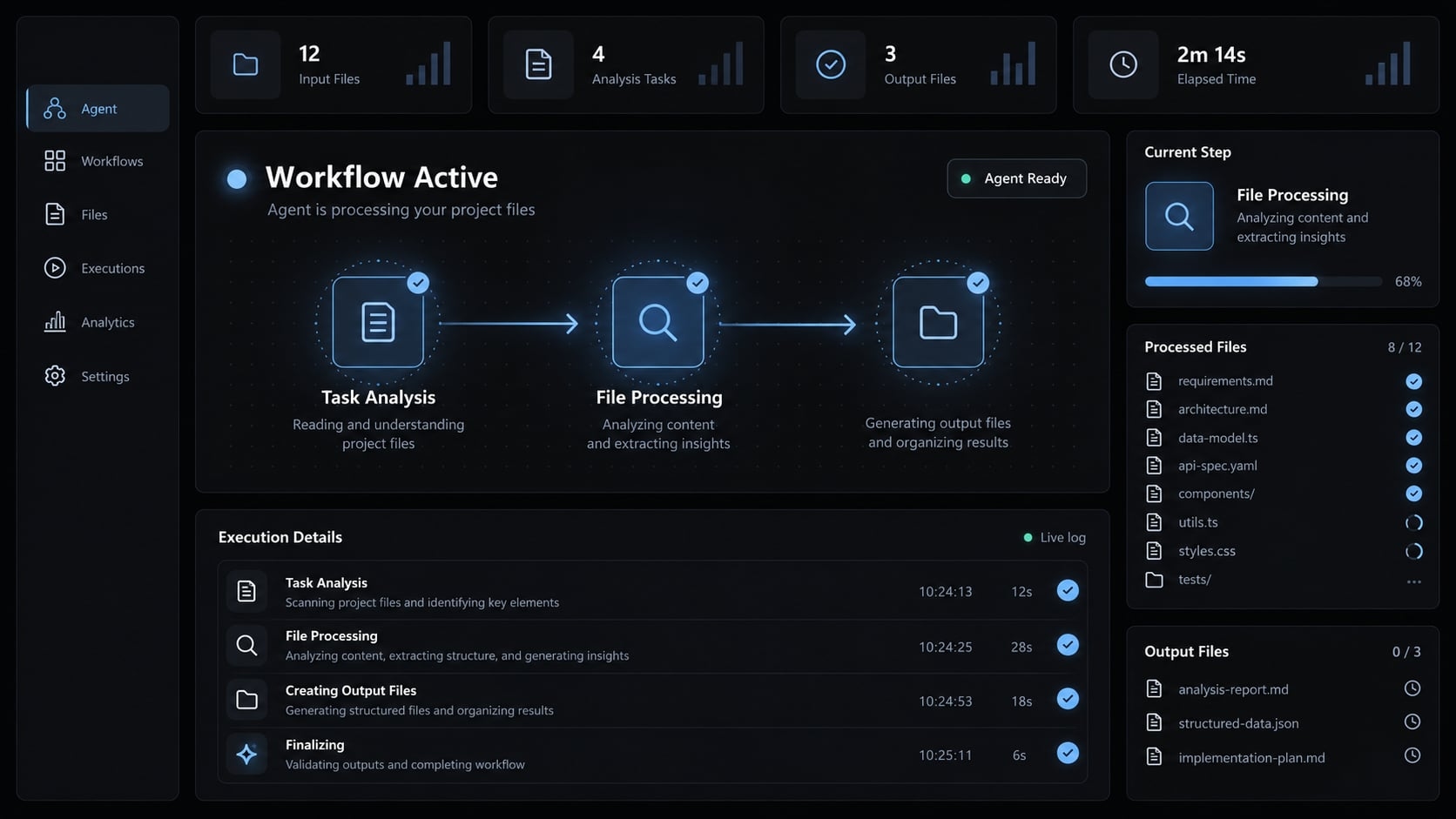
Claude Cowork is a mode in the Claude app that brings Claude Code’s agentic architecture to knowledge work beyond coding. You give it access to chosen folders and connectors, describe an outcome, and review the deliverable it produces. Rather than only asking for an answer, you provide an objective and relevant material, then review the deliverable.
For example, you might ask it to turn approved meeting notes into a structured client update, using supported tools and authorized access.
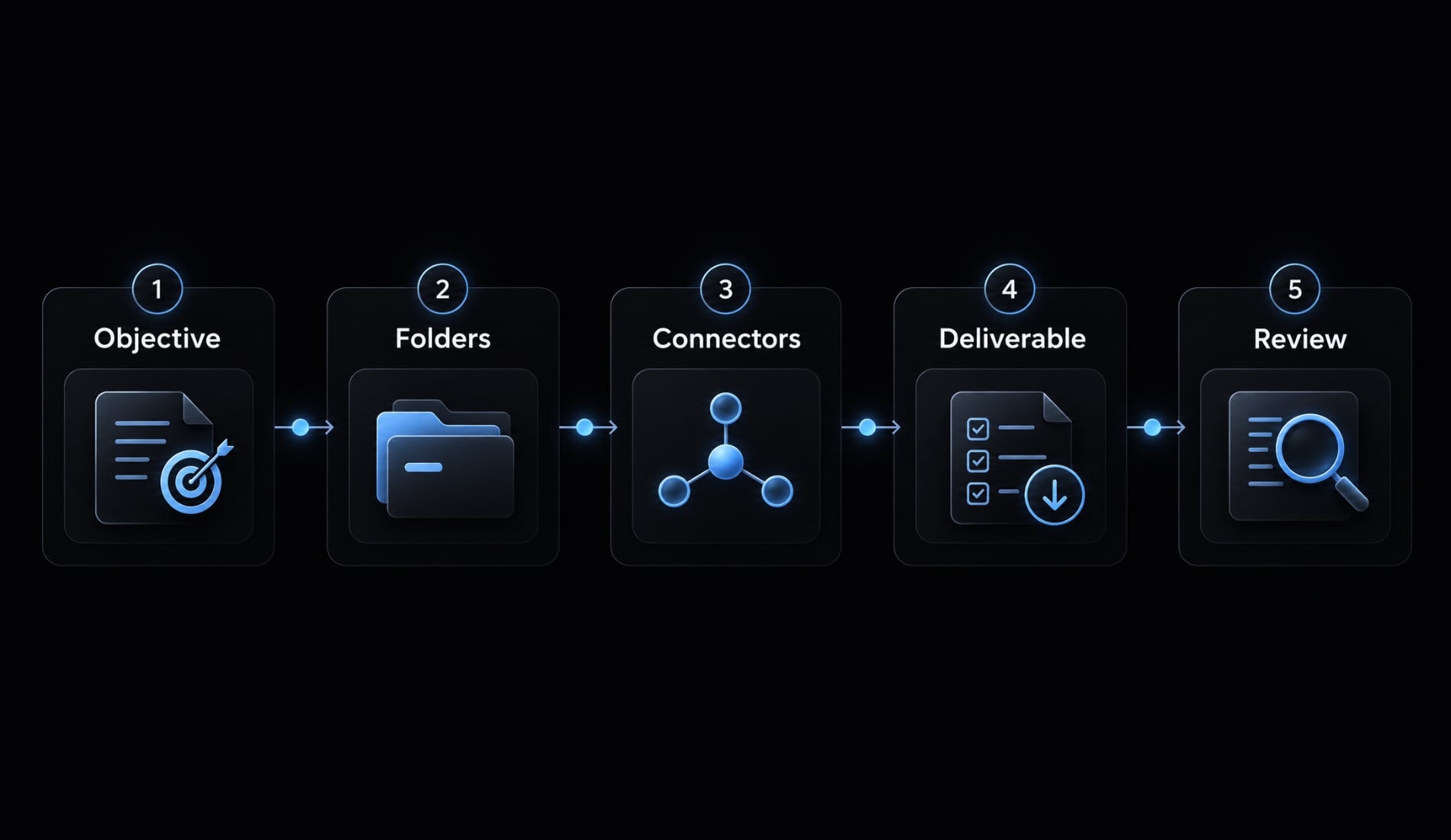
The practical distinction is an answer versus a delegated deliverable. A chat response might explain how to structure a report. A delegated task asks Claude to examine the supplied notes and prepare that report. A sensible task lifecycle looks like this:
Objective
   ↓
Authorized context
   ↓
Supported actions
   ↓
Deliverable
   ↓
Human review
This is a recommended workflow, not a guarantee that every interface exposes identical steps.
What it can read, create and change
AI-powered task delegation depends on the capabilities available in your account and the access you grant.
- Inputs: Supplied documents, authorized files, and supported connected sources. Do not assume access to every local folder or business application.
- Actions to control: Creating outputs, modifying originals, moving files, and taking external actions are different permissions. Confirm which are possible before starting.
Cowork only accesses the folders and connectors you grant, and it requires your explicit permission before permanently deleting files. Written instructions can request human approval, but they do not establish an enforceable permission boundary.
Claude Cowork vs. Claude chat, projects and Claude Code
Choose by the job you need completed, not by assuming each option has exclusive capabilities.
Option | Best for | Typical input | Expected outcome |
|---|---|---|---|
Claude chat | Questions, exploration, and drafting | A question, pasted text, or supplied document | An explanation, analysis, or draft |
Claude Projects | Work organized around recurring context | Reference materials and project instructions | Responses informed by that project’s context |
Cowork | Supported multi-step knowledge work | An objective, source materials, and action boundaries | A deliverable or completed set of supported steps |
Software-project work | A codebase, development task, and technical context | Proposed or implemented software changes requiring review |
These summaries provide general guidance rather than rigid definitions, as file analysis and tool use often overlap. Projects is a way to organize work and context, not a separate model.
Anthropic’s Claude Help Center descriptions of Projects and its Claude Code documentation are the appropriate references for their current behavior. Packaging and capabilities can change, so use the options actually available in your account.
Which option should you choose?
- Need an answer or draft? Start with chat.
- Need repeated reference context? Consider Projects.
- Need supported multi-step execution? Evaluate Cowork.
- Need changes to a software project? Consider Code.
For Claude Cowork vs. Claude Code, the main distinction is the work being delegated. Preparing a client update and modifying an application have different inputs, risks, and review requirements. Start with the simplest option that can complete the task. More execution capability is not automatically more useful.
How to access Claude Cowork: Availability, plans and cost
Live eligibility and prices have not been independently verified for this guide. Confirm them in your account and Anthropic’s current documentation before subscribing or changing plans.
Claude Cowork availability involves several separate questions: Whether your subscription qualifies, whether your interface supports the task, and whether organizational settings permit the necessary access.
Check your Plan, Platform, and Limits
Access question | What to confirm |
|---|---|
Supported platforms or interfaces | Where Cowork or equivalent task-execution capabilities appear in your account; do not assume desktop, web, and mobile have identical functionality |
Eligible plans | Whether your exact subscription and account type include access |
Cost and billing basis | Currency, monthly or annual billing, per-user charges, regional differences, and applicable taxes |
Usage limits | Included allowances, variable limits, reset periods, and any additional-usage charges |
Supported connected tools | Which connections are available, which permissions they request, and whether an administrator must enable them |
Runtime dependencies | Whether the task requires an active application, an awake computer, a local connection, or another documented condition |
For Claude Cowork pricing, consult Anthropic’s official Claude pricing information alongside the relevant Help Center access documentation. A subscription price alone does not establish eligibility or an unlimited usage allowance. For a managed workplace account, administrator restrictions may be decisive even when the underlying plan supports a feature. Likewise, access to one connected tool does not imply access to others.
Avoid buying a higher tier solely on the assumption that it includes a particular workflow. First confirm the capability, then estimate whether its usage limits fit your workload.
How to set up Claude Cowork safely
Use this Claude Cowork checklist for your first task:
- Confirm current access.
- Choose one low-risk task.
- Create a copied workspace.
- Define output and approval rules.
- Test and inspect the result.
Choose a low-risk task and test folder
First, confirm that your account supports the file access and output behavior you need. Follow the current interface rather than instructions based on an older screenshot.
Next, choose a bounded task: Turn two or three non-confidential project documents into a client update. Use synthetic notes if necessary. Create working copies and keep originals outside the authorized workspace:
Client-update-test/
├── Sources/
│   ├── meeting-notes.txt
│   └── project-status.txt
├── Reference/
│   └── update-style.txt
└── Output/
This is a recommended folder structure, not a required product configuration.
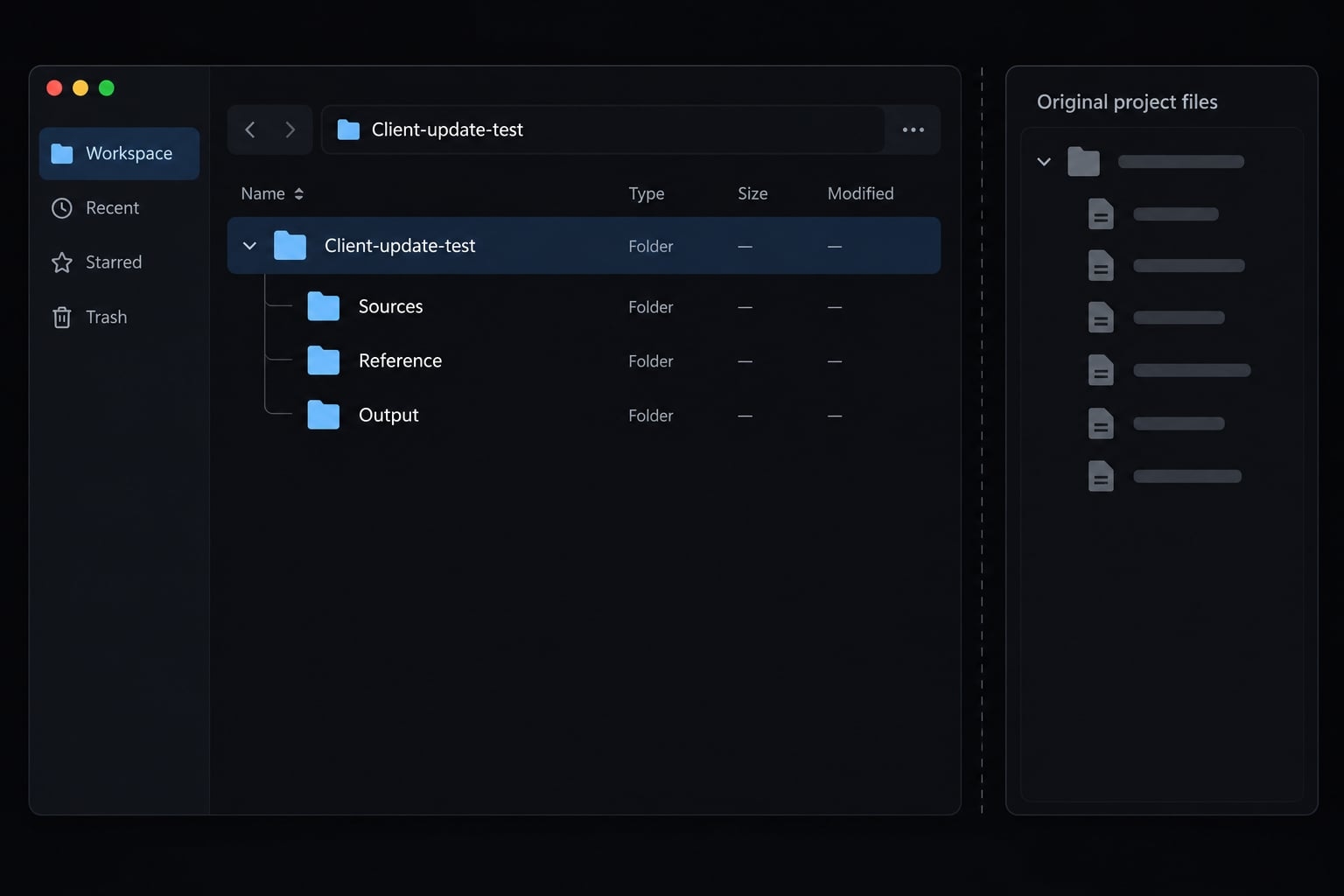
Separate source and output folders so changes are easier to inspect. Where supported, restrict access to the smallest necessary scope. Exclude production systems, payments, sensitive client records, unrestricted inboxes, and irreversible actions from your first test.
Give clear instructions and approval rules
Copy this template and adapt the filenames and destination:
Objective: Prepare a client update for the project sponsor.Sources: Use only the supplied Sources files.Style: Follow Reference/update-style.txt.Output: Create a new draft in Output, if supported.Otherwise, return the draft here.Structure: Summary, confirmed decisions, open questions,and next actions.Evidence: Cite the source filename for each factual item.Use section or page references when available.Limits: Do not modify, move, or delete source files.Do not send messages or access additional sources.Missing information: Mark “Not provided.”Do not invent owners, deadlines, or approvals.Stop: If conflicting facts or additional permissionsprevent completion, explain the issue and ask.
A prompt is not a security boundary. “Do not delete” expresses requested behavior; it does not technically remove deletion capability. Use actual access controls and backups where available.
Run a small test and inspect the output
If the interface presents a plan, inspect it before proceeding. Do not assume every configuration includes a mandatory approval step.
Check:
- Completeness: Are all requested sections present?
- Factual support: Can each statement be traced to a source?
- Formatting: Is the update readable and usable?
- Placement: Is the deliverable in the requested location?
- Unrequested changes: Were other files or systems affected?
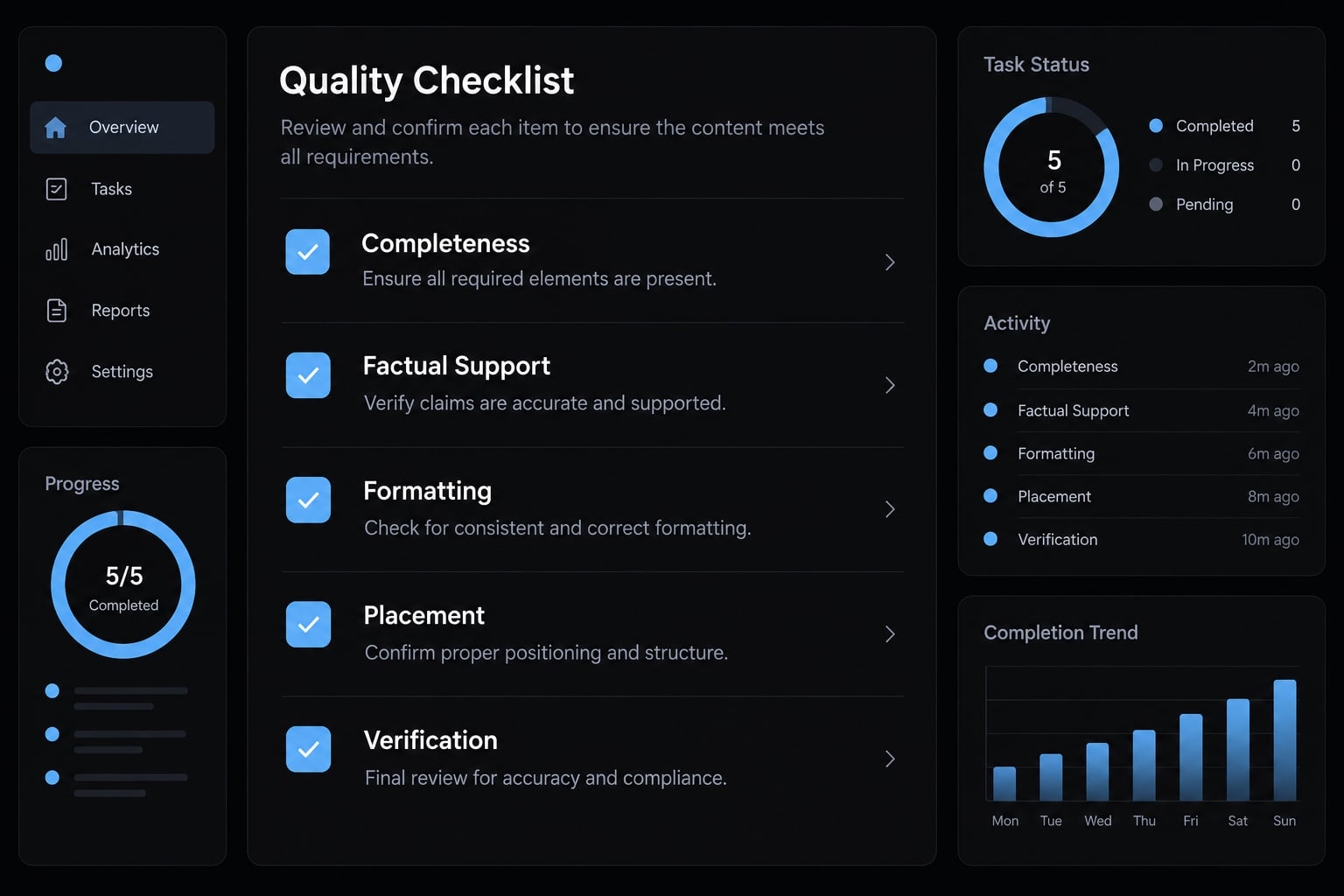
Use the checklist and template before expanding access. A successful small task is evidence about that task—not permission to trust unrelated work.
Practical Claude Cowork use cases and prompts
Good Claude Cowork use cases have bounded inputs and outputs you can inspect. The following prompts are illustrative starting points, not tested workflows. They default to supplied files rather than assuming browsing, scheduling, or connector access.
Use this structure when adapting them:
Objective → Inputs → Deliverable → Constraints → Review
Organize a copied folder
- Input: A copied collection of documents.
- Output: A proposed organization plan.
- Relative risk / review: Lower risk while proposal-only; higher once changes are allowed. Similar filenames do not prove duplication.
Inspect only the supplied working-copy folder. Propose categories,
file moves, clearer names, and potential duplicates in a table.
Explain each recommendation and identify uncertain matches.
Do not rename, move, overwrite, or delete anything.
Return the proposal for review before any changes.
Approve specific changes only after checking the proposal. Keep a recoverable copy even when the recommendations look reasonable.
Turn notes into a report or client update
- Input: Meeting notes and a project-status document.
- Output: A structured update with source references.
- Relative risk / review: Moderate if client-facing. Check that suggestions remain suggestions.
Using only the supplied project notes, draft a client update
with confirmed facts, decisions, open questions, and next actions.
Cite source filenames for factual statements. Preserve uncertainty.
Do not invent owners or dates, and do not describe suggestions
as approved decisions. Return a reviewable draft.
Synthetic output excerpt—not a product test:
Confirmed: The draft was shared for review. Source: project-status.txt.Open question: Launch approval is not documented.Next action: Confirm the launch decision. Owner and deadline: not provided.
Prepare a daily or weekly briefing
- Input: Approved status files and task exports.
- Output: A briefing separating commitments from recommendations.
- Relative risk / review: Moderate. Verify deadlines, urgency, and missing sources.
Prepare a weekly briefing from the supplied approved files.
Separate documented commitments, approaching deadlines, unresolved issues,
and suggested priorities. Cite each commitment and deadline.
Label recommendations clearly. Flag missing dates or contradictory
information. Do not access calendars, send reminders, or assume
this briefing will run automatically.
A daily briefing is only as current as its inputs. Preparing one does not establish recurring execution.
Compare competitor materials
- Input: Dated copies of competitor pages or documents.
- Output: A comparison matrix.
- Relative risk / review: Moderate. Old materials can produce misleading conclusions.
Compare the supplied competitor materials by audience, positioning,
promises, supporting proof, and calls to action. Record source
filenames and document dates. Distinguish explicit statements from
your interpretation. Mark unavailable details as unknown.
Flag pricing and capability claims that need current verification.
Keep the analysis grounded in what the materials actually say. Missing information is not evidence that a competitor lacks a capability.
Draft in your brand voice
Get the next post in your inbox
New guides and AgentKit updates, no spam. Unsubscribe at any time.
Ship features with Engineer Kit
Planning, implementation, review and testing workflows for AI coding agents, ready to install.
Explore Engineer Kit →Share this article
Keep reading
- Master Claude Code PostToolUse hook: Setup and examplesLearn how to configure Claude Code PostToolUse hooks for automated formatting and linting. Follow our guide to improve workflow efficiency today.15 min read
- How to use Kimi K2 with Claude Code: Setup & verification guideLearn how to configure Kimi K2 with Claude Code using Anthropic-compatible endpoints. Follow our step-by-step guide for setup, verification, and testing.13 min read
- Claude Code effort level: How to choose the right settingLearn how Claude Code effort level impacts reasoning and performance. Discover the best settings for your tasks to balance efficiency and accuracy.10 min read