
Claude Code stuck? A practical recovery and troubleshooting guide
If you’re dealing with Claude Code getting stuck, the usual pattern is easy to recognize: No token output, no visible tool activity, and a “thinking” state that never seems to finish. That does not always mean your setup is broken. Sometimes Claude Code is just slow on a large task; other times it is effectively frozen and waiting on nothing useful. This guide focuses on the safest order of operations: Recover the session first, diagnose the likely cause second, and then decide whether you are looking at a local issue or something upstream.
What to do first when Claude Code is stuck
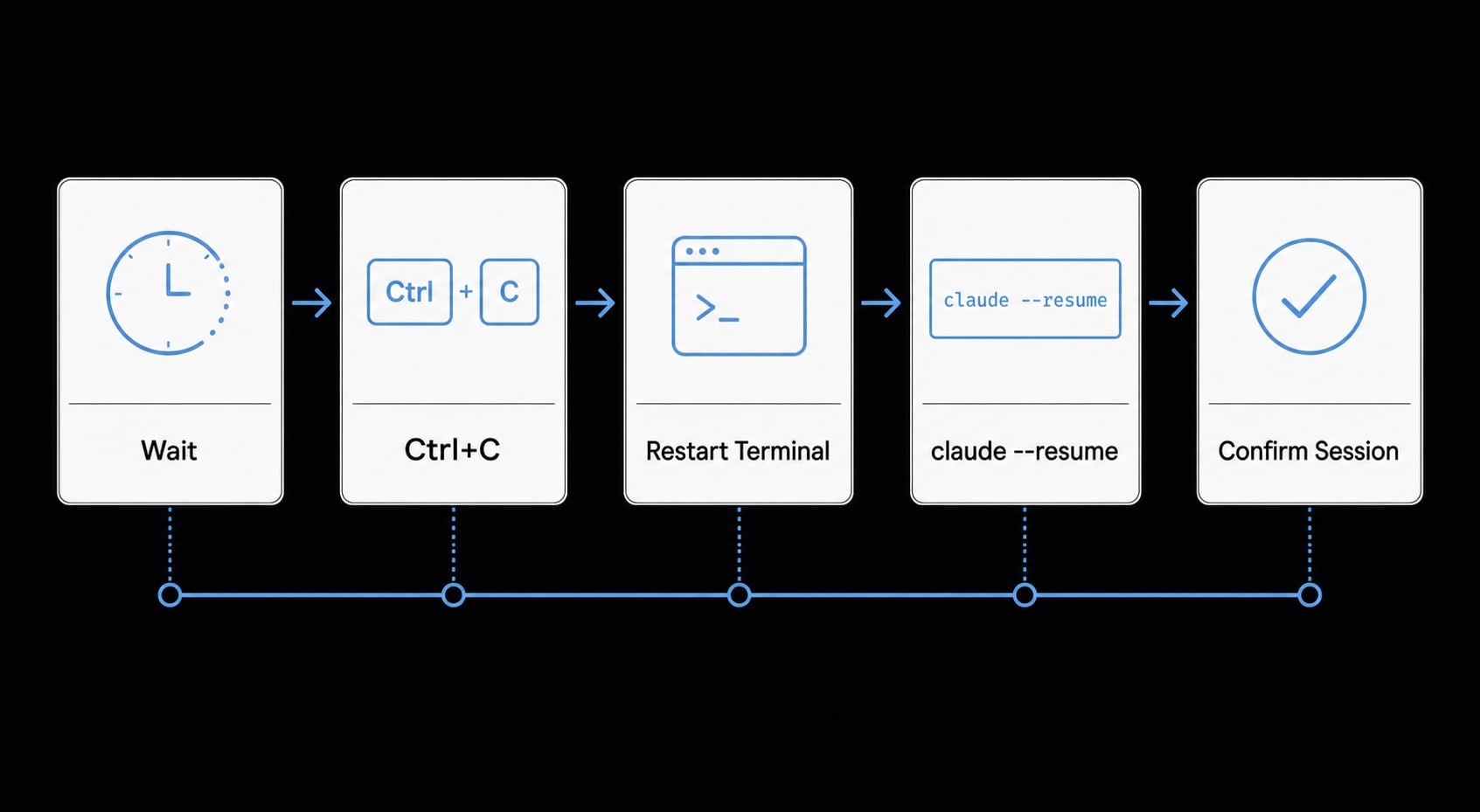
When Claude Code thinking stuck turns into several minutes of no movement, the safest move is to recover first and troubleshoot second. Avoid random config edits at this stage.
- Wait briefly to confirm it is actually stuck.
- Press
Ctrl+Cto cancel the current operation. - If it stays unresponsive, close the terminal.
- Reopen the terminal in the same project directory.
- Run
claude --resume. - Confirm the session is restored before doing anything else.
Slow response vs actually frozen
A stuck session usually has a different feel from a merely slow one.
Signs it may still be working:
- Occasional token output still appears.
- You can see visible tool activity.
- The task is large and has shown recent progress.
Signs it is likely frozen:
- No token output after a reasonable wait.
- No tool activity at all.
- Your input appears ignored or nothing resumes.
In practice, if nothing moves for a few minutes and there is no sign of output, tool usage, or progress, Claude Code freezing is the more likely explanation. For large refactors or long reads, waiting a little longer can be reasonable, but not indefinitely.
Safe recovery sequence
Use the lowest-risk sequence first when Claude Code stuck interrupts your workflow:
- Wait briefly: Give the session a short window to prove it is slow rather than dead.
- Press
Ctrl+C: This is the fastest safe attempt to stop the current operation. - Close the terminal if needed: If the Claude CLI stays unresponsive, do not keep stacking more commands into a dead terminal.
- Reopen the terminal in the same directory: Session recovery works best when you return from the original working path.
- Run
claude --resume: This is the documented recovery path to restore session continuity. - Check that the session returns cleanly: Once the conversation is back, you can decide how to resolve Claude Code stuck on thinking without risking more confusion.
Do not start with reinstalling, deleting configs, or changing hooks blindly. When Claude Code gets stuck, recover first and troubleshoot second.
The most common reasons Claude Code gets stuck
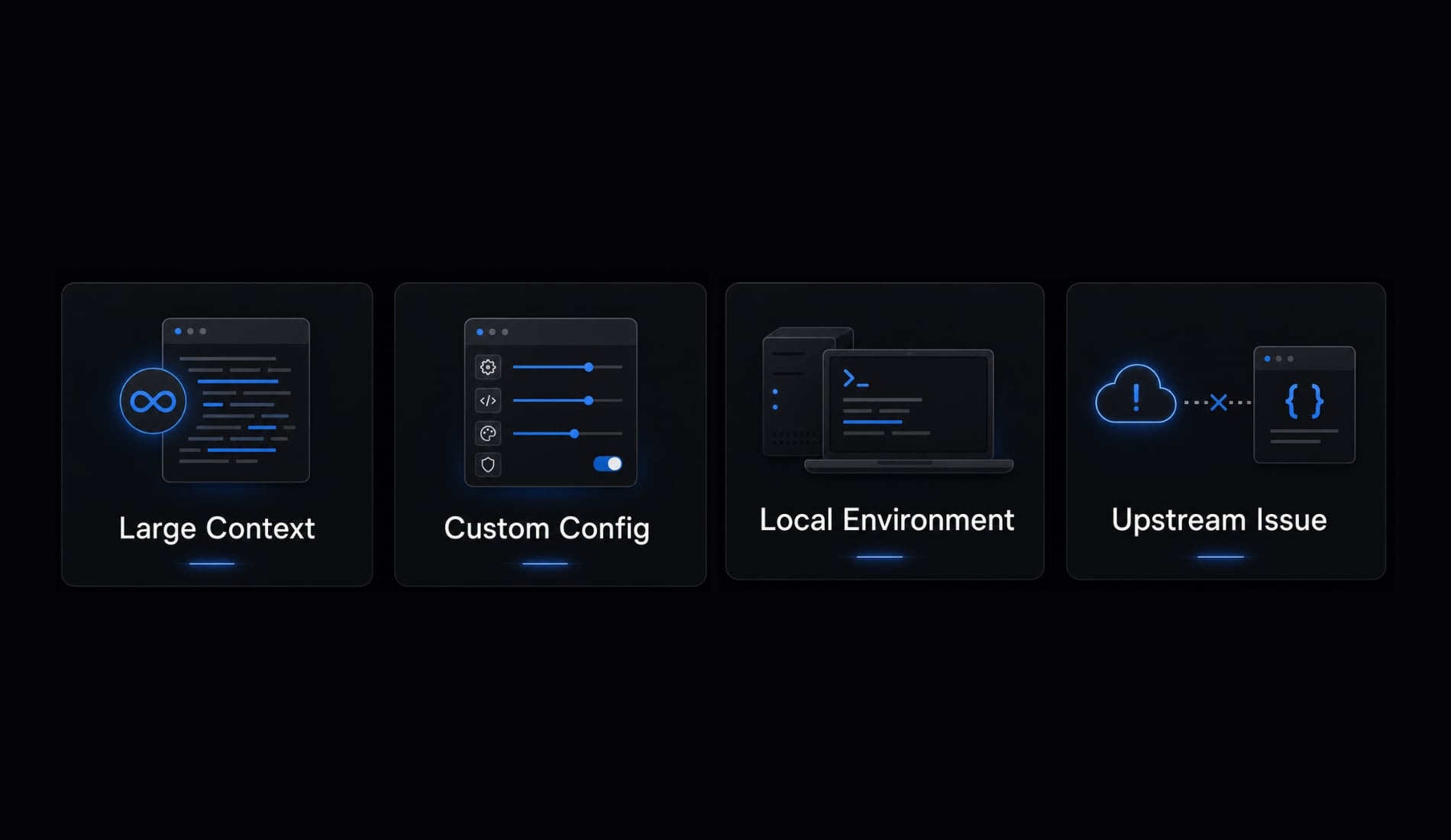
Claude Code usually gets stuck for one of four practical reasons: The session has become too heavy, a custom integration is stalling, the local environment is under pressure, or the problem is upstream. The goal is not perfect diagnosis on the first try. It is fast pattern recognition.
Large context and long-running sessions
A common cause of Claude Code unresponsive during long tasks is simply session weight. Long conversations, large outputs, repeated file reads, and multi-step requests can make the conversation state feel overloaded. This is often a large context problem rather than a pure network problem.
Signs include gradual sluggishness before the freeze, slower responses after many turns, or trouble after asking for very large summaries, diffs, or multi-file changes. In plain terms, the session has become heavy.
MCP, hooks, and custom workflow suspects
If you rely on MCP or custom hooks, these are valid suspects. MCP is the layer that connects Claude Code to external tools and services. If one of those connections stalls, the overall workflow can appear stuck.
Hooks can also add hidden complexity. A custom configuration that worked last week can still become the reason hooks or tool-heavy flows hang today. This is especially likely if the issue shows up during external-tool steps rather than simple prompts.
Local machine and environment issues
Local pressure is another common bucket. High CPU or memory usage, very large codebases, and unstable integrated terminals can all contribute to Claude Code performance issues. On WSL2, filesystem placement matters too.
If your project sits under /mnt/c/ instead of the Linux filesystem, you may see more friction in WSL2 workflows. Terminal rendering problems or environment strain can also make a healthy session look worse than it is.
When it may be a known upstream issue
Sometimes the stream stalls even when your setup is fine. There have been public reports of hanging or stalled sessions in some cases, including reports where token usage does not move and the SSE connection appears to stop delivering events. SSE stands for Server-Sent Events, which is simply the live stream of response updates from the system.
If the issue appears suddenly without local changes, a known upstream issue becomes more plausible. Public issue investigation is a useful signal, but it is not absolute proof by itself.
A simple troubleshooting flow that covers most stuck cases
Once you recover the session, use a short command-based process. This is the fastest way to troubleshoot Claude Code frozen state without turning one interruption into an hour of guesswork.
- Recover the session with
claude --resume. - Run
/doctor. - Use
/compact. - Isolate custom setup with
claude --safe-modeand/mcp. - Escalate if the issue persists in a cleaner environment.
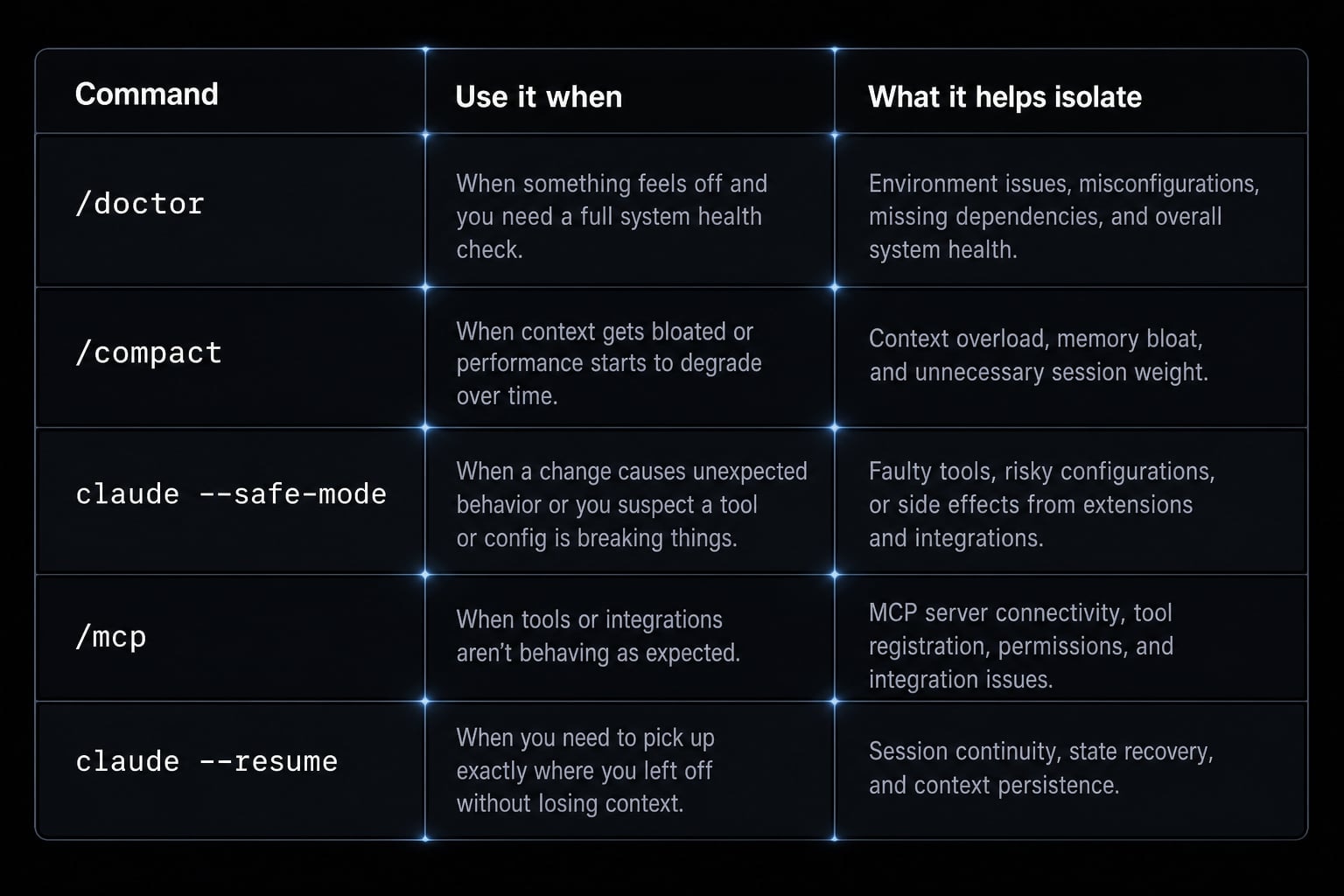
Command | Use it when | What it helps isolate |
|---|---|---|
| After a stuck or interrupted session. | Session recovery and continuity. |
| The issue repeats after recovery. | Setup, config, and environment warnings. |
| Long or verbose sessions feel heavy. | Context overload and sluggish state. |
| You suspect plugins, hooks, or MCP. | Whether custom setup is the trigger. |
| Tool-heavy workflows stall or hang. | MCP server status and connection issues. |
When to use /doctor
Run /doctor after recovery if the problem repeats. Think of it as a built-in health check rather than a magic fix. It helps inspect install and setup health, flags obvious config issues, surfaces environment problems, and can point to useful warnings you may have missed.
For practical use, /doctor is one of the best first checks because it is fast and low risk. It will not prove every root cause, but it can narrow the field before you start changing anything manually. If you want a structured workflow after recovery, this should usually come before deeper experimentation.
When to use /compact
Use /compact after long, verbose, or messy sessions. This is especially useful when the session feels sluggish even before it becomes fully stuck. The goal is to reduce session weight and improve context management.
In practice, /compact helps when the conversation has accumulated too much history, too many outputs, or too many side branches. It is not only for hard failures. If you notice gradual slowdown after long tasks, /compact is often the right next move before blaming your environment or the service.
When to use claude --safe-mode
Restart with claude --safe-mode when you suspect the problem is tied to custom setup. The pattern is simple:
- Start Claude Code in safe mode.
- Retry a small, simple task.
- Compare the behavior with your normal setup.
If the issue disappears in claude --safe-mode, the problem is more likely in hooks, plugins, MCP, or custom configuration than in the prompt itself. Safe mode is not the final fix. It is a controlled way to isolate variables, then re-enable pieces gradually if needed.
When to use /mcp
Run /mcp when the freeze seems tied to external tools or integrations. This command helps you inspect MCP server status and look for failures, delays, or hanging connections.
This matters most in tool-heavy workflows. If a simple prompt works but operations involving external services do not, /mcp becomes a practical check. It can quickly tell you whether a connected tool layer is part of the problem.
If the issue still happens after recovery, /doctor, /compact, and safe mode, stop endless local trial and error. That is the point where a public issue thread, support channel, or known-report check becomes more useful than repeated blind debugging. For teams building repeatable AI workflows, this is also where a documented reliability playbook becomes valuable. Related resource: AI coding workflow reliability best practices.
How to avoid losing work and resume safely
When Claude Code hangs during execution, the biggest concern is usually not the freeze itself. It is whether your work is gone. In many cases, you can recover without starting over, but you need disciplined restart habits.
Safe restart habits:
Get the next post in your inbox
New guides and AgentKit updates, no spam. Unsubscribe at any time.
claude --resume from the original project path gives you the best chance to preserve session continuity.claude --resume succeeds, capture the key plan, diff, or next action while it is fresh.claude --resume as helpful, not perfect: It can preserve session continuity and reduce rework, but smaller task boundaries are still safer than one long chain.These recovery steps are simple, but they reduce the chance that Claude Code hanging during execution turns into lost context and duplicated effort.
When the issue is probably not your setup
Not every freeze is caused by local configuration. If the same behavior persists in safe mode, in a cleaner environment, or across multiple users without local changes, the odds shift away from your setup.
A quick local vs upstream decision check:
Signal | More likely local | More likely upstream |
|---|---|---|
Only happens in one environment. | Yes | Less likely |
Improves in safe mode. | Yes | Less likely |
Tied to one project or one integration. | Yes | Less likely |
Appeared suddenly without local changes. | Possible, but weaker signal | Stronger signal |
Multiple users report similar freezing. | Less likely | Yes |
Token count/output does not move in an otherwise normal setup. | Possible | More plausible |
Tool-heavy workflow fails while simple prompts work. | Often local or integration-related | Less likely |
Clean setup still shows Claude Code thinking stuck behavior. | Less likely | More plausible |
If you are using the Anthropic API and see no token movement despite normal local conditions, you may be dealing with an SSE event interruption, meaning the live response stream is no longer delivering updates. Public issue investigation can help validate patterns, but it is still not definitive proof.
The practical goal is not to prove a provider-side outage from the CLI. You usually cannot. The goal is to avoid wasting time on repeated local debugging once the evidence points to a local vs upstream issue decision leaning upstream or toward a known bug.
A short prevention checklist for smoother Claude Code sessions
Prevention is usually about workflow hygiene, not advanced tuning. If you want fewer repeated freezes in your terminal-based development environment, keep the basics tight.
Habits that reduce repeated freezes:
- Use
/compactregularly after large tasks or long sessions. - Restart Claude Code between major task phases instead of running one endless chain.
- Keep large build and output folders out of active context whenever possible.
- On WSL, prefer the Linux filesystem over
/mnt/c/. - Keep hooks and integrations tidy, especially if they are no longer essential.
- Test new MCP connections in small tasks before using them in critical workflows.
- If a session starts feeling heavy, treat that as an early warning rather than waiting for a hard freeze.
These habits improve AI coding workflow reliability and reduce avoidable Claude Code performance issues, but they do not eliminate every failure mode. Good context management lowers risk. It does not replace recovery discipline.
Frequently asked questions
What should I do if Claude Code freezes or becomes unresponsive?
If Claude Code freezes, follow these steps in order: press Ctrl+C to cancel the current operation, close the terminal, open a new terminal, and run claude --resume from the same working directory. This allows you to restore the session safely without losing data.
How can I tell whether Claude Code is still processing or has frozen?
Claude Code may take time to process complex tasks. If tokens are still appearing in the output or tool activity continues, it is still working. If the “thinking” screen remains completely unchanged and there is no response for an extended period, the session has likely frozen.
Why does Claude Code freeze while running?
Claude Code commonly freezes for one of four reasons: an overloaded session context, errors from MCP tools or custom hooks, insufficient system resources, or an interruption to the service provider’s Server-Sent Events (SSE) stream.
When should I use /doctor and /compact?
Use /doctor to diagnose installation, configuration, or environment issues when problems occur repeatedly. Use /compact when a session becomes overloaded or responses slow down, reducing the context so Claude Code can operate more smoothly.
How can I determine whether the issue is caused by my computer or the Claude service?
If the issue continues after you use claude --safe-mode to eliminate custom configurations, or if multiple users experience the same problem simultaneously, the cause is likely an upstream service issue rather than your local environment.
What is the best way to prevent Claude Code from freezing in the future?
Maintain a clean workflow: run /compact regularly after major tasks, restart between important stages of work, exclude build directories from the context, and use the Linux file system when working with WSL2.
Read more:
- Claude Code slash commands: Essential shortcuts for CLI flow
- Claude Code invalid tool parameters: Causes and fixes
- Blender MCP with Claude Code: A secure AI scripting setup guide
Conclusion
When Claude Code gets stuck and interrupts your work, the most reliable order is simple: recover safely first, then diagnose with built-in commands, then decide whether the problem is local or upstream. Start with Ctrl+C, restart if needed, and use claude --resume to get back into the session with the least disruption.
From there, use /doctor to check setup health, /compact to reduce session weight, claude --safe-mode to isolate custom setup, and /mcp to inspect external tool connections. If the same failure persists in cleaner conditions, stop burning time on random local fixes. For a deeper operating playbook, see our related guide on developer productivity with AI CLI tools and context management best practices.
Ship features with Engineer Kit
Planning, implementation, review and testing workflows for AI coding agents, ready to install.
Explore Engineer Kit →Share this article
Keep reading
- Master Claude Code PostToolUse hook: Setup and examplesLearn how to configure Claude Code PostToolUse hooks for automated formatting and linting. Follow our guide to improve workflow efficiency today.15 min read
- How to use Kimi K2 with Claude Code: Setup & verification guideLearn how to configure Kimi K2 with Claude Code using Anthropic-compatible endpoints. Follow our step-by-step guide for setup, verification, and testing.13 min read
- Claude Code effort level: How to choose the right settingLearn how Claude Code effort level impacts reasoning and performance. Discover the best settings for your tasks to balance efficiency and accuracy.10 min read