Connect Docker MCP to Claude Code: Step-by-step guide
How to connect Docker MCP toolkit to Claude Code: Step-by-step guide
Connecting the Docker MCP toolkit to Claude Code allows you to run containerized tools without installing local runtime dependencies. The setup is simple: Verify prerequisites, connect Docker MCP Gateway, configure a server, and test a read-only tool invocation. This guide covers each step, success criteria, and troubleshooting tips. Always check your installed CLI versions, as commands and interface labels may vary between releases.
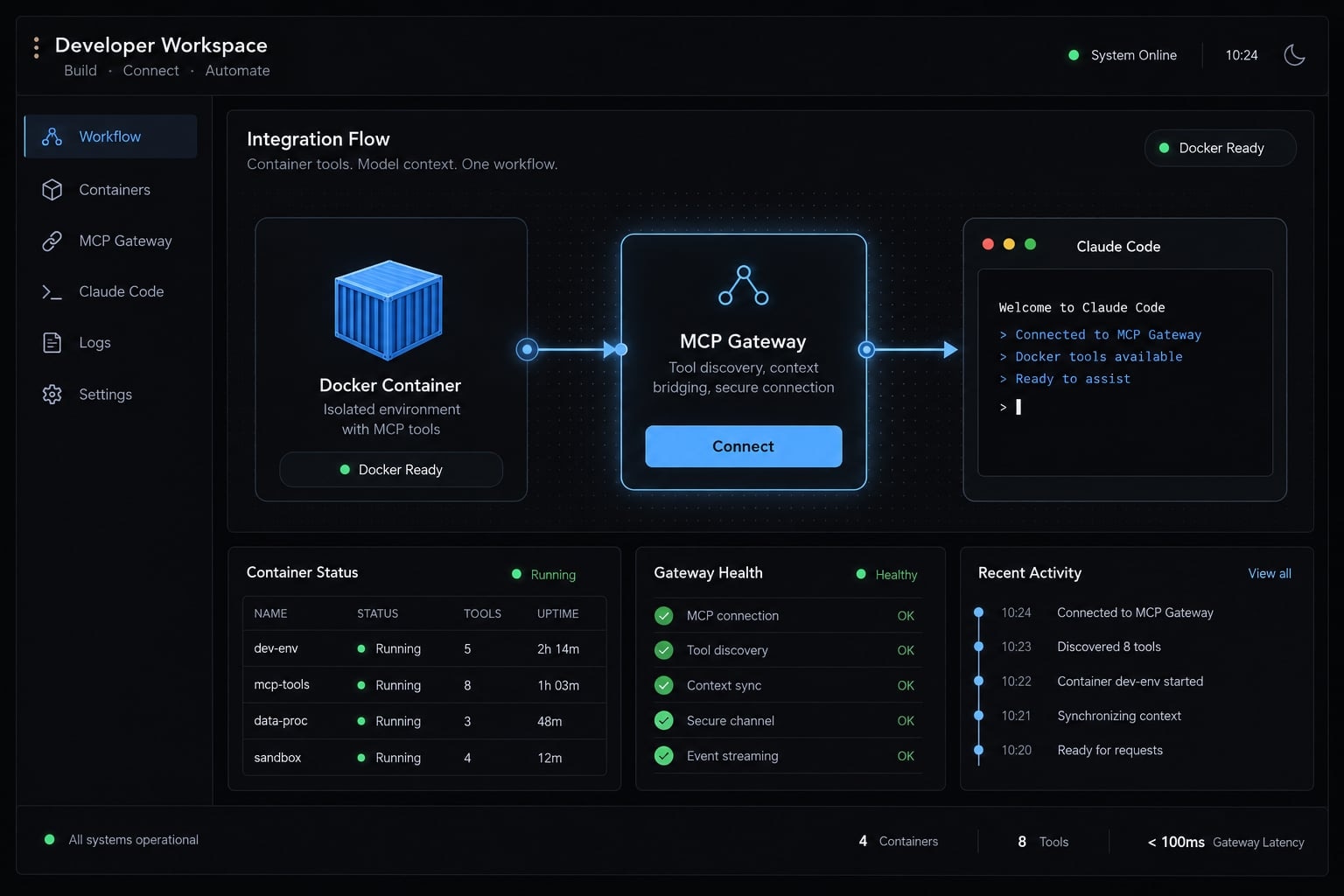
How Docker MCP toolkit and Claude Code work together
Docker MCP Toolkit is a Docker Desktop interface for discovering, configuring, and connecting MCP servers to compatible applications. MCP, or Model Context Protocol, standardizes how clients interact with server-exposed capabilities. The Toolkit manages available integrations, while Docker MCP Gateway provides a connection layer between Claude Code and enabled servers.
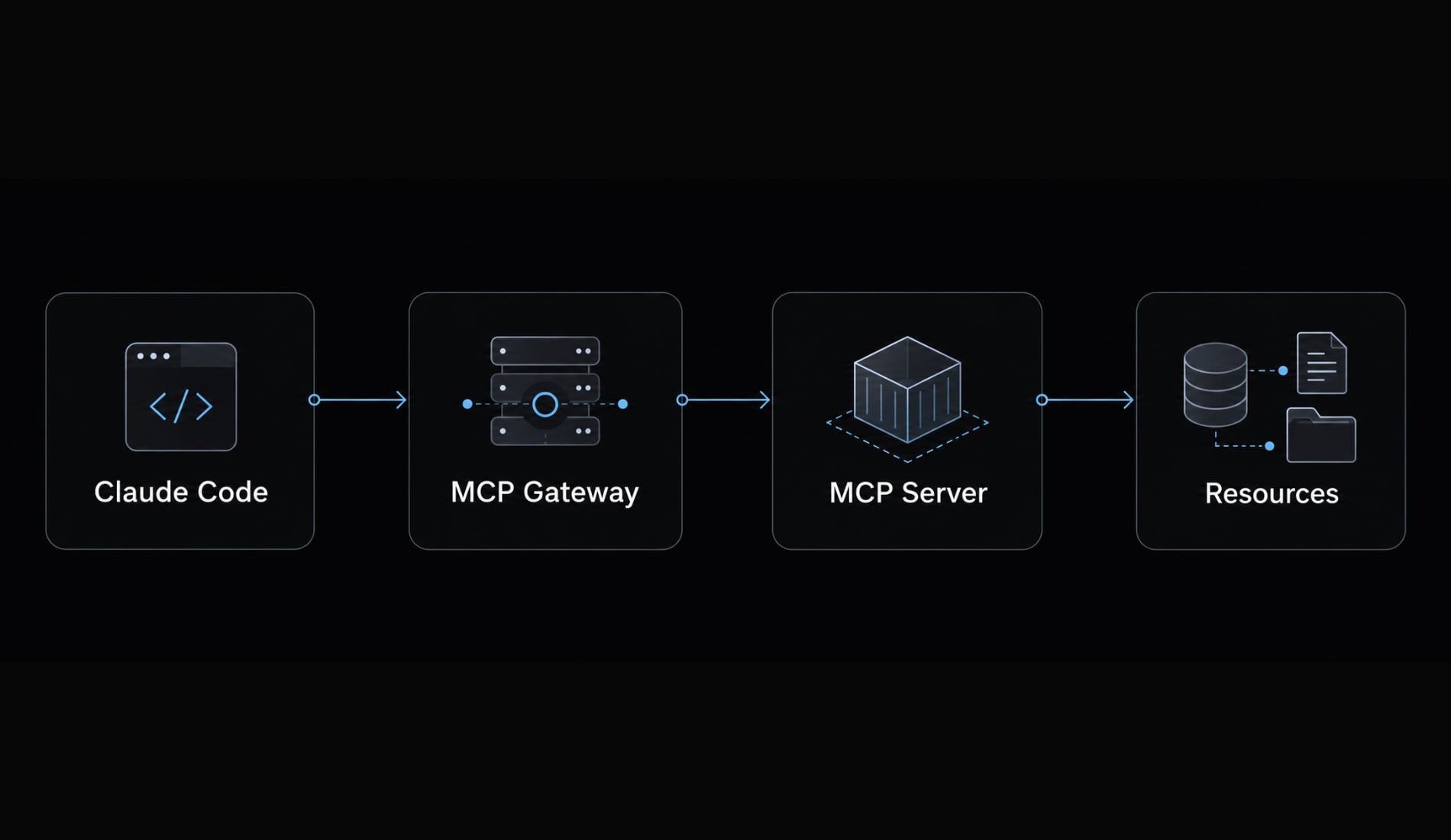
The MCP architecture documentation distinguishes the client from the server. Claude Code is the MCP client. A containerized MCP server exposes tools, such as reading approved files. Those files—or an external API—are the resources accessed by the tools.
Claude Code ↓Docker MCP Gateway ↓Containerized MCP server ↓Approved files or API
Docker’s MCP Toolkit documentation describes container-based server management. Its practical advantages include:
- Isolated runtime dependencies.
- Fewer host-level Node.js or Python conflicts.
- Centralized configuration where supported.
- More repeatable server environments.
- Runtime separation—but not automatic server trust.
Host paths, file sharing, and shell environments can still differ across platforms.
Prerequisites and version checks
Check Docker Desktop, engine connectivity, the MCP CLI, and Claude Code separately. An installed command does not prove its underlying service is running. Before starting, confirm:
- Docker Desktop is installed and running.
- Your release provides MCP Toolkit.
- The Docker MCP CLI is available.
- Claude Code is installed and authenticated.
- You have a dedicated, non-sensitive test directory.
- You are using the shell where Claude Code will run.
Run:
docker --versiondocker infodocker mcp --helpclaude --version
Command | Expected result |
|---|---|
| Docker CLI version appears. |
| Engine details appear without a connection error. |
| MCP commands and options appear. |
| Claude Code version appears. |
docker info checks the engine selected by your active Docker context. It does not necessarily identify the engine you intended to use.
Record the Docker Desktop version separately from its About screen. The Docker CLI version is not the Desktop version. If the MCP component exposes an independent version command in its help, record that too.
Recommended test environment
Use a sample project containing a harmless README.md and two or three text files. Exclude credentials, production configuration, and customer data.
Record your OS, shell, versions, and Docker context before troubleshooting. For Windows, distinguish PowerShell from WSL; their paths and executable availability are not interchangeable.
Follow Docker’s installation documentation and Claude Code’s setup documentation if any prerequisite fails. A filesystem-only test should not require an external service token.
Connect Docker MCP Toolkit to Claude Code
To connect Docker MCP to Claude Code, choose one registration method. Do not register the same gateway through both the Desktop interface and CLI.
- Open Docker Desktop.
- Open or enable MCP Toolkit.
- Connect Claude Code using Desktop or the CLI.
- Restart Claude Code in your test project.
- Run
/mcp. - Inspect the gateway connection.
- Configure a server and validate its tools.
Step 1: Open MCP toolkit
Look for MCP Toolkit in Docker Desktop. If it is unavailable, check your release’s documentation and applicable feature settings.
Do not assume another Docker AI feature enables MCP Toolkit.
Expected result: You can access the Toolkit’s catalog, server configuration, and client connection controls.
Step 2: Connect from Docker Desktop - Option A
Open the Toolkit’s Clients area and locate Claude Code, if your release lists it. Use the available connection action.
Pay attention to project selection and configuration scope. Scope determines where Claude Code makes a registered connection available.
If the interface does not make the destination clear, inspect the resulting configuration from your intended project before continuing.
Expected result: Claude Code has a gateway registration. A “connected” label in Desktop is not evidence that a filesystem tool has executed successfully.
Step 3: Connect from the CLI - Option B
Skip this option if you completed Option A.
From the intended test project, inspect the installed connector:
docker mcp client connect --help
Where the installed connector supports the claude-code identifier, use:
docker mcp client connect claude-code
The command configures a client connection. Confirm its destination and scope using the installed help and resulting configuration; do not assume it applies across all projects.
Expected result: One gateway entry appears in the intended Claude Code configuration.
For explicit scope control, Claude Code’s MCP documentation describes direct command registration. Check claude mcp add --help before using this alternative:
claude mcp add --transport stdio --scope local MCP_DOCKER -- docker mcp gateway run
Here, stdio means communication through the launched process’s standard input and output. This registers the gateway process; it is not another required layer or a server installer.
Claude Code launches that process when connecting. You do not need to start a second foreground gateway manually for this pattern.
Step 4: Restart Claude Code
Exit the active session. From your test project, start again:
claude
Expected result: The new session loads the applicable MCP configuration.
Step 5: Inspect the gateway
Inside Claude Code, run:
/mcp
For shell-level inspection:
claude mcp list
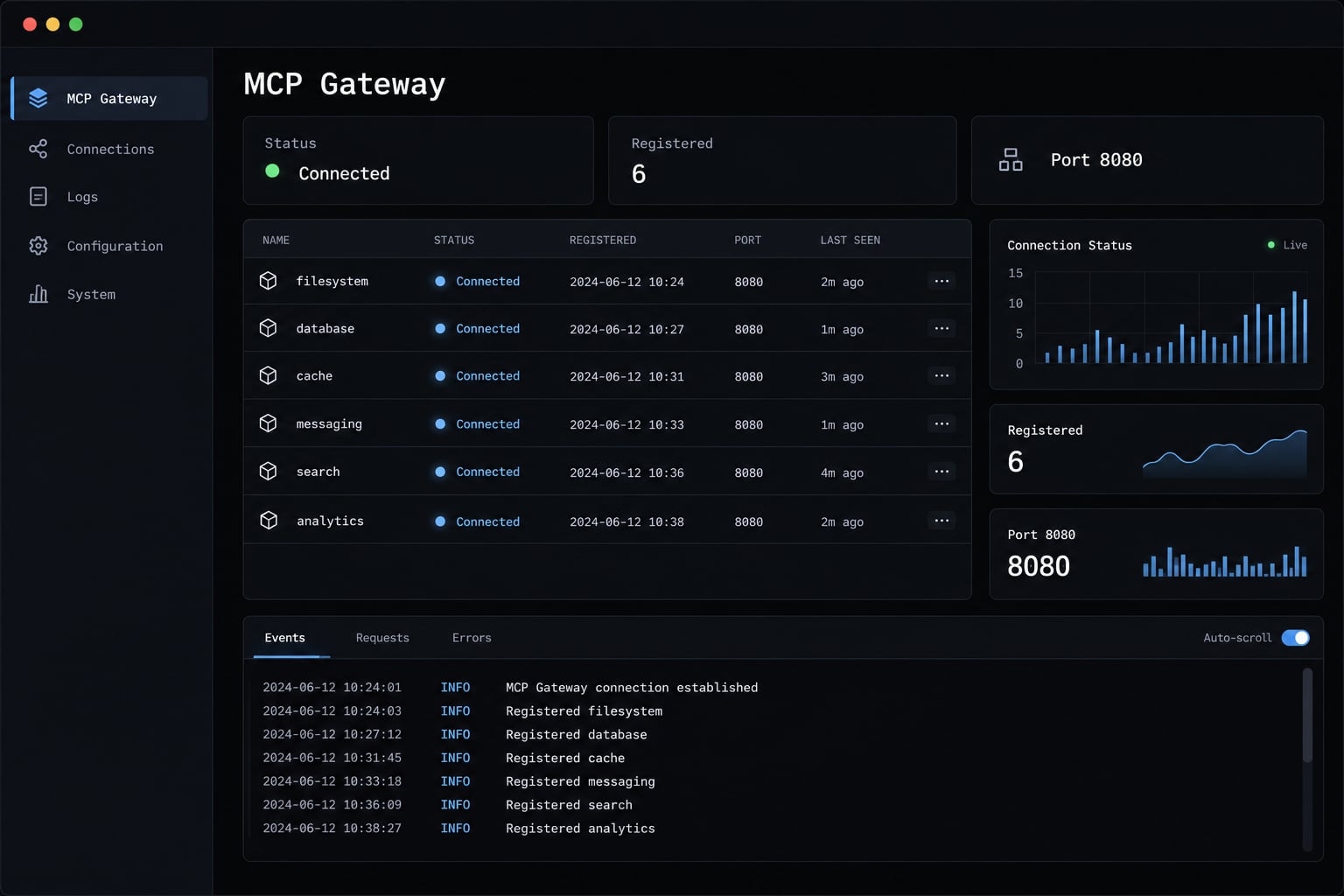
Distinguish these states:
- Registered: A configuration entry exists.
- Connected: Claude Code can communicate with the gateway.
- Tools available: Enabled servers expose usable capabilities.
- Tool invocation successful: A specific operation completed.
A connected gateway may still have no usable tools because server configuration or authentication is incomplete.
Add and test your first MCP server
Connecting the gateway and enabling a server are separate tasks. To add an MCP server to Claude Code through Docker, enable it in the Toolkit and verify its tools through the gateway.
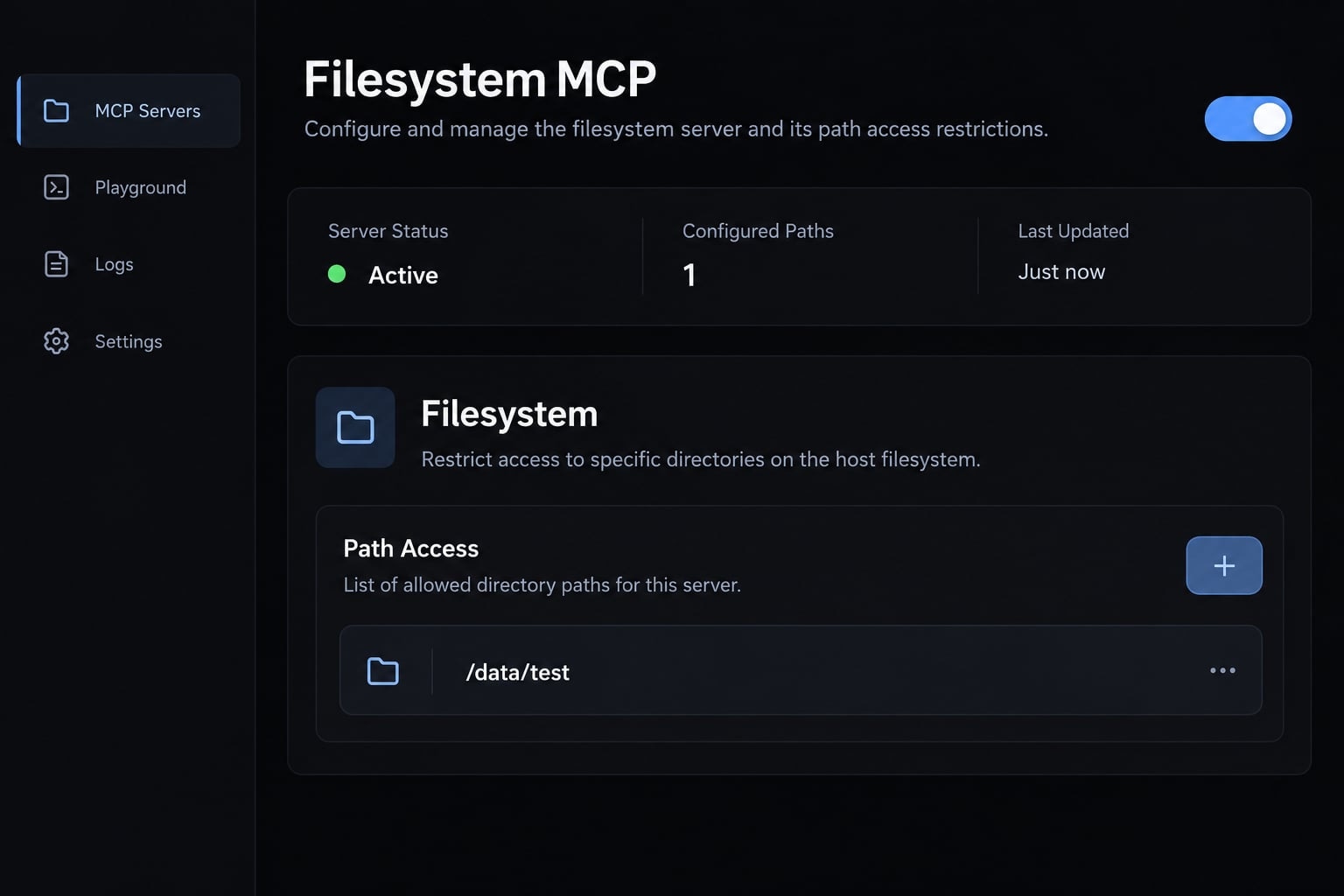
Add filesystem MCP
Use a Filesystem MCP integration only after checking its catalog identity and configuration requirements:
- Open the Toolkit catalog.
- Find the Filesystem server you intend to use.
- Review its publisher, source, and image information.
- Add or enable the server.
- Restrict allowed paths to your dedicated test directory.
- Save and follow the displayed activation instructions.
- Restart or refresh Claude Code if required.
The Model Context Protocol servers repository contains a Filesystem reference implementation. Do not assume every similarly named catalog entry uses that implementation or the same settings.
Record the exact catalog name, publisher, and image tag or digest. Use the selected entry’s documented path fields; a key such as filesystem.paths is not universal.
If configuration distinguishes host and container paths, mount only the test directory and authorize its corresponding container path. Ask the tool to use that visible path.
Exclude your home directory, SSH keys, cloud credentials, customer data, and unrelated repositories. Some servers start on demand; a separate “Start server” button is not always required.
Run a read-only MCP test prompt
Replace the bracketed directory before submitting:
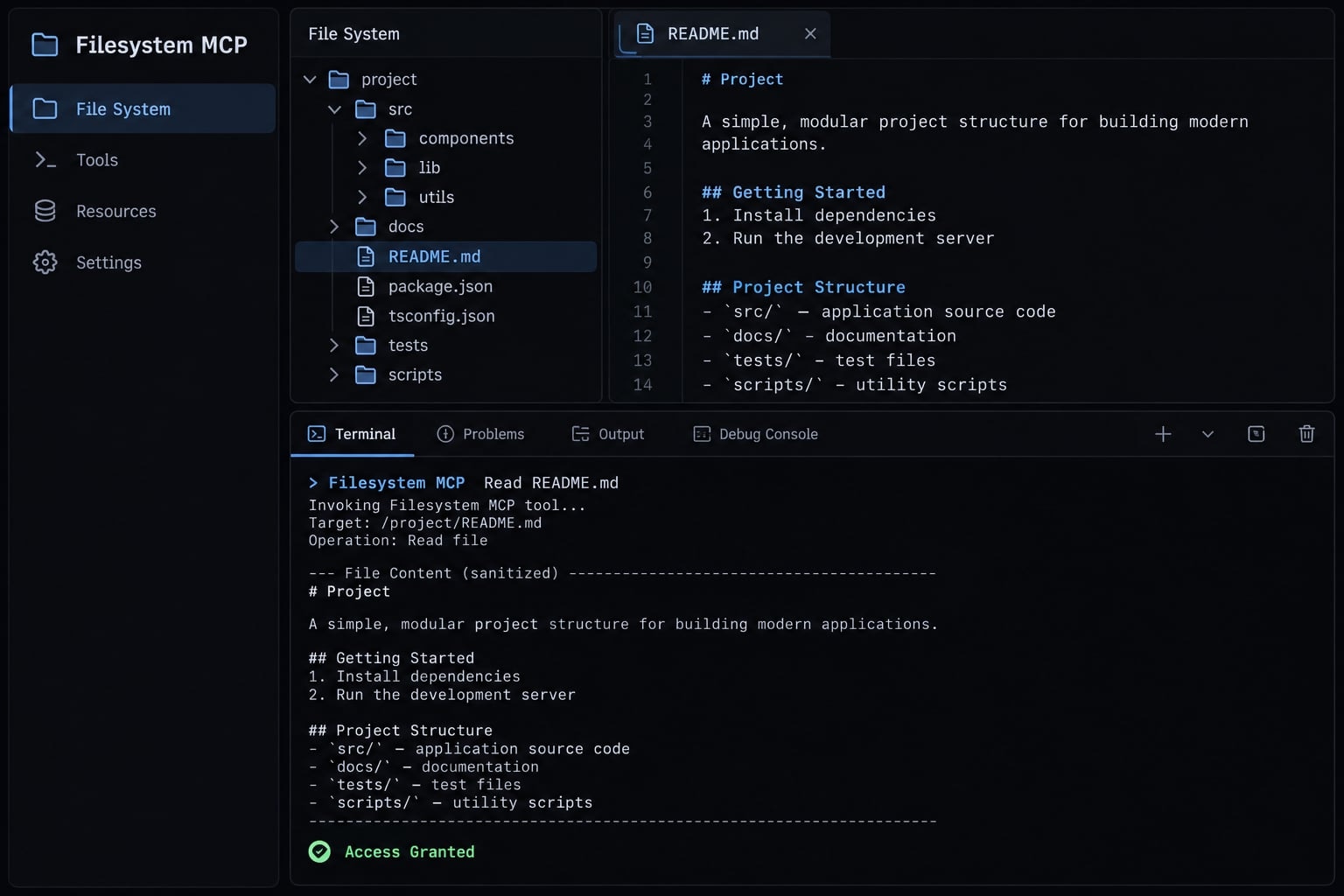
Use the Filesystem MCP tools, not Bash or built-in file tools.List the top-level files in [approved directory].Read README.md and summarize its contents.Do not create, modify, move, or delete anything.If the MCP tools are unavailable, stop and report that.
Validation passes only when:
- Actual tool activity identifies the MCP tool used.
- Returned filenames match the approved directory.
- The summary matches the sample README.
Claude’s claim that it used MCP is insufficient. Bash or built-in file access does not validate this connection.
Read-only wording is not access control. Filesystem servers may expose write tools. Enforce read-only access through supported permissions or mounts where available.
Docker MCP toolkit vs. direct claude mcp add configuration
Toolkit management and direct registration overlap. The claude mcp add command registers a connection; it does not necessarily install dependencies. It can also register a Docker-backed gateway.
Criterion | Docker MCP Toolkit | Direct configuration | Best fit |
|---|---|---|---|
Setup | Catalog and gateway workflow | Explicit connection registration | Match your server source |
Runtime dependencies | Container-packaged dependencies | Host, container, or remote runtime | Docker for runtime separation |
Credentials | Integration-dependent storage | Endpoint or process-specific setup | Review credential management |
Updates | Verify image/update behavior | Manage runtime or endpoint changes | Neither guarantees automatic updates |
Remote HTTP endpoints | Verify gateway support | Supported directly by Claude Code | Direct for simple remote access |
Custom scripts | May require packaging | Launch a local command | Direct for small scripts |
Cross-platform consistency | Consistent packaged runtime | Depends on runtime choice | Docker; still review paths |
Debugging | Client, gateway, and server layers | Client and configured server | Fewer layers for simple cases |
Team repeatability | Document catalog and image choices | Share reviewed configuration | Either with explicit prerequisites |
Resource overhead | Engine and containers | Depends on server runtime | Evaluate your workload |
Which approach should you choose?
- Prefer Docker for several containerized local servers or consistent dependency packaging.
- Prefer direct configuration for a trusted, supported remote HTTP MCP server.
- Prefer direct registration for a small, reliable local stdio server.
According to Claude Code’s MCP documentation, local command registration and remote HTTP connections are distinct connection patterns. Choose the pattern your server supports.
Both approaches require reviewed permissions and credential management. Avoid exposing the same tools through multiple registrations; duplicate routes complicate tool selection and troubleshooting.
Common Docker MCP and Claude Code Errors
Identify the failing layer before changing configuration. Check the client registration, gateway process, server readiness, and requested operation in that order.
Use the smallest reversible fix. Do not disable approval controls or expose broad directories to make a test pass.
Symptom | Likely cause | First fix |
|---|---|---|
| Missing plugin, unsupported installation, or PATH mismatch | Check installation, feature availability, and Docker documentation. |
Gateway entry is missing | Registration absent or applied elsewhere | Inspect configuration scope from the intended project. |
Gateway is registered but disconnected | Engine unavailable or launch command inaccessible | Run |
Gateway connects but no tools appear | No enabled server, incomplete setup, or startup failure | Inspect enabled servers, configuration, and server diagnostics. |
Authentication is incomplete | Missing or expired external service credentials | Complete that server’s documented authentication flow. |
Test directory cannot be read | Incorrect allowed path, sharing permission, or mapping | Check the restricted host/container path and permissions. |
Claude uses Bash or built-in tools | MCP tools unavailable or not selected | Inspect |
Duplicate entries appear | Multiple registration methods or scopes | Identify the stale entry before removing it. |
Setup works in only one project | Project-specific scope or approval | Compare effective configuration and approvals. |
Tool output is too large | Request includes too many files or records | Limit the request to one directory, file, or bounded result set. |
Claude Code sign-in does not authenticate every external service. A server’s OAuth authorization or API credentials are separate requirements.
Diagnostic commands
Run in your terminal:
docker mcp --helpclaude mcp listclaude mcp get <server-name>
Replace <server-name> with the actual registered entry, such as MCP_DOCKER if you used that name.
Inside Claude Code:
/mcp
Inspect errors before reconnecting or reinstalling. After a targeted change, repeat the same small test to determine whether the failure moved or disappeared.
Redact diagnostic output before sharing it. Configuration can contain tokens, account identifiers, private paths, and sensitive environment variables.
Security and team configuration checklist
Containerization isolates runtimes; it does not establish trust or authorization. A locally running server may still send data to external services. For MCP security, apply least privilege: Grant only the access required for the task.
- Review the server’s publisher, source, and requested access.
- Approve only necessary paths, repositories, APIs, and tools.
- Use supported OAuth or protected secret storage.
- Keep secrets out of
.mcp.jsonand version control. - Enforce read-only restrictions where supported.
- Retain approval controls for destructive actions.
- Treat external documents and tool output as untrusted.
- Disable unnecessary servers and tools.
Prompt injection occurs when external content contains instructions intended to redirect the assistant away from your authorized task.
OAuth does not automatically provide least privilege. Review requested permissions, and verify where each integration stores credentials.
Choose configuration scope deliberately
Claude Code’s MCP documentation distinguishes these scopes:
Scope | Availability | Team sharing | Recommended use |
|---|---|---|---|
Local | Current project, current user | No | Personal project-specific tools |
Project | Current project | Reviewed | Shared configuration without embedded secrets |
User | Across projects, current user | No | Trusted personal tools needed broadly |
MCP project scope supports configuration sharing, not secret sharing. Local scope is not a secure secret vault. Project configuration may also require user approval before activation.
Standardize the minimum useful configuration
- Maintain an approved server list.
- Record each server’s purpose, owner, permissions, and authentication requirements.
- Version non-secret configuration where appropriate.
- Include a safe validation prompt.
Document prerequisites, image identifiers, path conventions, and credential setup in the repository README. Shared client configuration alone does not reproduce Docker-side server settings.
Frequently asked questions
What is the Docker MCP Toolkit?
The Docker MCP Toolkit simplifies integrating containerized Model Context Protocol (MCP) servers with AI agents like Claude Code. It includes a discovery catalog and a gateway to connect servers, while packaging dependencies in containers to eliminate manual runtime management.
How does Docker MCP Toolkit differ from running MCP servers directly?
Running MCP servers through Docker isolates their runtime dependencies and environment variables within containers. This prevents conflicts on your host system, ensures consistent behavior across different developer machines, and provides a unified interface, whereas direct execution requires maintaining independent environments for every tool.
Is Docker Desktop required to use the MCP Toolkit?
While the Docker MCP Toolkit is most easily managed via the Docker Desktop interface, you can also manage connections using the Docker CLI. The CLI approach allows you to connect Claude Code to the Docker MCP Gateway manually if you prefer a terminal-based workflow or need to automate setups.
Can I run Claude Code inside a secure Docker sandbox?
Yes, running Claude Code in an isolated container or microVM adds a system-level boundary. How much it protects depends on what you mount and expose — avoid home-directory mounts, forwarded credentials, and privileged containers.
What should I do if Claude Code fails to connect to the MCP gateway?
First, verify that your Docker engine is running with docker info. Then, use claude mcp list to check if the gateway is correctly registered. Ensure that your project-specific or user-level configuration files are not conflicting and that you have restarted the Claude Code session after applying any changes.
Does the MCP Toolkit automatically secure my credentials?
Not automatically. Credential handling is integration-dependent — verify where each server stores secrets, use supported OAuth or protected secret storage, and keep secrets out of .mcp.json and version control.
Read more:
- Claude Code pro plan: Access, usage limits and API billing
- Claude Code refactoring: A safe and repeatable workflow guide
- How to sdd Context7 MCP to Claude Code: Setup & Troubleshooting
Conclusion
A reliable Docker MCP setup for Claude Code begins with verifying your CLI, engine, MCP component, and client prerequisites separately. Register Docker MCP Gateway once, restrict a test server to a safe directory, restart Claude Code, and run a read-only test prompt to validate actual tool invocation—not just gateway connectivity.
Choose Docker for isolated dependencies and consistency, or direct configuration for simpler local scripts or remote endpoints; both still require strict permission and credential management. Documenting these checks in your repository README ensures a standardized, secure workflow for your entire team.