Claude Code output-style guide: Customize your AI responses
Claude Code output styles: How to configure and customize responses
Claude Code output styles provide reusable behavioral instructions to customize how the AI agent communicates and collaborates with you. Instead of repeatedly requesting shorter summaries or clearer explanations, you can set a style tailored to your task. This guide covers built-in options, custom Markdown settings, and troubleshooting for seamless setup.
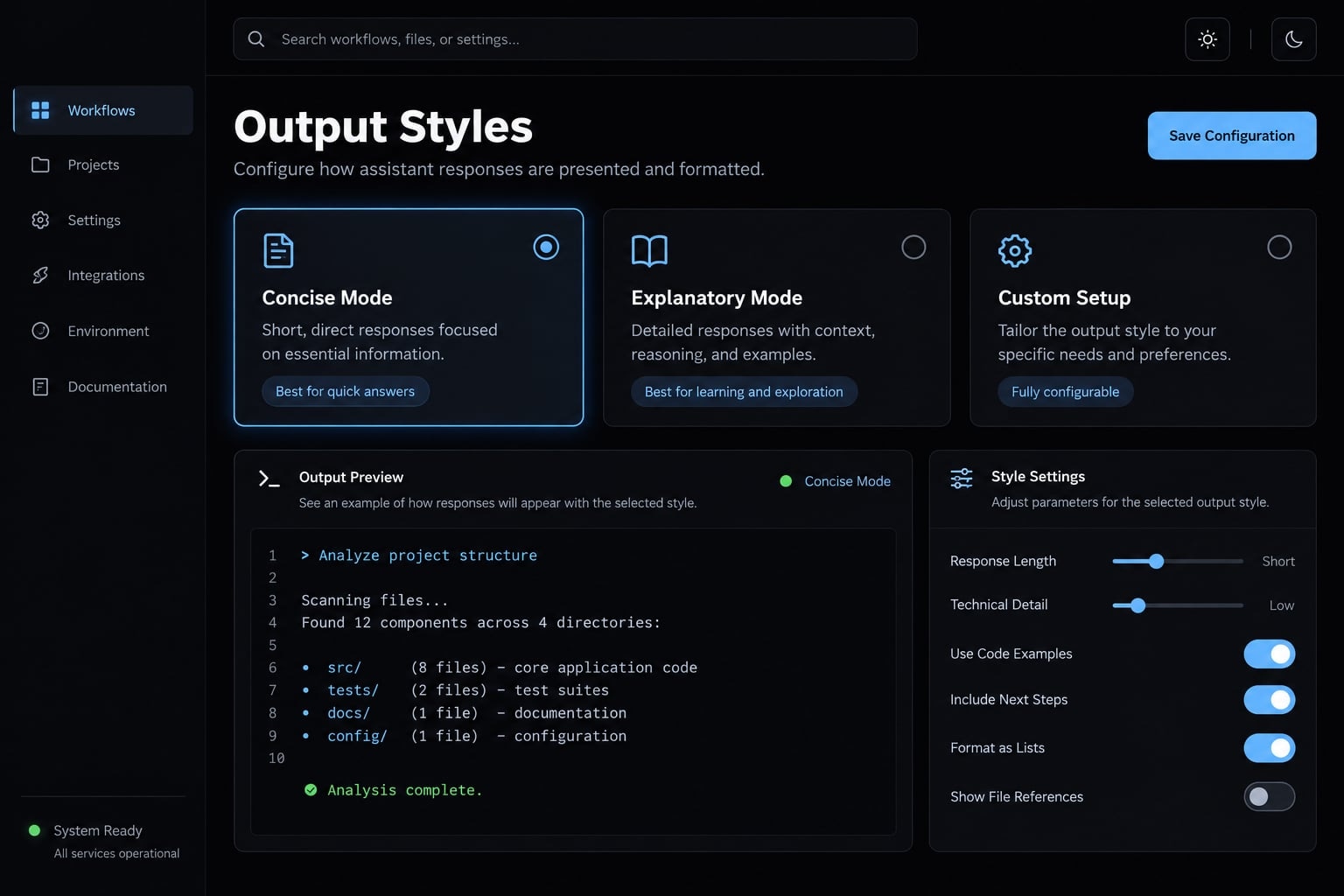
What is a Claude Code output style?
A Claude Code output style is a reusable set of behavioral instructions that influences response structure, explanation depth, and collaboration. Anthropic’s Claude Code output styles documentation describes styles as changes to system instructions. They can shape more than presentation, but they do not replace project context, permissions, or automated verification.
What output styles can change
A style can guide:
- Tone and verbosity: Concise updates or fuller explanations.
- Response organization: Status first, followed by changes and validation.
- Implementation explanations: Relevant rationale and trade-offs.
- Learning interaction: Opportunities for the developer to implement part of a solution.
- Routine decisions: When to state assumptions rather than request clarification.
Instructions encouraging initiative remain subject to existing permission controls. They do not authorize restricted actions.
What output styles do not replace
Keep repository facts in project instructions, enforceable restrictions in permission controls, and required checks in automation. A request to “always report tests” is behavioral guidance, not proof that tests actually ran. Custom styles can also affect which coding-related instructions are included. Treat them as configuration changes, not merely visual themes.
Compare the built-in Claude Code output styles
Choose according to how much explanation and participation you want. Anthropic’s output styles documentation describes Default, Explanatory, and Learning. This guide does not classify Concise or Proactive as built-ins without release-specific evidence.
Style | Main behavior | Best for | Trade-off |
|---|---|---|---|
Default | Standard software-engineering assistance focused on completing tasks. | Familiar codebases and routine implementation. | Less explicit teaching than the educational styles. |
Explanatory | Adds educational insights about implementation choices and codebase patterns. | Onboarding and understanding unfamiliar changes. | Additional explanation can increase reading overhead. |
Learning | Combines explanations with opportunities for hands-on developer contributions. | Practicing implementation through guided collaboration. | Tasks may require more developer participation. |
Explanatory or learning: Understanding versus practicing
Consider adding regression coverage for expired sessions in a sample B2B SaaS application.
- With Default, the emphasis is completing the requested change and reporting the outcome.
- Explanatory adds context about authentication boundaries or the existing test pattern.
- Learning invites participation in selected implementation steps rather than handling everything for you.
These are illustrative differences, not guaranteed transcripts. The task prompt and repository context still matter. Choose Explanatory when you want to understand completed work. Choose Learning when practicing is part of the objective. Learning is less suitable when you need an uninterrupted implementation pass.
Concise and proactive as custom patterns
“Concise” can describe result-first summaries; “proactive” can describe fewer interruptions for reversible decisions. Both are useful custom patterns. An option appearing in your selector may come from personal configuration, a repository, or a plugin. Its presence alone does not establish native availability.
How to change the output style in Claude Code
Use the selector first. Settings files are an alternative for deliberate persistence-not another mandatory setup step.
- Open Claude Code in the intended project.
- Display available styles.
- Select an option shown in your installation.
- Confirm the selection in the interface.
- Check whether it persists when you next open that project.
Switch styles with the /output-style command
Enter this inside the interactive Claude Code interface:
/output-style
The expected result is a style-selection interface. Choose an available option, then submit a small request that makes its behavior visible. For example, ask for an explanation of one authentication helper. Check whether the response provides the expected level of context.
Do not guess named activation identifiers from display labels. This guide uses the selector rather than publishing an untested named shortcut.
Set the style in a settings file
Anthropic’s Claude Code settings documentation includes the outputStyle setting. A minimal example selecting the documented Explanatory style is:
{ "outputStyle": "Explanatory"}
Merge this key into existing JSON. Do not overwrite unrelated permissions, environment settings, or other configuration.
Scope | Settings file | Intended use |
|---|---|---|
User |
| Personal preferences across projects. |
Shared project |
| Repository configuration distributed to collaborators. |
Local project |
| Personal overrides for one project. |
The setting selects a style. A custom Markdown file defines that style’s instructions. Creating one does not automatically accomplish the other.
Change the style in VS Code or desktop
Do not assume interface parity. A terminal running Claude Code inside VS Code is different from the extension’s graphical interface. Likewise, a Claude Desktop conversation is not automatically a Claude Code session. Check the relevant interface documentation before applying terminal instructions there.
How to create a custom Claude Code output style
Create a custom output style when built-ins repeatedly miss a specific communication requirement. Keep its purpose narrow enough to evaluate.
Step 1 - Choose the correct storage scope
Use one of the documented directories:
- Personal reuse:
~/.claude/output-styles/ - Project availability:
.claude/output-styles/
For this example, create .claude/output-styles/review-first.md. A project file becomes a shared team asset only when distributed, typically through version control. Before committing it, confirm that its instructions contain no sensitive information.
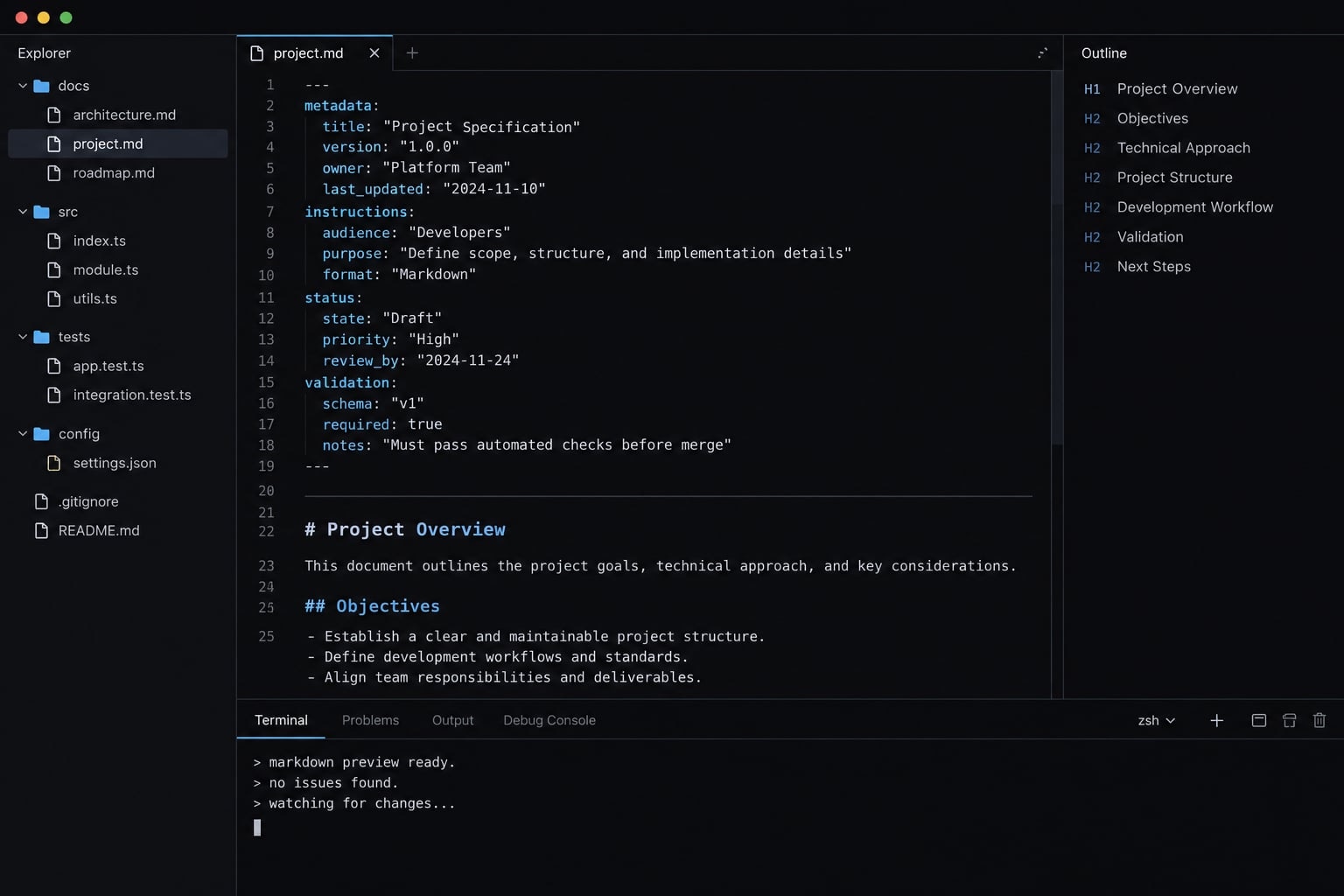
Step 2 - Create the markdown style file
The following template is an implementation example, not a recorded test result:
---name: Review Firstdescription: Report status, changes, validation, and risks for coding tasks.keep-coding-instructions: true---# Response guidanceFor development tasks, organize the final response as follows:1. Status State whether the task is complete, partial, or blocked. Lead with the result or the specific blocker.2. Changed files List modified paths and briefly explain meaningful changes. If no files changed, say so.3. Validation Report checks actually performed and their outcomes. Explicitly identify relevant tests not run. Never describe a suggested command as an executed check.4. Risks and assumptions State unresolved risks, assumptions, and required decisions. Say when no additional risks were identified.Keep routine updates concise.Provide more detail for migrations, security-sensitive changes,and potentially destructive operations.Ask for clarification when uncertainty affects a high-impact decision.Do not add a redundant closing recap.
YAML frontmatter is metadata at the top of a Markdown file, enclosed by --- lines. The Markdown body supplies the behavioral instructions.
Step 3 - Understand keep-coding-instructions
Anthropic documents keep-coding-instructions as controlling whether coding-related system instructions are retained with a custom style. Its default is false when omitted.
Reader goal | Recommended approach |
|---|---|
Change communication while continuing development work | Usually set |
Adapt Claude Code to non-coding work | Review the documented effect before omitting coding guidance. |
Unsure | Begin with preservation enabled and evaluate representative tasks. |
This flag does not preserve model “logic,” guarantee engineering quality, or control permissions. Retaining coding guidance does not prove that verification happened.
Step 4 - Activate and test the custom style
Open the selector:
/output-style
Select the custom style as displayed. In a disposable repository or branch, evaluate:
- Small change: Does it accurately list changed files?
- Debugging request: Does it distinguish findings from hypotheses?
- Ambiguous requirement: Does it surface consequential assumptions?
- Simulated high-impact request: Does a migration-planning prompt receive appropriate detail?
Use planning or dry-run scenarios for the fourth check. Do not perform destructive operations just to evaluate response behavior.
Output style vs. CLAUDE.md, skills, hooks and subagents
Choose the appropriate Claude Code output-style configuration based on your specific requirements. Preferences for response structure differ significantly from mandatory security checks.
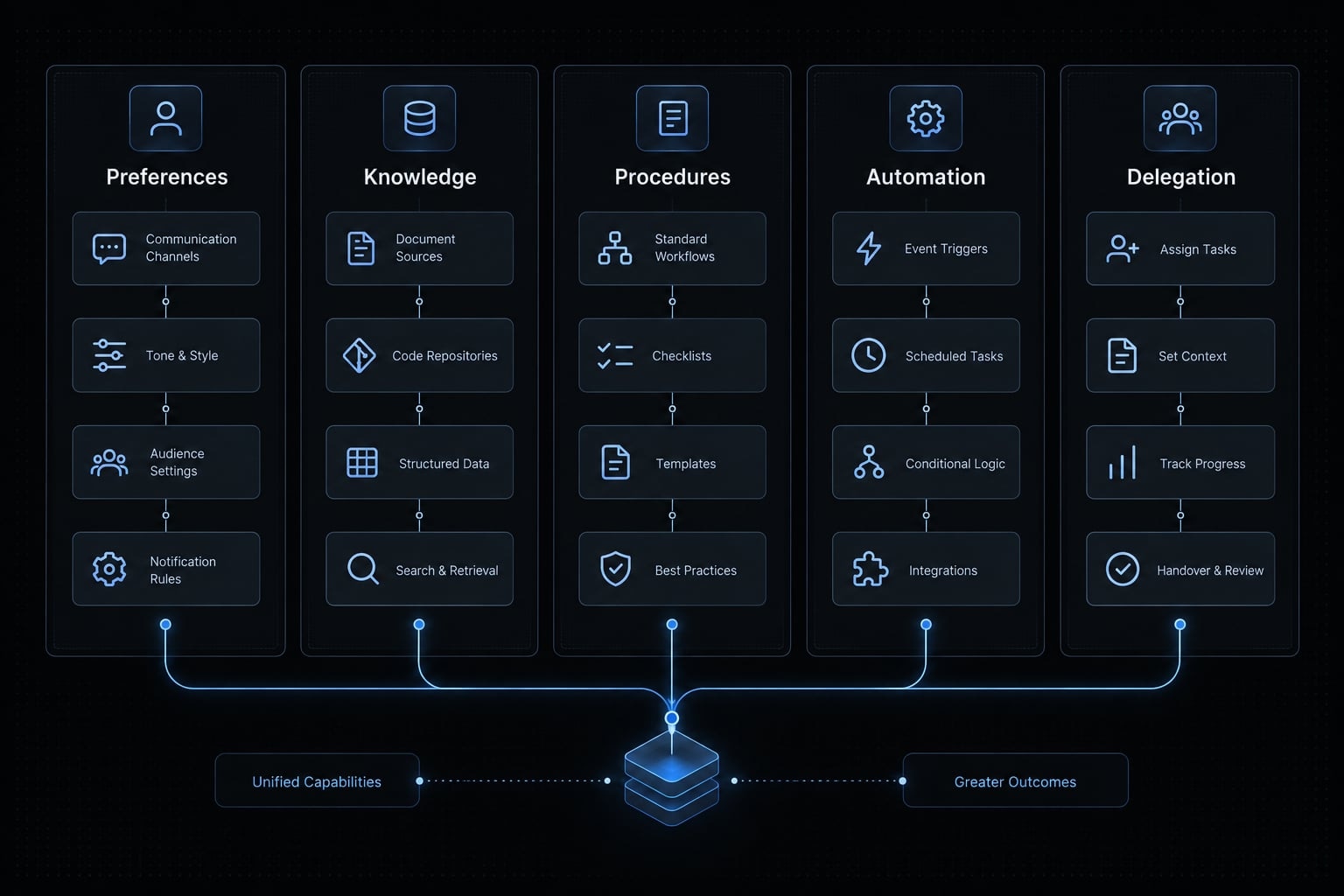
Anthropic documents these mechanisms separately because they serve different purposes.
Requirement | Feature | Why |
|---|---|---|
Communication and collaboration preferences | Output style | Guides recurring response behavior. |
Repository instructions and context | Provides project-specific knowledge and conventions. | |
Reusable task-specific procedures | Skills | Packages instructions for particular workflows. |
Automation at supported lifecycle events | Runs configured actions when supported events occur. | |
Delegated specialized work with separate context | Separates specialized tasks from the main conversation. |
Communication preferences
“Lead with completion status” and “explain security-sensitive trade-offs” fit an output style. They describe how the agent should communicate across tasks.
Mandatory requirements
“Never merge without passing tests” requires more than a style instruction. Use CI (continuous integration), repository protections, and appropriate permission controls.
Command hooks execute configured commands at supported lifecycle events. Some events support blocking behavior, but responses and exit handling depend on the event. Not all hook types are deterministic commands, and hooks do not enforce every requirement.
Project knowledge
Keep test commands, directory conventions, and architecture facts in CLAUDE.md or other appropriate project documentation.
Those facts change independently of communication preferences. Copying them into personal styles risks applying one repository’s assumptions to another. These mechanisms can complement each other without duplicating the same instructions everywhere.
Practical output-style patterns by developer workflow
The following response structures are illustrative, not guaranteed outputs.
Fast implementation and maintenance
Authentication regression test → custom concise pattern → status, changed files, validation.
This structure helps reviewers identify what happened quickly. Brevity must not hide skipped checks or unresolved failures. Shorter visible responses do not establish faster execution or lower total cost.
Codebase onboarding
Trace an API request → Explanatory → relevant architecture, implementation rationale, validation notes.
Request the pattern needed for the task, not a line-by-line tour. Educational explanations still require verification against the actual repository.
Hands-on pair programming
Implement a small helper → Learning → context, developer contribution, validation.
Anthropic describes Learning as using TODO(human) markers for selected contributions. Do not assume every task produces a marker or that your contribution receives an automatic, complete review.
Routine work with minimal interruptions
Small API maintenance → custom fewer-interruptions pattern → action, stated assumptions, escalation points.
Allow reasonable assumptions for reversible choices such as local naming. Require clarification for consequential ambiguity involving authorization, compatibility, data deletion, or deployment.
This pattern guides collaboration; it does not bypass tool permissions.
Common problems and troubleshooting
For a Claude Code output style not working, first distinguish missing configuration from inconsistent responses. These require different fixes.
The custom style does not appear
Check the simplest causes first:
- Project and path: Confirm the working project and supported
output-stylesdirectory. - Extension: Confirm the file ends in
.md, not.md.txt. - Frontmatter: Check delimiters, indentation, and valid YAML values.
- Identifier: Inspect the selector; do not assume filename, metadata name, and activation identifier match.
- Support: Check your installed version and interface.
- Scope: Inspect duplicate names across personal, project, and plugin-provided styles.
- Loading: Follow documented session-loading requirements for your version.
Do not treat /clear as a universal fix. Preserve useful context before taking any action that resets a conversation.
Claude does not follow the style consistently
- Vague guidance → observable requirements: Replace “be professional” with specific response sections.
- Contradictions → remove conflicts: Avoid demanding both exhaustive explanations and two-sentence responses.
- Overloaded instructions → narrow the purpose: Separate task procedures from communication preferences.
- Skipped mandatory action → use controls: Add appropriate automation rather than stronger wording alone.
A shorter style can be easier to evaluate, but it does not guarantee compliance.
The style changes coding behavior unexpectedly
Inspect keep-coding-instructions first. Then look for instructions suppressing validation, clarification, or risk reporting.
Compare the custom style with Default using the same small task in a disposable environment. Check for conflicting project guidance before changing multiple settings simultaneously.
Project and personal settings conflict
Identify the intended scope and inspect all three settings files. Among these file scopes, local project settings override shared project settings, which override user settings.
Other supported configuration mechanisms may affect effective behavior. Consult Anthropic’s settings documentation rather than treating that three-file relationship as the complete precedence model.
Best practices for reliable custom output styles
- Try built-ins first. Use customization to solve a recurring mismatch, not merely to create another configuration file.
- Give each style one purpose. Review-friendly summaries are easier to evaluate than an all-purpose assistant persona.
- Write observable instructions. Ask for actual validation outcomes and explicit blockers rather than “high-quality responses.”
- Preserve coding guidance deliberately. Use the documented flag when changing communication for development work.
- Separate repository knowledge. Keep changing commands and architecture facts outside reusable personal styles.
- Automate required checks. Select CI, hooks, or permission controls according to the requirement and supported behavior.
- Exclude sensitive information. Never embed credentials, tokens, customer data, or private environment details.
- Review shared changes. Version control improves traceability; it does not make instructions inherently safe.
- Revalidate after significant updates. Record the version, interface, tasks, and observed results when testing actually occurs.
- Check delegated behavior separately. Do not assume subagents inherit the parent session’s output style.
Evaluate task correctness alongside response quality. A clean summary can conceal incomplete work unless you inspect the underlying changes and checks.
Frequently asked questions
What is a Claude Code output style?
A Claude Code output style is a reusable set of instructions that modifies how the AI agent communicates, its tone, and its response structure. It directly updates the agent's system prompt to govern behavior throughout an entire session without needing to repeat preferences in every prompt.
Which built-in output styles are available in Claude Code?
Anthropic's documentation describes Default, Explanatory, and Learning. Options such as Concise or Proactive may appear in your selector from personal configuration, a repository, or a plugin - presence in the list does not make a style built in. Open the selector to see what your installation actually supports.
How do I change the output style in Claude Code?
Run /output-style inside Claude Code to open the selector and choose an available option. For persistence, set outputStyle in the appropriate settings file: ~/.claude/settings.json for personal use, .claude/settings.json for a shared project, or .claude/settings.local.json for a personal override.
Why does my custom output style not appear?
If your custom style is not appearing, check that the file has a .md extension, is saved in the correct project or user directory, and uses valid YAML frontmatter. Also check your installed version's documented session-loading behavior. Avoid resetting the conversation as a first step - preserve useful context before taking any action that clears it.
Do output styles inherit project context like CLAUDE.md?
No, output styles and project context features serve different purposes. Use CLAUDE.md for repository-specific rules and conventions, while using Output Styles exclusively for governing the AI's communication identity, verbosity, and interaction mode during a development session.
Does changing the output style affect how well Claude writes code?
Setting keep-coding-instructions: true keeps coding-related instructions in place. That is not a guarantee of engineering quality, and it does not control permissions - required checks still belong in CI, hooks, or permission controls. With the flag omitted or false, review the documented effect before using the style for development work.
Read more:
- Claude Code prompt engineering: A practical guide for developers
- Claude Code tutorial: Set up and master your AI coding agent
- Claude Code toolkit: Scale your AI development workflow easily
Conclusion
Start with built-in styles-Default for routine tasks, Explanatory for implementation context, or Learning for hands-on work. Use the selector to confirm supported styles, and create a custom style only when you need specific, repeatable communication behavior that built-ins cannot provide.
Remember the division of roles: Output styles guide collaboration, project files supply context, and automated checks enforce quality. A well-designed style streamlines communication without replacing proper code verification.