Claude Code in Zed: Setup, integration and best practices
Claude Code in Zed: Setup, Terminal Options, and Troubleshooting
You can run Claude Code directly inside Zed via the Agent Client Protocol (ACP), offering an editor-based alternative to the integrated terminal CLI. While Zed’s built-in agent, an external Claude Code ACP session, and terminal execution follow separate paths, this guide covers everything you need to set up, authenticate, verify, and troubleshoot the integration using a sample B2B SaaS repository.
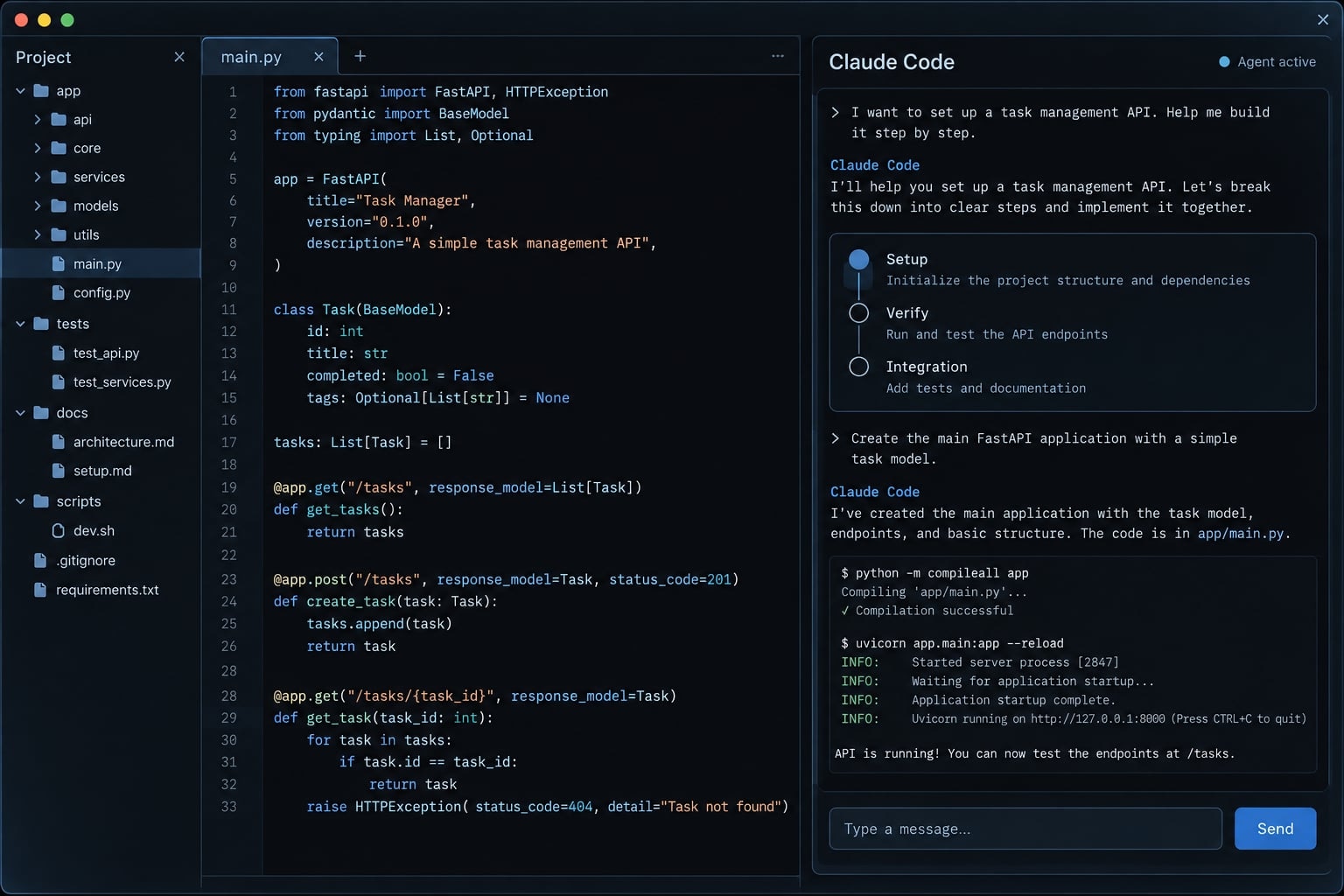
Does Claude Code work natively in Zed?
Yes, Claude Code can work in Zed via the Agent Client Protocol (ACP). Zed’s external-agent documentation details how to integrate Claude Code directly into the editor, delivering a seamless native experience for developers. “Native” describes the experience, not proof that Claude Code implements ACP directly.
What native integration means in practice
A native Claude Code integration differs from a terminal pane in several ways:
- You select an external agent when starting an agent conversation.
- Requests and responses appear in an editor thread rather than a shell.
- Supported agent edits can participate in Zed’s editor-based review experience.
- Available commands, approval controls, and session behavior depend on the adapter and release.
Selecting a Claude model for Zed’s built-in agent does not mean Claude Code is running. Confirm the external-agent selection before evaluating behavior.
Note: Reviewing a diff does not mean write permission is required at that moment—displayed diffs may represent changes that have already been written to disk.
ACP explained without the protocol overhead
The Agent Client Protocol (ACP) standardizes how code editors communicate with external coding agents. An adapter acts as a bridge, connecting ACP with the agent's native runtime environment. This lets the editor present conversations and supported actions without requiring every agent to implement an identical user interface.
ACP documentation distinguishes this editor connection from MCP (Model Context Protocol), which connects applications or agents to tools and context.
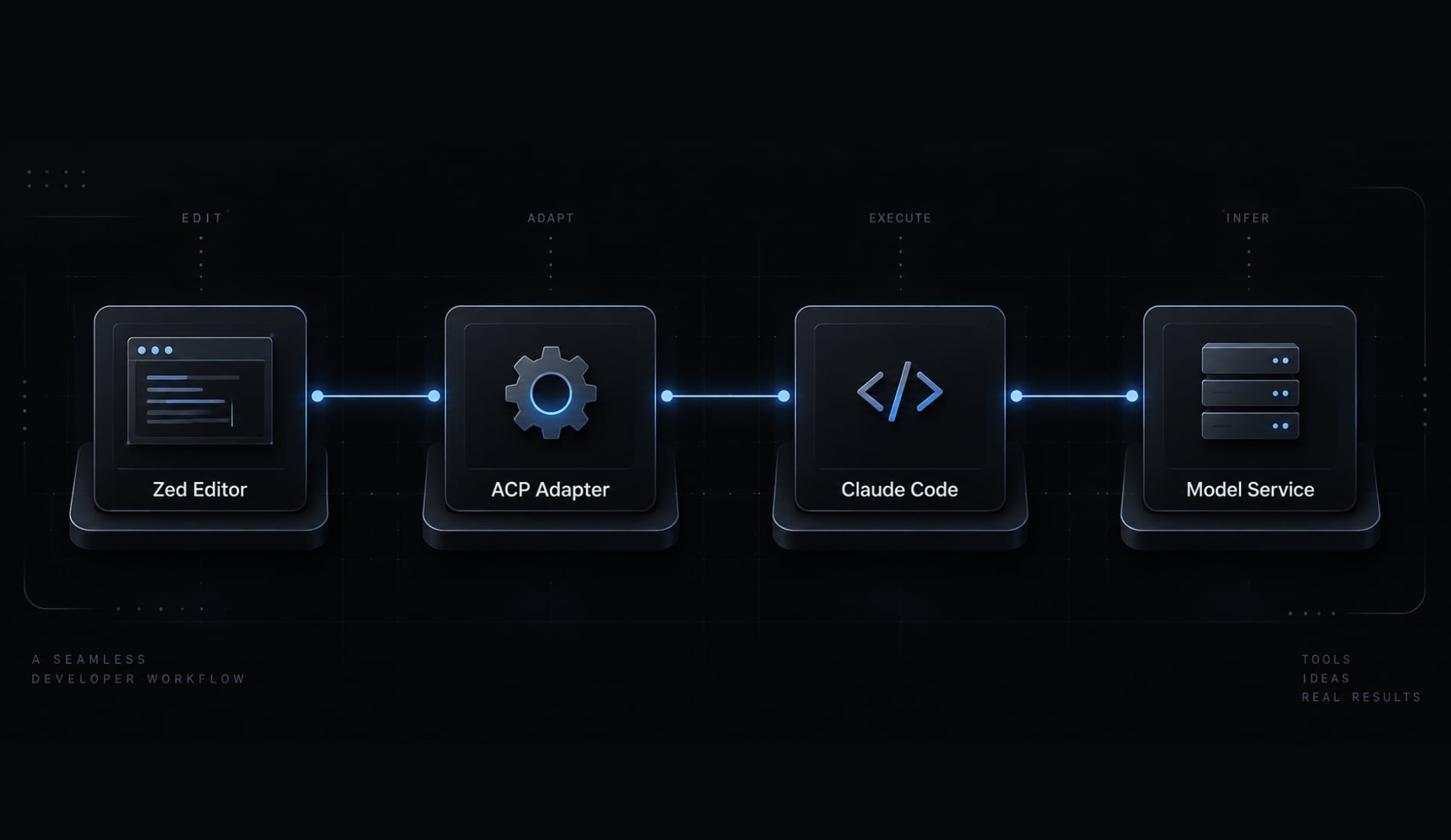
Local execution does not mean local-only inference. Requests and selected project context may reach the configured service.
Prerequisites before connecting Claude Code to Zed
Prepare the repository and account before granting tools access. A successful launch proves connectivity—not that the workspace is appropriately restricted.
Setup checklist
- Required: Install a supported Zed release for your operating system.
- Required: Confirm access through an authentication method supported by the selected integration.
- Required: Check the adapter’s dependency requirements; some installation paths manage dependencies.
- Terminal-only: Complete standalone Claude Code installation if using the CLI fallback.
- Required: Open the intended repository root and confirm the Git branch.
- Recommended: Commit or safely stash unrelated work.
- Required: Identify documented build, test, and lint commands.
- Required: Protect secrets, customer data, and unrelated filesystem resources.
- Required: Confirm project permissions and authority to execute the intended tools.
For the example SaaS repository, read README.md first. Record its actual test command rather than assuming npm test, pytest, or another toolchain.
A branch organizes changes; it does not restrict filesystem or network access.
Authentication and billing expectations
Follow the Anthropic authentication options presented by the adapter. These may differ from the standalone Claude Code CLI and Zed’s built-in hosted-model configuration.
Claude Code account documentation distinguishes subscription access from API-backed usage. Do not assume a subscription covers API charges, every authentication route, or unlimited use.
Always follow Zed’s official documentation and your specific adapter’s instructions for setup, rather than copying configurations from other model providers. Check account limits and billing ownership before starting lengthy tasks.
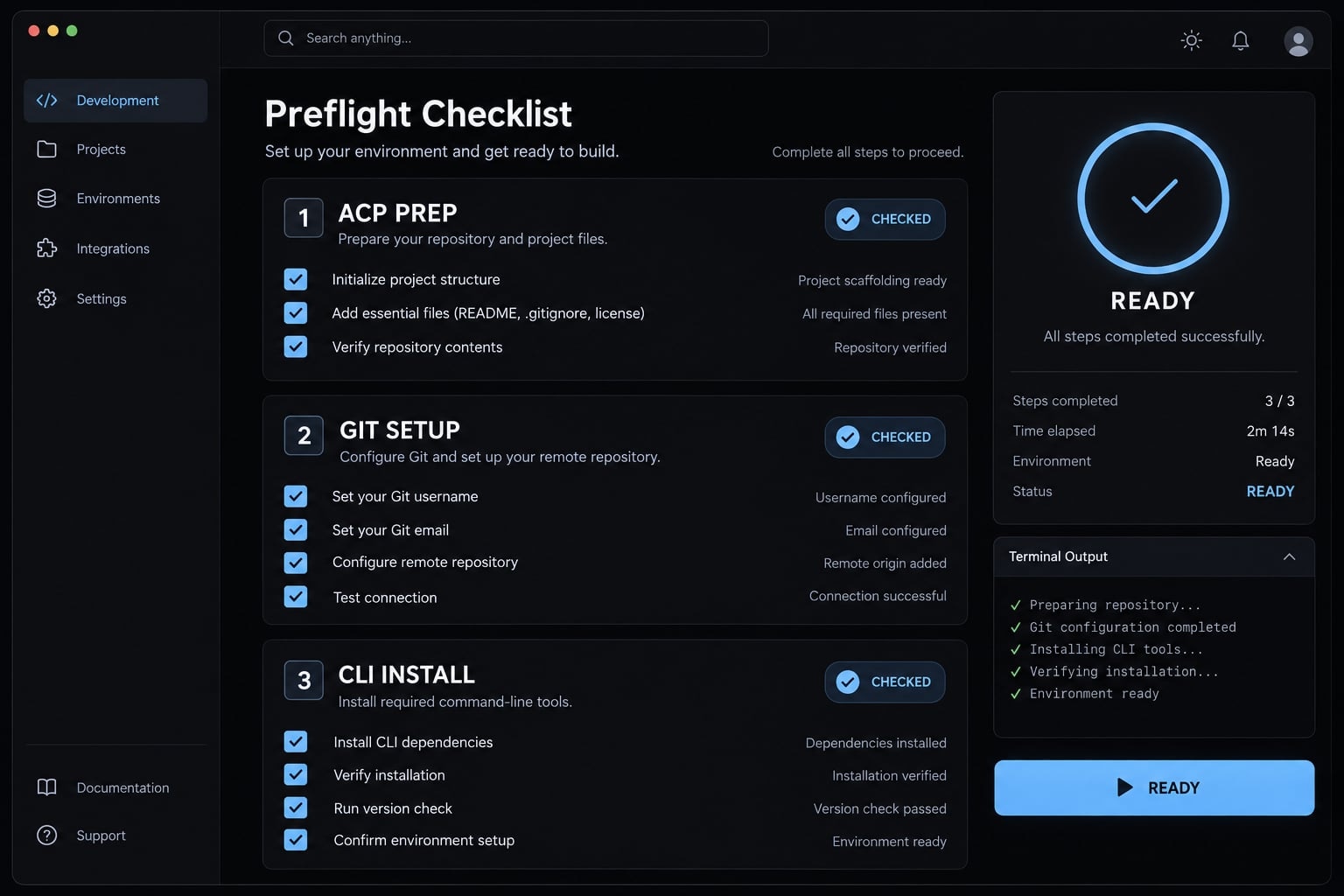
How to set up Claude Code in Zed through ACP
- Update Zed to a supported release.
- Open the intended repository root.
- Open the Agent Panel.
- Select or install the Claude Code external agent.
- Start a session and complete authentication.
- Verify repository inspection without edits.
- Make one reversible change, inspect it, and run its check.
Step 1: Update Zed and open the target project
Open the example SaaS repository, not its parent directory. Check the branch and working tree:
git branch --show-currentgit status --short
Preserve existing work before proceeding. Open Zed’s Agent Panel using the application interface or Zed command palette.
Expected result: The correct project is active, its existing changes are understood, and the agent interface is accessible.
Step 2: Install or select Claude Code from the ACP registry
Zed’s documented external-agent workflow starts from the Agent Panel’s new-thread agent selector. Select Claude Code when it is available.
Releases offering registry-based installation may require installing the corresponding agent entry first. Use that release’s ACP Registry instructions; do not assume a command name or agent label from another version.
The registry is an alternative discovery route, not a reason to install multiple adapters. Review the selected entry’s dependencies and maintenance information. Do not assume it uses the same executable as your standalone CLI.
Expected result: The Claude Code external agent is available for a new session. If it is absent, resolve release or installation support before continuing.
Step 3: Start a Claude thread and authenticate
Start the external-agent session and follow its authentication prompt. Complete authorization through the supported account or credential interface.
Do not paste API keys into conversation text or repository files. Do not assume /login works inside an ACP thread merely because it exists in a CLI workflow. Confirm the session belongs to the intended project.
Expected result: The agent responds without an unresolved authentication or process-launch error.
Step 4: Verify the integration with a scoped prompt
Begin with these separate requests:
- Summarize this repository’s structure without modifying files.
- Read
README.mdand identify the documented test command.
A scoped prompt limits the requested task. It is not an access-control mechanism; pair inspection requests with restrictive permissions where supported.
Compare the response with actual files, then inspect git status --short. Next, request one focused API validation test. Review the diff and run the documented check before requesting implementation changes.
Expected result: Inspection matches the repository, and a subsequent test change is understandable and verifiable.
What you can do with Claude Code inside Zed
Cross-file editing is useful when scope stays small enough to inspect. Treat the integration as a working interface, not a substitute for engineering verification.
Review cross-file changes in multibuffers
Zed’s multibuffers display excerpts from multiple files in one surface. Where supported by the integration, a multibuffer diff helps compare an API change with its test while retaining surrounding context.
Use available review or revert controls, but confirm their meaning. Reverting a file cannot necessarily undo database writes, command side effects, or network requests.
Provide project context and repository instructions
Use CLAUDE.md for concise repository guidance:
- Documented build and test commands.
- Coding conventions and architectural constraints.
- Required review and verification steps.
- Directories outside the intended task scope.
Claude Code’s project-instruction documentation describes these files as context. CLAUDE.md does not enforce filesystem restrictions or grant command permissions. Keep instructions current and distinguish mandatory team policy from technical controls.
Use task lists and slash commands
Task tracking and slash-command exposure depend on the adapter. Inspect the commands actually offered in the current thread before relying on them.
Custom slash commands, skills, and standalone CLI features should not be assumed to have identical ACP behavior. A missing interface feature does not necessarily indicate broken authentication.
Example daily workflow
For the SaaS API validation change:
- Inspect: Read the endpoint and existing tests.
- Plan: Identify the missing validation case.
- Confirm scope: Limit work to the endpoint and test.
- Edit: Request the smallest implementation.
- Review: Inspect both files and surrounding behavior.
- Test: Run the documented relevant check.
- Finalize: Review the complete Git diff and commit deliberately.
Native ACP vs. Integrated terminal vs. Custom Zed task
Native ACP vs terminal is primarily an interface and capability decision. A custom task simply makes the terminal launch repeatable; it does not introduce another integration protocol.
Method comparison table
Criterion | ACP | Integrated terminal | Custom task | Best fit |
|---|---|---|---|---|
Prerequisites | Supported adapter | Installed CLI | CLI plus task file | Match available setup |
Interface | Editor thread | CLI interface | CLI in task terminal | Preferred interaction |
Multi-file review | Integration-dependent | Editor or Git separately | Same as terminal | Review requirements |
Approvals | Adapter-exposed controls | CLI controls | CLI controls | Verify actual permissions |
CLI features | Adapter-dependent subset | Direct CLI access | Direct CLI access | Specialized commands |
Environment | Editor/adapter runtime | Terminal environment | Task environment | Environment debugging |
Persistence | Session-support dependent | Process/session dependent | Not guaranteed | Explicit session management |
Typical use | Editor-centered coding | CLI-centered work | Repeatable launch | Team preference |
Main limitation | Feature differences | Less integrated conversation | Configuration upkeep | Acceptable trade-off |
None is inherently more secure. Permissions, credentials, and execution context determine the boundary.
When to use native ACP
- You want conversations inside the editor.
- Supported review surfaces fit your workflow.
- The adapter exposes the features your everyday tasks need.
When the terminal is still the better choice
Choose Claude Code terminal integration for CLI-specific features, shell tooling, or environment diagnosis. Run claude from the intended repository after completing its official installation.
A persistent Claude session requires deliberate session management. Tools such as tmux can preserve terminal processes, but a terminal pane alone does not guarantee persistence or recovered context.
Optional tasks.json configuration
Zed task documentation uses an array of task objects. A minimal project-level .zed/tasks.json configuration for Claude Code is:
[ { "label": "Claude Code", "command": "claude", "cwd": "$ZED_WORKTREE_ROOT", "allow_concurrent_runs": false, "reveal": "always" }]
Use Zed’s task picker, exposed through task: spawn, and select Claude Code. The executable must resolve in the task environment.
This documentation-based example has not been runtime-tested here. Confirm the working directory, terminal behavior, and installed-version schema before sharing it across a team.
Do not add --dangerously-skip-permissions to default launch configurations.
Common problems, security risks and fixes
Diagnose the failing layer before reinstalling software or widening permissions. Start with the smallest check that can distinguish an account, environment, project, or adapter problem.
Troubleshooting table
Symptom | Possible cause | First safe check |
|---|---|---|
Claude Code not showing in Zed | Unsupported release or missing entry | Check external-agent support and installation state |
Agent fails to launch | Missing dependency or environment mismatch | Inspect launch error and adapter requirements |
Wrong files appear | Incorrect workspace root | Compare project path with intended repository |
Claude authentication error repeats | Expired authorization or wrong access route | Reauthorize through the adapter’s supported flow |
Linux process is blocked | Zed Flatpak sandbox or distribution restriction | Check package-specific filesystem and process access |
CLI feature absent in ACP | Adapter does not expose it | Compare adapter capabilities with CLI documentation |
Long session loses context | Context limits or compaction | Summarize verified state and restart a scoped task |
Approval requests repeat | Permission rules correctly require confirmation | Inspect the exact action and rule before changing anything |
Sandbox restrictions are a possible diagnosis, not a universal Linux problem. Avoid broadly disabling isolation to make an unexplained launch failure disappear.
Safe permission defaults
Claude Code permissions documentation should guide technical controls:
- Require explicit approval for sensitive actions where supported.
- Keep permission bypass out of default launchers.
- Restrict access to secrets and customer data.
- Limit work to the intended workspace.
- Review the complete diff before committing.
- Run relevant tests before accepting the result.
- Use constrained environments for risky automation.
- Separately approve destructive commands, migrations, publishing, and deployment.
.gitignore does not automatically prevent agent access. A Git branch is not a security sandbox. Prompt instructions likewise cannot replace filesystem, process, or network restrictions.
How to isolate an ACP issue
Use this ACP troubleshooting sequence:
- Record operating system, Zed version, adapter version if exposed, and the exact error.
- Check standalone CLI authentication in an external terminal.
- Test inspection of the same project there.
- Repeat in Zed’s integrated terminal.
- Retry through ACP.
- Compare executable paths, environment variables, and adapter logs.
A GUI-launched editor can inherit a different environment from a login shell. Check executable resolution before reinstalling.
If ACP manages its own runtime, standalone CLI success is informative—not proof that both paths use identical dependencies or credentials. Before sharing logs, redact tokens, sensitive path identifiers, and private project content.
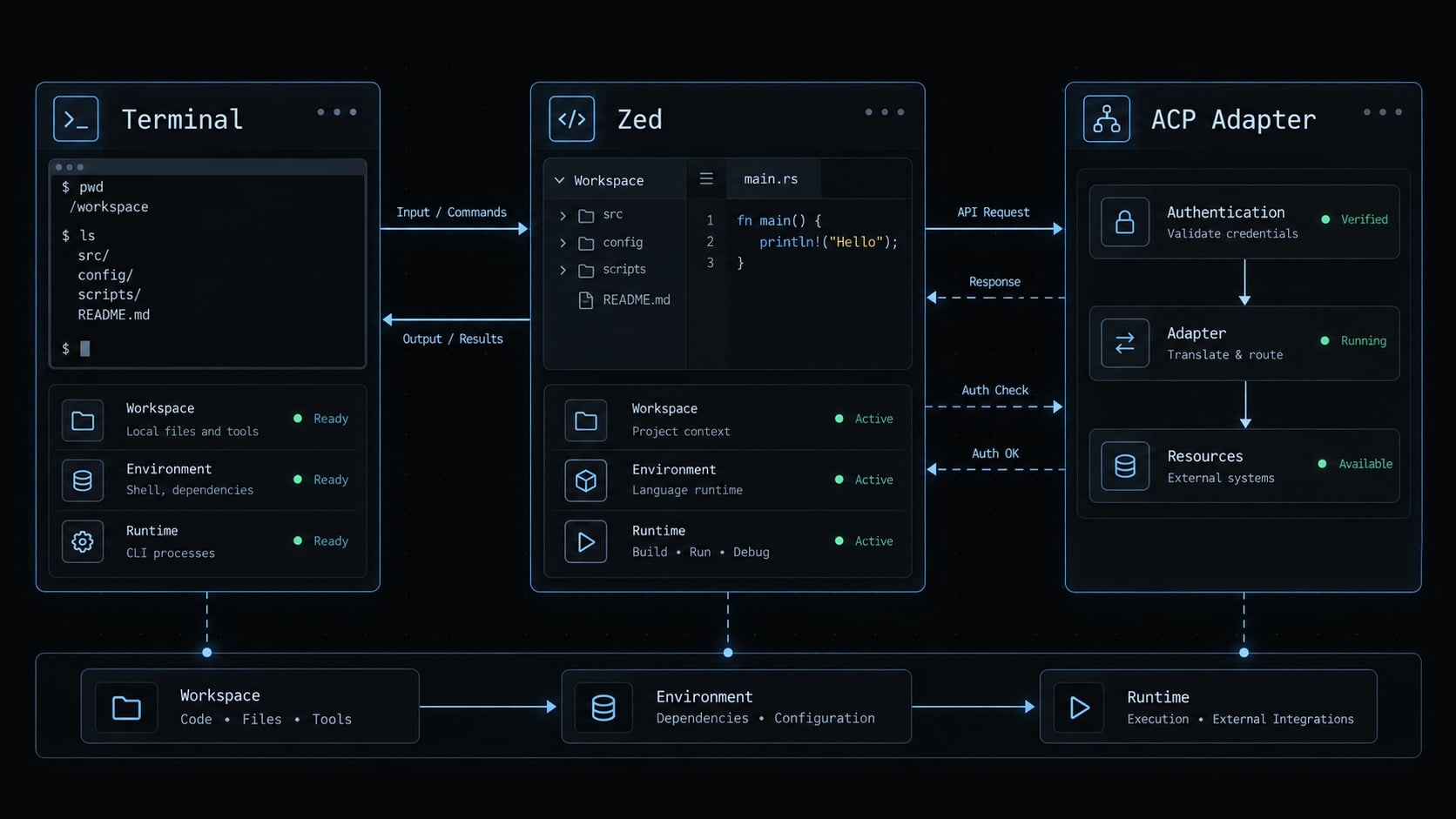
From a working integration to a repeatable Claude Code workflow
A working connection does not create a consistent development process. Standardize scope, verification, and handoffs before adding more automation.
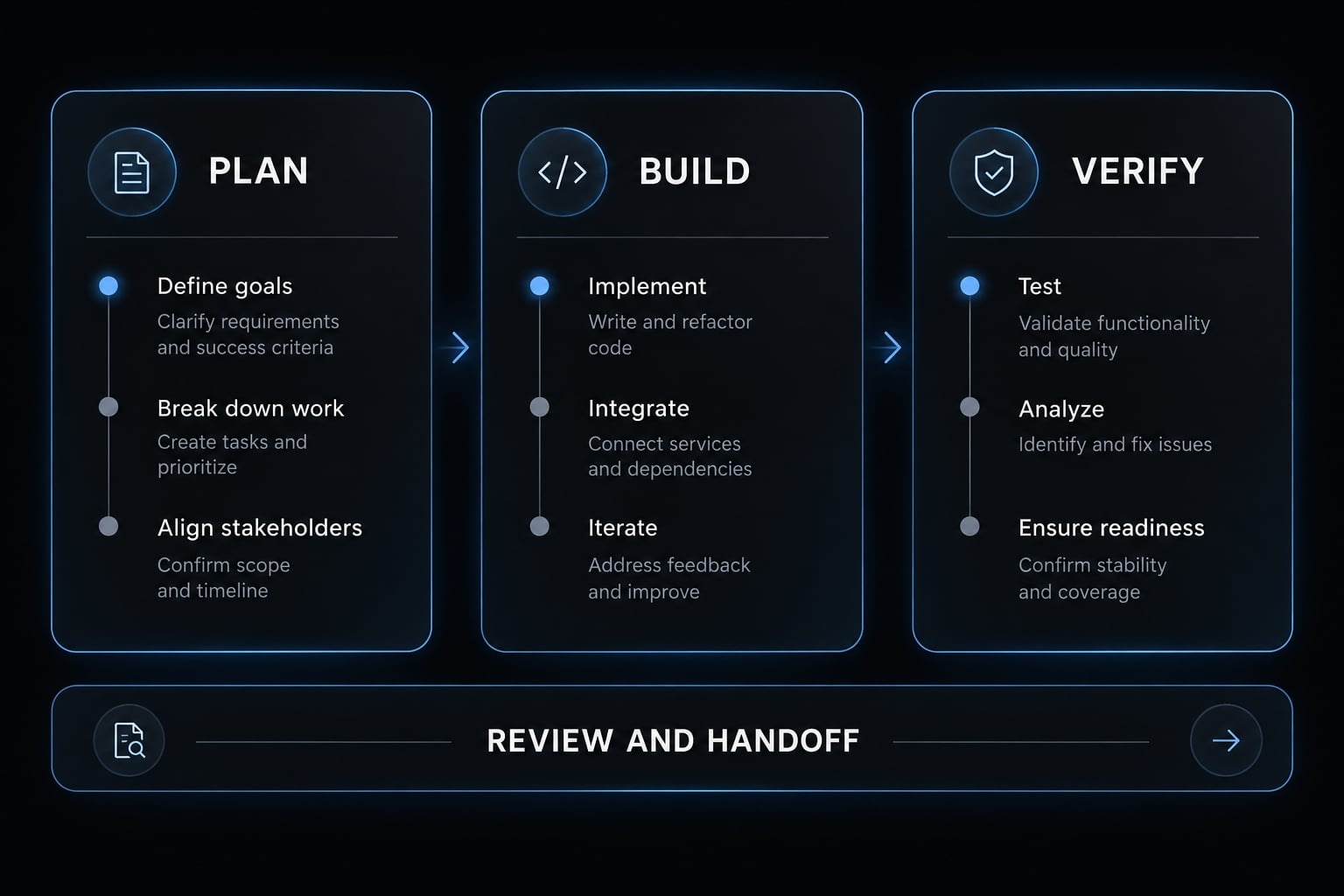
The PLAN–BUILD–VERIFY workflow
- Plan: Define the intended outcome, exclusions, and implementation approach. For the SaaS example, specify the validation behavior and forbid unrelated endpoint refactoring.
- Build: Make small, reviewable changes. Stop for clarification when the agent encounters unexpected architecture or requires broader permissions.
- Verify: Run the relevant checks, inspect the final diff, and record unresolved issues. A test that was proposed but never executed is not verification evidence.
Review and handoff apply throughout. Another developer should understand what changed, why it changed, and which checks actually ran.
What should be standardized across repositories
Use this compact implementation checklist:
- Build, test, lint, and type-check commands.
- Repository instructions and architecture constraints.
- Approved tool permissions and their enforced settings.
- Restricted resources and sensitive-data handling.
- Pull-request expectations and review ownership.
- Reusable skills or commands, checked against the selected interface.
- MCP connection scope and credential ownership.
- Handoff notes with executed checks and remaining risks.
A written policy describes expectations. An enforced permission setting determines what the process can actually access. For reusable Claude Code workflows, retain a short session record: project, task scope, changed files, checks executed, results, and next action.
Frequently asked questions
Can I run Claude Code natively inside the Zed editor?
Yes. You can run Claude Code natively in Zed by using the Agent Client Protocol (ACP). This integration allows Claude Code to run as an external agent, providing a first-class editor experience with features like live multibuffer diffs and side-by-side file editing, rather than just a terminal interface.
How do I install Claude Code for Zed?
You can install it by opening the Zed command palette, searching for the agent registry, and selecting the Claude Code adapter. Start a new thread in the Agent Panel and complete authentication through the prompt the adapter presents. Do not assume a CLI login command works inside an ACP thread.
Is my code uploaded to Zed servers when using Claude Code?
The adapter runs the agent on your machine, and model requests go to the configured service — so project context can leave your device even though execution is local. Review Zed's and Anthropic's current data-handling documentation rather than assuming any particular boundary.
Does the Claude Code integration support project-specific instructions?
Yes. Claude Code automatically reads a CLAUDE.md file in your repository root. You can use this file to document your project's specific build commands, testing suites, coding style, and architecture constraints to guide the agent’s behavior during your development sessions.
How do I troubleshoot if the Claude agent fails to launch?
First, check if your Zed installation is in a sandboxed environment (like Flatpak on Linux) that might restrict subprocess spawning. Verify your authentication status in a standard terminal, ensure the ACP adapter is updated, and check your system logs for execution errors before attempting to reinstall the agent.
Do I need to pay extra to use Claude Code in Zed?
Costs come from your Anthropic account, not from the editor integration. Confirm which authentication route you are using and who owns the billing, and check current pricing for both products.
Read more:
- Claude Code tutorial: Set up and master your AI coding agent
- Claude Code VS Code: Installation and setup guide 2026
- Claude Code JetBrains plugin: Install, use and troubleshoot
Conclusion
Integration of Claude Code in Zed via ACP provides a seamless in-editor AI workflow, though keeping terminal access handy remains essential for CLI-specific features and debugging. To get started effectively, set up a modest baseline—verify repository inspection, make one reversible change, review the diff, and execute relevant checks while preserving strict approval boundaries.
Once established, scale this standardized PLAN–BUILD–VERIFY workflow across repositories to maintain tight control over your code, execution, and credentials.