
Claude Code Figma MCP setup: Remote plugin vs desktop server
If you are searching for Claude Code Figma MCP, you likely want the shortest path that actually works. The main point of confusion is not the command itself, but choosing between the remote plugin path and the desktop/local MCP path. For most users, the remote route is faster and less error-prone. This guide covers the recommended setup first, then the local alternative, along with prerequisites, exact commands, verification steps, and quick fixes for the most common failures.
What Claude Code + Figma MCP actually does?
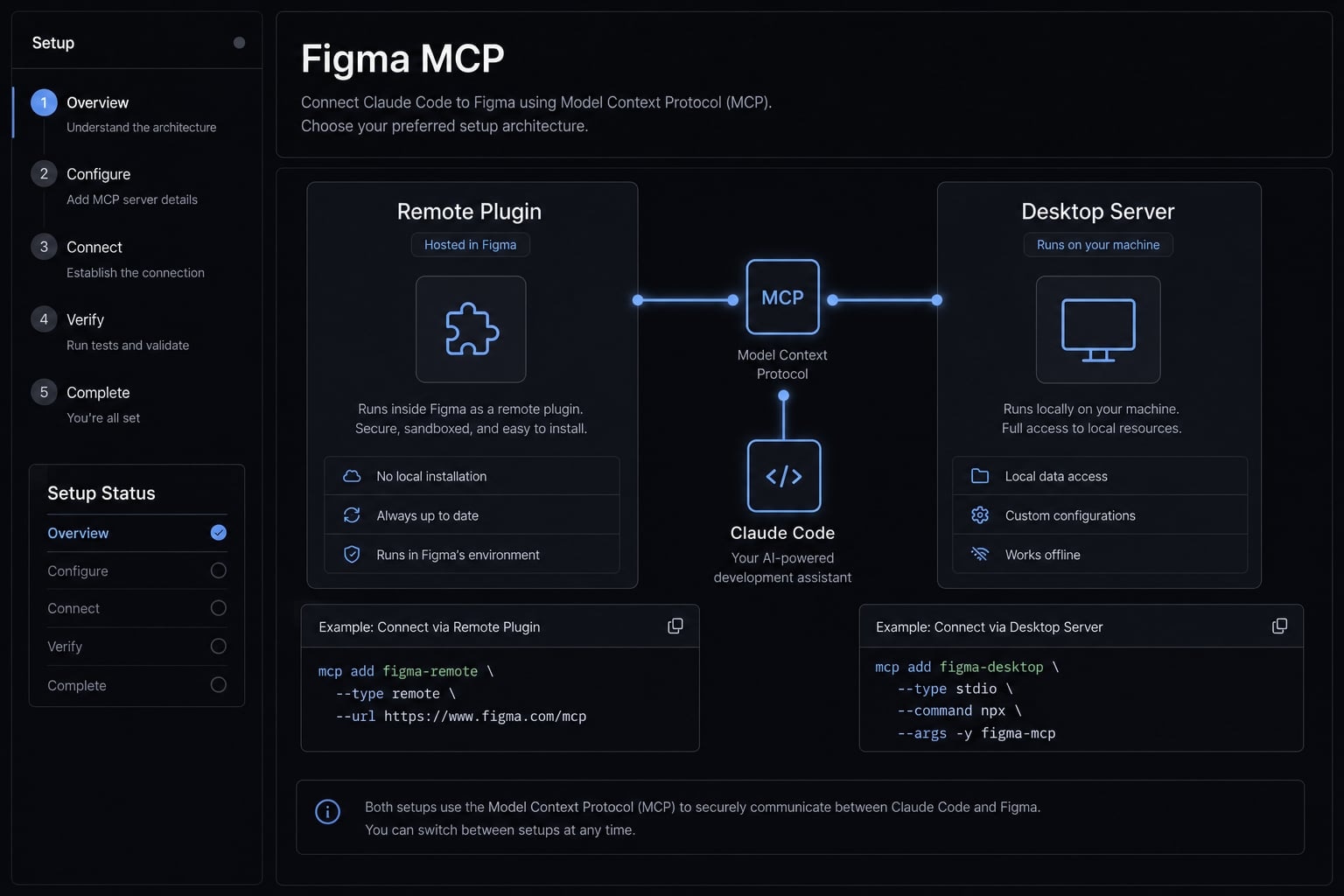
Claude Code Figma integration lets Claude Code access structured design context from Figma through the Figma MCP server. In practice, that means Claude can work with more than a rough text description of a UI. It can use design context such as frames, selections, components, and related structure to produce more accurate implementation help in your terminal.
This matters in a design-to-code workflow because prompt quality improves when the model can see the design context directly. Instead of saying “build a pricing card like the mockup,” you can point Claude Code to a selected frame or a Figma link. That usually reduces ambiguity and cuts down on rework. It does not eliminate frontend review, but it makes the first pass more grounded.
What MCP means in plain English?
Model Context Protocol (MCP) is a standard that lets tools like Claude Code connect to external systems such as Figma in a structured way. Think of it as the bridge that passes usable context into Claude. You do not need to understand transport internals to complete the recommended setup.
What you can do after connecting?
- Generate frontend code from a selected frame.
- Use a Figma link in a prompt instead of describing the screen manually.
- Map design structure to reusable components.
- Extract more accurate UI context than a text-only prompt.
- Compare a design frame against an existing component approach.
Choose the right setup path: Remote plugin vs desktop MCP
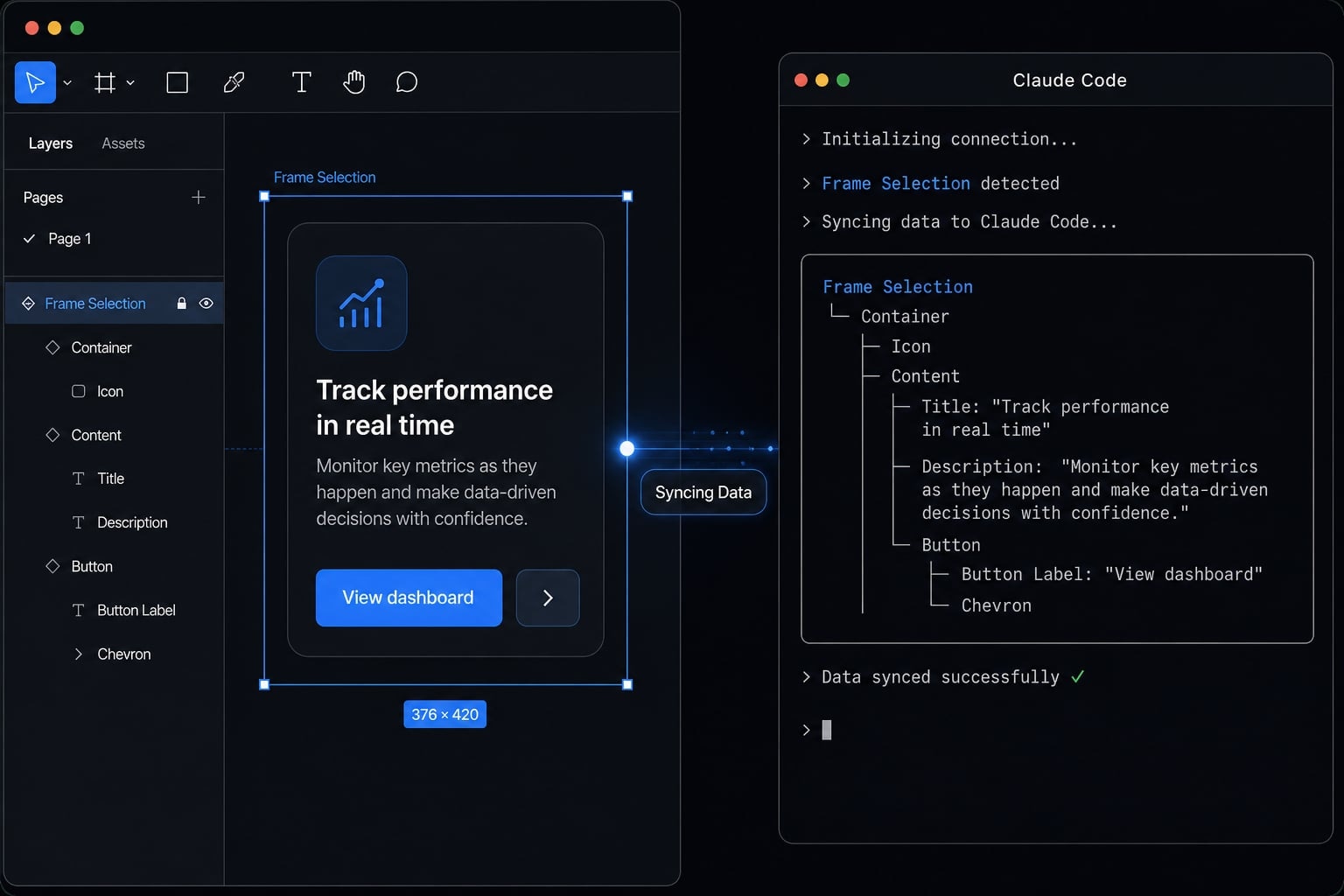
For most users, start with the remote plugin path. The reason is simple: The remote Figma MCP server path usually has fewer moving parts. You install the official Figma plugin, authenticate, verify the connection, and start prompting. The desktop Figma MCP server route is valid, but it introduces more room for endpoint or transport mismatch. A successful install is not the same as a usable connection, so lower-friction setup matters.
Recommended option for most users
- Fastest path to setup.
- Fewer manual steps.
- Less endpoint handling.
- Lower setup error risk.
- Better fit for solo developers, founders, and small teams.
When desktop/local setup makes sense?
- Your internal environment or policy requires a local route.
- Your team prefers local routing and manual server control.
- You already standardize a local MCP setup across tools.
- You need a workflow centered around the desktop app.
Criteria | Remote Figma MCP server | Desktop/local Figma MCP server | Best default choice |
|---|---|---|---|
Ease of setup | Easier | More manual | Remote |
Best for | Most individual users and small teams | Specific local or policy-driven needs | Remote |
Connection method | Plugin-based auth flow | Manual local server registration | Remote |
Maintenance overhead | Lower | Higher | Remote |
Setup error risk | Lower | Higher due to endpoint/transport issues | Remote |
When to use | Standard setup for most users | When local setup is explicitly required | Remote |
Prerequisites before you run any command
Many setup failures come from missing prerequisites, not bad commands. Before you install anything, confirm that your terminal, Claude environment, and Figma access are ready. The Figma desktop app is only required if you choose the local setup path.
Quick setup checklist
- Claude Code install is complete and Claude runs in your terminal.
- Terminal access is working.
- Your Figma account is accessible.
- At least one design file is ready for testing.
- The Figma desktop app is installed only if you are using local setup.
Common blockers before installation
- Plugin installation is blocked by organization policy.
- The Figma desktop app is outdated.
- You assume local setup is required when the remote path would work.
- Authentication is not completed in the browser after install.
Step-by-step: Set up the remote Figma MCP server in Claude Code
This is the preferred path for most users. Use it unless you specifically need the local route.
- Install the official Figma plugin in Claude Code.
- Restart Claude Code and open
/plugin. - Authenticate with Figma and allow access.
- Confirm the plugin shows as connected.
Step 1: Install the official Figma plugin
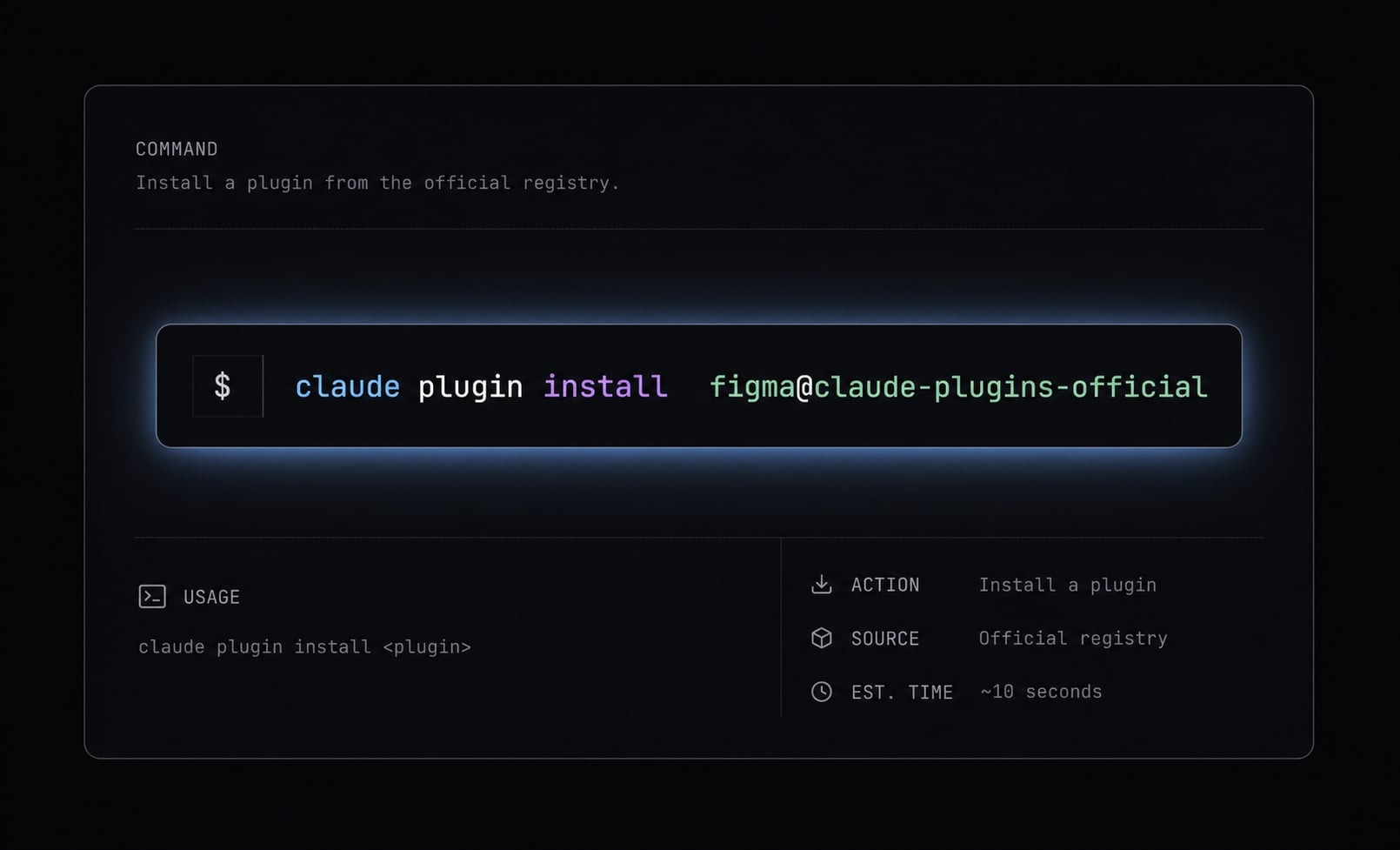
claude plugin install figma@claude-plugins-official
This install command - claude plugin install figma - is the recommended starting point for most users. It is the fastest way to complete Figma plugin setup without manually handling a local endpoint. If the install fails immediately, do not assume the command is wrong. In many environments, plugin installation can be restricted by organization policy.
Step 2: Restart Claude Code and open plugins
If Claude Code was already running, restart it first. Then open the plugin interface:
/plugin
From there:
- Open the plugin marketplace.
- Go to the Installed tab.
- Find the
figmaplugin or server entry.
This step matters because Claude Code terminal commands may install the plugin correctly, but the active session still needs to pick up the new state. Skipping the restart is a common reason the plugin appears installed but not usable.
Step 3: Authenticate with Figma
Select the Figma plugin entry and start the authentication flow. Claude Code should open an external browser page for Figma authentication. In the browser:
- Review the access request.
- Click Allow access.
- Complete the approval flow.
- Return to Claude Code.
Do not stop at “plugin installed.” A usable Claude Code Figma plugin setup requires completed authentication. If you see an auth page once but do not complete approval, the plugin may remain in a partial state.
Step 4: Confirm the connection
Open the plugin interface again:
/plugin
Under Installed, check that Figma shows as connected. Only after that should you start using prompts with Figma context.
A practical rule: Install, then auth, then verify. If the plugin is installed but not marked connected, treat the setup as incomplete.
Contextual next step
If you are documenting setup for repeated use, create a short internal runbook with the exact install command, auth checkpoint, and verification screenshot. That removes avoidable friction when more users onboard.
Alternative method: Set up the desktop/local Figma MCP server
The Figma desktop MCP server path is valid, but it is not the default for most readers. It usually requires manual endpoint handling, which adds setup risk. Use this route when local setup is specifically required by your environment or workflow.
Enable MCP in the Figma desktop app
- Open the Figma desktop app.
- Open a design file.
- Switch to Dev Mode.
- Enable MCP in the sidebar.
- Copy the server URL shown by Figma.
This is the core Figma Dev Mode flow for the local path. Make sure the server is actively enabled before moving to Claude Code.
Add the local server to Claude Code
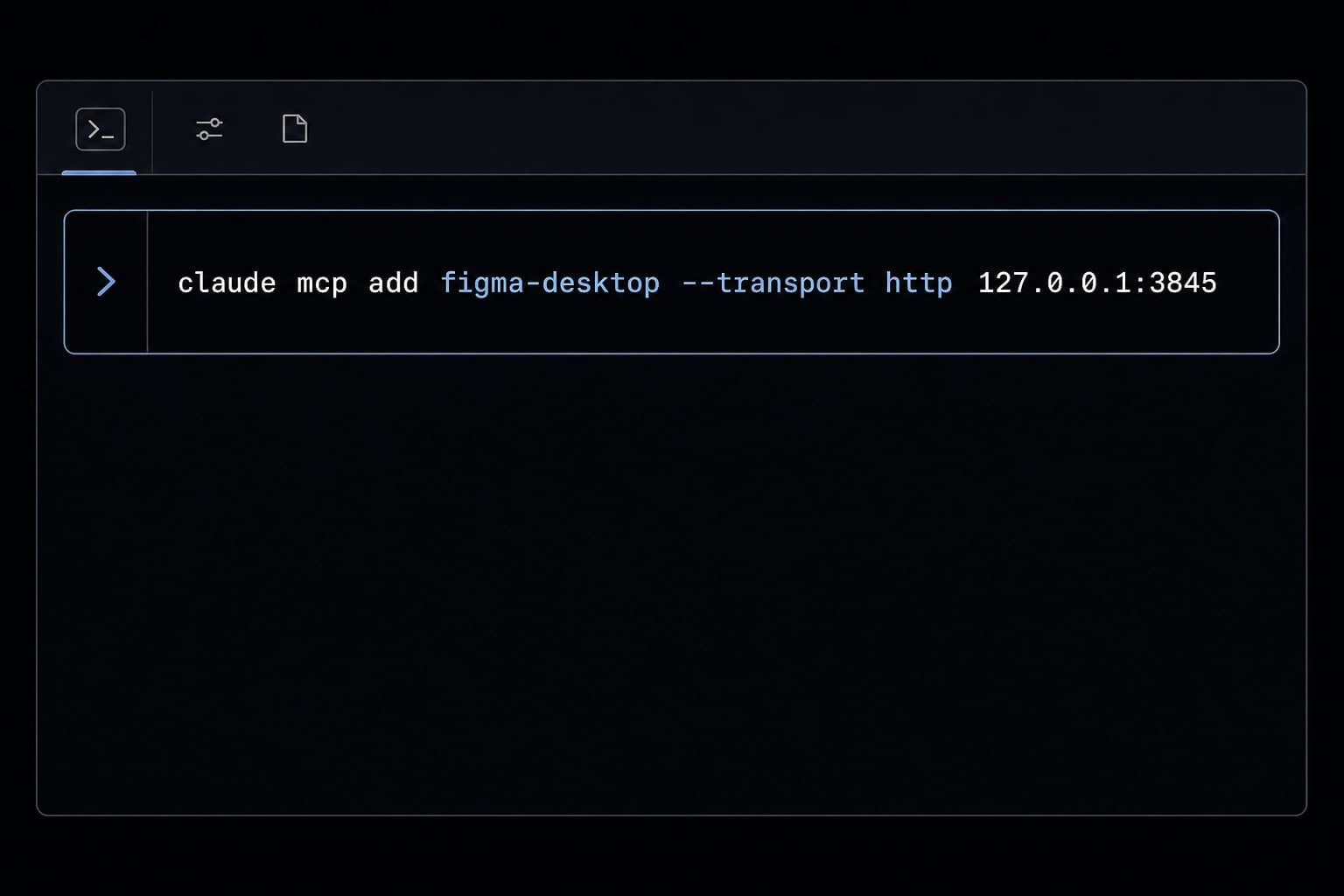
Run the following example command:
claude mcp add --transport http figma-desktop http://127.0.0.1:3845/mcp
Then:
- Restart Claude Code.
- Run
/mcp. - Confirm the server appears in the list.
This step - running claude mcp add - registers the local server with Claude Code. If the server does not appear after restart, the most likely causes are a bad local MCP endpoint, wrong transport, or the desktop server not actually running.
Important note on transport and endpoint differences
Note: Some setup examples online mention HTTP transport, while others mention SSE. Version details can differ across tutorials. Use the endpoint and transport shown in your current Figma app or official documentation at setup time. If you use the wrong transport, the server may be added but still not work.
This is why the desktop/local path has more friction. It is valid, but less forgiving than the remote plugin path.
How to verify the setup and start using it right away
“Installed” is not enough. You need to confirm the connection is usable. Verification depends on the path you chose: use /plugin for the remote setup and /mcp for the local setup.
Ways to verify the connection
- The plugin shows as connected in
/plugin. - The MCP server appears in
/mcpif you used local setup. - Claude can access your current Figma selection or linked file context.
- Optional:
claude mcp listreturns the configured server.
A strong verification test is simple: Ask Claude to use a selected frame or a link. If Claude can read the context and respond accordingly, the setup is actually usable.
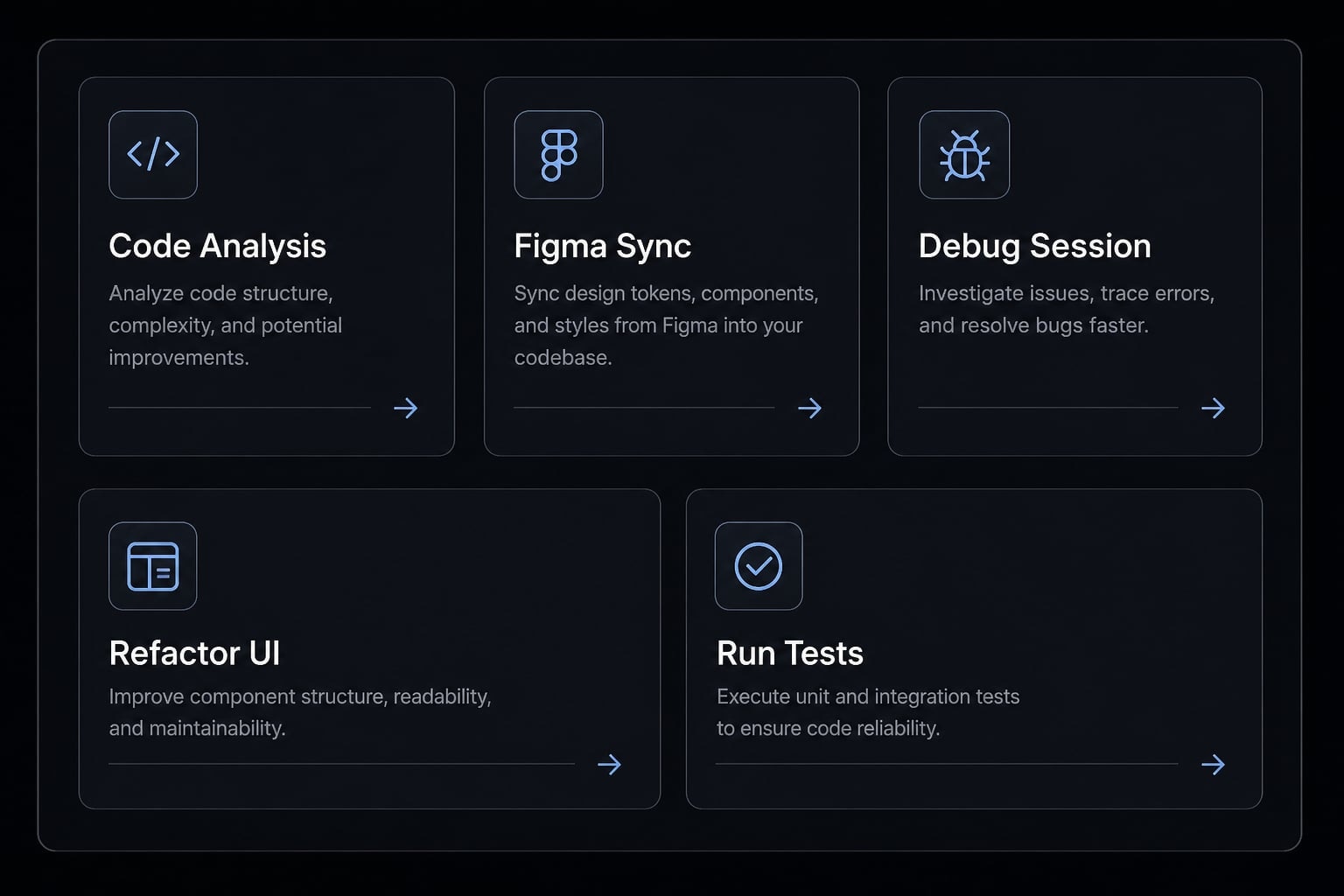
Starter prompts to use immediately
Get the next post in your inbox
New guides and AgentKit updates, no spam. Unsubscribe at any time.
These prompts work well because they give immediate payoff. A selected frame prompt is often the fastest first test. A Figma link prompt is useful when you want to validate link-based access without changing your current canvas selection.
Common issues and quick fixes
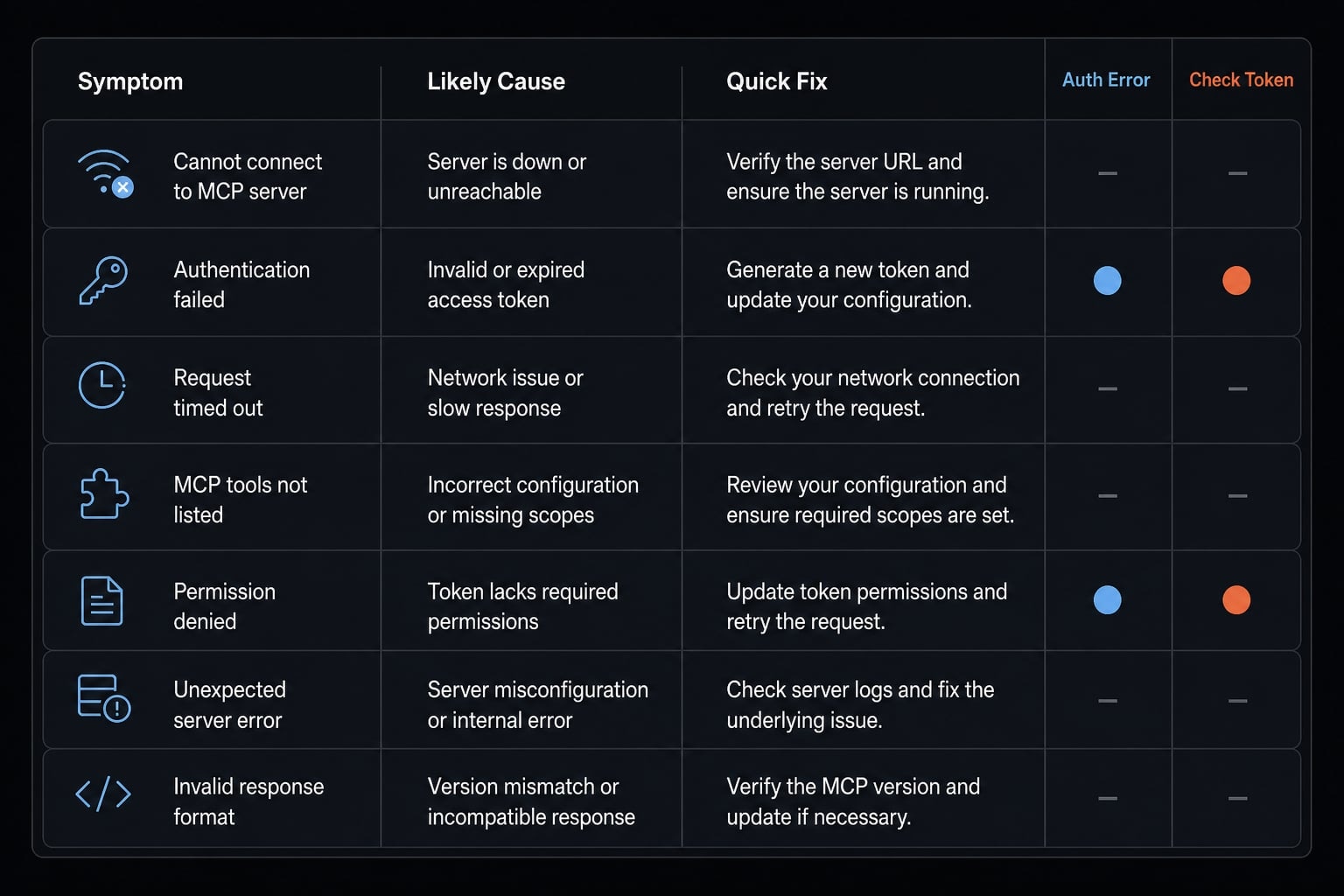
Most Figma MCP connection error cases come from a small set of repeatable issues. The fastest way to fix them is to match the symptom to the likely cause.
Troubleshooting matrix
Symptom | Likely cause | Quick fix |
|---|---|---|
Plugin install fails | Organization policy restriction | Contact your Claude admin or use the approved setup path |
Plugin installed but not connected | Authentication issue or auth not fully completed | Reopen the plugin flow, rerun auth, and confirm Allow access was approved |
Local server not listed in | Wrong endpoint, wrong transport, or restart skipped | Recheck the URL, verify transport, restart Claude Code |
Desktop server not running | MCP not enabled in Figma Dev Mode | Re-enable MCP in Figma and copy the active URL again |
MCP added but Claude cannot use Figma context | Server exists but connection is not usable yet | Re-verify selection or link access and confirm the endpoint is active |
Plugin install failed only on company machine | Admin restrictions, not user error | Confirm plugin policy with IT or security before further debugging |
A practical pattern worth remembering: If the plugin looks installed but your workflow still fails, check authentication first. If the local server exists but does not respond, check endpoint and transport next.
Contextual support option
If your team is hitting repeated setup inconsistencies, build a short approved checklist with the exact path, command, verification method, and fallback troubleshooting steps. Standardization solves more issues than extra prompting.
When a personal setup becomes a team workflow
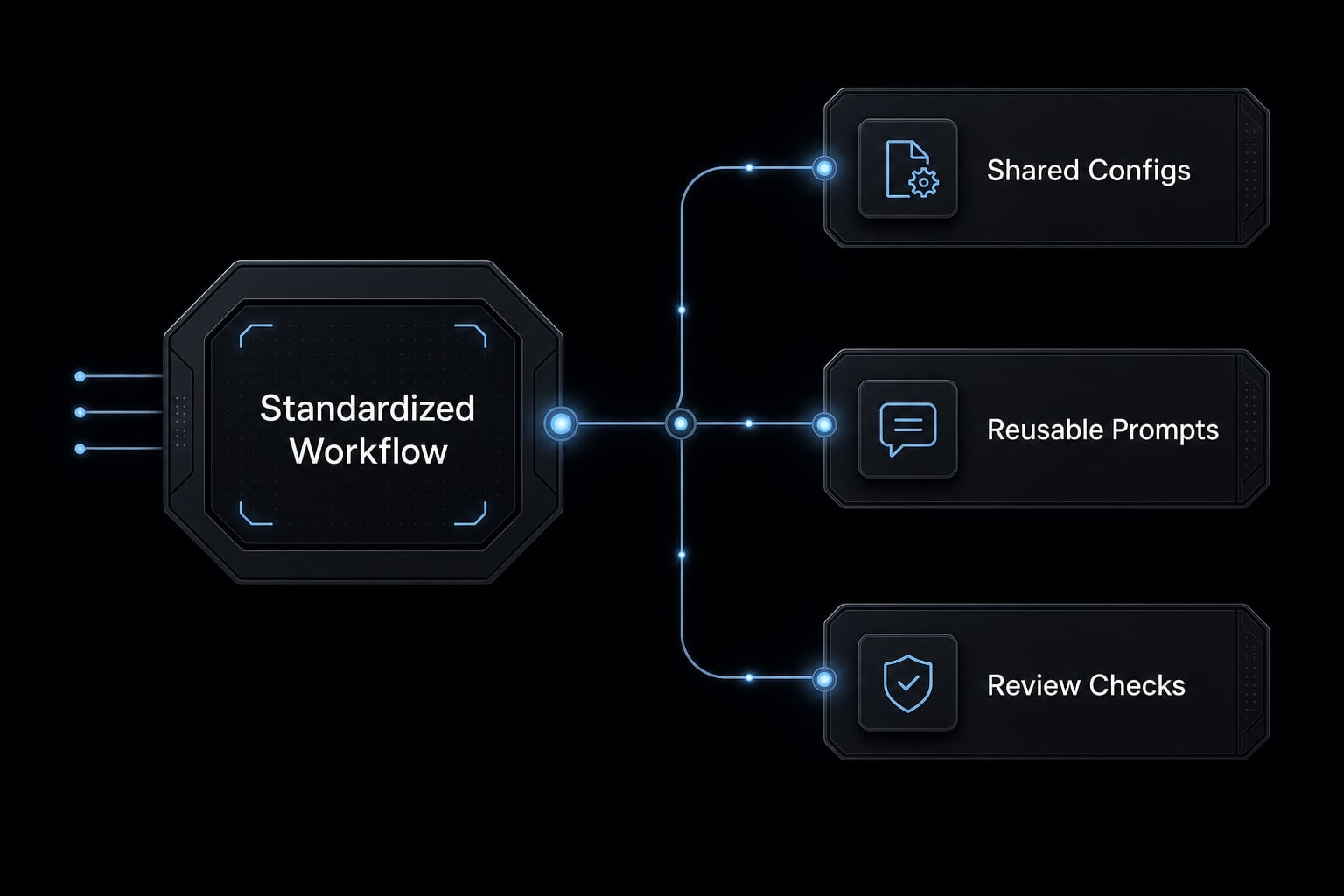
A one-person setup often breaks down once multiple people use different prompts, configs, or local assumptions. The usual issue is not the tool itself, but inconsistent setup and review habits across the team. What to standardize first:
- Shared reusable MCP configs.
- Reusable design-to-code prompts.
- Role-based agent skills.
- Basic security and review checks.
This is where AgentKit can be useful as a lightweight operational layer. Instead of rebuilding the same setup logic across developers, founders, and PMs, teams can standardize repeatable AI development workflow patterns and reduce config drift.
Frequently asked questions
What is Claude Code Figma MCP?
Claude Code Figma MCP is a connectivity solution that allows AI to access design files, components, and variables in Figma through the Model Context Protocol (MCP). It helps engineers generate code more accurately from selected design frames.
Should I choose the Remote Plugin or Desktop MCP setup?
Most users should choose the Remote Plugin because it offers a faster setup process, requires less manual configuration, and involves fewer technical risks. Use Desktop MCP only if your organization specifically requires local connections.
What are the prerequisites for setting up Figma MCP with Claude Code?
Before getting started, you will need:
- Claude Code installed in your terminal.
- A Figma account and at least one design file.
- Permission to install plugins if using the remote method.
- The Figma Desktop app, which is required only for the local method.
How can I verify that the Figma MCP connection is working?
After completing the setup, follow these steps:
- Run the
/pluginor/mcpcommand in Claude Code. - Confirm that the connection status is displayed as “connected.”
- Try this prompt: “Use the selected frame in Figma to create this React component.”
Why does the Figma plugin installation command fail?
This error is commonly caused by your organization’s security policies blocking plugin installation or by an outdated version of Figma Desktop. If you are connected to a corporate network, contact your IT administrator for assistance with the required permissions.
Can Figma MCP be used to update existing source code?
Not entirely. Claude Code primarily supports generating new components from Figma designs. When modifying existing source code, you will generally need to make changes manually or restructure the code after the AI generates the initial scaffold.
How do I set up Figma MCP for local use?
- Open Figma Desktop and enable Dev Mode.
- Enable the MCP server from the right-hand toolbar and copy its URL.
- Run the following command:
claude mcp add --transport http figma-desktop [your_URL]. - Restart Claude Code to complete the setup.
Read more:
- Claude Code slash commands: Essential shortcuts for CLI flow
- Claude Code invalid tool parameters: Causes and fixes
- How to authenticate Claude Code in terminal
Conclusion
For most users, Claude Code Figma MCP is easiest to set up through the remote Figma plugin path. The safest sequence is straightforward: Confirm prerequisites, run the install command, complete authentication, verify the connection, and then test with a real prompt.
The local route is still valid, but it usually adds more manual handling and more chances for endpoint or transport mismatch. If you are setting this up across a team, standardization matters as much as the command itself. Use a shared checklist, a reusable setup template, or a team-ready workflow kit so the connection stays reliable beyond a single machine.
Go deeper in the docs
Reference pages for every command, skill, hook and setting mentioned here.
Read the docs →Share this article
Keep reading
- Master Claude Code PostToolUse hook: Setup and examplesLearn how to configure Claude Code PostToolUse hooks for automated formatting and linting. Follow our guide to improve workflow efficiency today.15 min read
- How to use Kimi K2 with Claude Code: Setup & verification guideLearn how to configure Kimi K2 with Claude Code using Anthropic-compatible endpoints. Follow our step-by-step guide for setup, verification, and testing.13 min read
- Claude Code effort level: How to choose the right settingLearn how Claude Code effort level impacts reasoning and performance. Discover the best settings for your tasks to balance efficiency and accuracy.10 min read