
Claude Code working directory: How it works and how to configure it
Claude Code working directory is the initial session location that shapes project context, configuration discovery, and path resolution. Launching from the wrong folder risks targeting the wrong repository. The solution involves distinguishing launch spots, Git roots, and tool directories. This guide covers startup checks, CLAUDE.md discovery, and safe troubleshooting.
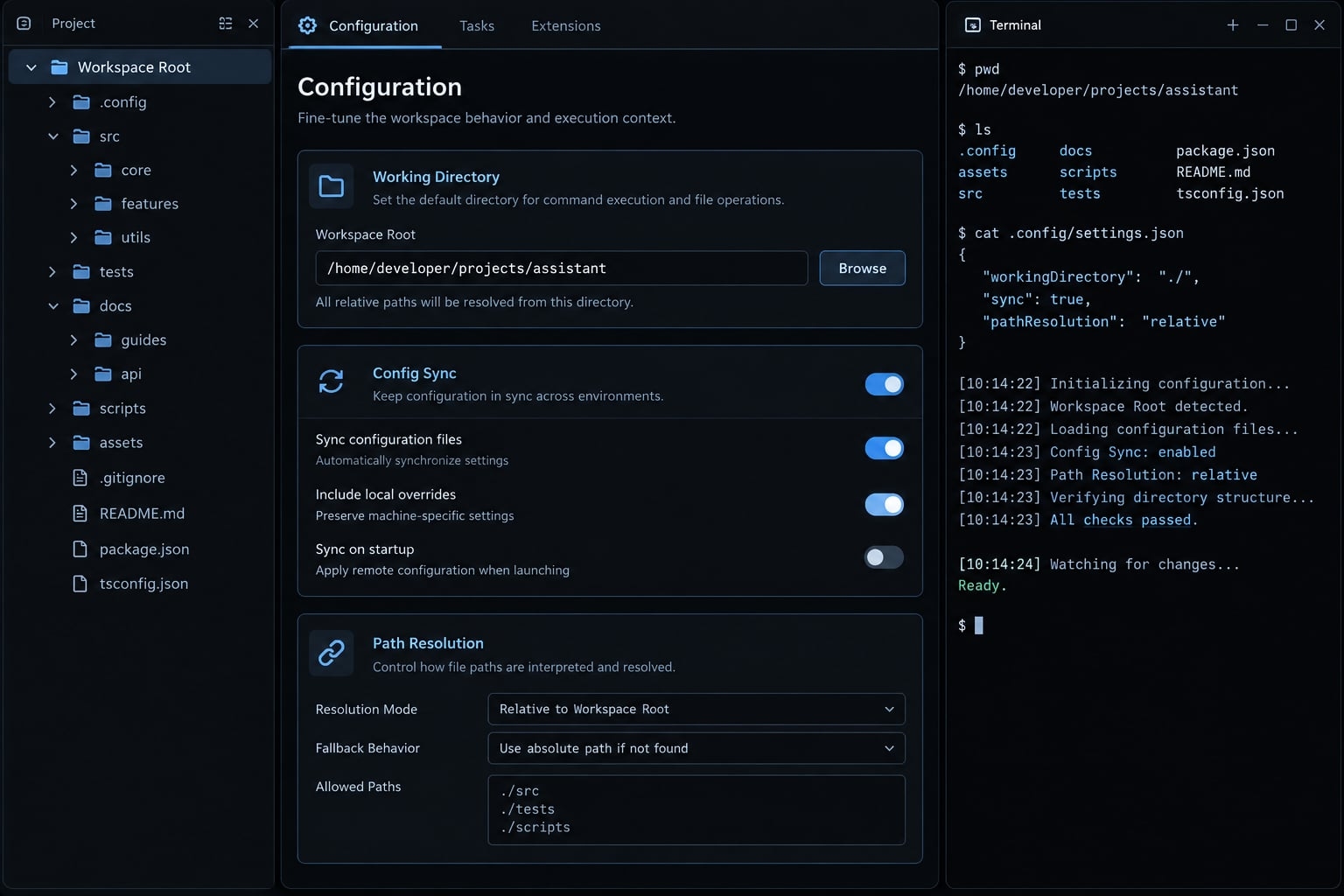
What is the Claude Code working directory and how does it work
The Claude Code working directory anchors the session’s initial project context. It is not interchangeable with the repository root, configuration directory, or session-data location.
Concept | Meaning |
|---|---|
Working directory | Initial project location associated with the session. |
Repository root | Git’s top-level directory, it can differ from the launch location. |
Project | Project-specific settings and supporting resources. |
User | Default user configuration and application-data location, configuration overrides can change it. |
Added directory | An additional location made available to the session. |
Session data | Application-managed history or state, distinct from repository files, storage varies by data type and configuration. |
User configuration: ~/.claude/ ↓Git root: product-platform/├── .claude/ Project configuration└── apps/web/ Possible launch directoryRelated repository ──add──→ Session accessSession history Application-managed state
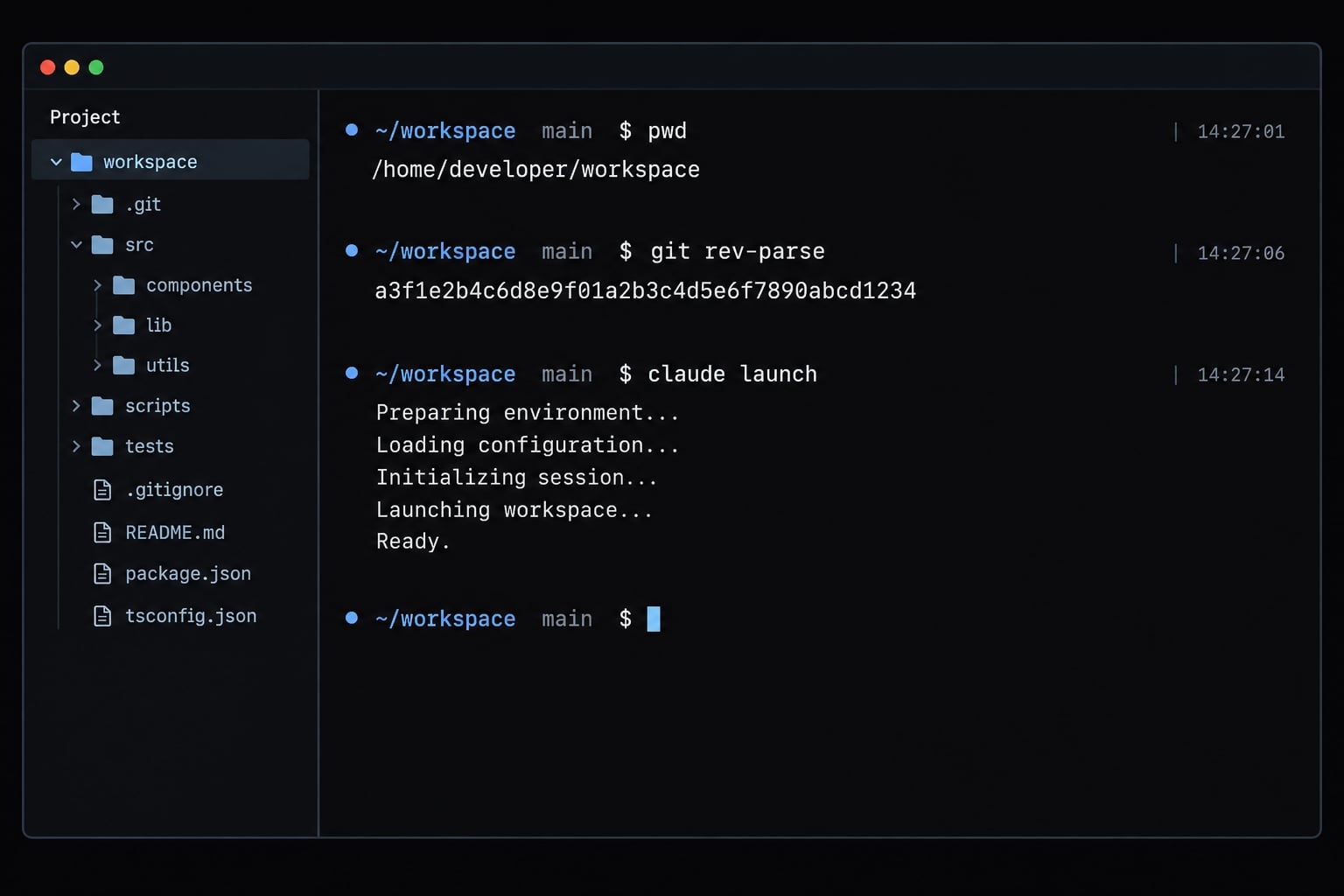
Working directory vs repository root
Launching from product-platform/apps/web/ does not redefine Git’s root. The repository can still begin at product-platform/.
Choose the root for cross-package work. A nested launch can focus a narrower task, but it does not necessarily exclude ancestor instructions.
Context boundary vs security boundary
Directory selection is not filesystem isolation. “Context boundary” describes task focus, not an official security guarantee. Permissions, approval settings, sandbox configuration, and tool capabilities independently govern operations. Do not assume every read requires approval.
How Claude Code chooses and uses the working directory
For a normal terminal launch, set the current working directory before starting Claude Code. Check both the filesystem location and repository identity.
Recommended startup sequence
- Navigate to and confirm the intended current working directory.
- Check repository identity and Git status.
- Review expected instruction files and project settings.
- Launch Claude Code.
Replace the placeholder paths below.
macOS/Linux shell:
cd "/path/to/my-project"
pwd
git status
claude
Windows PowerShell:
Set-Location "C:\path\to\my-project"
Get-Location
git status
claude
Inside a Git repository, git rev-parse --show-toplevel identifies its root. Claude Code can also operate outside Git, a failed Git check does not itself prevent use.
These commands establish location, not configuration safety. Review unfamiliar repository settings before accepting trust prompts or permitting command execution.
What happens if you launch from the wrong directory?
Launch location | Likely consequence |
|---|---|
Home directory | Personal files and unrelated folders can become part of an unnecessarily broad task context. |
Wrong sibling repository | Instructions and relative operations can target the wrong application. |
Nested monorepo package | The starting scope is narrower, while ancestor instructions can still apply. |
Parent containing unrelated repositories | Project selection and configuration expectations can become ambiguous. |
Temporary directory | Expected project files may be absent, and generated files can be misplaced. |
Relative file paths depend on the relevant operation. A shell command resolves paths against its execution directory, a configuration field can have its own documented resolution rules.
Changing directories inside a shell command does not, by itself, establish that the entire session has switched projects. For a different primary project, restarting there is the clearer workflow.
Which configuration files does Claude Code use?
Markdown instructions and JSON settings serve different purposes. Instructions describe how to work, settings configure behavior such as permissions and hooks—commands triggered by lifecycle events.
A compact illustrative layout:
my-project/├── CLAUDE.md└── .claude/ ├── settings.json ├── settings.local.json ├── skills/ └── agents/~/.claude/├── CLAUDE.md└── settings.json
The tree shows common locations, not every supported resource.
Project configuration vs user configuration
Need | Location | Commit to project Git? |
|---|---|---|
Shared project instructions |
| Yes, after review. |
Shared project settings |
| Yes, without secrets. |
Personal project overrides |
| No. |
Cross-project personal defaults |
| No, these are user-level files. |
Reusable project skills or agents |
| Yes, when intentionally shared. |
User-level files can affect multiple projects. Personal defaults therefore deserve review when behavior differs between teammates using the same repository.
Configuration discovery and Precedence
Instruction discovery: Anthropic’s Memory documentation describes discovery of applicable CLAUDE.md files in the working directory and ancestor directories. Discovery is not simply “find the nearest file and stop,” nor should Git’s root be assumed to terminate the search.
Nested instruction files are loaded as Claude works with files in those subtrees. They are not necessarily all loaded at startup. User instructions can also contribute context.
Settings precedence: Anthropic’s Settings documentation describes this general priority, highest first:
- Managed settings supplied by the organization.
- Command-line arguments.
- Local project settings.
- Shared project settings.
- User settings.
This hierarchy does not function as a strict Markdown precedence rule; instead, certain settings rely on specialized combination behaviors. Permission rules also have their own evaluation semantics, a lower-scope allow should not be assumed to override a deny. Managed restrictions cannot simply be relaxed through project configuration.
What belongs in Git?
- Commit: Reviewed shared instructions, settings, skills, and agent definitions.
- Exclude: Credentials, machine-specific paths, and personal overrides.
- Inspect: Hooks and referenced scripts because they can execute commands.
- Verify: Ignore behavior with Git rather than assuming a “local” filename prevents tracking.
How to work with additional directories
Use --add-dir when a task needs a related repository without changing the primary project. For example, a B2B SaaS frontend update might require checking the sibling API contract and shared types:
claude --add-dir ../backend-api ../shared-library
Anthropic’s CLI reference documents multiple directory arguments for this flag. To add a location during an interactive session:
/add-dir /path/to/related-project
Use explicit paths when directory relationships are unclear.
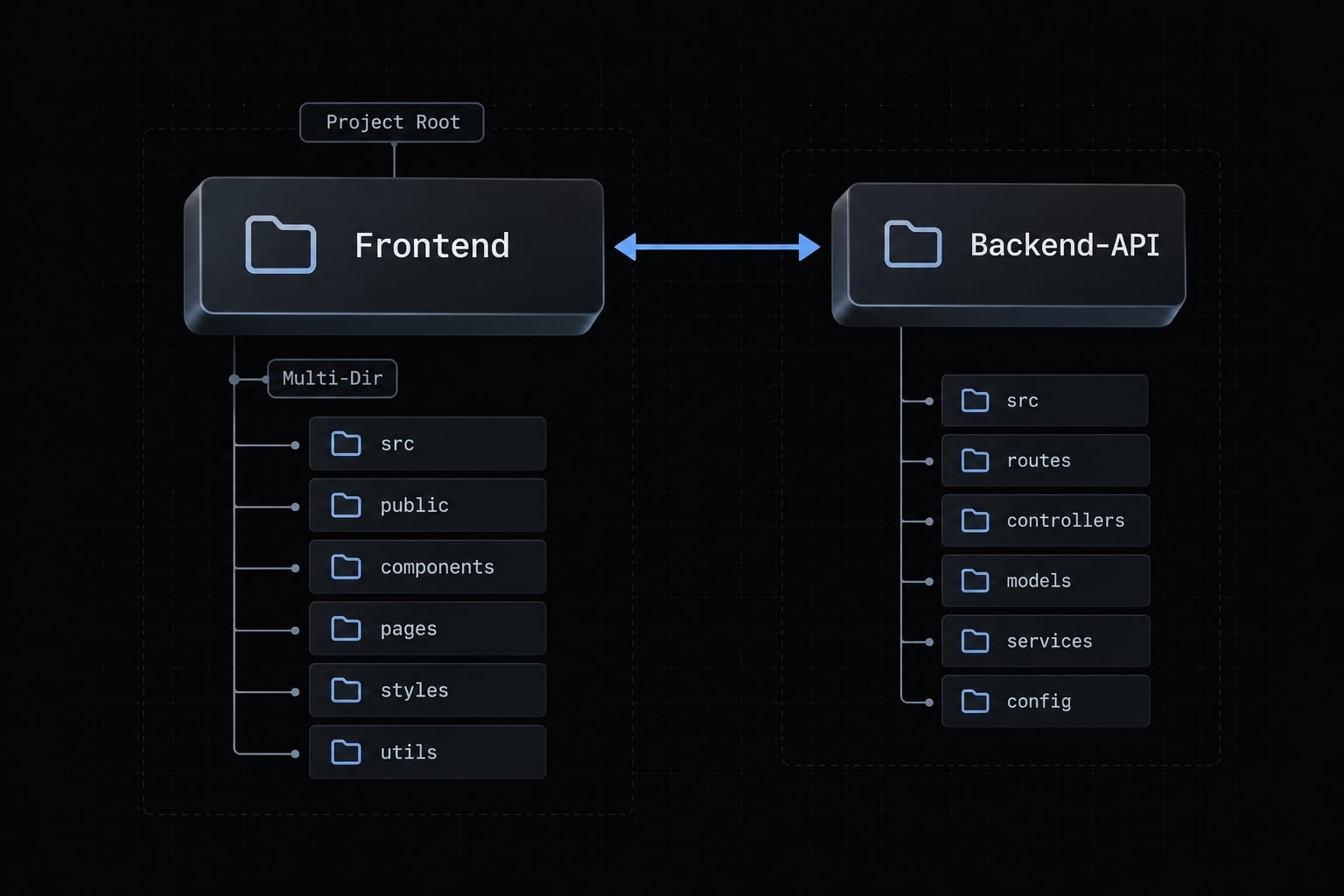
Primary directory vs added directory
Situation | Recommended action |
|---|---|
One main repository | Launch there. |
Related sibling repository | Add it when the task requires access. |
Main task moves elsewhere | Review changes, then start a new session there. |
Unrelated repositories | Use separate sessions. |
Sensitive directory | Add only after reviewing necessity and access implications. |
frontend/ ── launch ──→ Primary project │ └── --add-dir ──→ backend-api/ Additional accessAdditional access ≠ automatic configuration merging
An added directory is not a second primary project. Adding one expands available workspace locations, it does not bypass applicable permission rules or sandbox controls.
Do added directories load their own instructions?
According to Anthropic’s Memory documentation, CLAUDE.md files from additional directories are not loaded by default. The documented opt-in is CLAUDE_CODE_ADDITIONAL_DIRECTORIES_CLAUDE_MD=1. For a POSIX-compatible shell:
CLAUDE_CODE_ADDITIONAL_DIRECTORIES_CLAUDE_MD=1 \
  claude --add-dir ../backend-api
This enables instruction loading for additional directories. Do not infer that it also imports their entire .claude/ configuration, settings, hooks, or other resources.
Cross-repository instructions can conflict. Review differences in testing, formatting, and deployment guidance before asking Claude to modify both repositories.
Reviewing workspace access
- Review added paths and applicable settings, use
/permissionsto inspect permission rules. - Limit directories to those required for the task.
- Review workspace permissions before allowing writes or command execution.
If access scope is uncertain, start a new session without the extra directory and inspect persistent additional-directory settings as well.
Working directory examples for common repository structures
Choose a launch location based on task scope, not folder naming. These layouts are illustrative examples, not recorded tests.
Single repository
b2b-dashboard/
├── CLAUDE.md
├── .claude/
├── src/
└── tests/
cd "/path/to/b2b-dashboard"
claudeThe root fits repository-wide work because source code, tests, and shared project configuration sit beneath one clear starting point. Check Git status before beginning, especially when existing changes must remain untouched.
Monorepo
A monorepo stores several applications or packages in one repository:
product-platform/
├── CLAUDE.md
├── apps/
│   ├── web/
│   └── api/
└── packages/
└── shared/- Cross-package task: Launch from
product-platform/, such as when changing a shared type used by both applications. - Package-only task: Consider
product-platform/apps/web/, while accounting for inherited instructions and dependencies outside that folder.
A narrower launch expresses task focus. It does not guarantee isolation from the rest of the repository or eliminate the need to inspect shared code.
Separate frontend and backend repositories
workspace/
├── frontend/
│   └── CLAUDE.md
└── backend-api/
    └── CLAUDE.md
From the primary repository:
cd "/path/to/workspace/frontend"
claude --add-dir ../backend-api
The frontend repository remains primary while the backend repository supplies related context. State explicitly whether backend edits are allowed or whether it is reference-only, enforce important restrictions through permissions, not prompt wording alone.
Prefer separate sessions for unrelated tasks, conflicting instructions, or distinct access requirements. Review Git changes independently in both repositories after cross-repository work.
Troubleshooting Claude Code working directory problems
Inspect paths and configuration before broadening permissions. A missing file can indicate a wrong path, not insufficient access.
Seven-Step Diagnostic Checklist
- Confirm the terminal path with
pwdorGet-Location. - Identify the intended Git root using
git rev-parse --show-toplevel, if applicable. - Inspect project instructions, settings, and local overrides.
- Review user-level configuration for unexpected defaults.
- Check added directories and permissions.
- Inspect
git status,git diff, andgit diff --staged, review untracked files separately. - Restart from the intended location if project context remains ambiguous.
git diff alone does not show staged changes or untracked file contents. In multi-repository tasks, perform the review in every affected repository.
An illustrative failure sequence: A command fails to find src/client.ts. Checking the execution directory reveals it points to the backend repository, whereas switching to the intended frontend path fixes the lookup. Granting broader permissions would not solve that path error.
Preventing shell directory drift
The shell process’s directory is not synonymous with the session’s project context. Prefer explicit paths or command-local directory changes.
Bash/Zsh example:
(cd "/path/to/frontend" && pwd && git status)
The parentheses confine the directory change to a subshell. This does not retarget the overall Claude Code session.
Cleaning Up Session State and Artifacts
- Inspect generated project files before removing temporary artifacts.
- Distinguish repository files from Claude Code’s application-managed session state.
- Use narrowly scoped cleanup procedures documented for your installed version.
Restarting does not undo edits or reverse persistent permission changes.
Claude Code working directory best practices
Standardize a small launch-and-review routine. Reusable configuration helps teammates reproduce an intended setup, but it does not replace reviewing actual permissions and changes.
Recommended operational checklist
Do | Avoid |
|---|---|
Confirm the path before launch. | Broad home-directory launches for repository-specific tasks. |
Choose enough context for the task. | Mixing unrelated repositories in one session. |
Review shared settings, hooks, and trusted tool integrations. | Treating directory selection as a security guarantee. |
Keep intentional, reusable team configuration in Git. | Assuming added directories load all configuration. |
Inspect changes in every affected repository. | Committing credentials or unexplained temporary helpers. |
Apply least privilege: grant only the access necessary for the task. A frontend change may need API documentation without requiring permission to modify backend deployment files.
For repository hygiene, keep instruction files specific and maintainable. Describe build checks, testing expectations, and protected areas clearly. Remove obsolete guidance rather than accumulating contradictory instructions.
When diagnosing differences between teammates, record claude --version, operating system, launch path, and relevant configuration scopes. Exclude credentials and sensitive paths from shared reports.
The useful team standard is a repeatable procedure—not a claim that every session will behave identically.
Frequently asked questions
What is the Claude Code working directory?
The working directory is the primary project location where Claude Code operates and establishes its context. Upon launch, Claude Code anchors its session to this directory, automatically discovering project-specific instructions (such as CLAUDE.md) and using this path as the base for all file operations.
How do I choose the correct working directory for my project?
You should launch Claude Code from your repository's root directory to ensure it correctly identifies your project structure and configuration. Before running the claude command, use your terminal to navigate to the desired project folder, verify your current location with pwd, and ensure you are in the correct repository.
Does launching Claude Code from a nested directory affect its performance?
Launching from a nested directory may limit the agent's immediate awareness of ancestor instructions or repository-wide conventions. While Claude Code can discover configuration files in higher directories, launching from the repository root is the best practice for maintaining consistent context, simplified relative path resolution, and full configuration visibility.
How can I work on multiple codebases in a single session?
You can include additional project folders by launching with the --add-dir flag, such as claude --add-dir ../backend-api. During an active session, use the /add-dir slash command followed by the path to add directories dynamically, allowing Claude Code to access files across different, related repositories.
Does adding an extra directory load its configuration files automatically?
By default, adding a directory only grants file access and does not automatically load its internal CLAUDE.md or .claude/ configuration. To instruct the agent to ingest configuration from these additional directories, you must set the environment variable CLAUDE_CODE_ADDITIONAL_DIRECTORIES_CLAUDE_MD=1 before launching your session.
What should I do if Claude Code is navigating to the wrong directory?
If the agent’s shell operations are drifting away from your project root, you can prevent this by setting the environment variable CLAUDE_BASH_MAINTAIN_PROJECT_WORKING_DIR=1. This setting forces Claude Code to reset its shell environment back to the project root after every executed command, ensuring the agent remains focused on your intended directory.
Read more:
- Claude Code vs Kiro: Choose the right AI coding workflow
- Claude Code plugin structure: Guide to directory & file layout
- Claude Code OWASP skills: Secure implementation and best practices
Conclusion
The Claude Code working directory is a starting point for project context, not a substitute for understanding configuration or access controls. Choose a launch location that matches the task, place shared and personal configuration in the correct scopes, and add related directories only when necessary. Keep instruction discovery separate from structured settings precedence.
When behavior becomes unclear, inspect execution paths, applicable instructions, and permissions before expanding access. Review staged, unstaged, and untracked changes in every affected repository, then relaunch from a known location if needed. A restart clarifies the next session, it does not repair earlier edits. Apply the startup checklist to your next task so directory selection becomes an explicit, reviewable decision.