Claude Code for react native: Setup, workflow & best practices
Claude Code for React Native: Setup, workflow and best practices
Claude Code functions as a terminal-based AI agent that inspects repositories, edits files, and diagnoses errors across both Expo and native-managed React Native projects. Claude Code’s effectiveness depends on your specific tools, permissions, and project conventions. This guide helps you set up, scope tasks, and validate Claude Code in your React Native project efficiently. Learn how to leverage Claude Code for mobile development while maintaining proper human oversight and platform testing.
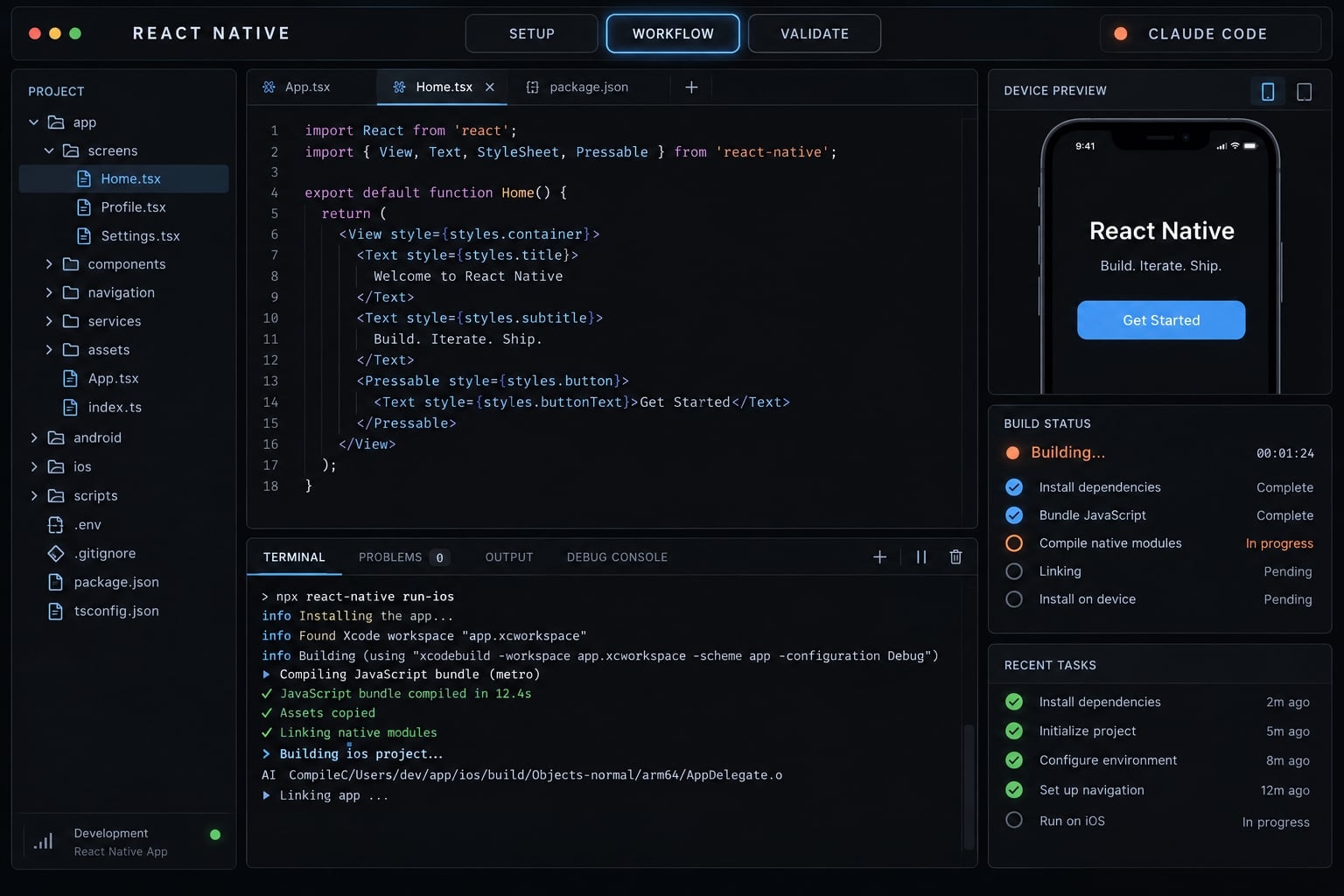
What can Claude Code do in a React Native project?
Claude Code operates on repository context and the tools available to its session. Claude Code’s tool and permissions documentation describes file inspection, editing, and command execution, subject to configured permissions. Those permissions do not replace your approval of a task’s scope.
Where Claude Code is most useful
- Inspect routes, scripts, dependencies, and conventions before proposing changes.
- Add screens, components, and typed API states within existing patterns.
- Refactor bounded code and update relevant tests.
- Diagnose Metro, native-build, or EAS failures from supplied or authorized logs.
Metro is React Native’s JavaScript bundler. EAS (Expo Application Services) provides hosted services for workflows such as building and distributing apps. Access to either local files or remote build logs must actually be available; installing Claude Code does not automatically grant this access..
What Claude Code cannot safely assume
Area | Claude Code can help with | Developer must verify |
|---|---|---|
Repository structure | Relevant files and conventions | Correct scope and architecture |
Dependencies | Candidate packages and versions | SDK and native compatibility |
UI implementation | Components and interaction logic | Layout, accessibility, device behavior |
Debugging | Error analysis and proposed fixes | Reproduction and actual resolution |
Validation | Running available checks | Check coverage and platform status |
Good codebase analysis names evidence: Scripts in package.json, route files, and existing components. Good AI-assisted debugging connects an error to a reproducible failure rather than immediately replacing dependencies.
Treat git diff as implementation evidence, not correctness evidence. Even a good patch needs proper checks and a review of what the AI missed.
Expo vs. Bare React Native: Choose the correct setup path
Identify installed tooling and native-file ownership before choosing commands. The presence of ios/ or android/ alone does not determine the workflow.
Decision | Typical expo-based setup | Typical bare/native-managed setup |
|---|---|---|
Project evidence | Expo dependency, configuration, and scripts | Native projects and team-managed build scripts |
Version alignment | Expo SDK compatibility guidance | React Native and dependency compatibility guidance |
Native directories | May be generated or maintained | Usually maintained directly |
Runtime | Expo Go for supported features; development build otherwise | Custom application build |
Package installation | Expo tooling where appropriate | Repository package manager plus native setup |
Build workflow | Local native tooling or EAS | Local native tooling, existing automation, or EAS |
Expo AI integration | Optional and availability-dependent | Relevant only when using applicable Expo tooling |
Bare React Native projects can use Expo modules and EAS. Expo projects can contain custom native code. These are overlapping ecosystems, not mutually exclusive categories.
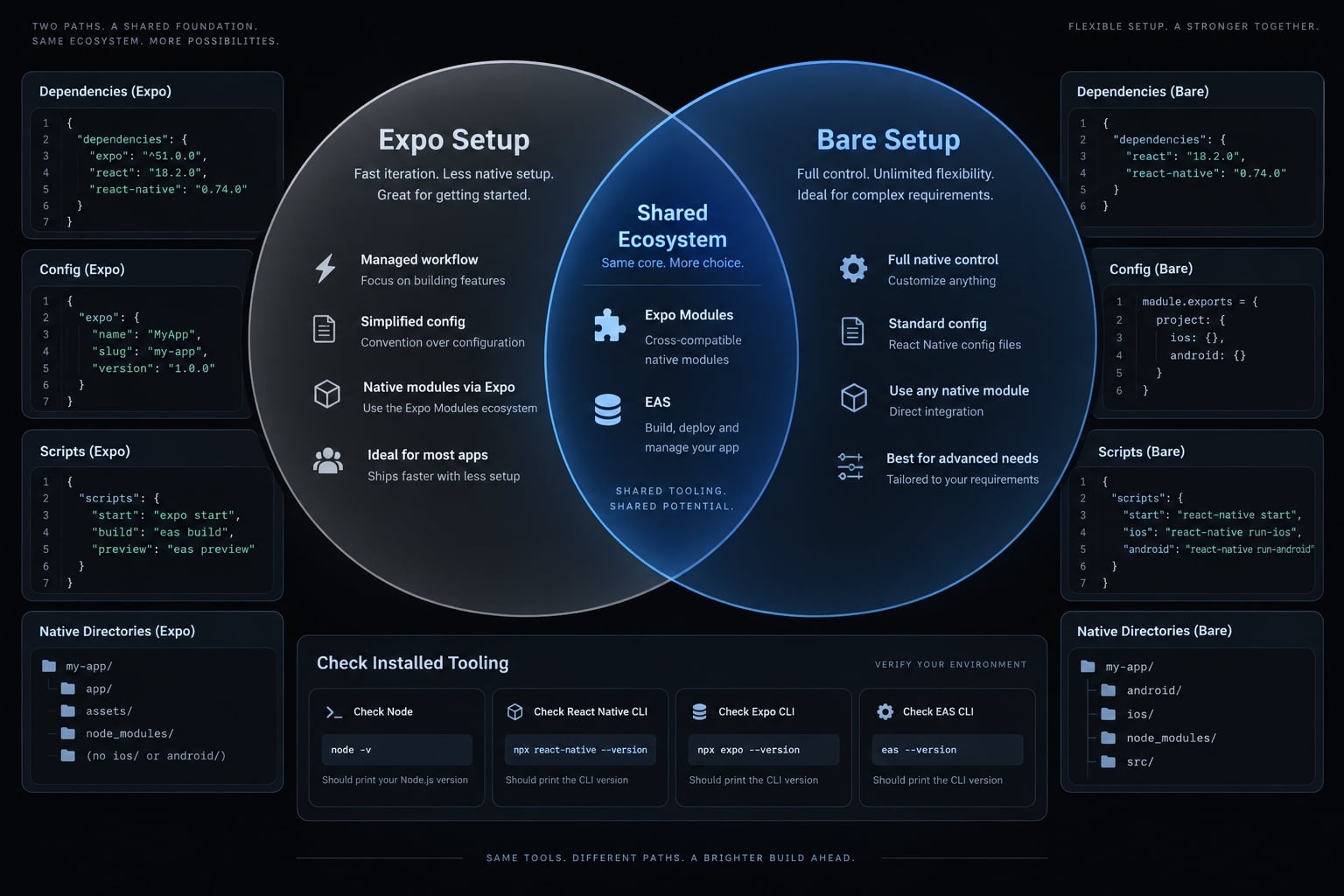
When to follow the expo path
Look for evidence that:
- Expo is installed in the repository.
- The team uses Expo configuration and SDK-compatible package workflows.
- Development or build scripts invoke Expo tooling.
- Expo Router or EAS configuration supports those findings.
Neither Expo Router nor EAS alone describes the entire setup.
A development build is your own app binary containing development tooling and the native modules your app requires. Expo’s development-build documentation distinguishes this from Expo Go, which has a fixed collection of native capabilities.
When additional native review is required
Require explicit review for native modules, architecture compatibility, Podfile or Gradle edits, manifests, entitlements, permissions, notifications, background behavior, deep links, and payments.
Following Expo’s SDK compatibility guidance reduces version-alignment risk. It does not guarantee an arbitrary package supports your architecture or feature requirements. Native dependency or configuration changes may require a new binary, not merely a JavaScript reload.
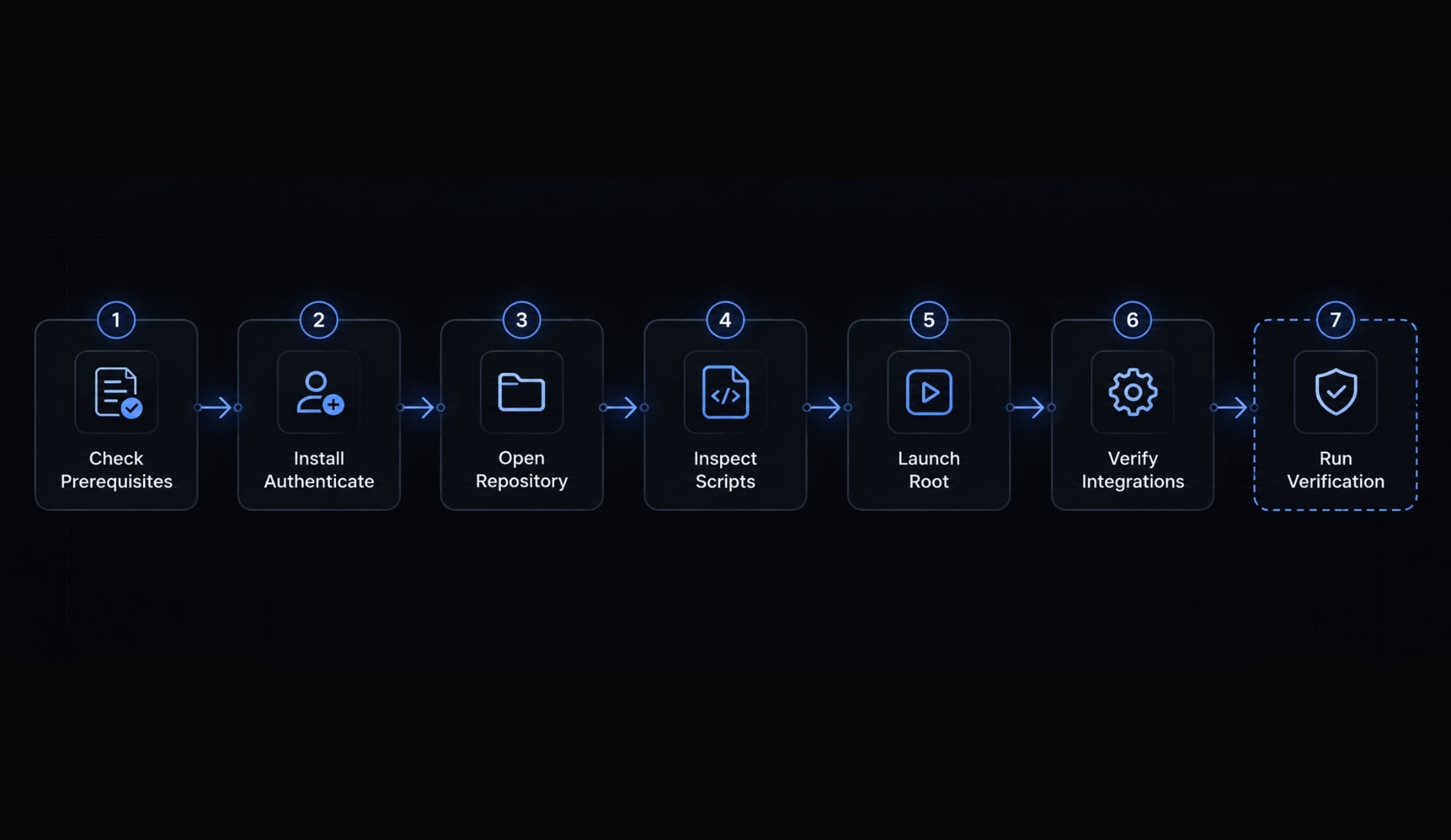
How to set up Claude Code for React Native and expo
- Check local prerequisites.
- Install and authenticate Claude Code.
- Open or create the repository.
- Inspect project versions and scripts.
- Launch Claude Code from the repository root.
- Optionally configure verified Expo integrations.
- Run a read-only verification prompt.
Last tested: Not executed for this article. The example is illustrative, not a verified test repository.
Environment field | Verification status |
|---|---|
Test date, OS, shell | Not recorded; no execution performed |
Claude Code, Node.js, package manager | Versions not measured |
React Native version and Expo SDK | No generated or installed version recorded |
Optional plugin identifier/version | Not verified |
iOS and Android runtime | Neither platform tested |
Documentation checked | Official documents named below; no live documentation check performed |
Install Claude Code
Use Claude Code’s official setup documentation for your operating system. For macOS with Homebrew, the installation path is:
brew install --cask claude-codeclaude --version
Windows and Linux have different installation paths; do not reuse the Homebrew command there. Launching claude starts the interactive interface and, when necessary, its sign-in flow. Authentication options and account requirements depend on your selected access method.
Claude Code installation requirements are separate from your mobile project’s Node.js requirements. Check the repository’s version declarations and the relevant Expo or React Native guidance.
Open or create a React Native project
For a new illustrative Expo app:
npx create-expo-app@latest team-opscd team-ops
@latest changes over time. Record the generated versions before using this example as a reproducible baseline.
For an existing repository:
cd /path/to/your/repositorygit status --short
Do not scaffold another application inside an existing project.
Inspect package.json, its packageManager declaration, the lockfile, installed versions, navigation files, and validation scripts. For an npm-managed repository, these inspection commands are useful:
node --versionnpm --versionnpm runnpm ls react-native expo --depth=0
Use the equivalent commands for the repository’s actual package manager. A declared dependency range is not necessarily the installed version.
Optional: Add expo-specific integrations
Expo’s AI tooling documentation is the reference for current Expo-specific integrations. This guide does not provide an unverified Expo plugin installation or authentication sequence.
A plugin packages extensions; reusable skills supply task-specific guidance. An MCP server uses Model Context Protocol to expose tools or resources to an AI client. Installing one component does not establish that the others are configured or authenticated.
Confirm identifiers, installation scope, permissions, account requirements, and available tools before enabling an integration. The baseline repository workflow does not require one.
Launch and verify the setup
From the repository root:
claude
Then request:
Inspect this repository without editing files or installing anything.Report declared and installed versions, package manager, routing,existing validation commands, and native-directory ownership.Cite supporting files. Mark unknowns explicitly.Do not open secret files or start external services.
Save the actual response as your inspection record. Check its filenames and findings before approving edits; no inspection result is supplied here as observed evidence.
Configure project context with CLAUDE.md and AGENTS.md
CLAUDE.md is Claude Code’s documented project-instruction entry point. Do not assume an AGENTS.md file is automatically discovered.
Claude Code’s memory documentation describes importing other instruction files with @path references. To reuse shared repository rules, place this in a root-level CLAUDE.md:
# Project instructionsFollow the shared repository rules:@AGENTS.md
Keep AGENTS.md beside it. Confirm the loaded instructions in your installed Claude Code version before relying on them. Alternatively, keep the rules directly in CLAUDE.md when cross-tool sharing adds no value.
Minimum information Claude Code needs
Organize project-level AI instructions around four categories:
- Stack: Installed versions, target platforms, package manager, and TypeScript configuration.
- Architecture: Routing, state management, styling, and relevant directories.
- Execution: Exact existing commands and required validation evidence.
- Boundaries: Dependency changes, native edits, secrets, and destructive operations.
Record repository facts rather than aspirational preferences. If the app uses an existing navigation library, instructions should not silently authorize replacing it with Expo Router.
Copy-ready AGENTS.md template
Replace every angle-bracket placeholder before reuse. For an absent command, write “not configured” instead of inventing a script.
# Project overviewTeam operations mobile app.Stack: <installed React Native / Expo versions>.Platforms: <targets>. Package manager: <name/version>.TypeScript configuration: <file and conventions>.# ArchitectureRoutes: <directory and navigation library>.Shared UI: <directory>. State: <existing pattern>.Styling: <existing approach>.Follow nearby code; do not introduce another architecture.# Dependency rulesUse the existing package manager and lockfile.Request approval before installing, removing, or upgrading packages.Check SDK, native-module, and architecture compatibility first.# Native changesRequest approval before editing native files, app configuration,permissions, entitlements, or build settings.Explain whether a new native build is required.# ValidationType check: <existing command or not configured>.Lint: <existing command or not configured>.Tests: <existing targeted command or not configured>.Runtime: <team-approved startup and platform checks>.Report each command, exit status, result, and unrun checks.Separate static checks, tests, builds, and runtime observations.# Safety and approvalInspect Git status before editing.Preserve existing uncommitted user changes.Stop if requirements are ambiguous or approved scope expands.Request approval for destructive actions or external side effects.Do not commit, deploy, publish, or perform signing operations automatically.Never include secret values in prompts, logs, generated files,or summaries. Do not access production credentials or user data.
Control unnecessary context
Request targeted file reads instead of loading generated bundles, build output, or entire dependency trees. Keep native files available when they are relevant to diagnosis.
Git ignore rules do not prevent agent access to secrets. Instruction files guide behavior; they do not enforce security boundaries. Use Claude Code’s documented permissions and sandboxing controls where supported, alongside credential isolation.
Conceptual instruction flow:
CLAUDE.md entry point ↓ @AGENTS.md referenceShared repository rules ↓Task-specific prompt and approval ↓Validation evidence and human review
This flow represents instruction organization, not a tested security boundary.
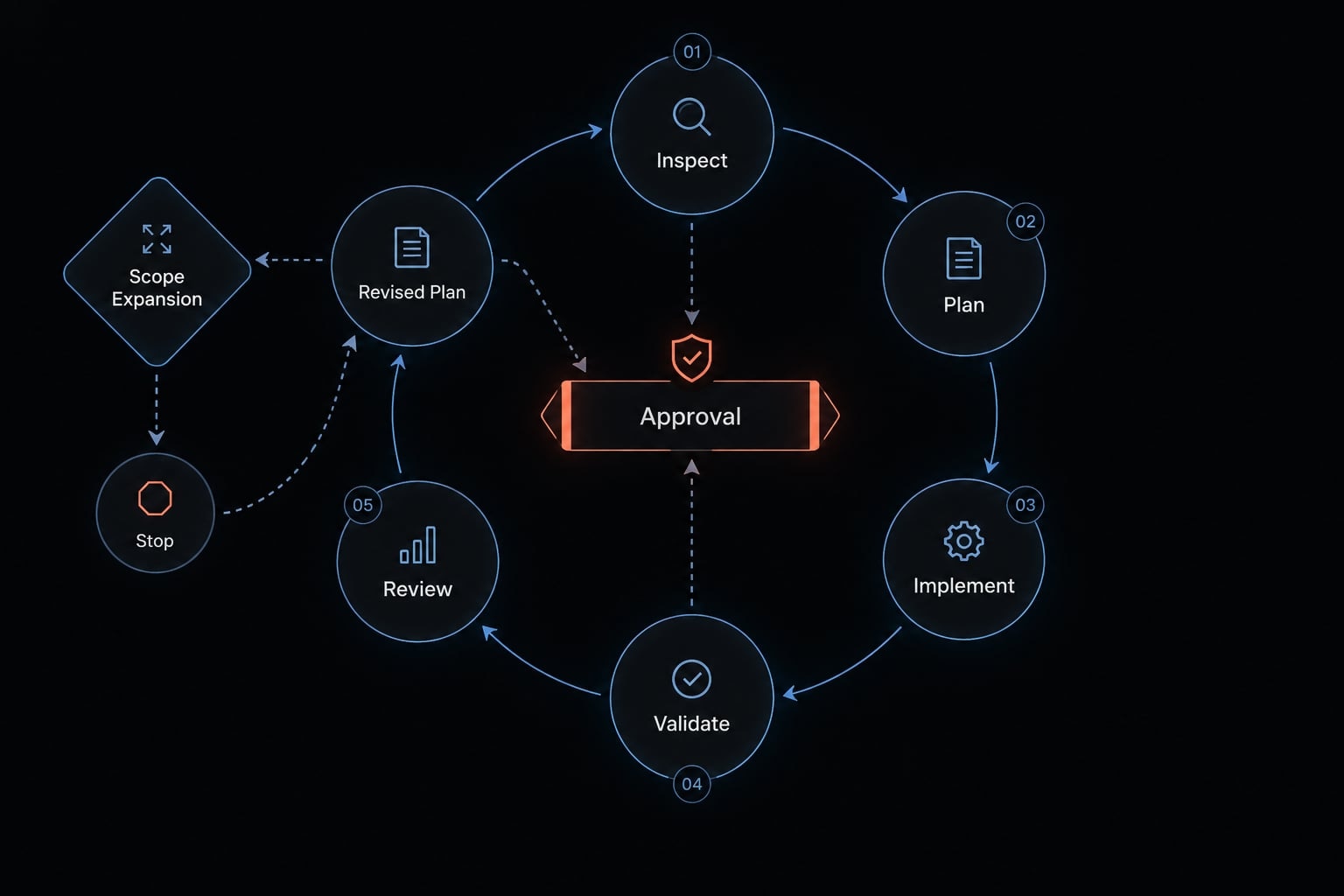
Use a repeatable plan–build–validate workflow
- Inspect
- Plan
- Confirm
- Implement
- Validate
- Review
For AI-assisted React Native development, keep the first task deliberately small. The illustrative team operations app needs a settings screen with one session-only “Show team reminders” preference.
The toggle changes in-app display behavior. It does not register push notifications, request operating-system permissions, contact a backend, or persist across restarts.
Inspect the repository
Start with a no-edit request:
Locate routes, shared controls, state, and styling relevant to asettings screen. Identify the package manager and validation scripts.Report platform considerations and missing information.Cite filenames. Do not edit anything.
The expected deliverable is a file-based inspection report, not code. If no shared state exists, the agent should identify that gap rather than quietly choosing a new library.
Request a scoped plan
Ask for proposed files, intended behavior, dependencies, acceptance criteria, validation commands, and stop conditions. For this feature, acceptance criteria should include:
- The screen is reachable through the existing navigation pattern.
- The switch has an accessible label and exposed checked state.
- Toggling changes the relevant in-app reminder display.
- The preference returns to its specified default after restarting.
- No network, notification, or native configuration changes occur.
Specify the default value in the task. Also identify the existing reminder display; if none exists, stop and clarify instead of expanding the feature.
Confirm scope and implement
Approve the actual file list before implementation:
Implement only the approved settings-screen plan.No package installation, native edits, unrelated cleanup, or commits.Preserve pre-existing changes.Stop if the preference requires infrastructure outside the approved files.
Keep the patch atomic: Small and reviewable. “Atomic” does not authorize creating a commit.
Validate and review
Require a completion summary containing changed files, commands and results, failed or blocked checks, separate iOS/Android status, and remaining manual work. For code review, inspect:
git diff --statgit diffgit diff --cachedgit status --short
Review untracked files separately because ordinary git diff does not show their contents. Compare against the initial status and inspect any package or lockfile changes.
Conceptual workflow with approval gates:
Inspect → Plan → Developer approval → Implement → Validate → Review | └─ Scope expansion? Stop → Revised plan → Approval
No settings-screen diff or passing result is claimed here. In your execution, attach the actual small diff and validation record before treating the task as complete.
Practical Claude Code prompts for common React Native tasks
Effective Claude Code prompts describe observable outcomes, not merely a desired activity. They also tell the agent when to stop.
Prompt formula for reliable results
Context → Goal → Scope → Constraints → Acceptance criteria → Validation
In the existing app/(tabs) route group, add the approved settings screen.Reuse shared controls and state; add no dependencies.Provide accessible controls and a session-only reminder preference.Run existing repository checks.Report changed files and unverified platform behavior.Stop if native changes or broader state work are required.
Use that route path only when repository inspection confirms it exists.
Prompt table for common tasks
All prompts below inherit repository rules. Stop for unapproved dependencies, native edits, destructive commands, or expanded scope.
Task | Adaptable prompt |
|---|---|
Add a screen | Add the approved settings screen using existing components. Include accessible controls, preserve established styling, and report validation evidence for the changed behavior. |
Add navigation | Add settings to the existing Expo Router layout. Preserve current route conventions, check back navigation, and stop if route ownership is unclear. |
Integrate an API | Connect settings to the documented API using the existing client. Cover loading and errors; stop if the contract or authentication behavior is unclear. |
Add notifications | Inspect notification requirements first. Confirm runtime support, native configuration, and permission behavior; propose a plan and request approval before implementing platform-sensitive changes. |
Debug Metro | Investigate the first actionable Metro error using the recent diff and available logs. Propose the smallest fix; avoid automatic cache or dependency deletion. |
Debug EAS Build | Diagnose the first relevant EAS Build stage failure from supplied or authorized logs. Compare remote configuration with local assumptions before proposing changes. |
Upgrade Expo SDK | Inspect installed versions and migration guidance. Propose a staged Expo SDK upgrade with compatibility checks and rollback considerations; obtain approval before editing dependencies. |
Configure CI/CD | Propose continuous integration and delivery (CI/CD) checks using existing scripts. Identify credential requirements without exposing secrets; do not trigger deployment or signing operations. |
Prompts to avoid
- Avoid: “Fix everything and make the app production-ready.”
- Prefer: “Diagnose the settings route crash from this sanitized stack trace. Inspect the route and imported controls; propose a minimal fix before editing.”
The first request has no file boundary, acceptance criteria, or stopping condition. The second gives React Native debugging a specific failure and an approval checkpoint. Neither prompt guarantees correctness; evidence still determines completion.
Validate changes and troubleshoot common failures
React Native validation is layered. Static checks, tests, diagnostics, builds, and runtime observations answer different questions. Passing one layer does not establish the others.
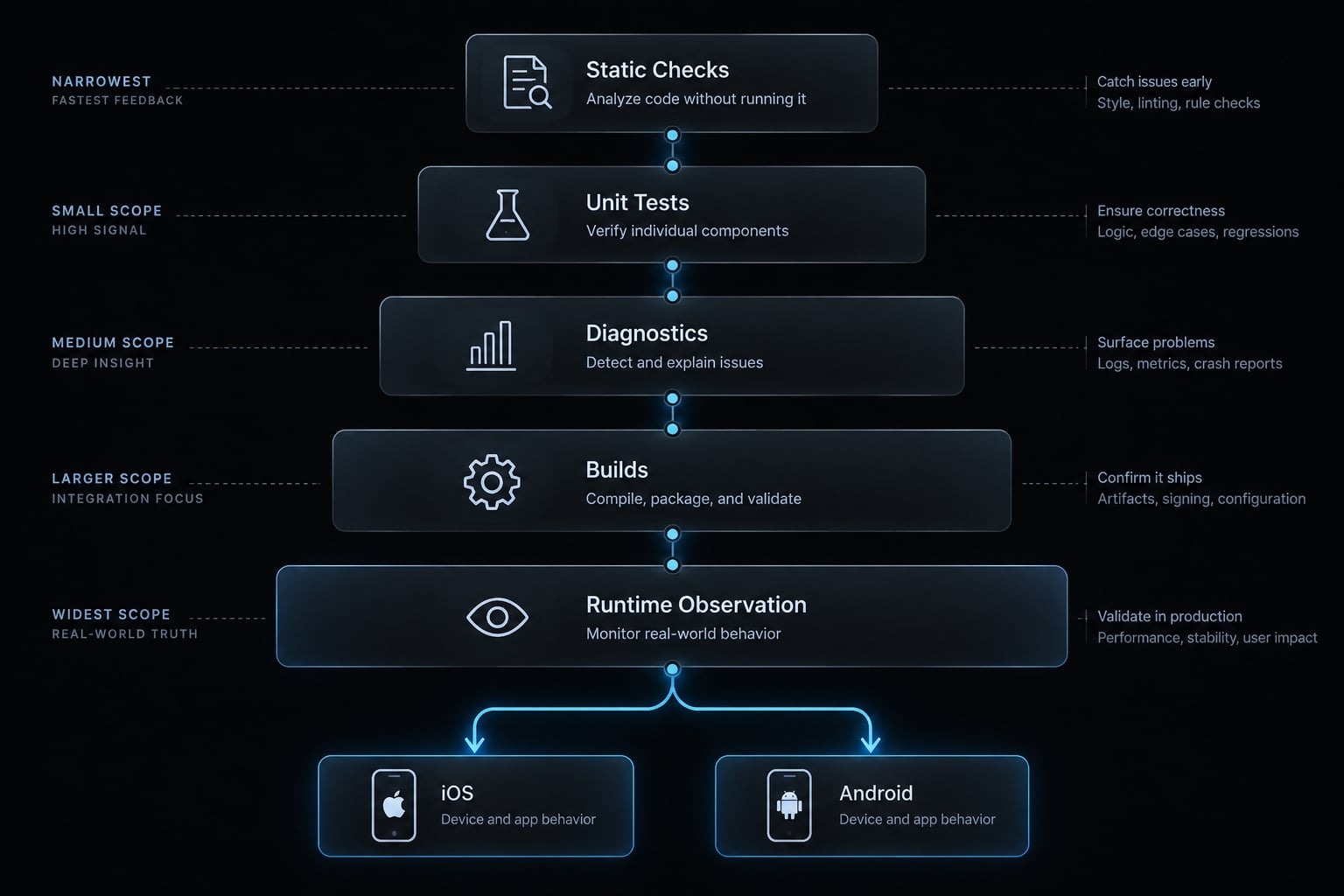
A potential failure mode is discovering that npm run typecheck does not exist. That is a missing check, not a passing result. Inspect scripts first; propose validation infrastructure separately if needed.
Pre-merge validation checklist
- Changed files match the approved scope.
- Dependency and lockfile changes are expected.
- Existing type-checking command ran, or absence is reported.
- Existing lint command ran, or absence is reported.
- Relevant tests ran; missing coverage is identified.
- Expo diagnostics ran where applicable.
- Metro startup and target interactions were checked.
- Applicable loading, empty, error, and offline states were checked.
- Labels, screen-reader behavior, and touch targets were reviewed.
- iOS and Android status are recorded independently.
- Prompts, logs, and changed files contain no exposed secrets.
- Native configuration changes received qualified review.
- Final tracked, staged, and untracked files were reviewed.
Expo’s Expo Doctor documentation describes:
npx expo-doctor
This can download tooling when unavailable locally; follow the team’s execution policy. Its diagnostics can identify configuration and compatibility issues, but cannot prove feature correctness.
Likewise, npx expo install helps select versions for supported packages. It does not guarantee every arbitrary dependency meets your architecture or native requirements.
Use the following reporting format-not observed results:
Command | Exit status | Result summary | Skipped/blocked reason |
|---|---|---|---|
<existing validation command> | <actual code or not run> | <observed result> | <reason or none> |
<iOS build/runtime procedure> | <actual code or N/A> | <build and interaction results separately> | <unavailable tooling, if applicable> |
<Android build/runtime procedure> | <actual code or N/A> | <build and interaction results separately> | <unavailable tooling, if applicable> |
Preserve concise error excerpts. Keep full sanitized evidence in the team’s approved storage, not a noisy completion summary.
Troubleshooting matrix
Symptom | Possible cause | First safe action |
|---|---|---|
Incorrect project identification | Wrong directory or monorepo package | Confirm working directory, package boundaries, and manifests. |
Optional plugin or MCP unavailable | Scope, authentication, configuration, network, or permissions | Inspect configuration and the reported error before reinstalling. |
Expo dependency mismatch | Versions misaligned with the SDK | Compare installed versions with SDK guidance; propose changes for approval. |
Metro failure after an edit | Import, syntax, resolution, or configuration issue | Read the first actionable error and recent diff. |
iOS build failure | Signing, Pods, deployment target, or native mismatch | Inspect the earliest relevant Xcode build error. |
Android build failure | JDK, Gradle, SDK, or native mismatch | Inspect the first relevant Gradle failure and installed toolchain. |
EAS remote-build failure | Remote environment or profile differs locally | Inspect the failing build stage and authorized remote configuration. |
One-platform-only behavior | Platform API, permissions, or layout difference | Reproduce on the affected platform and inspect conditional code. |
Excessive changes or repeated failures | Scope drift or incorrect hypothesis | Stop execution; review selectively while preserving pre-existing edits. |
Missing visual verification | No device, screenshot, or UI tooling | Mark appearance unverified; schedule device review. |
Do not begin with blanket resets, lockfile deletion, or repeated cache clearing. Diagnose before changing the environment.
Reactnative-specific guardrails
Do not assume DOM or browser-only APIs exist.Check native package and architecture compatibility.Treat permissions, authentication, notifications, payments, and background tasks as platform-sensitive.Require approval for destructive or release-affecting operations.Keep production credentials and user data out of prompts and logs.Reject “tests passed” summaries without supporting execution evidence.
Reading logs is not simulator control. Screenshots verify only captured states. Record the actual tools, platforms, and interactions available during validation.
Frequently asked questions
What is Claude Code for React Native?
Claude Code for React Native is a terminal-based AI agent that integrates directly into your project to inspect your codebase, suggest file edits, execute terminal commands, and diagnose build errors. It is designed to assist with React Native and Expo-specific workflows while respecting project-level instructions and developer-defined security boundaries.
How does Claude Code differ from manual coding in React Native?
Manual coding relies entirely on developer input for every keystroke and command. Claude Code acts as an automated assistant that can perform repetitive tasks, such as boilerplate creation, dependency updates, and log analysis, while remaining under the developer's supervision, approval, and validation at every step.
Do I need to use Expo for Claude Code to work?
No. While Claude Code offers an official Expo plugin for enhanced features-like live documentation access and EAS build log analysis-it remains a fully functional CLI tool for any bare React Native project. You can use its core repository-inspection and task-automation capabilities in any directory.
Can Claude Code autonomously deploy my React Native app?
No. Claude Code does not have autonomous deployment powers. It can run permitted commands like npx expo build or eas build if explicitly instructed and approved by you. Every destructive action, dependency change, or deployment-related command requires your manual review and express approval.
How do I ensure Claude Code follows my team's coding conventions?
You maintain consistency by configuring project-level instructions in CLAUDE.md or AGENTS.md. These files tell the agent your specific requirements, such as using Expo Router, strict TypeScript rules, or New Architecture compatibility standards, ensuring the agent’s suggestions align with your existing codebase conventions.
Is Claude Code capable of testing my UI visually?
Claude Code operates primarily in the terminal and cannot "see" the simulator screen. To validate UI changes, you must configure the agent to run your existing automated UI testing frameworks, such as Maestro or Detox, and rely on their output to verify that your layout and accessibility requirements are met.
What should I do if Claude Code fails to fix a build error?
If a proposed fix fails, stop the agent immediately. Check the terminal logs for the root cause, verify the error context, and manually inspect the changes using git diff. Do not allow the agent to attempt repeated speculative fixes; instead, identify the specific architectural constraint or native dependency mismatch causing the issue.
Read more:
- Claude Code react: Best practices for faster frontend dev
- Claude Code prompt engineering: A practical guide for developers
- Claude Code Next.js: A practical workflow for faster development
Conclusion
Claude Code for React Native works best inside a controlled engineering process. Identify the repository’s tooling, supply accurate instructions, approve a narrow plan, and require evidence for every completion claim. Reuse shared AGENTS.md rules through the explicit CLAUDE.md relationship rather than assuming automatic discovery.
Keep dependency decisions, native changes, security boundaries, and releases under developer control. A clean diff is useful; a passing static check is useful. Neither replaces runtime verification on the platforms your team supports.
Start with the settings-screen task, record your actual environment, and preserve skipped checks alongside successful ones. Copy the in-article instruction template and validation checklist into your repository, replace the placeholders, and use them as a reviewable starting point-not a substitute for engineering judgment.