
Statusline Claude Code: Fast setup, useful fields, and common fixes
If you keep stopping to check your model, current folder, context usage, branch, or session cost, your terminal is making you work harder than necessary. A statusline Claude Code setup fixes that by keeping the right session signals visible at all times. This guide shows what Claude Code statusline is, how it works, how to set it up quickly, what to display first, and how to troubleshoot the issues most users actually hit. The goal is simple: Better visibility, fewer interruptions, and stronger workflow productivity.
What is Claude Code statusline and why it matters
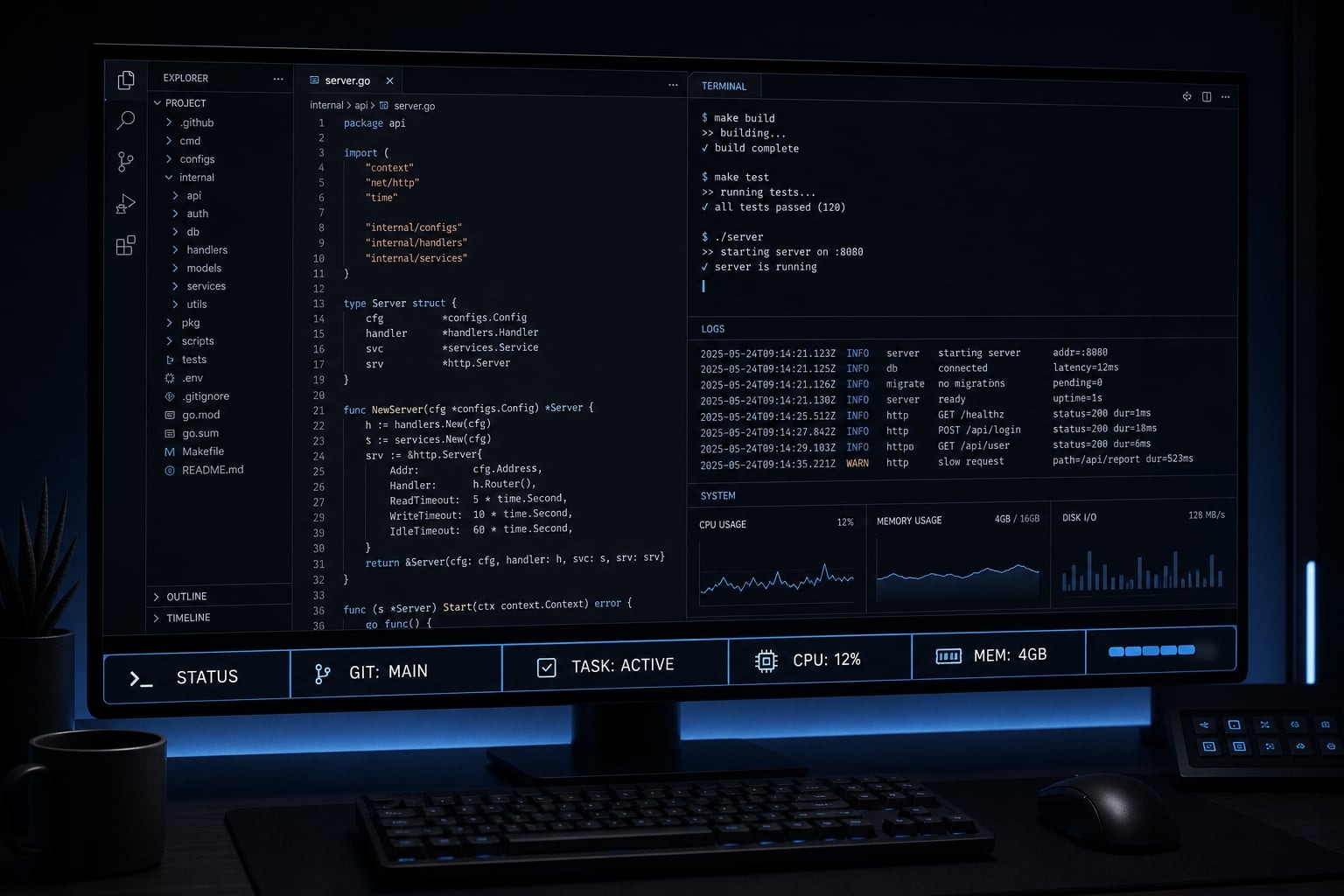
A statusline Claude Code setup is a customizable line in the Claude Code CLI that shows live session information such as model, folder, context usage, cost, and sometimes git details. It matters because it removes repeated manual checks and gives you a quick, glanceable view of the session state without breaking focus.
In practice, the value is less about aesthetics and more about reducing friction. In day-to-day Claude Code use, the annoyance is usually not the coding itself. It is repeatedly checking which model is active, which folder you are in, how full the context window is, or whether you are on the right branch. A well-designed Claude Code status bar turns those checks into passive visibility.
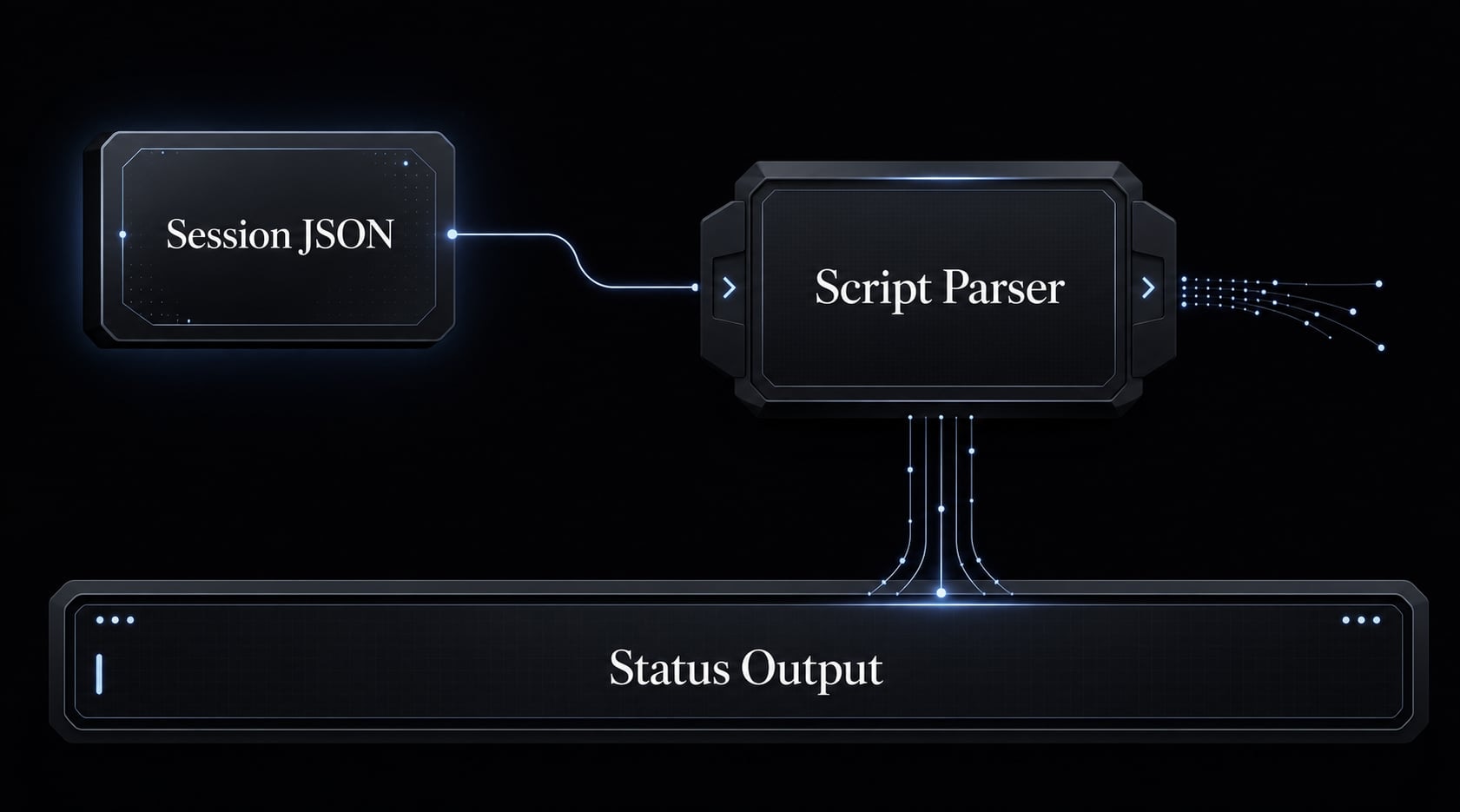
Under the hood, statusline Claude Code is simple. Claude Code uses statusLine settings to run a command or script, passes session data into it, and displays whatever text the script prints. That means the feature is flexible, but it also means you should keep the output focused. A dense CLI dashboard for Claude Code is not automatically better. More fields often create more noise, not more workflow productivity.
What the feature actually does
Claude Code sends live session data to your configured script. That script performs light JSON data parsing, formats the information, and returns a single line of text for display. The result becomes the visible Claude Code status bar inside the terminal.
What is useful to keep visible
- Model: Useful when switching between different Claude models during the day.
- Current folder: Prevents mistakes when you work across multiple projects.
- Context usage: Helps you manage prompt and code volume before the window gets tight.
- Session cost: Useful if you want lightweight budget awareness.
- Branch or worktree: High-value if you use parallel branches or Git worktrees.
How Claude Code statusline works
The setup is straightforward. Claude Code reads your statusLine configuration from ~/.claude/settings.json, runs the configured command, sends session data into that command automatically, and displays the output. Most users should start with a small shell script, not a complex system.
Where the config lives
Your main configuration usually lives in ~/.claude/settings.json. A few practical points matter more than anything else:
- The key setting is
statusLine - The file must be valid JSON
- A restart may be required after edits
- Small syntax mistakes in
settings.jsoncan break the feature silently
This is why many “it does not work” cases are not about Claude Code itself. They are usually basic config issues.
What Claude Code passes to your script
Claude Code sends JSON session data into your script automatically. You do not need to poll the app manually. Your script reads the incoming data, extracts the fields you want, and prints plain text.
Typical fields may include:
- Model name.
- Current workspace or folder.
- Context usage.
- Cost information.
- Branch or worktree details.
- Rate-limit information in some setups.
A simplified example looks like this:
{
  "model": { "display_name": "Claude Sonnet" },
  "workspace": { "current_dir": "/Users/name/project" },
  "context_window": { "used_percentage": 18.2 }
}
That is all most readers need from a Claude Code statusline JSON configuration tutorial. Claude Code sends the data, your script formats it, and the terminal shows the result.
When to use shell vs Node.js
Choose the smallest tool that solves your problem:
- Shell script: Best for quick setup, low maintenance, and simple formatting.
- Node.js script: Better when logic grows, parsing gets richer, or Windows handling needs more control.
Start simple first. Most users do not need a bigger implementation on day one.
The fastest way to set up a basic Claude Code statusline
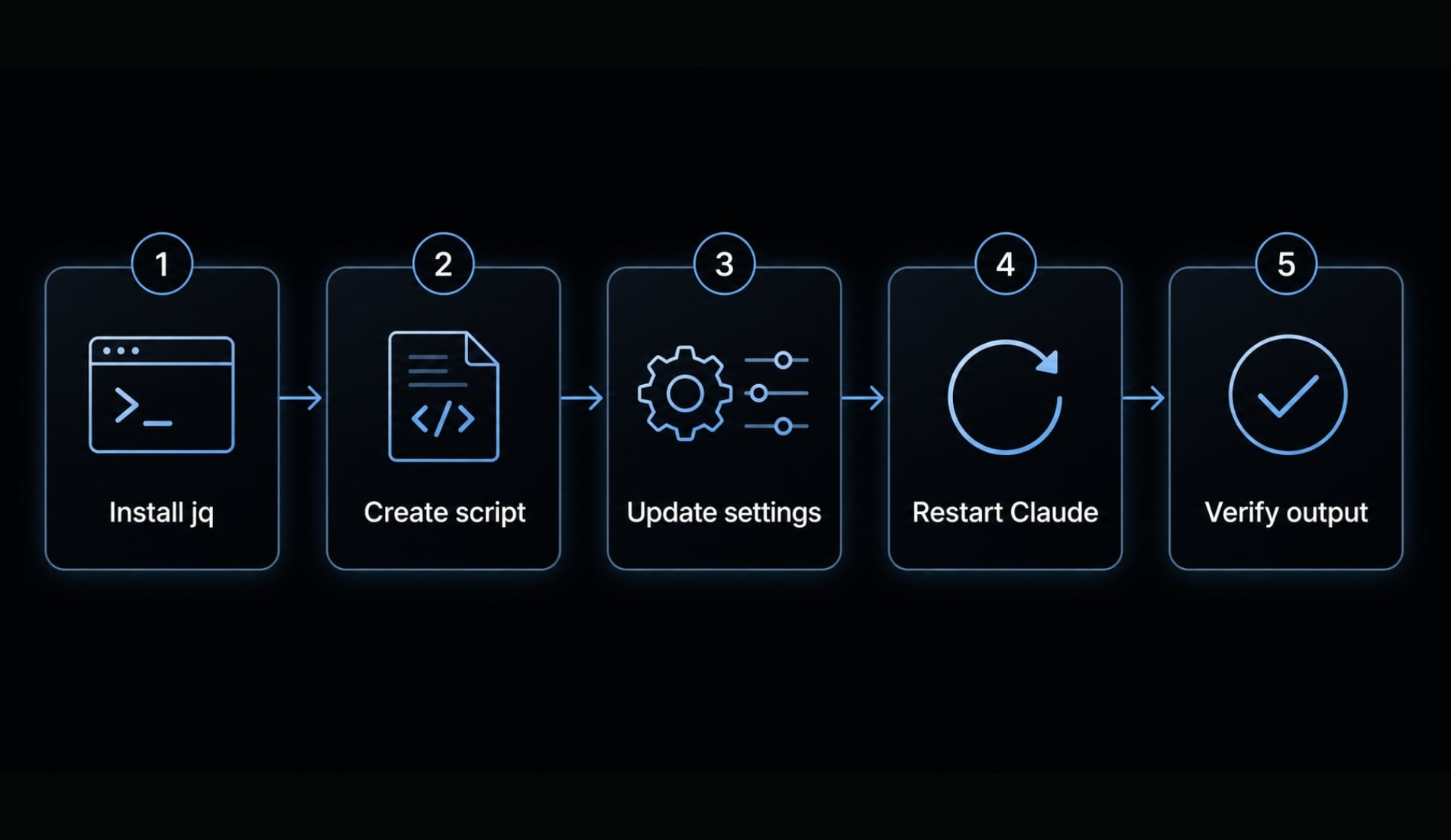
If your goal is to learn how to configure custom statusline in Claude Code with the least friction, the fastest path is: dependency check, create script, add config, restart, verify.
- Install
jqif needed. - Create a small statusline script.
- Add the
statusLinecommand to~/.claude/settings.json. - Restart Claude Code and verify output.
Step 1: Install the small dependencies you may need
If your script reads JSON in a shell script, jq is often the easiest parser. jq is a lightweight command-line JSON processor. It is useful, but not mandatory for every setup.
Typical install commands:
# macOSbrew install jq# Ubuntu/Debiansudo apt install jq
Notes:
jqis mainly needed for shell-based parsing.- Git is only necessary if you want branch or worktree visibility.
- If you use a
Node.jsscript instead, you usually do not needjq.
Step 2: Create a basic statusline script
In order to configure custom statusline in Claude Code, you can start with a plain text script that shows model, folder, and context usage.
Create ~/.claude/statusline.sh:
#!/bin/shinput="$(cat)"model=$(printf '%s' "$input" | jq -r '.model.display_name // "Unknown"')folder=$(printf '%s' "$input" | jq -r '.workspace.current_dir // "" | split("/") | last')context=$(printf '%s' "$input" | jq -r '.context_window.used_percentage // 0 | floor')printf "Model: %s | Folder: %s | Context: %s%%\n" "$model" "$folder" "$context"
Then make it executable:
chmod +x ~/.claude/statusline.sh
What this shell script does:
- Reads the JSON data Claude Code sends in.
- Uses
jqto extract a few useful fields. - Prints one short status line for the CLI.
This is intentionally minimal. It is the most reliable starting point for users learning how to configure custom statusline in Claude Code without adding unnecessary logic.
Step 3: Add the config to ~/.claude/settings.json
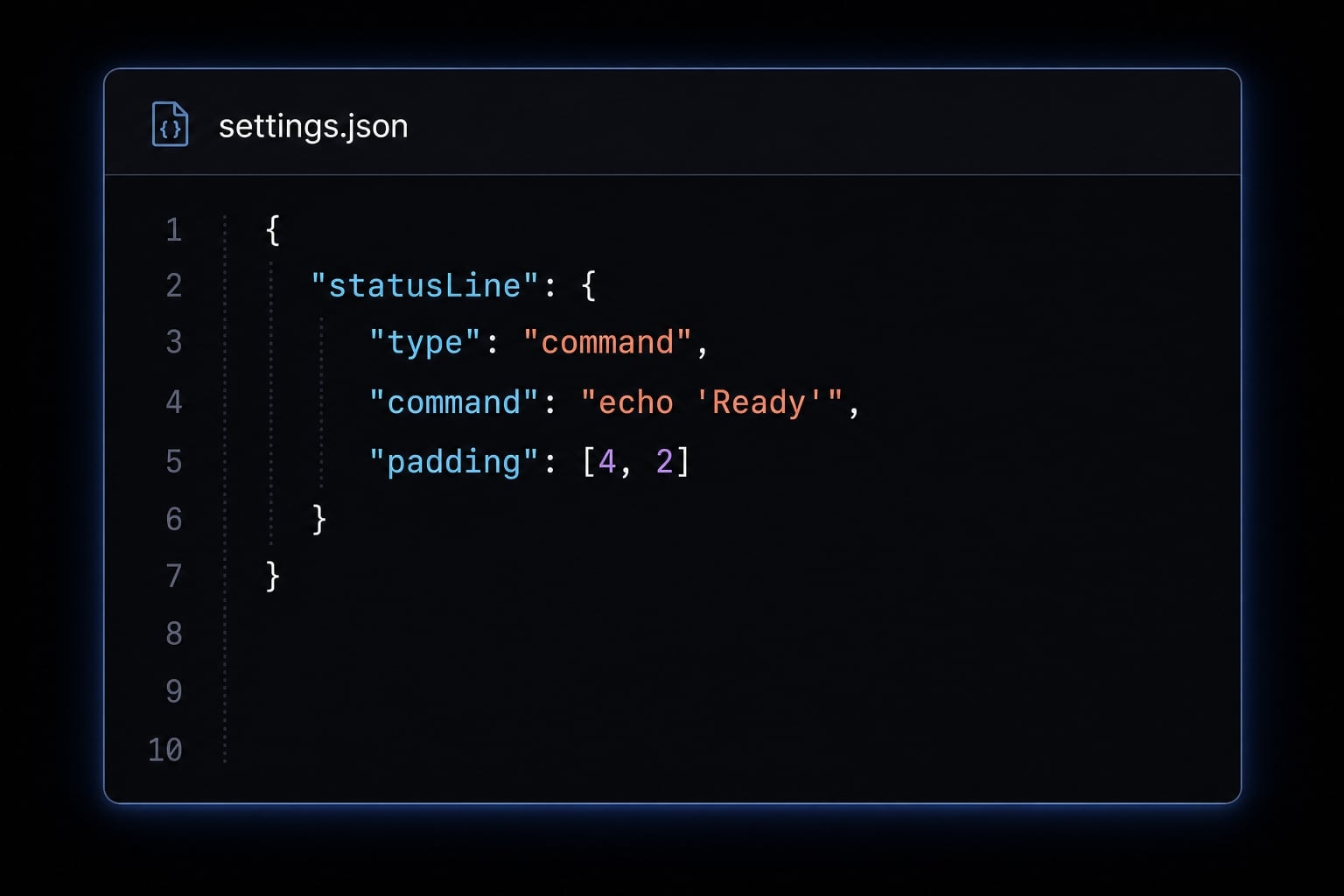
Update your settings.json with a statusLine block like this:
{
  "statusLine": {
    "type": "command",
    "command": "sh ~/.claude/statusline.sh",
    "padding": 0
  }
}
Important checks:
- Confirm the path is correct.
- Keep
settings.jsonvalid JSON. - Use
type: "command"exactly as shown.
Step 4: Restart Claude Code and verify the output
After saving settings.json, restart Claude Code. You should now see a line similar to:
Model: Claude Sonnet | Folder: my-app | Context: 18%
If nothing appears, check these first:
- Command path is correct.
- Script exists and runs.
settings.jsonsyntax is valid.jqis installed if the script uses it.- Claude Code was actually restarted.
Quick setup checklist
- Copy the script.
- Save it in
~/.claude/. - Update
settings.json. - Restart Claude Code.
- Verify output in the terminal.
What to show in your statusline first
The best Claude Code statusline is usually the one that answers the questions you act on most often. Start with the fields that affect decisions in the middle of work, not the fields that are only mildly interesting.
Core visibility fields
These are the safest defaults for most users:
- Current folder: Prevents working in the wrong project.
- Model: Useful when switching tasks or cost profiles.
- Context usage: Core for context window tracking.
- Session cost: Useful for light API cost monitoring.
- Short labels only: Keeps the line readable.
For many users, tracking token usage in Claude Code status line is more valuable than adding decorative elements. If context usage changes how you work, it belongs in the line.
Git-aware fields for coding workflows
These are high-value when you work across multiple branches:
- Branch name: Helpful for displaying git branch in Claude Code terminal.
- Worktree name: Especially useful when using parallel checkouts.
- Changed files count: Optional if you frequently check working state.
Git details matter most when branch confusion is a real workflow problem. If you mostly stay in one project and one branch, they may be unnecessary.
Optional extras that help only in certain workflows
These can be useful, but they are not core:
- Rate limits: Good for usage-aware sessions.
- External data: Pulled through terminal shell integration.
- Calendar, weather, or GitHub metadata: Only if you truly act on them.
The rule is simple: more data does not create more value. It often just creates clutter. A statusline should be glanceable, not crowded. That is especially true for tracking token usage in Claude Code status line, where readability matters more than novelty.
Three practical customization patterns
There is no universal layout for a custom Claude Code terminal UI. The right pattern depends on what you actually check during active work. Start with one of these simple templates, then adapt gradually.
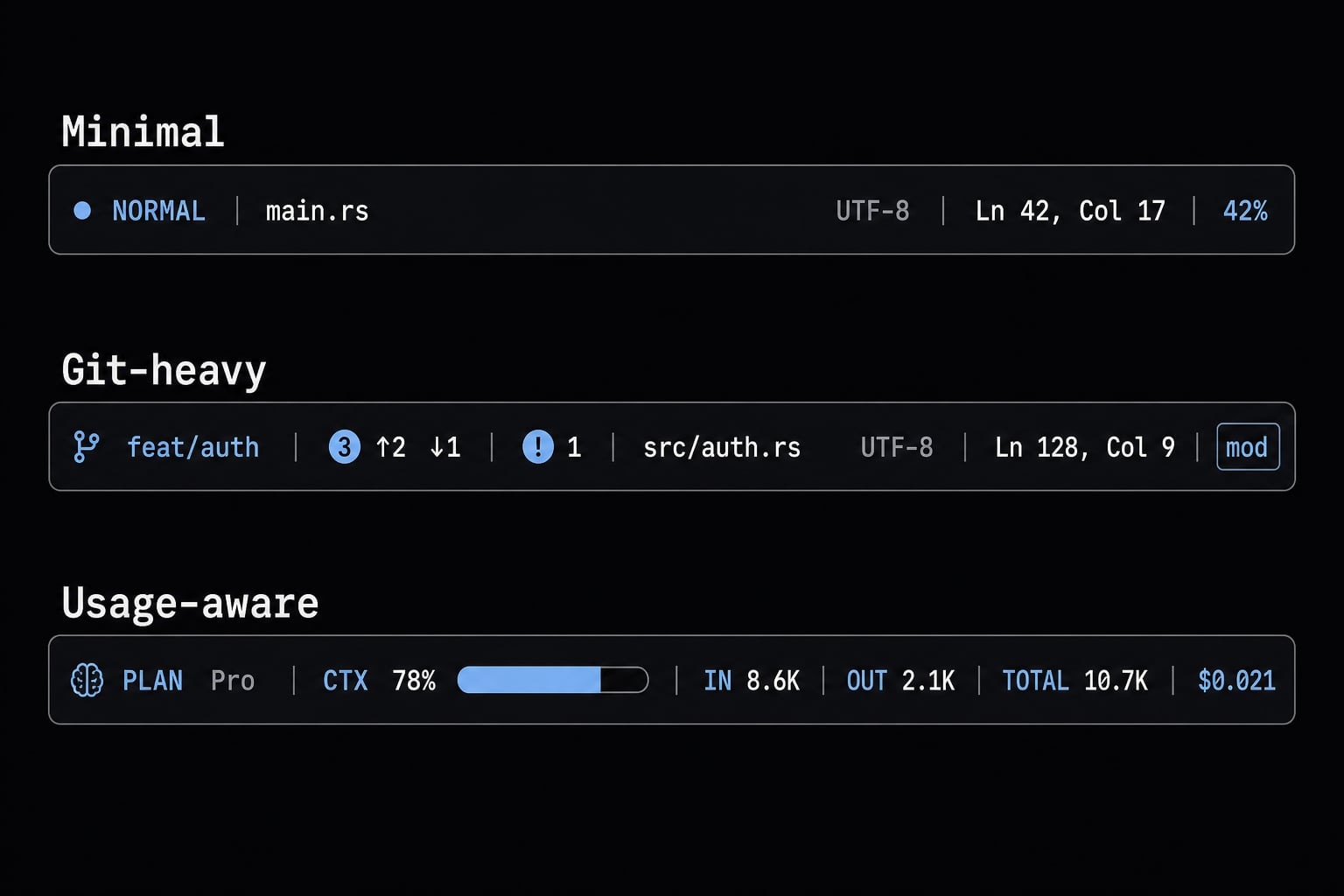
Pattern 1: Minimal daily-use setup
This is the best starting point for solo developers and general use. It focuses on folder, model, and context window tracking without adding noise.
Sample output:
my-app | Claude Sonnet | Context 18%
If you want a low-maintenance AI coding session monitor, this is usually enough. It gives useful visibility without turning the terminal into a dashboard.
Pattern 2: Git-heavy workflow setup
This pattern fits branch-heavy development, parallel tasks, and active Git worktree usage. It adds just enough git context to reduce mistakes.
Sample output:
payments-worktree | feature/refactor-auth | 3 changed | Context 22%
This layout is practical when you switch between worktrees often and need to know where you are instantly. A small shell script can usually handle this without much overhead.
Pattern 3: Usage-aware setup
This pattern is best for users who actively watch session consumption, limits, or spend. It focuses on context, cost, and session-awareness signals.
Sample output:
Claude Sonnet | Context 61% | Cost $0.84 | 5h Limit 42%
This version is useful when budget awareness or high-volume usage shapes your workflow. It works well as a lightweight AI coding session monitor, especially for users who care about context and spend more than branch details.
The practical takeaway: Choose the pattern that matches your decisions, not the one that looks the most advanced.
Simple script vs node script vs community tool
The implementation choice should follow maintenance burden, not ideology. Start with the lightest option that solves the problem, especially if your goal is just automating Claude Code CLI status bar with shell scripts.
Most users should begin with a small shell script. It is usually the fastest path for automating Claude Code CLI status bar with shell scripts and keeping maintenance low.
Move to a Node.js script only when you need more logic, cleaner structure, or better platform handling. Use a community statusline tool when you prefer convenience and accept some loss of control.
Troubleshooting common Claude Code statusline problems
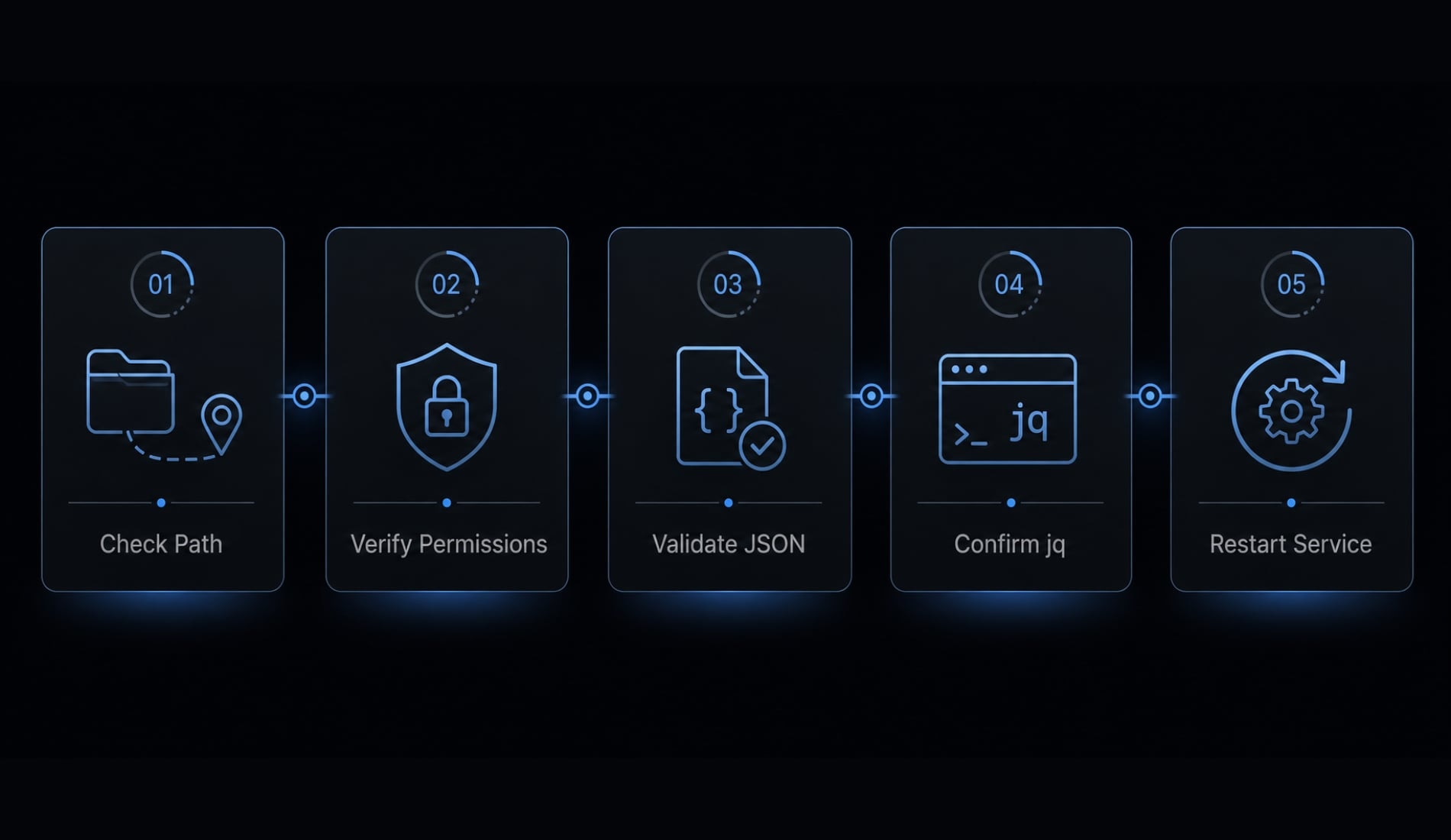
If your setup fails, the problem is usually operational rather than mysterious. Most cases of Claude Code statusline not showing come from a bad path, permissions, broken settings.json, missing jq, shell differences, or forgetting to restart.
Five quick checks:
- Check command path.
- Confirm script runs.
- Validate JSON.
- Confirm
jqif used. - Restart Claude Code.
No statusline appears
Problem: Nothing shows up at all.
Likely cause: Wrong command path, invalid command, or no restart.
Quick fix:
- Confirm the script path in
settings.json. - Run the script manually to ensure it exists.
- Make sure the command is valid.
- Restart Claude Code.
This is the most common Claude Code statusline not showing scenario.
Output is blank or broken
Problem: The line appears but shows missing or malformed data.
Likely cause: jq is missing, parsing failed, or settings.json is invalid.
Quick fix:
- Install
jqif your shell script depends on it. - Test your parsing commands separately.
- Validate JSON formatting in
settings.json. - Simplify the script and add fields back one at a time.
If you are following a JSON configuration tutorial, this is usually where small copy errors show up.
It works on one machine but not another
Problem: The setup behaves differently across devices.
Likely cause: Different shells, missing dependencies, or path mismatches.
Quick fix:
- Confirm
jqis installed on both machines. - Check whether the shell command works in each environment.
- Verify full file paths rather than assuming the same home directory structure.
- If needed, switch to a
Node.jsscript for more consistent behavior.
The statusline is too noisy to be useful
A working statusline can still be a bad statusline if it is overloaded.
Reduce noise by:
- Removing fields you rarely act on.
- Shortening labels.
- Avoiding slow external calls where possible.
- Keeping only high-signal items tied to daily decisions.
This matters for workflow productivity as much as basic setup. A cluttered statusline is still a friction point, even when it technically works.
A lightweight workflow principle for Claude Code customization
Most users get better results by treating statusline customization as lightweight automation, not a side project. In the Claude Code CLI, the goal is visibility you can reuse daily, not endless terminal tuning. The most maintainable setups support reusable developer workflows because they stay small, understandable, and easy to adjust later.
A useful rule is to add complexity one field at a time. If a field changes your next action, keep it. If it is only interesting to look at, remove it. That approach improves signal-to-noise ratio and usually leads to better workflow productivity than a feature-heavy statusline.
Practical rule of thumb:
- If you check it often, show it.
- If you rarely act on it, leave it out.
- Add one new field at a time.
Frequently asked questions
What is the Claude Code status line?
The Claude Code status line is a customizable bar at the bottom of the Claude Code command-line interface (CLI) that displays real-time session information. It helps developers monitor important metrics without interrupting their workflow to run additional commands.
How do I configure a status line for Claude Code?
Follow these four steps:
- Install
jqif your script needs to process JSON. - Create a shell or Node.js script that prints the required data.
- Add the
statusLineconfiguration to~/.claude/settings.json. - Restart Claude Code to apply the changes.
Why is my Claude Code status line not appearing?
If the status line does not appear, check the following:
- Confirm that the script path in
settings.jsonis correct. - Make sure the script has execute permission by running
chmod +x. - Verify that the configuration file contains valid JSON syntax.
- Restart Claude Code after saving the configuration.
What information should I display on the status line?
To make the best use of space and maintain focus, consider displaying:
- The current workspace directory.
- The active model.
- Context window usage as a percentage.
- The current session cost, if needed.
- The Git branch or worktree for projects requiring strict version control.
Should I use a shell script or a Node.js script to create the status line?
- Shell script: Best for a quick, lightweight setup without complex dependencies.
- Node.js script: Better when you need advanced data-processing logic or greater reliability on Windows.
Most users should begin with a simple shell script.
Do I need to install jq to use the status line?
No, but jq is highly useful when working with shell scripts. It is a powerful tool for parsing and extracting JSON data from Claude Code, helping keep your script concise and reliable when displaying session metrics.
Read more:
- Claude Code slash commands: Essential shortcuts for CLI flow
- Claude Code VS Code: Installation and setup guide 2026
- Connect GitHub MCP to Claude Code: Step-by-step guide
Conclusion
A good statusline Claude Code setup does not need to be advanced to be useful. For most users, the shortest path is enough: understand what the feature does, create a minimal script, add the statusLine block in settings.json, restart Claude Code, and verify the output.
From there, only add fields that improve decisions in real work, such as folder, model, context, cost, or git context. If you want a repeatable setup process, use this guide as a baseline and save your final script as part of your broader Claude Code configuration checklist or internal workflow template.