How to update Claude Code Plugin: A step-by-step guide
How to update a Claude Code plugin
To correctly update a Claude Code plugin, the key is understanding the distinction between marketplace refreshes and actual version upgrades: A marketplace refresh is not the same as updating the plugin you already installed. In practice, many users refresh the marketplace, see no visible change, and assume the update failed when the installed plugin was never upgraded in the first place. This guide shows the shortest correct workflow for updating Claude Code plugins, plus the small but important follow-up step many people miss: Reload plugins or restart Claude Code so the new version actually becomes active.
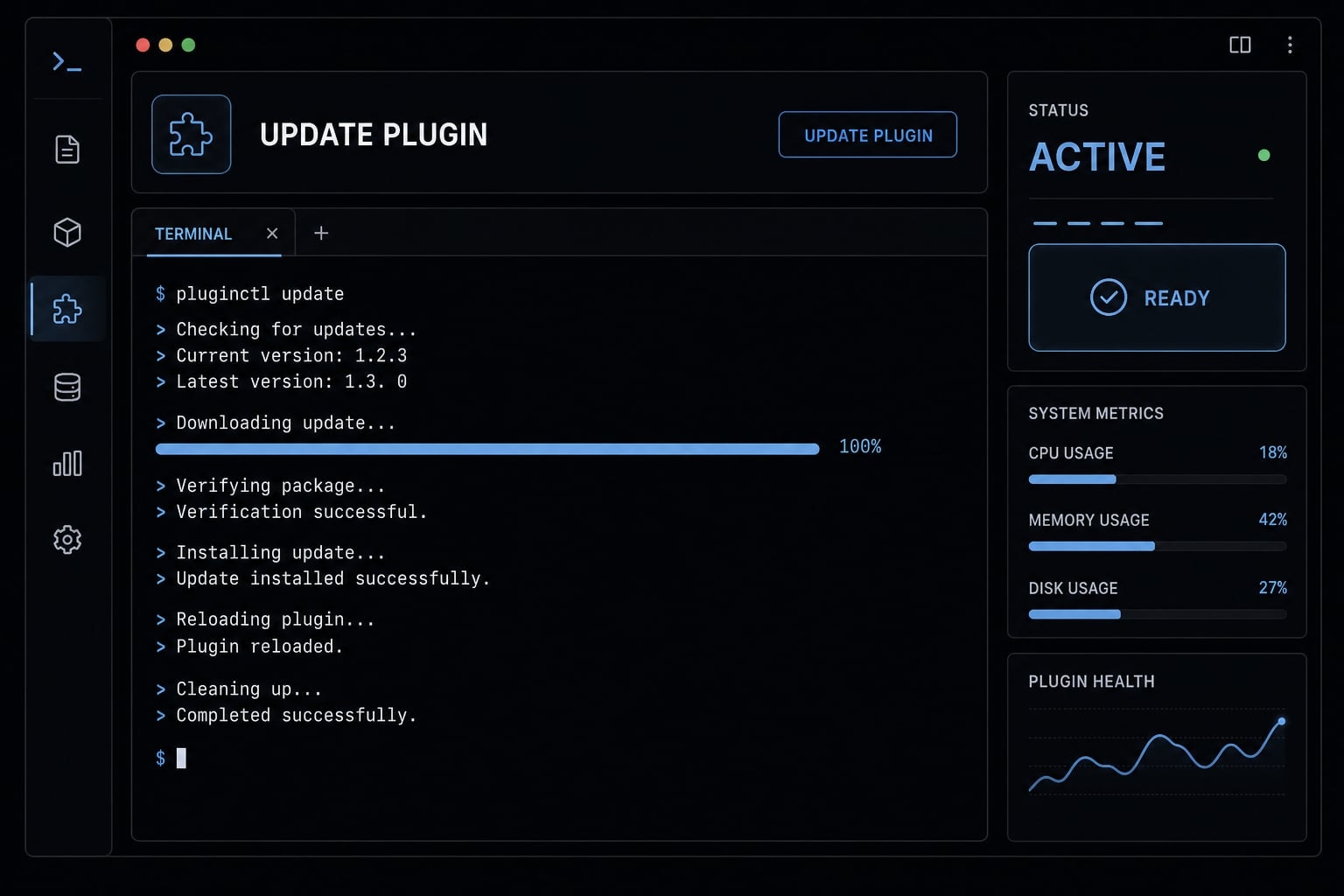
Quick answer: How to update a Claude Code plugin
This is the most efficient workflow to safely update your Claude Code plugins. Most of the time, you should update the installed plugin directly in the Claude Code CLI, then reload the plugin state. Refreshing the marketplace alone does not change the plugin version you are already using.
Quick answer workflow
- Confirm the exact plugin name and marketplace in
/pluginunder Installed. - Run the direct plugin update command for that installed plugin.
- Run reload plugins or restart Claude Code so the updated version loads.
Refreshing the marketplace alone does not upgrade the plugin you already installed.
Commands to use
/plugin marketplace update <marketplace-name>
Refreshes the marketplace listing so Claude Code can see the latest catalog data from that source.
claude plugin update <plugin-name>@<marketplace>
Updates the installed plugin you are targeting, using its exact plugin name and marketplace suffix.
/reload-plugins
Reloads the active plugin state so the current session can pick up the updated version.
Depending on your Claude Code version or current marketplace behavior, some update convenience features may vary. If the command succeeds but nothing appears to change, reload first, then restart Claude Code if needed.
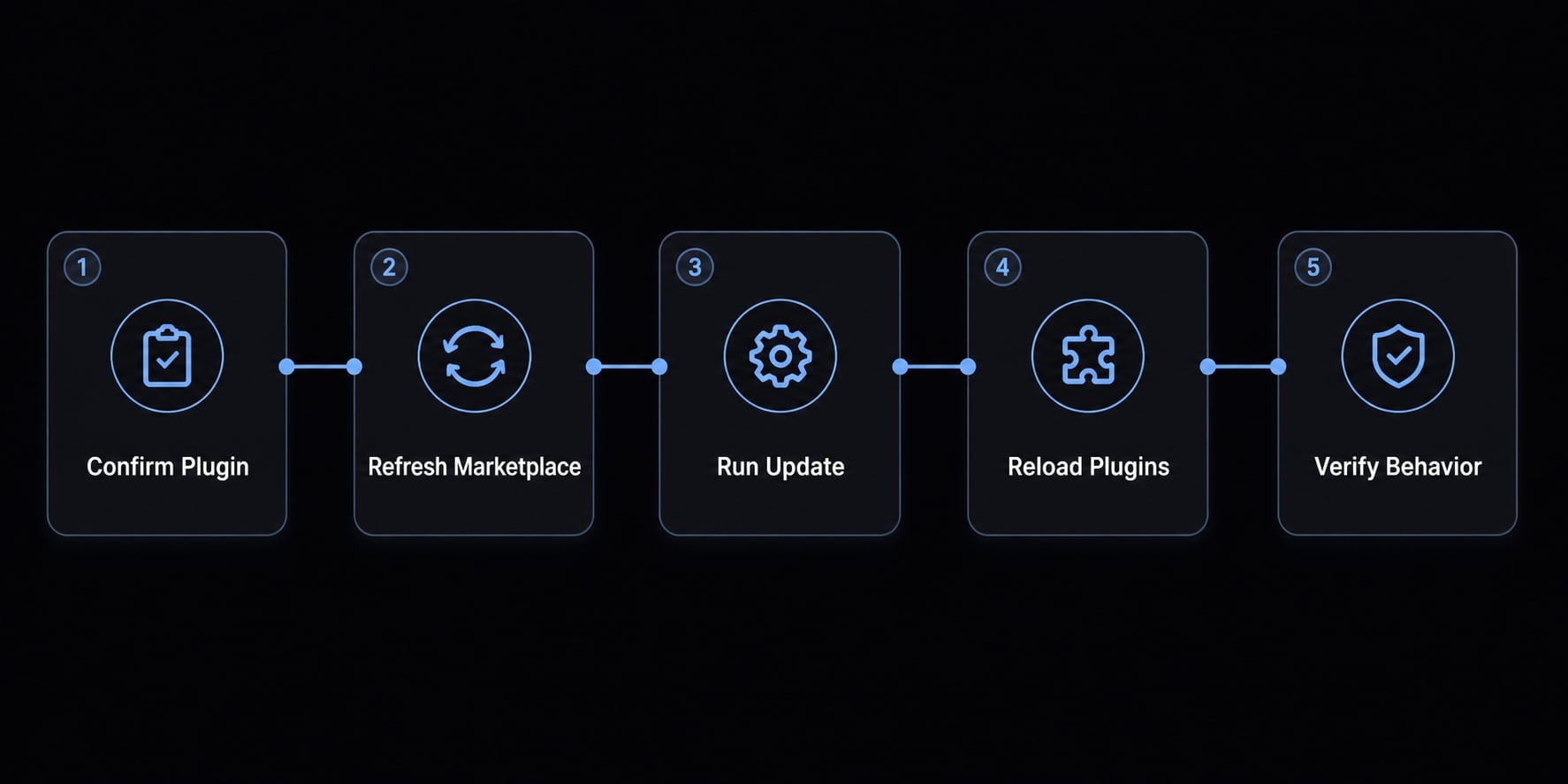
Plugin update vs marketplace update: The difference most users miss
A plugin marketplace update refreshes the catalog of available plugins and listing information. An installed plugin update upgrades the plugin version currently on your machine. These actions are related, but they are not interchangeable, and reload or restart may still be required after updating the plugin itself.
A common point of confusion is assuming a plugin marketplace update changes the plugin you already installed. It does not. The marketplace action updates what Claude Code knows is available in the catalog. Your active plugin remains on its current plugin version until you run the direct update command against that installed target.
- Want newer listings or recently published catalog data → Run a plugin marketplace update
- Want your current plugin install updated → Update the installed plugin directly
- Want the new version active in your current session → Run /reload-plugins or restart Claude Code
Action | Command | What it changes | When to use it |
|---|---|---|---|
Marketplace refresh |
| Updates catalog/listing data from the marketplace. | Use when a plugin was recently published or changed and you want fresh listing data. |
Installed plugin update |
| Updates the plugin version you actually have installed. | Use when you want the plugin on your machine upgraded. |
Reload active state |
| Reloads plugin state in the current session. | Use after install or update if changes are not visible yet. |
Full restart | Restart Claude Code | Resets the running session and reloads plugin state. | Use when reload is unavailable or the updated plugin still appears unchanged. |
In practical terms, this is the most common misunderstanding: A plugin marketplace update can succeed while your active plugin remains completely unchanged.
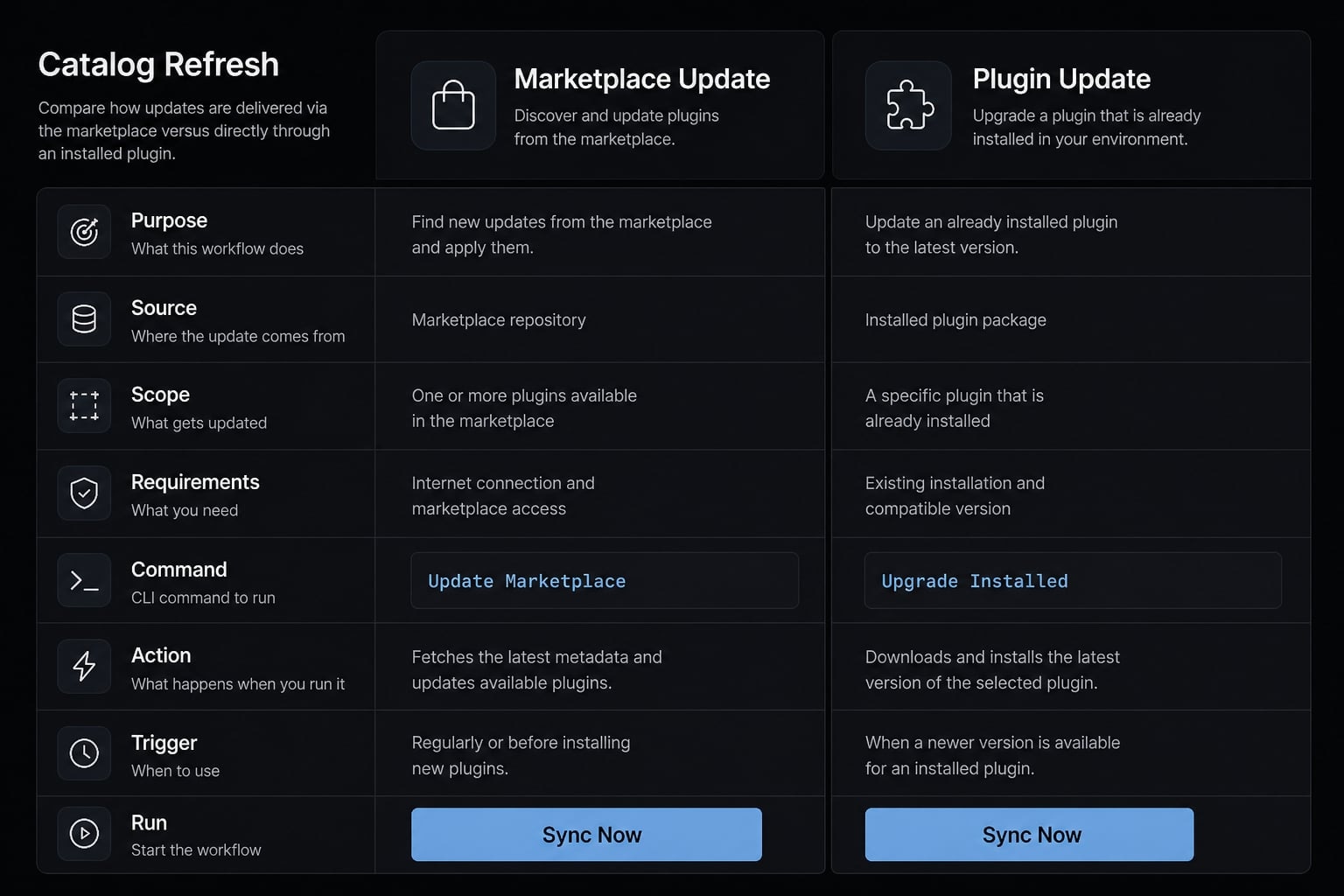
Step-by-step: Update an installed plugin safely
If you want to update installed plugin targets without guesswork, follow this order. The step sequence matters because most failed attempts come from targeting the wrong plugin source, refreshing only the marketplace, or skipping the reload.
Step 1: Confirm the plugin you want to update
Open:
/plugin
Go to the Installed tab and check the exact plugin name plus its marketplace source. This matters because multiple marketplaces can contain similarly named plugins, and suffix guessing often fails.
If Claude Code shows a plugin scope such as user, project, or local, note that as well. Keep it simple: you want to target the actual install you are using, not just the plugin name you remember.
Step 2: Refresh the marketplace listing if needed
This step is optional. Use it if a release was recently published and you want Claude Code to pull the latest listing data from that marketplace before you run the actual update.
/plugin marketplace update <marketplace-name>
This does catalog refresh only. It is useful for visibility, but it does not by itself update installed plugin versions.
Step 3: Run the update command
Use the direct Claude Code plugin command below:
claude plugin update <plugin-name>@<marketplace>
Replace <plugin-name> with the exact installed plugin name and <marketplace> with the exact marketplace suffix shown in Claude Code.
Example:
claude plugin update pyright-lsp@claude-plugins-official
Most users should update plugins individually. Do not assume there is an “update all” workflow unless the current Claude Code documentation explicitly says that your version supports it.
Step 4: Reload or restart Claude Code
If Claude Code prompts you to reload, run:
/reload-plugins
If the plugin still appears unchanged, restart Claude Code and, if needed, restart the terminal session too. A successful command message does not always mean the running session has already loaded the new state.
Step 5: Verify the update worked
Check the Installed tab again if Claude Code exposes updated version details there. Then test the feature directly.
For day-to-day plugin maintenance, direct behavior is the best proof. Look for the fix, feature, or changed output you expected rather than trusting terminal success text alone.
Verification checklist:
- Confirm the same plugin name and marketplace source.
- Confirm the update command completed without obvious errors.
- Run /reload-plugins
- Restart Claude Code if behavior still looks old.
- Test the plugin feature directly.
- Check whether the plugin depends on another installed tool.
Update only from trusted marketplaces or trusted sources. Plugins may execute code locally or rely on external tools, so source trust is part of safe operation.
How to know whether a Claude Code plugin actually has an update
If you want to check for Claude Code plugin updates, do not assume the signal will always be obvious. Update visibility can vary, and many users expect some form of universal auto-update behavior that may not exist in their version or setup.
Practical signs that an update available state may exist include:
- The marketplace listing has changed since you last checked.
- The plugin details page mentions a newer release or recent fix.
- The plugin source docs mention behavior you do not see in your current install.
- A known issue has reportedly been fixed upstream, but your plugin still behaves like the older release.
- The marketplace was refreshed and now shows newer metadata than before.
Depending on your Claude Code version and marketplace behavior, some update convenience may exist, but you should not assume all plugins use the same plugin versioning or update flow. The conservative approach is to check for Claude Code plugin updates manually when something important changes, then confirm current documentation and settings for your environment.
Do not assume every plugin will auto-update, and do not assume update detection is equally visible across all setups.
Troubleshooting: Plugin updated but nothing changed
When a plugin not updating report comes up, the root cause is usually one of a few repeat issues. In practice, many users either updated only the marketplace, skipped the reload, targeted the wrong suffix, or expected a plugin change that actually depends on another binary or service.
Common fixes
- Re-run the correct update command:
claude plugin update <plugin-name>@<marketplace> - Run /reload-plugins
- Restart Claude Code or the terminal session
- Confirm the exact plugin source and marketplace suffix
- Check whether the plugin depends on an external binary or service
- Verify that a newer version is actually available before assuming the update failed
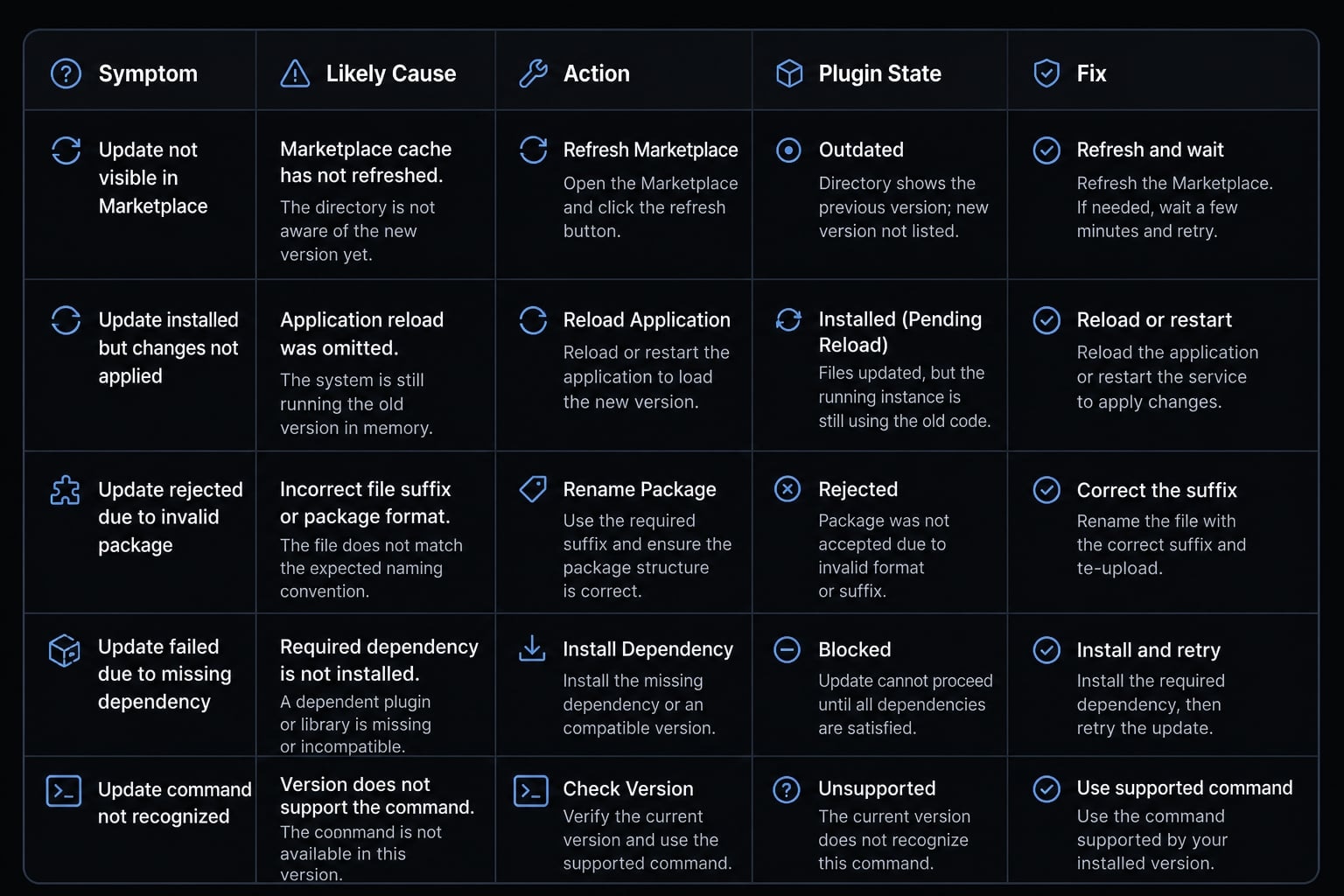
Troubleshooting table
Symptom | Likely Cause | What to Do |
|---|---|---|
You refreshed the marketplace, but the plugin stayed the same | You ran a marketplace refresh, not an installed plugin update | Run |
The update command succeeded, but no visible change appeared | The new state was not loaded into the current session | Run |
| Claude Code may be outdated, or the command is being used in the wrong context | Update Claude Code itself if needed, then restart the terminal and retry |
The update command fails or targets the wrong item | Wrong marketplace suffix or wrong plugin source | Reopen |
The plugin updates, but the feature still does not work | Missing dependency or required external binary | Check the plugin documentation for required tools in your PATH or required services |
You expected a new feature, but nothing changed | No clearly newer version is available for your installed source | Refresh the marketplace listing, review the plugin page, and confirm that the release exists for that marketplace |
The plugin still behaves like an outdated plugin after reload | Restart was skipped or the environment cached older state | Fully restart Claude Code and test again |
Claude Code command flow feels inconsistent | Version-specific behavior or environment differences | Use current docs/settings as the source of truth for your install |
The most common Claude Code troubleshooting pattern is still simple: Users update the catalog, not the install, then skip reload. If your plugin not updating issue persists after correcting those steps, check the source suffix and dependency requirements next.
Optional: Advanced ways to check for plugin updates
This section is optional. Most readers are better served by leaving auto-update on for trusted marketplaces.
When this optional path makes sense:
- You need reproducible plugin versions across a team or CI environment
- You want to review a changelog before a plugin's behavior changes mid-project
- You are running plugins from marketplaces you do not fully control
How to do it:
- Turn off auto-update for the marketplace under
/plugin→ Marketplaces, or setDISABLE_AUTOUPDATERto disable all automatic updates. - Update deliberately with
claude plugin update <plugin-name>@<marketplace>, adding--scopewhen the plugin is not installed at user scope. - Verify with
claude plugin list, which shows each installed plugin's version, source marketplace, and enable status.
One caveat worth knowing: after an update, Claude Code marks the previous version's directory as orphaned and removes it in a background sweep roughly 14 days later. The grace period lets concurrent sessions that already loaded the old version keep running, so seeing the old directory on disk is expected, not a failed update.
Frequently asked questions
What is the fastest way to update a Claude Code plugin?
To update an installed Claude Code plugin, run the command claude plugin update <plugin-name>@<marketplace> in your terminal. Note that this is different from refreshing the marketplace. You may need to run /reload-plugins or restart Claude Code for the updates to take effect in your active session.
What is the difference between a marketplace update and a plugin update?
A marketplace update refreshes your local catalog of available plugins, while an installed plugin update upgrades the specific version you are currently using. Refreshing the marketplace listing does not automatically upgrade your installed plugins, so you must perform both actions separately if you want the latest available version.
Why did my Claude Code plugin not update after running the command?
The most common reasons are failing to reload the session, targeting the wrong marketplace suffix, or missing an external dependency. Ensure you run /reload-plugins or restart Claude Code after updating, and verify that the plugin name and marketplace source match exactly what is shown in your installed_plugins.json.
How can I check if a Claude Code plugin has an update available?
The simplest path is to let Claude Code tell you: enable auto-update for that marketplace under /plugin → Marketplaces, and Claude Code will notify you when an installed plugin has been updated. For an on-demand check, run claude plugin update <plugin-name>@<marketplace> - if you are already current, the command reports that rather than changing anything. To see what you have installed and at which version, run claude plugin list.
Is there an "update all" command for Claude Code plugins?
No, there is currently no native "update all" command for Claude Code plugins. You must update each plugin individually using the claude plugin update <plugin-name>@<marketplace> command. This manual approach ensures that you review specific changelogs and confirm compatibility for each tool in your development environment.
Do Claude Code plugins automatically update?
Yes, in most cases. Claude Code checks for marketplace and plugin updates in the background after your session starts, with a random delay of up to ten minutes, so the running session keeps using the versions it loaded at launch. If a plugin was updated, you get a notification prompting you to run /reload-plugins, or the new version loads on your next launch.
The default depends on the source: auto-update is enabled for Anthropic's official marketplaces and disabled for third-party and local ones. Toggle it per marketplace under /plugin → Marketplaces → select the marketplace. To disable all automatic updates, including Claude Code's own, set the DISABLE_AUTOUPDATER environment variable.
Read more:
- Claude Code JetBrains plugin: Install, use and troubleshoot
- Claude Code install guide: Official setup steps for all OS
- Claude Code Vue: Practical guide for AI-assisted development
Conclusion
The process for updating a Claude Code plugin is straightforward once you understand the difference between a catalog refresh and a version upgrade: a plugin marketplace update refreshes catalog data, while the direct plugin update command changes the installed version you actually use. The safe default is repeatable: confirm the exact plugin and source, refresh the marketplace only if needed, run the plugin update command, reload or restart Claude Code, and verify the feature itself.