Vibe code Chrome extension: Build AI-assisted browser tools fast
Vibe code Chrome extension: A simple guide to building your first AI-assisted browser tool
Building a small browser tool is one of the fastest ways to see AI-generated code become something useful. If you want to build a Chrome extension using “vibe coding” without turning the project into a weekend-long debugging session, the safest path is to keep the scope narrow from day one. AI-assisted coding is excellent at drafting structure, boilerplate, and repetitive code, but testing is usually where mistakes surface. This guide walks through a simple beginner workflow, which extension ideas are worth starting with, common mistakes to avoid, and how to choose an AI tool style that fits the way you work.
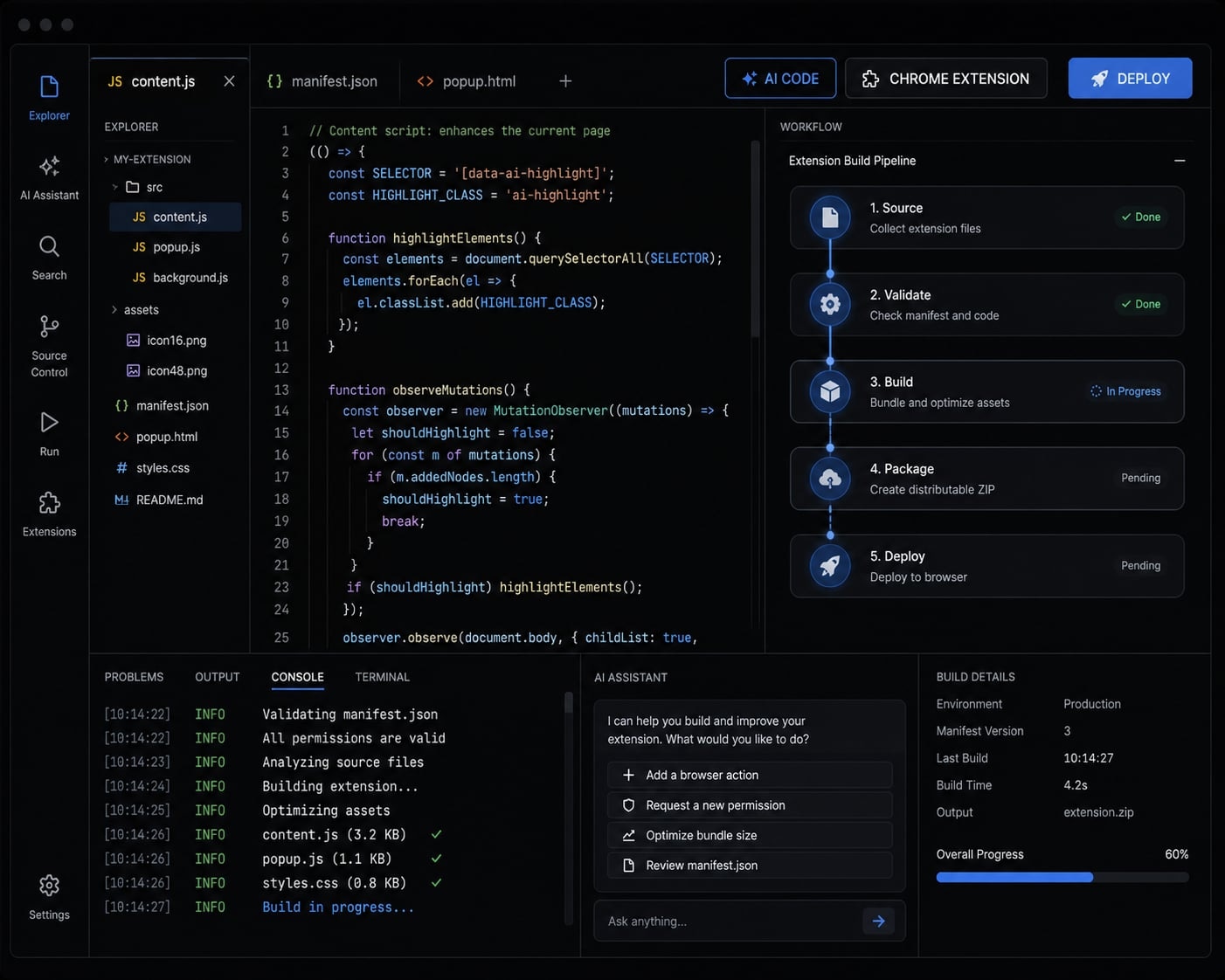
What “vibe coding” means for a Chrome extension
Vibe coding for a Chrome extension is a prompt-led, AI-assisted way to build a small browser tool quickly by describing what you want, reviewing the generated structure, and refining it through testing. It is useful for drafts and scaffolding, but it does not remove the need to check permissions, behavior, and edge cases.
What people mean by “vibe coding”
In practice, vibe coding means using natural language to guide an AI tool through a build instead of starting from a blank editor. For a chrome extension, that usually means asking for a basic file structure, a working manifest.json, a popup UI, and the logic needed for one small task.
This is a form of prompt-based development. It is fast because the AI can generate a rough first version in minutes. It is not always reliable, as speed does not guarantee correctness.
A good generative coding workflow treats the first output as a draft. AI often gets the structure right before it gets the edge cases right.
Why Chrome extensions are a good first AI project
For a first build, a chrome extension is more manageable than a full web app. Why this format works well:
- It usually has one narrow job.
- The interface is small and visible.
- Testing is fast on a live page.
- The feedback loop is short.
- You can prototype without building a full backend.
That matters because beginners tend to learn faster when the project has clear input and output.
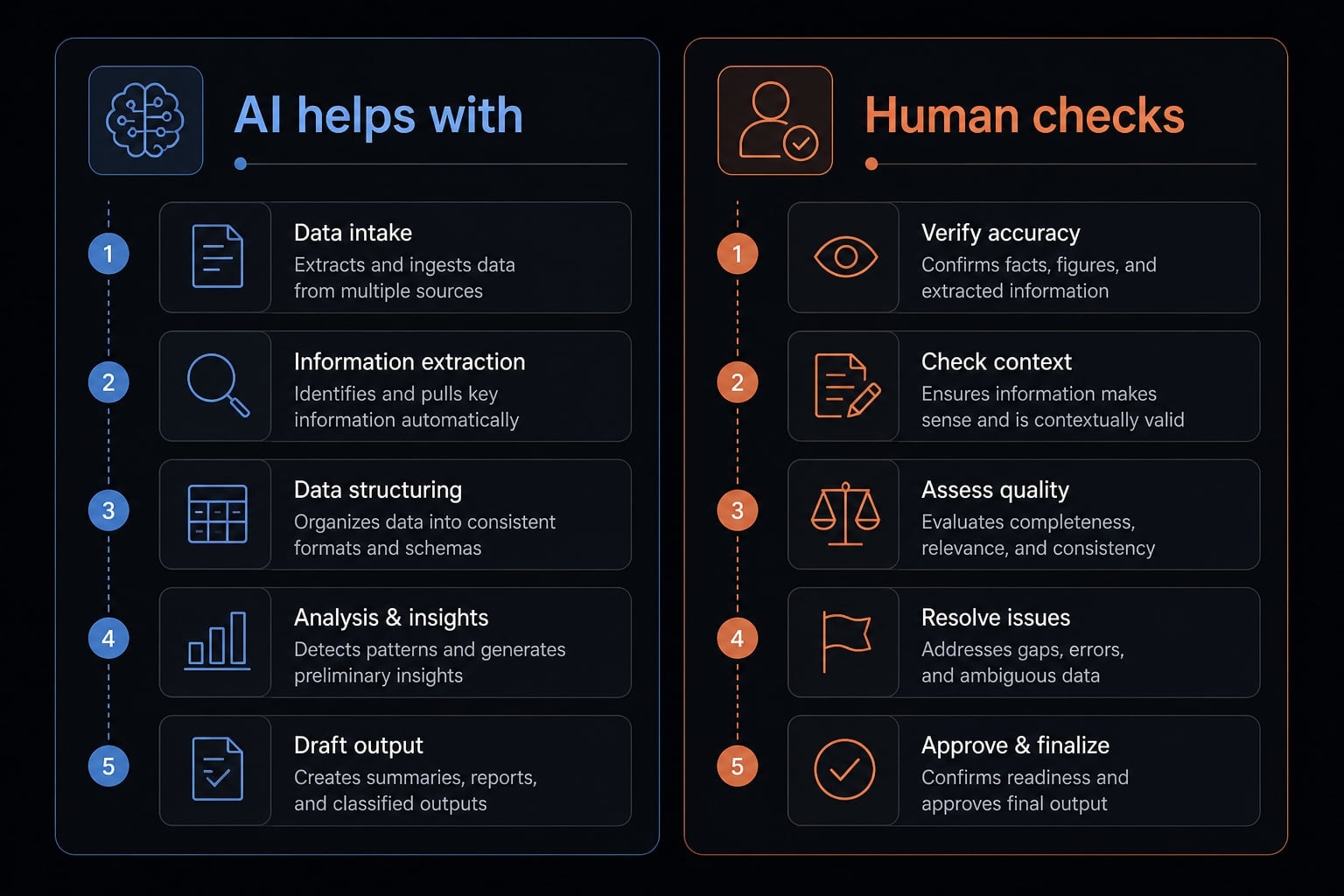
What AI can do well, and what still needs human review
AI-assisted coding helps most when the task is structured and repetitive. Human review matters most when trust, safety, or browser behavior is involved.
AI is good at | Human should still review |
|---|---|
Scaffolding files and folders | Permissions in manifest.json |
Writing repetitive boilerplate | Edge cases and failure states |
Drafting rough popup UI | Browser behavior on real pages |
Naming common functions | Error handling and UX clarity |
Suggesting basic file separation | Content script and service worker logic |
The practical takeaway is simple: Let AI accelerate the setup, but do not assume the output is safe or ready for publishing.
Best first Chrome extension ideas for vibe coding
The best Chrome extension ideas for a first attempt are not the most impressive ones. They are the ones you can explain in one sentence, test on one page, and fix in one sitting. A good beginner extension project usually has these traits:
- Single-purpose.
- Minimal permissions.
- Clear input and output.
- Easy to test on one page.
- Limited dependencies.
What makes a good first extension idea
For early browser tool building, simplicity is not a compromise. It is a quality control strategy. Choose an idea that:
- Solves one obvious problem.
- Uses a small popup or simple page action.
- Avoids login flows if possible.
- Does not depend on multiple external services.
- Can be validated with rapid prototyping.
If an AI coding tool can understand the task in one short prompt, that is usually a strong sign the scope is reasonable.
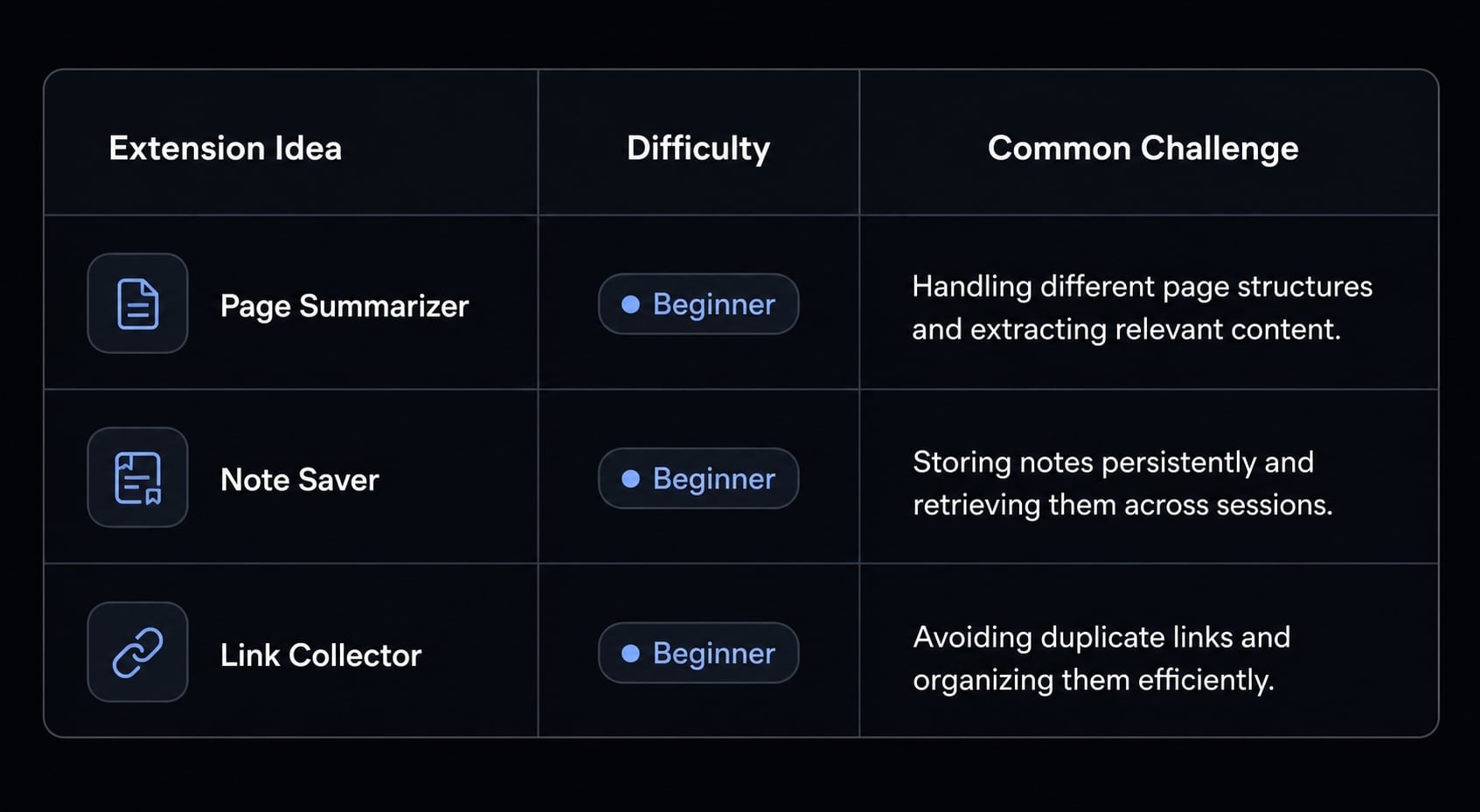
Beginner-friendly extension concepts to start with
Idea | Why it works | Difficulty | Common challenge |
|---|---|---|---|
Page summarizer | Clear value and easy demo | Easy–Medium | Handling long page content |
Highlighted text summarizer | Simple input/output | Easy | Detecting selected text cleanly |
Quick note saver | Minimal logic and useful daily | Easy | Deciding where notes are stored |
Link collector | Easy to test and inspect | Easy | Organizing saved links clearly |
Tab organizer | Practical and visual | Medium | Managing tab actions safely |
These chrome extension ideas are good first projects because the outcome is visible and easy to verify.
Projects to avoid in your first build
Some concepts look exciting but create unnecessary complexity early.
Avoid these for your first beginner extension project:
- Multi-page workflows.
- Heavy authentication flows.
- Complex sync between devices.
- Too many external APIs.
- Cross-browser support too early.
Simple projects usually beat clever projects on the first attempt. That is especially true when AI is writing the first draft and you are still learning how the extension parts fit together.
A simple step-by-step workflow to vibe code a chrome extension
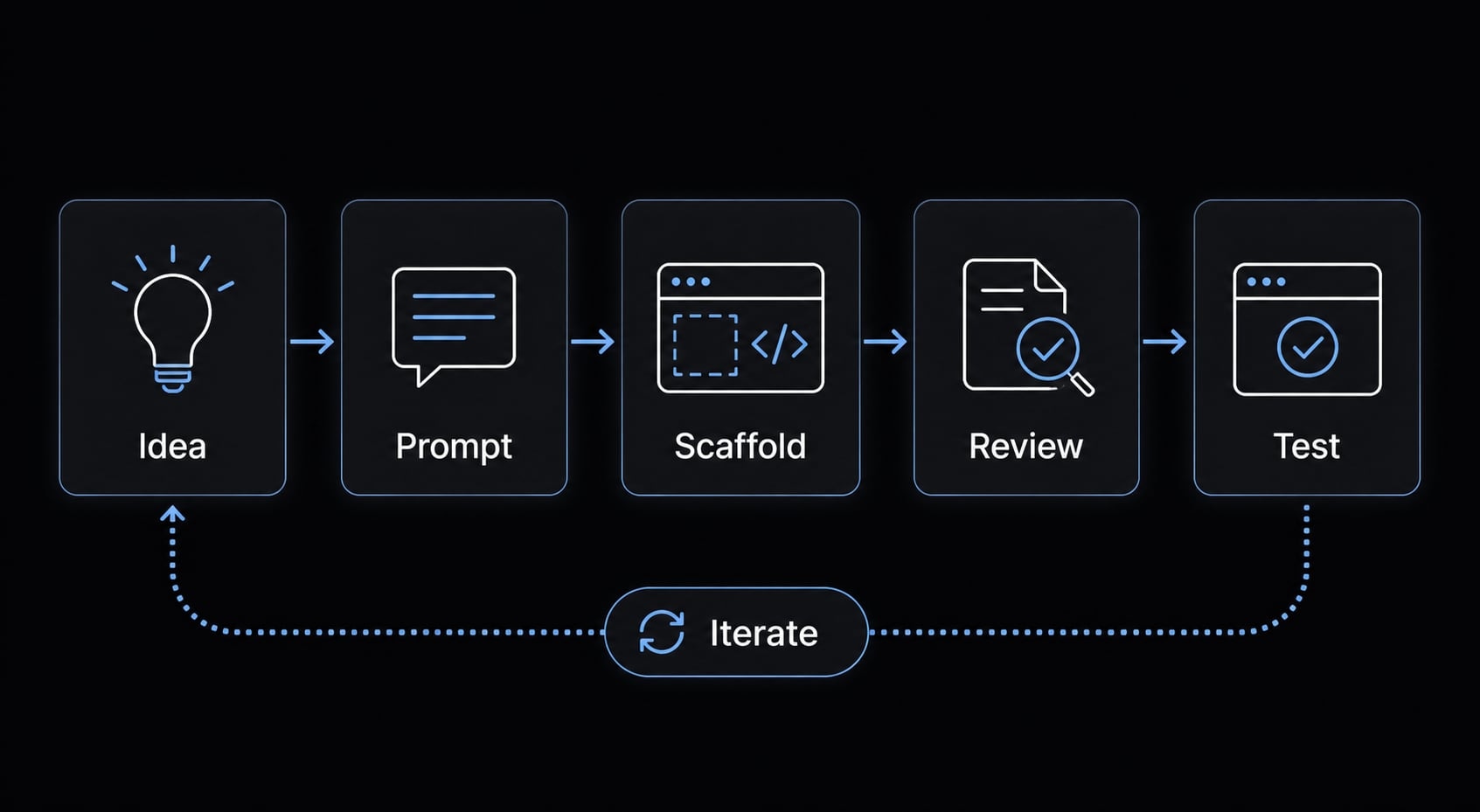
If you are searching for how to build a Chrome extension using AI tools, the biggest mistake is treating the process like one prompt and one result. In practice, the reliable path is a repeatable loop: Define, scaffold, review, test, refine. That is what makes a vibe coding tutorial for beginners actually useful.
Workflow summary snippet block
- Pick one narrow user outcome.
- Define the minimum feature set.
- Ask the AI tool to scaffold the project.
- Review the generated files.
- Load it locally and test the happy path.
- Iterate with targeted prompts.
- Clean up before sharing or publishing.
Step 1 - Start with one narrow user outcome
Start with a narrow user outcome, not a broad ambition.
- Good example: “Summarize the current page”
- Bad example: “Build me a research assistant”
The narrower the outcome, the better the AI output tends to be. Small scope reduces ambiguity, keeps the file structure simpler, and makes testing much easier. For a first extension, aim for one action, one interface, and one expected result.
Step 2 - Define the minimum feature set before prompting
Before you write a prompt, define the minimum feature set. This is not a product specification. It is a short planning filter.
Checklist:
- What the extension does.
- Where the UI appears.
- What extension permissions it needs.
- What success looks like.
- What version one explicitly does not do.
Example:
- Does: summarize selected text
- UI: popup
- Permissions: active tab, scripting
- Success: user gets a short summary from selected text
- Does not do: account sync, history, language switching
This step prevents the AI from generating unnecessary files and overreaching features.
Step 3 - Ask the AI tool to scaffold the project
Now ask the tool to scaffold the project. Different tools support this in different ways, but the principle is the same whether you use Gemini CLI, Claude Code, or GitHub Copilot.
Ask the tool to generate:
- File structure.
- A valid manifest.
- Separation between popup, content script, and background logic.
- Short setup instructions.
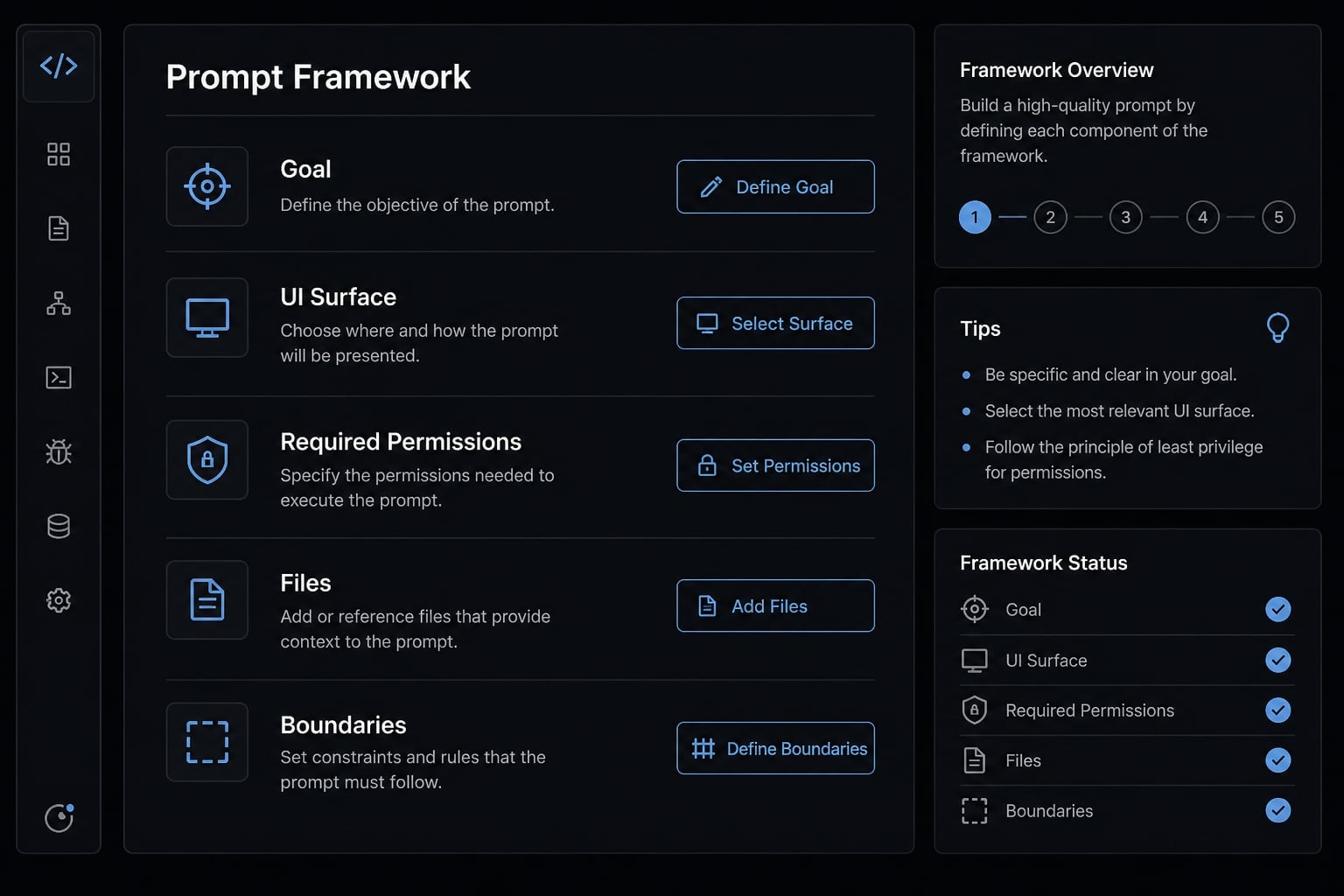
Use a prompt framework like this:
Sample prompt framework
- Goal: Build a Chrome extension that summarizes selected text on the current page.
- UI surface: The UI should appear in the popup.
- Required permissions: It needs only these permissions: activeTab, scripting.
- Files to generate: Generate these files: manifest.json, popup.html, popup.js, content.js, background.js, styles.css, README.md.
- Boundaries / what not to include: Do not include login, cloud sync, analytics, or extra settings.
This structure is more reliable than vague prompts because it gives the AI clear boundaries.
Step 4 - Review the generated files before running anything
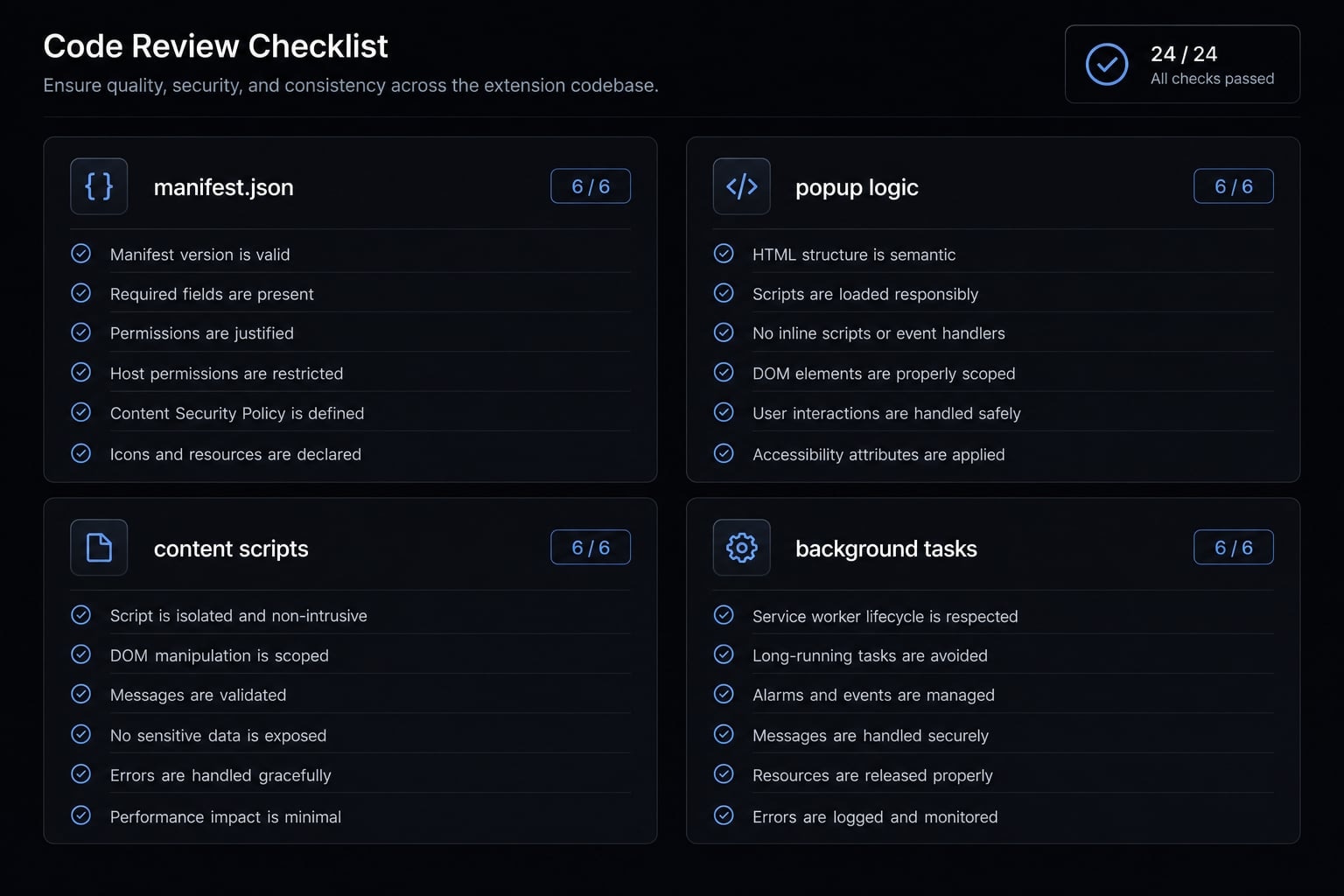
Do not run AI-generated code blindly. Review the output first.
File review checklist:
- Inspect manifest.json first.
- Verify Manifest V3 basics.
- Check popup labels and UI logic.
- Review content script behavior.
- Review background or service worker logic.
- Remove unnecessary permissions.
Generated code can look complete and still be wrong. In beginner projects, the most common issue is not syntax. It is over-permissioned or poorly scoped behavior.
Step 5 - Load the extension locally and test the happy path
Local testing reveals more than extra prompting does. The “happy path” simply means the main expected flow works from start to finish.
- Open Chrome extensions
- Turn on developer mode
- Choose “Load unpacked”
- Select your project folder
- Test the extension on one real page
- Verify the main action works
- Check one basic failure state
If you built a summarizer, the happy path is straightforward: Open a page, select text or click summarize, and confirm the output appears. Then test one failure state, such as no text selected.
An optional next step is testing on a second page with different content length. That often exposes fragile assumptions quickly.
Step 6 - Iterate with targeted prompts, not vague retries
This is where iterative development matters.
- Weak prompt: “Make it better”
- Better prompt: “Update the popup to show an error state when no text is selected.”
Use targeted prompts like these:
- Fix permissions to remove anything not required.
- Improve loading and error states.
- Refine selected-text handling.
- Clarify popup labels.
- Keep changes limited to one issue at a time.
In practice, one change per prompt makes debugging easier. It also keeps the diff traceable, which matters once the extension starts to work. This is the most reliable pattern for how to build a Chrome extension using AI tools without getting stuck in unclear revisions.
Step 7 - Clean up before sharing or publishing
Before sharing the prototype, do a basic extension cleanup pass.
Checklist:
- Remove dead code.
- Improve names and labels.
- Add setup notes to a README.
- Test empty and edge states.
- Review API key handling if the extension uses an API.
If you use something like the Gemini API, never casually expose keys inside visible client code without understanding the tradeoffs. For prototypes, many builders test locally first and delay wider sharing until they have reviewed how secrets are handled.
A tidy prototype is easier to debug, easier to hand off, and much safer to improve later.
Common mistakes when using AI to build Chrome extensions
Most common pitfalls in first-time extension projects come from overscoping, vague instructions, and trusting polished-looking output too early. Quick summary of the five biggest mistakes:
- Starting too big.
- Accepting extension permissions blindly.
- Using vague prompts.
- Skipping real-page testing.
- Trusting AI-generated code without cleanup
Mistake 1 - Starting too big
Beginners usually fail from scope, not from lack of ability. When the goal is too broad, AI produces more files, more assumptions, and more cleanup. A safer first build has one action and one interface.
Fix:
- Reduce the project to one useful action.
- Use one popup or one page interaction.
- Delay extra features until version one works.
Mistake 2 - Accepting permissions blindly
This is one of the biggest trust issues in extension building. Generated manifests often ask for more access than necessary. Under Manifest V3, you should still review extension permissions line by line with a least-privilege mindset.
Fix:
- Open manifest.json first.
- Remove any permission that is not clearly required.
- Re-check host permissions and scripting access.
- Treat browser access as a trust decision, not a coding convenience.
This is not just a technical detail. It is part of basic browser security hygiene.
Mistake 3 - Using vague prompts
Vague prompts produce vague code.
- Weak prompt: “Build a smart extension for research”
- Better prompt: “Build a popup-based Chrome extension that summarizes selected text on the current page. Use only activeTab and scripting permissions. Do not include login, sync, or analytics.”
A better prompt specifies:
- Feature.
- Page context.
- UI behavior.
- Exclusions.
Mistake 4 - Not testing with real pages and edge cases
A polished demo on one page does not mean the extension is dependable.
Test these cases:
- Empty state.
- Long content.
- Denied or limited behavior.
- Selected-text behavior.
Real-world testing usually exposes issues faster than more prompting.
Mistake 5 - Trusting generated code without cleanup
Even functional code may contain dead code, unclear names, fragile logic, or risky API key handling.
Fix:
- Remove unused files and functions.
- Improve naming clarity.
- Check browser behavior before sharing.
- Review secrets and client-side exposure carefully.
The key lesson is simple: Readable output is not the same as reliable output.
Which AI coding tools work best for this workflow?
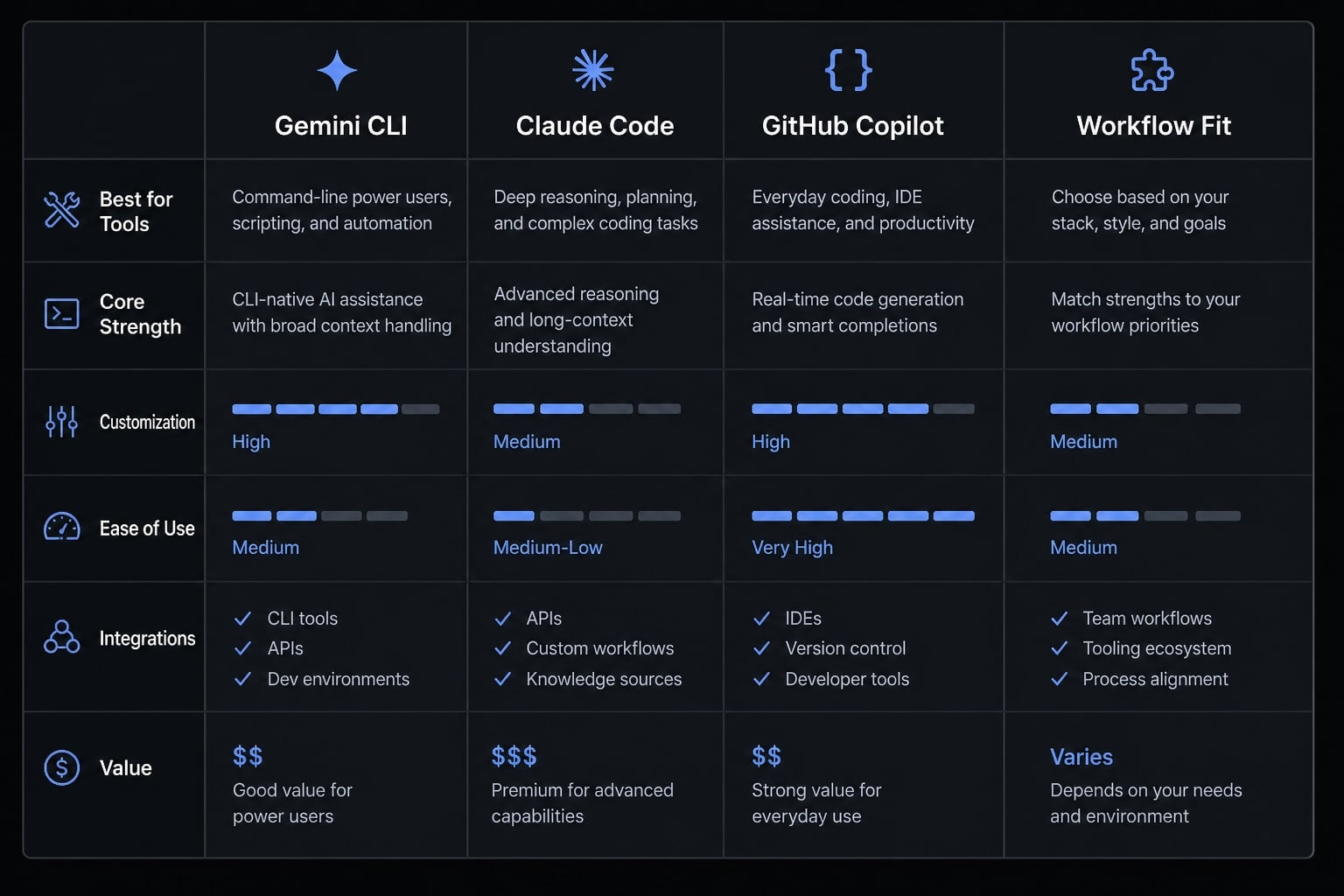
There is no single winner here. The best tool depends less on rankings and more on how you prefer to work. For this type of project, workflow fit matters more than feature marketing.
Gemini CLI vs Claude Code vs Copilot
Tool | Best for | Strength | Watch-out |
|---|---|---|---|
Gemini CLI | Interactive scaffolding and file-level iteration | Good for generating structure and adjusting files quickly | Can still overbuild if your prompt is broad |
Claude Code | Collaborative reasoning and refactoring | Strong at discussing tradeoffs and cleanup | Needs clear boundaries to stay focused |
GitHub Copilot | In-editor completion when direction is already clear | Fast for code suggestions inside an existing flow | Less helpful if the project definition is still fuzzy |
Choosing a tool based on your working style
A tool style often matters more than the tool brand.
- Non-expert solo builder: Start with Gemini CLI or Claude Code if you want more guided back-and-forth
- Technical founder: Use Claude Code if you want stronger reasoning around structure and refinement
- Developer inside an existing codebase: GitHub Copilot is often useful once the architecture is already clear
In all cases, think of the tool as an AI coding agent that helps with drafting, not as an autonomous builder.
When a structured workflow becomes more useful than ad hoc prompting
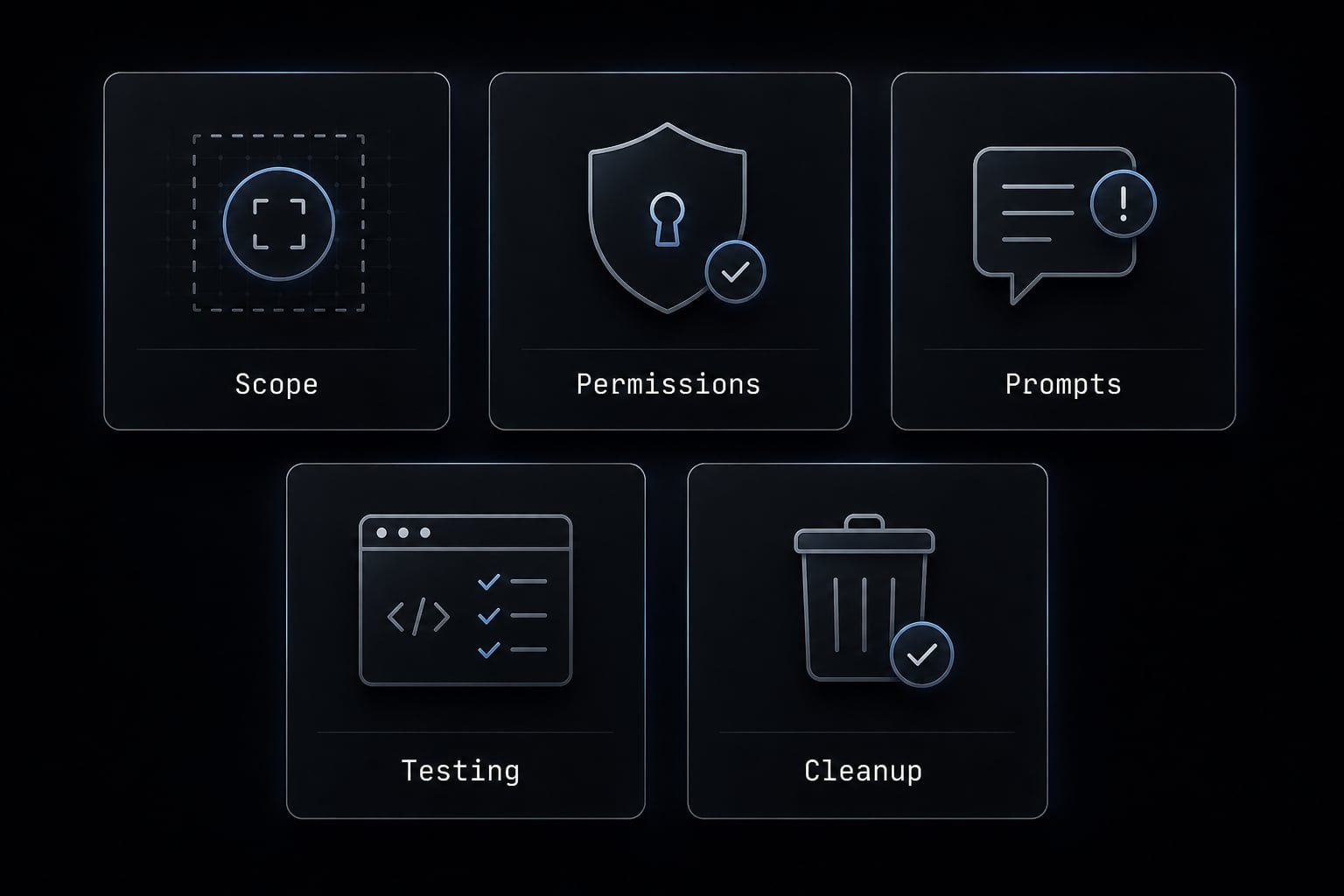
After the first prototype, repeatability matters more than improvisation. A structured workflow helps you reuse:
- Prompt templates.
- Review checklists.
- Testing steps.
- Cleanup rules.
For teams, workflow layers such as AgentKit become more useful when the goal shifts from one-off experimentation to consistent, repeatable execution. The main value is less prompt improvisation and more standardized delivery.
A real-world example: The “summarizer extension” pattern
A page summarizer extension is one of the most realistic first builds because the value proposition is obvious: Help the user turn long content into a shorter version.
Why summarization is a common first extension idea
This pattern works well because it has:
- A simple promise.
- An easy demo.
- Clear input and output.
- Fast testing on real pages.
It is also a project that can overscope quickly. Once builders add selected text summary, multi-language output, history, settings, and real-time streaming UI, the simple prototype starts turning into a product.
If the extension uses the Gemini API, it becomes even more important to think carefully about permission boundaries and secret handling before broader sharing or a Chrome Web Store submission.
What this example teaches about scope and iteration
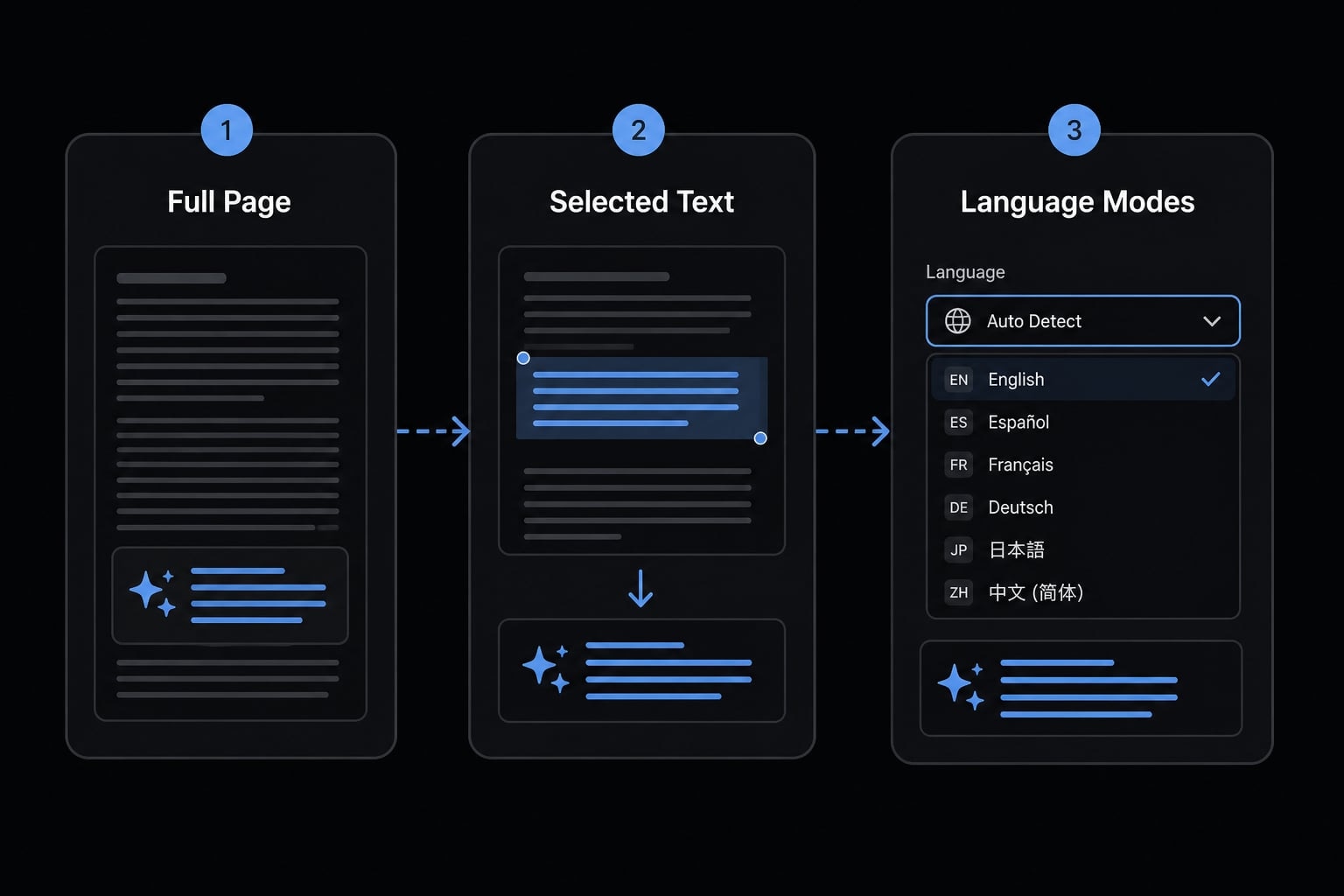
The right way to grow this project is in layers:
- Full-page summary.
- Selected text summary.
- Rewrite modes or language support.
- Polish such as real-time streaming UI later.
That order matters. Usefulness comes first. Interface polish comes after the core flow is stable. This pattern is a good reminder that a strong first extension is not the one with the most features. It is the one that performs one job clearly and predictably.
Frequently asked questions
What does "vibe coding" mean for a Chrome extension project?
Vibe coding is a prompt-led, AI-assisted approach to building software where you describe your intent to an AI tool, which then handles the scaffolding and code drafting. For Chrome extensions, it focuses on rapid prototyping of small browser tools, requiring human review for permissions, edge cases, and final logic.
Is vibe coding suitable for a first-time Chrome extension developer?
Yes. Chrome extensions are excellent first projects because they have a limited scope, a clear visual surface (the popup), and a fast local feedback loop. By keeping the project narrow, beginners can use AI to scaffold the core structure and iterate quickly without needing deep browser engineering expertise.
How do I pick a good first Chrome extension project?
Choose a project that is single-purpose, requires minimal permissions, and has a clear input/output flow. Avoid ideas involving complex authentication, external databases, or multi-page workflows. Good starting points include simple page summarizers, highlighted text savers, or basic link collectors.
What should I check before running AI-generated code?
Always review the manifest.json file for unnecessary permissions, verify the structure against Manifest V3 standards, and check the logic in content scripts and service workers. Never accept AI-generated code blindly; treat it as a draft that requires human validation for security and browser behavior.
How do I avoid common mistakes when building with AI?
Focus on a narrow scope, review all requested permissions to maintain a least-privilege mindset, and use targeted, specific prompts rather than vague requests. Test your extension against real-world edge cases like empty states or denied access, and perform a manual cleanup of dead code before final usage.
Which AI coding tool is best for this workflow?
The best tool depends on your working style. Gemini CLI is often effective for interactive file-level scaffolding, Claude Code is strong for collaborative refactoring, and GitHub Copilot excels at in-editor completions. Choose the tool that best fits your preference for either high-level structural guidance or granular code editing.
Read more:
- Vibe coded websites: Build fast with AI prompt development
- How to vibe code: A practical beginner guide to AI development
- 7 practical vibe coding examples: Build apps faster with AI
Conclusion
The best way to vibe code Chrome extension projects is to keep the first version small, useful, and easy to test. The real advantage isn't finding one perfect prompt; it's using a structured AI development workflow: Define the scope, generate the draft, review the files, test the happy path, and iterate with focused changes.
That approach is slower than hype suggests, but faster than rebuilding messy prototypes later. If you want a practical next step, start with a one-feature extension and use a simple prompt template plus a review checklist before you share anything more widely.