How to fix Claude Code OAuth timeout error: Quick solutions
Claude Code OAuth timeout error: How to fix it
An OAuth error: timeout of 15000ms exceeded message indicates that an authentication-related operation surpassed its 15-second response limit. Your browser may display an authorization approval screen while your command-line interface (CLI) remains unauthenticated. This error identifies a symptom - not the exact failed stage or underlying cause.
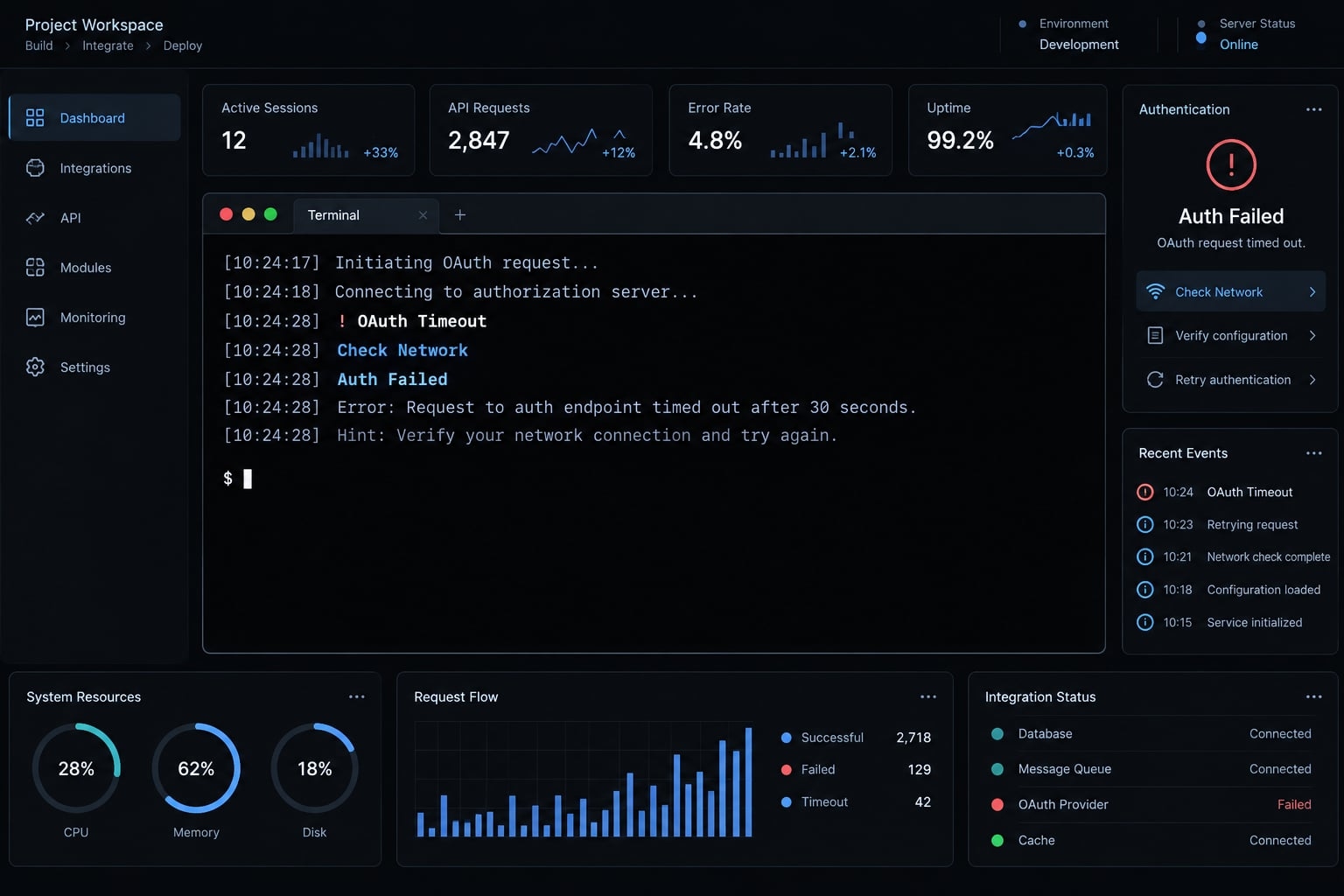
What the Claude Code OAuth timeout actually means
OAuth is an authorization mechanism that allows an application to obtain access without directly handling your account password. A timeout means part of that exchange process did not complete within the 15-second window.
Browser approval alone does not confirm CLI authentication. Network conditions, service behavior, or client problems can interrupt completion.
Start login ↓Authorize in browser ↓Return authorization result ↓Complete credential exchange ↓CLI becomes authenticated
A CLI login timeout could occur around the authorization handoff or OAuth token exchange, but the message alone does not isolate either stage. It also does not establish a 15-second deadline for the entire browser session.
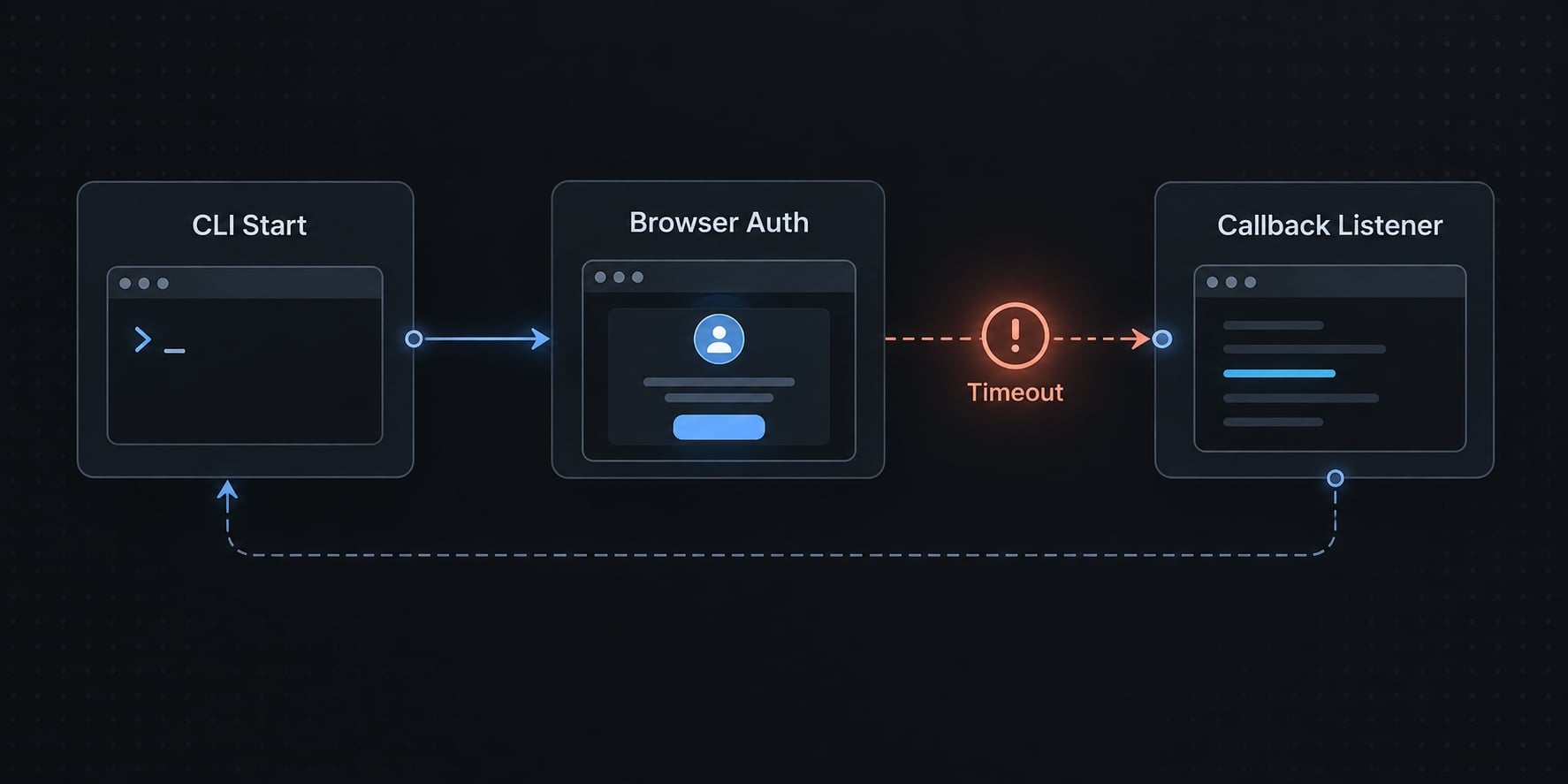
Initial login timeout vs. token refresh failure:
Symptom | Typical message | Interpretation |
|---|---|---|
New login never completes |
| An authentication operation exceeded its wait; the cause remains unresolved. |
Previously working session fails |
| The access token expired. Investigate renewal separately from initial login. |
An expired-token message does not, by itself, explain a token refresh failure or prove that stored credentials are corrupted.
Try this two-minute quick-fix checklist first
To fix Claude Code login timeout errors safely, start with an initial triage pass. “Two-minute” describes initial triage - not guaranteed recovery or completion of every step.
- Check official Anthropic status. Look for authentication or Claude Code incidents matching your failure time.
- Follow relevant incident updates. If an outage is acknowledged, avoid repeatedly changing local settings.
- Record the baseline. Save the exact error, timestamp, OS, and installed version before making changes.
- Update Claude Code through its supported installation method. Consult the official Setup documentation; do not mix installers.
- Save work and restart. Close the affected process, then reopen the terminal to avoid retaining an outdated session.
- Compare permitted network settings. Test VPN, proxy, or filtering differences only with organizational approval; restore temporary changes afterward.
- Retry authentication once. Start a fresh attempt in a private browser session if supported, keeping the originating CLI active.
- Try another trusted network if permitted. A changed result suggests an environment-specific difference.
- Continue with targeted checks only if needed. Investigate DNS, executable selection, and supported credential reset below.
Stop once authentication works. Complete the validation checklist before returning to normal work.
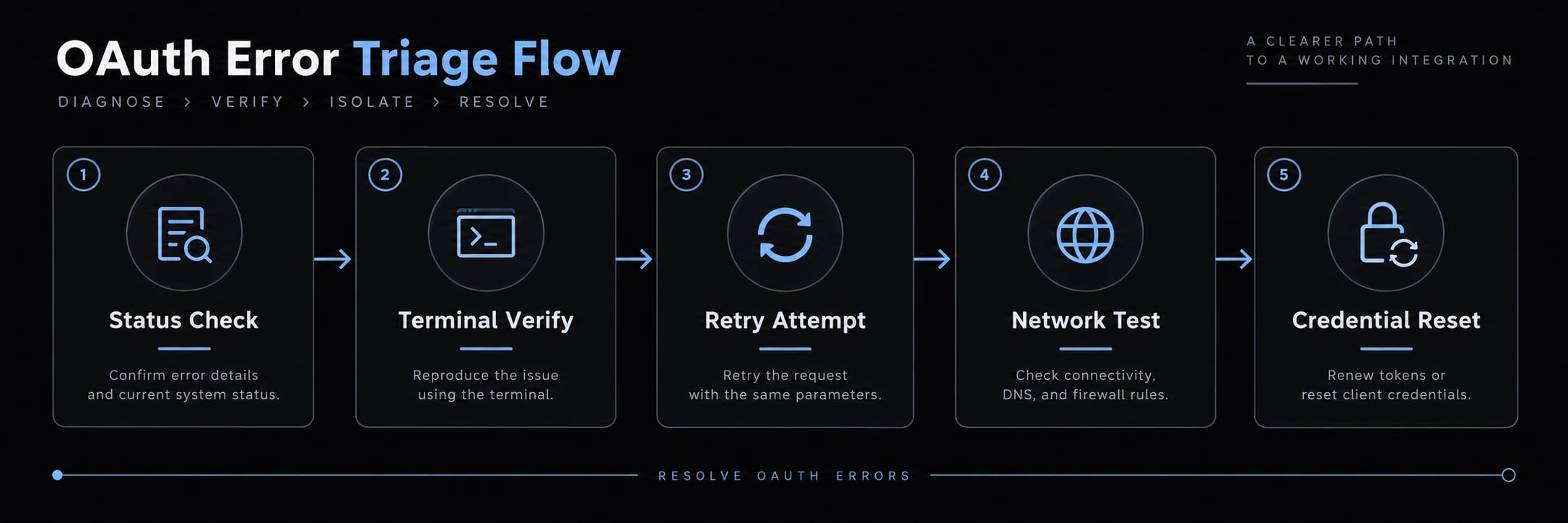
Simultaneous failures across independent devices and networks strengthen an upstream-incident hypothesis. HTTP 500 responses may originate from servers or intermediaries. A green status page does not exclude an emerging incident. During a confirmed relevant outage, deleting local credentials is unlikely to help.
Identify the most likely root cause from the symptoms
Use the nearest symptom to choose your next test. Capture the error, change one variable, retry, and compare results.
Illustrative scenario: The browser reports approval, but the CLI times out. This is for demonstration purposes and does not represent a confirmed incident.
Observed symptom | Possible cause | How to verify | First action |
|---|---|---|---|
Independent devices and networks fail | Service-side disruption | Match timestamps against official acknowledgement | Check status and incident updates |
Browser approves; CLI times out | Exchange, connectivity, or client failure | Inspect sanitized diagnostics; timing alone cannot isolate the stage | Make one fresh attempt |
Authentication hostname fails lookup | DNS resolution issue or incorrect hostname | Confirm the current hostname and resolver response | Test DNS before changing settings |
Trusted hotspot works; office network fails | Environment-specific network difference | Keep the device, version, and workflow unchanged | Ask IT to compare approved network paths |
Failure begins after updating | Installation mismatch or possible regression | Check active executable and release-specific reports | Confirm the launched version |
Browser finishes; CLI never acknowledges completion | Browser callback or supported return-flow problem | Check terminal instructions and environment boundaries | Keep the originating process active |
Existing sessions repeatedly expire | Refresh-path or credential-state problem | Capture the refresh-specific error | Follow supported reauthentication guidance |
Officially confirmed requires an official source and verification date. Reproduced in the tested environment requires a documented test. Reported by users is community evidence, not confirmation. Possible cause remains a hypothesis.
A failure after updating does not establish a Claude Code version regression. No current incident or affected release is asserted here.
Rule out DNS, VPN, proxy, firewall and browser problems
Compare the same workflow on another trusted, permitted network. Keep other conditions unchanged. Success narrows the investigation to environmental differences; it does not identify a particular firewall rule.
Test DNS resolution
DNS translates hostnames into network addresses. Use only the hostname from current local diagnostics or official documentation, not an older troubleshooting post.
In each example, replace HOSTNAME_FROM_CURRENT_LOGS with the hostname alone - without a scheme, path, or query string. These are templates, not literal diagnostic targets.
Windows PowerShell:
Resolve-DnsName "HOSTNAME_FROM_CURRENT_LOGS"
macOS/Linux shell, where dig is installed:
dig "HOSTNAME_FROM_CURRENT_LOGS"
Windows, macOS or Linux fallback, where available:
nslookup HOSTNAME_FROM_CURRENT_LOGS
For all three commands, expect address records or a lookup error.
Interpret the resultAddress records: DNS worked for this lookup; HTTPS connectivity remains unproven.NXDOMAIN: The name may be incorrect, obsolete, unavailable, or policy-filtered.Timeout or differing answers: Investigate resolver availability or policy differences.Successful DNS does not exclude TLS, routing, filtering, or service latency. TLS is the protocol securing HTTPS connections.
Do not switch to public resolvers or flush DNS by default. Have IT approve managed-network changes and restore the original configuration after testing.
Test VPN, proxy and corporate network controls
Check whether your organization requires an HTTPS proxy. Review whether relevant settings such as HTTPS_PROXY, HTTP_PROXY, and NO_PROXY exist, without publishing their raw values.
VPN or proxy interference is a hypothesis, not a diagnosis. TLS inspection may require organization-approved certificate trust. Ask IT to verify the certificate setup for your actual Claude Code distribution; do not assume it uses system Node.js.
Never disable TLS verification or permanently disable security controls. Restore approved temporary changes after comparison.
Isolate the browser authorization flow
- Start a fresh official authorization attempt.
- Try a private window or clean browser profile if compatible.
- Keep the originating CLI process active.
- Never mix authorization URLs or codes from separate attempts.
An OAuth redirect returns the authorization result toward the application. Remote terminals, containers, or browser restrictions may affect that return path. Follow your release’s supported mechanism. Private mode is an isolation test, not a guaranteed fix.
Update Claude Code and reset authentication safely
Verify the installation you actually run before changing authentication state. Updating one executable will not help if the terminal continues launching another.
Follow this sequence:
- Record the installed version and installation method.
- Identify the executable your shell launches.
- Follow that installation method’s official update procedure.
- Restart the terminal and confirm the active version changed.
- Retry official authentication once.
- Consider supported logout or authentication reset only if earlier checks fail.
Use Claude Code’s official setup and authentication documentation for current procedures. Avoid arbitrary downgrades or switching installation methods during diagnosis.
Check for multiple Claude Code installations
An older executable can remain first in PATH, the ordered locations your shell searches for commands.
POSIX-compatible shells:
command -v claude
Windows PowerShell:
Get-Command claude -All
The first command identifies what the shell resolves. PowerShell lists matching commands, which may include aliases or functions as well as applications.
Compare the result with the installation you updated. Do not delete installations before identifying the active one.
Clear stale authentication state only as a controlled step
Stale credentials are a possibility, not a conclusion from a timeout. Use the supported logout/reset procedure first, understanding that logout can interrupt a working session.
Preserve non-secret CLI configuration where relevant, then make one controlled reauthentication attempt. Do not broadly delete configuration directories, operating-system credential stores, or unrelated credentials.
If the same error persists, stop resetting and collect evidence. An authentication reset does not repair upstream latency or blocked connectivity.
Use an alternative authentication method only when appropriate
A network workaround changes the connection path. An alternative authentication method changes how access is authorized. They are not interchangeable.
Option | Appropriate context | Trade-off | Recommendation |
|---|---|---|---|
Retry official OAuth | Fresh attempt after a controlled change | Depends on the same authentication service | Preferred first path |
Use another trusted, permitted network | Isolating network-specific behavior | Changes network path, not authentication | Useful comparison test |
Use supported Anthropic API-key authentication | Approved account and supported configuration | Separate billing and secret management may apply | Evaluate before switching |
Manually exchange or inject OAuth credentials | Specialized debugging outside this guide | Exposure and unsupported credential-state risks | Not recommended for general troubleshooting |
Patch the CLI binary or timeout value | Unsupported modification | Integrity and maintenance risks | Not recommended for general troubleshooting |
Check billing before using an Anthropic API key. API usage may incur separate charges rather than consume a Claude subscription allowance. Confirm current account eligibility, billing, and authentication precedence in official documentation. An API key does not fix the underlying OAuth failure.
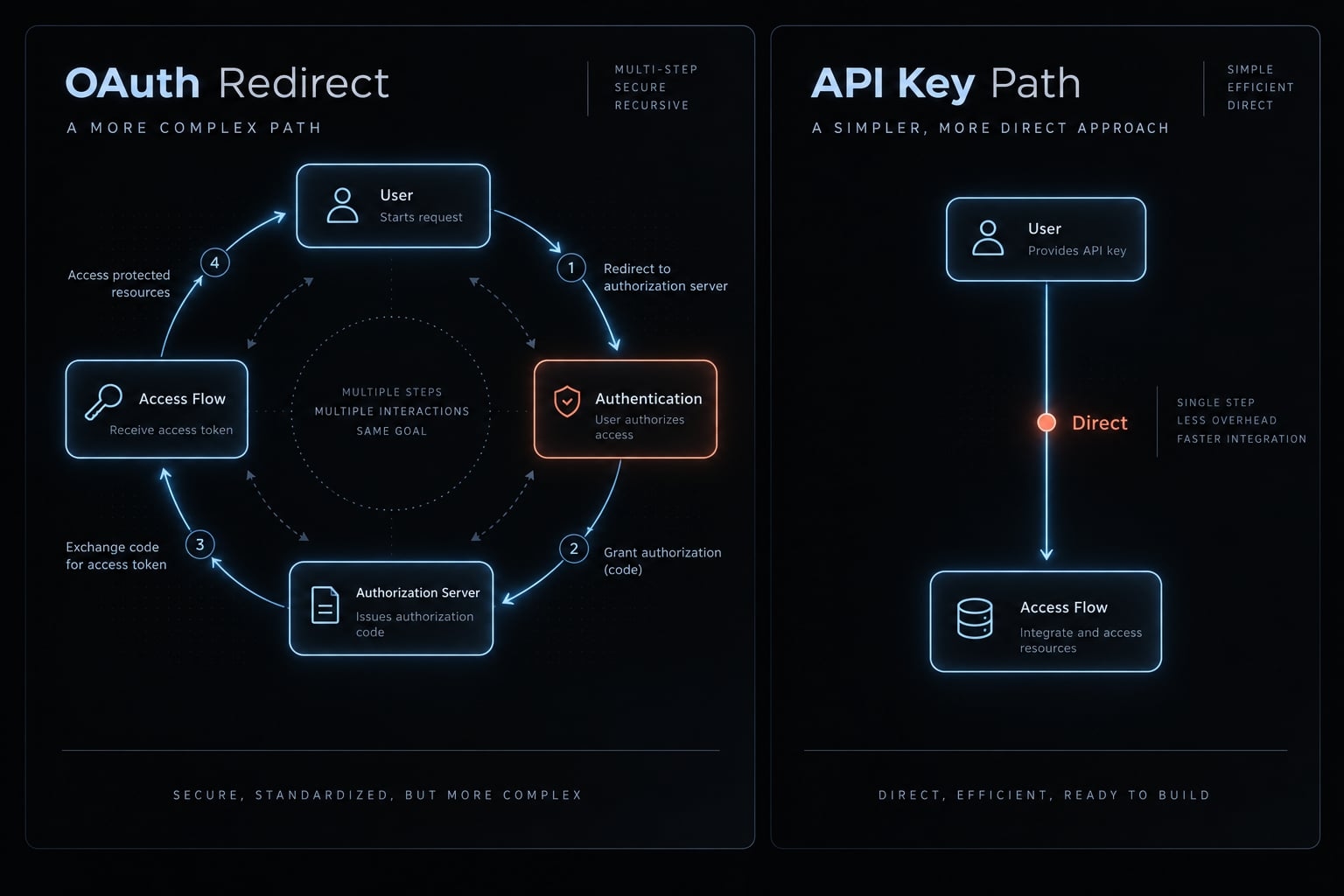
Security rules before handling OAuth credentials
Secure credential management applies throughout troubleshooting. Never share authorization codes, access tokens, refresh tokens, API keys, credential files, or complete authorization/callback URLs in issue reports, chats, paste sites, online decoders, or AI tools.
Use supported credential storage. Keep secrets out of shell history and screenshots. A manual OAuth workaround can expose credentials even when the script appears convenient.
If exposure occurs, revoke affected credentials or sessions through supported account controls and rotate replaceable secrets. Removing a public message alone does not invalidate its contents.
Why binary patching should not be the default fix
Binary patching is unsupported, may be overwritten during updates, and complicates integrity checks. Changing a timeout value cannot repair DNS or blocked connectivity. This is for demonstration purposes and does not represent a confirmed incident.
Verify the fix and collect evidence if the error continues
Verify Claude Code authentication beyond the browser’s success screen:
- Official authentication completes without timeout.
- The expected account or organization is active.
- A new CLI session starts successfully.
- A minimal, non-sensitive request succeeds.
- Authentication persists after a terminal restart.
- No immediate refresh-related error appears.
- Temporary security-control changes have been restored.
API-billed test requests may incur charges. A successful restart confirms immediate recovery, not long-term refresh reliability.
Check for an existing issue in the official Claude Code repository, then use official support or the repository’s reporting process.
### Environment- Claude Code version:- OS / shell / installation method:- General region / network type:- VPN / proxy / TLS inspection state:- Timestamp and time zone:### Failure- Exact redacted error:- Browser authorization completed: yes/no- Another trusted network changed the result:- Minimal reproduction steps: 1. 2.- Version/update/reset actions already attempted:- Relevant sanitized diagnostics:### Privacy check- Secrets, personal emails, sensitive paths, internal hostnames, proxy credentials, and secret-bearing query strings removed: yes/no
Review OAuth logs locally before sharing excerpts. Submit sanitized logs only - not complete credential files or unfiltered diagnostic bundles. Remove sensitive data from screenshots permanently, rather than covering it with removable overlays.
Frequently asked questions
What does the "OAuth error: timeout of 15000ms exceeded" message mean?
This error means the Claude Code CLI failed to complete its authentication handshake within a 15-second limit. It typically indicates that the communication between your browser authorization, the local CLI callback, and Anthropic’s authentication servers took too long to resolve.
How can I fix the Claude Code OAuth timeout error?
First, check the official Anthropic status page for known service outages. If the service is stable, update your CLI through official installation methods, restart your terminal, and attempt a fresh login in a private browser session with ad-blockers disabled.
Is the 15-second timeout a permanent limitation of Claude Code?
The message shows a 15-second limit for one authentication operation, but that value is not necessarily permanent or the same across releases. Exceeding it usually reflects network, service, or client conditions worth diagnosing rather than a limit to work around.
Should I delete my local credentials to resolve this login failure?
Deleting local credentials is not the recommended first step and can disrupt existing sessions. Start by verifying your DNS settings and network connectivity. Only perform a reset if troubleshooting confirms that your existing authentication state is corrupted and official login retries continue to fail.
Can I bypass the OAuth flow if it keeps timing out?
You can switch to supported Anthropic API-key authentication if your account and organization allow it. This uses API billing, which may be charged separately from a Claude subscription, and it changes how you authenticate rather than fixing the OAuth failure. Check current authentication precedence in the official documentation first.
Why does my DNS fail to resolve the authentication hostname?
If your system reports an NXDOMAIN error for this hostname, it may indicate a local DNS resolver issue, an outdated cache, or restrictive network filtering. Try testing your resolution with a different network connection or verifying your DNS settings to ensure your workstation can correctly reach Anthropic’s infrastructure.
Is it safe to patch the CLI binary to increase the timeout?
Patching the binary is not a supported solution. It is technically complex, may be overwritten by updates, and does not address the underlying cause of your connectivity or latency issues. Stick to official configuration methods, such as using an API key, to maintain a stable and secure setup.
Read more:
- Claude Code slash commands: Essential shortcuts for CLI flow
- Claude Code Figma MCP setup: Remote vs desktop guide
- Claude Code invalid tool parameters: Causes and fixes
Conclusion
Resolving Claude Code OAuth timeouts requires a systematic approach—checking status, verifying your installation, and isolating browser, network, or DNS issues before attempting credential resets. Because a timeout is just a symptom, test one variable at a time, strictly avoid unsupported binary hacks, and stop as soon as access is restored. Bookmark this guide to keep your authentication secure and troubleshooting repeatable.