How to change model in Claude Code: Commands and settings
How to change the model in Claude Code: Session, startup and default settings
Switching models in Claude Code allows you to balance speed, cost, and reasoning power for your development tasks. This guide covers how to change models instantly during an active session, override them at launch, or save permanent defaults for your workspace.
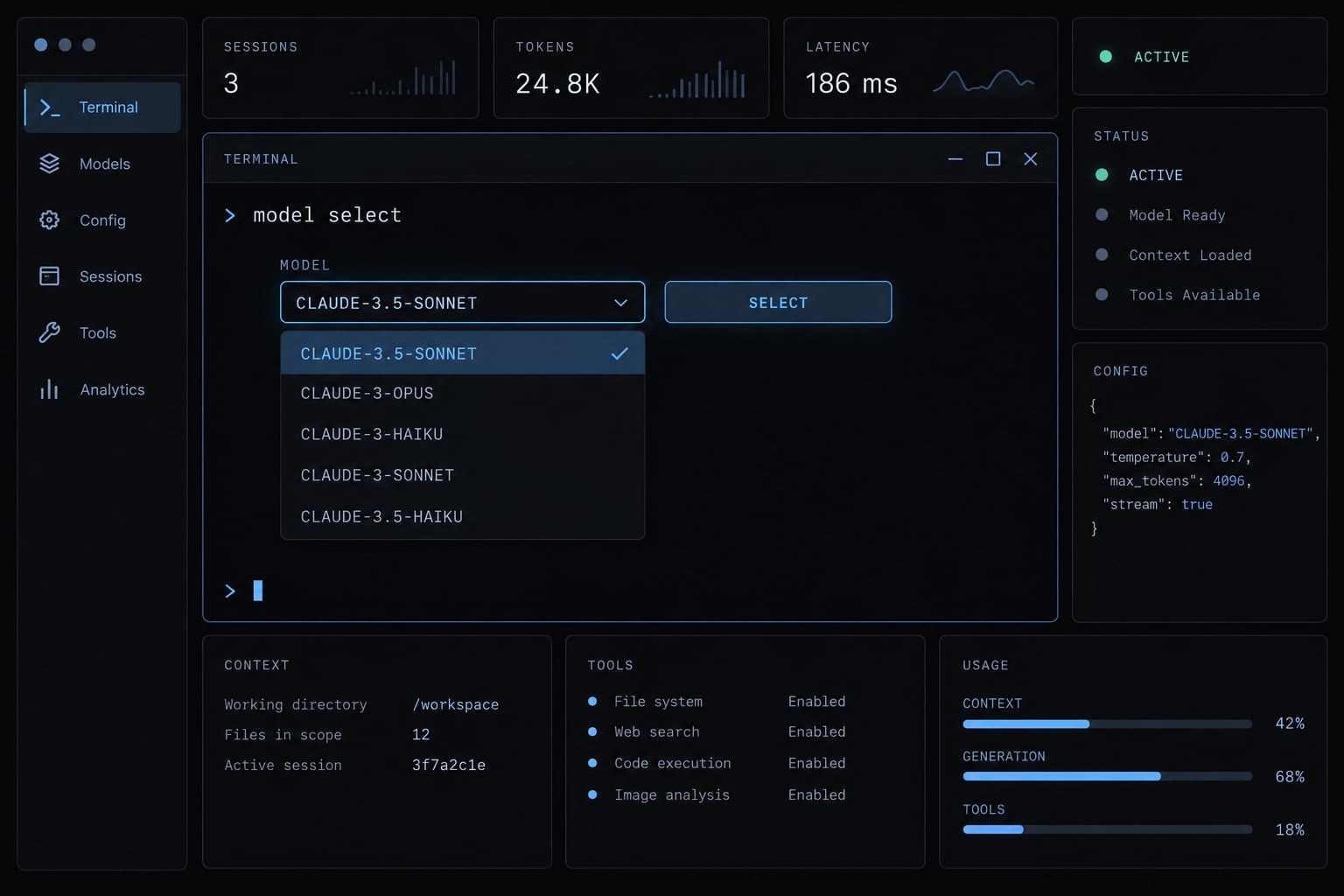
To change the model in Claude Code, run this inside Claude Code, not at your operating-system shell prompt:
/model
Select an available model, then check the selection:
/status
The Claude Code model configuration documentation describes interactive selection, startup overrides, and saved defaults. Use claude --model for a particular launch, settings.json for saved preferences, or ANTHROPIC_MODEL for environment-driven configuration. Model access depends on your account, provider, and organization restrictions.
Verification note: These instructions are not accompanied by an independently executed runtime test. Check your installed interface before relying on picker shortcuts or selection persistence.
Quick answer: Change the model with /model
How to change model in Claude Code using the interactive picker
The picker is the shortest path when you want to change models without restarting.
- Start Claude Code from your terminal if it is not running.
- Enter
/modelinside the Claude Code session. - Select an available option, reading any save or session-scope instructions.
- Enter
/statusand inspect the model information.
Operating-system shell:
claude
Inside Claude Code:
/model
After selecting:
/status
Switch directly with a model alias
When you know the model alias—a short model-family label—use:
/model sonnet
Alternatives include /model opus and /model haiku, subject to access.
Verify rather than assume: A selection label does not guarantee the provider will accept the next request. Do not assume every picker action is session-only; inspect its persistence instructions and check a fresh launch when that matters.
Choose the right Claude Code model configuration method
Goal | Method | Scope | Persistence | Example |
|---|---|---|---|---|
Change immediately | Interactive command | Active session; may save a preference | Check picker behavior |
|
Choose for one launch | Startup flag | Launched process | That invocation |
|
Save a personal default | User settings | Projects for your user | Until edited |
|
Share a repository default | Project settings | Repository | Until edited |
|
Keep a local project preference | Local settings | Your repository checkout | Until edited |
|
Configure automation | Environment variable | Inheriting processes | Depends where defined |
|
Restore default behavior | Remove the relevant override | Source you change | Depends on source | Remove the saved |
Choose your configuration scope based on how long you need the change and who it affects. Personal preferences and team repository defaults serve different purposes.
The Claude Code settings documentation distinguishes user, project, and local settings. A committed repository default is not necessarily enforced on every teammate. Environment-variable persistence depends on whether you define it in a terminal, shell profile, or automation platform.
Resetting an interactive choice and removing a persistent override are separate operations. Simple decision rule:
- Change now: Use the interactive command.
- Change one launch: Use the startup flag.
- Save a preference: Choose the appropriate settings file.
- Configure automation: Use an environment variable or explicit launch flag.
- Unsure what applies: Verify before continuing.
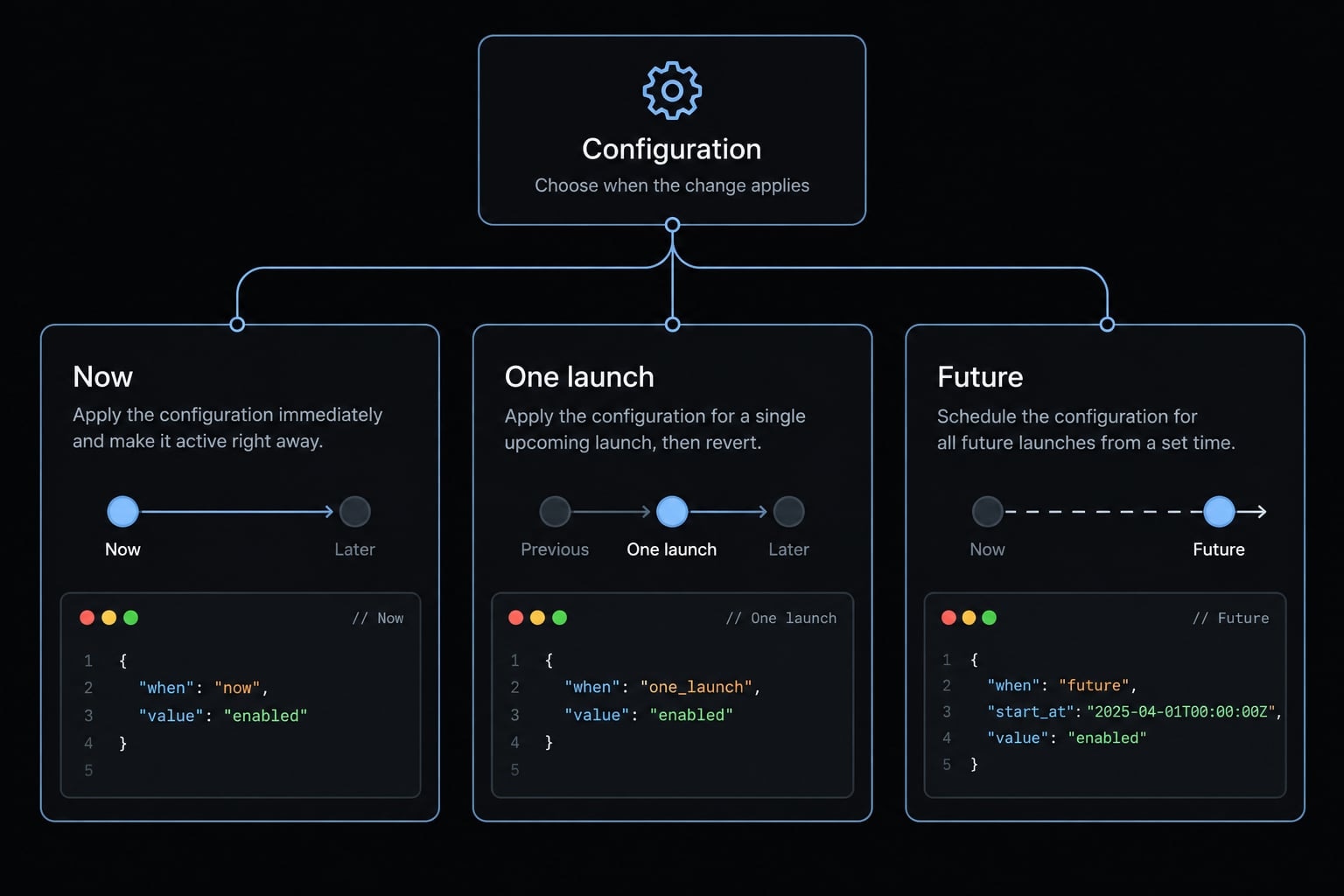
Change the model during an active Claude Code session
Change the model at the interactive prompt before submitting the next task. Do not expect a selection change to replace a response already being generated.
Use the interactive picker when availability is uncertain
Run /model without an argument when you do not know a supported option. The picker is a useful starting point for your environment, not an exhaustive guarantee of provider access.
Availability can differ by account, provider configuration, and organization policy.
Changing the selected model is also different from starting a new conversation. If you need a clean comparison between models, use separate conversations with equivalent instructions rather than comparing unrelated turns.
Use a direct alias when speed matters
The general syntax is:
/model <alias-or-model-name>
Replace the placeholder with your chosen model name; do not type the angle brackets.
For example, a developer investigating a difficult bug in a B2B SaaS repository can select another model before submitting the debugging task. That choice does not require editing the team’s repository settings.
After selection, run /status. If persistence matters, inspect the saved preference and verify again after a fresh launch.
How to change model in Claude Code at startup for one session
Run claude --model from your operating-system shell to select a model when starting Claude Code:
claude --model sonnet
To choose Opus instead, use claude --model opus as an alternative—not as a second required step. The Claude Code CLI reference describes --model as a launch option. It selects the model for that invocation without requiring a settings-file edit. It does not grant access to restricted models or bypass organization policy.
Alias versus exact model ID at startup:
Selection | Appropriate use | Limitation |
|---|---|---|
Alias | Routine development | Resolved version can change |
Exact supported ID | Version-controlled comparisons | Access, support, and retirement can change |
For an exact model ID, replace the alias with an identifier supported by your configured provider. Do not copy an old model identifier without checking availability. Exact IDs reduce version drift; they do not eliminate output variability.
After launch, enter /status inside Claude Code. Check the model information before beginning the task, especially when launching through a script or terminal shortcut.
Set a persistent default model in Claude Code
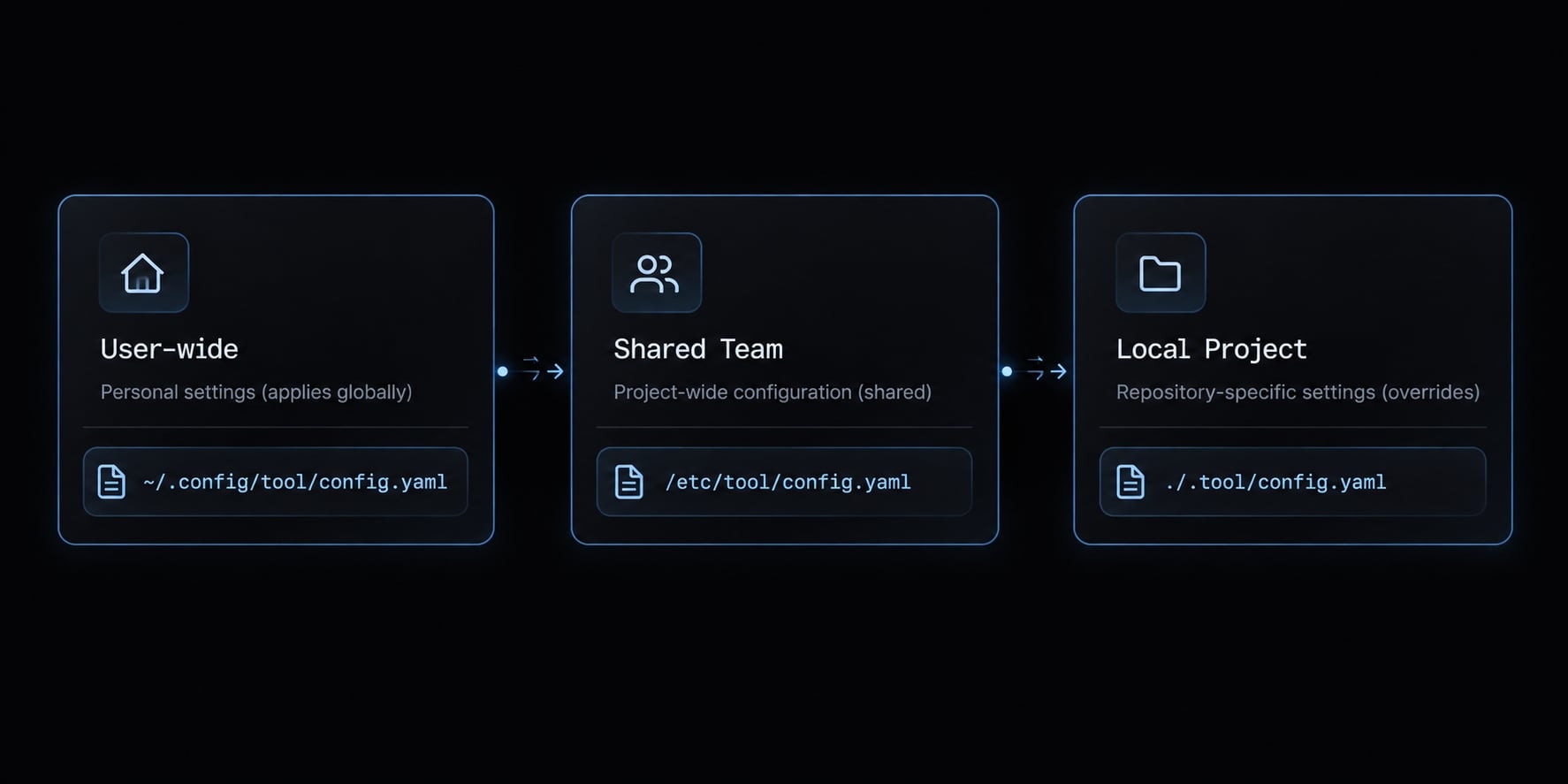
A persistent default saves your preference for future launches. Choose the file based on who should receive the setting.
Scope | File | Intended use | Version-control guidance |
|---|---|---|---|
User-wide |
| Personal preference across projects | Outside the normal repository |
Shared project |
| Repository-level team default | May be committed intentionally |
Local project |
| Personal preference for one repository | Verify exclusion from commits |
Project paths are relative to the repository root. The ~ symbol represents your user’s home directory. Use this minimal configuration:
{ "model": "sonnet"}
Merge the "model" property into existing JSON; do not blindly replace the file. Preserve permissions, environment settings, and other configuration. If "model" already exists, update it rather than adding a duplicate key. JSON does not allow explanatory comments or trailing commas.
Set a personal default for all local projects
Edit ~/.claude/settings.json when you want a user-wide preference. This avoids changing individual repositories. Other applicable settings and explicit model selections may take priority, so treat it as a default rather than a forced choice.
Set a shared default for one repository
Edit .claude/settings.json when a product team wants a common starting point. Commit the change intentionally and explain it in review. Teammates may have permitted local overrides, and organization controls still apply. Keep credentials and other secrets out of shared settings.
Create a private project-specific override
Edit .claude/settings.local.json when your preference should affect only your checkout. For the SaaS developer investigating a bug, this keeps the personal choice separate from the committed team default.
Check exclusion and repository status before committing:
git check-ignore .claude/settings.local.jsongit status --short
If the file is already tracked, ignore rules alone will not remove it from version control. “Local” does not mean encrypted or suitable for secret storage.
Set the model with an environment variable
Bash or Zsh:
export ANTHROPIC_MODEL="sonnet"
PowerShell:
$env:ANTHROPIC_MODEL="sonnet"
These commands affect the current shell environment and processes launched from it. They do not create permanent system-wide settings or retroactively update a running Claude Code process.
Persistent shell profiles and automation variables require separate configuration. Document where you define the variable so a future override is easy to locate.
Finally, start a fresh Claude Code process from the intended repository and shell. Run /status to confirm the resulting model selection.
Understand model aliases and choose the appropriate model
A model alias is a convenient label such as sonnet, rather than an exact version identifier. Its resolved model can change as defaults evolve or provider mappings differ. The Claude Code model configuration documentation describes these aliases; confirm availability in your own environment before standardizing a workflow.
Alias | Starting use case | What to evaluate |
|---|---|---|
| Consider for lighter, bounded work | Whether it meets the task’s correctness requirements |
| Consider for routine implementation | Code quality and fit with repository conventions |
| Consider for demanding reasoning tasks | Whether the result justifies the resource use |
These are starting hypotheses, not guaranteed performance rankings. Evaluate models on representative tasks with clear acceptance criteria. A larger model is not automatically the right choice for every edit.
When to use an exact model name
Use an exact supported identifier when you need:
- Controlled comparisons with the model version recorded.
- A workflow that explicitly specifies its model version.
- An identifier accepted by the configured provider.
- A clear process for checking retirement and availability.
Aliases are often easier to maintain. Exact IDs provide tighter version selection, but neither guarantees identical outputs.
For a shared repository, record why a version was chosen and when it should be reassessed. This makes later changes deliberate rather than accidental.
Verify the active model and troubleshoot overrides
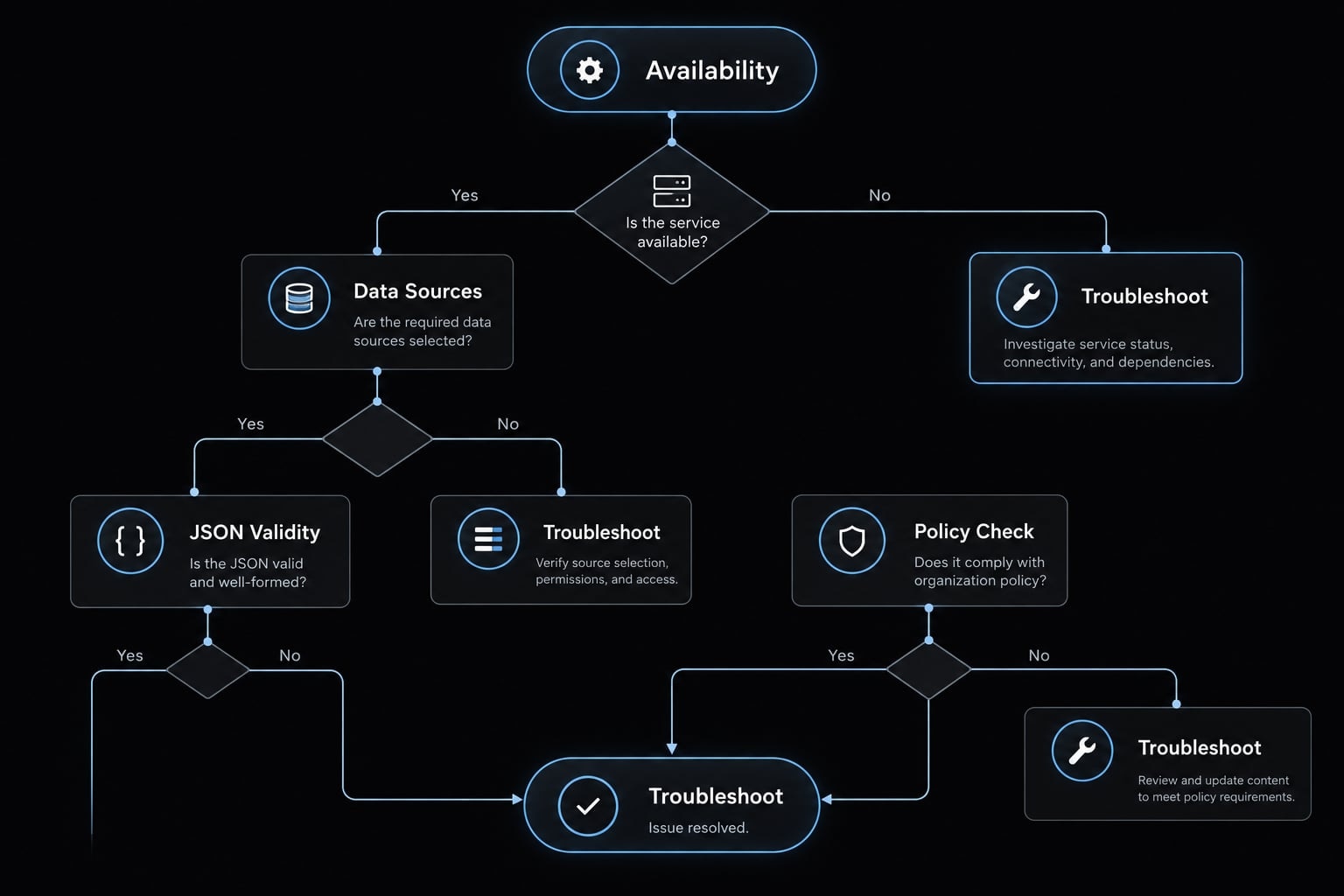
Run /status inside Claude Code first. Inspect its model information; do not assume it provides a complete trace of every configuration source.
An unexpected selection can reflect another override, invalid configuration, unavailable access, or organization restrictions. The following is a configuration diagnostic checklist, not a reproduced incident report.
Symptom | Likely cause | Next action |
|---|---|---|
Selection appears unchanged | Selection was not applied or accepted | Reopen |
User default is ignored | Another selection source applies | Check launch flags, environment, and project files |
Desired model is missing | Account or provider limitations | Confirm supported models for your route |
Settings file appears ineffective | Wrong path, invalid JSON, or override | Check repository location, syntax, and other sources |
Local and remote behavior differs | Different environments or configurations | Compare relevant variables, files, and providers |
Exact model ID is rejected | Unsupported, retired, or incorrect identifier | Confirm the provider’s accepted identifier |
Organization restricts choices | Managed configuration or access policy | Ask the administrator which models are permitted |
Practical verification sequence
- Inspect the model information using
/status. - Open
/modeland inspect the available choices. - Check the actual launch command, including wrapper scripts.
- Inspect
ANTHROPIC_MODELand any intentionally configured alias mappings. - Inspect user, shared project, and local project settings.
- Validate JSON separately; use
claude doctorfor installation and general diagnostic checks. - Review managed restrictions and repeat the check in a fresh session.
Inspect only the relevant variable—not your entire environment, which may contain credentials.
Bash or Zsh:
printenv ANTHROPIC_MODEL
PowerShell:
$env:ANTHROPIC_MODEL
Configuration precedence without the complexity
Separate two questions:
- Model selection: Which interactive, startup, environment, or configured choice applies?
- Settings precedence and policy: Which file scope wins, and which choices are permitted?
Managed settings can restrict selection. A local preference is not permission to bypass those restrictions. If a default option is available, selecting it does not necessarily delete a saved "model" property, unset an environment variable, or remove a launch flag. Change the underlying source when you want a lasting reset.
Frequently asked questions
How do I change the Claude model during an active session?
Run the /model command directly in your interactive prompt. You can choose a model from the interactive picker menu that appears, or type an alias like /model sonnet to switch immediately without opening the menu.
Can I set a different model for just one launch?
Yes. Use the --model flag when starting Claude Code from your terminal. For example, running claude --model opus will launch the session using the Opus model for that specific instance, without affecting your permanent configuration files.
How do I set a default model for all future sessions?
You can set a persistent default by adding the model key to your settings file. For a personal preference across all projects, edit ~/.claude/settings.json. For a team-shared default, add it to .claude/settings.json within your project repository.
How can I verify which model is currently active?
Run /status inside an active session and inspect the model information it shows. It does not necessarily trace which configuration source produced that selection — check the sources separately if the result is unexpected.
Why is my model selection not applying?
Work through the sources rather than assuming an order: Check the actual launch command including wrapper scripts, then ANTHROPIC_MODEL, then user, shared, and local project settings, then managed restrictions. Validate JSON separately, and repeat the check in a fresh session.
Read more:
- Claude Code MCP configuration: A practical setup guide
- How to update Claude Code Plugin: A step-by-step guide
- How to Update Claude Code: The fastest method for every install
Conclusion
Changing the model in Claude Code comes down to choosing the right tool for your specific workflow scope-use the /model command for instant session changes, claude --model for single launch overrides, settings files for saved project or user defaults, and ANTHROPIC_MODEL for environment-driven automation.
Whether you use convenient aliases or exact model IDs, always run /status to verify your active configuration. Keeping your interactive choices, persistent preferences, and organizational policies clearly separated ensures your setup remains reliable without unintentionally affecting your team's workflow.