Claude Code WSL setup: Install, configure and fix issues
Claude Code WSL setup: Install, configure and fix issues
You can run the Claude Code CLI inside any supported Linux distribution on WSL 2. For optimal performance, keep your runtime, development tools, and active repositories together in the same Linux environment. This guide walks you through setting up WSL 2, installing Claude Code, verifying access, and troubleshooting common issues.
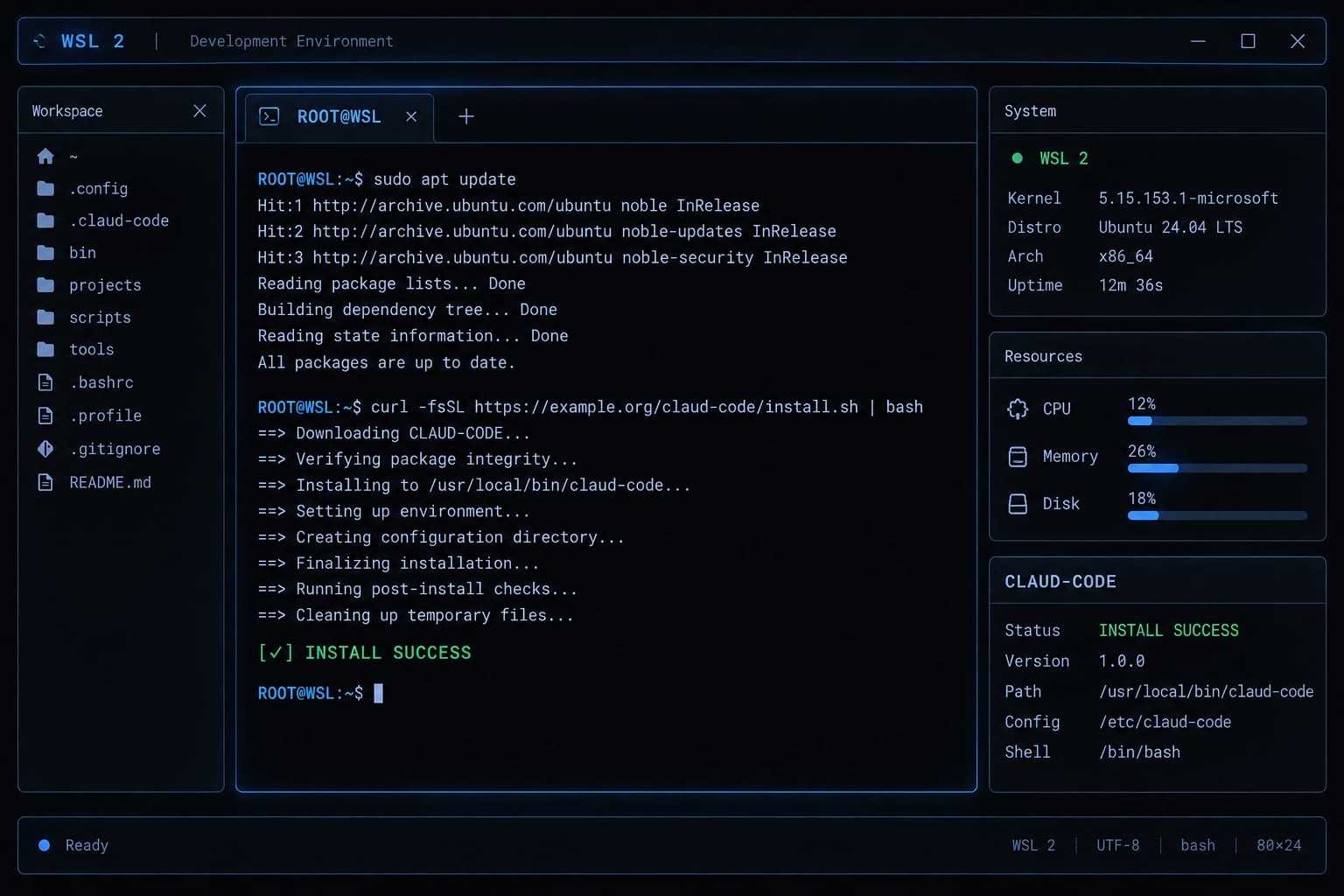
Can you run Claude Code in WSL 2?
Yes. Windows Subsystem for Linux (WSL) provides a Linux environment on Windows. It suits projects that depend on Linux shell tools, package managers, or deployment workflows. Native Windows installation is also an option; WSL is not mandatory for every Windows developer.
Browsing \\wsl.localhost\... exposes Linux files to Windows applications. It does not make a Windows process execute inside Linux. Conversely, Windows Terminal can host a genuine WSL shell.
Environment rule: The terminal window’s appearance does not determine the runtime. Check where commands execute and which tools they resolve.
Supported Windows editor access is not inherently wrong. Microsoft’s WSL documentation distinguishes Windows–Linux interoperability from execution inside a distribution.
Requirements before installing Claude Code in WSL
Prepare the selected distribution first. Windows-side Git or other tools do not automatically provide their Linux equivalents.
Component | Where it runs | Needed for this guide? | Purpose |
|---|---|---|---|
Supported Windows and WSL environment | Windows host | Yes | Hosts the WSL 2 distribution |
Supported Linux distribution | WSL 2 | Yes | Runs Claude Code and shell tools |
Git | Inside WSL | Yes | Supports the repository workflow |
| Inside WSL | Yes, for the installer route | Downloads installation resources |
Supported authentication and access | Claude account or configured provider | Yes | Authorizes model use |
VS Code WSL integration | Windows editor connected to WSL | Optional | Provides WSL-aware editing |
Check Anthropic’s Claude Code: Setup and Authentication documentation for current operating-system requirements and access options. A Claude account alone does not establish Claude Code entitlement. Confirm network access and organizational approval too.
Node.js is not a universal prerequisite for the native installer. Your application may require it separately.
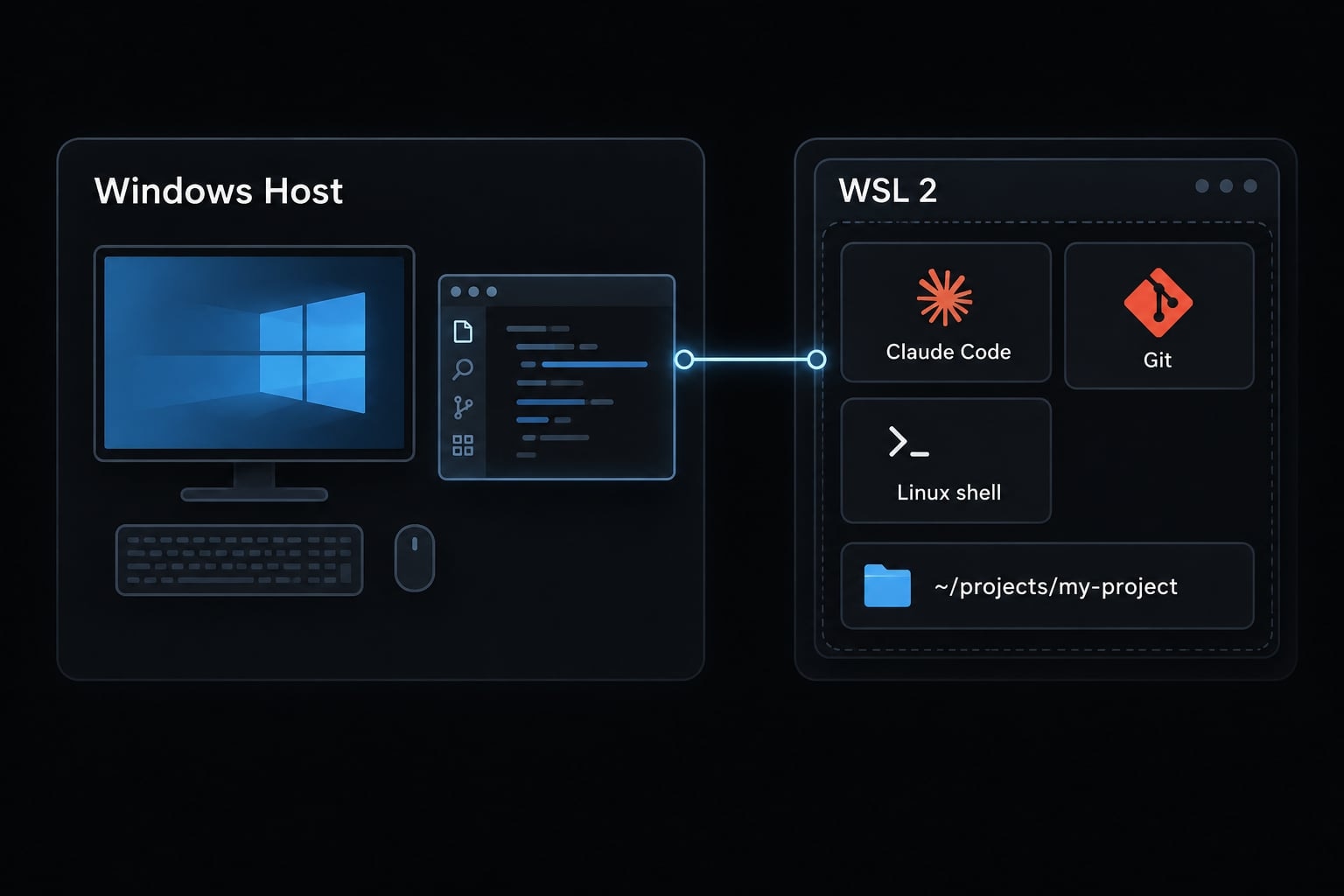
Verify that the distribution uses WSL 2
PowerShell - Windows
wsl --list --verbose
The selected distribution should show 2 in the VERSION column. This refers to the WSL version generation, not the Ubuntu distribution version or the installed WSL package version. If no distribution exists, follow Microsoft’s Install WSL instructions. For conversion, save work, back up important files, and use the exact distribution name.
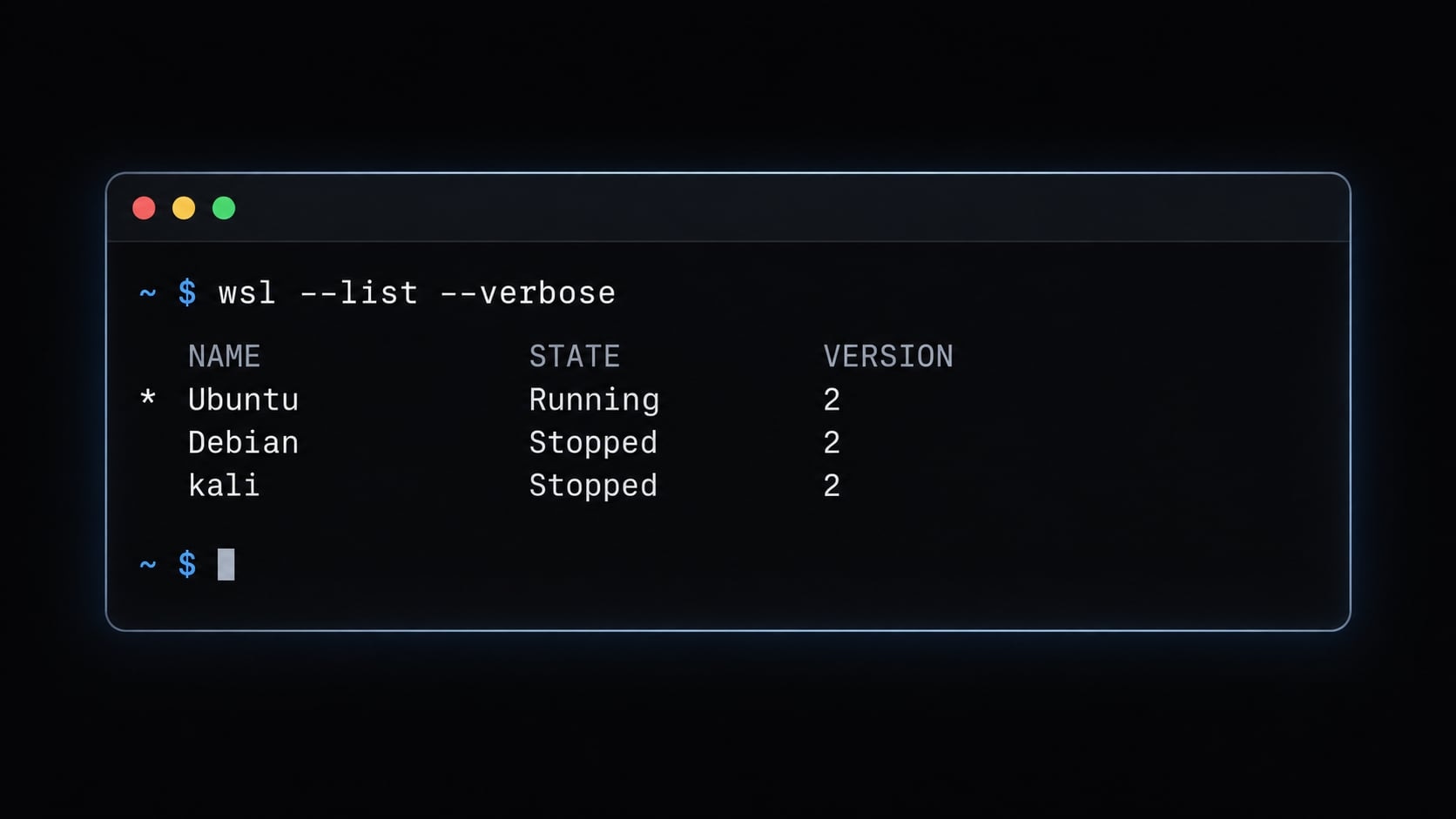
Update the distribution and install Git and curl
WSL terminal - Ubuntu/Debian
sudo apt updatesudo apt install -y git curlgit --versioncurl --version
apt update refreshes package metadata; it does not upgrade every installed package. Other distributions use different package managers.
How to install Claude Code in WSL 2
Install Claude Code in WSL using the Linux shell, rather than a PowerShell tab.
- Open the selected WSL distribution.
- Run the official Linux installer.
- Reopen the shell and verify command resolution.
- Create or clone a Linux-hosted project.
- Launch Claude Code and authenticate.
- Configure Git identity if needed.
Step 1 - Open the WSL distribution
Open your distribution’s terminal profile, then inspect the environment.
WSL terminal - Linux
uname -aecho "$SHELL"pwd
Linux kernel output establishes a Linux runtime. $SHELL normally identifies your configured login shell, such as Bash, rather than proving which shell currently executes commands.
pwd shows your location. A result beginning with /mnt/c/ is a Linux-formatted path pointing to Windows-mounted storage.
Step 2 - Install Claude Code with the official Linux installer
Open Anthropic’s official Claude Code: Setup documentation and locate the native Linux installation instructions. Copy the current installer command into your WSL terminal.
Use the official documentation rather than a third-party mirror or an old npm-based tutorial. Because the native installer downloads and executes software, ensure you follow your organization’s security and script-review policies.
Run it as your normal WSL user. Do not add sudo unless the official instructions specifically require it. Wait for installation to finish and read any shell-configuration instructions it prints.
Step 3 - Reload the Shell and verify the command
Close and reopen the distribution’s terminal. Then check what your shell finds.
WSL terminal - Linux
command -v claudeclaude --version
The first command should identify the intended Linux-side installation or launcher. The second should print a version string. PATH is the shell’s executable search path. Reopening a terminal can load updated configuration, but it does not repair every PATH problem. Investigate unexpected Windows-mounted results before continuing.
Step 4 - Create or Clone a project inside WSL
For a new internal engineering tool, create the example repository:
WSL terminal - Linux
mkdir -p ~/projects/my-projectcd ~/projects/my-projectgit init
For an existing project, clone your actual repository into ~/projects, then enter its directory. Private repositories require separately configured credentials. Do not assume Windows-side authentication automatically carries over.
Step 5 - Launch and authenticate Claude Code
From the project root:
WSL terminal - Linux
claude
Follow the displayed Claude Code authentication instructions. Available flows depend on account access, provider configuration, and organizational settings.
Review workspace trust and tool-permission prompts. Authentication establishes service access; it does not automatically authorize every local operation. Begin with inspection rather than edits.
Step 6 - Configure Git identity if needed
Git needs a commit name and email when you create commits. Replace the example values before running these commands.
WSL terminal - inside ~/projects/my-project
git config --local user.name "Your Name"git config --local user.email "your-work-email"
Repository-local settings affect this project only. --global instead changes defaults for all repositories belonging to that WSL user.
To roll back, restore previous values or remove newly added keys with git config --local --unset user.name and the corresponding email command. Commit identity does not configure SSH keys or remote access tokens.
Store Claude Code projects in the WSL file system
Prefer Linux-native storage when Claude Code and your development tools execute inside WSL. Microsoft’s Working across Windows and Linux file systems guidance recommends matching file storage to the operating environment.
This can improve file-heavy Git, dependency, search, and build operations. It does not guarantee faster model responses or eliminate all file-watching problems.
Location | Example | Recommendation | Practical implication |
|---|---|---|---|
Linux-native repository |
| Preferred for WSL development | Keeps Linux tools close to project files |
Windows-mounted repository |
| Usable; assess workload | Cross-file-system access can add overhead |
Windows access to Linux files |
| Use supported integration | An access method, not separate storage |
Move or Re-clone a repository into WSL
Preserve local work before migration. Check uncommitted changes, untracked files, local-only branches, unpublished commits, and ignored configuration.
WSL terminal - inside the existing repository
git status --short --branchgit branch -vv
These checks are a starting point, not a complete backup. Re-cloning retrieves remote content; it does not transfer everything on your machine.
Keep the original until the Linux-hosted project passes your checks. Restore required configuration securely, then recreate platform-specific dependencies and build artifacts using the project’s documented setup. Do not delete the originals before confirming recoverability.
Open the WSL Project in VS Code
Install VS Code on Windows and its WSL extension. With working command-line integration:
WSL terminal - Linux
cd ~/projects/my-projectcode .
Check VS Code’s WSL connection indicator. The editor window runs on Windows, while the connected development environment uses WSL.
This distinction matters more than the window’s appearance. See Microsoft’s Developing in WSL documentation for editor setup.
Verify that Claude Code is running correctly
Use observable checks rather than treating a successful launch as complete validation. The results below are expected conditions, not captured test output.
Check | Command and environment | Expected result |
|---|---|---|
Distribution uses WSL 2 | PowerShell: | Selected distribution shows |
Repository is Linux-native | WSL: | Intended location under |
Git is available | WSL: | Git version appears |
Claude resolves correctly | WSL: | Intended Linux installation or launcher |
Claude returns a version | WSL: | Version string appears |
Git recognizes the project | WSL: | Expected repository root |
Authenticated request succeeds | WSL: launch | Response without authentication or entitlement errors |
Custom mounts and symbolic links can complicate storage checks; a pathname alone is not absolute proof of the underlying file system.
Minimal first-run test:
Submit:
Summarize this repository’s structure and identify likely application entry points. If it is empty, say so. Do not modify files.
Review proposed commands and workspace permissions. An empty my-project should produce an honest empty-repository assessment.
“Do not modify files” is an instruction, not an enforced sandbox. Launching the interface alone also does not prove working model access.
Common Claude Code WSL problems and fixes
Start with the environment, executable, and repository location. Similar symptoms can arise from different causes, so avoid reinstalling or changing permissions before identifying the failing operation.
Symptom | Likely cause | Diagnostic | Recommended next action |
|---|---|---|---|
Claude Code command not found | Installation incomplete or directory absent from PATH | WSL: | Confirm installation location, then follow its shell-setup instructions |
Unexpected executable | Alias, function, or competing installation | WSL Bash: | Identify the winning candidate before changing configuration |
Slow Git, search, or scanning | Windows-mounted storage or workload size | WSL: | Evaluate Linux-native storage before resource tuning |
Permission denied | Specific ownership, mode, or policy restriction | Read the failing operation; inspect the affected path | Correct only the confirmed issue or consult its owner |
Git failure | Missing Git, invalid repository, identity, or remote credentials | Run Git version and repository checks separately | Address the particular failure; identity is not authentication |
Browser login incomplete | Browser handoff, account access, or network issue | Read the displayed authentication status | Retry the supported flow; copy a login URL manually only when offered |
Desktop WSL session unavailable | Release capabilities, distribution selection, or policy | Check current Desktop documentation and installed version | Confirm support rather than assuming a universal WSL picker |
MCP server fails | Missing executable or environment-specific configuration | Inspect the configured executable and paths inside WSL | Correct server configuration for its actual runtime |
MCP (Model Context Protocol) connects Claude Code with external tools and data sources. A server that works on Windows may not work unchanged inside WSL. There is no universal wrapper that fixes every server.
Avoid posting full environment dumps, authentication logs, or configuration files. They can contain credentials. A distribution marked Stopped is not necessarily faulty; WSL can start it on demand.
Fix slow startup or freezing in WSL
When Claude Code is slow in WSL, investigate in this order:
- Check project location: Determine whether file-heavy work crosses into
/mnt/c/. - Check executable resolution: Confirm the intended installation launches.
- Inspect shell initialization: Slow prompts, startup scripts, or network-dependent shell plugins can delay commands.
- Separate local and remote delays: Compare terminal startup, CLI launch, and the first authenticated request.
- Apply issue-specific fixes only with matching evidence: Confirm affected versions, symptoms, and a rollback procedure.
A slow response after login may involve network or service latency rather than disk performance. Do not disable security tools to test an unsupported theory. For suspected Bash startup delays, compare a temporary shell without startup files:
WSL terminal - Bash
bash --noprofile --norc
This child shell still inherits environment variables. Exit it to return; it is a diagnostic, not a clean-environment guarantee.
Avoid mixed Windows and Linux installations
WSL terminal - Bash
type -a claudecommand -v git
Windows and Linux installations can coexist. The goal is to ensure predictable executable resolution, without needing to modify or remove the Windows PATH entirely.
Inspect aliases, functions, and startup-file entries before editing them. Back up the relevant file and record the exact line changed. Restore that line or backup to roll back, then open a fresh terminal.
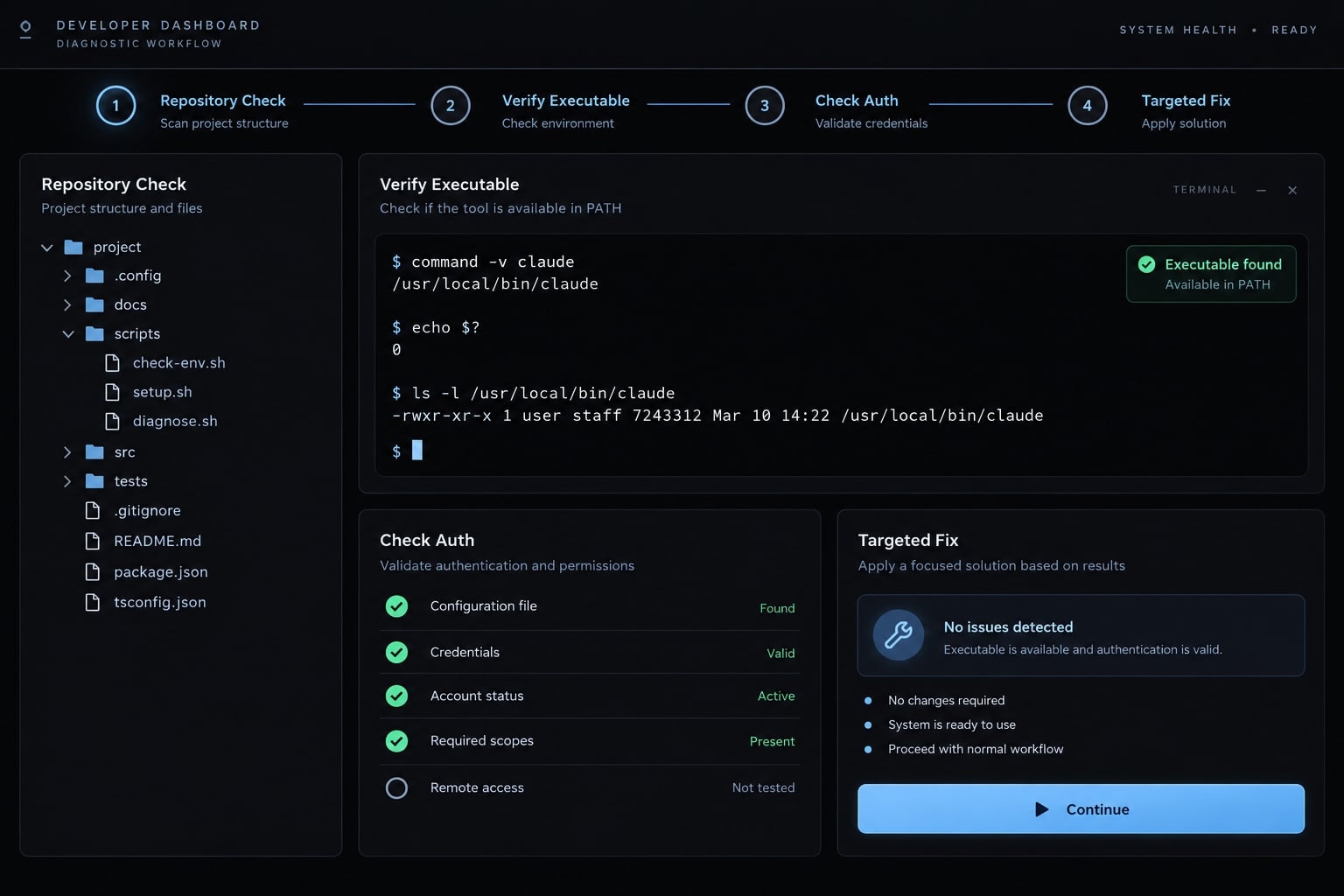
Claude Code CLI vs. Claude Desktop WSL sessions
The CLI launches directly inside your selected shell. Desktop is a separate interface: available execution environments, project selection, and editor handoff depend on its release and configuration.
Consult Anthropic’s Claude Code on desktop documentation for your installed version. Do not assume that opening a Linux folder in a graphical application means its tools execute inside WSL.
Dimension | Claude Code CLI in WSL | Desktop interface |
|---|---|---|
Launch | Run | Launch the supported Desktop application |
Runtime | Selected Linux distribution | Confirm the session’s documented runtime |
Project selection | Start from the repository directory | Use supported project-selection controls |
Best fit | Direct shell control and terminal workflows | Graphical session management |
Editor integration | WSL-aware editor connection | Check release-specific handoff support |
Trust and permissions | Review CLI prompts and settings | Review Desktop session controls separately |
Limitations | Requires Linux-side setup | Capabilities vary by release and device policy |
Which option should you use?
- Choose the CLI when you need an explicit shell, executable path, and working directory.
- Choose Desktop when your installed release supports the graphical workflow and execution environment you need.
- Keep repositories Linux-native when the chosen session actually executes tools inside WSL.
A Claude Desktop WSL session should be confirmed through documented runtime information-not inferred from a folder path. Workspace trust is not automatically security isolation.
Recommended Claude Code WSL configuration
These Claude Code WSL best practices keep the setup predictable without adding unnecessary customization:
- Use WSL 2 with a distribution covered by current Claude Code requirements.
- Install Linux-side tools and verify Claude Code and Git resolve as intended.
- Keep active repositories Linux-native, normally under
~/projects. - Connect editors through WSL integration, checking the active environment before running tasks.
- Minimize shell customization and document changes that affect executable lookup or startup.
- Keep permissions conservative; do not run Claude Code as root or bypass safeguards for convenience.
- Exclude secrets from committed configuration and review files before sharing diagnostics.
- Make workarounds reversible, preserving previous settings and documenting removal.
- Record team setup checks and versions, including update procedures and security maintenance.
Treat this as a maintenance baseline, not a mandate to freeze every version indefinitely. Recheck installation and authentication guidance after significant updates. Do not distribute credentials or blindly copy another developer’s trust decisions.
Optional next step - Standardize reusable Claude Code workflows
Standardize workflows only after the installation and verification checks succeed. Start with reusable project instructions, agent skills, specialized subagents, and reviewable development workflows.
AgentKit is an optional resource for organizing reusable skills, subagents, and workflows across supported coding tools. It is not required to run Claude Code in WSL. Review any imported configuration before use, especially instructions that launch commands or connect external services, and keep project-specific permissions under your control.
Frequently asked questions
Can I run Claude Code directly inside WSL 2?
Yes, you can run Claude Code natively within a WSL 2 distribution. For the best performance and compatibility, it is recommended to execute the tool directly inside your Linux environment rather than attempting to bridge it from Windows-hosted files or PowerShell.
Why is Claude Code slow when working with files in WSL?
The primary cause of performance degradation is targeting repositories stored on the Windows file system (e.g., /mnt/c/). This forces the tool to use the 9P translation protocol, which significantly slows down file indexing, search, and git operations. Always store your project files within the Linux root file system (e.g., ~/projects/).
Do I need to install Node.js separately for Claude Code in WSL?
No, the official Linux installer for Claude Code manages its own dependencies and isolated runtime requirements. You do not need to manually configure a global Node.js environment on your Linux distribution, as the installer handles the setup for its specific execution context.
What is the difference between Claude Desktop and Claude Code CLI?
The CLI is a terminal-based interface best suited for direct shell control and automated workflows. The Claude Desktop app with WSL integration provides a graphical interface that handles environment handoffs and integrates with your editor, but both rely on the same core agentic tooling.
How do I troubleshoot "command not found" in WSL?
First, verify that your Linux distribution is running in WSL 2 mode. Then, confirm your shell's executable search path by running command -v claude. If it is missing, verify that the installation completed successfully inside the WSL terminal and that the shell was reloaded.
Is WSL 2 required, or can I use WSL 1?
WSL 2 is strictly required. WSL 1 lacks the full Linux kernel and system call support necessary for Claude Code to handle complex agentic tasks, git operations, and file-system watching effectively. If your distribution is on WSL 1, you must upgrade it using the wsl --set-version command.
How do I authorize Claude Code for private repositories?
Claude Code relies on the Git identity and SSH or HTTPS credentials configured within your WSL environment. Ensure your Git global or local identity is set and that your SSH keys are added to your SSH agent inside the Linux distribution, just as you would for any other Linux-based development tool.
Read more:
- Claude Code Windows: How to install, set up, and fix issues
- Claude Code install guide: Official setup steps for all OS
- Claude Code Linux: CLI vs Desktop Installation Guide
Conclusion
A reliable Claude Code setup in WSL 2 relies on keeping your active repository, CLI, and development tools entirely within the Linux file system. Always verify executable resolution, Git recognition, and authentication from your project root before writing code. When issues arise, verify file locations and command paths first before attempting complex fixes, as permissions, authentication, and credentials operate as distinct boundaries.